


When you're editing photos, shooting with a camera, or optimizing images for websites, image artifacts can significantly degrade visual quality and user experience. These unwanted distortions come in many forms, from noise and blur to JPEG artifacts and other common photography artifacts that make images look unnatural or low-quality.
In most cases, image artifacts are caused by factors such as compression, camera limitations, or improper editing techniques. The good news is that even if your images are affected by any type of artifacting, there are effective ways to remove artifacts from images and even prevent these issues with the right tools and workflow.
Struggling with image artifacts like noise, blur, or JPEG artifacts that make your photos look low-quality or unprofessional? Instead of manually fixing each issue, you can use an AI-powered solution to automatically detect and remove different types of digital artifacting in just a few clicks.
Aiarty Image Enhancer offers an easy way to clean up artifact photos, reduce noise and grain, fix compression artifacts, correct plain colors, remove unwanted distortions, and restore sharp, natural-looking details, making it ideal for photographers, designers, and anyone optimizing images for web or social media.
What Are Image Artifacts?
Image artifacts refer to any unwanted or unnatural visual distortions that appear in an image but were not present in the original scene. These distortions are typically introduced during various stages of the digital imaging process, including image capture, compression, editing, or transmission.
In simple terms, image artifacts are visual errors that reduce the quality and accuracy of a photo. They can appear in many different forms, depending on how the image is created or processed. These distortions can negatively impact several key aspects of an image, including:
- Sharpness
- Color accuracy
- Texture detail
- Overall realism
In modern digital workflows, image artifacts are especially common because images are frequently compressed (such as JPEG artifacts), resized for different platforms, or enhanced using editing software and AI tools. Each of these steps can introduce or amplify different types of artifacts if not handled carefully.
Common Image Artifacts Types (With Examples)
Now let’s explore the most common types of image artifacts, along with detailed explanations and typical artifact photos scenarios.
1. JPEG Artifacts (Compression Artifacts)
JPEG artifacts are the most widely encountered form of digital artifacting, especially in images that have been compressed for web use or repeatedly saved in a lossy format. JPEG images rely on lossy compression algorithms, which reduce file size by permanently discarding some image data. As the compression level increases, more data is removed, leading to a gradual decline in image quality. This is especially noticeable when images are saved multiple times.
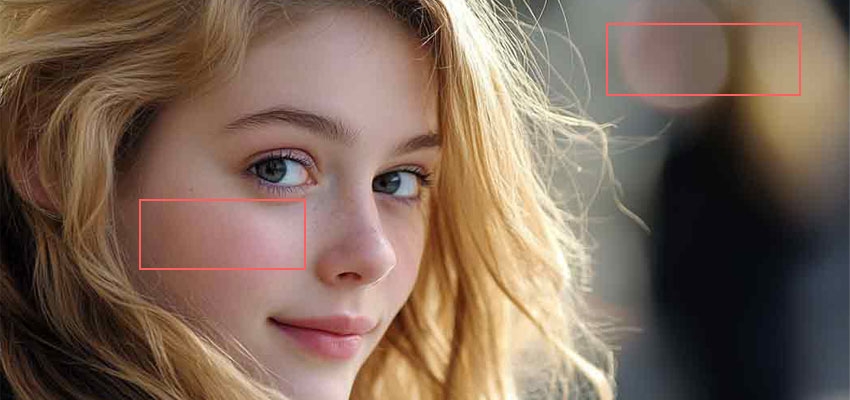
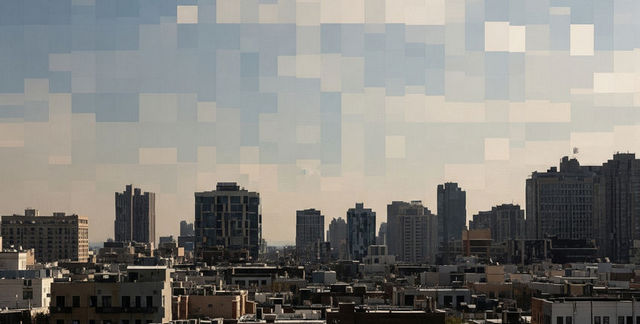
JPEG artifacts will cause blocky or “pixelated” areas (macroblocking), blurred edges, loss of fine detail, and visible compression patterns. For example, a blue sky showing square blocks instead of smooth gradients, or portrait edges looking “dirty” or smeared.
Because JPEG compression artifacts are so widely used (especially online), this type of artifact often overlaps with other issues like banding and color distortion, which we’ll explore next.
2. Noise (Digital Grain)
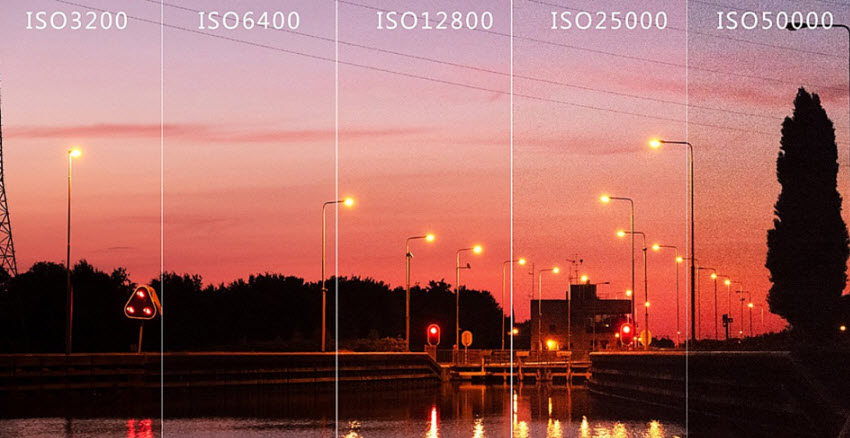
Noise, often referred to as digital grain, is one of the most common and easily recognizable photo artifacts, particularly in images captured under challenging lighting conditions. This kind of image artifacts will introduce random colored speckles scattered across the image, rainy or rough texture in shadow regions, and in some cases, noise can obscure fine details and make the image look less sharp and less professional.
Noise is typically introduced during image capture and is closely related to camera settings and hardware limitations, including:
- High ISO settings, which amplify the sensor signal but also increase unwanted noise.
- Small camera sensors, commonly found in smartphones or entry-level cameras, which are less capable of handling low light.
- Low-light shooting conditions, where the camera struggles to gather enough light, leading to increased signal interference.
3. Blur
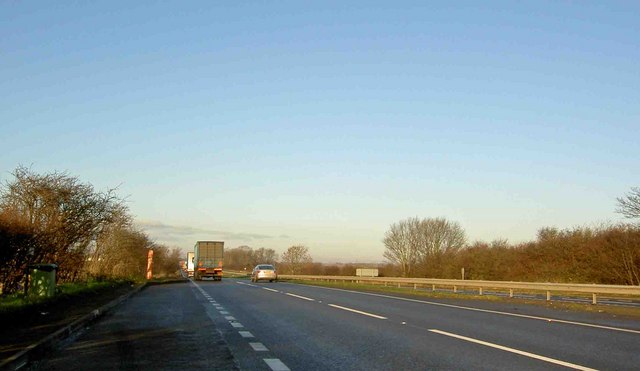
Blur, or image blurriness, is one of the most noticeable forms of artifacting image quality loss, as it directly affects how sharp and clear a photo appears. It typically results in soft or out-of-focus areas, loss of fine details, and a “smudged” or slightly stretched look.
Blur can be introduced at different stages of the imaging process, including camera motion (motion blur) during handheld shooting, focus errors, low shutter speed, image upscaling or resizing, as well as compression and processing. As blur can significantly reduce visual detail, it’s important to remove this artifact from images.
4. Banding (Color Banding)
Banding occurs when smooth gradients break into distinct, visible steps, rather than appearing as continuous transitions. This image artifact is most noticeable in skies, shadows, or areas with gradual color changes, where it creates a series of stripes or bands instead of a smooth blend.
Banding is usually caused by limited color depth, such as 8-bit images, over-compression during file saving, or heavy post-processing, particularly when adjusting contrast or exposure. For example, a sunset photo may show clear horizontal stripes across the sky instead of a natural gradient.
Banding often appears alongside JPEG artifacts, especially when images are compressed multiple times, making it a common companion to other digital image quality issues.
5. Aliasing and Moiré Patterns
Aliasing and moiré patterns are classic camera artifacts that occur when a sensor struggles to capture fine repetitive details. Aliasing can produce jagged edges or unusual patterns, while moiré manifests as wavy, ripple-like distortions that are often accompanied by strange color interference.
These photo artifacts commonly occur in repetitive textures, such as fabric patterns, grids, or architectural details, and are exacerbated by sensor resolution limitations. A real-world example is clothing with tight stripes or grids, which may display rainbow-like distortions across the pattern when photographed.
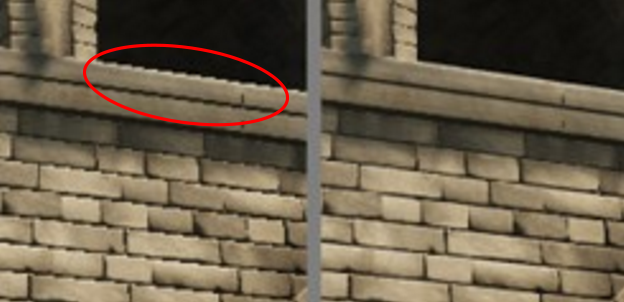
6. Chromatic Aberration (Color Fringing)
Chromatic aberration, a.k.a., color fringing, is an optical artifact caused by a lens’s inability to focus all wavelengths of light at the same point. It typically appears as purple, green, or blue fringes along high-contrast edges in a photo.
This image quality issue is most noticeable in situations with strong contrast, such as tree branches against a bright sky or architectural lines against a bright background. Chromatic aberration is common in artifacts in photography, particularly when using budget lenses or shooting wide open at large apertures. While subtle, it can distract viewers and reduce overall image sharpness and clarity.
7. Haloing (Sharpening Artifacts)
Haloing occurs when over-processing, especially over-sharpening, creates bright or dark outlines around edges in an image. These halos are not part of the original scene and can make objects appear unnaturally glowing or outlined.
Haloing is usually caused by excessive sharpening or aggressive clarity and structure adjustments in post-processing. For example, buildings in architectural photos or facial features in portraits may display unnatural glowing edges when haloing occurs. Controlling sharpening intensity and using selective edge enhancement can help minimize this artifact.

8. Pixelation
Pixelation is a highly visible form of artifacting image quality loss, where the individual pixels of an image become discernible. This artifact results in a blocky, low-detail appearance that makes images look artificial or stretched.
Pixelation is commonly introduced by enlarging low-resolution images or excessive cropping, which spreads pixels over a larger area without adding detail. Once pixelation occurs, it can be very difficult to fully restore image quality, making prevention and proper resolution management critical.
How to Remove Artifacts from Images Easily?
Dealing with image artifacts such as noise, blur, JPEG artifacts, banding, or color fringing can be frustrating, especially when they reduce sharpness and detail in your photos. Whether you are a professional photographer, content creator, or eCommerce manager, manually correcting each issue can be time-consuming and requires advanced editing skills.
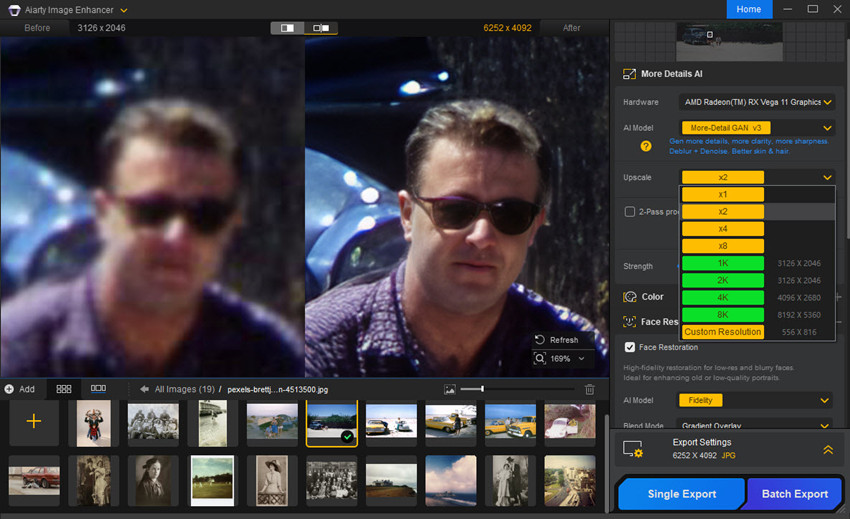
Thankfully, Aiarty Image Enhancer provides an easy, AI-powered solution to remove multiple types of digital artifacting in just a few clicks, while preserving natural textures and fine details.
- Automatic Artifact Detection: The AI engine automatically identifies common artifacts in photography, including noise, grain, blur, JPEG compression patterns, pixelation, and more.
- Preserves Image Quality: Aiarty enhances clarity while keeping the original textures and details intact.
- Correct plain colors: Adjust color settings like contrast, exposure, saturation, white, black, etc. to get vivid visuals.
- Supports Batch Processing: 1 click to fix multiple artifact photos at once, saving hours of editing time and manual settings.
How to Fix Common Image Artifacts Step by Step
Step 1. Import Your Image
Upload any photo affected by image artifacts, whether it’s a smartphone capture, DSLR shot, or scanned image. Aiarty Image Enhancer supports almost all artifact photos in common photo formats.
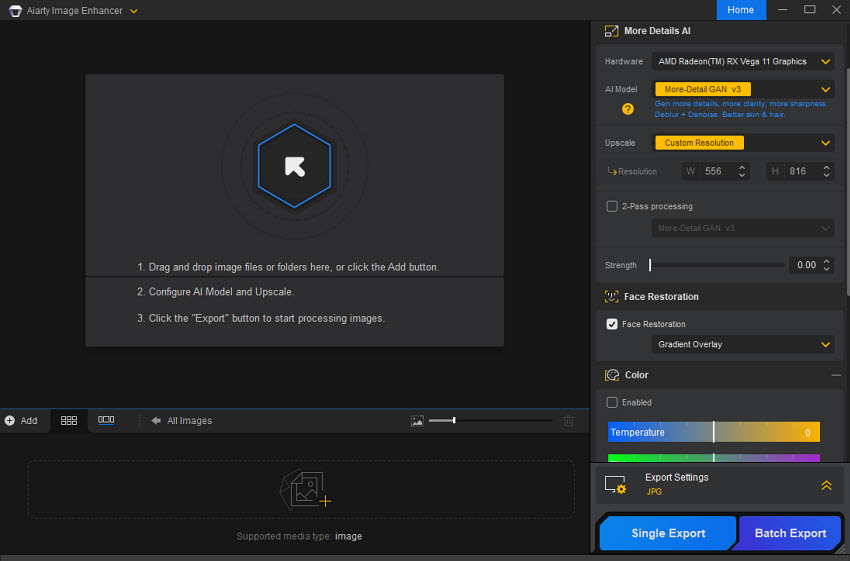
Step 2. Choose the AI Model & Enhance Resolution
Select the AI model that matches your needs. You can also choose to upscale the resolution of your images while removing multiple types of digital artifacting, including noise, blur, JPEG artifacts, haloing, pixelation, and more. The AI automatically detects and corrects these issues in just a few clicks.

Step 3. Correct Colors (Optional)
If needed, enable the Color Enhancement option to adjust tones and saturation. This ensures your photos have more realistic and vibrant colors, while maintaining natural textures and avoiding artificial-looking results.
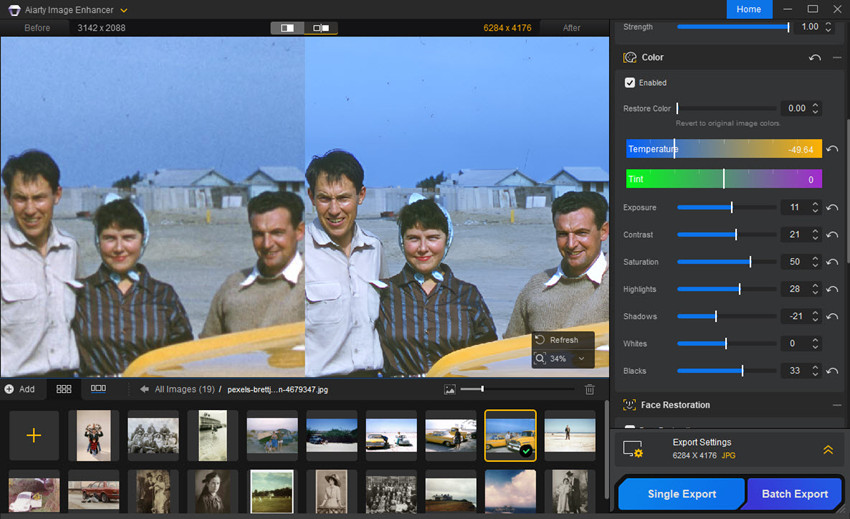
Step 4. Preview, Fine-Tune, and Export
The AI automatically applies artifact removal and enhancement, but you can fine-tune the intensity to balance sharpness, detail, and natural look. Once satisfied, export your images in high-resolution formats, ready for web, print, social media, or professional portfolios.
Artifacting Photos Fixed by Aiarty
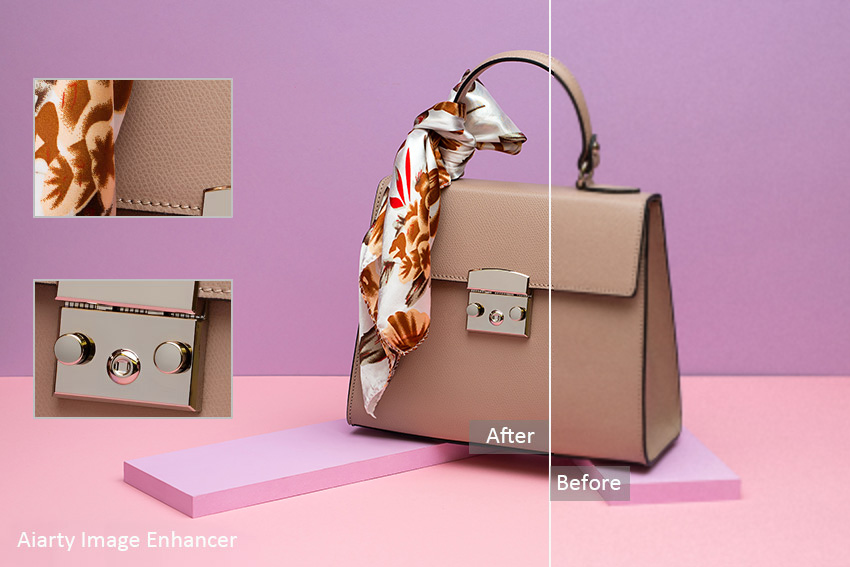
See how Aiarty Image Enhancer transforms photos affected by noise, blur, JPEG artifacts, banding, and haloing into sharp, clean, and professional-quality images.
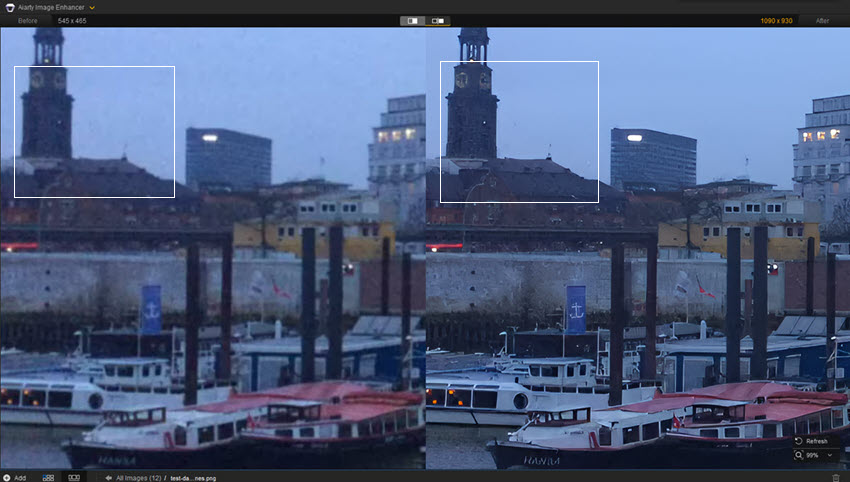
Fix Photos with Noise & Grain Artifacts
Aiarty effectively removes unwanted grain and random speckles commonly seen in low-light or high-ISO photos, transforming noisy and rough-looking images into clean, smooth results while preserving fine textures and accurate, natural colors.
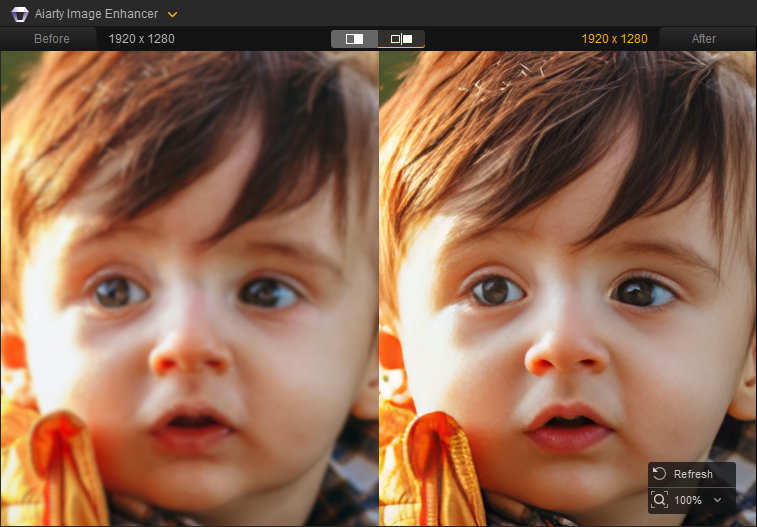
Sharpen Blurry Photos
Blurry and soft images are noticeably improved, with enhanced sharpness and clearer edge definition that bring back lost details and give unblurred photos a more refined, professional appearance.
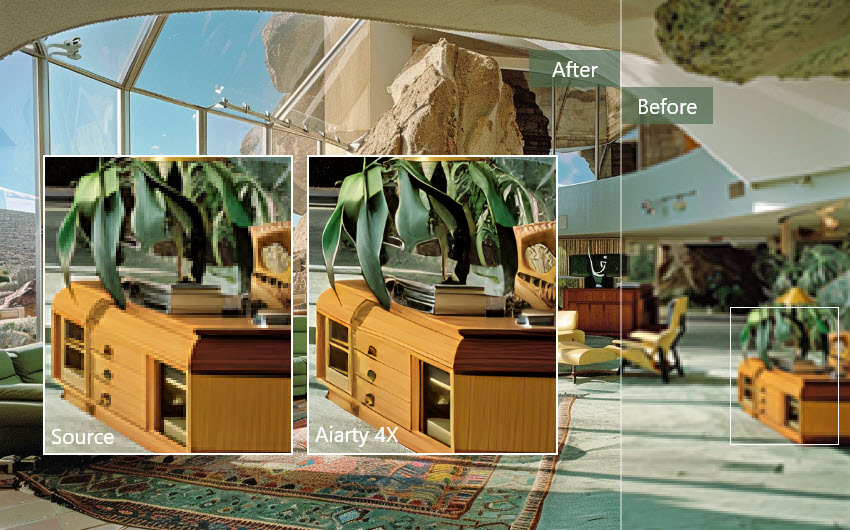
Remove JPEG Artifacts
Aiarty efficiently eliminate blocky JPEG compression patterns and distortion caused by JPEG encoding, resulting in smoother gradients, cleaner edges, and a more natural, high-quality image appearance.
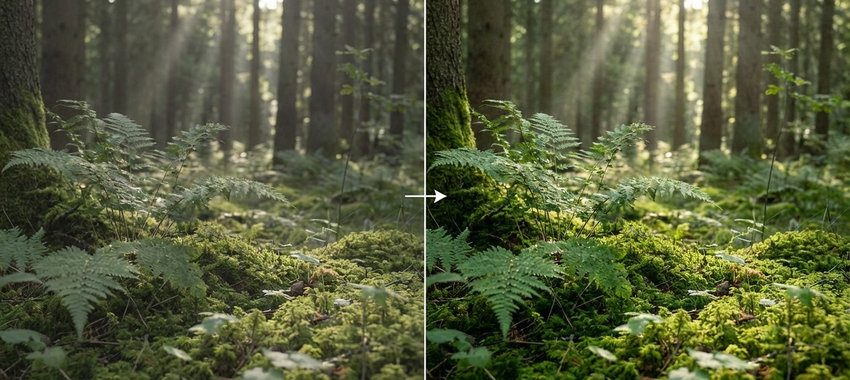
Correct Plain Colors & Banding
Uneven color transitions are smoothed out, eliminating visible banding and restoring natural gradients in skies, shadows, and other flat areas.
Eliminate Ghosting & Haloing
It reduces ghosting effects and unwanted edge halos, restoring clean outlines and ensuring subjects appear sharp and well-defined without unnatural glowing or duplication artifacts.
Final Words
Image artifacts are an inevitable part of digital imaging, but they don’t have to define the quality of your photos. From noise and blur to JPEG artifacts and banding, each type of artifact has its own cause—and more importantly, its own solution.
By understanding how these issues occur and learning how to identify them, you can take control of your image quality, whether you're shooting photos, editing them, or preparing visuals for web use. With the right workflow and tools, even heavily degraded artifact photos can be restored into sharp, clean, and professional-looking images.
As image quality continues to play a critical role in photography, content creation, and website performance, mastering how to fix and prevent image artifacts is no longer optional, it’s essential.
 FAQs
FAQs
Image artifacts are unwanted visual distortions that appear in a photo but were not part of the original scene. These can include noise, blur, JPEG artifacts, banding, and pixelation, often caused by compression, camera limitations, or editing processes.
Image artifacts are typically caused by several factors, including:
- Lossy compression (such as JPEG artifacts)
- High ISO or low-light conditions (leading to noise)
- Camera movement or focus issues (causing blur)
- Over-editing or sharpening (resulting in haloing or banding)
In many cases, multiple factors combine, leading to more noticeable digital artifacting.
Yes, JPEG artifacts can be reduced or removed using specialized tools. AI-based software is particularly effective at restoring smooth gradients, removing blocky compression patterns, and improving overall image clarity. However, heavily compressed images may not be fully recoverable.
To reduce the chances of image artifacts, you can shoot in RAW instead of JPEG, use lower ISO settings when possible, avoid excessive compression, and use proper editing techniques and avoid over-sharpening. Preventing artifacts is often easier than fixing them later.
You May Also Like


This post was written by Brenda Peng who is a seasoned editor at Digiarty Software who loves turning ordinary photos into extraordinary works of art. With AI assistance for brainstorming and drafting, the post is reviewed for accuracy by our expert Abby Poole for her expertise in this field.
