


Digitizing old printed photos is a simple way to preserve memories, but getting a clean scan without glare, distortion, or lost detail can be challenging. Google PhotoScan is Google's dedicated photo scanning app for digitizing printed photos with a phone. It uses your smartphone camera to capture physical photos, reduce glare, detect edges, and correct perspective, making it useful for quickly preserving family photos, albums, and other printed pictures without a flatbed scanner.
However, scanning is only the first step. PhotoScan is designed to capture and digitize printed photos, not to restore missing detail or significantly increase resolution. If a scan looks soft, noisy, faded, or too small for a larger print, you may need a separate photo enhancement step after scanning.
In this guide, you'll learn how to use Google PhotoScan step by step, how to get better results while scanning, and what you can do when a scanned photo still needs more clarity or resolution.
What Is Google PhotoScan App?
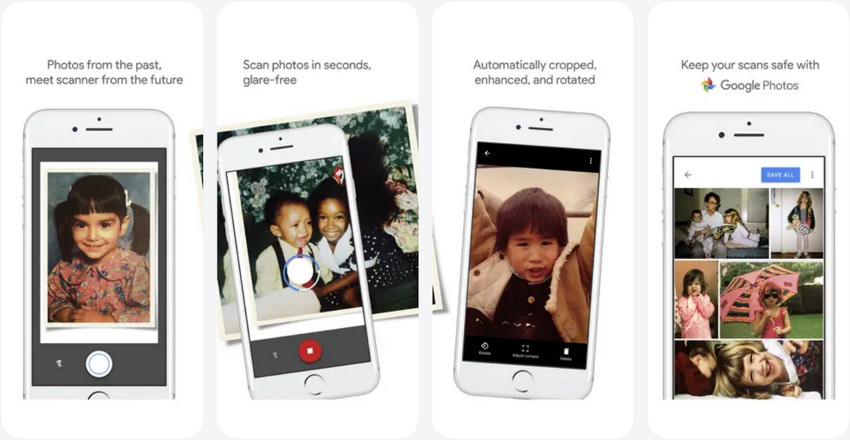
Google PhotoScan is Google's dedicated photo scanning app for digitizing printed photos with a phone. This free mobile app uses your smartphone camera to automatically reduce glare, detect edges, and correct perspective, making it simple to preserve old photos in a digital format for sharing, printing, or long-term storage.
Key Features of Google PhotoScan:
- Glare removal using multiple captures for clearer scans.
- Automatic cropping and alignment to frame photos perfectly.
- Perspective correction to straighten angled or tilted images.
- Seamless integration with Google Photos for easy storage and access.

What Google PhotoScan Is Best Used For:
- Digitizing old printed photos
- Scanning photo albums or framed pictures
- Quick mobile scanning without a flatbed scanner
This Google's scanner app focuses on accurately digitizing printed photos, ensuring glare-free, well-aligned scans, but does not perform image restoration, detail enhancement, or quality improvement.
How to Use Google PhotoScan
Google PhotoScan lets you digitize printed photos with your phone. Follow these steps to scan a photo, reduce glare, correct perspective, and save a digital copy.
Step 1. Download and Open Google PhotoScan
Download Google PhotoScan from the App Store or Google Play and open the app on your phone.
Step 2. Place Your Photo on a Flat Surface
Place the printed photo on a flat surface with even lighting. Avoid direct sunlight, strong shadows, and reflections from glossy prints. Keep the area around the photo clear so you can move your phone easily during scanning.
Step 3. Frame the Photo and Take the First Scan
Hold your phone above the photo and position it within the on-screen frame. Tap the capture button to take the first scan. Keep the phone as level and steady as possible.
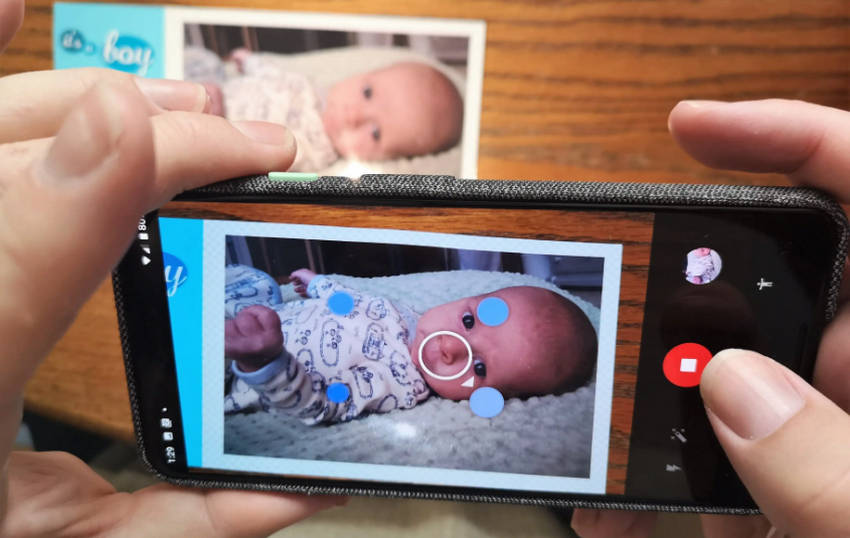
Step 4. Scan the Four Dots
After the first capture, four dots will appear around the photo. Slowly move your phone so the circle in the center of the screen lines up with each dot. You do not need to press the shutter button again. Move from one dot to the next and keep the phone steady until all four points have been scanned.
PhotoScan combines these captures to reduce glare and correct perspective, which is especially useful when scanning glossy printed photos.
Step 5. Review and Adjust the Scan
Check the scanned image after PhotoScan finishes processing it. Use the available controls to rotate the image or adjust the corners if the photo was not detected correctly. If the result is poor, retake the scan with better lighting or a steadier camera position.
Step 6. Save or Share the Scanned Photo
When the scan looks right, save it to your device or share it through the available options. You can then organize the digital copy in Google Photos or use it for further editing, enhancement, or printing.
Common Google PhotoScan Problems (And Why They Happen)
Even when used correctly, scanned photos can sometimes fall short of expectations. Understanding these common issues can help you anticipate limitations and take steps to improve results.
1. Why Scanned Photos Still Look Blurry
- Limited resolution of phone cameras, which can’t capture all fine details
- Low-quality or damaged original photos, which scanning alone cannot fully restore
2. Noise, Grain, or Faded Colors After Scanning
- Aging and wear of printed photos that reduce clarity and color vibrancy >> How to remove grain from photos
- Compression during the scanning process, which can introduce noise or subtle artifacts
3. Low Resolution for Printing or Enlarging
While scanned photos often look fine on a screen, they may lose clarity and detail when printed or enlarged, highlighting the need for additional enhancement to achieve high-quality results.
How to Improve PhotoScan Images After Scanning
Google PhotoScan is designed to digitize printed photos, reducing glare and correcting perspective during the scanning process. However, a scan may still look soft, noisy, faded, or too small for a large print, especially when the original photo is old or the print quality is poor.
In these cases, photo enhancement can be used as a second step after scanning. A dedicated image enhancer such as Aiarty Image Enhancer can help increase resolution, reduce noise and mild blur, restore fine details, and prepare scanned photos for printing or archiving.
- Upscale low-resolution scans: Increase image resolution for larger prints while retaining natural-looking details.
- Reduce noise and mild blur: Clean up grain, scanning noise, and minor softness without excessive sharpening.
- Restore fine details: Improve subtle textures and details that remain in the scanned image.
- Correct faded colors: Use manual color controls to adjust exposure, contrast, saturation, highlights, shadows, temperature, or tint when needed.
PhotoScan to Print: A Simple Enhancement Workflow
A simple workflow is to scan the printed photo with Google PhotoScan first, then import the resulting image into Aiarty for optional enhancement. Choose an AI model, set the desired upscaling level, adjust Strength or Color if needed, preview the result, and export the enhanced image.
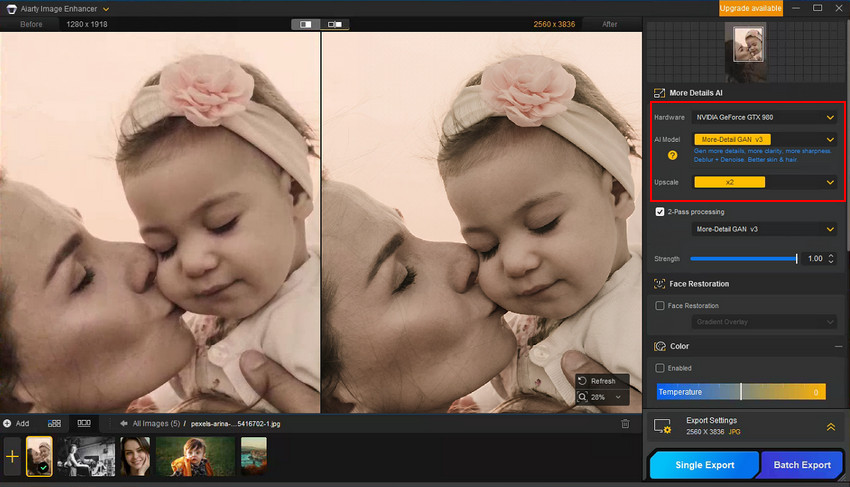
For scanned family photos, start with a moderate upscaling level and check the preview before applying stronger enhancement. More-Detail GAN v3 can be useful when the scan retains textures and fine details, while Real-Photo v3 is suited to realistic photo restoration. For portraits, Face Restoration can further refine facial details. Adjust the Strength to balance added detail with a natural appearance.
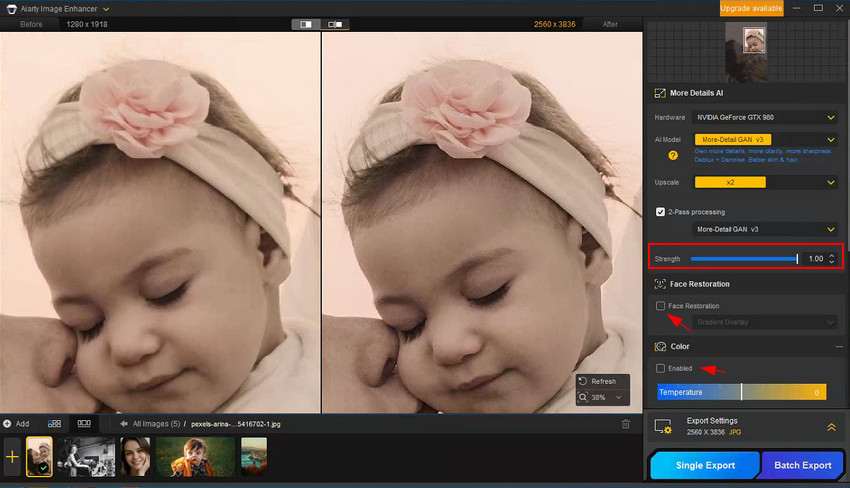
The before-and-after preview lets you check whether the enhancement actually improves the scan. If the result looks overly sharp or unnatural, try a different model or lower the Strength. For faded scans, the Color controls can also be used to fine-tune the image before export.
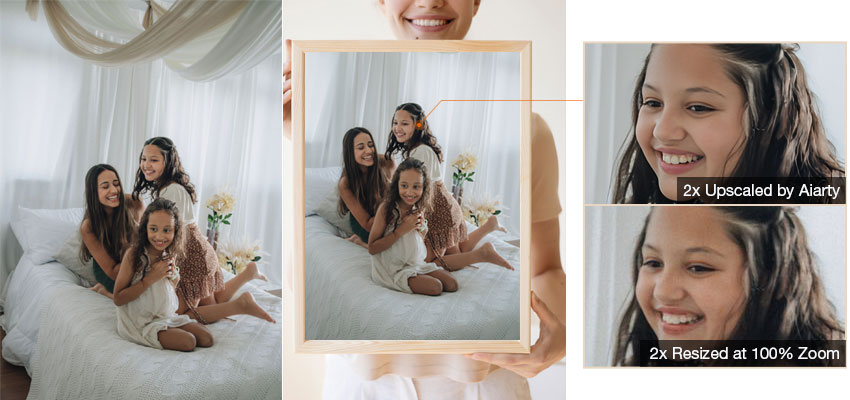
If your scanned photos still need more clarity or resolution, try Aiarty Image Enhancer as the next step before printing or archiving.
Conclusion: Scan Smart, Enhance for Lasting Quality
Google PhotoScan is an excellent tool for quickly and accurately digitizing printed photos, but scanning alone isn’t enough if you need clear, high-resolution results for printing or long-term archiving. PhotoScan captures and digitizes the image, while Aiarty Image Enhancer focuses on improving resolution and clarity by restoring details that scanning cannot recover.
By combining PhotoScan for scanning with AI-based enhancement for quality improvement, you can preserve your old photos with the lasting clarity and visual quality they deserve.
 FAQs
FAQs
Yes. Google PhotoScan is a free app for scanning printed photos on Android and iOS. You can download and use it without a subscription.
PhotoScan uses your phone's camera to capture a printed photo from multiple angles. It combines the captures to reduce glare and correct perspective, then creates a digital copy of the photo.
Place the photo on a flat surface, frame it in PhotoScan, and tap the capture button. Then move your phone over the four on-screen dots as instructed. PhotoScan combines these captures into one scanned image.
Place the photo under even lighting and avoid direct reflections. PhotoScan also takes multiple captures from different positions and combines them to reduce glare, which is particularly useful for glossy printed photos.
After scanning, you can save the photo to your device and, depending on your settings, back it up to Google Photos. You can then organize, edit, share, or export the scanned image.
Yes. Google PhotoScan is available for both iPhone and Android phones, with the core scanning workflow available on both platforms.
PhotoScan is designed primarily for scanning printed photos rather than documents. For receipts, forms, and other documents, a dedicated document scanning feature or app is generally more suitable.
PhotoScan can improve the capture by reducing glare and correcting perspective, but it does not significantly increase resolution or restore details that are missing from the original photo.
A blurry scan can result from a soft or damaged original photo, camera movement, poor lighting, or incorrect positioning. Try placing the photo on a flat surface, using even lighting, and keeping your phone steady while scanning the four dots.
You May Also Like


This post was written by Brenda Peng who is a seasoned editor at Digiarty Software who loves turning ordinary photos into extraordinary works of art. With AI assistance for brainstorming and drafting, the post is reviewed for accuracy by our expert Abby Poole for her expertise in this field.
