


AI Film Restoration: Restore & Upscale Movie to 4K



There’s something magical about watching an old film — the grainy texture, the nostalgic colors, the flicker of time captured on tape. But let’s be honest: most classic movies, VHS recordings, and early DVDs haven’t aged well. The footage often looks soft, noisy, or interlaced, and the resolution just can’t keep up with today’s screens.
Meanwhile, our viewing habits have completely changed. We’re used to 4K TVs, ultra-sharp monitors, and high-refresh displays. When you play a 480p or 720p video on a modern screen, every flaw stands out — the blur, the noise, the lack of detail. It’s hard to truly enjoy a great story when the visuals feel stuck in another era.
To make things worse, many older films never got an official HD or 4K release. Studios often leave them sitting in archives, so unless you’re lucky, the only version you can find is low-res and full of artifacts.
The good news? You don’t need a Hollywood restoration team anymore. With the help of AI film restoration tools like Aiarty Video Enhancer, anyone can bring old movies back to life — sharpening details, removing noise, fixing interlaced footage, and even upscaling them to 4K with just a few clicks.
The Core Technology: Why Aiarty is Your AI Restoration Powerhouse
The magic of Aiarty Video Enhancer lies not just in its feature list, but in the sophisticated AI models that work behind the scenes. Unlike conventional editing software that merely stretches pixels or applies simple filters, Aiarty leverages specialized deep learning to intelligently rebuild and restore every frame. Here is how its core features translate into tangible benefits for your video projects:
1. AI-Driven Lossless Upscaling
For anyone transitioning old content onto new displays, upscaling is paramount. Low-resolution footage looks blurry and blocky when viewed on modern large screens, but Aiarty offers the solution.
Aiarty’s models go beyond simple pixel stretching; they are trained to intelligently generate missing detail and texture. You can flawlessly upscale any video by 2x, 4x, or target specific high resolutions like 720p, 1080p, 2K, and true 4K UHD. This ensures that your restored films retain a natural, high-definition quality without the "artificial" or "painterly" look common in lesser upscaling tools. You even have the freedom to define a custom output resolution to meet any unique project requirement.
2. Intelligent Clarity Restoration: Defeat Noise and Blur
One of the most common issues with older or poorly recorded footage is the presence of distracting grain (noise) and unwanted blur.
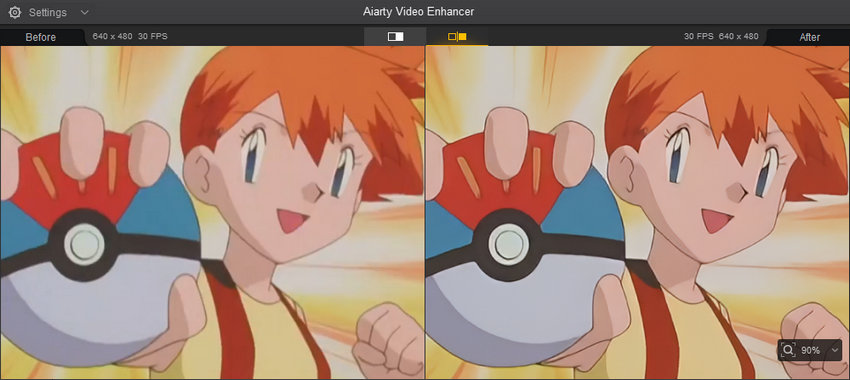
Aiarty acts as the Detail Savior by offering a one-click solution: our AI automatically performs denoising and deblurring. This process is highly intelligent; it removes excessive grain and motion blur while simultaneously restoring fine, realistic details like hair, skin texture, and architectural lines. The result is a crisp sharpness that resurrects even heavily degraded film, ensuring clarity without sacrificing authenticity.
3. Eliminating Interlacing Artifacts
For footage sourced from analog formats like camcorders or older broadcast tapes, the tell-tale visual artifact is interlacing—the dreaded flicker and jagged horizontal lines.
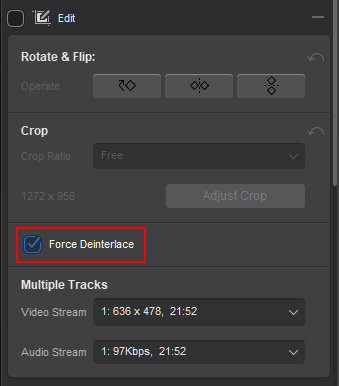
The advanced Deinterlace feature within Aiarty is essential for professional stability. It uses AI to accurately analyze and recombine the two separate video fields, instantly eliminating those distracting artifacts. This step is critical for converting outdated media into a stable, high-quality progressive scan format suitable for modern distribution and archival standards.
4. Cinematic Flow: Boosting Frame Rate with AI
Action sequences, sports, or any dynamic content recorded at standard frame rates (like 24 or 30 FPS) often look choppy when viewed today.
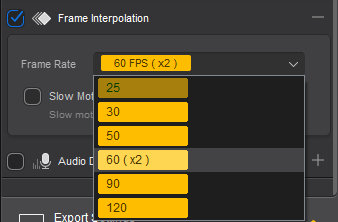
Aiarty resolves this with AI Frame Interpolation. It doesn't merely duplicate frames; it intelligently creates new, high-quality intermediary frames, seamlessly boosting the frame rate up to an incredible 120 FPS. This guarantees buttery-smooth motion, providing fluid, hyper-realistic action sequences and perfect control for high-quality slow-motion effects.
5. Professional-Grade Color Correction
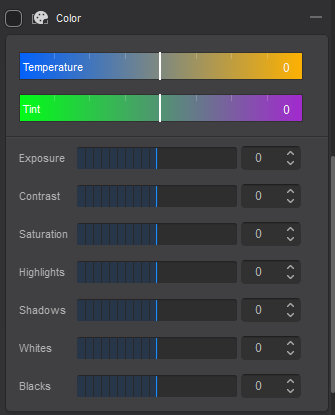
Beyond pure image enhancement, Aiarty offers a powerful, integrated suite of professional color tools. Old footage often suffers from inaccurate color casts (too warm or cool) or poor lighting conditions resulting in lost detail in shadows and highlights. Users can easily fix color bias and adjust temperature, tint, exposure, contrast, and saturation. More granular controls over highlights, shadows, whites, and blacks allow you to recover lost detail and achieve a perfectly balanced, cinematic look, eliminating the need for separate, complex color grading software.
How to Upscale and Restore Film with Aiarty Video Enhancer
The immense power of Aiarty Video Enhancer is matched by its ease of use. You don't need to be a professional editor to achieve professional results. Follow these simple steps to bring your old, low-resolution footage into the modern HD era.
Step 1: Download and Installation
Begin by getting the software. Click the button below to download and install the official Aiarty Video Enhancer on your system.
Step 2: Import Your Film Footage
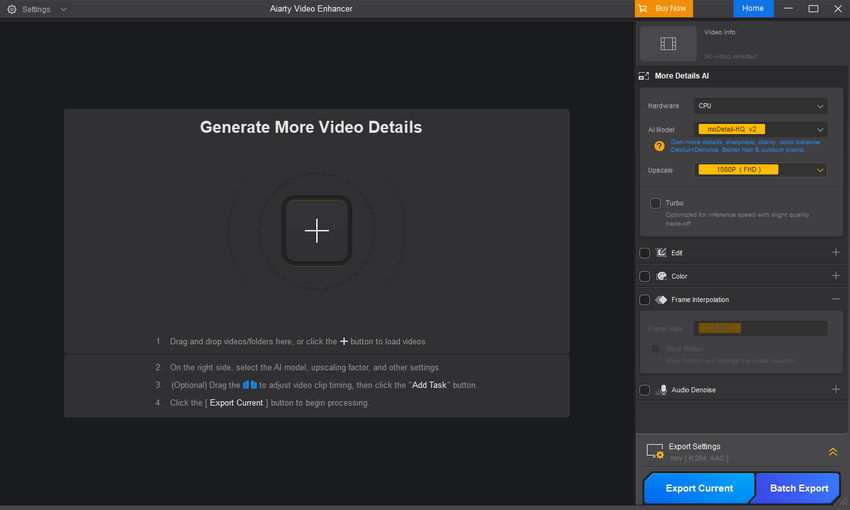
Open the Aiarty application. The interface is clean and intuitive. Simply drag and drop your movie file directly into the main window, or use the "+" button to import your chosen footage. Aiarty is designed to handle a wide variety of video formats.
Step 3: Select the Optimal AI Model
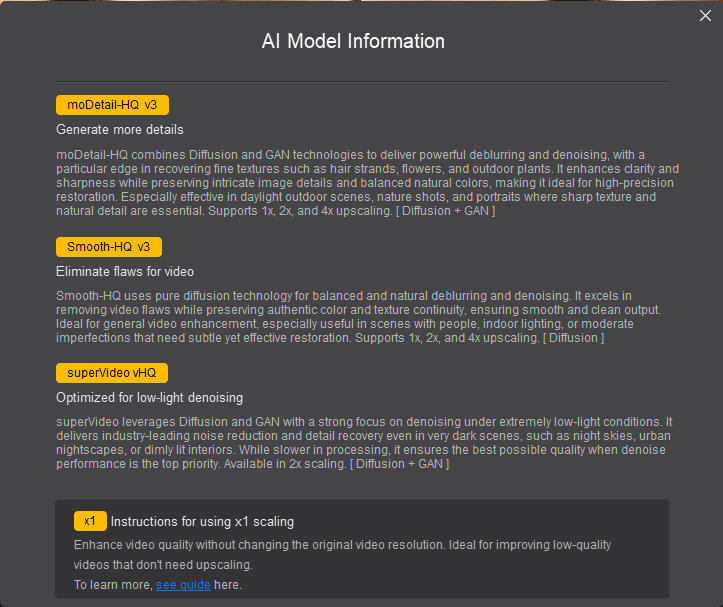
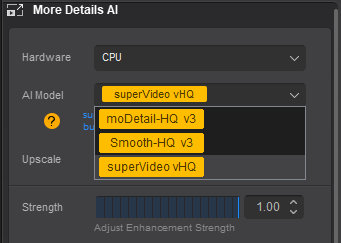
There are three AI models: mo-Detail-HQ v2, Smooth-HQ v2, and superVideo vHQ. To make the best choice, you can click the question mark icon (?) to understand which is best suited for your specific video content. Selecting the right model ensures maximum detail retention and quality.
Step 4: Define Your Output Resolution
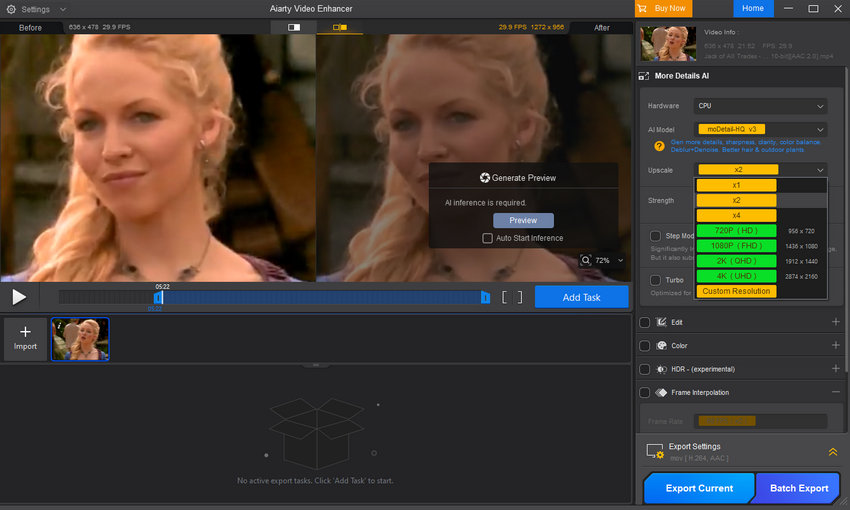
Click the drop-down menu of Upscale and choose to select a specific upscale multiplier (e.g., 2x or 4x) or select a target resolution (e.g., 720p, 1080p, 2K, or 4K). Aiarty will use its chosen model to intelligently build the highest quality output possible.
Step 5: Fine-Tune with Essential Settings
Tailor the enhancement process to your footage's unique needs by enabling optional features:
- For Interlaced Footage: If your video suffers from flickering lines (a sign of old broadcast or camcorder footage), expand the Edit section and select Force Deinterlace.
- For Color Correction: If your film has color bias or poor exposure, Enable Color correction. You can then drag the corresponding sliders to adjust temperature, tint, contrast, and more to achieve the perfect cinematic look.
- For Smoother Motion: If you need fluid, slow-motion, or hyper-realistic action, Enable Frame Interpolation and select your desired frame rate (up to 120 FPS).
Step 6: Preview and Validate the Results
Before committing to a full export, click Preview. Aiarty will load the selected AI model and perform a short inference test. Once complete, carefully inspect the before-and-after preview window.
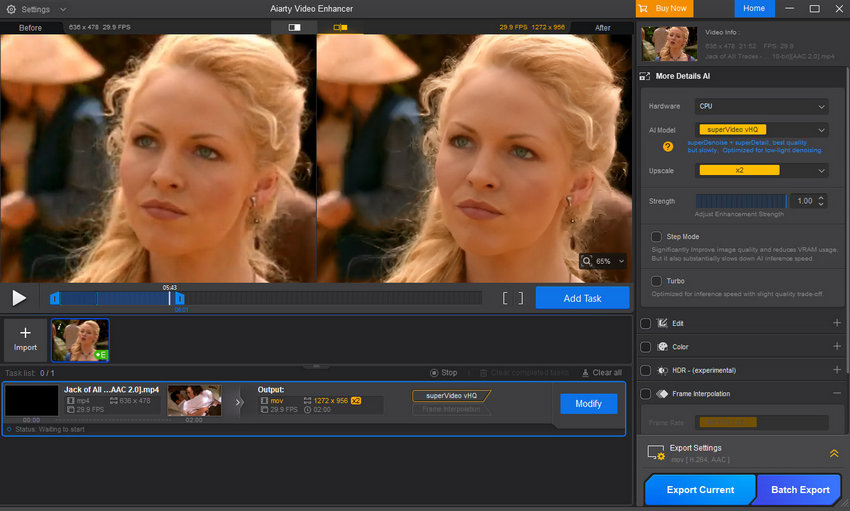
For instance, we downloaded an old TV episode from Archive.org to test, and as you can see from the preview result below, Aiarty did a phenomenal job in the 2x upscale:
Before: 638 x478 resolution, visible softness.
After: 1272x956 resolution (2x upscale), significantly more clear with facial and hair details restored by the SuperVideo AI model.
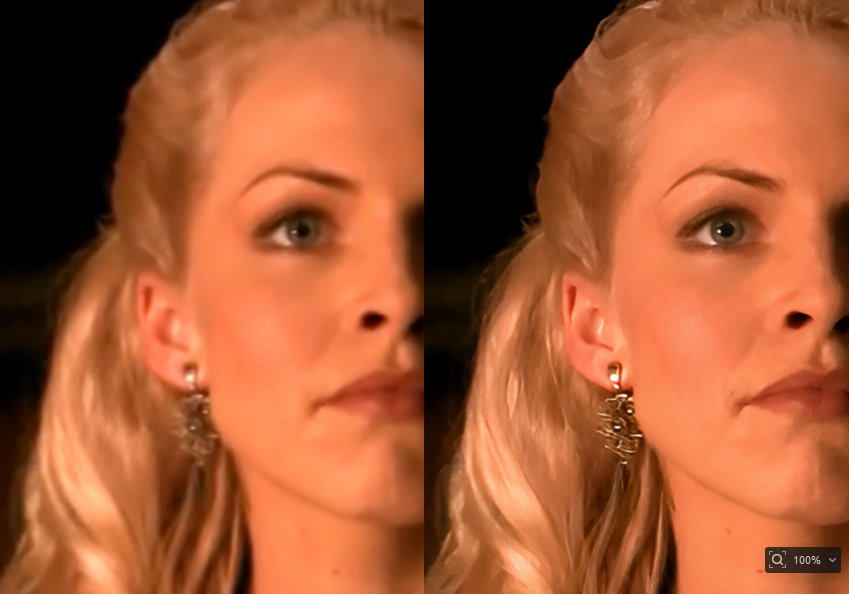
If the effect is stunning, you're ready to proceed. If you feel a different result is needed, easily go back to adjust the AI model or settings.
Step 7: Export Your High-Definition Master
Once satisfied with the preview, click Add Task to queue the video for rendering. Finally, hit the Export button. Aiarty will efficiently process the entire movie, delivering a high-definition, fully restored master file ready for modern viewing, sharing, or archival.
 FAQs
FAQs
With Aiarty Video Enhancer, the process is straightforward and intelligent. You simply import your film, select the appropriate AI model, and choose 4K (UHD) as your target resolution. Aiarty uses deep learning models to intelligently generate missing pixels and details.
Unwanted film grain and video noise severely degrade the viewing experience. Aiarty makes this correction automatic. It automatically analyzes the video, distinguishing between actual fine details (which are kept) and random noise (which is removed). This ensures your footage becomes cleaner and clearer without the common side effect of making the image look overly smooth or "waxy."
To do this, simply import your movie, select AI model, choose a specific Upscale multiplier (choose x1 if you don’t want to change resolution) or target resolution, and hit preview. Once the interference is done, you should notice the grain has been removed. Then, just click Add Task and Export.
To eliminate choppy action and achieve a fluid, modern look, you need Frame Interpolation. Aiarty uses AI Frame Interpolation to seamlessly boost the frame rate. Instead of duplicating existing frames (which causes stuttering), the AI accurately creates high-quality, intermediary frames. You can easily select a target rate, such as 60 FPS or even 120 FPS, to ensure all dynamic scenes, from sports to rapid camera pans, have an ultra-smooth, cinematic flow.
You May Also Like


This post was written by Brenda Peng who is a seasoned editor at Digiarty Software who loves turning ordinary photos into extraordinary works of art. With AI assistance for brainstorming and drafting, the post is reviewed for accuracy by our expert Abby Poole for her expertise in this field.
