


Offline AI Video Upscaler and Enhancer: Aiarty Hands-on Review



We’ve all been there: you find an old video from a decade ago, maybe a family wedding or a travel vlog, and try to play it on your shiny new 4K monitor. The result? It looks like a blurry, pixelated mess. It’s frustrating because while our screens have gotten better, our memories often feel stuck in low resolution.
You’ve probably tried those "free" online tools, only to realize that uploading a massive file takes forever, and handing over your private footage to a random server feels a bit sketchy. This is exactly why more people are shifting toward an offline video upscaler. There’s a certain peace of mind that comes with processing your files locally - it’s faster, it’s private, and you aren't at the mercy of your internet connection.
If you’re looking for a reliable way to upscale videos offline on Windows or Mac, Aiarty Video Enhancer has become a standout choice. In this post, we’ll dive into its key features, see how it handles real-world footage, and determine if it’s the offline AI video upscaler you need to bring your library back to life.
Why Go Offline? The Real Benefits of Local AI Video Upscaling
While "cloud-based" is the buzzword of the decade, video processing is one area where local software still reigns supreme. If you’ve ever sat watching a progress bar crawl while uploading a family video to a website, you already know the frustration.
Here is why switching to an offline video enhancer is a game-changer:
1. Total Privacy and Security
When you use an online tool, you are essentially handing over your personal memories or proprietary footage to a third-party server. For many, that’s a dealbreaker. By using an offline ai video enhancer, your files never leave your hard drive. You have 100% control over your data, ensuring that your private videos stay private.
2. No More File Size Frustrations
Most web-based upscalers impose strict limits, such as capping uploads at 30MB. However, high-quality video files are massive. If you want to upscale video offline, you don’t have to worry about "file too large" errors or bandwidth throttling. Whether it’s a 10-minute clip or a 2-hour feature film, an offline video upscaler handles it without complaining.
3. Harnessing Your Own Hardware
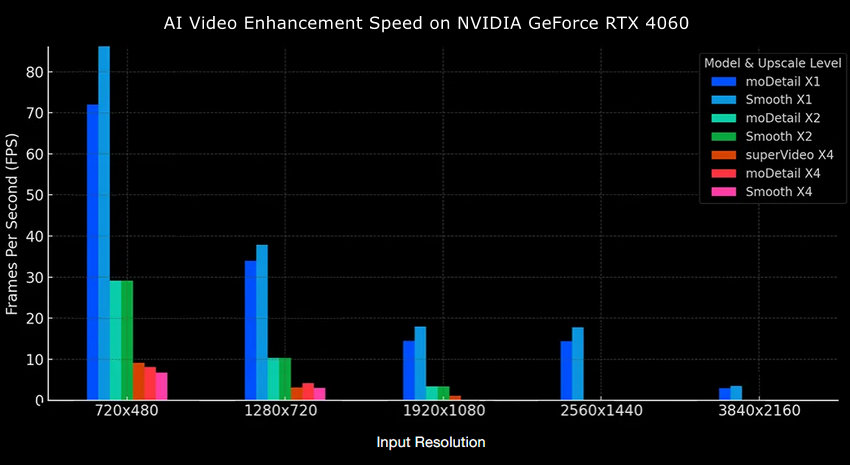
Online tools rely on shared server resources, which is why they are often slow or require a "pro" subscription to skip the queue. An offline ai video upscaler like Aiarty leverages your computer’s local GPU (NVIDIA, AMD, or Intel) to do the heavy lifting. This means faster processing times and more consistent results, especially when dealing with high-frame-rate footage.
4. Superior Output Quality
Online enhancers often apply heavy compression to the final file to make the download faster for you. This often defeats the purpose of "enhancing" the video in the first place. A dedicated offline video enhancer allows you to export at high bitrates and in various formats (like ProRes or H.265), ensuring that the added detail isn't lost to compression artifacts.
5. Better Long-Term Value
Online services often trap you in a "pay-per-credit" model or expensive monthly subscriptions. If you have a large library of videos to enhance, the costs can skyrocket quickly.
Choosing an offline video upscaler is a much smarter investment. Most desktop software like Aiarty Video Enhancer offers a one-time purchase or a flat annual fee, allowing you to process as many videos as you want without worrying about a mounting bill.
Aiarty offers two straightforward licensing options:
- Standard License (Annual Subscription): $79/year with one year of free updates, priority support, and unlimited personal and commercial use on a device.
- Lifetime License (One‑Time Fee): $165 for lifetime free updates and use on up to 3 PCs or Macs. This is the ultimate "set it and forget it" option. For a one-time payment, you own the software forever. No monthly bills, no "credits" to buy, and unlimited video processing.
The "Free" Dilemma: Open-Source Video Upscalers vs Aiarty Video Enhancer
If you’ve searched for an offline AI video upscaler, you’ve probably come across recommendations like ComfyUI, Video2X, or ESRGAN-based workflows. These tools are often labeled as "free", and technically, they are.
But in practice, "free" usually comes with a different kind of cost: time and complexity.
Setting up these tools isn’t always straightforward. You may need to deal with Python environments, install multiple dependencies, and troubleshoot issues like GPU memory errors. Even after everything is running, the workflow itself can feel fragmented - using one tool for denoising, another for upscaling, and sometimes a third for color correction.
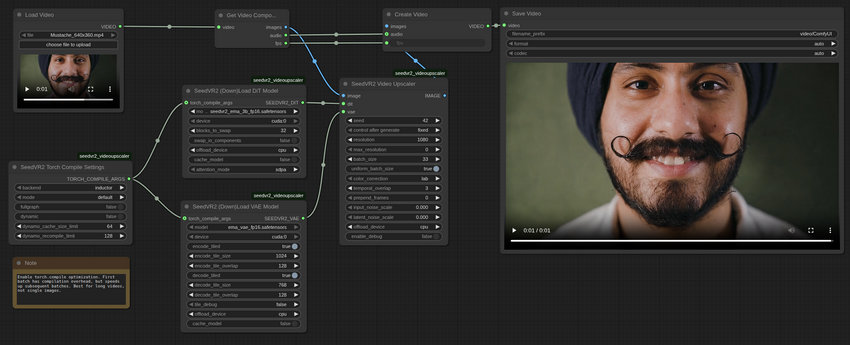
For experienced users, this flexibility can be powerful. But for most people, getting consistent, high-quality results often takes trial and error.
This is where Aiarty Video Enhancer feels different.
Instead of requiring manual setup or multiple tools, it brings AI upscaling, denoising, and color correction into a single workflow.
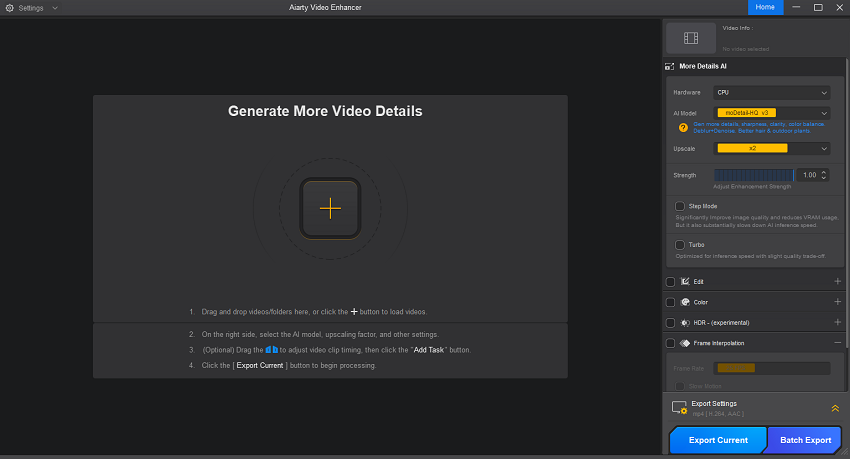
In that sense, the trade-off is fairly clear: open-source tools help you save money, while Aiarty focuses on saving time and simplifying the entire process.
Aiarty Video Enhancer: Deep Dive & Review
To determine if Aiarty is the right offline ai video upscaler for your workflow, let's look under the hood. We’ve broken down its technical capabilities, key features, and how it performs in real-world scenarios.
Aiarty Actually Uses the Hardware You Paid For
When you process video locally, hardware utilization is everything. Aiarty isn't just ported to desktop; it’s deeply optimized for it.
- OS Compatibility: Available for both Windows (Windows 10/11) and Mac (macOS 13.0 or higher).
- Hardware Acceleration: It natively supports DirectML, TensorRT, and CoreML. Whether you are running an Intel, AMD, or Apple Silicon (M1 through M5) machine, Aiarty adapts.
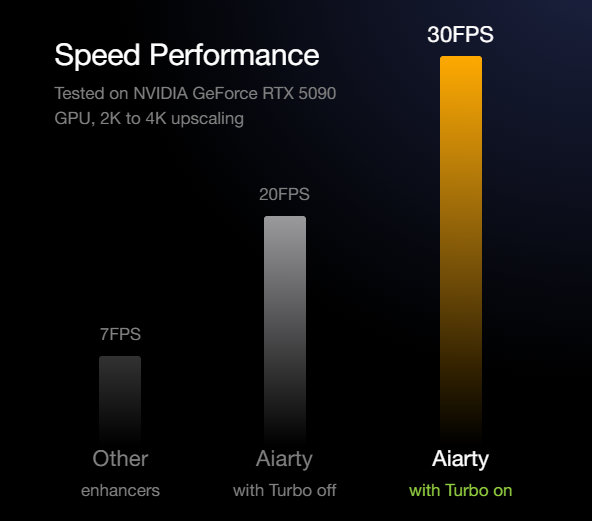
- Unmatched GPU Utilization: What makes Aiarty a beast of an offline video enhancer is its optimization for the latest NVIDIA RTX 30, 40, and the new 50 Series (Blackwell architecture). It can achieve up to 95% GPU utilization, featuring a "Turbo Mode" that delivers blazing-fast inference speeds (e.g., up to 30 fps when upscaling 2K to 4K on NVIDIA GeForce RTX 5090 GPU).
AI Enhancement That’s Usually Subtle (in a good way)
Aiarty comes with three AI models, and switching between them does make a difference depending on the footage.
- moDetail-HQ v3 (Diffusion+GAN): Best for recovering intricate details like hair, skin, and textures.
- Smooth-HQ v3 (Diffusion): Perfect for a faithful, natural restoration without over-processing.
- superVideo vHQ (Diffusion+GAN): The ultimate rescuer for extreme low-light, grainy, and highly compressed clips.
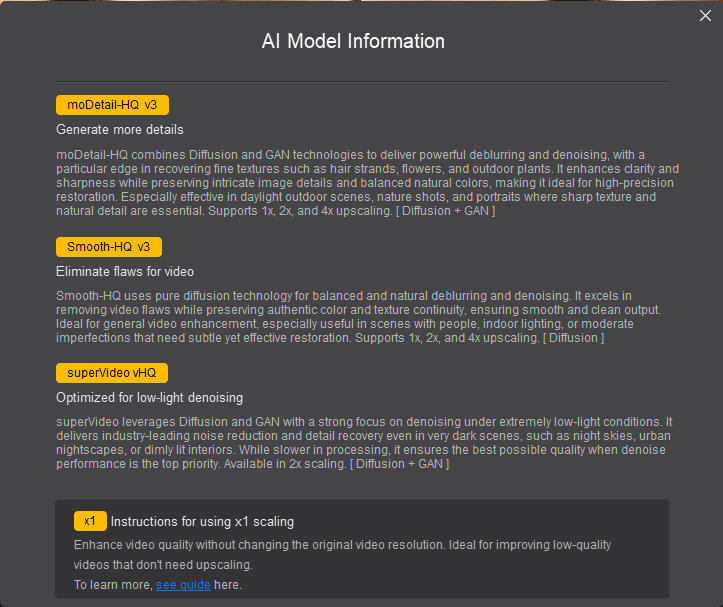
The AI model automatically improves clarity and reduces noise without making the video look artificially sharpened. The results aren’t overly aggressive. Plus, a dedicated Strength slider lets you dial the AI enhancement intensity up or down, ensuring the results look natural, not plastic.
Flexible Upscaling Without Overcomplicating Things
You can upscale video offline using simple options like 2× or 4×, or choose target resolutions such as 1080p or 4K. There’s also a custom option if you want more control.
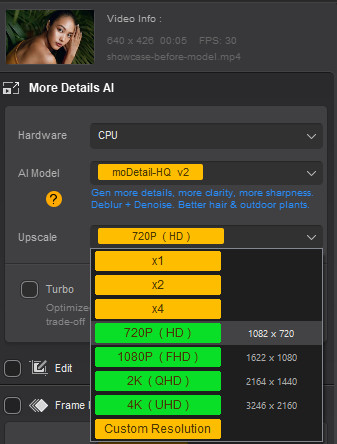
In practice, this flexibility is useful. For example, upscaling a 480p clip directly to 4K doesn’t always give the best results, but going step-by-step (or choosing a more reasonable resolution) tends to look more natural.
Fixing the "AI Color Shift"
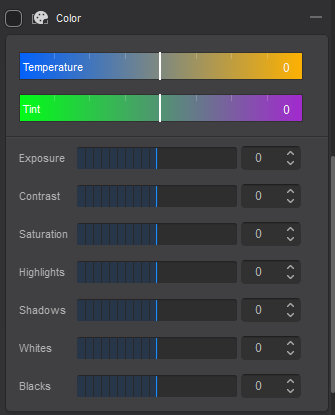
This is a massive pain point in the AI world. Upscaling often messes with the original colors. Aiarty includes a built-in color correction suite. You can force the software to restore the video's original color, or manually tweak the temperature, exposure, contrast, saturation, and more. You can even upgrade flat SDR footage to punchy HDR.
Motion Smoothing & Slow Motion
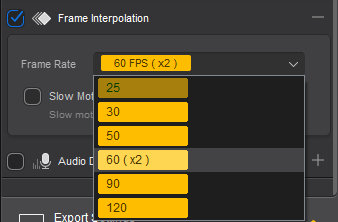
The frame interpolation feature (up to 120fps) works as expected. It helps smooth out motion, especially in action clips. It’s not something you’ll need for every video, but for certain footage, the difference is noticeable.
Slow-motion output is also usable, although like most tools, the quality depends heavily on the original clip.
Audio Noise Reduction
In addition to video, Aiarty can clean up background noise in audio, making the final output more polished.

Batch Processing Is a Big Time Saver
If you’re working with multiple clips, batch processing makes a noticeable difference. Instead of exporting videos one by one, you can queue everything and let it run. For longer videos or larger batches, this is probably one of the most practical features.
How to Upscale Video Offline with Aiarty Video Enhancer
The workflow is remarkably straightforward, staying true to its promise as a private, local ai video enhancer.
First, download and install the software on your computer.
Once installed, launch it and import one or multiple videos. Aiarty supports a wide range of formats, so compatibility isn’t usually an issue.
Next, choose the AI model that best fits your footage.
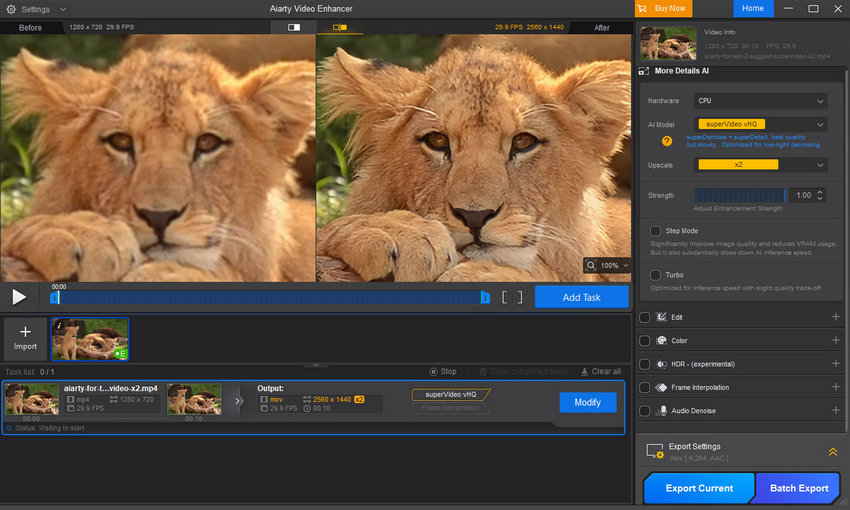
Then select your preferred upscaling option, whether it’s a scaling factor like 2×/4× or a target resolution such as 1080p or 4K.
Before exporting, you can preview the result. The first time you use a specific AI model, the software will download it, which requires an internet connection. After that, all processing is done locally, reinforcing its role as a true offline video upscaler. It never sends your video data to an online server.
Once you're satisfied, add the video to the task queue and export it. You can process a single video or multiple files in batch.
Explore the Best Practices for Using Aiarty Video Enhancer >>
Real-World Tests
To truly appreciate what this offline video enhancer can do, you have to see the before-and-after comparisons.
Test 1: Rescuing Classic Animation
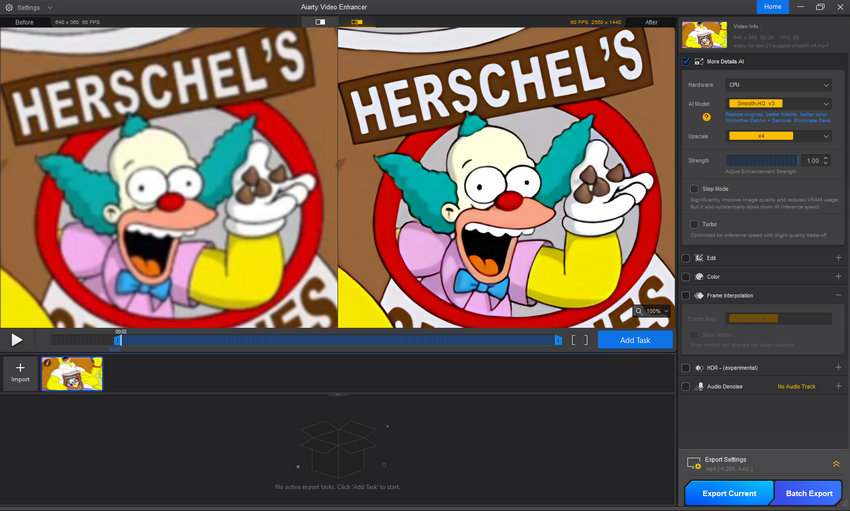
We took a muddy, low-resolution 640x360 cartoon clip. By selecting Aiarty’s Smooth-HQ v3 model and setting the upscale to 4x, the software completely transformed it.
On the left, you can see the jagged lines. On the right? A crisp, vibrant 2560x1440 (2K) masterpiece. The lines are incredibly smooth, and the colors pop without any weird AI artifacts.
Test 2: Human Portraits & Skin Texture
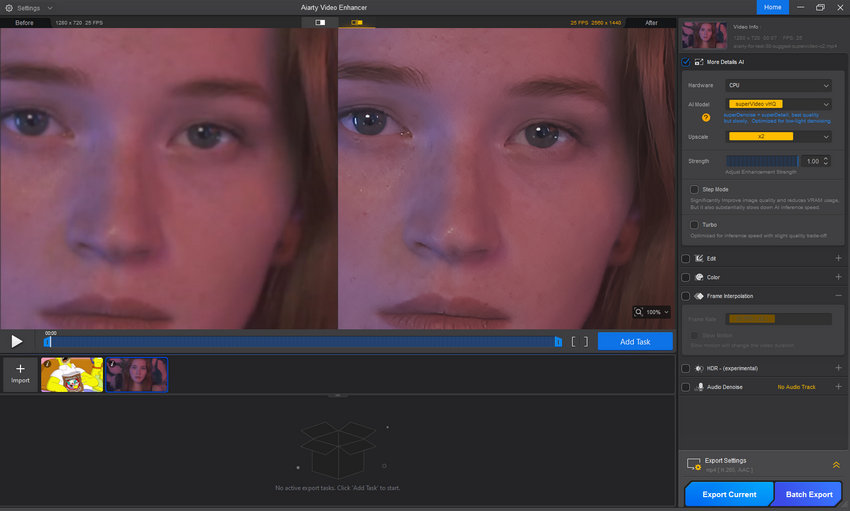
In this real-world test, we pushed Aiarty Video Enhancer to handle complex human features. We selected the superVideo vHQ model, which is specifically engineered for high-quality denoising and detail reconstruction in challenging videos.
The 'Before' shot shows significant blur. However, by running the process through this offline video enhancer, the 'After' result at 1440p reveals incredible clarity. Notice how the stray hairs and even the subtle freckles on the skin become distinct and sharp.
Test 3: Nighttime Noise Reduction
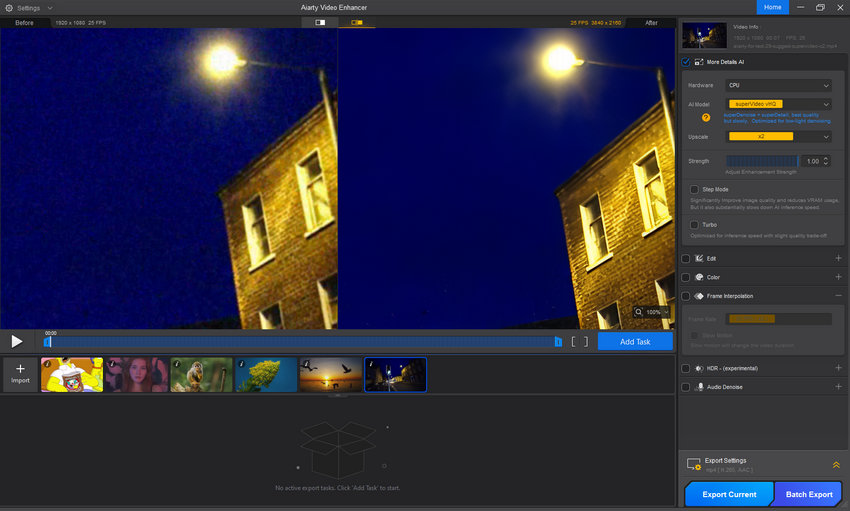
Night shots are the ultimate stress test for any offline video enhancer, and this is where Aiarty truly flexes its muscles. Look at the sky in the 'Before' shot on the left. It’s a muddy soup of blue digital noise and grain, a common issue with smartphone or drone footage taken after sunset.
By using the superVideo vHQ model, Aiarty doesn't just 'blur' the noise away (which usually ruins the rest of the image). Instead, it intelligently separates the grain from the actual details.
In the 'After' result, the sky is a silky-smooth, deep midnight blue, while the brickwork on the building actually becomes sharper and more defined.
Final Words
In an era where data privacy is scarce and high-res screens are everywhere, relying on a web browser to fix your personal videos is no longer the best option. An offline ai video upscaler gives you back control.
With its robust hardware optimization, versatile AI models, and zero reliance on cloud servers after setup, Aiarty Video Enhancer stands out as the premier choice. It allows you to upscale and enhance video offline quickly, securely, and with cinematic quality. If you have a hard drive full of old memories or low-res footage, Aiarty is the ultimate tool to bring them into the 4K era.
You May Also Like


This post was written by Brenda Peng who is a seasoned editor at Digiarty Software who loves turning ordinary photos into extraordinary works of art. With AI assistance for brainstorming and drafting, the post is reviewed for accuracy by our expert Abby Poole for her expertise in this field.
