


Lossless Scaling: What It Is and How to Use It



If you’ve spent any time on PC gaming subreddits or Steam discussions lately, you’ve probably heard whispers about a tool called Lossless Scaling. For just a few bucks, this unassuming utility claims to do the impossible: double or even triple your frame rates and artificially upscale your games, all without requiring a high-end GPU.
For players trying to survive unoptimized AAA releases on older graphics cards, or handheld gamers trying to squeeze every last drop of performance out of a Steam Deck, it sounds like pure black magic. But how does it work, what can it actually improve, and what should you know before using it? This guide covers everything from setup and key features to common issues and limitations.
What Is Lossless Scaling?
Lossless Scaling is a Windows-based tool that allows users to upscale almost any windowed application in real time. Unlike traditional upscaling methods that require built-in support from games or software, Lossless Scaling works as an external solution, making it possible to improve visuals and smoothness across a wide range of applications.
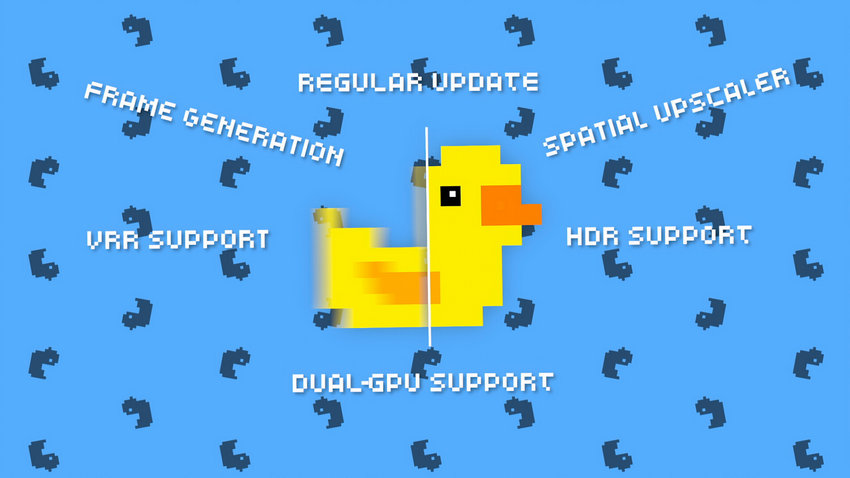
Its two main features are spatial upscaling and frame generation. Together, they help users achieve smoother gameplay and better-looking images without needing to render everything at a higher native resolution.
Check what is real-time video upscaling >>
Spatial Upscaling: Improving Image Quality in Real Time
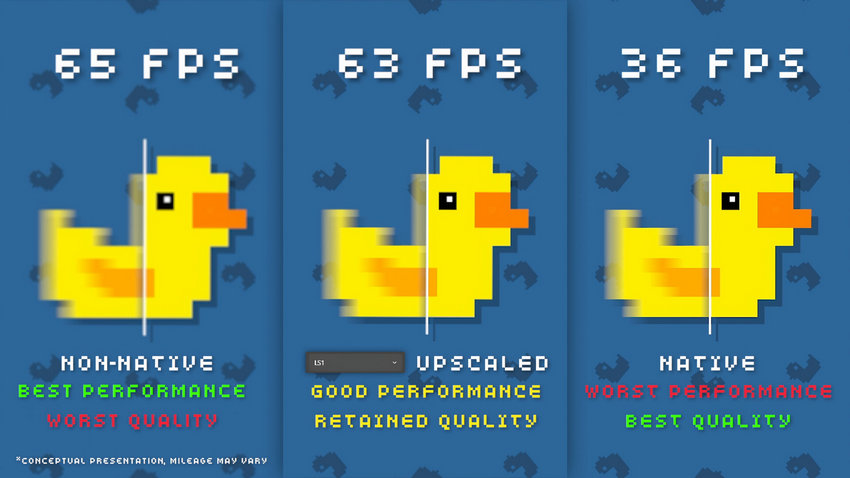
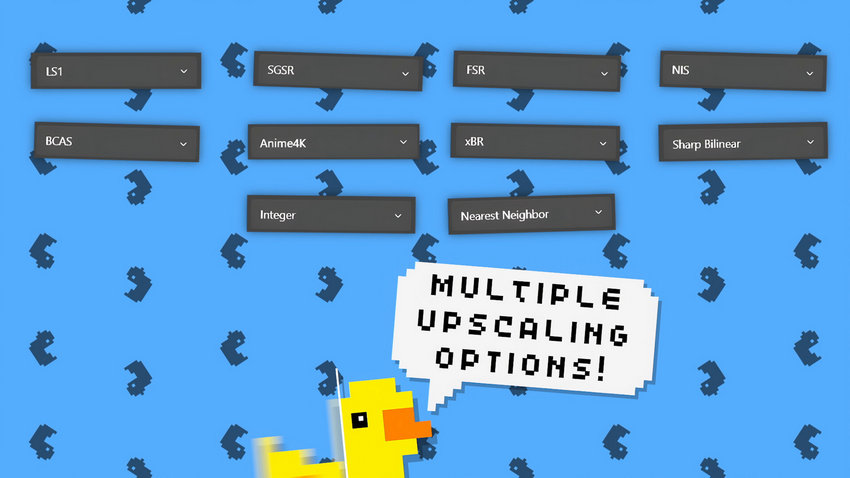
Spatial upscaling enlarges a lower-resolution image and adapts it to a higher-resolution display. Lossless Scaling supports several scaling algorithms, including its own LS1 scaling method, as well as options such as Anime4K and other scaling modes designed for different types of content.
For example, a game running at 1080p can be scaled to fit a 1440p or 4K monitor. Instead of relying on the game itself to render at a higher resolution, Lossless Scaling processes the output image and improves its appearance before displaying it.
LSFG Frame Generation: Creating Smoother Motion
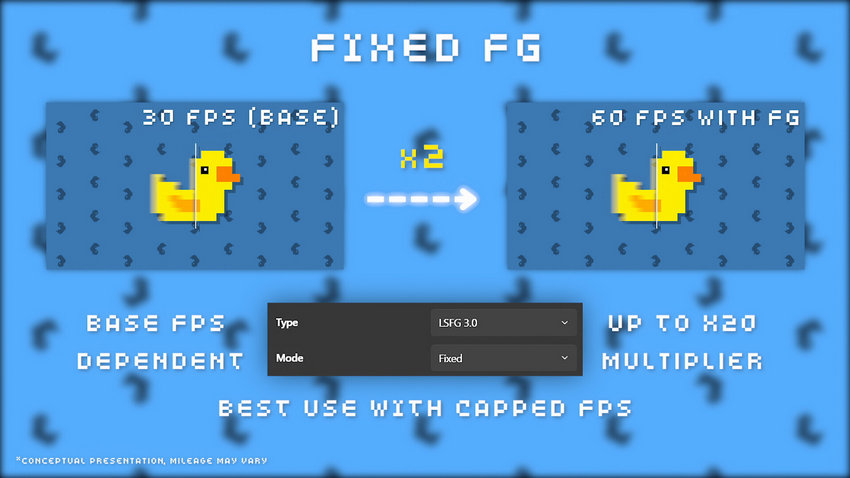
Another major feature of Lossless Scaling is LSFG (Lossless Scaling Frame Generation). This technology analyzes existing frames and generates additional frames between them, making motion appear smoother.
For example, a game running at 60 FPS may appear closer to a higher frame rate after frame generation is enabled. This can be especially useful for users with limited hardware performance or handheld gaming devices where maintaining high native frame rates can be challenging.
However, frame generation is not the same as increasing the game's actual rendering performance. The final experience depends on factors such as the original frame rate, hardware capability, and the type of content being displayed.
Common Uses of Lossless Scaling
Gaming
Gaming is the main use case for Lossless Scaling. It is often used to improve the experience of:
- Older games that do not support modern upscaling technologies
- Handheld gaming devices with limited GPU power
- Games that run better at a lower internal resolution while still looking sharp on high-resolution screens
Real-Time Video Playback
Lossless Scaling can also be used with video players and other windowed applications to improve how content appears on larger displays. For example, users may upscale lower-resolution videos when watching them on a 4K monitor.
If your goal is to permanently enhance a video file, such as restoring details in old footage, improving low-resolution recordings, reducing noise, or upscaling videos to 4K for later use, a dedicated offline AI video enhancement tool is usually a better choice. Tools like Aiarty Video Enhancer process videos frame by frame using AI models, allowing users to upscale footage, reduce noise, enhance details, improve faces, and apply frame interpolation before exporting the enhanced video.
How to Set Up and Use Lossless Scaling
Setting up Lossless Scaling only takes a few minutes, but skipping a crucial step—like frame capping or display mode settings—is the most common reason people experience lag, flickering, or black screens.
Follow this step-by-step setup guide to get optimal performance:
Step 1: Configure Your Game or Video Player (Crucial Pre-Reqs)
Before touching Lossless Scaling itself, you must prepare the application you want to upscale.
- Switch to Windowed Mode: Change your game’s graphics settings from Exclusive Fullscreen to Windowed or Borderless Windowed. Lossless Scaling operates as a display overlay and cannot hook into exclusive fullscreen games.
- Cap Your Base Frame Rate: For Frame Generation (LSFG) to work smoothly, your game needs a rock-solid, consistent base frame rate. If your frame rate fluctuates wildly, the generated frames will cause severe stuttering.
- Rule of thumb for 2x Frame Gen: Cap your in-game frame rate to half of your monitor's refresh rate (e.g., cap at 60 FPS on a 120Hz monitor, or 30 FPS on a 60Hz monitor).
- Where to cap: Use your GPU control panel (NVIDIA Control Panel / AMD Software), RivaTuner Statistics Server (RTSS), or the game's built-in frame limiter.
- Turn Off In-Game Upscalers & Motion Blur: Turn off in-game Motion Blur, Chromatic Aberration, and V-Sync (unless you encounter screen tearing, in which case use Lossless Scaling’s built-in V-Sync).
Step 2: Configure Lossless Scaling Profile Settings
Launch Lossless Scaling from Steam. On the main interface, set up your profile based on your hardware and goals:
A. Scaling Type & Mode
Scaling Type: Set to Aspect Ratio. This ensures your game scales up to fit your monitor without stretching or distorting the image.
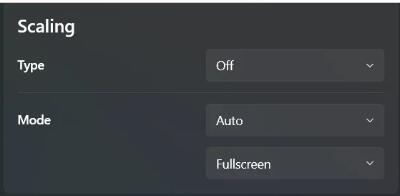
Scaling Mode (Choose one based on your content):
- LS1: The default and best overall algorithm for modern 3D games. It offers crisp upscaling with minimal performance impact.
- FSR / NIS: Great alternatives for 3D games if you prefer AMD's or NVIDIA's spatial upscaling look.
- Anime4K: Essential if you are playing 2D visual novels, retro pixel art, or watching anime.
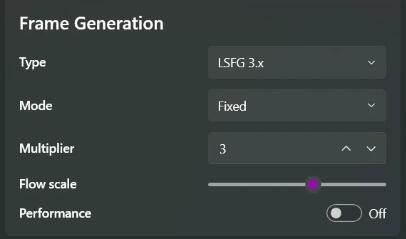
B. Frame Generation (LSFG)
- Frame Generation: Set to LSFG (LSFG 2.x or latest version available).
- Mode: Choose X2 for the best balance of smoothness and low latency. (While X3 or X4 modes exist for high-refresh-rate monitors like 144Hz/240Hz, they introduce higher input latency and require more GPU headroom).
- Performance Mode: Turn this ON if you are running on lower-end hardware, integrated graphics, or handheld devices like the Steam Deck / ROG Ally to free up GPU resources.
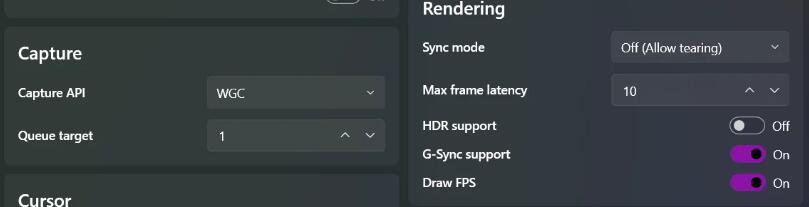
C. Rendering & Capture Options
- Capture API: Leave on DXGI (fastest and lowest latency). If you get a black screen in a specific game, switch this to WGC (Windows Graphics Capture).
- Draw FPS Counter: Toggle ON so you can monitor your base frame rate vs. your generated frame rate in real time.
Step 3: Activate It
- Leave Lossless Scaling open in the background.
- Launch your game or video player.
- Press the activation hotkey: Ctrl + Alt + S (or default Scale button).
- You will see a 5-second countdown. Click back into your game window before the timer hits zero.
- The screen will blink once, and the frame rate counter in the top-left corner should show your doubled frame rate (e.g., 60 / 120, meaning 60 base FPS generated to 120 FPS output).
To disable it at any point, simply press Ctrl + Alt + S again.
Troubleshooting Common Lossless Scaling Issues
Even with the perfect setup, frame generation and upscaling can be a bit finicky depending on your hardware and the specific game engine. If things aren't looking or feeling quite right, here are the real-world fixes for the most common problems.
"My mouse feels heavy" or "There's too much input lag."
This is the most common complaint with any frame generation tech. Because LSFG has to hold onto frames for a split second to generate the fake frame in between them, it inherently adds a slight delay to your inputs.
The Fix: Frame generation isn't a magic bullet for a game running at 15 FPS. You really need a stable base frame rate of at least 30 to 40 FPS before turning LSFG on. If your inputs still feel sluggish, make sure in-game V-Sync is turned off. If you're playing a fast-paced competitive shooter (like CS2 or Valorant), it's honestly better to leave frame generation off entirely.
"The UI is warping or I'm seeing weird ghosting when I move the camera."
AI frame generation relies on predicting motion. When you pan the camera aggressively, the algorithm struggles to guess what comes next, resulting in a smeared image or UI elements (like health bars and crosshairs) wobbling.
The Fix: First, try dropping your LSFG mode from X3 or X4 down to X2. It’s much more stable and produces far fewer artifacts. Second, make sure in-game Motion Blur is completely disabled. Motion blur ruins the clean edges the AI needs to generate clear intermediate frames.
"The FPS counter says 120, but the game is aggressively stuttering."
If Lossless Scaling claims you're getting high frame rates but the game looks like a slideshow, you have a frame pacing issue. The LSFG algorithm expects a perfectly steady rhythm of frames to do its math. If your base frame rate jumps from 45 to 60, then drops to 30, the AI gets confused.
The Fix: You must strictly cap your game’s frame rate. Don't rely on the game's built-in limiter, as they are often sloppy. Use a third-party tool like RTSS (RivaTuner Statistics Server) or the Nvidia Control Panel to lock your frame rate to a flat, unmoving number (e.g., exactly 30 FPS, 40 FPS, or 60 FPS).
"When I hit the hotkey, my screen just goes black."
This usually happens because the game is aggressively trying to take exclusive control of your monitor, clashing with the Lossless Scaling overlay.
The Fix: Double-check that your game is actually set to Windowed or Borderless mode—some games revert to Fullscreen automatically upon launching. If you've confirmed it's windowed and it still happens, go into your Lossless Scaling settings and change the Capture API from DXGI to WGC (Windows Graphics Capture) or GDI. DXGI is faster, but WGC is much more compatible with stubborn legacy games.
 Frequently Asked Questions
No, Lossless Scaling is not free. It is sold on Steam as a one-time purchase (usually around $6.99 USD). Given its frequent software updates, universal compatibility across games, and dramatic performance improvements for budget PC setups and handhelds, it is widely considered one of the best value-for-money utilities on Steam.
Generally, no. Lossless Scaling acts as a spatial display overlay at the Windows level rather than injecting code into game files, so anti-cheat software (like Easy Anti-Cheat or Ricochet) does not flag it as a hack.
However, using frame generation in fast-paced competitive shooters like Fortnite, CS2, or Call of Duty is not recommended due to input latency. The extra frame delay gives you a disadvantage in twitch-reaction scenarios, even if the image looks smoother.
No. Native DLSS and FSR are integrated directly into game engines by developers, meaning they have access to motion vectors and depth buffer data to produce cleaner images with lower input lag.
Lossless Scaling’s advantage isn't quality—it’s universality. While DLSS only works on RTX GPUs and supported games, Lossless Scaling works on virtually any game, video player, or emulator on almost any graphics card.
Yes! It works exceptionally well on devices like the Steam Deck, ROG Ally, and Lenovo Legion Go. To use it on a Steam Deck, you can either run it through Windows or use third-party Linux setups. It’s an invaluable tool for running modern AAA games on handheld hardware at higher visual refresh rates.
Yes, it can interpolate and upscale real-time video playback in web browsers or media players (like VLC) as long as the window is not in exclusive fullscreen mode.
However, keep in mind that this is purely a real-time preview filter. If you are looking to permanently upscale a video file, boost fps, remove noise, or convert old 1080p footage to crisp 4K for storage, you should use dedicated offline AI tools (like Aiarty Video Enhancer) instead of Lossless Scaling.
You May Also Like


This post was written by Brenda Peng who is a seasoned editor at Digiarty Software who loves turning ordinary photos into extraordinary works of art. With AI assistance for brainstorming and drafting, the post is reviewed for accuracy by our expert Abby Poole for her expertise in this field.
