



How to Use Topaz Image/Video Enhance in ComfyUI



Topaz Labs is widely recognized for its high-quality image and video enhancement tools, and many creators rely on its standalone applications such as Photo AI, Gigapixel AI, and Video AI for professional-grade results. As ComfyUI continues to grow in popularity, an increasing number of users are looking for ways to bring these enhancement capabilities directly into their node-based workflows.
Historically, integrating Topaz software into ComfyUI was possible—but only through community-built custom nodes that required complex setup, local CLI access, and frequent manual maintenance. This made the process fragile and difficult for most creators.
Today, the situation has evolved. Some models such as Bloom (for image enhancement) and Starlight (for video upscaling) are now available through two official-style nodes—Topaz Image Enhance and Topaz Video Enhance—which can be used on both cloud-hosted ComfyUI platforms and local installations. These nodes offer a far simpler, more accessible way to run Topaz’s newest diffusion-based enhancement models inside a workflow.
At the same time, many users still wish to integrate Topaz Photo AI or Topaz Gigapixel AI, since these older applications contain specialized algorithms that are not available in the newer nodes. These tools remain compatible with ComfyUI, but only through the original “legacy method,” which requires custom community nodes, command-line execution, and manual path configuration.
This guide provides a complete overview of all available options.
You’ll learn:
- which Topaz models can be accessed natively through the new ComfyUI nodes,
- what advanced features they provide,
- how to run them on cloud and local setups, and
- how to integrate Photo AI or Gigapixel AI using the legacy custom-node workflow.
What Topaz Models are Available in ComfyUI
The integration of Topaz technology is primarily managed through two dedicated nodes: Topaz Image Enhance and Topaz Video Enhance. These nodes enable direct access to specialized models optimized for different media enhancement tasks.
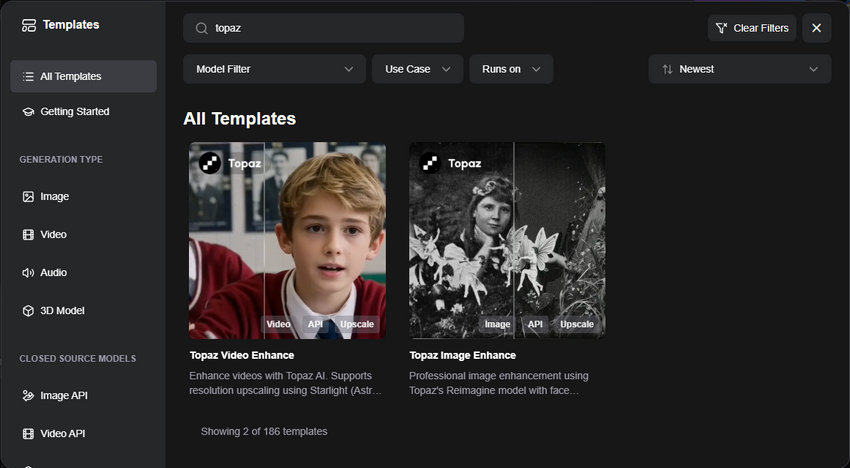
Image Enhancement (Topaz Image Enhance Node)
A. Bloom (Reimagine) Model
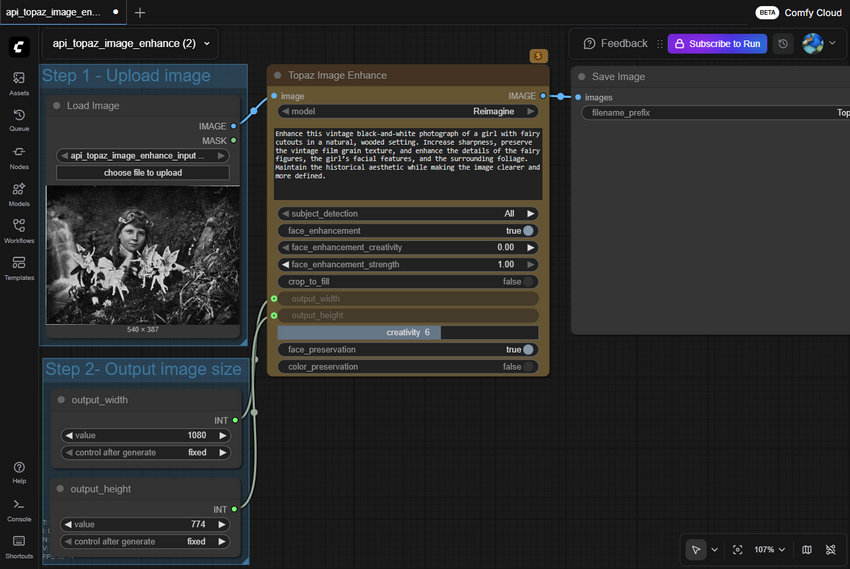
Bloom is the centerpiece of Topaz's image enhancement, specializing in Generative Upscaling and creative detail reconstruction. Unlike traditional upscaling methods that rely on simple extrapolation, Bloom utilizes a diffusion-based approach to intelligently "reimagine" and repaint complex textures, supporting output resolutions up to 8K.
To provide artists with necessary control, the node includes targeted refinement tools.
Subject Detection intelligently identifies the primary subject in the frame, ensuring that the heavy enhancement efforts are precisely focused on the composition's focal point.
Furthermore, a dedicated Face Enhancement function provides professional-grade facial restoration. Users can fine-tune parameters like Creativity and Strength to mend imperfections while preserving a natural appearance.
Finally, Preservation Controls - color_preservation and face_preservation - help maintain the original aesthetic integrity, tone, and facial identity during aggressive enhancement.
This model is ideally suited for AI-generated content that requires significant detail reconstruction and a final, high-resolution polish.
2. Video Enhancement (Topaz Video Enhance Node)
A. Starlight (Astra) Model
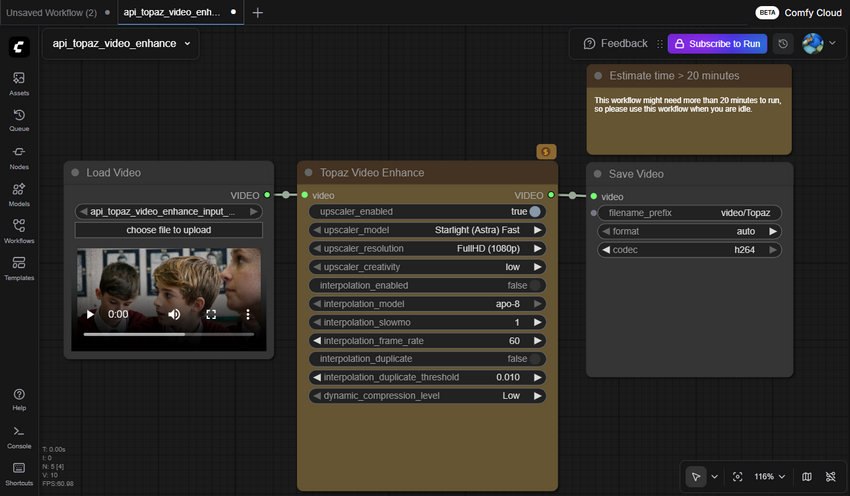
Starlight represents a family of diffusion-based models designed for high-quality video upscaling, supporting common targets like FullHD (1080p) and 4K.
The node allows users to select between two distinct enhancement modes based on their production goal:
- Starlight (Astra) Fast (Diffusion Precision Upscale): This mode prioritizes accuracy and high-fidelity output. It focuses on strictly preserving existing motion and detail consistency while achieving the target resolution, making it the choice for standardized, high-quality production. Starlight Fast is the best choice for footage where source fidelity must be strictly maintained (e.g., clean video exports or archival content).
- Starlight (Astra) Creative: This mode leverages a Creative Diffusion Upscale approach. It permits the model to "reimagine" and generate plausible new details within the video sequence—similar to the Bloom model for stills, but optimized for motion continuity. Starlight Creative (Astra) is ideal for AI-generated video sequences (like those from AnimateDiff) or low-detail source material where the user desires a generative, highly detailed enhancement of the content.
The Starlight integration also includes robust artifact handling, most notably Dynamic Compression Handling. This feature intelligently identifies and mitigates compression artifacts present in the original video footage, ensuring that the upscaling process does not simply magnify existing flaws like noise or digital blocks.
B. Apollo Model
Apollo is a specialized model dedicated solely to Frame Interpolation, which is the process of generating entirely new intermediate frames to create smoother motion.
The model offers flexible control over the resulting video frame rate. Users can define custom targets (e.g., converting a standard 30fps clip to a smooth 60fps), or utilize specific slowmo settings to produce graceful, high-quality slow-motion sequences.
Apollo is essential for filmmakers and animators aiming to achieve cinematic motion smoothness, stabilize footage with dropped frames, or prepare any video content for high-frame-rate delivery.
How to Use Topaz Video/Image Enhance in ComfyUI
Accessing these powerful Topaz models requires different setup procedures depending on whether you utilize a cloud service or maintain a local ComfyUI installation. Understanding these differences is critical, as they directly impact your budget and hardware resources.
Method 1. Cloud ComfyUI — The Fast, Pay-As-You-Go Method
The simplest and fastest way to start experimenting with Topaz models is via a cloud platform that provides ComfyUI as a hosted service—for example, cloud.comfy.org.
Since all computation runs on cloud GPUs, you don’t need powerful hardware or complicated setup. Just log in and start creating.
- Visit the platform (e.g., cloud.comfy.org).
- Log in to your account.
- Under All Templates, search for Topaz Image Enhance or Topaz Video Enhance.
- Select the template you want; the platform will open a ready-to-use workflow.
- Click Choose file to upload to import your image or video.
- Select the desired Topaz model and customize settings as needed.
- Run the workflow. (Note: A subscription is required; workflows do not run on free accounts.)
Typical Pricing
- $20/month,
- with a maximum of 30 minutes runtime per job (varies by provider).
Why Choose Cloud
- No hardware requirements
- No installation or configuration
- Ideal for occasional or lightweight use
- Perfect for users whose local GPUs cannot handle heavy models like Bloom or Starlight
Method 2. Local Installation — Hardware-Heavy
For users who prefer full control, privacy, and unlimited runtime, integrating Topaz nodes into a local ComfyUI installation is also possible. This method is free—but significantly more demanding on your system.
- Ensure your local ComfyUI installation is up to date.
- Open ComfyUI Manager and search for the Topaz enhancement node packages.
- Install the required nodes.
- Depending on the version, configuration may require:
- linking the node to your local Topaz application path, or
- entering an API key provided by your licensed Topaz software.
- Add the node to your workflow, connect it to your generation pipeline, and start processing.
The primary limitation here is the added hardware burden. Models like Bloom and Starlight are extremely resource-intensive. If your GPU is already stressed running a large Stable Diffusion model, integrating an additional Topaz enhancement node into the same pipeline dramatically increases the VRAM demand. Users frequently encounter Out of Memory (OOM) errors, which often necessitates running the upscale as a separate, time-consuming step—or, in many cases, renders the desired seamless workflow impractical altogether.
How to Use Topaz Gigapixel AI and Topaz Photo AI in ComfyUI
While the newer Topaz Image Enhance and Topaz Video Enhance nodes provide streamlined access to the Starlight and Bloom models, many users still rely on the dedicated algorithms within Topaz Gigapixel AI or the all-in-one features of Topaz Photo AI.
Since these applications are not currently included in the simplified template-based integration, using them requires reverting to the original, more complex "Legacy Method" established by the community.
Integrating Gigapixel AI or Photo AI into your workflow demands a local installation and configuration via the Command Line Interface (CLI). This process contrasts sharply with the ease of the template method.
Step 1:Install Custom Nodes: You must first locate a community-developed custom node specifically designed to bridge ComfyUI with the Gigapixel or Photo AI application. This node is not part of the standard ComfyUI Manager and must be manually downloaded and installed.
Step 2: Acquire CLI Access: You must own a version of Topaz software (often the Professional or higher tier) that grants access to the Command Line Interface (CLI). This is necessary because ComfyUI cannot directly control the application's graphical user interface (GUI).
Step 3: Configure Local Paths: The custom node requires manual configuration to identify the precise local file path of the Topaz application's CLI executable file. Any error in this path will cause the entire workflow to fail.
Step 4: Run as Separate Step: Due to the complexity and potential for conflicts, these workflows are often set up to run the Topaz upscale as a separate, isolated batch process after the main Stable Diffusion generation is complete.
Necessary Requirements and Limitations
This method comes with significant barriers, reinforcing the limitations discussed earlier:
- Software Dependency: Requires owning and maintaining a specific, often expensive, version of the standalone Topaz application with CLI access.
- VRAM and Storage Stress: Running the upscaling process locally remains incredibly VRAM-intensive. Furthermore, configuring input and output directories for batch processing adds another layer of file management complexity.
- Stability Risk: Custom community nodes are not officially supported and can break following ComfyUI or Topaz application updates, requiring manual fixes and maintenance.
Conclusion: Choosing Your Path to AI-Powered Enhancement
The integration of core Topaz Labs models like Bloom and Starlight directly into ComfyUI nodes marks a significant leap forward for automated, high-end creative workflows. However, as detailed, accessing the full suite of features from standalone applications like Topaz Photo AI or Gigapixel AI within ComfyUI still requires navigating the complexities of custom nodes and CLI setups.
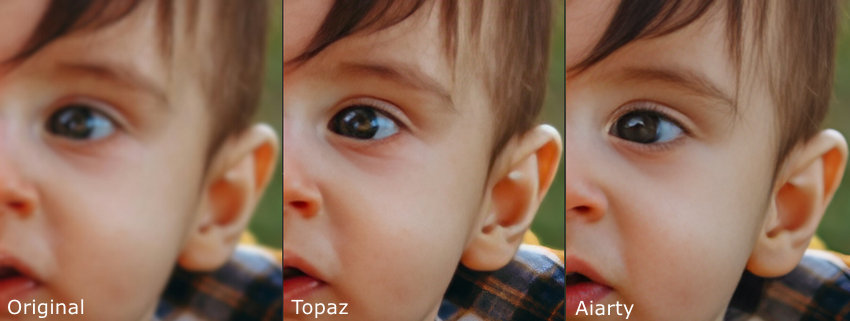
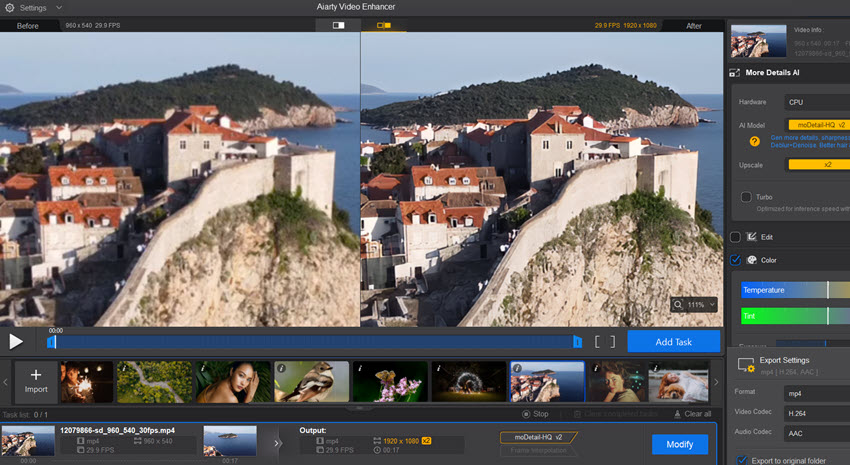
If this level of technical integration feels excessive for your needs, or you simply prefer a powerful, out-of-the-box solution that doesn't require building a fragile pipeline, then using a dedicated desktop enhancement application remains a supremely efficient and reliable choice. This is especially true when considering the premium price point of Topaz's standalone software. For creators seeking a capable alternative that offers compelling value, Aiarty presents a balanced and practical option.
To help you make a clear comparison between these top-tier tools, here is a breakdown of their key aspects:
Topaz Photo AI vs. Gigapixel AI vs. Aiarty Image Enhancer
Topaz Video AI vs. Aiarty Video Enhancer
Your choice ultimately depends on your primary workflow driver:
- Choose Topaz if you desire the most granular parameter control and your budget aligns with its premium price.
- Choose Aiarty if you value exceptional cost-efficiency and processing speed, seeking a powerful production tool for batch processing images and videos with a sensible one-time investment.
You May Also Like


This post was written by Brenda Peng who is a seasoned editor at Digiarty Software who loves turning ordinary photos into extraordinary works of art. With AI assistance for brainstorming and drafting, the post is reviewed for accuracy by our expert Abby Poole for her expertise in this field.
