


Winter photography presents several unique challenges that can make capturing stunning images difficult. The harsh lighting conditions, low-angle sunlight and high contrast, cold temperatures, and the abundance of snow can prevent you from yielding breathtaking results. However, if you get some winter photography tips and ideas, you’re able to capture the unique beauty of winter landscapes and scenes.
Ready to capture the magic of winter? Follow these expert tips to take your winter photography to the next level. From finding the perfect composition to mastering the art of exposure, this guide has everything you need to create stunning images. So, grab your camera, bundle up, and let's explore the winter wonderland!
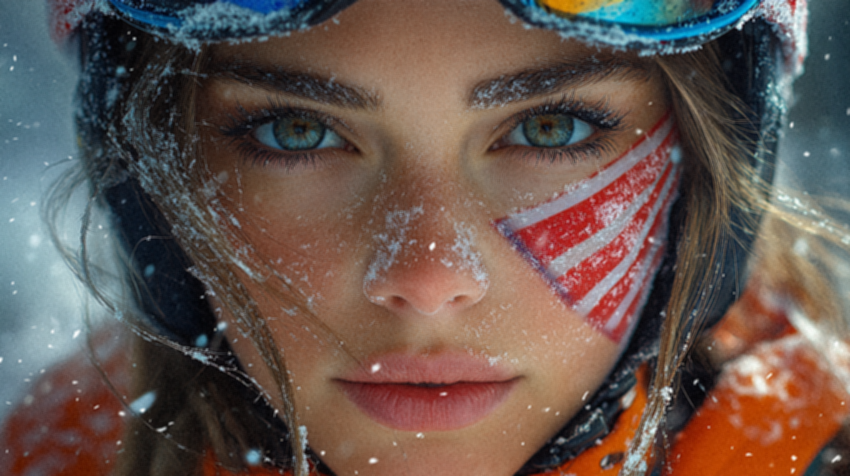
Winter Photos Look Dark, Noisy, or Soft?
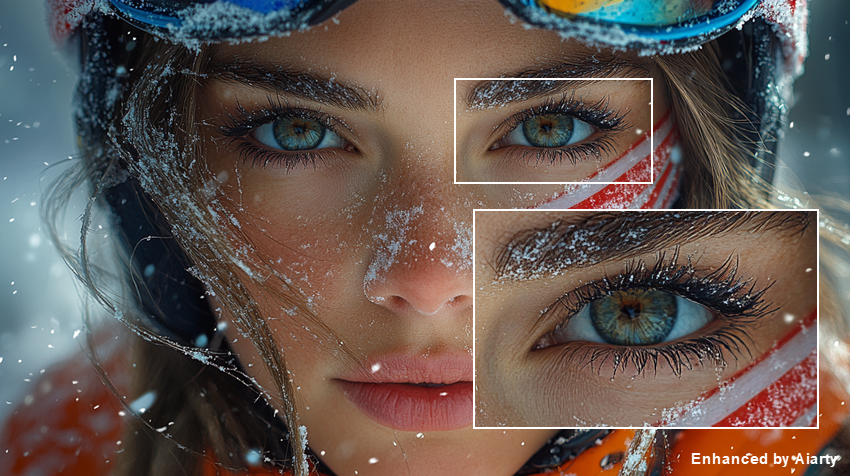
Winter shooting can leave you with underexposed snow, high-ISO noise, motion blur, or lost fine details. If a good winter shot needs more recovery after shooting, Aiarty Image Enhancer can help reduce noise and blur, enhance details, and upscale the image.

Part 1. Winter Photography Gear & Preparation
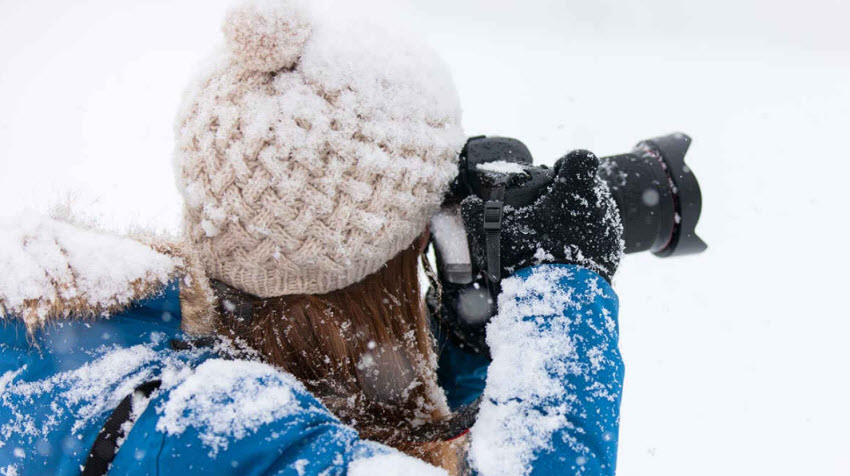
Winter photography puts extra demands on your camera, batteries, and yourself. A few simple preparations can help prevent common problems in cold, snowy, or wet conditions.
Use a Weather-Sealed Camera and Lens: A weather-sealed camera and lens provide better protection against snow, moisture, and dust. For extreme cold, check the operating temperature recommended by your camera manufacturer.
Carry Extra Batteries: Cold temperatures can drain camera batteries faster than normal. Carry at least one spare battery and keep it warm in an inner pocket until needed.
Prevent Condensation: Moving your camera directly from freezing outdoor temperatures into a warm room can cause condensation.
Tip: Put your camera in a sealed bag before going indoors and let it warm up gradually to reduce condensation.
Keep Yourself Warm: Dress in layers and use a warm coat, hat, and touchscreen-compatible gloves. Staying comfortable helps you shoot longer and operate your camera more easily.
Part 2. Winter Photography Camera Settings
Winter photography often requires a few camera setting adjustments because bright snow, falling snow, and changing winter light can easily fool your camera. Instead of relying on fixed settings, adjust exposure, ISO, shutter speed, and aperture according to the scene.
Shoot in RAW: Keep More Detail for Editing
If possible, shoot in RAW when photographing snowy landscapes, winter wildlife, or other high-contrast winter scenes. Shooting in RAW format is a valuable asset for winter photography, as it preserves more image datathan JPEGs. This is especially crucial in snowy scenes, where achieving correct exposure can be challenging due to the abundance of white.
RAW files offer unparalleled control over exposure, white balance, and highlight recovery, allowing you to fine-tune your images without sacrificing quality. Additionally, the wider color range captured in RAW format enables you to bring out the subtle hues and nuances of winter landscapes more effectively.
Exposure: Keep Snow White, Not Gray
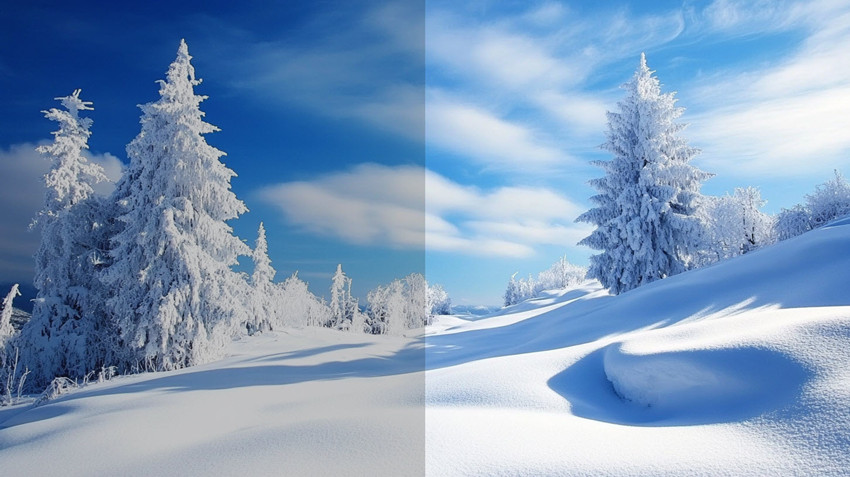
Bright snow can fool your camera's metering system into underexposing the scene, making white snow look gray or dull.
Quick setting: Start around +0.3 to +1 EV and check the histogram. Increase exposure if the snow looks gray, but reduce it if bright areas become clipped.
If your camera offers exposure bracketing, you can also capture multiple exposures when the scene has a wide range of highlights and shadows.
ISO: Keep It Low When You Can
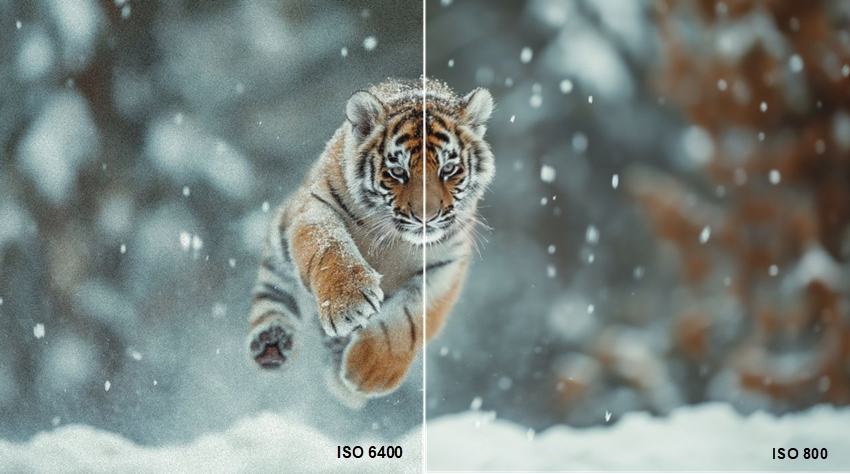
ISO determines your camera's sensitivity to light. A lower ISO (e.g., 100) is ideal for bright conditions, while a higher ISO (e.g., 400) is necessary for low-light situations. However, higher ISO settings can introduce more noise (graininess) in photos.
Use the lowest ISO that still allows you to maintain the shutter speed and aperture you need. Lower ISO generally produces cleaner images, while higher ISO can introduce more noise, especially in low-light winter photography.
As a starting point:
There is no single best ISO for winter photography. Adjust it based on available light, subject movement, shutter speed, and the amount of noise you can accept.
Shutter Speed: Decide What Snowfall Should Look Like
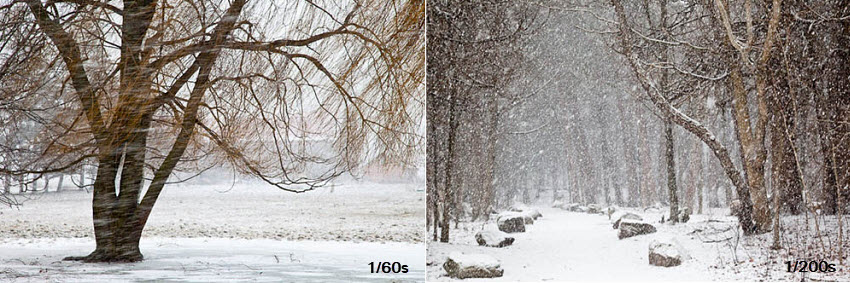
Shutter speed controls how falling snow appears in your winter photos. Choose it based on whether you want to freeze individual snowflakes or show their motion.
- 1/250s or faster: A good starting point for freezing falling snowflakes and capturing sharp details. Use around 1/500s or faster for fast-moving subjects such as winter sports or wildlife.
- 1/60–1/125s: Creates more visible movement in falling snow while keeping the main subject relatively sharp.
- 1/30–1/60s: Can create a softer, more atmospheric snowfall effect, but watch for motion blur in people, animals, or moving tree branches.
For heavy snowfall, slower shutter speeds such as 1/30–1/125s can make snowflakes more visible in the frame, especially when they are difficult to capture against a bright or snowy background.
Using flash: A flash can illuminate nearby snowflakes and make them stand out against the background. It works best when the main subject is relatively close to the camera. For more natural-looking snowfall, try shooting without flash and adjust the shutter speed instead.
Aperture: Match It to the Subject
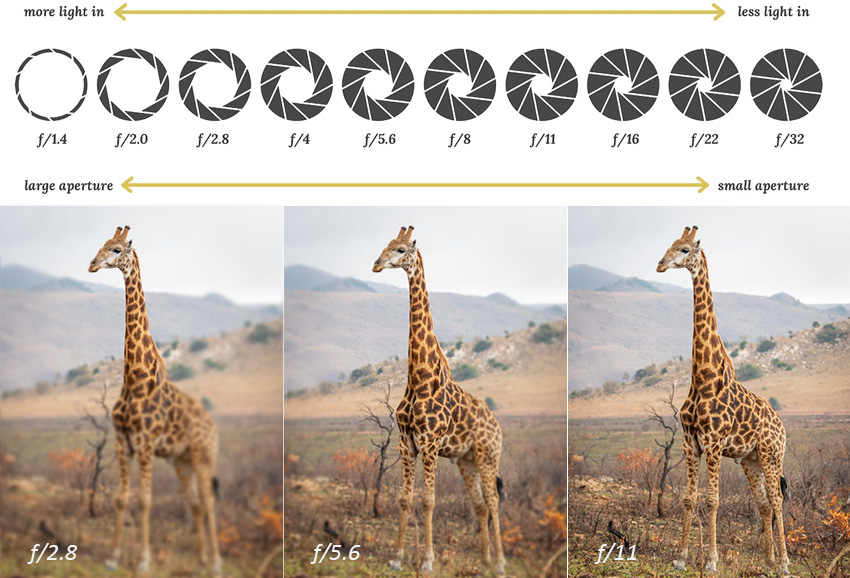
Aperture affects both how much light enters the camera and how much of the scene appears in focus. A wider aperture such as f/2.8 creates a shallower depth of field and helps isolate a subject, while a narrower aperture such as f/11 keeps more of the scene sharp.
Your aperture should also work together with shutter speed and ISO. If you change one setting, you may need to adjust the others to maintain the desired exposure.
- Winter landscape photography: f/11 or higher for a deep depth of field.
- Winter action Photography: Use a wider aperture (e.g., f/4-f/7) for a balance of speed and depth of field.
- Winter wildlife photography: A wide aperture (e.g., f/2) helps isolate the subject from the background.
- Winter portraits: A wide aperture (e.g., f/2 or f/1.4) creates a beautiful bokeh effect.
- Long exposures: f/16-f/22 to allow longer shutter speeds for capturing light trails or other effects.
- Bright winter scenes: Use a smaller aperture (e.g., f/11-f/22) to control the amount of light entering the camera.
- Northern lights: An open aperture (e.g., f/1.8-f/4) for maximum light capture.
White Balance: Control the Blue Cast
Snow can take on a strong blue tint in shade, overcast conditions, or around sunrise and sunset. Auto White Balance is a useful starting point, but Cloudy or Shade can add warmth when the scene looks too blue.
For consistent color, especially when shooting RAW, you can also fine-tune white balance during post-processing.
Look for Contrast in Snowy Scenes
Snow-covered landscapes can look flat when everything has a similar tone. Look for contrasting subjects such as dark trees, colorful clothing, buildings, or a deep blue sky to add visual interest.
Low winter sunlight can also create stronger shadows and textures, so try shooting around sunrise or sunset when the light is softer and more directional.
A Shoot During Winter's Best Light
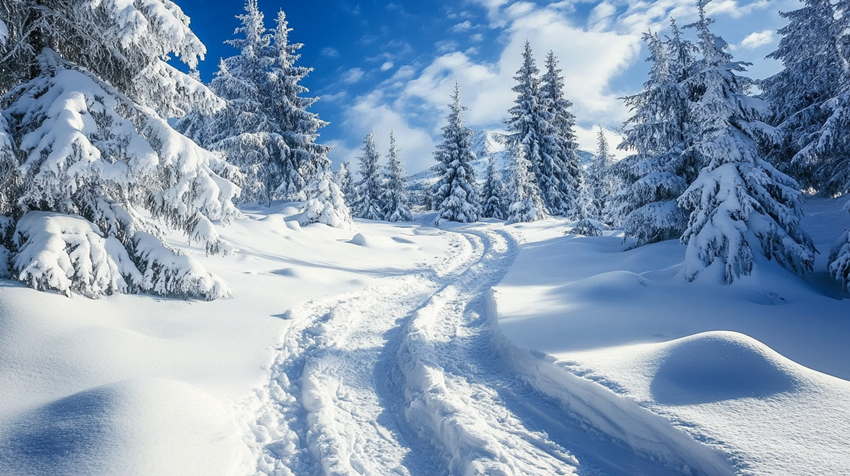
The low angle of the winter sun can produce long shadows, textured snow, and warm highlights. Golden hour—the period shortly after sunrise and before sunset—is often a good time for winter landscape and outdoor photography.
Winter days are shorter, so plan your shooting time in advance and check the sunrise and sunset times for your location.
Common Winter Photography Problems & Fixes
Winter photos can look different from what you see in the viewfinder. Bright snow may turn gray, cool light can create a blue cast, and low light or falling snow can make images noisy or soft. Here are some common winter photography problems and practical ways to fix them.
Snow Looks Gray or Dull
Large areas of bright snow can confuse the camera's metering system, causing it to underexpose the scene. As a result, white snow may appear gray or dull instead of bright and clean.
When shooting, increase exposure compensation and check the histogram to make sure you are not losing important highlight detail. If you shoot in RAW, you also have more flexibility to fine-tune exposure and recover some shadow or highlight detail during editing.
Snow Looks Too Blue
Snow can take on a blue cast in shade, overcast conditions, or other cool winter light. This is especially noticeable when the snow should look neutral white.
Auto White Balance is a useful starting point, but try the Cloudy or Shade setting if the scene looks too cool. When shooting RAW, you can also fine-tune white balance later without changing the original capture.
Winter Photos Look Noisy
Noise is more common in winter photos taken at night, during blue hour, or in other low-light conditions. Raising ISO can make noise more visible, while brightening an underexposed image can reveal additional noise in darker areas.
Use the lowest practical ISO while maintaining the shutter speed and aperture you need. If noise remains after basic RAW processing, apply noise reduction carefully before making further detail adjustments.
Fine Details Look Soft
Snowfall, mist, subject movement, or a slow shutter speed can make fine details appear softer than expected. This can affect textures such as tree branches, clothing, fur, and distant landscape details.
First check whether the softness comes from focus or motion. If the original photo still contains usable detail, moderate sharpening or AI enhancement can help improve perceived clarity without relying on aggressive sharpening.
Quick Fixes for Common Winter Photo Problems
If basic RAW adjustments still leave noticeable noise or softness, especially in high-ISO, low-light, or detail-heavy winter photos, you can use AI enhancement as a further step in the workflow.
Rescue Noisy, Dark, and Soft Winter Photos with Aiarty
Basic RAW adjustments can fix exposure, white balance, and overall tone, but some winter photos still have visible noise, softness, or lost fine detail. This is especially common in high-ISO night shots, underexposed images, and photos taken through falling snow or mist.
Aiarty Image Enhancer can be used as a further enhancement step after RAW processing. Its AI models are designed to help reduce high-ISO and compression noise, improve clarity, and enhance fine details from noisy and blurry winter photos. There are also basic color options to help correct gray snowy pictures.
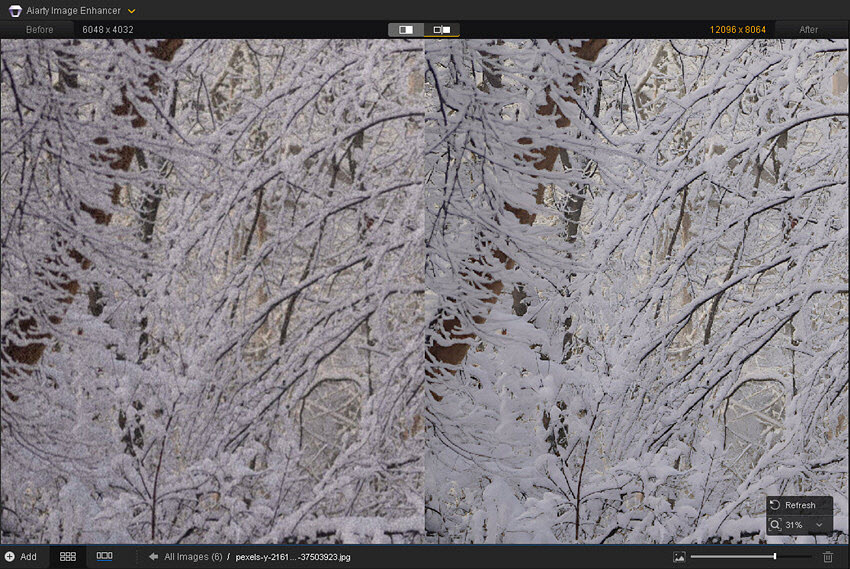
Clean Up Noise in Snowy Winter Landscapes
Snow-covered trees and branches can reveal noise very clearly, especially when a winter landscape is shot at a higher ISO or in less-than-ideal light. Noise can make the sky, snow, and fine branches look rough and distracting.
After basic RAW adjustments, Aiarty can reduce visible noise while keeping the fine structure of branches and the texture of the snowy scene. In this example, the processed image has a noticeably cleaner appearance, with distracting noise removed while the winter landscape remains natural.
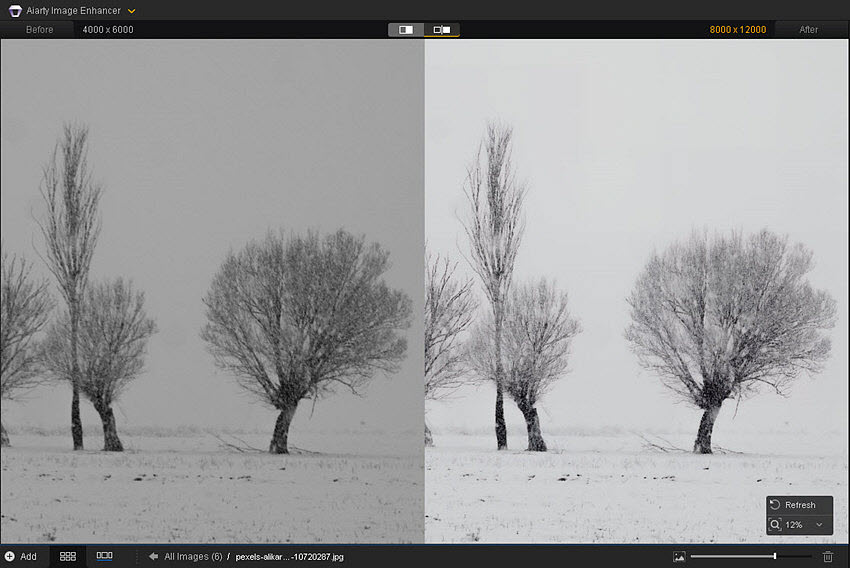
Recover a Dark, Low-Light Snow Scene
A large area of white snow can be misleading when metering a scene. If the camera interprets all that brightness as a reason to reduce exposure, the resulting winter photo may actually look darker and grayer than expected—especially if you're not yet comfortable with exposure compensation or the “expose to the right” approach.
If you shoot in RAW, you have more room to bring the exposure, shadows, and color back during editing. After recovering the image, however, the photo may still lack clarity or contain visible noise from the original underexposure.
Aiarty can then be used as a second-stage enhancement to clean up the image and improve overall clarity. In this example, correcting the color and recovering the darker snow scene results in a brighter, clearer image, while AI enhancement helps refine the final detail.
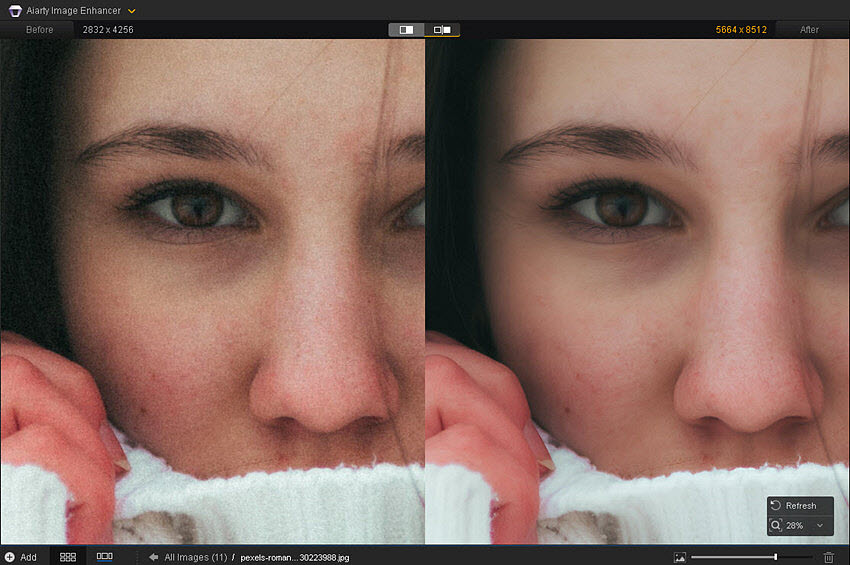
Bring Back Fine Facial Detail in Snow Portraits
Winter portraits present a different challenge. A person's face may contain visible noise, but simply applying stronger noise reduction can also make small facial features and natural skin texture look less defined.
Here, the goal is not just to remove noise. Aiarty can help enhance facial details such as eyes, hair, and subtle skin texture after the basic photo has been corrected. This makes it useful for snow portraits where the subject's face needs to remain clear while the surrounding snowy scene retains its natural texture.
A Practical Winter Photo Enhancement Workflow
For the most natural result, use AI enhancement after normal photo correction rather than treating it as a replacement for your RAW editor:
RAW correction → Exposure & White Balance → Basic Noise Reduction → Aiarty Enhancement → Final Color Adjustment & Export
This workflow lets you correct the fundamental image problems first, then use Aiarty where additional noise reduction, clarity, or detail enhancement is actually needed.
Conclusion
Winter photography offers a unique opportunity to capture breathtaking landscapes and atmospheric scenes. By carefully preparing your gear, understanding the technical aspects of your camera, and mastering post-processing techniques, you can create stunning winter and snow photos that truly capture the essence of the season.
Start by ensuring your camera and lenses are well-protected from the cold and moisture. Invest in extra batteries and keep them warm, as cold temperatures can drain battery life quickly. To achieve the desired exposure, increase exposure compensation to account for the reflective nature of snow. Experiment with different white balance settings to create various moods and atmospheres. Don't forget to utilize the golden hours for the most dramatic lighting.
When editing your images, shoot in RAW format for maximum flexibility. Use post-processing software to enhance details, adjust contrast, and create a sense of depth.
You May Also Like


This post was written by Brenda Peng who is a seasoned editor at Digiarty Software who loves turning ordinary photos into extraordinary works of art. With AI assistance for brainstorming and drafting, the post is reviewed for accuracy by our expert Abby Poole for her expertise in this field.
