


If you've ever come home from a wedding or a sports event with 5,000 RAW files on a memory card, you know that the "magic of photography" usually dies the moment you start the culling process.
For decades, Photo Mechanic has been the gold standard for pro photographers who need to fly through thousands of images. It's legendary for its speed and metadata "Code Replacements." But as we move through 2026, the landscape has shifted. We are no longer just looking for faster ways to scroll; we are looking for smarter ways to decide.
Between the rise of "Intentional Imperfection" (where AI helps us find that one perfect candid) and the need for lightning-fast delivery, many photographers are asking: Is there a better way?
Whether you're looking for AI that can "see" closed eyes for you, a cloud-based workflow that doesn't melt your laptop, or simply a more budget-friendly tool that handles RAW data accurately, there is an alternative out there.
In this guide, we're breaking down the top 5 Photo Mechanic alternatives available today. We'll look at the pros, the cons, and exactly which one fits your specific shooting style—so you can spend less time behind a screen and more time behind the lens.
1. Aftershoot (Best for Automation)
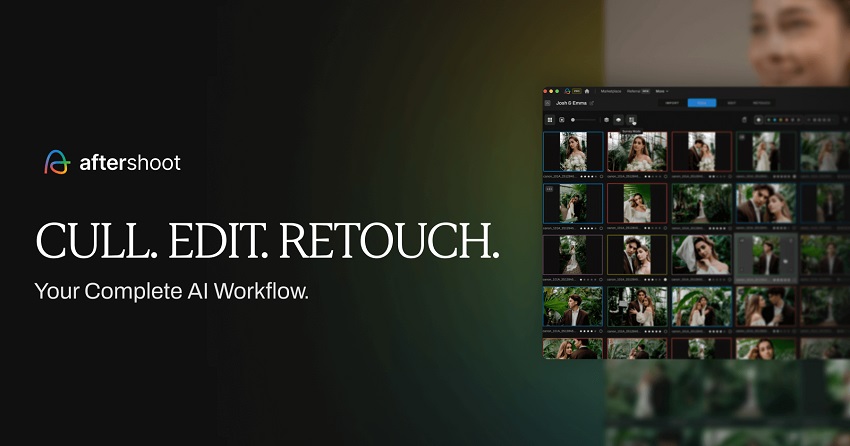
Aftershoot is the leading AI-powered post-processing platform designed to handle the "heavy lifting" after a shoot. It has evolved from a simple culling tool into a comprehensive ecosystem that handles culling, AI-assisted editing, and retouching. Unlike traditional browsers, it uses machine learning to "read" your photos and make initial selections for you.
While Photo Mechanic's claim to fame is the speed at which a human can flip through photos, Aftershoot's value is that a human doesn't have to look at every photo at all. It addresses the "mental fatigue" of high-volume shooting by reducing a 5,000-image gallery to the "best" 500 in a matter of minutes.
Key Features
- AI Automated Culling: Automatically detects blurs, closed eyes, and exposure issues.
- Duplicate Grouping: Clusters "burst" shots together and automatically picks the sharpest or best-composed frame.
- AI Editing & Retouching: Can learn your personal editing style from previous Lightroom catalogs and apply it to new shoots instantly.
- Custom AI Profiles: The software learns your specific preferences over time (e.g., if you prefer "candid" shots over "perfectly sharp" ones).
- Offline Workflow: Processes everything locally on your machine—no need to upload thousands of RAW files to the cloud.
Pros
- Speed of Result: You can walk away from your computer while it culls. 1,000 images take roughly 8–12 minutes to process automatically.
- Reduced Fatigue: You only review the "winners," rather than looking at every single outtake.
- All-in-One: It handles culling and basic editing in one app, whereas Photo Mechanic is strictly for the pre-edit phase.
Cons
- Metadata Limitations: It lacks Photo Mechanic's advanced "Code Replacements" and deep IPTC metadata tools used by sports and news photographers.
- Hardware Dependent: Since it processes locally, you need a modern computer (like an M3 Mac or high-end PC) to get the best speeds.
- Subscription Model: Unlike the one-time purchase option for Photo Mechanic, Aftershoot requires an ongoing subscription.
- "The Decisive Moment": AI sometimes struggles with creative intent—for example, it might flag a "closed eye" during a prayer or a "blurry" artistic motion shot as a reject.
2. FilterPixel (Best for Speed & Cloud Workflows)
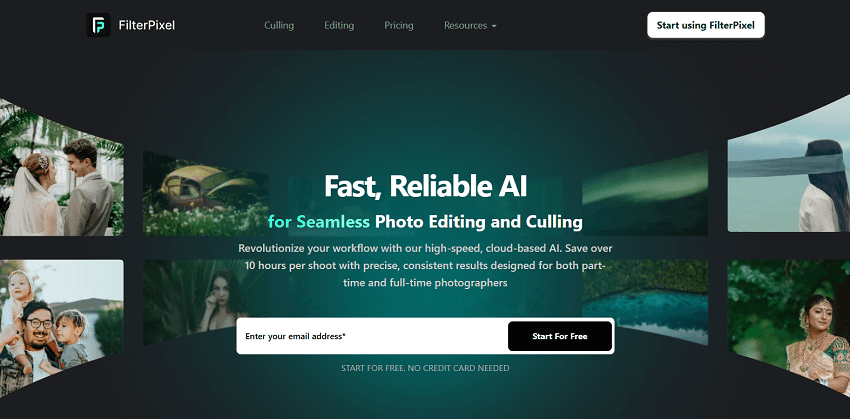
FilterPixel is an AI-powered culling software that stands out for its hybrid workflow. While most tools rely entirely on your computer's processor, FilterPixel offers a cloud-assisted approach that can handle the heavy lifting of analyzing thousands of images in the background. It is designed to categorize your shoot into "Great," "Quick Review," and "Rejected" categories automatically.
If your goal with Photo Mechanic is purely speed—getting from a full memory card to a curated selection as fast as possible—FilterPixel is a massive upgrade. It transitions the workflow from "manual browsing" to "reviewing AI suggestions." It is widely considered one of the fastest AI cullers currently available, often outpacing local software on older machines.
Key Features
- Cloud-Accelerated Culling: Offloads the intensive AI analysis to the cloud, so your laptop fans don't have to spin at full speed.
- Smart Grouping: Automatically groups photos from the same scene or burst and suggests the best "Hero" shot.
- Automatic Eye & Focus Detection: Instantly flags photos with closed eyes or missed focus with visual icons.
- Seamless Export: One-click export to Lightroom, Capture One, or your local hard drive with all your star ratings and color tags preserved.
- Real-time Feedback: As you scroll, the AI provides a "score" for each image based on technical quality.
Pros
- Processing Speed: Can process 1,000 images in approximately 3 minutes, which is significantly faster than a human manually clicking through them in Photo Mechanic.
- Hardware Agnostic: Because it can use cloud power, you don't need the most expensive, top-tier computer to get professional results.
- Clean Interface: Offers a modern, minimalist UI that is much easier to navigate for beginners compared to Photo Mechanic's "spreadsheet-style" interface.
Cons
- Internet Dependency: To get the full benefit of the cloud features, you need a stable and relatively fast internet connection.
- Lack of Metadata Depth: It is built for culling, not for complex captioning. It lacks the "Code Replacements" and advanced IPTC templating that news and sports photographers rely on.
- Subscription Model: Like many modern AI tools, it follows a subscription-based pricing structure rather than a one-time "buy it once" license.
- Less Control over Ingestion: Photo Mechanic is superior for "Ingesting" (copying from cards to multiple drives at once); FilterPixel is better for what happens after the photos are on your drive.
3. FastRawViewer (Best for Precision & Value)
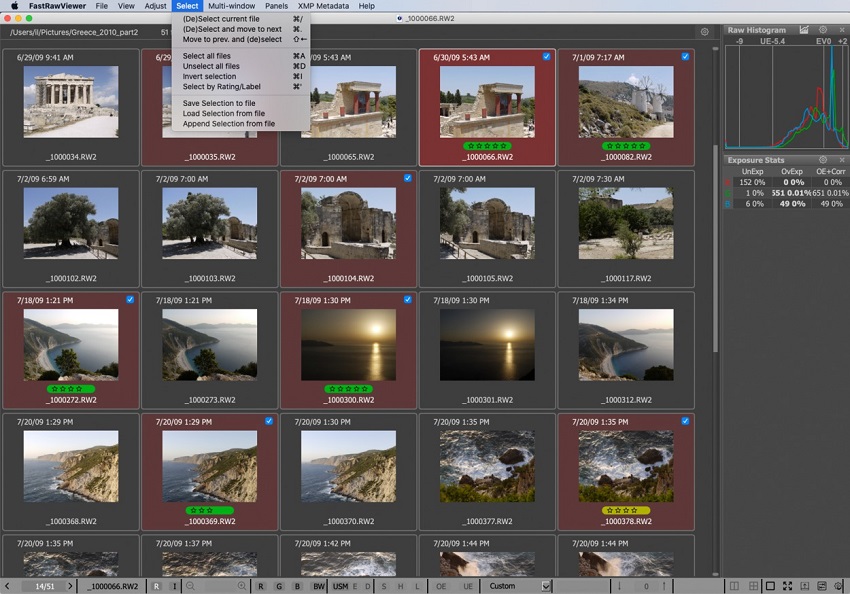
FastRawViewer is a dedicated RAW file browser that prioritizes technical accuracy over everything else. While most viewers (including Photo Mechanic) show you the JPEG preview embedded inside your RAW file, FastRawViewer renders the actual RAW data. This allows you to see exactly what your camera sensor captured before any processing is applied.
It is the "budget king" of culling. If you don't need the complex automated workflows of AI or the newsroom-style metadata of Photo Mechanic, FastRawViewer provides a lightning-fast, no-nonsense way to review images. It is built by the same team behind LibRaw, meaning its support for new camera models (like the latest Sony or Nikon releases of 2026) is usually faster than almost any other software.
Key Features
- Real RAW Rendering: See the true histogram and exposure of the RAW file, not the "liar" JPEG preview.
- Focus Peaking: Highlights sharp edges in real-time so you can check focus without zooming in to 100%.
- Shadow Boost & Highlight Inspection: Quickly "lift" shadows or "dim" highlights with a hotkey to see if a seemingly ruined shot is actually recoverable.
- Exposure Evaluation: Shows exactly where pixels are "clipped" (lost detail), helping you decide which shots are technically worth editing.
- XMP Support: Ratings and labels are written to standard XMP sidecar files, which are instantly recognized by Lightroom and Capture One.
Pros
- Price: It is a one-time purchase (usually under $25) compared to Photo Mechanic's significantly higher price tag or subscription.
- Technical Accuracy: Photo Mechanic shows you the JPEG your camera thought was right; FastRawViewer shows you the RAW data you actually have to work with.
- Lightweight: It has a tiny footprint on your system and opens instantly, even on older laptops.
Cons
- No Advanced "Ingest": It doesn't have the sophisticated automated renaming or multi-destination copying features that Photo Mechanic offers during the initial transfer from your memory card.
- Minimal Metadata: It is not designed for heavy captioning or keyword work. It handles the basics (stars/colors), but lacks "Code Replacements."
- No Multi-Image Comparison: While it is incredibly fast at single-image viewing, its side-by-side comparison tools are not as robust as Photo Mechanic's "Contact Sheet" and "Preview" windows.
4. Narrative Select (Best for Portrait/Wedding Photographers)
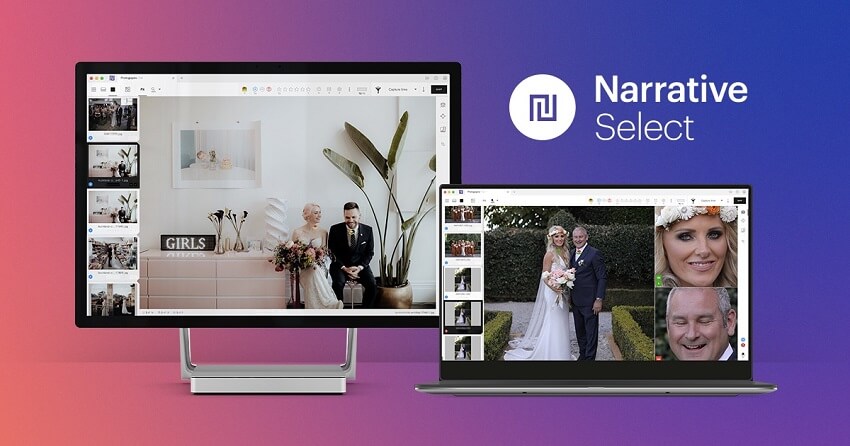
Narrative Select is a modern, AI-assisted image browser designed specifically for professional photographers who shoot people-heavy events like weddings, portraits, and family sessions. It bridges the gap between a traditional manual browser and a fully automated AI culler by giving you "intelligent warnings" rather than making final decisions for you.
While Photo Mechanic is the industry standard for sports and news (where metadata is king), Narrative Select is built for the "creative" workflow. It solves the most tedious part of portrait culling—zooming in to check if everyone's eyes are open—by using AI to analyze faces instantly as you scroll.
Key Features
- Face Assessments: Instantly shows a "warning" icon if a subject has their eyes closed or if the focus is soft.
- Close-ups Panel: A dedicated sidebar that automatically shows a zoomed-in crop of every face in the photo. You can check 10 people's expressions at once without ever hitting the zoom tool.
- Scene Grouping: Automatically identifies bursts of similar photos and groups them into "Scenes," making it easier to pick the best shot from a specific moment.
- AI First Pass: An optional mode that can automatically hide your "worst" images (blinks/blur) so you only see the viable keepers.
- Instant RAW Rendering: Like Photo Mechanic, it renders high-resolution previews almost instantly with zero lag.
Pros
- Visual Intelligence: Photo Mechanic doesn't "know" what is in your photo; Narrative Select understands faces and focus, saving you thousands of manual clicks and zooms.
- Modern UI: It feels like a 2026 app—clean, intuitive, and much easier to learn than Photo Mechanic's complex, spreadsheet-like menus.
- Workflow Specialization: The Close-ups panel is a "killer feature" for wedding photographers that Photo Mechanic simply doesn't offer.
Cons
- Genre Limited: It is heavily optimized for faces. If you shoot landscapes, architecture, or products, its "intelligence" is much less useful compared to Photo Mechanic's raw speed.
- Subscription Model: There is a capable free version, but the Pro features require a monthly subscription, whereas Photo Mechanic can be a one-time purchase.
- Less Powerful Ingest: It lacks the advanced "Code Replacements" and the deep, customizable ingestion formulas that high-end sports photographers rely on for captioning.
5. Adobe Bridge (Best for Ecosystem Integration)
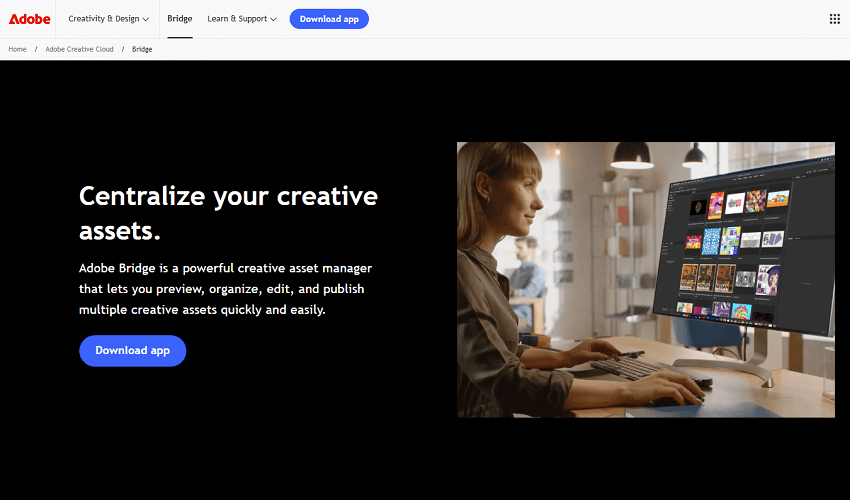
Adobe Bridge is a professional digital asset manager (DAM) that acts as a central hub for all your creative files. While Lightroom is a database that requires "importing," Bridge is a browser that looks directly at your hard drive. In 2026, it remains a robust, free-to-download tool that handles everything from RAW photos to video and design files.
Bridge has undergone significant performance updates recently to compete with specialized browsers. If you don't want to add another subscription to your bill, Bridge offers about 80% of Photo Mechanic's functionality—including batch renaming, metadata templates, and fast culling—all while staying perfectly synced with Photoshop and Lightroom.
Key Features
- Tight Creative Cloud Integration: Open a photo directly into Adobe Camera Raw or Photoshop with a single click.
- Advanced Batch Renaming: One of the most powerful renaming engines available, allowing for complex sequences, dates, and metadata-based naming.
- Metadata Templates: Easily create and apply IPTC copyright and contact information to thousands of images at once.
- Review Mode: A dedicated "Carousel" view (Cmd/Ctrl + B) that allows you to fly through images and use number keys to rate or label them.
- Smart Collections: Automatically creates folders based on specific criteria (e.g., "all photos shot at ISO 1600 with a 50mm lens").
Pros
- Cost: It is effectively free (or included in your existing Creative Cloud plan), whereas Photo Mechanic is a significant extra expense.
- Visual Versatility: Unlike Photo Mechanic, which is strictly for photos, Bridge can preview video files, Illustrator vectors, InDesign layouts, and PDFs.
- Cross-Platform Consistency: If you work in a team with designers or video editors, Bridge is a universal language they already understand.
Cons
- Preview "Flicker": Bridge often shows an instant low-res preview and then "pops" to a high-res version half a second later. Photo Mechanic's rendering is noticeably smoother and more consistent.
- Resource Heavy: Bridge uses more RAM and CPU than the lightweight Photo Mechanic, which can slow down older computers during heavy culling.
- No "Code Replacements": It lacks the shorthand "code" system that allows sports photographers to type a quick shortcut to generate a long caption.
- Slower Ingestion: While it can "Get Photos from Camera," it isn't as fast or as customizable as Photo Mechanic's legendary "Ingest" window.
The Secret to a 2026 Pro Workflow: From "Selected" to "Seamless"
Choosing your best shots with a tool like Aftershoot or Narrative Select is a massive win for your productivity, but it's only half the battle. In a professional workflow, the "keepers" you pick are rarely perfect straight out of the camera. You might find a stunning candid that has a bit too much sensor noise, or a perfect emotional moment that is just a hair out of focus.
This is where a dedicated enhancement layer becomes essential. To truly compete in 2026, those shots need to be flawless before they ever hit your client's gallery.
I've been using Aiarty Image Enhancer as the final bridge between culling and delivery. While your culling software finds the "what," Aiarty perfects the "how." It's designed to handle the heavy lifting that standard editors often struggle with:
Key Features
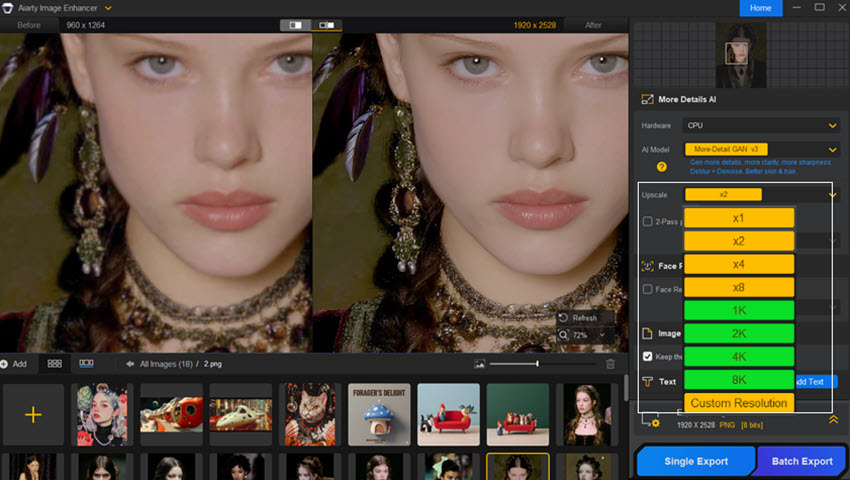
- The "Rescue" Factor: If your culling tool flags a photo as "soft" or "noisy," don't delete it yet. Aiarty's 2-Pass Processing and More-Detail GAN v3 model can often reconstruct textures and sharpness in shots that previously would have been considered "trash bin" material.
- Intelligent Upscaling: If you need to crop in tight on a subject, you lose resolution. Aiarty allows you to upscale up to 8K or even 32K while actually generating realistic detail—like skin pores and fabric fibers—rather than just stretching pixels.
- Specialized AI Models: Unlike "one-size-fits-all" sharpeners, you can toggle between the Real-Photo model for authentic photography and AIGCsmooth for cleaner, stylized looks.
- Privacy & Speed: Much like Photo Mechanic, Aiarty works locally on your hardware. You get the power of deep-learning AI without waiting for cloud uploads or worrying about the privacy of your RAW files.
Why it belongs in your toolkit:
Think of your culling software as your editor and Aiarty as your finisher. By integrating an AI enhancer into your chain, you give yourself an "insurance policy" for every shoot. You can push your ISO higher in dark venues or shoot more loosely, knowing you have the tools to polish those frames into gallery-quality masterpieces later.
Conclusion: Choosing the Right Tool for Your 2026 Workflow
The "perfect" Photo Mechanic alternative doesn't exist in a vacuum—it depends entirely on what you shoot and how much control you're willing to trade for time.
In 2026, the industry has clearly split into two camps:
- The AI Path (Aftershoot & FilterPixel): If you are a high-volume wedding, event, or portrait photographer, manual culling is becoming a thing of the past. These tools don't just show you photos faster; they eliminate the "eyes-on-every-frame" requirement.
- The Purist Path (FastRawViewer & Photo Mechanic): If you shoot sports, news, or landscapes where every millisecond of a gesture or every pixel of raw dynamic range matters, you likely still need a manual browser that stays out of your way and provides total technical accuracy.
My Final Recommendation
- Go with Aftershoot if you want to reclaim your weekends. The ability to automate the "boring" part of culling is the single biggest productivity boost a photographer can have today.
- Go with FastRawViewer if you are a hobbyist or a professional on a budget who just wants a faster, more accurate way to look at RAW files without a monthly bill.
- Stick with Bridge if you're already in the Adobe ecosystem and your shoot volumes are manageable (under 500 images per session).
Regardless of which tool you choose to find your "keepers," the next step is making them shine. Once you've narrowed down your selection, tools like Aiarty Image Enhancer can take those winning shots and push them to the next level—fixing minor focus issues or cleaning up high-ISO noise that even the best culling software can't solve.
You May Also Like


This post was written by Brenda Peng who is a seasoned editor at Digiarty Software who loves turning ordinary photos into extraordinary works of art. With AI assistance for brainstorming and drafting, the post is reviewed for accuracy by our expert Abby Poole for her expertise in this field.
