


Old photos are more than just images; they are memories. Many software claim they can repair damaged photos, but often the results are disappointing, resulting in blurry details, unnatural colors, or incomplete fixes. Faces are usually the most important part of a photo, yet they are also among the hardest details to restore. Faded skin tones, unclear facial features, and missing details can make familiar faces look less natural. Time can take a toll on your cherished memories, causing scratches, fading, tears, or general wear. Traditionally, restoring old photos required meticulous manual work, expensive services, or expert skills.
Today, AI-powered tools make photo restoration faster, more precise, and more accessible. With AI face restoration capabilities, it is now possible to recover clearer facial details while keeping a natural appearance. In this article, we will explore how to free restore old photos online using Nano Banana Pro, and how to enhance them to high resolution using Aiarty Image Enhancer. Whether you want to share old memories online or print them in high quality, this approach delivers reliable, high-quality results.
Looking for a fast way to restore old photos and transform weathered memories into high-quality, print-ready masterpieces? Follow this streamlined two-step workflow to achieve professional results:
- Repair with Nano Banana Pro: Fix scratches, fading, and damaged details with AI precision to restore the original look of faces and backgrounds.
- Enhance with Aiarty Image Enhancer: Upscale your photos up to 32K, remove noise, and sharpen textures, and erase scratches or objects to ensure clean, professional, and print-ready results.
Ready to bring your history back to life? Grab Aiarty Image Enhancer today to restore old photos with professional-grade clarity and detail!
Common Types of Photo Damage
Understanding the type of damage in your old photos is the first step to achieving the best restoration results. Common types of photo damage include:
- Physical damage: Tears, folds, stains, or scratches on the surface of the photo.
- Time-related damage: Fading, yellowing, or discoloration caused by aging.
- Digital damage: Low-resolution scans, compression artifacts, or blurred areas.
Different types of damage require different AI repair strategies, such as scratch removal, color restoration, or detail enhancement. Knowing the type of damage helps you choose the right AI tool and settings for optimal results.
Restoring Old Photos with Nano Banana Pro
AI-powered photo restoration has gained popularity in forums and video communities because it offers a faster and more accessible alternative to traditional manual methods like Photoshop. While Photoshop photo restoration can achieve precise repairs, it often requires expert skills, time-consuming manual work, and careful attention to layers and masks.
In contrast, AI tools like Nano Banana Pro can automatically fix scratches, restore colors, and enhance details in minutes, making high-quality photo restoration accessible to anyone. Its key strengths include the ability to:
- Automatically remove scratches and tears from photos, restoring damaged areas with precision.
- Restore original colors and tones, bringing faded or yellowed images back to life while keeping them natural.
- Enhance facial features or object details, making portraits and objects appear sharper and more defined.
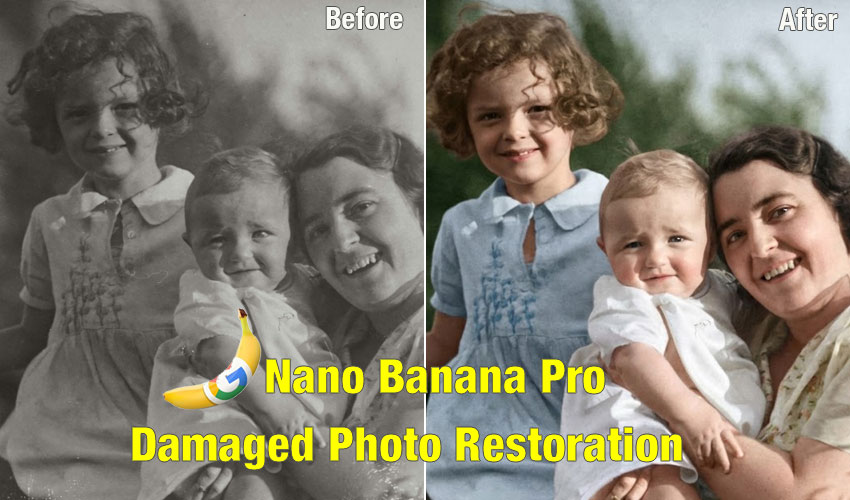
How to Restore Old, Damaged Photos with Nano Banana Pro
Step 1. Upload your damaged photo into the Nano Banana Pro interface.
Step 2. Select the appropriate repair mode, choosing between scratch repair, color restoration, or detail enhancement based on your photo’s needs.
Prompt for this damaged photo restoration:
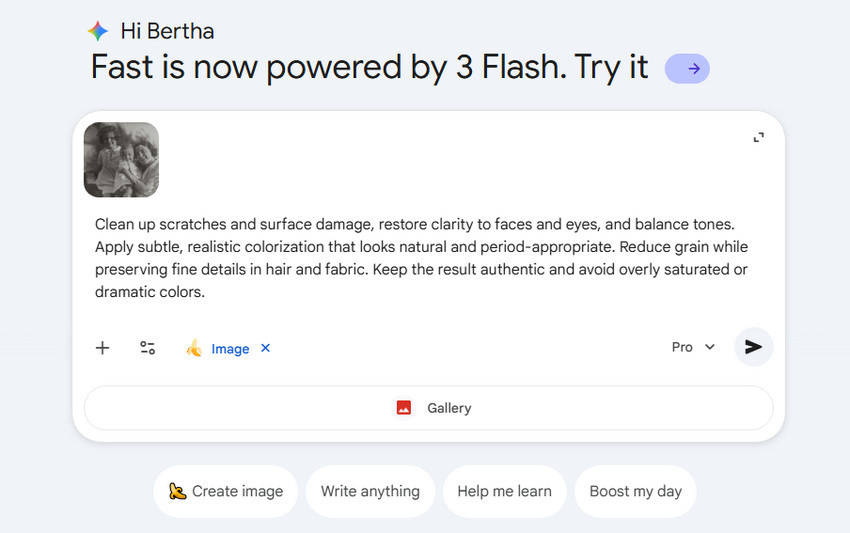
Step 3. Let Nano Banana Pro process the image, using AI algorithms to intelligently reconstruct damaged areas.
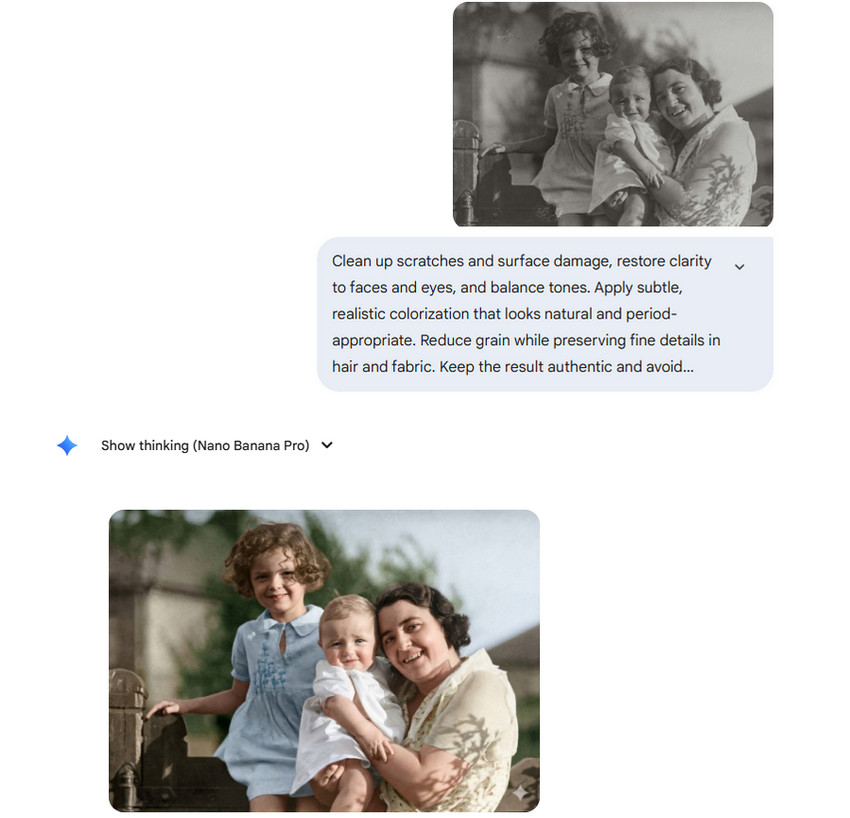
Related reading: Free Methods to Use Nano Banana Pro with Step by Step Guide
For even more precise restoration, using custom prompts in Nano Banana Pro can guide the AI to focus on specific issues in your photos. By tailoring the instructions, you can achieve better color accuracy, detail recovery, and overall image quality.
Damaged Photo Restoration Example Prompts:
- “Repair scratches and tears while restoring original colors”
- “Enhance facial details and preserve skin texture”
- “Reduce noise and improve clarity without over-sharpening”
- “Fix faded areas and recover natural tones”
- “Remove stains and watermarks while keeping background intact”
- “Restore torn edges and reconstruct missing parts of the photo”
- “Sharpen eyes, lips, and facial features while keeping skin soft”
- “Fix motion blur while maintaining natural textures”
- “Enhance clothing patterns, jewelry, and intricate textures”
To get the best results with Nano Banana Pro, customize prompts based on the type of damage—scratches, fading, or low-resolution scans. A step-by-step approach works well: repair scratches first, then restore colors, and finally enhance details. Check forums and video tutorials for prompt examples, and experiment with wording to find the right balance between realism and sharpness.
Important Notes on Resolution and Subscription:
Nana Banana Pro launches with the long-awaited 4K export and promises impressive detail restoration, making it tempting to think you can bring old photos back to life in stunning quality. But in reality, using Nano Banana Pro on any platform requires a subscription, which consumes quite a few API credits. After the initial use, the standard plan only allows 2K exports without notice, and the free trial caps at 1K. Some fine details may still fall short of expectations.
To overcome this limitation and achieve high-quality, print-ready results, many users complement Nano Banana Pro with AI image upscalers, which can upscale resolution, remove noise, and sharpen details, ensuring that restored photos look crisp, vibrant, and ready for sharing or printing.
Enhancing Resolution with Aiarty Image Enhancer
After restoring photos with Nano Banana Pro, you might notice that the image resolution is not always sufficient for printing or large displays. This is where Aiarty Image Enhancer comes in, providing a simple yet powerful solution to bring your restored photos to their full potential.
This Nano Banana upscaler is able to:
- Batch upscale images to 4K/8K and up to 32K, making them suitable for large prints or high-definition displays.
- Reduce noise and correct minor blur, ensuring that details look clean and natural.
- Enhance fine details with adjustable enhancement strength, allowing you to balance realism and clarity according to your preference.
- Restore facial details with AI Face Restoration, improving blurry or low-resolution faces while preserving natural skin texture.
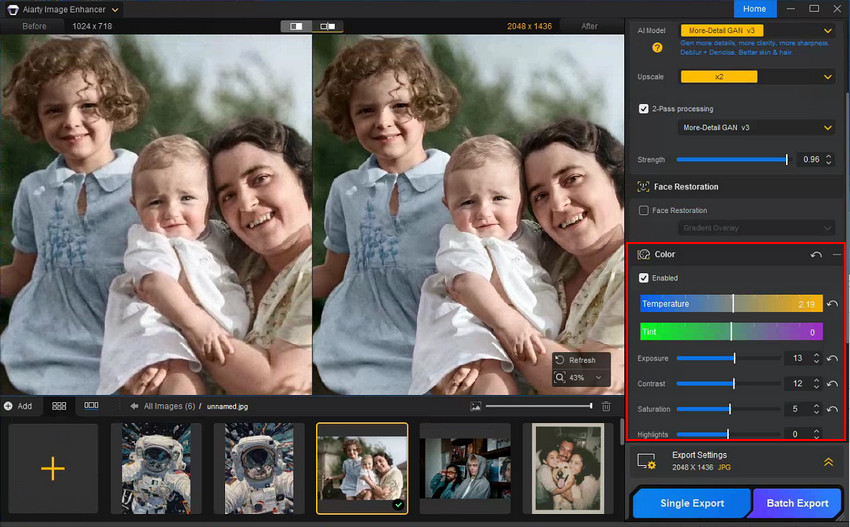
- Color adjustment tools help restore or enhance original tones, bringing faded or dull colors back to life while keeping them natural.
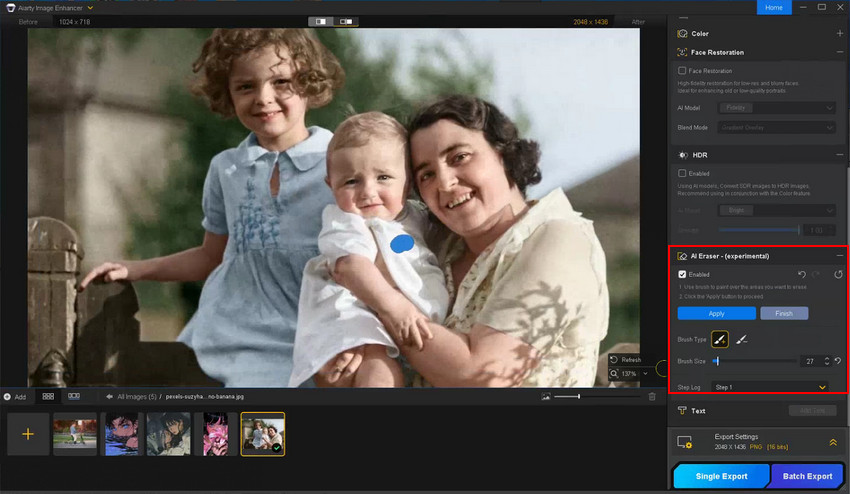
- AI Eraser enable you to effortlessly wipe away scratches, creases, and unwanted objects to fix imperfections on damaged photos.
How to Upscale Nano Banana Restored Photo to Print-ready Quality?
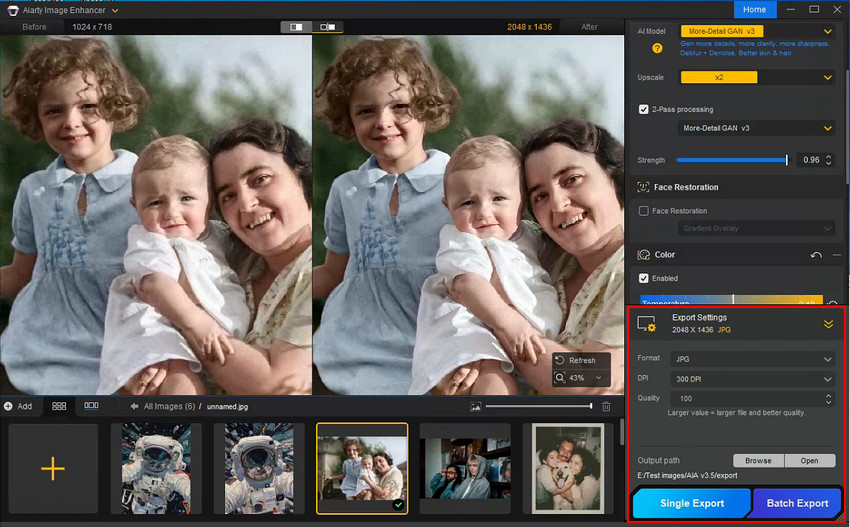
Step 1. Open Aiarty Image Enhancer and import your photo
Drag and drop to import the restored photo from Nano Banana. You can process a single image or batch import multiple photos.
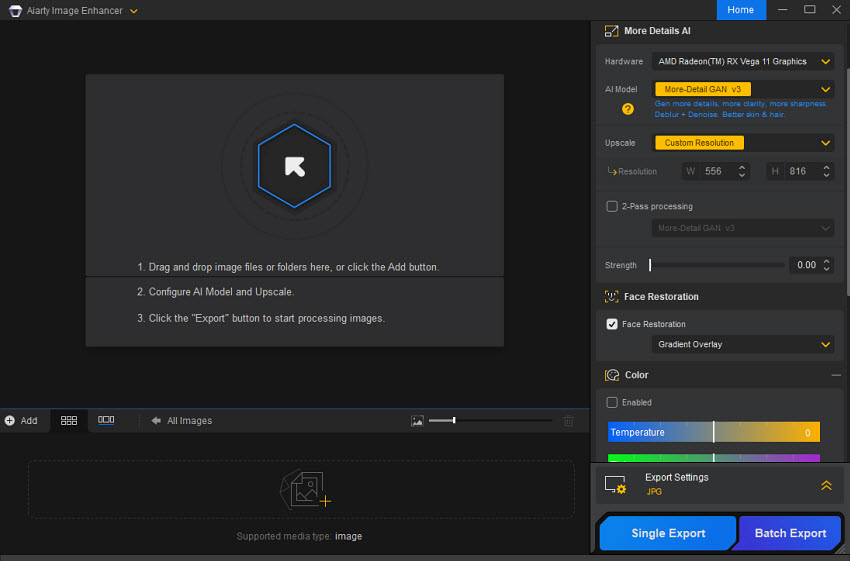
Step 2. Choose an AI model.
Choose a proper AI model based on your photos itself. Usually modeDetail GAN v3 for more details, more clarity & sharpness; AIGCsmooth v3 for AI-generated images; Real-Photo to enhance real photo and restore original.
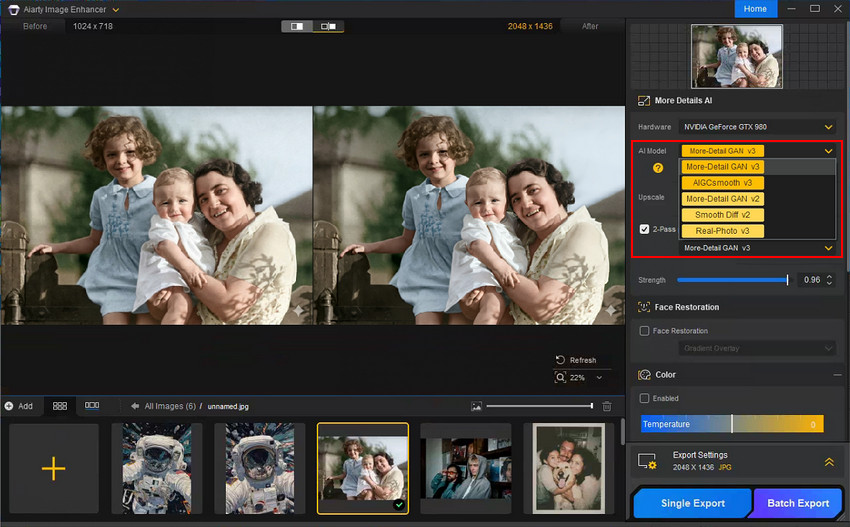
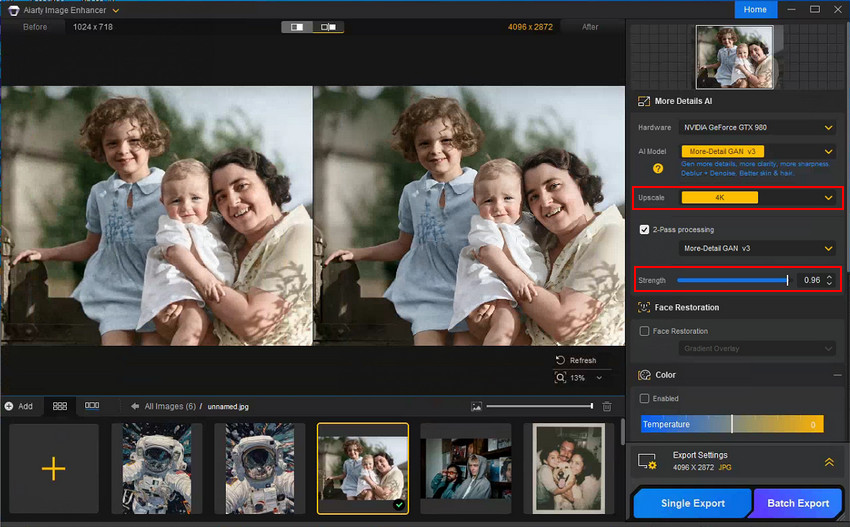
Step 3. Choose the upscaling factor.
Choose the target resolution (up to 32K or higher depending on your final usage). Also, adjust the Enhance Strength slider to balance clarity and realism—higher strength improves sharpness but may slightly alter textures.
Step 4. Fine-tune color (optional)
Use color adjustment tools to fine-tune tones, restore faded colors, or enhance vibrancy while maintaining natural appearance.
Step 5. Erase scratches or creases of damaged photos.
Enable the AI Eraser to remove scratches, stains, and fold lines effortlessly. This built-in feature can even skip AI photo restoration online, giving you professional results right at your fingertips.
Step 6. Preview and export
Aiarty allows real-time preview, so you can see the effect of each adjustment before exporting.Compare the enhanced photo with the original restored image to ensure details are preserved and colors look natural.
Once you've done, expand the Export panel to set output format, DPI, quality and folder path. Then click Single Export to save individually or Batch Export to save multiple photos at once.
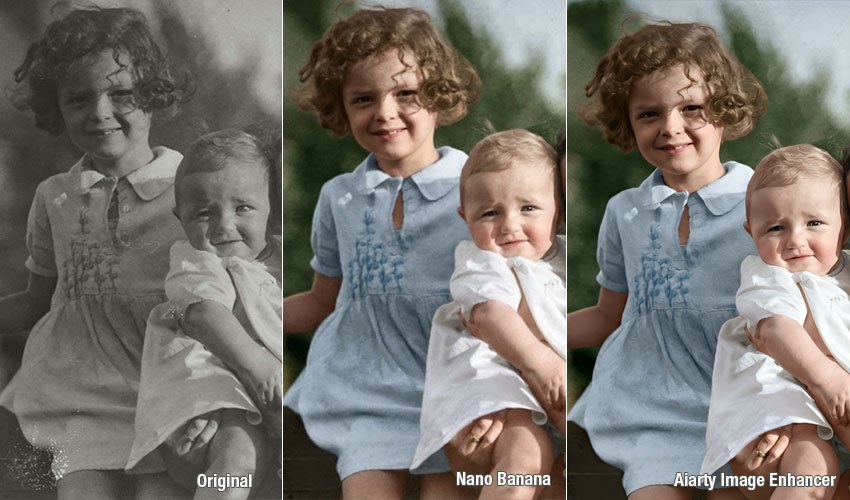
You see, combining Nano Banana Pro for intelligent repair with Aiarty Image Enhancer for resolution enhancement and detail refinement produces photos that are far superior to using either tool alone, delivering sharp, vibrant, and print-ready results that truly revive old memories.
Conclusion
AI-powered photo restoration makes it possible to bring old or damaged photos back to life quickly and effectively.
- Nano Banana Pro: Best for repairing scratches, tears, and color fading
- Aiarty Image Enhancer: Ideal for upscaling, noise reduction, and enhancing fine details
Recommended Workflow:
Nano Banana Pro → Aiarty Image Enhancer = Restored, high-resolution, print-ready photos
With this workflow, anyone can transform old, damaged memories into clear, vibrant images. Nano Banana Pro handles the intelligent repair of scratches, fading, and fine details, while Aiarty Image Enhancer upsamples resolution, reduces noise, sharpens textures, and fine-tunes colors. The result is restored photos that look natural, crisp, and ready for printing, sharing online, or archiving for the future. All without the need for complex manual editing.
You May Also Like


This post was written by Brenda Peng who is a seasoned editor at Digiarty Software who loves turning ordinary photos into extraordinary works of art. With AI assistance for brainstorming and drafting, the post is reviewed for accuracy by our expert Abby Poole for her expertise in this field.
