


I've tested quite a few AI culling tools over the past year, and honestly, most of them fall into the same pattern - impressive demos, but inconsistent results in real workflows. Aftershoot is one of the few that keeps coming up in conversations, especially among wedding and event photographers dealing with thousands of images per shoot. The promise is simple: let AI handle the boring part (culling), so you can focus on editing and delivery.
But after going through multiple batches with it, I realized something important: it's good, but not in the way most people expect. In this post, I'll break down my experience using Aftershoot, so you can decide if it actually fits your workflow.
What is Aftershoot
Aftershoot is an AI-powered photo culling and editing software designed to help photographers quickly sort and process large batches of images. Its core function is AI culling, automatically analyzing your photos to detect duplicates, blurry shots, closed eyes, and subtle variations, then selecting the best images from each group. Instead of manually reviewing hundreds or thousands of photos, you can let the AI handle the first pass in minutes.
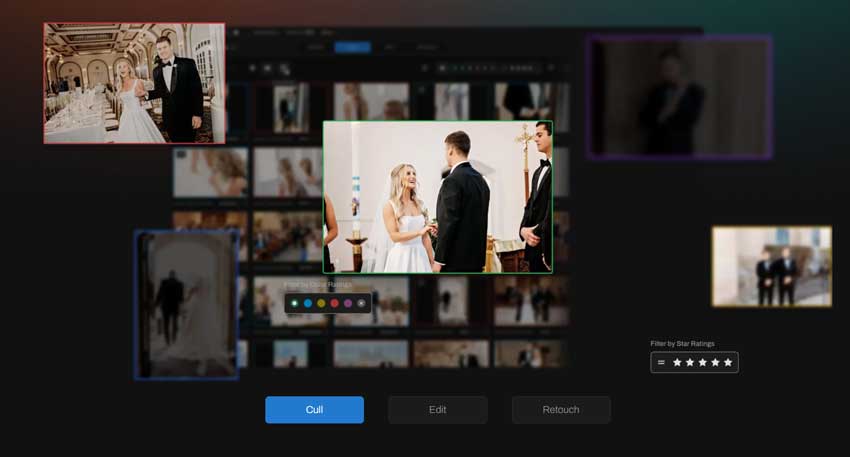
Beyond culling, Aftershoot also offers AI editing, allowing you to apply consistent color and exposure adjustments based on your style, with seamless integration into Lightroom for further refinement. The tool is primarily built for high-volume workflows, such as wedding, event, and portrait photography, where speed and efficiency matter more than pixel-perfect manual selection.
In short, Aftershoot isn't trying to replace your editing software - it's designed to eliminate the most time-consuming part of your workflow: selecting the keepers.
Key Features of Aftershoot
AI Culling
Aftershoot's AI-powered culling is designed to streamline the most time-consuming part of the photographer's workflow: selecting the best photos. Instead of manually going through hundreds or even thousands of images, Aftershoot uses machine learning algorithms to automatically detect and sort through your photos based on various criteria.
- Detecting blurry images: The AI flags any photos that lack sharpness, saving you from having to manually zoom in to check each one.
- Identifying duplicates: Aftershoot spots nearly identical shots and groups them together, making it easier for you to eliminate redundancies.
- Closed eyes detection: It recognizes when a subject has their eyes closed, marking those images for easy removal.
- Group similar shots: It clusters similar frames (e.g., multiple photos of the same subject in different poses) and allows you to choose the best one from each set.
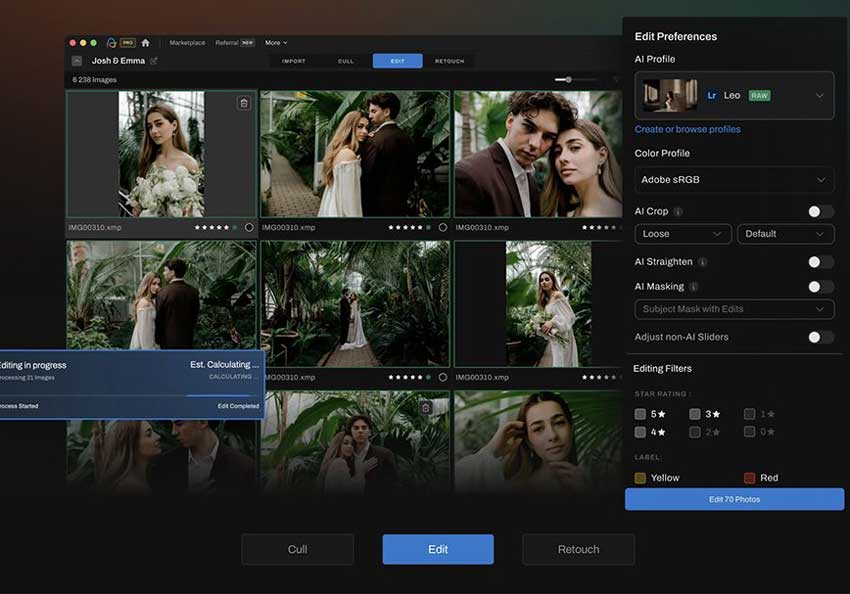
This AI-powered sorting can save hours of work for photographers who shoot events or weddings where large quantities of photos need to be reviewed and culled. However, while Aftershoot does an excellent job of detecting basic issues like blur or duplicates, it's not foolproof. Photographers have reported that the AI sometimes misjudges creative or artistic shots, meaning you may still need to do a final pass on the selected images.
AI Learning/Personalization
What sets Aftershoot apart from other AI culling tools is its learning ability. Unlike static software that applies the same settings each time, Aftershoot learns from your selections over time to fine-tune its accuracy.
The more you use Aftershoot, the better it gets at understanding your specific preferences, such as:
- The level of sharpness you consider acceptable.
- Whether you prioritize candid moments over perfectly posed shots.
- How you handle difficult lighting situations (e.g., low-light, overexposed areas).
Each time you manually accept or reject photos, Aftershoot learns from that feedback, applying your choices to future culling tasks. This personalization makes the AI progressively better at selecting images that match your style, reducing the time you spend refining its choices.
While the learning process can take time, the more you use it, the more accurate and efficient Aftershoot becomes, making it a highly valuable tool for photographers who work in a high-volume environment.
AI Editing (Optional but Important)
Aftershoot is not just about culling; it also offers a degree of AI-powered editing that can significantly speed up your workflow. This feature is particularly beneficial for photographers who need to apply consistent adjustments across large sets of images.
Key AI editing functions:
- Automatic exposure correction: The AI adjusts the brightness and contrast to ensure your images look consistent and professionally balanced.
- Color correction: Aftershoot can auto-tune the color balance to correct underexposed or overexposed shots, making them look more polished.
- Tone adjustments: The AI optimizes the tones in your photos to improve their overall feel and consistency, making editing faster.
These automated edits are designed to save you time by handling the bulk of the editing work. After the culling process, you can send the selected photos to Lightroom for detailed edits. While Aftershoot's AI editing doesn't replace your need for advanced editing software, it does speed up the process significantly, especially when you're working with large image batches where consistent adjustments are necessary.
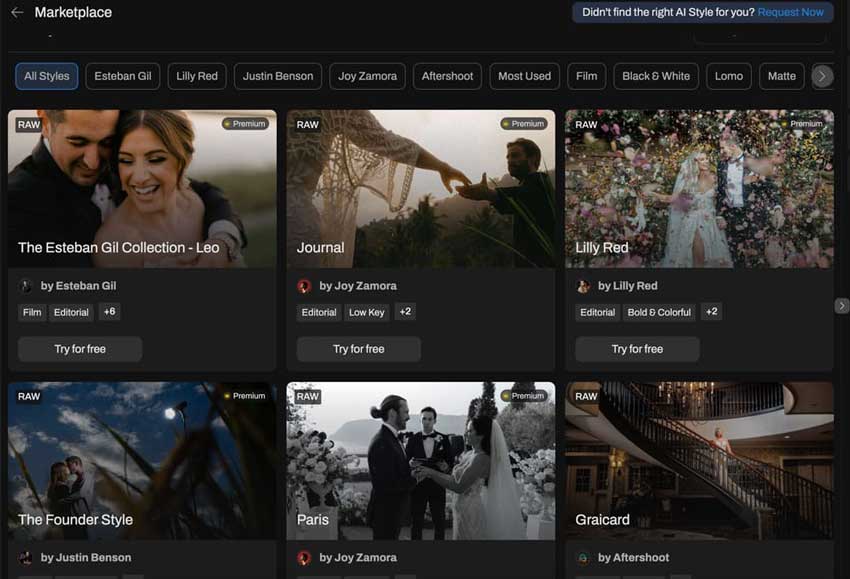
Aftershoot's AI editing can't replace a full suite of editing tools like Lightroom or Photoshop, but it offers a great starting point for photographers who want quick, consistent results without spending hours on every image.
Workflow Automation
Aftershoot is not just about culling and editing; it's about streamlining your entire photo workflow. By automating many of the repetitive steps, Aftershoot frees you up to focus on what matters most: editing and delivering high-quality images to your clients. Here's how the automation works:
- Import your images: You simply upload your photos from your camera or storage device into Aftershoot's platform.
- Let the AI cull: Aftershoot's AI quickly analyzes the photos, identifies the best shots, and flags any issues like blur, duplicates, or closed eyes.
- Review selections: You can review the AI's picks, make adjustments, and accept or reject images as needed.
- Send to Lightroom: Once you've chosen your keepers, you can seamlessly send them to Lightroom or your preferred editing software for further adjustments.
This end-to-end automation drastically reduces the time spent on manual sorting, and helps photographers quickly narrow down the best images for further editing. For photographers handling large shoots, this workflow is a game-changer, cutting down post-production time by up to 50% in some cases.
Pro-Tip: Rescuing "Unusable" Shots
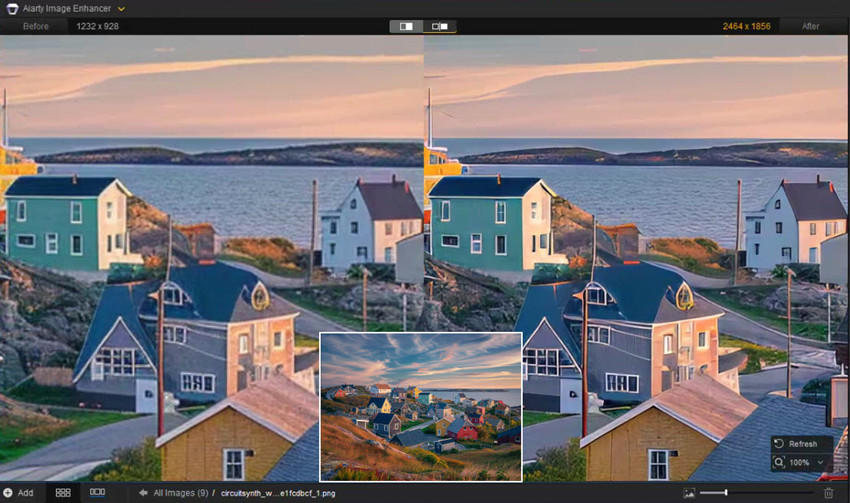
Even with Aftershoot's smart culling, you might find a "must-have" moment that suffers from heavy high-ISO noise or slight motion blur. For these specific files, I recommend a specialized "cleanup" pass using Aiarty Image Enhancer. While Aftershoot handles the workflow, Aiarty uses deep-learning models (like Real-Photo V3) to reconstruct skin textures and hair details that standard denoisers usually smudge. It's the perfect "safety net" for those once-in-a-lifetime shots that aren't technically perfect.
Aftershoot vs. The Competitors
When considering an AI-powered culling tool like Aftershoot, it's essential to compare it with other popular solutions in the market. While Aftershoot has gained popularity for its speed and AI features, it's not the only option out there. Let's compare Aftershoot with some of its competitors: Photo Mechanic, Imagen AI, and Lightroom's AI Culling.
1. Aftershoot vs. Photo Mechanic
Photo Mechanic has long been a favorite among professional photographers, particularly for its speed and manual culling capabilities. Here's how it stacks up against Aftershoot:
- Speed:
- Aftershoot: Uses AI to automate the culling process, speeding up the workflow by eliminating poor-quality shots automatically.
- Photo Mechanic: While not AI-powered, it's incredibly fast for manual culling. It's optimized for speed in browsing large batches of images and can quickly zoom into high-resolution images without lag.
- AI Assistance:
- Aftershoot: Fully AI-driven. It detects issues like closed eyes, blur, and duplicates, automatically picking the best images.
- Photo Mechanic: No AI-powered assistance. It requires the user to manually select images, which can be more time-consuming but allows for complete control over the selection process.
- Customization:
- Aftershoot: The AI learns and adapts to your preferences over time, making it more personalized.
- Photo Mechanic: Offers a range of keyboard shortcuts and customizable workflows, but lacks AI-based personalization.
Best for:
- Aftershoot: Ideal for photographers who want an automated solution and are comfortable letting AI do the heavy lifting.
- Photo Mechanic: Best for professionals who prefer to maintain full control over their culling process and want speed without AI intervention.
2. Aftershoot vs. Imagen AI
Imagen AI is another AI-driven photo culling tool designed to help photographers sort through large batches of photos, but it offers some unique features that set it apart from Aftershoot. Below are some of the key differences
- AI Accuracy & Learning:
- Aftershoot: Learns from your actions and preferences over time, but users report that the AI still requires manual review for certain shots.
- Imagen AI: Also uses machine learning to improve its accuracy, but many users report that Imagen AI delivers a more tailored experience based on individual photographer preferences, claiming it gets better with each use.
- Integration & Workflow:
- Aftershoot: Integrates seamlessly with Lightroom for editing.
- Imagen AI: Works as a standalone tool but also integrates with Lightroom and Capture One, providing more flexibility for different photographers' needs.
- Focus on Culling vs. Editing:
- Aftershoot: Primarily focused on culling, with basic editing options.
- Imagen AI: Also includes culling but is often praised for its editing capabilities, offering automatic editing presets that align with the photographer's style.
Best for:
- Aftershoot: Best for photographers who want a simple, quick AI culling tool that integrates well with Lightroom.
- Imagen AI: Ideal for those looking for a more advanced AI experience with robust culling and editing integration.
3. Aftershoot vs. Lightroom AI Culling
Lightroom has recently added its own AI-powered culling feature, making it a direct competitor to Aftershoot. While Lightroom is an established powerhouse in photo editing, its new AI culling feature is still relatively new.
- AI Accuracy:
- Aftershoot: Focuses heavily on image selection and smart grouping, detecting blurry, duplicated, or subpar images.
- Lightroom AI Culling: More basic compared to Aftershoot, mainly focusing on selecting sharp images and eliminating duplicates but lacking Aftershoot's level of intelligent selection and grouping.
- Workflow:
- Aftershoot: Works as a standalone tool that can send selected images directly to Lightroom for further editing, streamlining the process.
- Lightroom AI: Culling happens within the Lightroom ecosystem itself, but it may not be as fast or customizable as Aftershoot when dealing with larger batches.
- Price:
- Aftershoot: Subscription-based, with affordable pricing, especially for freelancers or small businesses.
- Lightroom AI: Comes as part of the Adobe Creative Cloud subscription, which can be more expensive, especially if you only need AI culling and not the full suite of Lightroom features.
Best for:
- Aftershoot: Ideal for photographers looking for an affordable, specialized AI culling tool to integrate into their existing workflow.
- Lightroom AI Culling: Best for photographers who are already paying for Lightroom and want to use AI within that ecosystem, though it's not as robust as dedicated tools like Aftershoot.
Conclusion
In summary, Aftershoot shines as an AI culling tool that can speed up your workflow significantly, especially when handling large quantities of photos. However, its best use case is for photographers who want automation without sacrificing too much creative control.
- Photo Mechanic: Great for speed but lacks AI automation.
- Imagen AI: Offers a more refined, personalized experience, with stronger integration for editing.
- Lightroom AI: A useful feature for those already in the Adobe ecosystem but lacks the depth of Aftershoot's culling capabilities.
Ultimately, your choice depends on whether you value automation, speed, or full creative control in your workflow.
Pricing: Is Aftershoot Worth the Investment
Aftershoot has moved away from the "one-size-fits-all" model. Their pricing is now tiered based on your specific needs: whether you just want to find the best shots or if you want the AI to handle everything from color to skin retouching. The biggest win for Aftershoot remains its Flat-Rate Subscription. Unlike competitors that charge "per image" (which can make a single large wedding feel like a tax audit), Aftershoot lets you process unlimited photos for a fixed monthly or annual fee.
Let's break down the costs and see what you get for your money:
Aftershoot Pros & Cons: An Honest Assessment
Based on multiple reviewers and real-world user feedback (from both professional testers and hobbyists), here's how ON1 Photo RAW performs today — and where it still struggles:
✅ What Aftershoot Does Well
- Aftershoot significantly reduces culling time, cutting hours of manual work down to minutes, especially for high-volume shoots like weddings or events.
- The AI automatically detects issues such as blurry images, duplicates, and closed eyes, while grouping similar shots for easier selection.
- Aftershoot adapts to your style over time, improving its accuracy in selecting images that match your preferences.
- Seamlessly send selected photos to Lightroom for further editing, creating a smooth and efficient workflow.
- It identifies faces and groups similar shots together, saving time when selecting the best family or group photos.
❌ Where Aftershoot Still Has Limitations
- While the software is effective, it can occasionally misjudge artistic or candid shots that are slightly blurry but still important to the overall narrative.
- Aftershoot's AI needs human oversight to make final decisions on which images best capture the moment, especially for creative or storytelling shots.
- Its editing features are basic and not suitable for advanced retouching, meaning you'll still need to use Lightroom or Photoshop for more detailed edits.
- It takes time to adapt to your preferences, and new users may experience a slower start as they train the system.
- The subscription-based pricing model may not be ideal for everyone, especially those who prefer a one-time payment structure for software.
Verdict: Is Aftershoot the Right Tool for You?
My Final Score: 4.8/5
Aftershoot is a game-changer for photographers who need to manage large quantities of images quickly and efficiently. With its AI-powered culling, workflow automation, and integration with Lightroom, it offers a comprehensive solution for streamlining the post-production process, especially for high-volume shoots like weddings, events, and portraits.
If you are a high-volume wedding, event, or portrait photographer, Aftershoot is a non-negotiable investment. It doesn't replace your artistic eye; it simply removes the 90% of "busy work" (the blinks, the blurs, the basic exposure matching, and the skin blemishes) that stands between you and a finished gallery.
- Buy it if: You shoot more than 15-20 sessions a year, value your privacy, and want a predictable monthly cost without "per-photo" anxiety.
- Skip it if: You are a low-volume hobbyist who finds the manual culling process therapeutic, or if you primarily shoot sports where "peak action" timing is more critical than technical sharpness.
 FAQs
FAQs
No. One of Aftershoot's biggest competitive advantages is its offline-first architecture. Unlike cloud-based tools (like FilterPixel or Imagen), all AI culling, editing, and retouching happen locally on your computer. You only need an internet connection for the initial app login, downloading Marketplace styles, or updating the software.
While Adobe has improved Lightroom's AI masking and adaptive presets, it still lacks a dedicated batch-culling engine. Aftershoot is significantly faster at analyzing thousands of images for blinks, blur, and duplicates simultaneously. Most pros use Aftershoot as a "pre-processor" before moving into Lightroom for final creative tweaks.
To get the most accurate results that truly mimic your editing style, you should upload a Lightroom catalog containing at least 2,500 to 5,000 of your past edited images. If you don't have that many yet, you can use Aftershoot's "Marketplace Styles" or "Instant AI Profiles" (based on your favorite presets) to get started immediately.
Never. Aftershoot is non-destructive. It reads your RAW files and creates metadata (XMP sidecar files) to apply star ratings and color labels. Your original image data remains untouched. Even if the AI "rejects" a photo, it is simply labeled—not deleted.
The 2026 AI Retouching module is remarkably sophisticated. It uses Texture-Aware technology, meaning it can remove a blemish or smooth a skin tone while keeping the actual pore structure intact. You also have full control via sliders, so you can dial the effect back to 10% for a "barely there" look or 90% for high-end editorial work.
No. Aftershoot is committed to the unlimited subscription model. Whether you process 1,000 or 100,000 photos a year, your monthly or annual price remains the same. This eliminates the "per-image anxiety" common with other AI editing platforms.
You May Also Like


This post was written by Brenda Peng who is a seasoned editor at Digiarty Software who loves turning ordinary photos into extraordinary works of art. With AI assistance for brainstorming and drafting, the post is reviewed for accuracy by our expert Abby Poole for her expertise in this field.
