


Topaz Video Upscaler: Best Models, Settings & 4K Upscaling Tips



Topaz Video Upscaler refers to the AI video upscaling technology inside Topaz Video, which helps users enhance low-resolution footage, restore details, reduce noise, and upscale videos to HD, 4K, or higher resolutions. Unlike traditional video resizing that simply enlarges pixels, Topaz video upscaling is based on various AI models to reconstruct details and improve video quality. However, choosing the right model can be challenging because each one is designed for different types of footage.
In this guide, we'll explain how to upscale videos in Topaz, how to choose the AI models, what’s the best settings for different video sources, and help you choose the right workflow for your video enhancement needs.
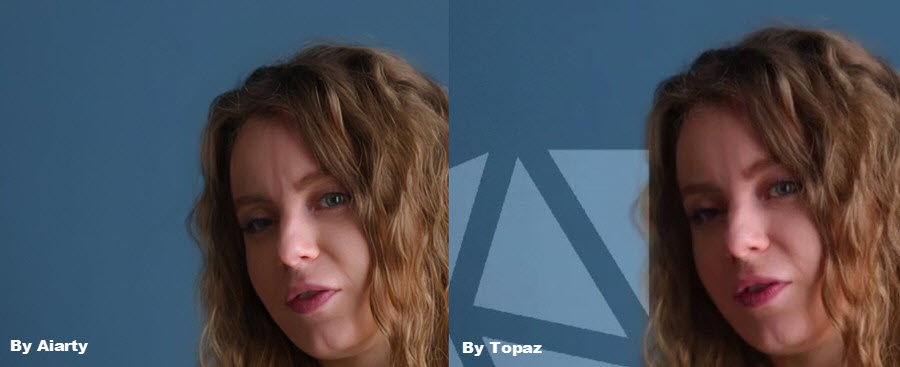
Topaz Video AI offers powerful AI models, but achieving the best results often requires testing different models and adjusting complex settings. For creators who want high-quality enhancement with a simpler workflow, Aiarty Video Enhancer provides a practical alternative.
Aiarty uses an AI-powered workflow to automatically enhance low-resolution, blurry, and compressed videos with natural textures and no dreaded "waxy" AI look. It helps you achieve cleaner HD and 4K results with less manual effort. Lifetime license available without subscription fees or costly renewals.
💥 Time-limited: Save up to 49% OFF Lifetime for 3 machines! 💥
What Is Topaz Video Upscaler?
Although Topaz Video Upscaler is not the official product name, it is commonly used to describe the AI video upscaling primarily available in Topaz Video and, for certain workflows, through newer tools such as Astra and Topaz Video Upscale Web Tool. It helps users enlarge low-resolution footage, improve clarity, and upscale videos by up to 4x to higher resolutions such as 1080P, 4K, and 8K.
Traditional video scaling algorithms, such as bicubic or Lanczos interpolation, only enlarge existing pixels. Topaz video upscaling works differently. Instead of treating every pixel equally, the AI models analyze image structures. This is why Topaz upscale video workflows are widely used for restoring old footage, improving online videos, and preparing content for high-resolution displays.
How Does Topaz Video Upscaling Work?
Topaz upscales videos based on multiple AI enhancement models, each designed for different types of video sources and restoration needs. It allows users to choose a model based on factors such as source resolution, video quality, noise level, and content type.
For example, a low-resolution VHS recording, a compressed YouTube video, and a clean 4K camera clip require completely different enhancement approaches. Choosing the right AI model is often the most important step in achieving natural-looking results with Topaz Video Upscaler.
The table below provides a quick overview of the major Topaz Video AI models and their typical use cases.
Which Topaz Video Upscaling Model Should You Use?
Choosing the right AI model is the most critical step in video upscaling. Because Topaz Video AI employs content-specific models, picking the "wrong" brain for your footage will result in suboptimal textures or unnatural artifacts. In 2026, Topaz introduced the "Next-Gen" model series, which utilizes NeuroStream technology to deliver higher fidelity with better hardware efficiency.
Here is your guide to selecting the best model based on your specific footage type, backed by real-world performance tests.
1. Starlight Series: Best for Advanced Restoration and Fine Details
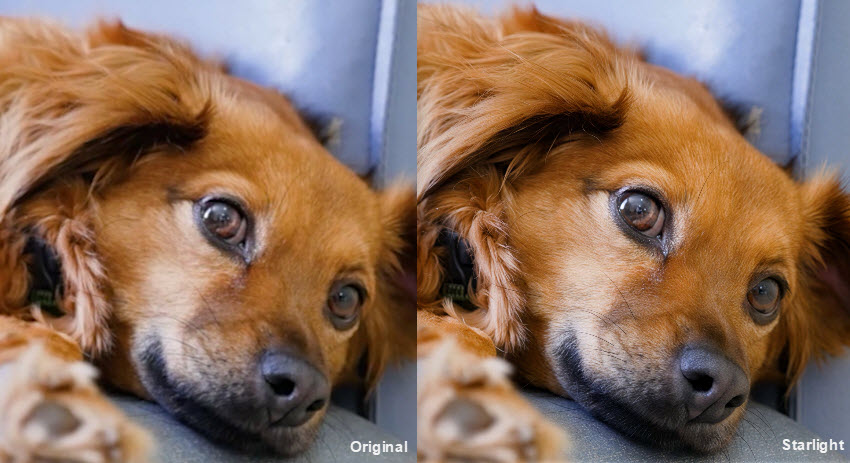
Starlight is one of the most advanced Topaz video upscaling models for recovering missing details from low-resolution and heavily degraded footage. Unlike traditional sharpening-based enhancement, it uses a diffusion-based restoration approach to reconstruct complex textures while maintaining better frame consistency.
Best For: low-resolution videos, archival footage, and clips where important details such as fur, textures, and fine structures are missing.
Test: 854 × 480, 50 fps; 2× upscale using Starlight 2.5 in Topaz Video Upscaler
Result: Starlight 2.5 significantly improved the visibility of individual fur strands and recovered more natural texture details after enlargement. For videos where fine surface details matter, it delivers stronger reconstruction than standard video upscaling models.
2. Astra 2: Best Topaz Video Upscaler Model for Creative AI Videos
Astra 2 is designed for a different type of AI video upscaling workflow. Available in Topaz Astra and Video, it focuses on enhancing visual richness and creating a more polished cinematic appearance.
Best For: AI-generated videos, stylized content, and creative projects where visual quality is more important than strict source preservation.
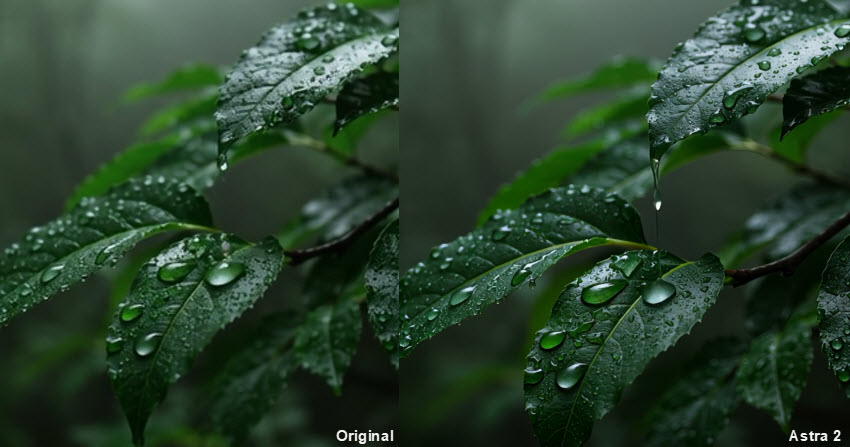
Test: 720 × 544 Midjourney-generated video; 4× upscale using Astra 2 in Topaz Video Upscaler.
Result: Astra 2 enhanced the overall clarity and visual depth of the AI-generated scene, making the leaves and water droplets appear more refined. However, because it uses a creative enhancement approach, it is better suited for generated content rather than documentary-style restoration.
3. Proteus: Best All-Around Model for Topaz Video Upscaling
Proteus remains the most flexible choice among Topaz AI video upscaling models, especially for users who want control over detail recovery, sharpening, and artifact reduction.
Best For: everyday video enhancement, including YouTube videos, smartphone footage, compressed clips, and general live-action content.
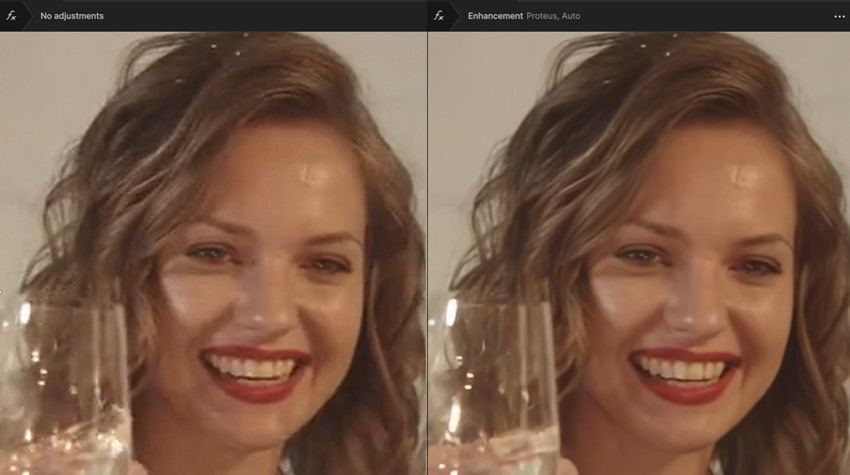
Test: 1280 × 720, 25 fps older video; Topaz Video Upscaler Proteus 2× upscale.
Result: Proteus improved facial clarity and restored more visible details in the subject’s face while reducing the softness caused by the original low-quality source. It provided a natural balance between sharpness and realism without creating an overly processed look.
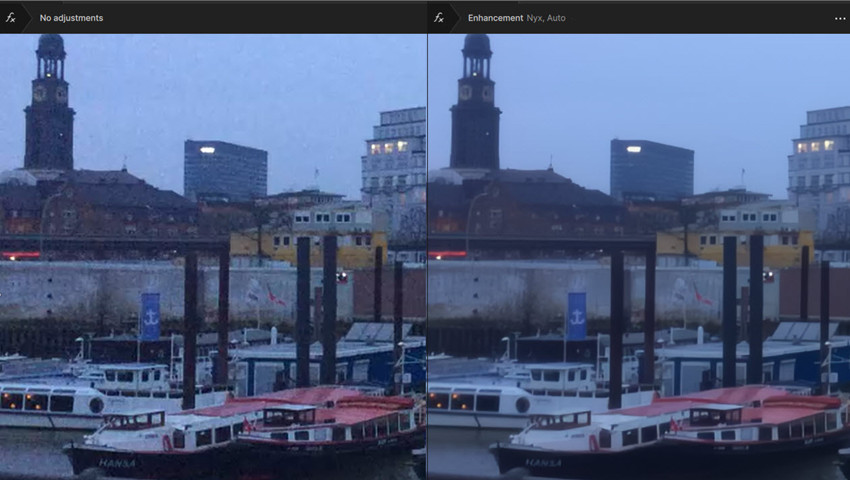
4. Nyx: Best Topaz Video Upscaling Model for Noisy Low-Light Footage
Nyx is specialized for videos where noise reduction is the main challenge. Instead of simply increasing resolution, it focuses on cleaning high-ISO grain and preserving important edges.
Best For: Nyx is best for night footage, smartphone low-light recordings, and videos affected by heavy digital noise.
Test: 960 × 540, 30 fps low-light noisy video; 2× upscale using Nyx in Topaz Video Upscaler.
Result: Nyx effectively removed distracting noise while maintaining natural edges and smoother textures. The final video looked cleaner and more balanced without the artificial plastic appearance caused by aggressive denoising.
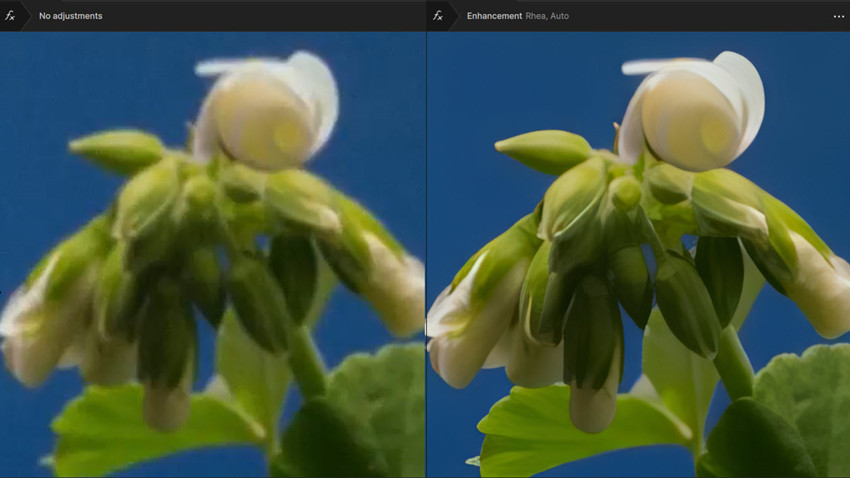
5. Rhea: Best Topaz Video Upscaling Model for Maximum Texture Recovery
Rhea is designed for users who prioritize detail reconstruction, especially when performing larger Topaz video upscaling tasks such as 4× enlargement.
Best For: blurry footage, landscape videos, architecture, and scenes where fine textures need maximum recovery.
Test: 1280 × 720, 30 fps blurry video; Topaz Rhea model for a 4× upscale.
Result: Rhea delivered excellent detail recovery after enlargement, making textures and fine structures noticeably clearer even at 4× scale. It is slower than general-purpose models, but the additional processing time can be worthwhile when maximum image quality is the priority.
Best Topaz Video Upscaling Settings for 2026
There is no "one-size-fits-all" setting for Topaz AI video upscaling; the best results come from matching the right model to your specific source material. Based on professional community workflows and real-world testing, here is how you should configure your projects.
1. Clean the Video before Upscaling in Topaz
Never jump straight to 4K if your source is heavily compressed. Professional users adopt a Two-Pass Workflow:
- Pass 1 (Cleanup): Use Nyx or Iris at 1x resolution to strip out noise and compression artifacts.
- Pass 2 (Upscale): Use that clean output to perform the resolution jump with Proteus or Rhea.
2. Community-Verified Settings for Topaz Video Upscaling
Use these baseline configurations as your starting point, then fine-tune based on your preview.
Unlike traditional upscaling methods that cause blurring and pixelation, Topaz Video Upscaler rebuilds the texture and sharpness of the video frame by frame.
- Resolution Boosting: Easily upscale legacy footage, SD, or 1080p source video up to crisp 4K and 8K resolutions.
- Texture Generation: Intelligently recognizes and enhances real-world details such as skin texture, hair, clothing fibers, foliage, and architectural lines, avoiding the artificial "smudged" look.
- Low-Quality Salvaging: Specifically optimized to recover heavily compressed web videos, old CCTV footage, or low-bitrate digital files.
3. Denoising & Compression Artifact Removal
These tools are used when Topaz upscaling videos shot in low-light environments with severe ISO noise, or footage degraded by heavy digital compression.
- Intelligent Noise Reduction: Targets heavy grain and noise in low-light/night scenes, smoothing out visual clutter while locking onto sharp edges and fine details.
- Macroblock & Banding Cleanup: Eliminates the blocky artifacts, pixelation, and color banding often caused by heavy video encoding, streaming platforms, or multi-generational rendering.
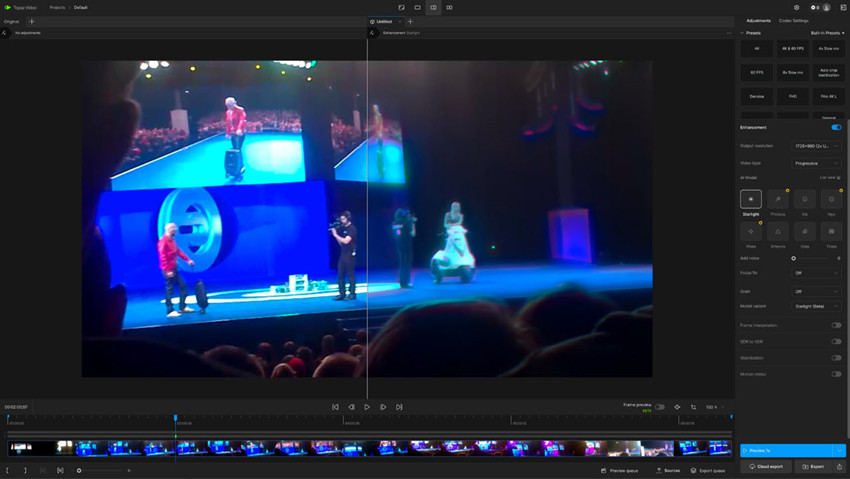
4. Pro-Tips for the Best Topaz Upscaled Video Quality
- Test with short video: Test with a 5-second slice of your most complex scene (e.g., skin textures or motion). If faces look "waxy," lower your Reduce Noise and Recover Detail sliders.
- Be careful with sharpening: Aggressive sharpening is the top cause of "AI artifacts" (halos/shimmering). Keep it under 20. If your output looks soft, trust the model's texture reconstruction rather than artificial sharpening.
- Export for quality: Always export as ProRes 422 HQ for maximum post-production flexibility. If you are uploading directly to YouTube, use 10-bit H.265 (HEVC) at a high bitrate to preserve the fine details your AI model just restored.
Looking for Topaz Video Upscaler Alternative with a Lifetime License?
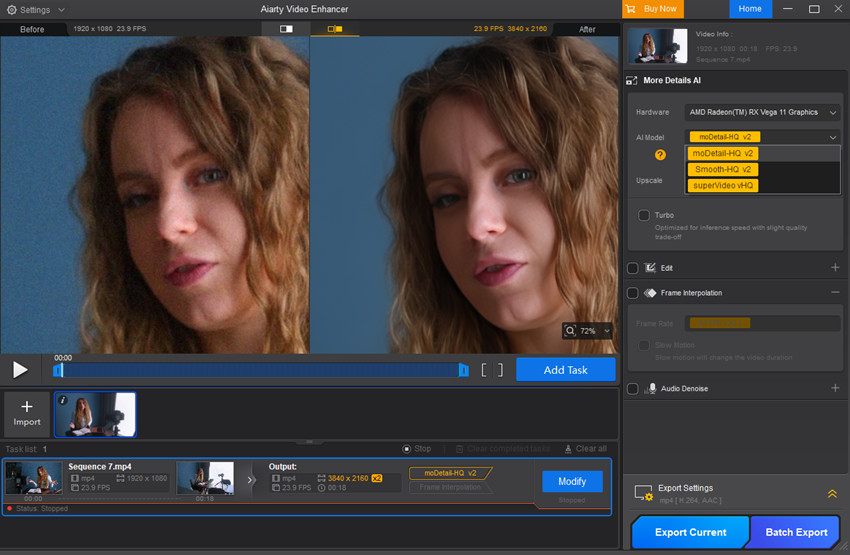
While Topaz Video Upscaler offers powerful AI models and extensive manual controls, it may not be the most efficient choice for every workflow. If you prefer a faster, more automated approach, Aiarty Video Enhancer is a practical alternative. It also offers a one-time lifetime license, making it a cost-effective choice for creators who want long-term access without recurring subscription fees.
Why Consider Aiarty Video Enhancer?
Instead of forcing you to manually test multiple models and adjust individual sliders for every single clip, Aiarty focuses on intelligent automation and efficiency.
- Natural AI Upscaling: Aiarty enhances videos to HD and 4K while preserving realistic textures and fine details. Its AI models improve overall clarity with sharper videos and no overprocessed look.
- Intelligent AI Enhancement: Aiarty automatically analyzes your source video and applies AI upscaling, denoising, deblurring, sharpening, and detail enhancement with minimal manual adjustment.
- One-Time Lifetime License: Aiarty is available with a one-time lifetime license for both Mac and PC, no recurring subscription fees.
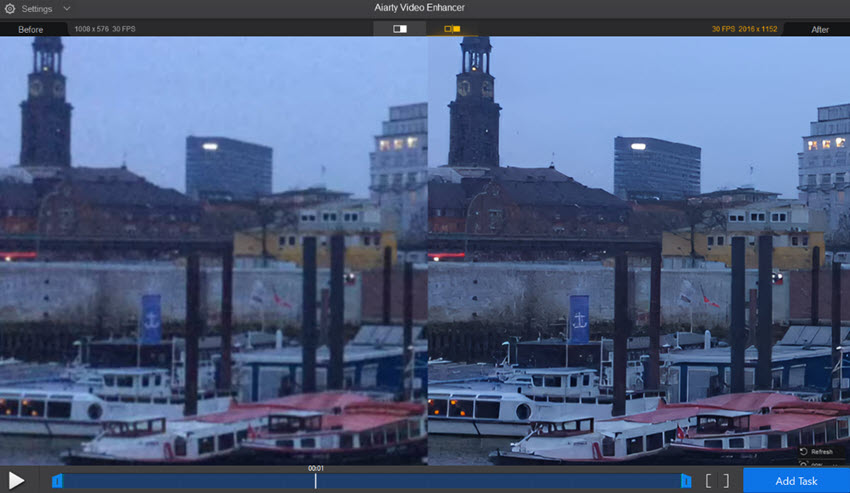
Topaz Video Upscaler gives you need maximum control over AI models, advanced restoration options, and professional post-production workflows. Aiarty Video Enhancer offers an efficient AI enhancement workflow that balances video upscaling, noise reduction, deblurring, and detail enhancement with less manual adjustment.
Conclusion
Topaz Video Upscaler isn't a single AI model, it's a complete AI video enhancement workflow powered by multiple models, each designed for different types of footage. Choosing the right model is often more important than simply increasing the output resolution.
For most users, Proteus is the best starting point for general video upscaling, while Rhea delivers excellent texture recovery for high-quality 4K output. Starlight excels at restoring heavily degraded footage, Nyx is ideal for noisy low-light videos, and Astra is better suited for AI-generated or creative content.
The best results come from matching the AI model to your source footage, testing a short preview, and adjusting settings only when necessary. Whether you're restoring old home videos, enhancing YouTube clips, or upscaling footage to HD or 4K, understanding how Topaz Video Upscaler works will help you achieve cleaner, sharper, and more natural-looking results.
If you prefer a simpler workflow with intelligent automation and a one-time lifetime license, tools like Aiarty Video Enhancer are also worth considering. Ultimately, the right choice depends on whether you prioritize maximum manual control or faster everyday video enhancement.
 FAQ
FAQ
The best Topaz Video Upscaling model depends on your source footage. Proteus is the best all-around choice for most videos because it provides a balance between detail recovery, sharpening, and artifact reduction. Rhea is better for high-quality 4× upscaling where maximum texture detail matters, while Starlight is designed for heavily degraded or low-resolution footage. For specific cases, use Nyx for noisy low-light videos and Astra 2 for AI-generated content.
For most 1080p to 4K video upscaling, Proteus is the recommended starting point. It provides good detail enhancement while avoiding excessive sharpening or artificial textures. If your 1080p footage is already clean and you want maximum texture recovery, Rhea can deliver higher-quality results but requires significantly more processing time.
Use Nyx first if grain and sensor noise are dominant. For heavily degraded archival content, the diffusion-based Starlight model acts like "magic" for deep reconstruction, while Proteus remains the safest bet for general-purpose, user-controlled tuning.
Overprocessed results usually happen when enhancement settings are too aggressive. Increasing sharpening or detail recovery too much can create halos, plastic-looking faces, or unnatural textures. Try lowering Recover Detail and Sharpen settings, or switch to a more suitable model such as Proteus instead of forcing a restoration model on clean footage.
You May Also Like


This post was written by Brenda Peng who is a seasoned editor at Digiarty Software who loves turning ordinary photos into extraordinary works of art. With AI assistance for brainstorming and drafting, the post is reviewed for accuracy by our expert Abby Poole for her expertise in this field.
