


A write-protection warning is easy to fix when the small lock tab on an SD card has been moved by accident. It becomes more serious when the tab is already unlocked, the message keeps returning, or the card contains photographs that have not been backed up.
The order matters. If the images on the card are important, do not format it, run a repair utility, or keep testing it in multiple devices. First copy what you can. Then work through the card, reader, computer, and camera one at a time.
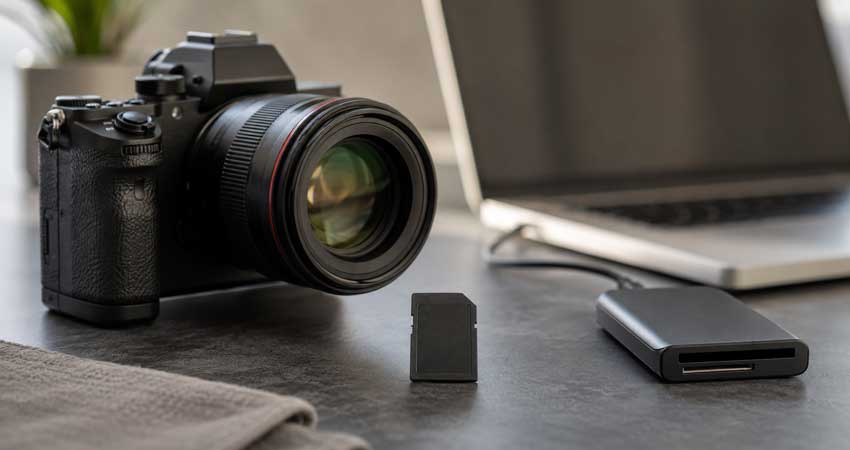
Quick Answer: What to Do When a Camera Says the Memory Card Is Write Protected
- Turn the camera off before removing the card.
- Find the small Lock slider on the side of a full-size SD card.
- Move the slider upward, toward the metal contacts, to unlock it.
- Reinsert the card, turn the camera on, and make one test photograph.
- If the warning returns, use a spare card and set the problem card aside.
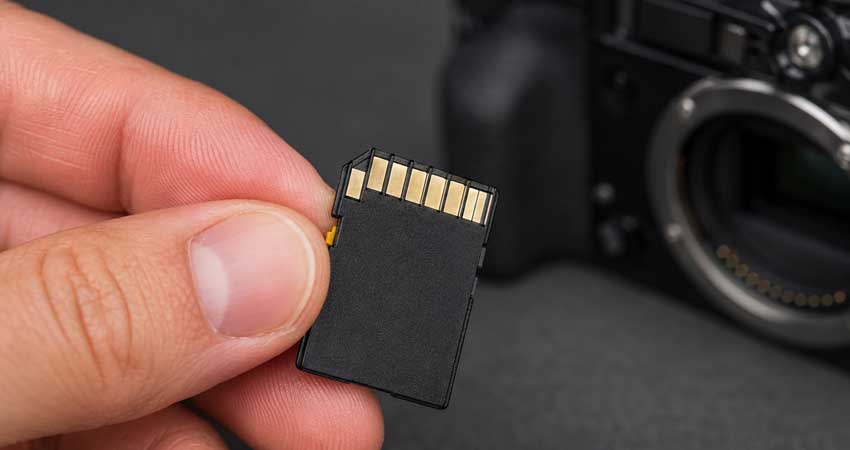
If a second card works in the same camera, the original card or its lock tab is the likely problem. If every known-good card shows the same warning, the camera's card-slot lock sensor may need inspection or service.
What Does "Memory Card Is Write Protected" Mean?
Write protection places a memory card in a read-only state. A camera or computer may still be able to display and copy the files already stored on it, but it cannot reliably perform any operation that writes new data.
That means you may be unable to:
- Take new photos or record video
- Delete or protect images in-camera
- Rename or edit files on the card
- Create a new folder
- Format the card
This is not the same as a full card. Deleting a few images will not solve a genuine write-protection error because deletion is itself a write operation.
On a full-size SD, SDHC, or SDXC card, the plastic slider does not encrypt the data. It tells the camera or card reader to treat the card as read-only. microSD cards do not normally have a lock slider of their own; when one appears locked, the full-size adapter, the host device, or the card's internal controller is usually responsible.
Before You Try a Fix, Protect the Photographs Already on the Card
If the card contains an unbacked wedding, assignment, trip, or client shoot, treat the write-protection message as a storage warning rather than an inconvenience.

If the Files Are Still Readable
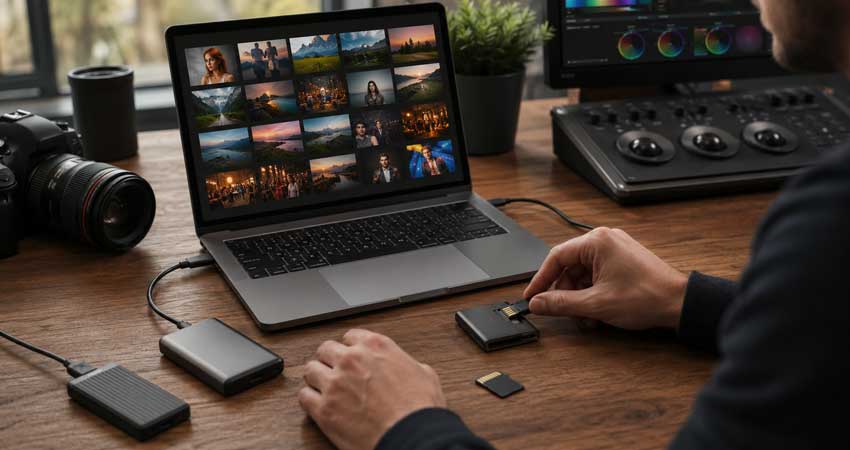
Copy the entire DCIM folder to a computer or working drive. Do not move the files and do not edit them directly on the card. A copy leaves the source untouched.
Open several files from the beginning, middle, and end of the shoot at 100% view. For a professional job, make a second copy on another physical drive before changing anything on the card. If your ingest software supports checksum verification, use it.
If the Card Disconnects or Some Images Will Not Open
Stop normal troubleshooting. Repeated mounting, repair attempts, and formatting can make recovery harder. When the photographs are irreplaceable, create a sector-level image of the card or use a qualified data-recovery service. SD card recovery software should scan the card or its disk image and save recovered files to a different drive—never back to the problem card.
Do Not Format First
Formatting is useful only after the photographs have been copied or recovered. It erases the card's file-system structure and may overwrite information a recovery tool needs. It also cannot rescue a card whose controller has forced the media into permanent read-only mode.
Why an SD Card Becomes Write Protected
The warning describes a state, not a single fault. These are the causes worth checking, in the order photographers encounter them most often.
1. The Physical Lock Switch Was Moved
The slider can catch on the edge of a card wallet, reader, or camera slot. On most full-size SD cards, down is locked and up—toward the contacts—is unlocked. Nikon and Canon both use this as the first fix in their official support guidance.
2. The Lock Tab Is Loose, Cracked, or Missing
A worn slider may sit between positions or move as the card is inserted. The card can look unlocked in your hand but be read as locked once it enters the slot. A missing tab can also cause some readers to report write protection.
Tape is sometimes suggested online to hold a loose tab in place. At best, that is a diagnostic workaround. Adhesive or a loose piece of tape inside a camera slot creates a second problem, so a damaged card should be replaced rather than returned to a working camera bag.
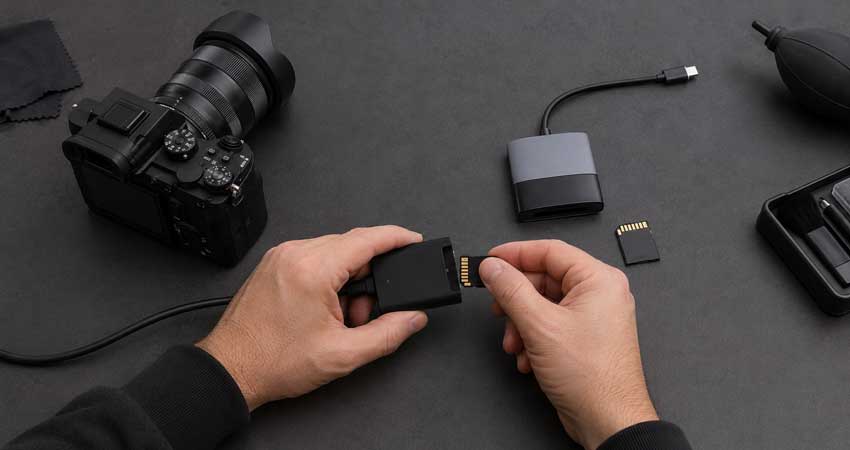
3. A microSD Adapter or Card Reader Is Faulty
A microSD card has no built-in Lock switch, but a full-size SD adapter does. Cheap or worn adapters are common sources of false write-protection messages. The same applies to readers whose lock-detection mechanism is dirty or damaged.
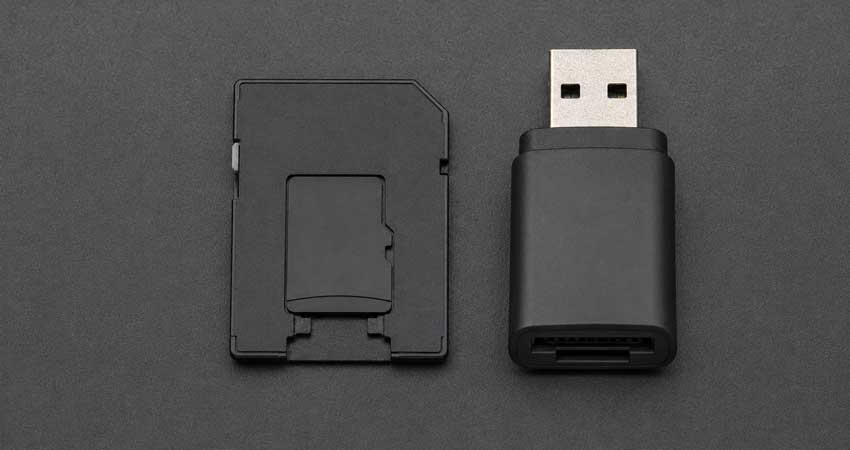
For still cameras that accept full-size SD media, a native SD card is generally a better choice than a microSD card in an adapter, particularly for sustained bursts or video.
4. The Camera's Card-Slot Sensor Is Stuck
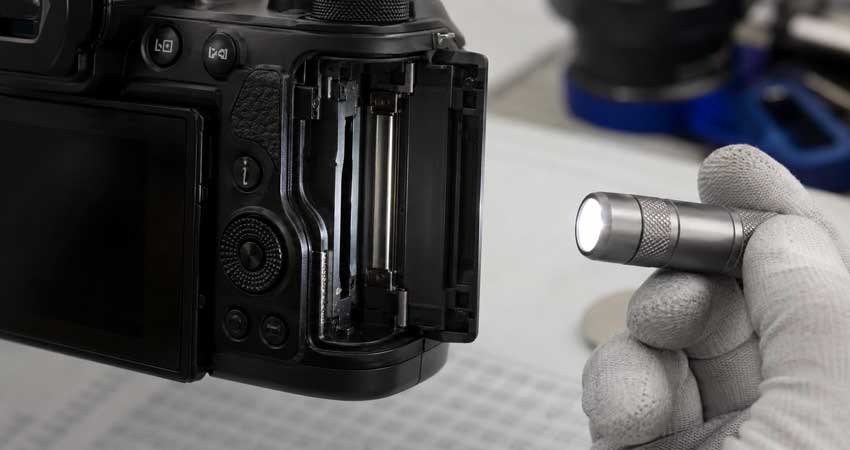
The camera detects the position of the SD card's slider inside the slot. Dust, mechanical wear, or damage can leave that detector in the locked position. The clearest sign is that several known-good, unlocked cards all show the same warning in one camera but work elsewhere.
Do not insert metal tools, toothpicks, or cleaning fluid into the slot. Check it with a light for obvious debris, then use the manufacturer's service route if the error affects every card.
5. Windows Has Marked the Disk as Read-Only
If the card works in-camera but appears write protected only on one Windows computer, the problem may be a reader, USB port, storage policy, or read-only disk attribute rather than the card itself.
6. The File System Is Damaged
Removing a card while the camera or computer is writing, losing power during transfer, or repeatedly formatting the card in different devices can damage its file system. Some hosts respond by mounting questionable media as read-only to avoid further changes.
7. The Memory Card Is Failing
Flash memory has a finite service life. A card controller may force the card into read-only mode when too few healthy blocks remain or when critical storage metadata is damaged. SanDisk documents this behavior as a data-protection measure.
If a card remains read-only in several devices, DiskPart cannot clear the status, and formatting fails, assume the card is at the end of its useful life. Copy the data while it is still readable and replace it.
Diagnose the Fault Before Changing Settings
Five minutes of controlled testing is more useful than trying a dozen unrelated fixes.
How to Remove Write Protection From an SD Card
Work from the least invasive fix to the most invasive. Stop when the card becomes writable, and do not proceed to formatting until the data is safe.
Method 1: Unlock and Reseat the SD Card
- Turn the camera off and wait for the card-access light to go out.
- Remove the card.
- Move the Lock slider fully down and then fully up. This clears a tab that is sitting between positions.
- Inspect the tab for looseness or damage.
- Reinsert the card firmly without forcing it.
- Turn the camera on and capture a test frame.
If the test image records and plays back normally, copy the card at the next opportunity. A switch that moved without explanation is worth watching; if the error repeats, replace the card.
Method 2: Change One Part of the Path at a Time
On a computer, try a different card reader and USB port. Avoid an unpowered hub. For microSD, replace the adapter before blaming the card.
Then cross-test:
- Put the problem card in another compatible camera or reader.
- Put a known-good, unlocked card in the original camera.
This separates a card fault from a camera-slot fault without changing any data.
Method 3: Clear the Read-Only Attribute in Windows
Use this only after confirming the correct disk number. DiskPart is powerful, and selecting the wrong disk can put another drive at risk if later commands are entered.
- Insert the card and open Command Prompt as Administrator.
- Enter the following commands one at a time:
diskpart, list disk, select disk X, attributes disk, attributes disk clear readonly, exit
Replace X with the disk number of the memory card, identified by its capacity. Microsoft documents attributes disk clear readonly as the command for clearing the read-only disk attribute.
Eject and reconnect the card, then try creating a small test folder. If DiskPart reports success but the card immediately returns to read-only mode, the restriction may be coming from the reader or the card controller rather than Windows.
Do not continue with clean, partition, or format commands while unbacked photographs remain on the card.
Method 4: Check the Card on a Mac
If macOS says the card "cannot be modified," eject it and check the physical slider first. Apple gives the same advice for cards used in a built-in SD slot.
If the switch is unlocked:
- Try a different reader or adapter.
- Open Disk Utility and choose View > Show All Devices.
- Select the card and run First Aid only after the files have been copied.
First Aid can address some file-system errors, but it cannot override a physical lock or a failing card controller. If the card is read-only on both Mac and camera, return to hardware testing rather than changing macOS permissions.
Method 5: Format the Card After Backup
Once the files are secure, format the card in the camera that will use it. Camera formatting creates the directory structure and file system the camera expects. Sony, for example, warns that operation is not guaranteed with a card formatted only on a computer and recommends formatting in the camera.
If the camera cannot format it but the card is writable on a computer, the SD Association's SD Memory Card Formatter is preferable to a generic operating-system formatter for restoring a standard SD file system. Afterward, format the card once more in-camera before shooting.
If formatting fails or write protection returns, replace the card. A format is a test, not a repair certificate.
What If the Lock Switch Is Already Unlocked?
This is where most generic tutorials become less useful. An unlocked switch rules out only one cause.
The Card Is Unlocked, but One Camera Still Says It Is Locked
Try two other known-good cards. If all three produce the warning, the fault is probably in the camera's lock-detection mechanism. The card slot should be professionally inspected rather than probed at home.
The Card Is Unlocked, but One Computer Says It Is Write Protected
Change the reader, adapter, cable, port, and computer before editing the Windows Registry. If other removable drives are also read-only on the same managed computer, an administrator policy may be involved. A system-wide policy is much less likely when only one card is affected.
The Card Is Unlocked and Read-Only in Every Device
Copy the photographs immediately. A controller-enforced read-only state is often the last usable stage of a failing card. Software cannot restore worn flash cells, and a card that has protected itself should not be forced back into assignment use.
After Recovery: Check the Image Files Before Editing
A successful file copy does not guarantee that every photograph is intact. Check the original pixel dimensions, file size, metadata, and 100% detail. RAW files should open in your normal RAW processor without truncation or decoding errors.
If recovery produces a complete, readable original, keep that file untouched and edit a duplicate. If only a small embedded JPEG, soft preview, or heavily compressed copy survives, Aiarty Image Enhancer can fit into the post-recovery workflow as a finishing tool. It can denoise, reduce blur, restore visible detail, and upscale a usable image locally on the computer.
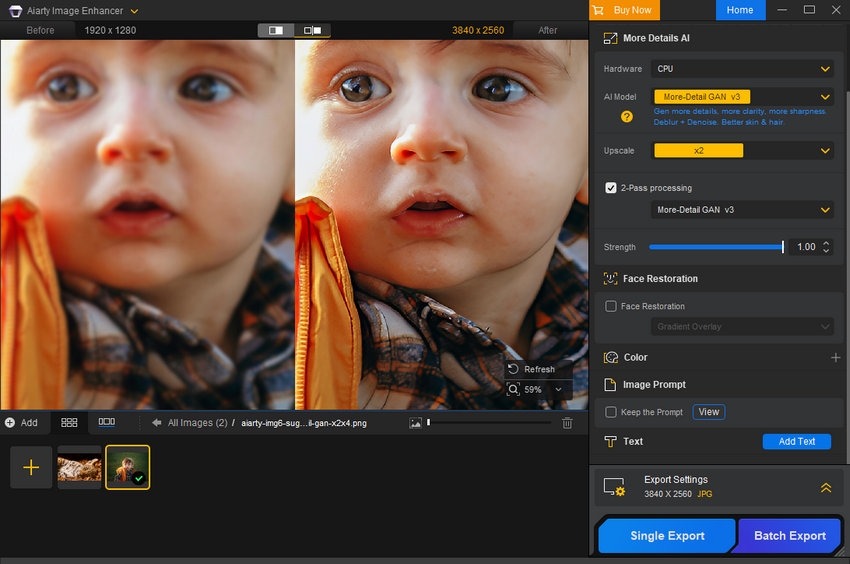
The distinction is important: Aiarty Image Enhancer does not recover files from a damaged memory card and cannot make an unreadable RAW file valid. Use recovery tools or a recovery service first. Use image enhancement only after a photograph can be opened and duplicated safely.
For a recovered JPEG, a restrained workflow usually gives the most credible result:
- Preserve the recovered file as the untouched master.
- Work on a duplicate stored on a healthy drive.
- Enhance at 1× first to reduce noise and softness without unnecessarily enlarging the file.
- Use 2× or a target resolution only when the recovered copy is too small for delivery or print.
- Compare the result at 100%, especially around hair, text, foliage, fabric, and facial detail.
This will not recreate a missing frame, but it can make the best surviving version more usable.
Can You Trust the Card After the Error Is Fixed?
That depends on why it happened.
If the slider was clearly in the Lock position, the card unlocks normally, a full test writes successfully, and the warning does not return, there may be nothing wrong with the flash memory. The lock did what it was designed to do.
Replace or retire the card if:
- The slider is loose, cracked, or missing
- Write protection returns without the slider moving
- The card disconnects during import
- Files become unreadable or appear with unexpected sizes
- Write or format operations fail in more than one device
- The card becomes abnormally slow
- A camera repeatedly asks to recover its database or format the card
For paid work, the threshold should be low. A memory card costs less than a reshoot, and an intermittent card has already failed the only test that matters: predictability.
A Safer Memory-Card Workflow for Photographers
Write protection cannot be prevented in every case, but a disciplined card routine limits the damage.
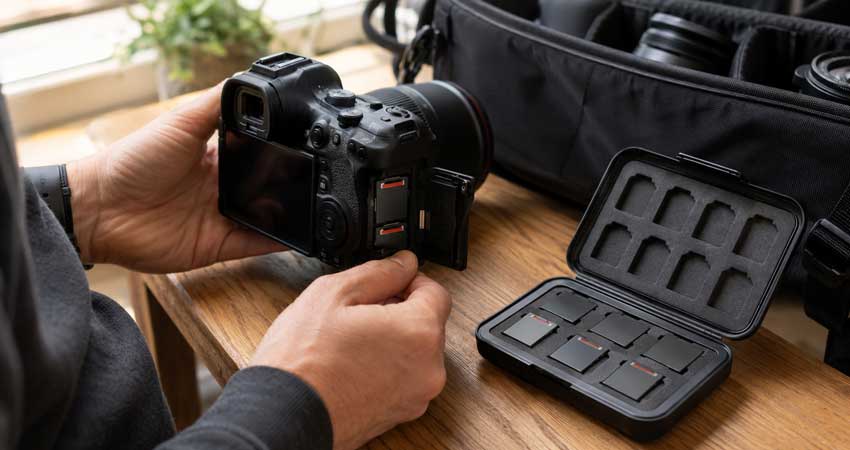
Format in the Camera, Not on the Computer
After two verified backups exist, return the card to the camera and format it there. Avoid using the computer to delete selected frames between shoots; that leaves the card with a file structure modified by multiple hosts.
Carry Tested Spare Cards
A spare card should be formatted, compatible with the camera, and fast enough for the intended burst rate or video format. A sealed card that has never been tested is inventory, not a reliable backup.
Use Both Card Slots When the Assignment Warrants It
For weddings, events, news, and other non-repeatable work, configure dual slots for simultaneous recording when the camera supports it. Redundancy in-camera is more useful than hoping to recover a single failed card later.
Copy, Verify, Back Up, Then Format
A dependable ingest sequence is:
- Copy the full card to the working drive.
- Verify the transfer.
- Create a second copy on a separate drive or backup system.
- Confirm the catalog can find the files.
- Format the card in-camera before the next job.
Eject Cards Properly
Wait for the camera's access light to stop before opening the card door. On a computer, eject the volume before removing the card or reader. Do not pull a card while thumbnails are still being generated or files are still being copied.
Retire Unreliable Media
Label cards and rotate them rather than relying on one high-capacity card for every shoot. Any card that produces repeated write, read, or recovery errors should leave the active set.
Final Takeaway
When a camera reports that a memory card is write protected, check the SD card's Lock switch first—but do not stop thinking there. The fastest reliable diagnosis is to see whether the fault follows one card or affects every card in one camera.
Protect the photographs before attempting repairs, format only after backup, and replace any card that repeatedly returns to read-only mode. Getting a card writable again is useful. Knowing when not to trust it is part of a professional shooting workflow.
 FAQs
FAQs
Start with the physical Lock switch, a different adapter, and a different reader. On Windows, clearing the read-only disk attribute with DiskPart does not format the card. Even so, copy readable photographs before making changes because unexpected write protection can be a sign of card failure.
The slider may be loose, the reader or camera may be misreading its position, or the card controller may have forced the memory into read-only mode. Test the card in another device and test a known-good card in the camera. This identifies whether the fault follows the card or stays with the camera.
microSD cards normally have no physical lock. Check the Lock slider on the full-size adapter and try another adapter or direct microSD reader. If the microSD card is read-only in every device, back it up and replace it.
Not while the device still reports it as read-only. Remove the physical or software restriction first, and back up all wanted files. If the card's controller has permanently locked it, formatting will fail and the card should be replaced.
Usually not. Write protection often leaves existing files readable, which is why the first step is to copy them. However, if the protection was triggered by media failure or file-system damage, some files may already be affected.
It prevents compatible devices from writing to or deleting files, but it is not encryption and does not protect against card loss, physical damage, static, moisture, or flash failure. It is useful during transport and ingest, but it is not a substitute for a second copy.
For non-critical use, you can back it up, perform a full write test, format it in-camera, and monitor it. For client work, replace it if the error was unexplained or returns. DiskPart can clear a Windows attribute; it cannot repair worn or unstable flash memory.


This post was written by Brenda Peng who is a seasoned editor at Digiarty Software who loves turning ordinary photos into extraordinary works of art. With AI assistance for brainstorming and drafting, the post is reviewed for accuracy by our expert Abby Poole for her expertise in this field.
