


Upscayl and Topaz Photo are two popular AI image enhancers, but they target different users. Upscayl is free and open source, with a focus on straightforward AI upscaling. Topaz Photo takes a broader approach, combining upscaling with tools for denoising, sharpening, and photo restoration.
But does paying for Topaz Photo actually give you better results? We compared the two using the same images to find out how they differ in image quality, features, speed, and overall value.
Upscayl vs Topaz Photo at a Glance
| Feature | Upscayl | Topaz Photo |
| Primary focus | AI image upscaling | AI photo enhancement and upscaling |
| Price | Free | Paid |
| Open source | Yes | No |
| Platforms | Windows, macOS, Linux | Windows, macOS |
| AI upscaling | Yes | Yes |
| Denoising | Limited / model-dependent | Yes |
| Sharpening | Limited / model-dependent | Yes |
| Face enhancement | No dedicated face restoration tool | Yes |
| Photo restoration | No | Yes |
| AI models | Multiple community and built-in models | Multiple specialised AI models |
| Batch processing | Yes | Yes |
| Speed | Upscayl is generally slower than Topaz Photo in our testing | |
| Best for | Free, straightforward image upscaling | More complete AI photo enhancement |
What Is Upscayl?
Upscayl is built around one main job: upscaling images with AI. Instead of simply stretching pixels, it uses AI models to reconstruct details and produce a higher-resolution image. However, anything above 4x, except for 16x Double Upscayl, only resizes the image rather than applying AI upscaling.

Its main appeal is flexibility. Upscayl includes several AI models with different processing characteristics, and users can switch between them depending on the source image and the type of result they want.
Upscayl AI Models Explained
One of Upscayl's biggest strengths is that you are not locked into a single AI model. The current model list includes Upscayl Standard, Upscayl Lite, High Fidelity, Remacri, Ultramix Balanced, Ultrasharp, and Digital Art.
Here's what they are generally suited for:
| Model | Best for | What to expect |
| Upscayl Standard | General photos | A balanced starting point for everyday images |
| Upscayl Lite | Faster processing | A lighter option when speed matters more than maximum detail |
| High Fidelity | Photos where natural detail matters | More conservative enhancement with less aggressive sharpening |
| Remacri | General photography | Stronger texture and edge detail, useful for photographs |
| Ultramix Balanced | General-purpose enhancement | A middle ground between detail and a natural appearance |
| Ultrasharp | Clean, detailed images | Stronger edge definition and a crisper look |
| Digital Art | Illustrations and digital artwork | Designed for graphics rather than conventional photographs |
These models are not simply different quality levels. They can produce noticeably different results from the same source image, particularly in fine textures, edges, and sharpening. That makes model selection important when using Upscayl for photography. The available models also come from different model creators and projects, rather than representing a single unified model family.
Pros and Cons of Upscayl
Pros
- Free with no subscription required
- Open-source and available across Windows, macOS, and Linux
- Local processing is useful for privacy-sensitive images
- Multiple models to choose from
- Supports batch processing and custom models
- Particularly appealing for users who mainly need image upscaling
Cons
- Requires a compatible GPU with Vulkan support
- Primarily focused on upscaling, with limited controls for fine-tuning the enhancement
- Does not support RAW files
Overall, Upscayl is a strong option when AI upscaling is the main requirement. Its biggest advantage is that you can experiment with different models at no cost. The trade-off is that its feature set is much narrower than that of a full AI photo enhancement application.
What Is Topaz Photo?
Topaz Photo takes a broader approach to image enhancement than Upscayl. Upscaling is only one part of the workflow. You can also use it to reduce noise, sharpen soft images, recover faces, and restore details in difficult photos.

Topaz Photo AI Models Explained
One of Topaz Photo's strengths is its range of specialized models. Instead of relying on a single upscaling model, you can choose different models based on the quality and problems of the source image.
| Model | Best suited for | Characteristics |
| High Fidelity | High-quality, detail-rich photos | Preserves fine detail, natural texture, and the original photographic look |
| Standard | General-purpose images | Provides balanced, natural-looking enhancement for everyday photos |
| Standard Max | Low-resolution and smaller images | Produces stronger detail reconstruction with a more generative approach, while maintaining a natural-looking result |
| Recover | Low-quality photos with usable detail, including wildlife and portraits | Reconstructs realistic fine textures such as fur, skin, foliage, and fabric |
| Low Resolution | Highly compressed or low-quality images | Prioritizes overall image quality and usable detail rather than preserving fine details |
| Graphics | Illustrations, cartoons, and other simple graphics | Preserves clean edges, flat color areas, and graphic elements during upscaling |
The software can analyze an image and recommend enhancements through Autopilot, while advanced users can manually choose models and adjust their strength.
Pros and Cons of Topaz Photo
Pros
- Provides fine-grained controls for manually adjusting denoise and deblur strength
- Can be used as a plugin with Lightroom and Photoshop
- Supports RAW files
Cons
- Subscription-based.
- More models and settings can mean more trial and error
- Large software footprint, lengthy model downloads, and demanding hardware requirements
Topaz Photo is better suited to photographers who need more than image upscaling. Its main advantage is the ability to handle several common photo problems within one workflow, from noise and blur to low resolution and damaged details.
Upscayl vs Topaz Photo: Real-World Comparison
To accurately evaluate how Upscayl and Topaz Photo handle image enlargement, we need to examine their performance in real-world scenarios. The following tests were conducted on a 64-bit Windows 10 system equipped with a 13th Gen Intel Core i7-13700K (3.42 GHz), 32 GB of RAM, and an NVIDIA GeForce GTX 980 4GB GPU, using Topaz Photo v1.5.0 and Upscayl v2.15.0.
Because both software tools were set to a 2x upscale, the original cropped images are shown at a 200% view to match the physical dimensions of the upscaled outputs, which are displayed at a 100% view. This ensures an accurate, pixel-to-pixel comparison of how each engine reconstructs detail.
Test 1: Animal Photography and Complex Textures

The first test utilizes a wildlife photograph (original size 1280x853) to evaluate how each AI model handles fine, organic details. Looking at the original image at a 200% zoom, the pixelation is immediately apparent. The edges of the lemurs' ears and the fur on their heads blur together into a mosaic pattern, lacking any high-frequency texture.
When processed through Upscayl using its default Standard model at 2x, the software completely eliminates the pixelation and does an excellent job of cleaning up background noise. However, it struggles significantly with texture retention. The algorithm over-smooths the fine hairs, resulting in a heavy painted effect that flattens the depth of the fur and makes the lemur look somewhat artificial.
Topaz Photo takes a vastly different approach. Using its Standard v2 model (with minor denoise, minor deblur, and fix compression parameters left at default), the software excels at texture reconstruction. It effectively removes the pixel blocks while seamlessly separating and sharpening individual strands of fur. The ear edges and the top of the lemur's head retain their natural fluffiness, maintaining the authentic, organic feel of a professional wildlife photograph without introducing unwanted smoothing.
Test 2: Portraiture and Facial Features

Our second test focuses on a human portrait (original size 1920x1280), a subject that requires a much more delicate algorithmic touch. The original file is a slightly out-of-focus, low-resolution shot of a baby's face, lacking crispness in the eyelashes, eye reflections, and natural skin texture.
Applying Upscayl's 2x Standard model here yields an aggressively processed result. The software introduces a strong vectorization effect, redrawing the contours of the eyes, lashes, and lips with harsh, high-contrast edges while entirely flattening the skin tones. This strips away the natural photographic lighting and gives the portrait a distinctly animated or computer-generated appearance, losing the realism of the original shot.
Topaz Photo handles this scenario with its High Fidelity v3 model (keeping the strength parameter at its default). True to the model's name, the algorithm focuses on maintaining photographic integrity. While it successfully sharpens the blurred areas and enhances the clarity of the eyes, it preserves the soft, natural light transitions of the skin. By avoiding artificially hard lines or plastic-looking textures, Topaz allows the final image to look like a naturally sharp photograph rather than an over-processed digital painting.
Any Other Image Upscaler to Choose?
The comparison shows a clear difference between Upscayl and Topaz Photo. Upscayl is a capable free option when the main goal is straightforward AI upscaling, while Topaz Photo offers more advanced models and a wider range of photo enhancement tools.
But there is another option worth considering if you want AI upscaling together with other image enhancement features, without moving all the way into Topaz Photo's pricing and feature complexity.
Aiarty Image Enhancer
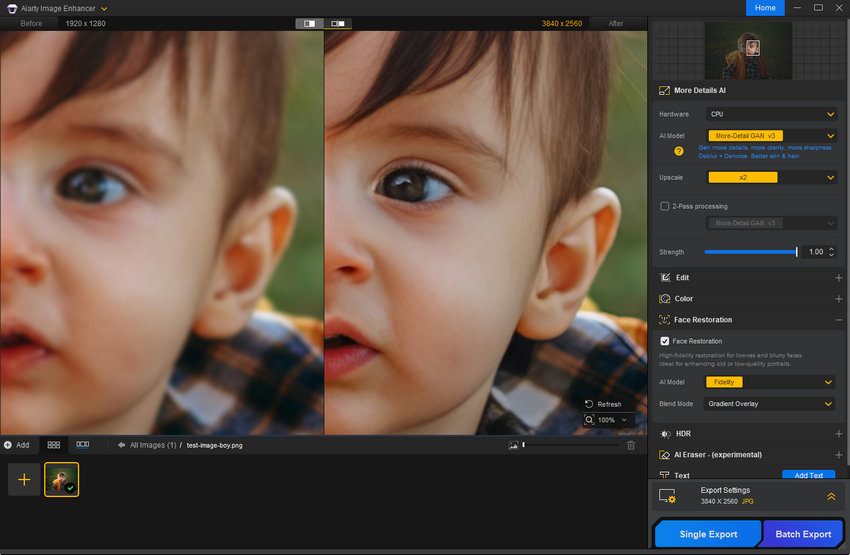
Aiarty Image Enhancer combines AI upscaling with denoising, sharpening, face restoration, color adjustment, and other enhancement tools in a single application. It supports both JPG and RAW files, making it useful for photographers who want to improve image quality without switching between multiple tools.
For upscaling, Aiarty offers several AI models designed for different types of images. You can also adjust enhancement strength to control how aggressively details are reconstructed.
For photographers who already use Lightroom, Aiarty can also fit into an existing editing workflow rather than requiring a separate, isolated process.
With Aiarty set up as a Lightroom External Editor, you can first make your standard adjustments in Lightroom, such as exposure, white balance, colour, cropping, and other RAW edits. You can then send the image to Aiarty for tasks that benefit from AI processing, such as upscaling, noise reduction, sharpening, face restoration, or detail recovery.
This is particularly useful when Lightroom handles the photographic adjustments you already rely on, while Aiarty is used for the more demanding AI enhancement stage. Instead of changing your entire workflow, you can add Aiarty where it provides the most value.
In our testing, Aiarty delivered strong processing speed and image quality, making it a compelling alternative to Topaz Photo.
Upscayl vs Topaz Photo vs Aiarty: Which One Should You Choose?
Our tests show that there is no single AI image enhancer that will consistently produce the best result for every photo. The right choice depends on the source image, the type of detail that needs to be recovered, and how much control you want over the enhancement process.
For example, Upscayl may be enough when you simply want to enlarge an image for free. Topaz Photo can be a better fit when a difficult image needs more specialized AI models and restoration tools. Aiarty sits between these two approaches, combining AI upscaling with a broader set of enhancement tools while keeping the workflow relatively straightforward.
| Upscayl | Topaz Photo | Aiarty Image Enhancer | |
| Best for | Free AI upscaling | All-in-one image enhancement | All-in-one image enhancement |
| Upscaling | ✓ | ✓ | ✓ |
| Denoising | — | ✓ | ✓ |
| Sharpening | Limited | ✓ | ✓ |
| Face restoration | — | ✓ | ✓ |
| RAW support | — | ✓ | ✓ |
| AI models | Multiple | Multiple specialized models | Multiple specialized models |
| Batch processing | ✓ | ✓ | ✓ |
| Lightroom workflow | — | ✓ | ✓ |
| Price | Free | Paid subscription,$199 per year when billed annually | 1-year license: $59; lifetime license: $109 (for three devices) |
Which One Should You Pick?
Choose Upscayl if you:
- Want a free and open-source image upscaler
- Mainly need to enlarge images
- Prefer experimenting with different AI models
Choose Topaz Photo if you:
- Need a comprehensive set of professional AI photo tools
- Want access to specialized models for different enhancement tasks
- Don't mind paying for a subscription
Choose Aiarty Image Enhancer if you:
- Work with both JPG and RAW photos
- Want more enhancement options than a basic upscaler provides
- Prefer an image upscaler with a perpetual license over a subscription
You Don't Have to Choose Just One
It's also worth remembering that AI enhancement is not a one-size-fits-all process. No tool will produce the best result on every image, and even different models within the same application can produce noticeably different results.
For challenging photos, it can make sense to process the same image with two or more tools and compare the results at 100% before deciding which one works best. A model that produces excellent texture on a wildlife photo, for example, may not be the best choice for a soft portrait or an old scanned image.
The goal is not necessarily to find one tool that replaces everything else. It's to find the tool that solves the specific image-quality problem you're dealing with.
You May Also Like


This post was written by Brenda Peng who is a seasoned editor at Digiarty Software who loves turning ordinary photos into extraordinary works of art. With AI assistance for brainstorming and drafting, the post is reviewed for accuracy by our expert Abby Poole for her expertise in this field.
