
How to Upscale and Enhance Cropped Photos for Better Quality



Cropping helps bring a subject closer, remove distractions, or create a better composition. But crop away too much, and the remaining photo may have too few pixels to look sharp at a larger size. Noise, softness, and pixelation can also become more noticeable, especially when zooming in or preparing the image for printing.
Several photo editing tools, including Photoshop and Lightroom, can help improve cropped photos. Aiarty Image Enhancer offers another option, combining AI detail enhancement, denoising, and upscaling in one workflow to improve image clarity and quality.
Real-World Tests on Cropped Photos
We tested Aiarty Image Enhancer on three cropped photos with different image quality issues to evaluate how well it improves clarity, details, and resolution.
Test 1. Upscale a Heavily Cropped Bird Photo
When a cropped photo is too small for its intended use, increasing resolution is just as important as improving detail. This is particularly useful for wildlife photos, where the subject may occupy only a small portion of the original frame.
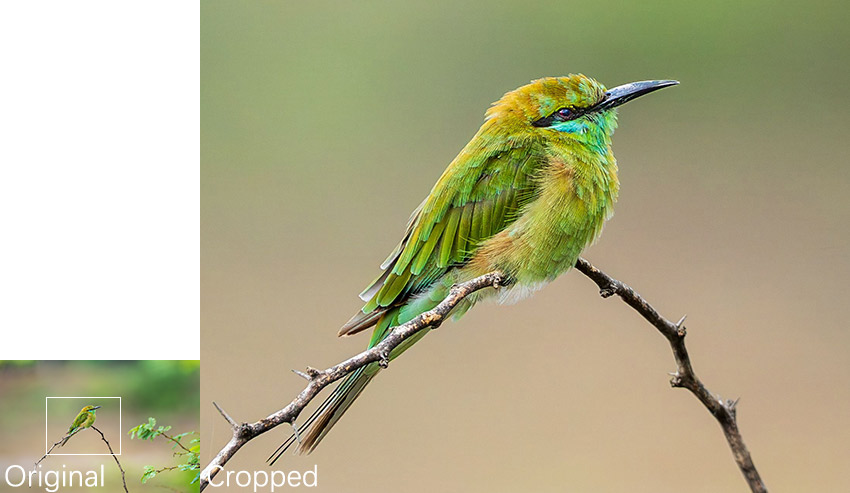
I started with a 4778 × 3185 photo of a green bee-eater and cropped it to 1686 × 1279 pixels. With the bird filling more of the frame, I used More-Detail GAN v3 and 2x upscaling to enhance the cropped image and increase its resolution.
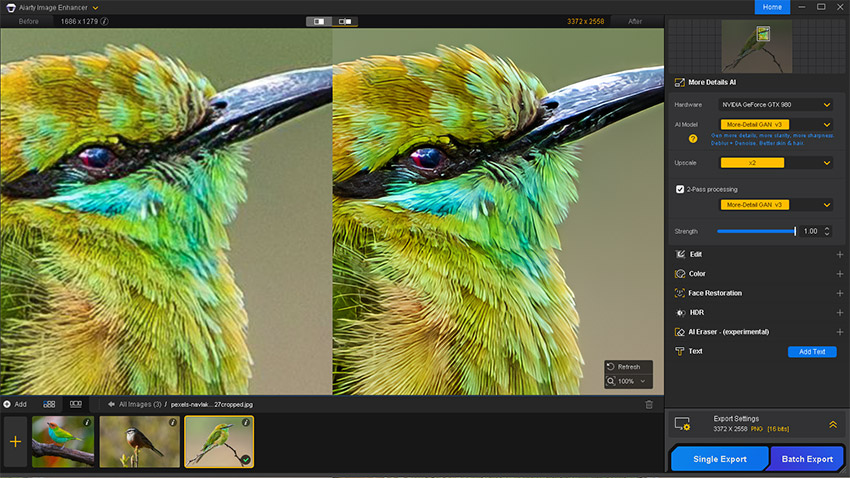
Crop Size: 1686 × 1279 px | Output Size: 3372 × 2558 px | Comparison View: 100% zoom
Aiarty enlarged the cropped photo to 3372 × 2558 pixels. The enhanced version makes the bird's feather patterns, eye area, and edges appear more defined, providing a larger image to work with while retaining more visible detail in the subject.
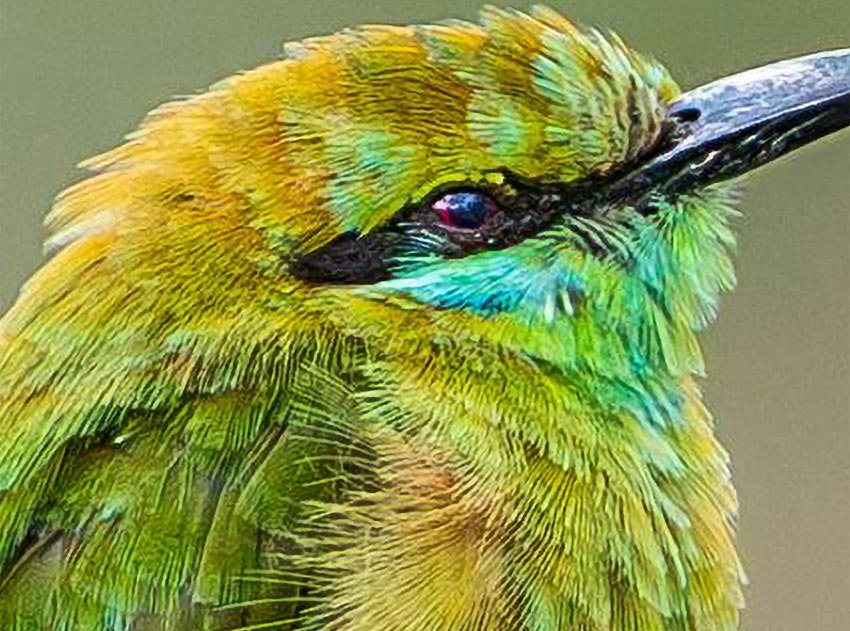
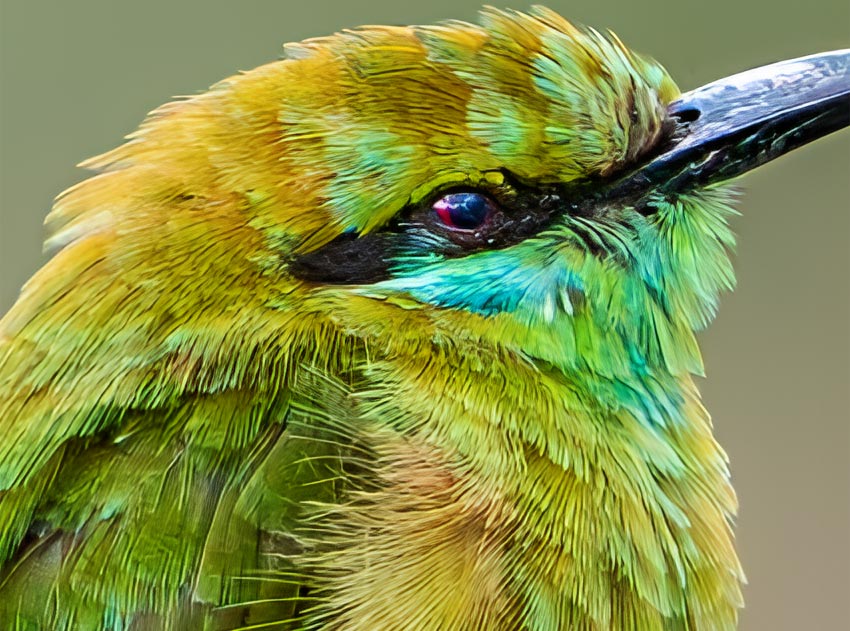

Before & After: 100% Detail Crop
Test 2. Reduce Noise in a Cropped Portrait
Cropping a portrait can make skin texture, noise, and small imperfections more noticeable, particularly when zooming in to inspect the face.
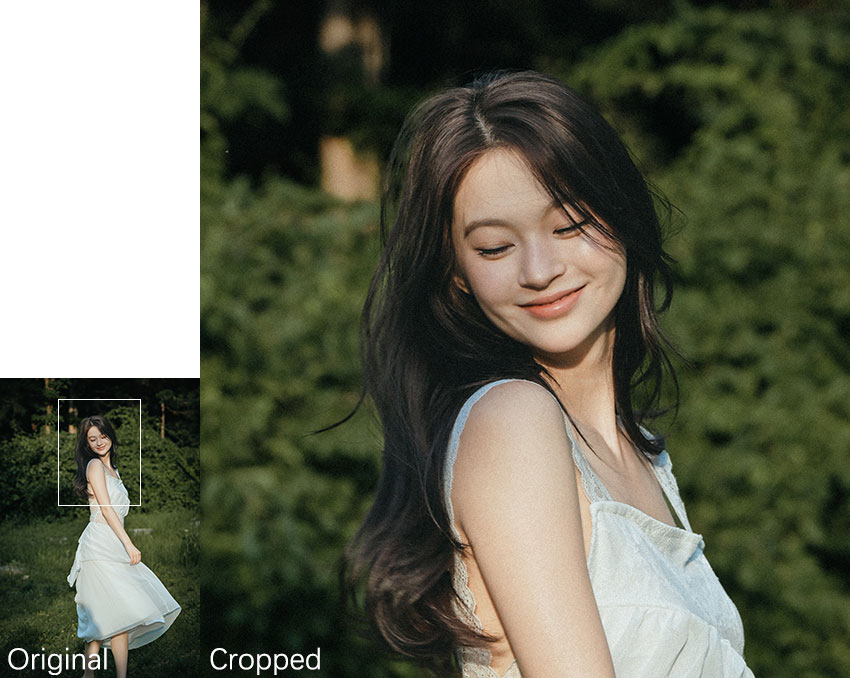
AI enhancement can help clean up the image while refining details such as the eyes, eyebrows, hair, and facial contours.
For this portrait test, the original image was 5504 × 8256 pixels. After cropping, the image measured 2508 × 2616 pixels. I used More-Detail GAN v3 at 1x and lowered the Strength to 0.88 to balance detail enhancement with a natural-looking result.
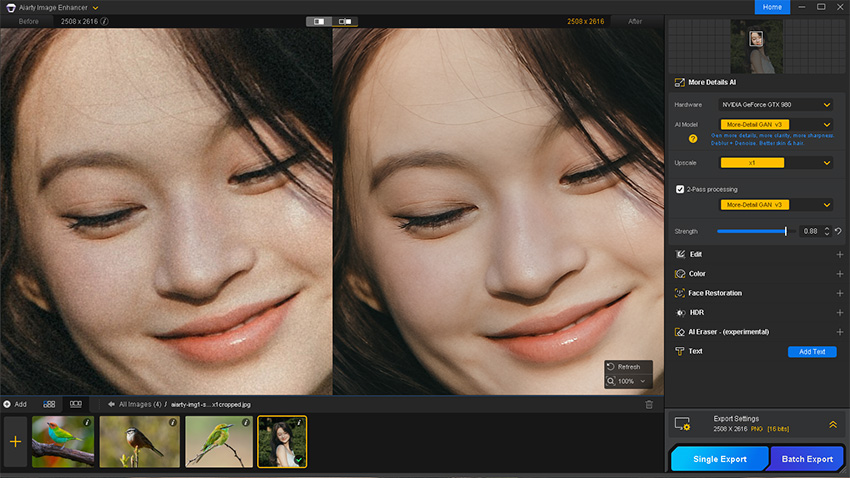
Crop Size: 2508 × 2616 px | Comparison View: 100% zoom
The enhanced version looks cleaner, with less visible grain and more defined facial details. Keeping the output at 1x also avoids increasing the dimensions unnecessarily, while the Strength setting provides some control over how strongly the AI processes the image.
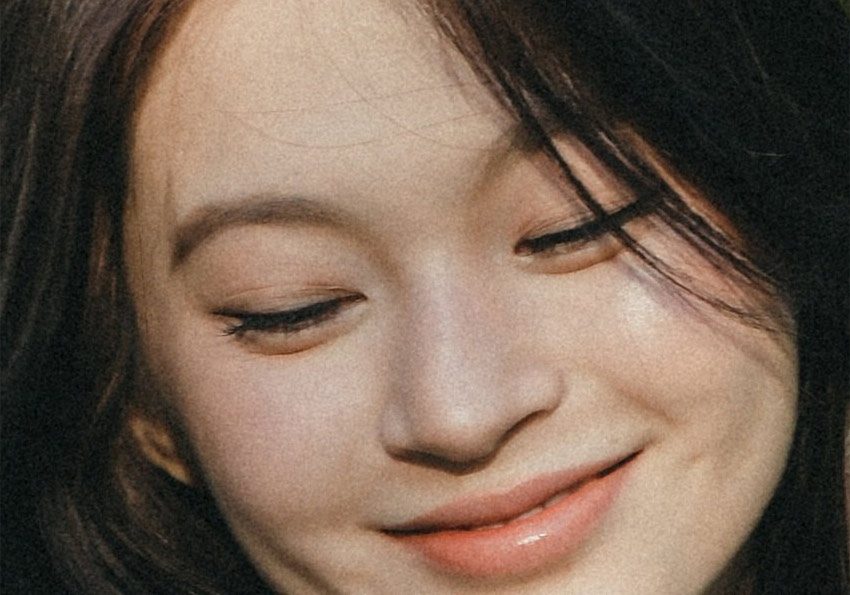
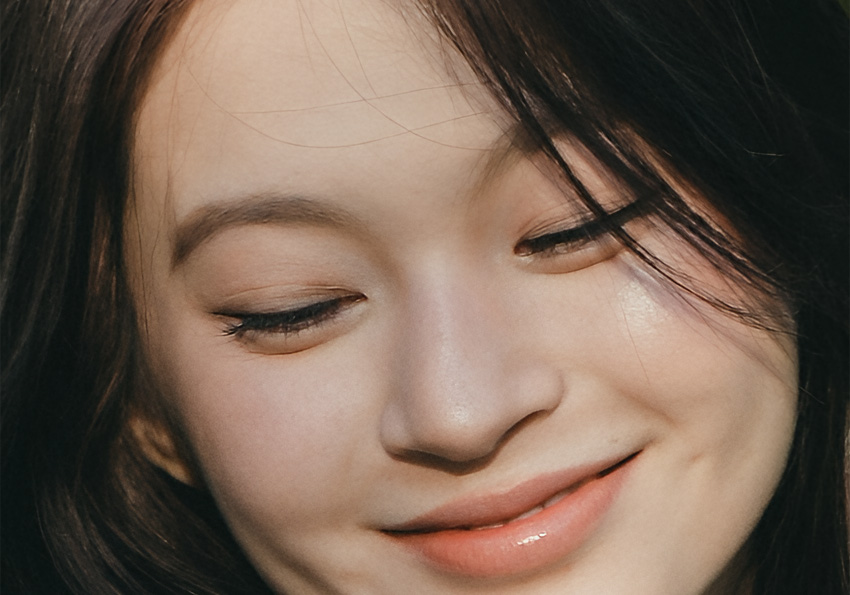
Before & After: 100% Detail Crop
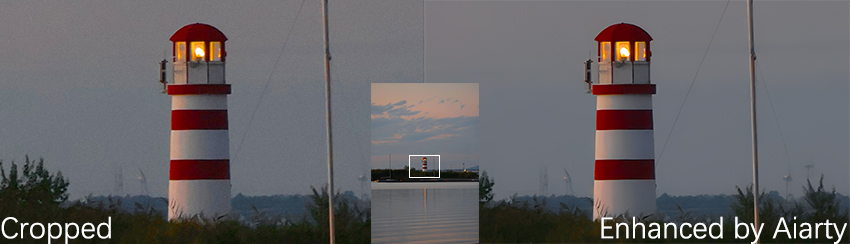
Test 3. Enhance a Cropped Lighthouse Photo
When cropping a distant subject from a photo taken in low light, the remaining image can look grainy and lack clear details. Edges and small features may also appear soft, making the cropped subject less defined.
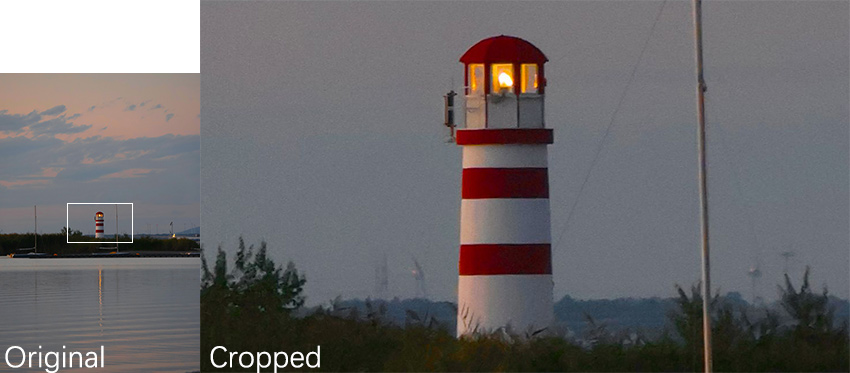
For this lighthouse photo, I cropped the original 4000 × 6000 image down to 1126 × 647 pixels. The lighthouse was still somewhat blurry, with indistinct edges and visible noise in the surrounding sky and darker areas. I applied More-Detail GAN v3 at 1x in Aiarty Image Enhancer, keeping the cropped image at its original resolution.
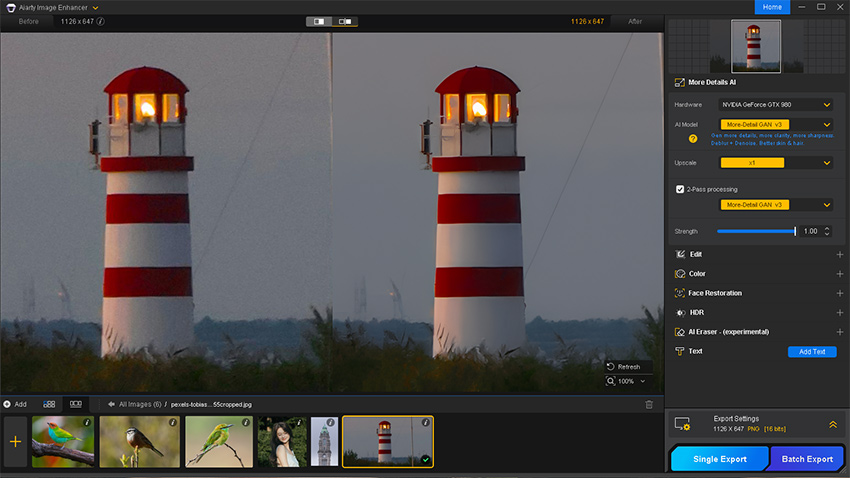
Crop Size: 1126 × 647 px | Comparison View: 100% zoom
The result looks cleaner and more defined. The lighthouse's windows, upper structure, and red-and-white stripes have clearer edges, while grain in the sky and background is less noticeable.
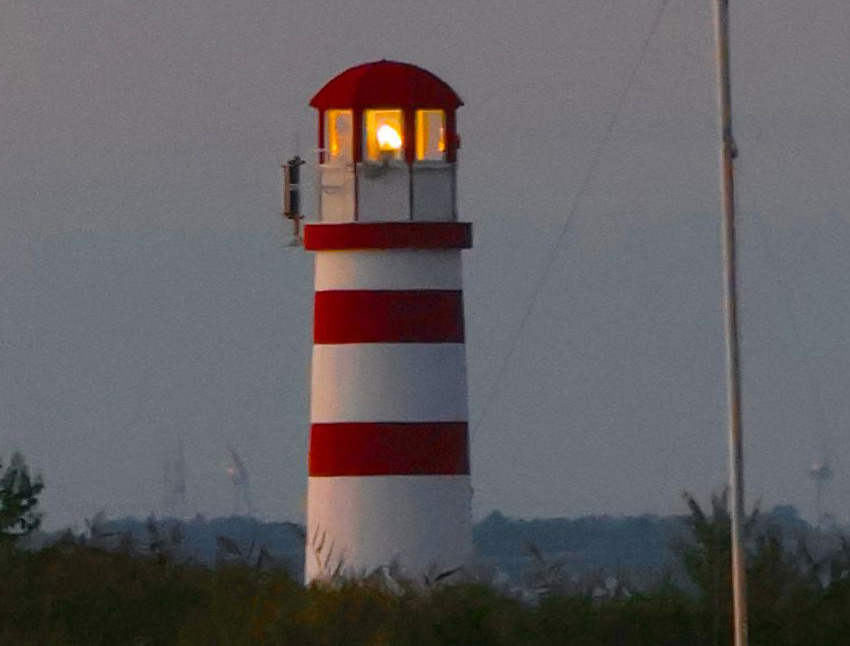

Before & After: 100% Detail Crop
How to Improve Cropped Photos
Aiarty Image Enhancer is an easy-to-use tool. To begin with, download and install Aiarty Image Enhancer on your Windows PC or Mac. Launch the program after installation. Then, just follow these steps to improve the quality of a cropped image.
If you use Lightroom Classic, you can also configure Aiarty Image Enhancer as an external editor, making it easier to send cropped photos to Aiarty for enhancement and return to your Lightroom workflow.
Step 1. Import Your Cropped Photo
Click Add to import the cropped photo you want to improve. You can add individual images, multiple photos, or an entire folder for batch processing.
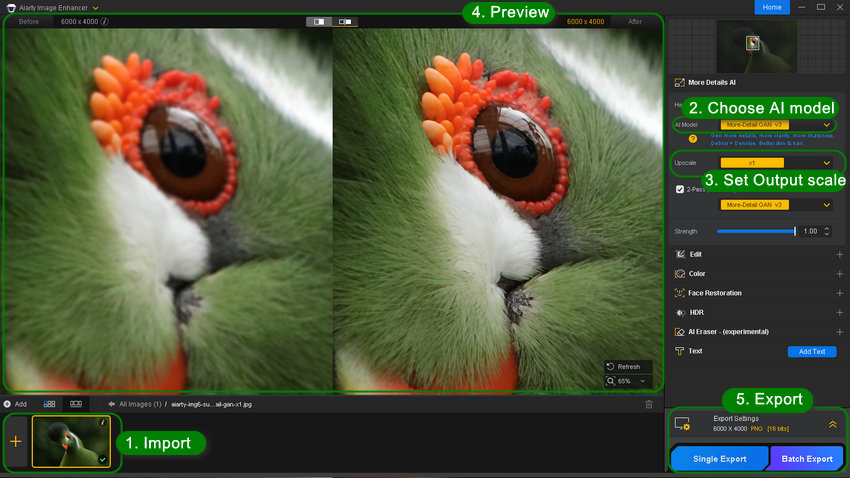
Aiarty Image Enhancer supports common image formats as well as RAW files, so you can work with different types of cropped images.
If you haven't cropped your photo yet, you can also use the built-in crop tool to adjust the composition before enhancing it.
Step 2. Choose an AI Model
Select an AI model based on the image type and the quality issues you want to address. Generally, More-Detail GAN v3 is a good starting point.
Step 3. Select an Upscaling Option
Choose the appropriate upscale factor based on the cropped image's current resolution and your intended output size.
- x1: Enhance the cropped photo without increasing its dimensions. Use this when the image is large enough but needs better clarity or noise reduction.
- x2, x4, or x8: Increase the resolution if you need a larger image for viewing, sharing, or printing.
Step 4. Preview and Adjust the Enhancement
Use the Before/After comparison to inspect the enhanced image against the original crop. Zoom in to check fine details such as hair, feathers, edges, textures, and facial features.
If necessary, adjust the Strength slider to control the intensity of enhancement. If the result looks overly sharp, artificial, or textured, lower the Strength.
Compare different AI models or settings until the image looks clearer without losing its natural appearance.
Step 5. Export the Enhanced Cropped Photo
When you're satisfied with the result, open Export Settings to select the output format, quality, DPI, and save location. Then click Single Export to save the enhanced image, or use Batch Export to process multiple cropped photos at once.
Conclusion
Cropping can improve composition, but it also removes pixels and may make noise, softness, and loss of detail more noticeable. Depending on the cropped photo's condition, resizing, sharpening, noise reduction, or AI enhancement can help improve its quality. Photoshop, Lightroom, and other photo editors offer their own ways to address these issues, with different tools, controls, and workflows.
If you want to improve cropped photos without switching between multiple editing tools, Aiarty Image Enhancer combines AI detail enhancement, denoising, and upscaling in one application. You can keep the cropped image at its original size or increase its resolution, then adjust the enhancement strength to get a clearer result without pushing details too far.
You May Also Like


This post was written by Brenda Peng who is a seasoned editor at Digiarty Software who loves turning ordinary photos into extraordinary works of art. With AI assistance for brainstorming and drafting, the post is reviewed for accuracy by our expert Abby Poole for her expertise in this field.
