


ChatGPT can help with many parts of video editing, from writing scripts and generating subtitles to planning cuts and creating editing instructions. But can it actually edit a video, trim clips, add transitions, or export a finished video? The answer depends on how you use it.
On its own, ChatGPT is not a traditional video editor with a timeline and built-in editing controls. However, it can analyze video content in supported workflows and connect with third-party apps to help perform certain editing tasks. It can also assist with AI video creation by generating scripts, storyboards, and prompts for video generation tools.
In this article, we'll explain what ChatGPT can and can't do for video editing and show you how to use it with connected apps and AI video tools.
What If Your Video Needs Quality Enhancement?
Editing can improve a video's storytelling, pacing, and presentation, but it cannot always fix problems in the original footage. If your clips look blurry, grainy, or pixelated, you'll need a dedicated video enhancement tool.
Aiarty Video Enhancer is an AI-powered desktop application designed to improve video quality. It can help you:
- Denoise and deblur videos: Reduce visible grain, noise, and softness while restoring details.
- Upscale videos to 4K: Improve the clarity of low-resolution footage.
- Interpolate frames: Increase frame rates for smoother motion and slow-motion effects.
- Clean up audio: Reduce unwanted background noise and improve vocal clarity.
Unlike ChatGPT's connected editing apps, Aiarty Video Enhancer works as a standalone application, with AI processing performed locally on your computer.
If your goal is to create a polished video, you can use ChatGPT and video editing software to handle the creative and editing work, then turn to Aiarty Video Enhancer when the source footage needs a quality boost.
Can ChatGPT Edit Videos?
Yes, but with limitations. ChatGPT can help with video editing, but it doesn't work exactly like a traditional video editor with a built-in timeline, trimming tools, transitions, and export controls.
Without third-party apps, ChatGPT is mainly useful for preparing and planning video edits. It can write scripts, create storyboards, generate subtitles, organize footage, and suggest which parts of a video to cut or keep. You can also upload video files through supported methods and ask ChatGPT to analyze their content, although its analysis may not cover every frame or accurately interpret all audio.
With compatible third-party apps, ChatGPT can go beyond editing suggestions and help perform actual video editing tasks. For example, Adobe can help create quick cuts from videos and resize them for social media, while Descript supports transcript-based editing, removing filler words, generating captions, and extracting highlight clips. The exact capabilities depend on the connected app and your account access.
Here's a quick overview of what ChatGPT can and can't do for video editing:
| Video Editing Task | ChatGPT Alone | With Compatible Apps |
| Write video scripts and storyboards | Yes | Yes |
| Generate titles, descriptions, and subtitles | Yes | Yes |
| Create editing plans and cut lists | Yes | Yes |
| Analyze uploaded video content | Yes, with limitations | Depends on the app |
| Trim and cut video clips | No built-in editing controls | Yes, with supported apps |
| Remove filler words and unwanted sections | Can suggest what to remove | Yes, with supported apps |
| Add transitions and effects | Can provide instructions | Depends on the app |
| Resize videos for social media | Can explain how | Yes, with supported apps |
| Generate or modify video content | Not through ordinary text chat alone | Depends on the app |
| Export a finished video | No built-in video editor | Depends on the app |
The main distinction is that ChatGPT can understand your editing requirements and help coordinate the process, while connected apps provide the tools to make changes to the actual footage. In other words, ChatGPT can serve as a video editing assistant, and with the right apps, it can also help you get editing work done.
What Can ChatGPT Do for Video Editing?
Although ChatGPT isn't a full-fledged video editor on its own, it can help with many time-consuming parts of the video production process. From planning your edits and writing scripts to generating captions and finding the best moments in a recording, it can make video creation more efficient.
Here are some practical ways to use ChatGPT for video editing.
1. Write Video Scripts and Storyboards
Before editing a video, you need a clear idea of what to show and how to present it. ChatGPT can help turn a rough idea into a structured video script and storyboard.
For example, you can ask it to:
- Write a YouTube video script based on a topic or outline.
- Turn a long article or blog post into a short-form video script.
- Break a video into scenes and suggest what footage to use for each one.
- Write voiceover narration and on-screen text.
- Create a shot list with suggested camera angles and visual elements.
You can also specify the target audience, video length, platform, and tone to get a more suitable script.
Example prompt:
"Write a 60-second YouTube Shorts script about 5 beginner photography mistakes. Divide it into scenes, with voiceover narration, on-screen text, and suggested visuals for each scene. Start with a strong hook and keep the language conversational."
ChatGPT can then provide a scene-by-scene plan that you can follow when recording or editing your footage.
2. Generate Video Titles, Descriptions, and Captions
Writing metadata and captions can take almost as much time as editing the video itself. ChatGPT can help generate these text elements for different platforms.
You can use it to:
- Create engaging YouTube titles and descriptions.
- Write video introductions and closing statements.
- Generate subtitles and captions from a transcript.
- Create short text overlays for important moments.
- Adapt video descriptions for TikTok, Instagram Reels, and YouTube Shorts.
For example, if you provide a video transcript, ChatGPT can turn it into an SRT subtitle file with timestamps. You can then import the file into your video editor and adjust the timing or appearance as needed.
Example prompt:
"Based on the following video transcript, create an SRT subtitle file. Keep each subtitle concise, use natural English, and make sure the timestamps follow the original speech."
Keep in mind that ChatGPT generates the subtitle text and timing information. You still need a video editor or compatible app to synchronize and embed the subtitles into the video.
3. Create Video Editing Plans and Cut Lists
If you have a long recording, such as an interview, podcast, webinar, or tutorial, deciding what to keep and what to remove can be tedious.
ChatGPT can help organize the editing process by turning a transcript or recording notes into a structured cut list.
For example, you can ask it to:
- Identify repetitive statements and unnecessary pauses.
- Find sections that could be removed without affecting the main message.
- Select the most engaging moments for short clips.
- Suggest where to add B-roll, transitions, or text overlays.
- Organize footage into a logical sequence.
Example prompt:
"Review this interview transcript and identify the 5 most engaging sections that could work as standalone short videos. For each section, provide the start and end timestamps, a suggested title, and a brief explanation of why it would make a good clip."
This is particularly useful for repurposing long-form content into shorter videos. However, the accuracy of the cut list depends on the information available to ChatGPT. Providing a transcript with timestamps will generally produce more actionable editing suggestions than providing only a brief description.
4. Analyze Video Content and Provide Editing Feedback
Not sure what is wrong with your footage or how to improve a video? ChatGPT can help review visual content and provide suggestions.
Depending on the supported upload method and available tools, you can share video content, representative frames, or screenshots from your editing timeline and ask ChatGPT to:
- Describe what's happening in a scene.
- Identify distracting objects or visual inconsistencies.
- Evaluate composition, framing, and lighting.
- Suggest better shot sequences and pacing.
- Point out potential issues with text placement or visual balance.
For example, you could upload several screenshots from your video and ask:
"Review these video frames. Does the composition look balanced? Are there any distracting elements? Suggest practical changes to make the footage look more professional."
ChatGPT can provide useful feedback, but it shouldn't be treated as a frame-accurate video quality inspector. Its analysis may not capture every movement, transition, or audio issue in the original footage.
5. Generate Voiceovers and Subtitles
Voiceovers and subtitles make videos easier to follow and more accessible to different audiences. ChatGPT can help prepare both.
For voiceovers, it can:
- Write narration based on your video footage or script.
- Rewrite dialogue to sound more natural.
- Adjust the tone for tutorials, advertisements, documentaries, or social videos.
- Translate and localize narration into different languages.
For subtitles, it can:
- Generate subtitle text from a transcript.
- Break long sentences into readable subtitle segments.
- Translate existing subtitles.
- Format subtitles as SRT or other supported text formats.
ChatGPT can also help prepare text for AI voice generators. However, generating a polished voiceover and synchronizing it with the video may require a dedicated audio or video tool.
6. Create Prompts for AI Video Editing Tools
If you use AI-powered video editors or video generation tools, writing effective prompts can make a big difference. ChatGPT can help turn a rough creative idea into a more specific instruction.
For example, you can ask it to:
- Write prompts for text-to-video generation.
- Describe camera movements, lighting, and scene composition.
- Create image-to-video animation prompts.
- Write instructions for background replacement or visual effects.
- Refine prompts to achieve a consistent visual style across multiple clips.
Example prompt:
"Write an image-to-video prompt for a cinematic shot of a golden retriever running through a green meadow at sunset. Include natural camera movement, realistic fur motion, warm lighting, and a shallow depth of field."
You can then copy the prompt into a compatible AI video tool to generate or modify footage.
In short, ChatGPT is useful throughout the video production workflow, especially for scripting, planning, text preparation, and creative direction. For actual timeline editing, rendering, or more advanced visual changes, you'll need a compatible video editing app or specialized AI tool.
How to Use ChatGPT for Video Editing
One way to extend ChatGPT's video editing capabilities is to connect it with third-party video editing and AI creation tools. Instead of switching between multiple applications and manually performing every task, you can describe what you want in a ChatGPT conversation and let a compatible app handle supported editing operations.
Several creative tools are now available through ChatGPT's app and plugin ecosystem. Some focus on traditional video editing, while others specialize in transcript-based editing or AI video generation.
Best ChatGPT Plugins for Video Editing
Here are three notable options worth trying, depending on what you want to accomplish.
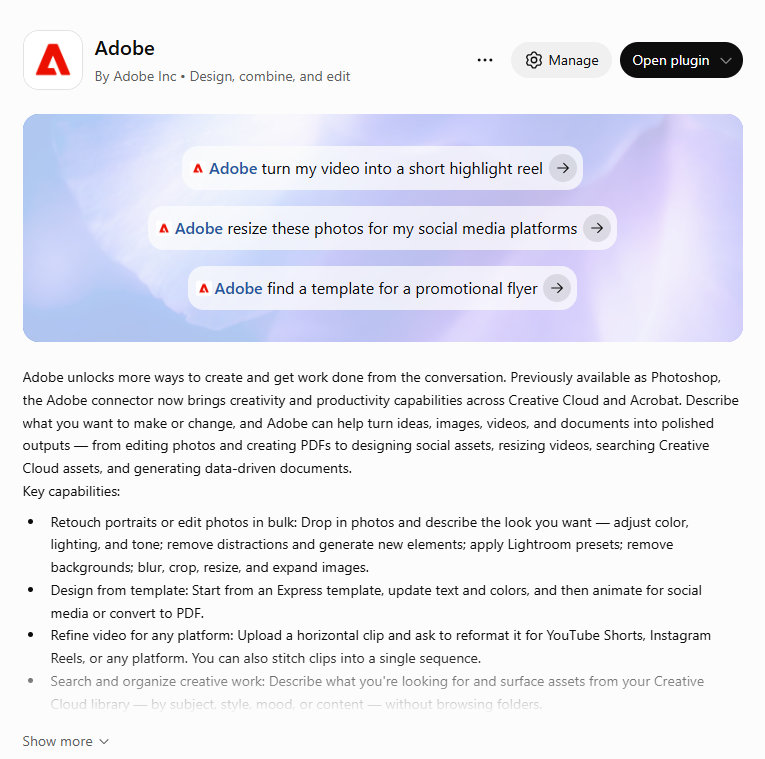
1. Adobe: For Quick Video Editing and Social Media Resizing
Best for: Creating short clips, extracting highlights, and adapting videos for different social media platforms.
Adobe brings creative tools from its ecosystem into ChatGPT. Its video-related capabilities include creating quick cuts from longer footage and resizing videos for platforms such as YouTube Shorts and Instagram Reels.
You can describe the desired result in natural language rather than manually navigating every editing control.
What you can do with Adobe in ChatGPT:
- Create quick-cut videos highlighting the best moments from longer footage.
- Resize horizontal videos for vertical social media formats.
- Adapt existing video content for different platforms.
- Combine video editing requests with other creative tasks, such as image editing and social media asset creation.
Example prompt:
"Turn this 5-minute tutorial video into a short, engaging clip highlighting its three most important tips. Keep the most useful explanations, remove unnecessary sections, and resize the result to a 9:16 vertical format for YouTube Shorts."
Adobe is a good choice if you already use Adobe's creative tools or want to prepare existing footage for social media without handling every step manually.
2. Descript: For Transcript-Based Video Editing
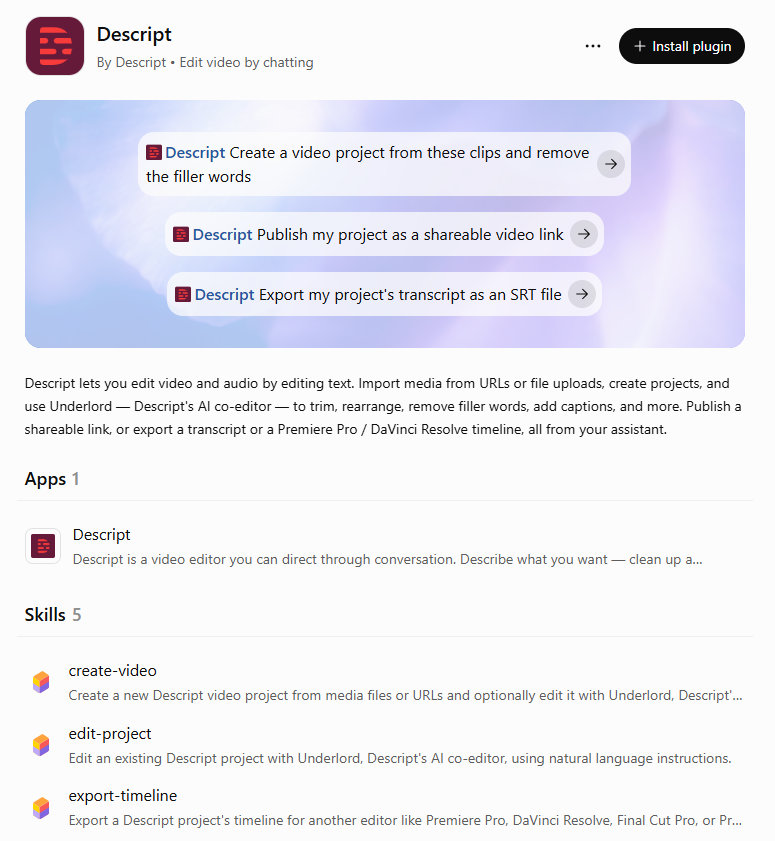
Best for: Editing interviews, podcasts, webinars, tutorials, and talking-head videos.
Descript takes a different approach to video editing. Rather than relying entirely on a traditional timeline, it uses transcripts to make spoken-content editing easier.
Its ChatGPT integration allows you to describe editing tasks conversationally. Descript then handles supported production steps, including transcription, removing filler words, audio cleanup, captions, and highlight clips.
What you can do with Descript in ChatGPT:
- Clean up recordings and improve audio clarity.
- Remove filler words and unnecessary speech.
- Extract highlight clips from long recordings.
- Generate captions and subtitles.
- Translate and dub videos into other languages.
- Add B-roll and organize video content.
Example prompt:
"Edit this interview recording for clarity. Remove filler words and unnecessary pauses, clean up the audio, and select the five most interesting moments as separate short clips. Add captions to each clip."
Descript is particularly useful for creators who regularly produce interviews, podcasts, educational videos, or other speech-heavy content.
3. Runway: For AI Video Generation and Editing
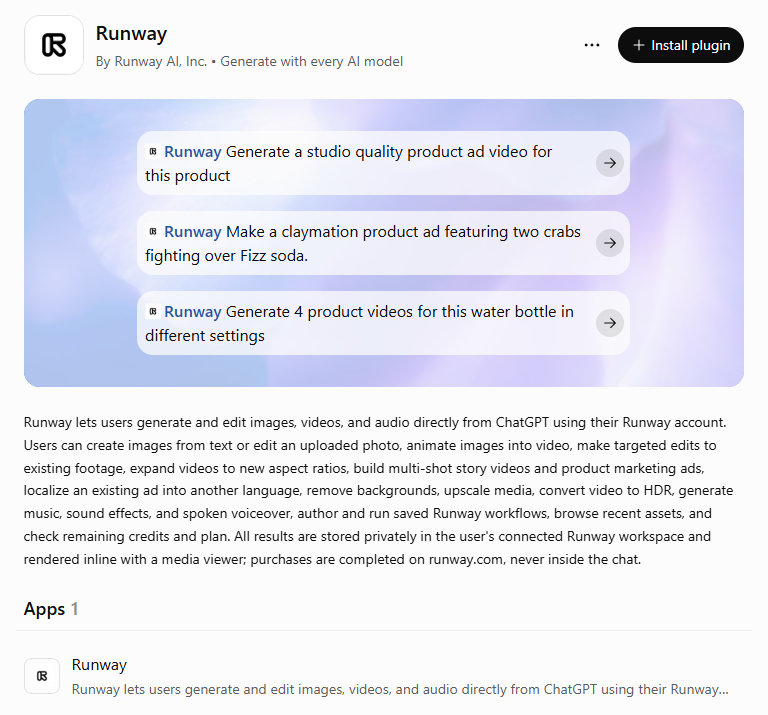
Best for: Generating videos from text or images, modifying existing footage, and creating AI-powered visual effects.
Runway is more focused on AI-powered media creation than conventional timeline editing. Its ChatGPT integration lets you use natural-language instructions to generate and modify visual content through your connected Runway account.
What you can do with Runway in ChatGPT:
- Generate videos from text prompts.
- Animate still images into video clips.
- Make targeted edits to existing footage.
- Expand videos to different aspect ratios.
- Create multi-shot story videos and product advertisements.
- Remove video backgrounds and upscale media.
- Generate music, sound effects, and voiceovers.
Example prompt:
"Create a 15-second product promotional video using this product image. Start with a close-up shot, then gradually reveal the product in a clean, modern setting. Use smooth camera movement, soft studio lighting, and a professional advertising style."
Runway is a good option if you want to create new visual content or use AI to transform existing images and videos, rather than simply cut and arrange recorded footage.
Adobe vs. Descript vs. Runway: Which Should You Choose?
Although all three tools can work with ChatGPT, they serve different purposes.
| Plugin | Main Purpose | Best Use Cases |
| Adobe | Video editing and creative production | Quick cuts, social media resizing |
| Descript | Transcript-based video editing | Interviews, podcasts, tutorials, captions |
| Runway | AI video generation and editing | Text-to-video, image animation, visual effects |
If you already have recorded footage and want to turn it into short social media videos, Adobe is worth trying. If your videos mainly consist of spoken content, Descript offers a more suitable workflow. If you want to generate new footage or transform still images into moving scenes, Runway is the better fit.
How to Install and Connect Video Editing Plugins to ChatGPT
The setup process is generally straightforward. The exact interface may vary depending on your ChatGPT account and the app's availability.
Step 1. Open the ChatGPT App or Plugin Directory
Open ChatGPT on the web or desktop. Navigate to the Apps or Plugins section in the sidebar or settings, depending on the interface available to your account.
Browse the available integrations or use the search function to find Adobe, Descript, or Runway.
Step 2. Select and Install the Plugin
Click the tool you want to use to open its details page. Review its features, supported actions, and connection requirements.
Select Install plugin or the corresponding Add/Connect option if available.
Step 3. Connect Your Account
Some tools require you to sign in to an existing account or authorize ChatGPT to access the service.
Follow the on-screen instructions, review the requested permissions, and complete the connection. Depending on the provider, you may be able to start with guest access or need to connect an account to unlock additional features.
Step 4. Start a Chat and Select the Plugin
Open a new conversation. You can usually activate an installed app by typing @ followed by its name, such as @Adobe, or by selecting it from the tools menu using the + button.
Step 5. Describe Your Video Editing Task
Once the app is selected, describe what you want it to do in plain language. Attach the relevant video or image files if the workflow requires them.
For example:
"Use Adobe to turn this horizontal travel video into a 30-second vertical clip for Instagram Reels. Focus on the most visually interesting moments and maintain smooth transitions between scenes."
ChatGPT will use the selected app to handle the supported parts of the request. Depending on the task, you may need to review the result, provide additional instructions, or approve certain actions before the app proceeds.
Note: App availability and functionality can vary by ChatGPT plan, region, workspace settings, and the provider's own subscription requirements. Connecting an app does not automatically give you access to every feature offered by that service.
Can ChatGPT Make Videos?
No, ChatGPT cannot generate finished video clips on its own through a regular chat conversation. It can create images, write video scripts, plan scenes, and generate prompts for AI video generators, but these outputs are not the same as an actual video.
You can still use ChatGPT as part of an AI video creation workflow by connecting compatible third-party tools. These tools can turn text prompts or images into moving footage, while ChatGPT helps you plan the content and refine your instructions.
Here's a closer look at what you can and can't do.
Can ChatGPT Generate Videos from Text?
ChatGPT can turn a text idea into a detailed video script or generation prompt, but it does not currently have a built-in text-to-video generator.
For example, you can ask ChatGPT to create a prompt like this:
"Create a cinematic video of a golden retriever running through a green meadow at sunset. Show the dog running toward the camera in slow motion, with warm golden-hour lighting, realistic fur movement, and a shallow depth of field."
ChatGPT can help refine the scene description, camera movement, lighting, visual style, and other details. You can then paste the prompt into a compatible AI video generator to create the actual footage.
It's also worth noting that OpenAI's Sora, which previously provided AI video generation, is no longer available. Its web and app experiences were discontinued on April 26, 2026, and its API was discontinued on September 24, 2026. Therefore, older tutorials that tell you to generate videos through Sora are outdated.
Can ChatGPT Turn Images into Videos?
ChatGPT can generate and edit still images, but it cannot directly animate an image into a video through ordinary chat.
To turn a photo into a moving clip, you'll need an image-to-video AI tool. ChatGPT can help prepare the prompts and describe the movement you want.
For example, suppose you have a landscape photo and want to turn it into a short cinematic video. You can upload the image or describe it to ChatGPT and ask:
"Write an image-to-video prompt based on this landscape photo. Add gentle movement to the clouds, make the grass sway naturally in the wind, and create a slow camera push-in. Keep the original composition and realistic colors."
You can then use the generated prompt in an image-to-video tool to animate the photo.
This approach is useful for creating social media clips, animating old photos, producing product videos, or adding movement to otherwise static visuals.
Can ChatGPT Make YouTube Videos, TikToks, and Reels?
ChatGPT can help you plan and prepare videos for YouTube, TikTok, Instagram Reels, and other platforms, but it cannot independently produce a finished, ready-to-publish video.
For example, you can use it to:
- Write a YouTube video script with an introduction, main sections, and closing.
- Turn a long video into several short-form video ideas.
- Create scene-by-scene storyboards and shot lists.
- Generate voiceover scripts, subtitles, titles, and descriptions.
- Write prompts for AI-generated footage and visual effects.
If you want to create a complete video from a single idea, you'll need to combine ChatGPT with a video creation or editing tool. The tool can generate footage, add voiceovers and subtitles, arrange scenes, and render the final video.
Can ChatGPT Create Videos for Free?
You can use ChatGPT's available free features to write scripts, plan scenes, generate prompts, and prepare subtitles. However, creating an actual video usually requires a separate video generation or editing tool.
Some third-party AI video tools offer free plans or limited credits, while others require a subscription or charge based on generation time and usage. Even when a tool is free to try, it may restrict video length, resolution, export options, or the number of generations.
So, if your goal is to make videos without paying, check both the ChatGPT plan and the pricing and usage limits of the video tool you plan to connect. ChatGPT access alone does not guarantee free video generation.
 FAQs
Yes, but ChatGPT cannot directly edit video files through its regular chat interface. You can upload supported files or share video content for analysis, ask for editing suggestions, and get instructions on what to change. To actually trim clips, remove unwanted sections, add effects, or export an edited video, you'll need a compatible third-party app, such as Adobe or Descript.
ChatGPT can generate subtitles from a video transcript or create an SRT file with timestamps. However, it cannot directly burn subtitles into a video through ordinary chat. You'll need a video editor or a connected app to synchronize the subtitles with the footage and export the final video.
Yes, ChatGPT can assist with many parts of YouTube video production. It can help write scripts, create titles and descriptions, generate subtitles, plan cuts, and identify potential highlights from a recording. With compatible apps such as Adobe or Descript, you can also perform supported editing tasks, such as creating short clips and removing unnecessary speech.
ChatGPT is useful for planning edits, generating scripts and subtitles, analyzing content, and simplifying certain editing workflows through connected apps. However, it is not a replacement for professional video editing software when you need precise timeline control, advanced effects, color grading, or detailed audio adjustments. It works best as an editing assistant rather than a standalone video editor.
It depends on the type of video editing you need. Adobe is a good option for quick cuts and social media resizing, Descript is particularly useful for editing interviews and podcasts through transcripts, and Runway is better suited to AI video generation and visual transformations. If your footage needs denoising, deblurring, or upscaling, a dedicated video enhancement tool such as Aiarty Video Enhancer is worth considering.
You May Also Like


This post was written by Ashley Brown, a videographer and associate writer at Digiarty Software who focuses on AI-assisted video editing, post-production workflows, and video enhancement tools. She evaluates how new AI features affect practical editing tasks such as rough cuts, captions, masking, content repurposing, generative editing, and final delivery. Accuracy is reviewed by Abby Poole.
