


Trying to find Camera Raw Filter in Photoshop? You can open it by going to Filter > Camera Raw Filter. If the filter is missing, a RAW file won’t open, or the file opens directly in Photoshop, a few settings or compatibility issues may be the cause.
This guide shows you how to open Camera Raw in Photoshop, how to open RAW, JPEG, and TIFF files in Camera Raw, and how to troubleshoot common Camera Raw issues. It also explains how Camera Raw fits into a broader photo enhancement workflow when you need additional detail, noise reduction, or upscaling.
Let’s start with where to find Camera Raw Filter in Photoshop.
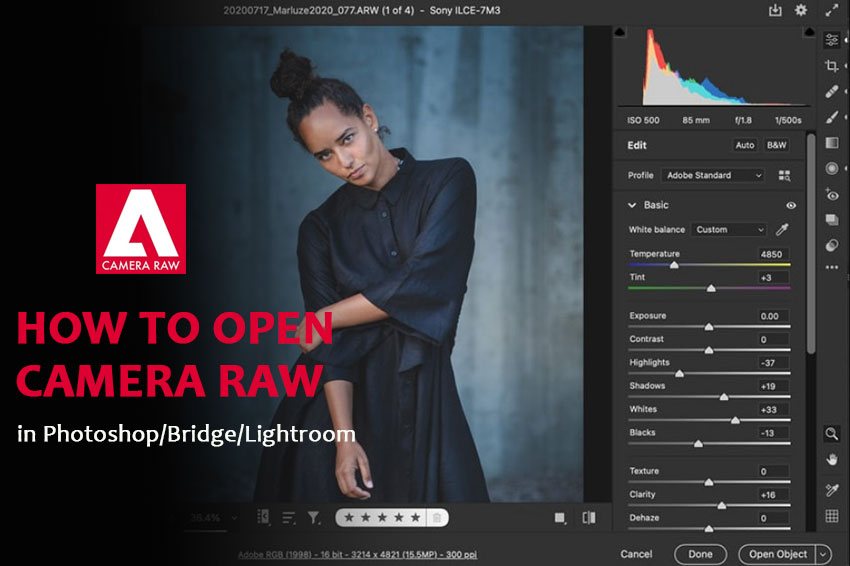
Where Is Camera Raw Filter in Photoshop?
Adobe Camera Raw (ACR) is Photoshop's built-in RAW editing tool for making non-destructive adjustments before further editing in Photoshop.
To open Camera Raw Filter in Photoshop, open an image and go to Filter > Camera Raw Filter.
Camera Raw lets you adjust:
- Exposure and white balance
- Highlights and shadows
- Noise and sharpening
- Color and color grading
- Masking and local adjustments
If you want to open a supported RAW file directly, go to File > Open and select the RAW file. Photoshop will open it through Camera Raw before bringing it into Photoshop.
Hot Search: 11 Best RAW Editing Software (Free & Paid): Which RAW Photo Editor Is Worth It in 2026?
How to Open Camera Raw in Photoshop (Quick Answer)
If you need a fast answer, here are the main ways.
Method 1: Open Camera Raw Filter from Photoshop
You can also manually open Camera Raw on any image, even if it isn’t a RAW file. This method is especially useful when you want to apply color correction, exposure adjustments, or basic enhancements to an existing photo.
- Open an image in Photoshop
- Go to Filter
- Click Camera Raw Filter
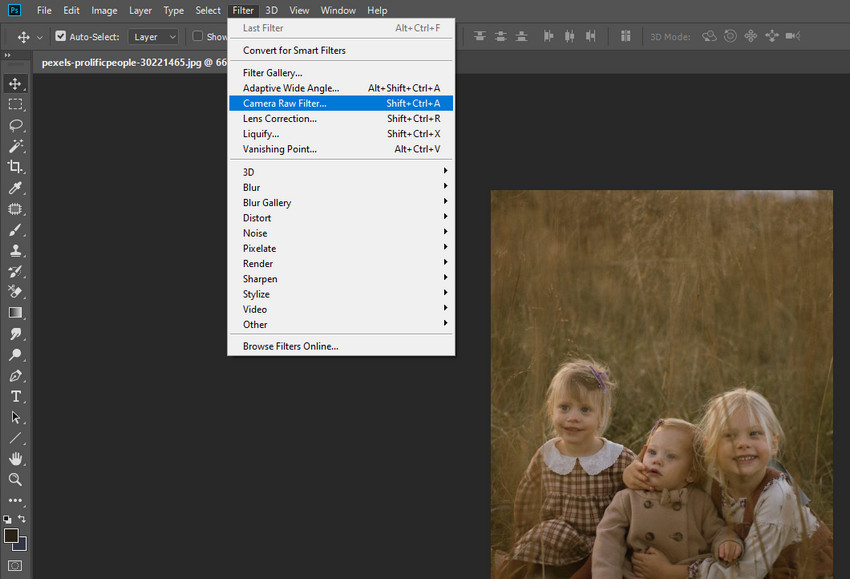
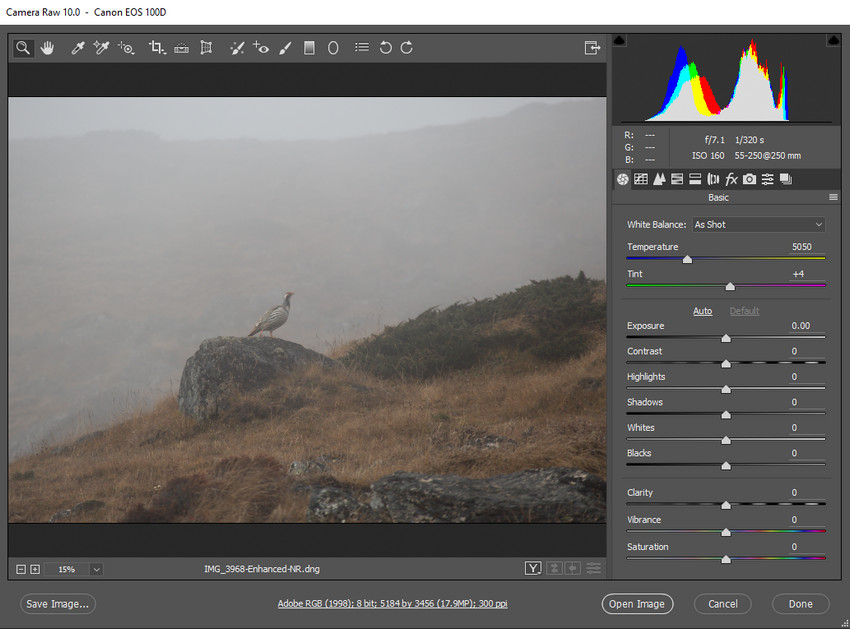
The Camera Raw workspace will open, allowing you to adjust lighting, color, texture, noise reduction, and more before applying the changes. This method works with JPEG, PNG, and TIFF files, making it a flexible option even if you’re not working with RAW images.
Hot search: How to Edit Raw Photos for Best Quality >>
Method 2: Open a RAW File Directly
This is the most common method.
- Open Photoshop
- Click File > Open
- Select a RAW file (.CR2, .NEF, .ARW, etc.)
- Camera Raw opens automatically
If your file is supported, Camera Raw will launch before Photoshop opens the image.
Method 3: Force Open JPEG or TIFF in Camera Raw
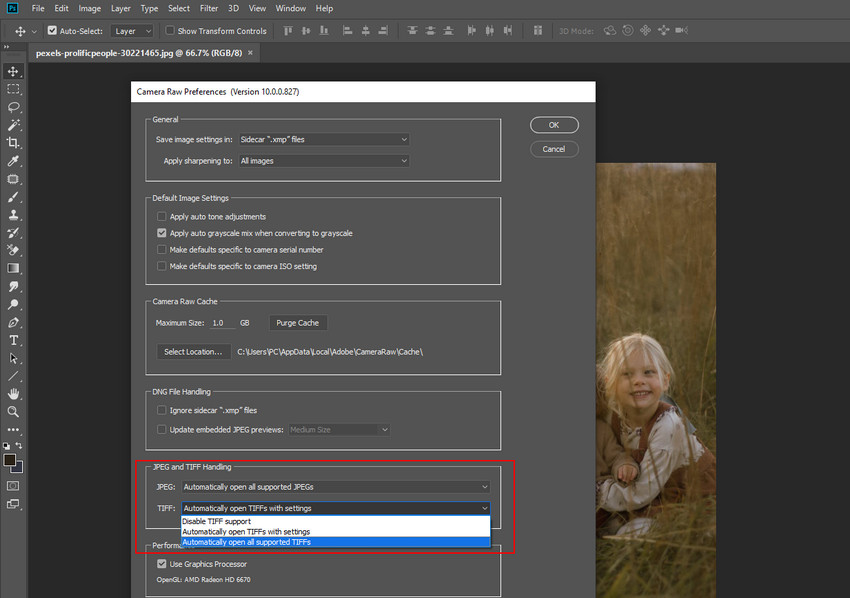
If your JPEG files open directly in Photoshop instead of launching Camera Raw first, you can change this behavior in the settings. Enabling this option allows supported JPEG and TIFF files to automatically open in the Camera Raw workspace for non-destructive adjustments before entering Photoshop.
- Go to Edit > Preferences > Camera Raw (on Mac, go to Photoshop > Settings > Camera Raw).
- Check the option “Automatically open all supported JPEGs and TIFFs.”
- Click OK to save the changes.
How to Open Adobe Camera Raw Without Photoshop
You can access Camera Raw without directly launching Photoshop.
Option 1: Using Adobe Bridge
Adobe Bridge allows you to preview and open RAW files directly without manually launching Photoshop first. It acts as a file management tool and connects seamlessly with the Camera Raw engine.
Here're the steps to open Camera Raw in Bridge:
- Open Adobe Bridge.
- Navigate to the folder containing your RAW file.
- Click once to preview the image.
- Double-click the file to open it in Camera Raw.
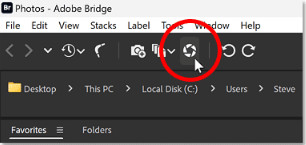
Camera Raw will launch automatically, allowing you to adjust exposure, white balance, noise reduction, and other settings before sending the image to Photoshop. Bridge uses the same Adobe Camera Raw (ACR) engine, so the editing tools and results are identical to opening a RAW file through Photoshop.
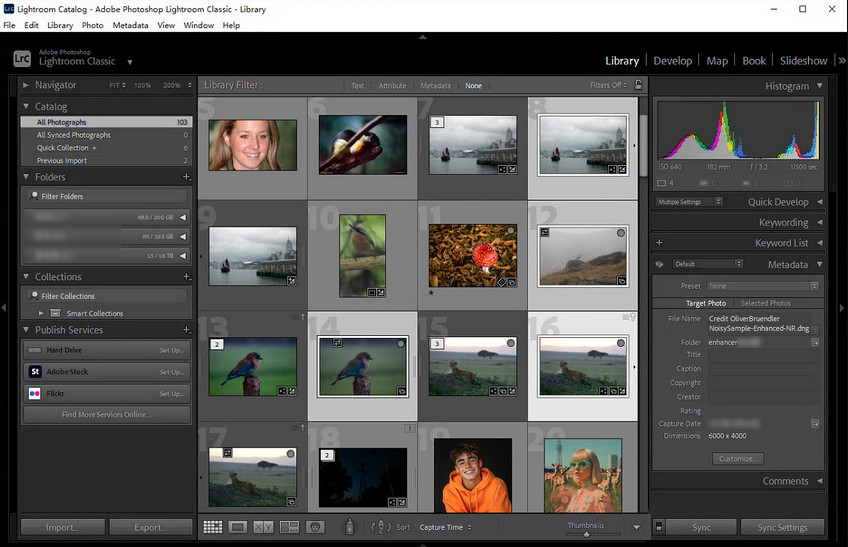
Option 2: Lightroom Uses the Same RAW Engine
Adobe Lightroom uses the same RAW processing engine as Camera Raw, meaning the core image adjustments, such as exposure, color grading, and detail recovery, are powered by the same technology.
However, Lightroom does not open a separate Camera Raw window. Instead, its Develop module integrates the RAW engine directly into its workflow. This makes Lightroom more suitable for photographers managing large image libraries, while Camera Raw is often preferred by Photoshop users who want to edit a single image before advanced retouching.
Camera Raw Not Opening in Photoshop? Try These Fixes
If Camera Raw is not opening in Photoshop, the issue is usually related to an outdated version, file compatibility, or Camera Raw settings. Check the scenarios below to find the most likely cause.
1. Camera Raw Filter Is Missing
If you don’t see Filter > Camera Raw Filter in Photoshop, check your Photoshop and Camera Raw versions first.
Try these fixes:
- Update Photoshop through Creative Cloud
- Restart Photoshop after updating
- Make sure the latest Camera Raw version is installed
In recent versions of Photoshop, Camera Raw is updated through Creative Cloud. Updating Photoshop can therefore restore a missing or outdated Camera Raw Filter.
2. RAW File Is Not Supported
If a RAW file won’t open in Camera Raw, your current version of Adobe Camera Raw may not support the camera or RAW format yet. This is more common with newer camera models.
Try these options:
- Update Photoshop and Camera Raw
- Check Adobe’s camera compatibility list
- Convert the RAW file to DNG with Adobe DNG Converter
For recently released cameras, updating Camera Raw is usually the first step to check.
3. RAW File Opens Directly in Photoshop
If a RAW file opens directly in Photoshop instead of showing the Camera Raw window first, check your Camera Raw preferences and the file format.
This may happen when:
- Camera Raw preferences have been changed
- The file is not recognized as a supported RAW format
Open Preferences > Camera Raw and review the available file-opening settings. Also make sure the file is supported by your installed version of Camera Raw.
4. Camera Raw Freezes or Crashes
If Camera Raw opens but freezes or crashes during processing, first update Photoshop and Camera Raw. Large RAW files can also require more memory and processing resources, especially when working with high-resolution images.
Close other resource-intensive applications, restart Photoshop, and try the file again. If the problem occurs only with a specific RAW file, check whether the file itself can be opened normally in another RAW editor.
When Should You Use Camera Raw?
Camera Raw is best suited for photographers and Photoshop users who want precise control over their RAW images before moving on to more detailed edits. It excels at:
- Editing RAW files
- Adjusting exposure
- White balance correction
- Color grading before Photoshop retouching
- Noise reduction in RAW images
However, Camera Raw is not designed for AI-based upscaling, restoring low-resolution images, or performing heavy automated restoration. For tasks like enhancing image resolution or repairing blurry or old photos, AI-powered tools are more suitable.
Camera Raw and AI Enhancement: A Practical Workflow
Camera Raw and AI image enhancement serve different stages of photo editing. Camera Raw is well suited to developing RAW files and making adjustments such as exposure, white balance, color, and lens corrections. For photos that still need more detail, cleaner textures, or higher resolution after RAW processing, an AI image enhancer can be used as a second step.
Where Aiarty Image Enhancer Fits
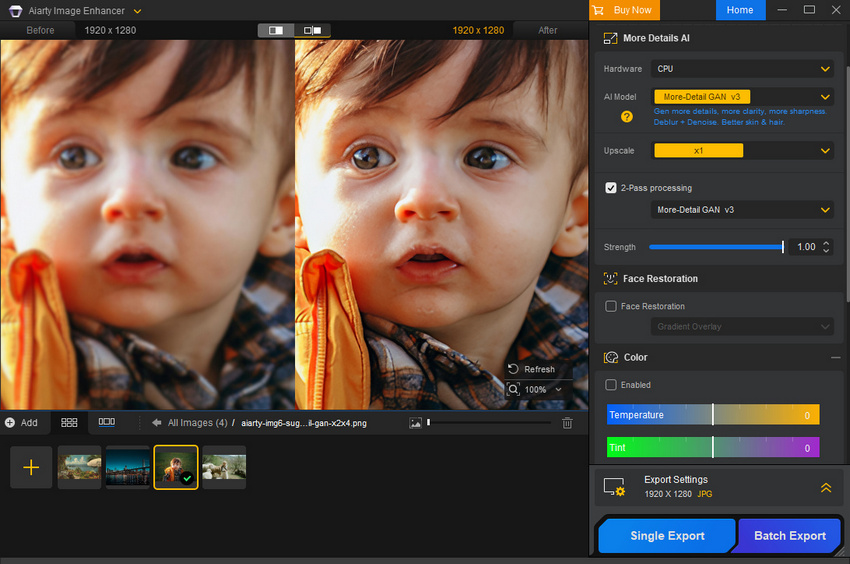
Aiarty Image Enhancer focuses on AI-powered image enhancement rather than replacing a traditional RAW editor. A practical workflow is to complete basic RAW development in Camera Raw, Lightroom, or another professional RAW editor first, then use Aiarty when the image needs further enhancement.
- AI upscaling: increase image resolution while preserving natural-looking details and textures.
- Detail enhancement: improve fine details that may look soft or less defined after cropping, compression, or other image processing.
- Noise reduction: reduce grain and digital noise in images, including photos shot at higher ISO settings.
- Deblurring: improve the clarity of mildly soft images while maintaining a natural appearance.
- Color adjustment: fine-tune exposure, contrast, saturation, temperature, and other basic color settings after enhancement.
- Batch enhancement: process multiple images efficiently when a large collection needs similar enhancement.
Camera Raw vs. AI Image Enhancement
The two tools are best viewed as complementary rather than direct alternatives. Use a RAW editor for camera-specific development and optical corrections, then use AI enhancement when the finished image needs additional detail, noise reduction, or resolution.
A Better Workflow for RAW Photos
For demanding RAW photos, a two-stage workflow can be more practical than relying on a single tool. Start with Camera Raw or another RAW editor to establish the correct exposure, white balance, camera profile, and lens corrections. Then move the image to Aiarty Image Enhancer if it needs additional noise reduction, detail enhancement, or upscaling.
- Step 1: Develop the RAW file in Camera Raw or your preferred RAW editor.
- Step 2: Apply lens, color, exposure, and other fundamental corrections.
- Step 3: Use Aiarty for AI enhancement when the image needs more detail, cleaner textures, or higher resolution.
- Step 4: Review the final result and complete any additional editing before export.
In this workflow, Camera Raw handles the RAW development stage, while Aiarty adds a separate AI enhancement layer when the image calls for it.
 FAQs
FAQs
Open an image in Photoshop, then go to Filter > Camera Raw Filter. If you don’t see the option, update Photoshop and Camera Raw through Adobe Creative Cloud and restart Photoshop.
To open Camera Raw Filter, open an image in Photoshop and select Filter > Camera Raw Filter. To open a RAW file directly, go to File > Open and select a supported RAW file. Photoshop will launch Camera Raw before opening the image.
If Camera Raw Filter is missing from the Filter menu, first update Photoshop and Camera Raw through Adobe Creative Cloud. Also make sure an image is open and the selected layer is compatible with the filter. Restarting Photoshop after an update can also resolve the issue.
Your version of Camera Raw may not support the camera model or RAW format. Update Photoshop and Camera Raw first, then check Adobe’s camera compatibility list. If the file is still unsupported, you can convert it to DNG using Adobe’s free DNG Converter.
Yes. To open supported JPEG or TIFF files in Camera Raw before editing them in Photoshop, go to Preferences > Camera Raw and enable the option to automatically open supported JPEGs and TIFFs. You can also use Filter > Camera Raw Filter after opening the image in Photoshop.
Yes. Camera Raw can also be used through Adobe Bridge, which lets you open supported RAW files in Camera Raw without opening them directly in Photoshop. Camera Raw itself is not a standalone application.
To reset Camera Raw settings, open an image in Camera Raw, click the three-dot menu in the top right corner, and select Reset Settings. This restores the current image adjustments to their default state.
You May Also Like


This post was written by Brenda Peng who is a seasoned editor at Digiarty Software who loves turning ordinary photos into extraordinary works of art. With AI assistance for brainstorming and drafting, the post is reviewed for accuracy by our expert Abby Poole for her expertise in this field.
