 Aiarty Image Enhancer
How to Fix Dead Pixels (Stuck vs Dead): 5 Methods That Actually Work

Updated on
You’re watching a movie or finishing an important task — and then you notice it. A tiny dot on your screen that refuses to go away, no matter what you do. That’s usually the moment people start searching for a dead pixel fix.
Dead pixels can be incredibly frustrating, breaking immersion and affecting daily work on laptops, monitors,and smartphones. Understandinghow to fix dead pixels, and knowing when they can’t be fixed, is essential for anyone who relies on a screen every day.
In this article, we’ll walk through 5 practical methods you can try, explain what works, and help you decide when it’s time to stop troubleshooting and consider alternatives like Aiarty Image Enhancer to make your photos look better.
Dead Pixel vs Stuck Pixel: Can Yours Be Fixed?
Before trying any dead pixel fix, it’s important to know whether you’re dealing with a dead pixel or a stuck pixel.
- Dead pixel: Always black or white. Usually caused by hardware failure and often permanent.
- Stuck pixel: Shows red, green, or blue. More likely to respond to software or pressure-based fixes.
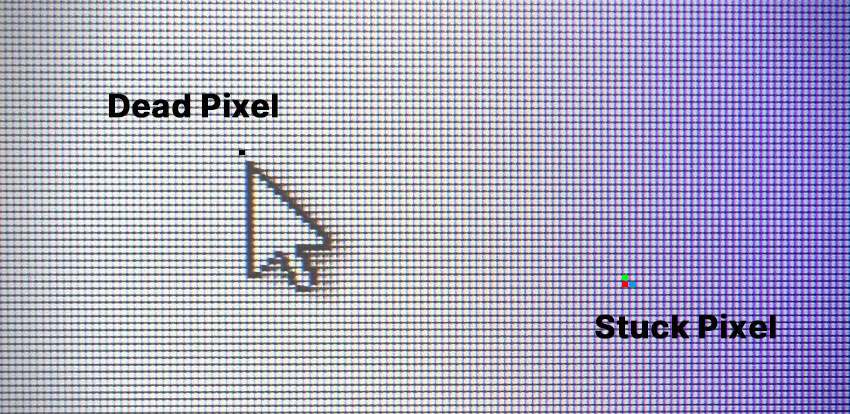
If your pixel changes color during a dead pixel test, there’s a good chance it can be fixed using the methods below.
How to Fix Dead Pixels with 5 Simple Methods
Method 1: Gentle Pressure Technique
One of the simplest ways to fix dead pixels involves using a gentle pressure technique. This approach can revive a stuck pixel by re-establishing the connections within the screen's display.
- Turn Off Your Device: Always start by powering down your device to avoid any accidental damage.
- Find the Dead Pixel: Identify the location of the dead pixel on your screen.
- Use a Soft Cloth: Take a soft, lint-free cloth and fold it to create a cushion.
- Apply Gentle Pressure: Apply gentle pressure directly on the dead pixel using your finger (wrapped in the cloth). Be careful not to press too hard, as this could damage the screen.
- Power On the Device: While still applying pressure, turn your device back on. Remove the pressure after a few seconds to see if the pixel has revived.
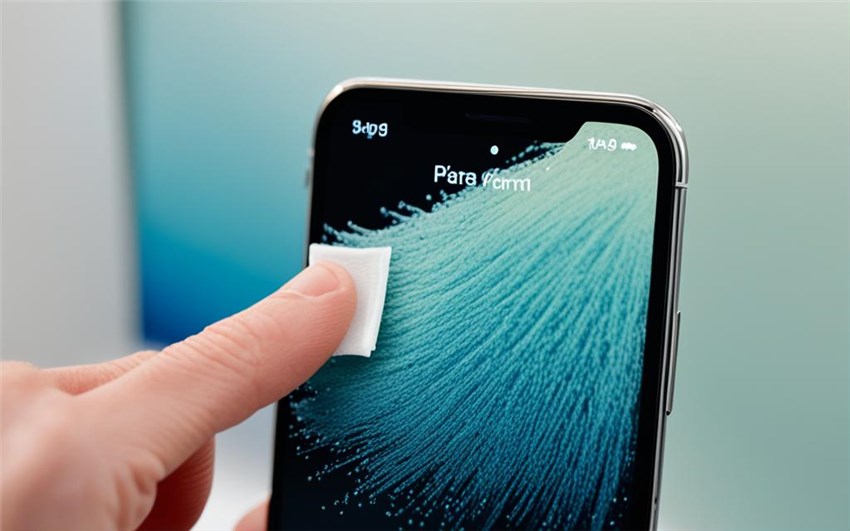
The gentle pressure can sometimes help realign the liquid crystals in the screen, allowing the pixel to function again. However, if the pixel remains unresponsive, don’t be discouraged; there are other methods to explore.M
Method 2: Pixel Fixing Software
If you're looking for a more tech-savvy approach to how to fix dead pixels, pixel-fixing software can be an effective solution. These applications work by cycling through colors rapidly to stimulate the pixel.
- Choose a Pixel Fixing Program: Several free and paid software options are available, such as JScreenFix or Dead Pixel Buddy.
- Follow the Instructions: Download and install the software, then follow the instructions provided. Most programs will have you run a full-screen color cycling display.
- Run the Fix: Let the software run for at least 10-20 minutes. The rapid color changes can stimulate the stuck pixel and potentially restore it.
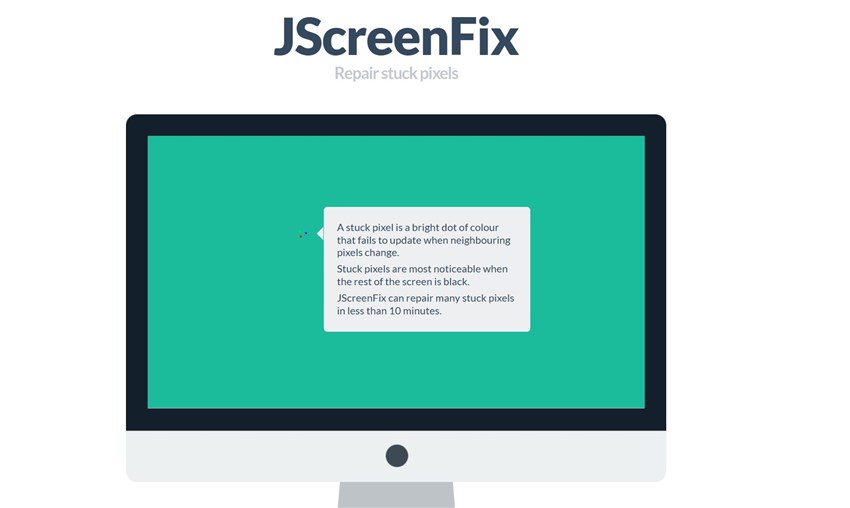
The rapid color changes can stimulate the pixel to wake up from its dormant state. This method is particularly effective for stuck pixels rather than permanently dead ones.
Method 3: Screen Tapping Method
Another hands-on approach for fixing dead pixels is the screen-tapping method. This technique requires a bit of finesse and is similar to the massage technique but focuses more on tapping:
- Power Off Your Device: As always, turn off your screen first.
- Identify the Pixel: Locate the dead pixel that needs attention.
- Use a Soft Cloth: Place a soft cloth over the affected area.
- Gently Tap: Instead of applying pressure, gently tap on the cloth covering the dead pixel with your finger. Be careful not to tap too hard, as this could damage the screen.
- Power On and Check: After tapping for a few seconds, turn your device back on and see if the pixel has responded.

This method is simple and can often yield positive results without the need for complex interventions.
Method 4: Heat Treatment
The heat treatment method is a bit more controversial but can be effective in certain situations. This technique involves applying heat to the screen to potentially revive a dead pixel.
- Turn Off Your Device: Always start with a powered-down device.
- Use a Warm Cloth: Slightly warm a cloth (make sure it’s not too hot) and place it over the area with the dead pixel.
- Let it Sit: Allow the warm cloth to sit on the pixel for a few minutes.
- Power On the Device: Remove the cloth and turn your device back on to check the pixel.

The heat may help to expand the liquid crystals in the screen, allowing the dead pixel to function again. However, be cautious with this method, as excessive heat can damage your screen.
Method 5: Professional Repair Services
If you’ve tried the previous methods and still haven’t resolved the issue, it may be time to seek professional repair services. Knowing when to seek help is crucial in how to fix dead pixels.
- Research Repair Shops: Look for reputable repair services in your area that specialize in screen repairs.
- Ask About Warranty: Check if your device is still under warranty, as many manufacturers will replace screens with dead pixels.
- Cost Considerations: Get quotes from multiple repair services to ensure you’re getting a fair price.
Sometimes, dead pixels can indicate a larger issue with the display. Professionals have the tools and expertise to diagnose underlying problems and offer solutions.
How to Fix Dead Pixels on Phone Screens
Fixing dead pixels on phones is more challenging than on monitors due to tightly bonded touch layers.
What you can try safely:
- Run pixel-fixing apps with full-screen color cycling.
- Apply very light pressure using a microfiber cloth.
- Avoid heat methods on OLED screens (risk of permanent damage).
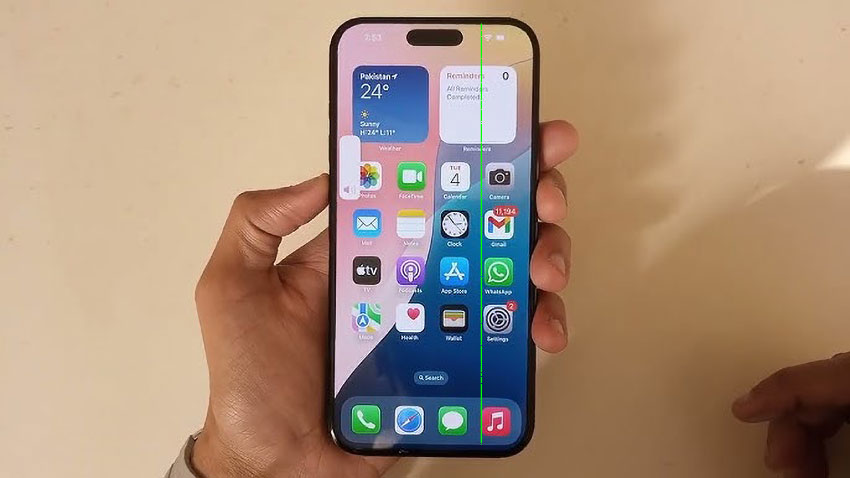
If the pixel doesn’t respond after several attempts, it’s likely a true dead pixel that requires screen replacement.
When Dead Pixels Can’t Be Fixed: Improving Visual Quality Anyway
If a dead pixel is truly permanent, software fixes won’t repair the screen itself. However, you can still improve how images and content appear on your display.
Tools like Aiarty Image Enhancer help by:
- Enhancing clarity in low-resolution or pixelated images, making details appear sharper and more natural.
- Reducing visible artifacts caused by screen imperfections, such as dead or stuck pixels.
- Making screenshots and photos look cleaner and more consistent, even when minor display defects remain.
This is especially useful if screen replacement isn’t practical or cost-effective, such as when the device is out of warranty, the repair cost is high, or the display defect is minor and doesn’t justify a full panel replacement.
Try Aiarty Image Enhancer to improve image clarity and reduce visible pixel issues.
Step-by-Step Guide to Using Aiarty Enhance Pixelated Images
- Upload Your Image: Start by uploading your images to Aiarty.
- Select Enhancement Options: Choose the enhancement options that best suit your needs.
- Apply Enhancements: Click the RUN button to apply the changes.
- Download the Enhanced Image: Once the enhancement is complete, download the improved image for use.

Conclusion
In this article, we've explored five effective methods for fixing dead pixels, from simple techniques like gentle massage and tapping to more advanced options like pixel fixing software and professional repairs. Each method has its benefits, and you may find that one or a combination of these strategies works best for you.
Remember, dealing with dead pixels can be frustrating, but with these methods, you can take control of your screen’s health. Additionally, incorporating tools like Aiarty Image Enhancer can further enhance your viewing experience by improving image quality.
 FAQ about Dead Pixels Fix


