


Artificial intelligence is rapidly changing the way people edit photos. Instead of spending hours learning complex tools like Photoshop, users can now simply describe the changes they want using natural language. With Gemini AI photo editing prompts, tasks such as removing unwanted objects, improving portraits, changing backgrounds, enhancing colors, or creating cinematic effects can often be done with just a short instruction.
However, getting impressive results from Gemini AI is not only about the tool itself. It largely depends on the quality of your prompts. A vague request like "make this photo better" may produce inconsistent or overly artificial results, while a well-structured prompt can generate edits that look far more polished, realistic, and visually appealing.
That’s why many users are now searching for the best Gemini AI photo editing prompts for specific needs, whether it’s portrait retouching, old photo restoration, product photography enhancement, anime-style transformations, or social media content creation.
In this guide, you’ll learn how Gemini AI photo editing works, how to write better prompts, and which prompts deliver the best results for different editing scenarios. We’ll also share practical examples, advanced prompt-writing techniques, common mistakes to avoid, and tips to make your AI-edited photos look more natural and professional.
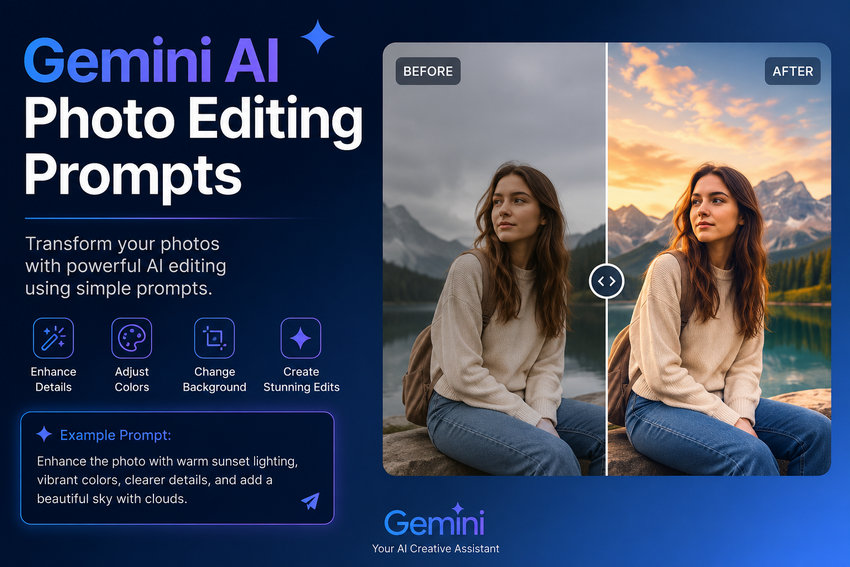
How Gemini AI Photo Editing Prompts Work
Gemini AI photo editing prompts are text instructions that tell the AI how to modify an image. The AI analyzes both the uploaded photo and the written request, then generates an edited result based on your description.
Unlike traditional editing software where you manually adjust settings, prompts act as the "editing language" between you and the AI. The more clearly you describe the desired result, the better Gemini can understand your intention.
Why Prompt Quality Matters
Many users assume AI can automatically understand vague requests like:
"Make this image better."
But prompts like this often lead to inconsistent results because the AI does not know exactly what "better" means. It may oversaturate colors, smooth skin too aggressively, or change parts of the image you wanted to keep untouched.
A more specific prompt gives Gemini clearer instructions and usually produces more controllable edits. For example:
"Enhance this portrait by improving skin texture, balancing exposure, brightening the eyes slightly, and preserving natural facial details."
This prompt works better because it defines:
- the subject (portrait)
- the editing goals (skin texture, exposure, eyes)
- the desired style (natural-looking)
In general, detailed prompts help reduce random or unrealistic outputs.
The Basic Structure of an Effective Gemini Editing Prompt
Most successful Gemini AI photo editing prompts follow a simple structure:
Subject + Editing Task + Style/Quality + Restrictions
Here’s what each part means:
Use Descriptive Visual Language
Gemini responds especially well to descriptive photography and cinematic terms. Words related to lighting, camera style, color mood, and realism can significantly improve results.
Useful examples include:
- soft cinematic lighting
- shallow depth of field
- realistic texture
- DSLR-style bokeh
- golden hour lighting
- dramatic shadows
- natural skin tones
- high-detail realism
These descriptions help Gemini generate edits that feel more intentional and visually refined.
Tell Gemini What Not to Change
One common problem with AI editing is unintended alterations. Gemini may accidentally modify facial identity, body proportions, textures, or composition if the prompt is too open-ended.
To avoid this, include protective instructions such as:
"Keep facial features unchanged."
"Preserve the original composition."
"Do not overprocess the image."
"Maintain realistic textures and colors."
These constraints often help produce cleaner and more reliable results.
Iteration Is Part of the Process
Even strong prompts may not produce perfect results on the first attempt. Many creators refine prompts gradually by adding or removing details after seeing the output.
For example:
- Start with basic enhancement.
- Add realism instructions.
- Reduce overly strong effects.
- Clarify what should remain untouched.
Small prompt adjustments can dramatically improve the final image quality.
50+ Gemini AI Photo Editing Prompts You Can Copy and Paste
Below are some of the most useful Gemini AI photo editing prompts for real-world editing needs. These prompts are designed to help you get more realistic, consistent, and visually appealing results. You can directly copy and paste them into Gemini AI and modify them based on your own photos.
Photo Enhancement and Sharpening Prompts
These prompts are useful for blurry, noisy, compressed, or low-quality images.
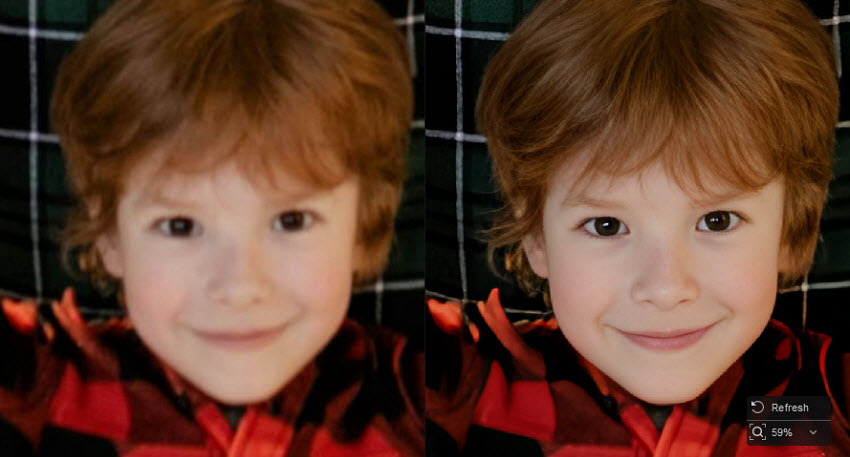
Restore Old Photos
Improve Low-Light Images
When Gemini AI Cannot Deliver Satisfying Results
While Gemini AI works well for quick visual improvements and creative photo edits, it is not always reliable for true image restoration tasks.
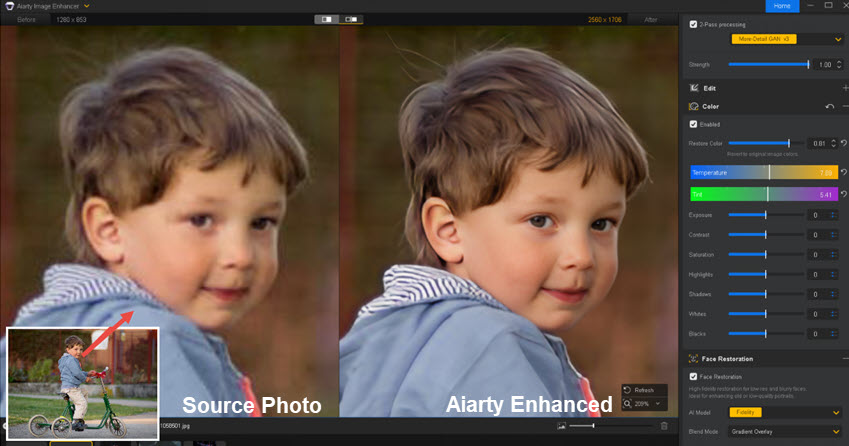
If Gemini AI fails to produce clear or realistic results, you can try using a dedicated AI image enhancement tool like Aiarty Image Enhancer, which is specifically designed for:
- restoring blurry images
- enhancing low-resolution photos
- reducing noise and compression artifacts
- recovering fine textures and details
- upscaling images with more consistent quality
Portrait Retouching Prompts
Portrait enhancement is one of the most common uses of Gemini AI photo editing. These prompts focus on improving skin texture, lighting, and overall portrait quality while keeping the subject natural-looking.
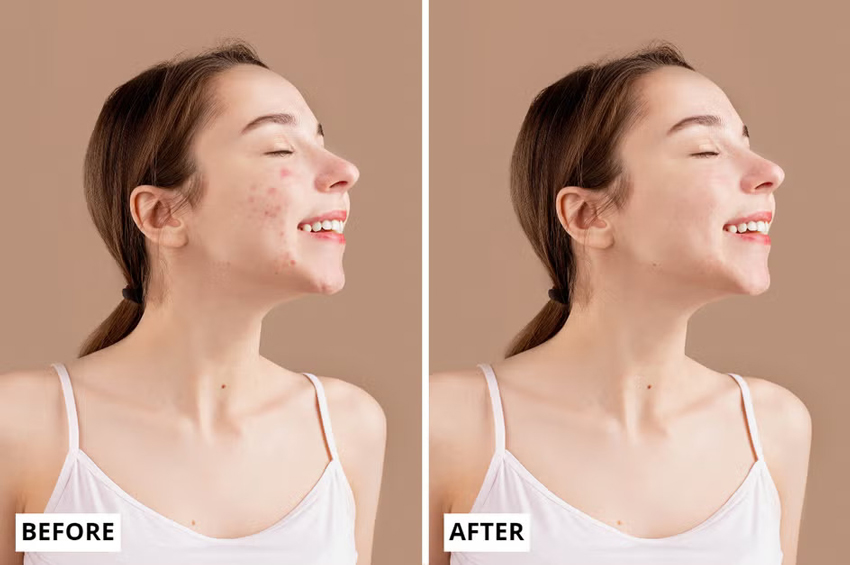
Natural Portrait Retouch
Cinematic Portrait Look
Professional Headshot Enhancement
Brighten Eyes and Facial Details
Natural Acne Removal
Social Media Portrait Edit
Remove Clothing Wrinkles Naturally
Make Clothes Look Cleaner
Professional Fashion Retouch
Change Casual Outfit to Formal Suit
Change Clothes Style
Streetwear Transformation
Luxury Fashion Look
Change Hairstyle
Add Curly Hair
Short Hair Makeover
Hair Color Change
Object Removal Prompts
Gemini AI can remove distracting objects, people, or background elements from photos. The key is telling the AI to preserve realism after removal.
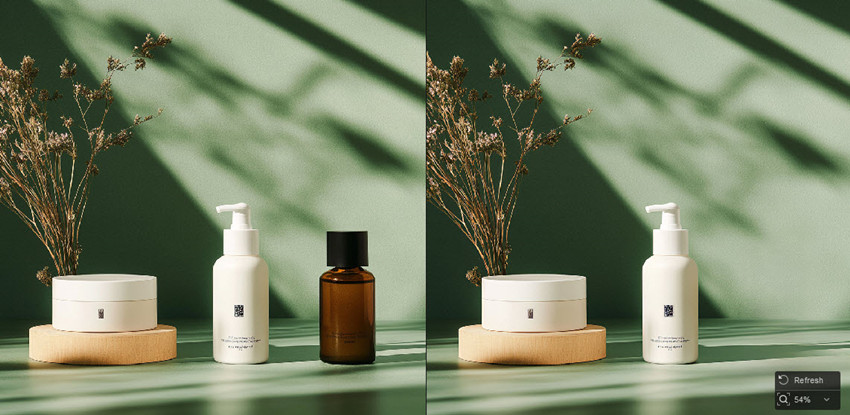
Remove Background People
Remove Unwanted Objects
Remove Power Lines
Clean Up Tourist Photos
Remove Background Clutter
Background Replacement Prompts
Background replacement is popular for portraits, product photos, and social media content.

Replace Background with Nature
Professional Office Background
Minimalist Studio Background
Dreamy Fantasy Background
Luxury Lifestyle Background
Professional Product White Background
Passport Photo White Background
Remove Background and Make Transparent
Transparent Background for Product
Clean Transparent Portrait Cutout
Color Correction Prompts
Color grading and lighting adjustments can dramatically improve the mood of a photo.
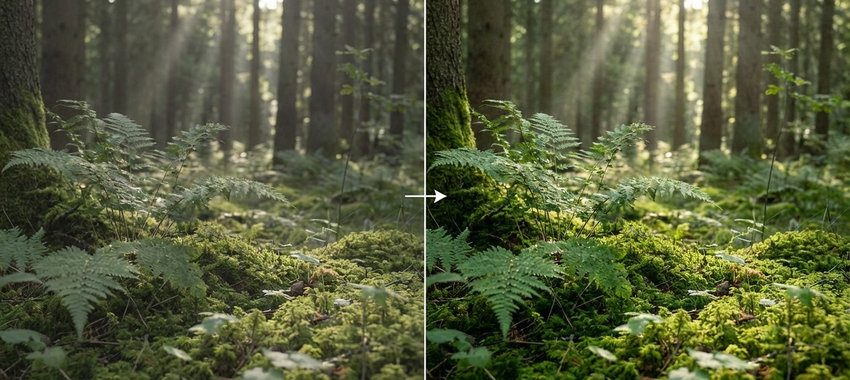
Fix White Balance
Vibrant Landscape Colors
Golden Hour Effect
Moody Cinematic Color Grade
Bright and Airy Style
Creative Style Transformation Prompts
Gemini AI is also widely used for artistic and stylized edits.
Anime Style Transformation
Watercolor Painting Effect
Cyberpunk Style Edit
Vintage Film Look
Pixar-Style Portrait
Image Expansion / Outpainting Prompts
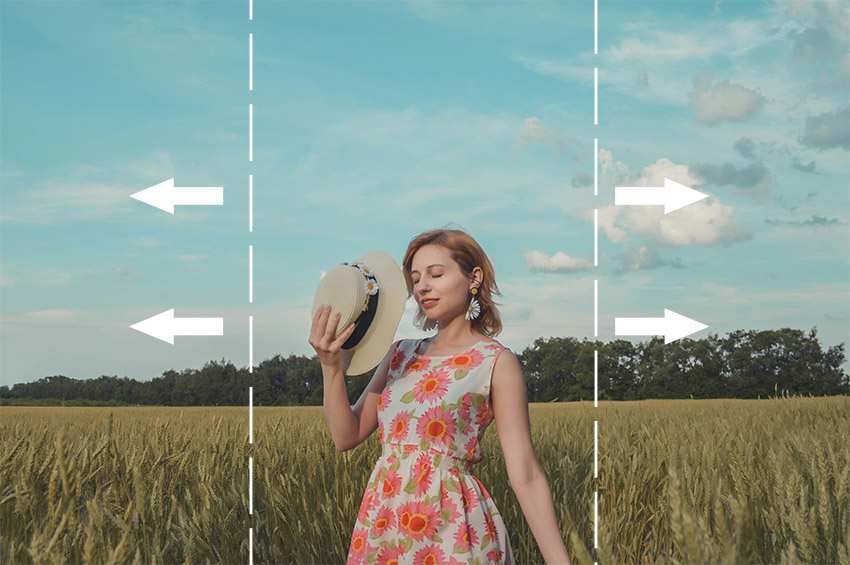
Expand Image Horizontally
Turn Portrait into Wide Cinematic Shot
Expand for Social Media Format
 FAQs
FAQs
This usually happens when:
• the prompt is too vague
• too many editing requests are combined in one prompt
• realism is not specified
• there is no instruction to preserve original details
Adding terms like "keep natural texture", "avoid overprocessing", and "preserve facial identity" can significantly improve results.
Not completely. Gemini AI is great for fast, creative, and conversational editing, but it does not offer the same level of precision control as professional tools like Photoshop. It works best for quick edits, experimentation, and content creation.
Yes, Gemini AI offers free access for basic image understanding and some editing capabilities depending on the platform and account type. However, advanced features, higher usage limits, or enhanced image generation quality may require a paid plan or be restricted based on region and product version.
In general, casual users can experiment with Gemini AI photo editing prompts for free, but professional or high-volume usage may face limitations.
Both Gemini AI and ChatGPT (with image capabilities) can understand and edit images through prompts, but they have different strengths:
• Gemini AI is more tightly integrated with Google’s ecosystem and often focuses on multimodal understanding and quick visual edits.
• ChatGPT image editing (via GPT-4o or similar models) tends to offer more structured instruction handling and detailed prompt-based control in many cases.
In short:
• Gemini AI is better for fast, conversational editing inside Google tools
• ChatGPT is often stronger for detailed prompt control and iterative refinement
Both tools are useful, and many users combine them depending on the task.
Gemini AI tries to preserve image quality and maintain realism during editing, but results can vary depending on the complexity of the request and the original image quality.
In some cases, especially with heavy edits (such as large object removal or background replacement), slight changes in texture, sharpness, or fine details may occur.
You May Also Like


This post was written by Brenda Peng who is a seasoned editor at Digiarty Software who loves turning ordinary photos into extraordinary works of art. With AI assistance for brainstorming and drafting, the post is reviewed for accuracy by our expert Abby Poole for her expertise in this field.
