


How to Enhance Security Camera Footage and CCTV Video



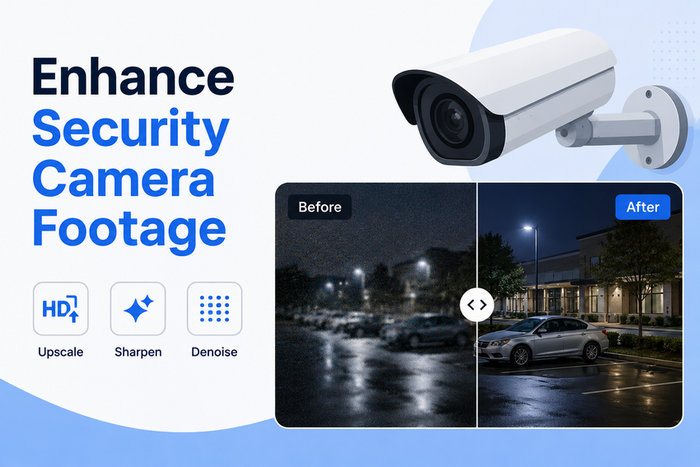
We install security cameras for peace of mind, but the footage they produce doesn't always tell the whole story. Even with high-resolution sensors, factors like heavy data compression and poor lighting can leave us with clips where crucial details, like a license plate or a facial feature, are just out of reach. This frustration isn't limited to security incidents; it’s equally common when you're trying to save a grainy but precious recording of a pet or a family milestone.
While no software can perfectly recreate pixels that weren't captured in the first place, modern video enhancement technology has come a long way. By using advanced algorithms to reduce noise and sharpen edges, it is now possible to recover a significant amount of clarity from less-than-ideal recordings.
Whether you need better visual evidence for an insurance claim or simply want to polish a grainy memory to share with others, understanding the limits and strengths of enhancement tools is key. This guide will walk you through how to realistically improve your camera footage and the best ways to get usable results.
Why Is Security Footage Often Blurry?
It seems counterintuitive: we live in an era of 4K smartphones, yet security footage, even from high-end systems, often looks muddy. This isn't usually due to a faulty lens, but rather a series of technical trade-offs designed to keep surveillance systems functional and affordable.
To realistically enhance your footage, it helps to understand the three main bottlenecks that degrade quality:
1. The Compression Bottleneck
Security cameras are designed to record 24/7. To prevent a single day of footage from filling up an entire hard drive, the system uses aggressive video compression (typically H.264 or H.265).
The software simplifies the image to save space, grouping similar pixels together. This creates blocking or pixelation around moving objects, often obscuring the very details, like the characters on a license plate, that you need to see.
2. Low Light and Sensor Noise
Most incidents happen at night or in poorly lit areas. To compensate for the lack of light, security sensors artificially boost their sensitivity (ISO).
This introduces visual noise or grain. In a still photo, this might be manageable, but in a moving video, this noise dances across the screen, making it incredibly difficult for the human eye (or traditional sharpening tools) to distinguish between a shadow and a person’s features.
3. Low Frame Rates and Motion Blur
To save even more bandwidth, many CCTV systems record at lower frame rates, such as 15 or even 10 frames per second (fps).
Fast-moving subjects, such as a passing car or a person running, appear as a blurry streak. Because the camera isn't capturing enough slices of time, the motion blur becomes baked into the individual frames, making the image look smeared.
How to Enhance Security Camera Footage
Depending on the condition of your footage, there are three main ways to improve its quality: using AI video enhancement software, applying basic adjustments in video editing tools, or optimizing your camera hardware and recording settings.
Method 1. Use AI Video Enhancement Software
Artificial Intelligence is the current gold standard for video recovery. Unlike traditional tools, AI doesn't just stretch the image; it uses deep learning to fill in missing details.
This makes AI enhancement especially useful for:
- Old DVR or CCTV recordings
- Low-bitrate surveillance exports
- Night vision footage with heavy grain
- Security clips recorded in poor lighting
- Videos captured from a monitor or phone screen
Below are several popular tools for enhancing security camera footage.
Aiarty Video Enhancer
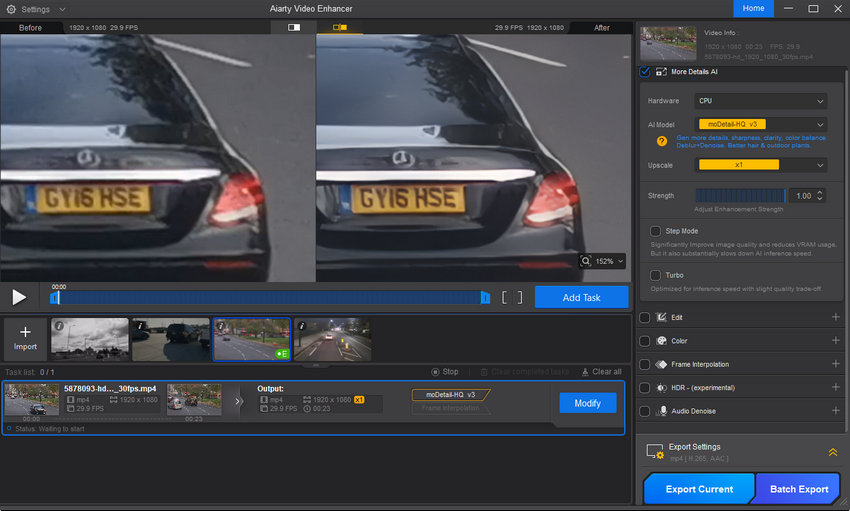
Aiarty Video Enhancer is particularly effective for improving low-quality surveillance footage while keeping processing simple and beginner-friendly. It can upscale low-resolution recordings, reduce digital noise, sharpen soft details, and clean up blocky compression artifacts commonly seen in CCTV exports.
The software performs especially well on:
- Nighttime security footage
- Grainy indoor surveillance videos
- Low-resolution DVR recordings
- Compressed H.264/H.265 footage
- Footage with blurry faces or unclear text
Because processing happens locally on your computer, it can also be a better option for privacy-sensitive surveillance footage compared to cloud-based tools.
Topaz Video AI
Topaz Video AI is one of the most advanced AI upscaling tools available and can produce impressive results on extremely degraded footage. It offers powerful denoising, deblurring, frame interpolation, and upscale models.
However, it is more hardware-intensive, slower to render, and significantly more expensive than lightweight alternatives. For casual users trying to clean up security footage quickly, the workflow may feel overly complex.
AVCLabs Video Enhancer AI
AVCLabs Video Enhancer AI provides a simpler AI enhancement workflow with automatic upscale and denoise features. It works reasonably well for basic footage cleanup, though results on heavily compressed surveillance videos can sometimes appear overprocessed or inconsistent.
Method 2. Improve Footage with Video Editing Software
If your footage only needs minor adjustments, standard video editing software may be enough. Programs like Adobe Premiere Pro, DaVinci Resolve, or CapCut allow you to manually tweak several image settings.
Common adjustments include:
- Increasing brightness and contrast
- Applying basic sharpening
- Reducing noise or grain
- Correcting washed-out colors
- Improving shadow visibility
These edits can make footage easier to watch, but they cannot truly recover details that were never captured in the original recording. Excessive sharpening may also introduce halos and artifacts, making faces or text look even less natural.
Method 3. Upgrade Your Camera and Recording Settings
Sometimes the best way to improve security footage is to prevent poor-quality recordings in the first place. Many surveillance videos look blurry not because of the camera itself, but because of aggressive compression, insufficient lighting, or incorrect recording settings.
Here are several ways to improve future recordings:
Increase Camera Resolution
Older 480p or 720p CCTV systems often lack enough detail for reliable identification. Upgrading to 1080p, 2K, or 4K cameras can significantly improve facial and object clarity.
Raise the Recording Bitrate
Low bitrate settings heavily compress video, causing blocky artifacts and smeared details. Increasing the bitrate in your DVR or NVR settings can preserve much more image information.
Improve Lighting Conditions
Poor lighting is one of the biggest reasons surveillance footage becomes noisy and blurry at night. Adding external lighting or improving infrared illumination can help reduce grain and motion blur.
Adjust Shutter Speed and Frame Rate
Fast-moving subjects often appear smeared in low-light recordings. Increasing shutter speed and using a higher frame rate can improve motion clarity when lighting conditions allow.
Clean the Camera Lens
Dust, moisture, fingerprints, and scratches on the lens can soften footage dramatically. Regular cleaning is a simple but often overlooked way to maintain image quality.
 FAQs
FAQs
AI can significantly improve the clarity of facial features by sharpening edges and reducing the pixelation caused by compression. However, it is important to be realistic: AI cannot invent a face that isn't there. If the subject is too far away or the original recording is extremely low-resolution, the software may produce a clearer image, but it might not be accurate enough for a definitive forensic identification.
It depends on the cause of the blur. If the plate is blurry due to motion or low-bitrate compression, AI enhancement can often sharpen the characters enough to make them legible. However, if the plate is completely washed out by infrared reflections or headlights (a common issue known as blooming), the original data is missing, and even the most advanced AI cannot recover it.
Night-vision footage is typically plagued by dancing grain or sensor noise. In this case, you can try Aiarty Video Enhancer and choose the SuperVideo vHQ model, which is specially designed for enhancing low-light videos.
In a video editor, you can boost the exposure and gamma to reveal details in the shadows. Keep in mind that brightening a dark video will also make the digital noise much more visible. This is where Aiarty Video Enhancer excels. It can brighten the scene while simultaneously filtering out the amplified noise, providing a much cleaner result than a simple brightness adjustment.
You May Also Like


This post was written by Brenda Peng who is a seasoned editor at Digiarty Software who loves turning ordinary photos into extraordinary works of art. With AI assistance for brainstorming and drafting, the post is reviewed for accuracy by our expert Abby Poole for her expertise in this field.
