 Editor's Choice - Aiarty Video Enhancer



If you've ever watched an old SD video on a large TV or a high-res device, you know how disappointing it can be. The picture looks fuzzy, and the details just aren’t there. It's a bit like trying to read small text with blurry glasses. With everything shifting toward high-definition content, it's no wonder so many people are looking for ways to convert SD to HD videos.
So here this will walk you through the best options out there. Let’s jump into the world of video upscaling, and see how to turn those old SD clips into something you can enjoy in full HD.
What Are SD and HD Videos?
SD (Standard Definition) and HD (High Definition) refer to different video resolution standards. SD videos were commonly used in VHS tapes, DVDs, old TV broadcasts, MiniDV camcorders, and early digital video formats, while HD later became the mainstream standard for modern TVs, streaming platforms, and online video content.
Compared with HD video, SD footage contains fewer pixels and less image detail. As a result, old SD videos often appear blurry, soft, or pixelated when played on today’s large-screen TVs, computer monitors, and 4K displays.
SD vs HD: What's the Difference?
The biggest difference between SD and HD video is image clarity and detail. SD videos usually have lower resolutions such as 480p or below, while HD videos start at 720p and can go up to 1080p or higher.
Because HD video contains significantly more pixels, it delivers sharper edges, clearer textures, and better detail retention on modern displays. In contrast, SD footage may look stretched, noisy, or blurry when viewed on large HD or 4K screens.
This is why many users now look for ways to convert SD video to HD resolution using AI video upscaling technology. AI-powered upscalers can intelligently enhance old low-resolution footage and make it look clearer on modern devices, especially when upscaling 480p to 1080p.
Best Way to Convert SD Video to HD Video
There are plenty of tools out there that claim to convert SD video to HD, but just increasing the resolution isn’t always enough. Many tools can change the resolution, but they don’t actually improve the visual quality. That’s where AI-driven tools come in. They not only upscale resolution but also enhance the image quality by adding real details, reducing noise, and correcting pixelation.
One of the most effective tools for this job is Aiarty Video Enhancer. This AI-powered video upscaling and enhancement tool doesn’t just bump up your video’s resolution to HD (720p), Full HD (1080p), 2K (QHD), or 4K (UHD)—it also uses AI technology to generate realistic details, remove blur, reduce noise, and fix pixelation issues.
How to Upscale SD Video to HD Video with Aiarty Video Enhancer
Step 1: Download and install Aiarty Video Enhancer on your computer.
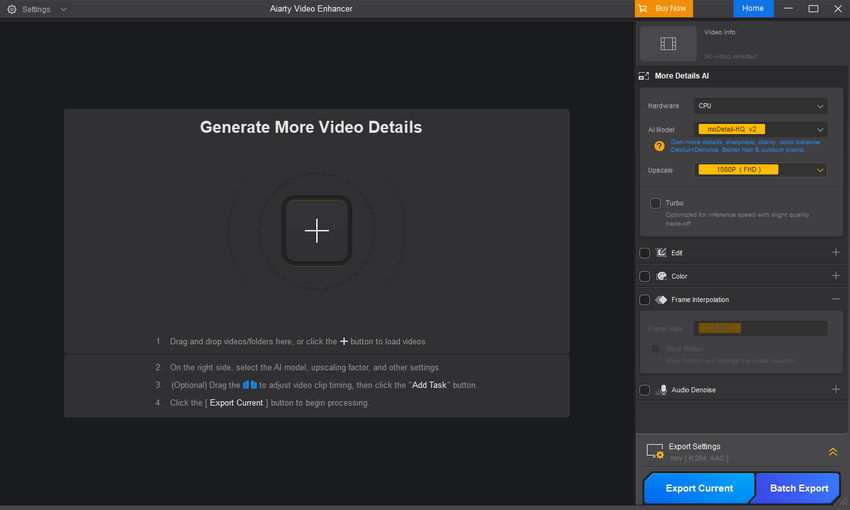
Step 2: Open the software and import your SD video.
You can easily drag and drop your SD video file into Aiarty Video Enhancer or click the + button to browse for it.
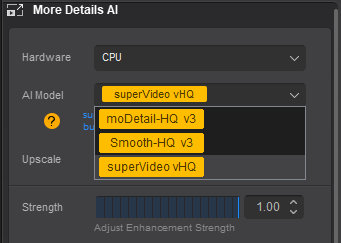
Step 3: Choose an AI model.
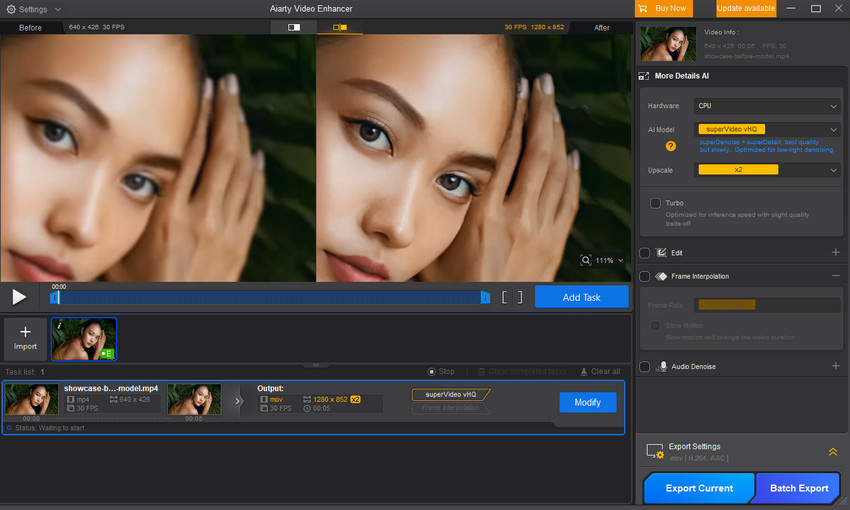
Aiarty Video Enhancer offers three models for video enhancement: moDetail-HQ v3, Smooth-HQ v3, and superVideo-vHQ.
Each model is tailored to different needs, so check the descriptions and pick the one that fits your video best.
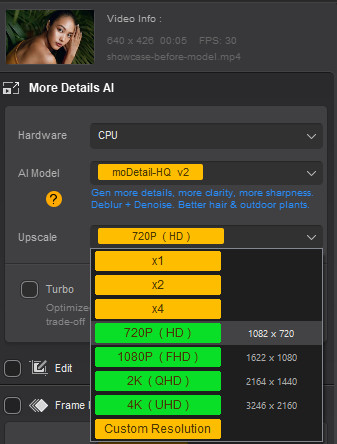
Step 4: Select a resolution or upscale factor.
Click on the dropdown menu next to Upscale and choose the resolution you want (HD, Full HD, 2K, 4K) or select an upscale factor.
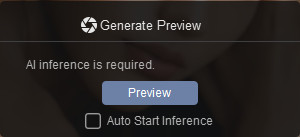
Step 5: Click Preview and wait for Aiarty Video Enhancer to process.
The AI will take a moment to process your video and show you a preview.
Step 6: Review the preview.
If you’re happy with the results, go ahead and click Add Task. If not, try switching to a different model and adjust Upscale or Strength settings to see if it improves.
I selected an SD video with a resolution of 640x426 and upgraded it to an HD resolution of 1280x852. I chose the superVideo vHQ model. As you can see from the screenshot below, the quality looks great. Not only has the resolution improved, but the video is also much clearer.
Step 7: Export the upscaled video.
Once you’re satisfied with the preview, click Export Current for a single video or Batch Export if you have multiple videos to process.
The time it takes to process your video will depend on your hardware, video length, and the settings you choose. However, Aiarty Video Enhancer is notably faster compared to many other similar tools on the market, so you don’t have to wait long.
Real Examples: SD to HD Before and After
Case 1: Convert Old SD Anime Video to HD
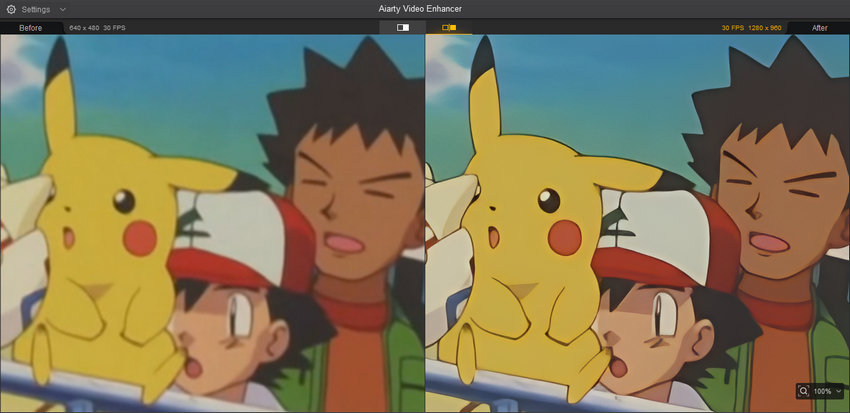
In this test, we upscaled a classic Pokémon clip from a standard 640x480 resolution to 1280x960. Using the moDetail-HQ v3 model with a 2x upscale factor, the transformation is immediate. The once-blurry outlines of Pikachu and Ash are now remarkably sharp and clean. The AI successfully removed the "fuzzy" edges typical of old encodes while keeping the colors vibrant and the 2D aesthetic intact, making it perfect for modern high-res displays.
Case 2: Convert Old VHS Footageto HD
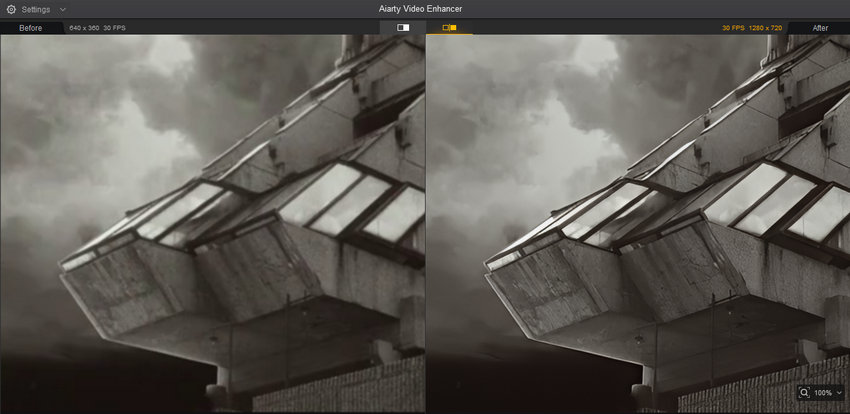
Old, grainy footage of buildings often suffers from heavy noise and flickering. We processed this 640x360 clip using the superVideo vHQ model and upscaled it to 720p HD. By enabling the Force Deinterlace feature, we eliminated jagged motion artifacts. The result is a stable, cinematic shot where the geometric lines of the architecture are crisp and the distracting grain is replaced by clean, realistic textures.
Case 3: Enhance Portraits with Natural Detail
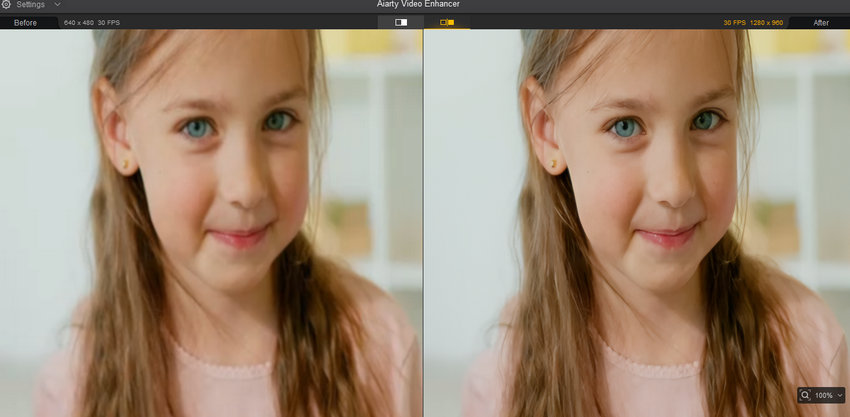
Enhancing human faces requires a delicate balance to avoid a "plastic" look. For this 640x480 portrait, we used the superVideo vHQ model at a 2x factor but fine-tuned the Strength to 0.51. This subtle adjustment allowed the AI to restore incredible detail in the eyes and individual hair strands without over-smoothing the skin. The final 1280x960 output looks like it was captured on a much higher-quality camera, preserving a natural, life-like appearance.
Additional Tips:
- Besides upscaling and enhancing videos, Aiarty Video Enhancer can also convert FPS (e.g., from 30fps to 60fps), slow down a video, and even perform audio denoising.
- If you're looking to convert SD images to HD, try using Aiarty Image Enhancer.
Other SD to HD Video Converters
While Aiarty Video Enhancer is an excellent choice for AI-driven upscaling, there are other SD to HD converters you can consider.
1. Topaz Video AI
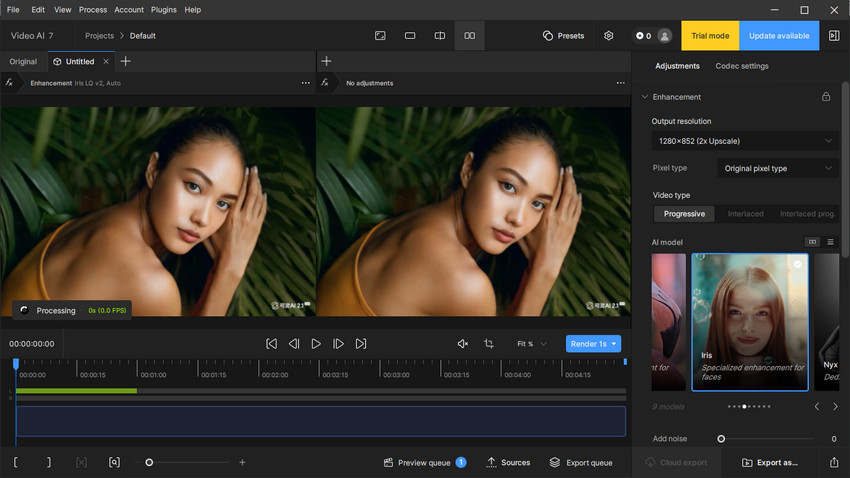
Topaz Video AI is a well-known tool for upscaling videos, using AI to increase resolution from SD to HD or even 4K. It’s often used for enhancing low-resolution or old videos, making them appear sharper and more detailed on modern screens. The tool is favored for its ability to restore fine details, making it a go-to for professionals and enthusiasts looking for high-quality results.
However, it is a paid tool and can be pricey for casual users. It has a base price of $299 for new customers, which includes only one year of app updates. Additionally, it requires a powerful system for smooth processing.
2. BCC UpRez (Boris Continuum Complete)
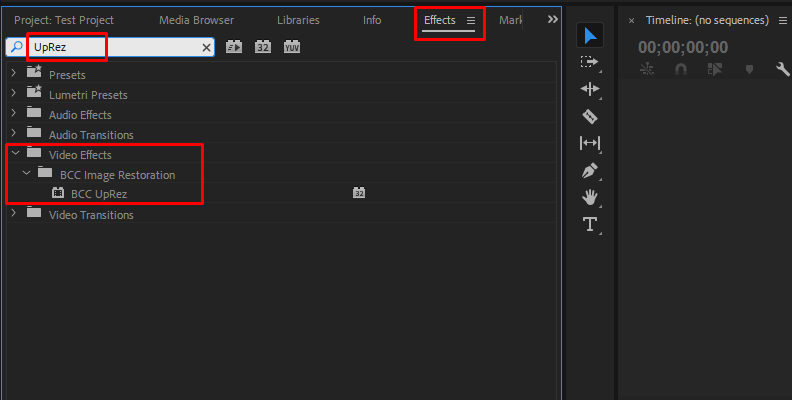
BCC UpRez is part of the Boris FX Continuum suite and is commonly used by professionals working within established video editing software like Adobe Premiere Pro and Final Cut Pro. It is designed to upscale SD videos to HD with minimal effort, integrating directly into your video editing workflow. This tool is more suited for users who are familiar with advanced editing and want to fine-tune the quality of their upscaled videos.
BCC UpRez provides a free trial within the Boris FX Continuum package, which gives users the chance to test its functionality before committing to the purchase. While not as simple as standalone tools, its flexibility and integration with industry-standard editing software make it a good choice for those who need precise control over the upscaling process.
3. Fotor Video Enhancer
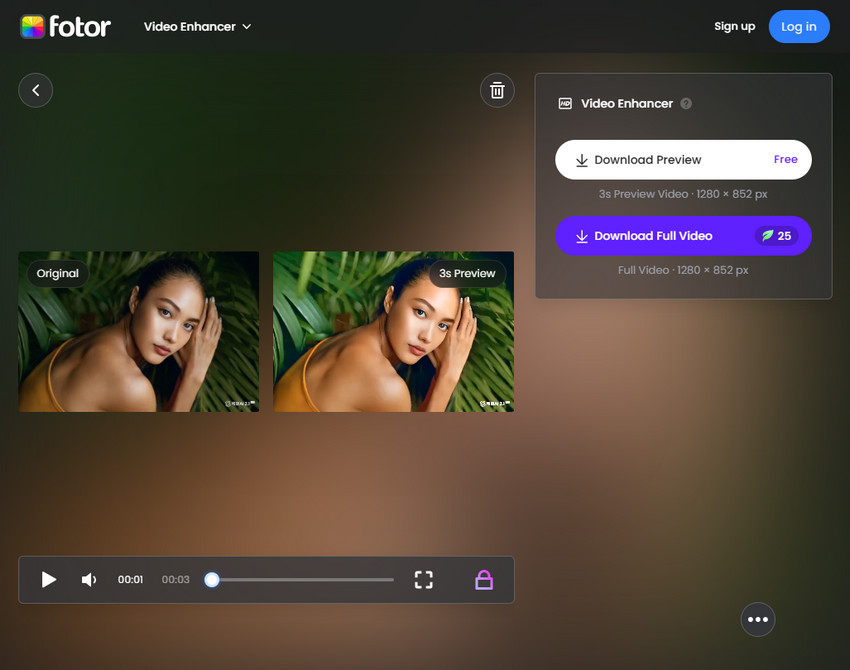
Fotor offers a simple and quick solution for upscaling SD videos to HD online. It is designed for users who need a straightforward and budget-friendly option without the complexity of professional software. Fotor uses AI to increase the resolution of videos, improving their visual quality for easier viewing on modern screens.
While it doesn't offer the depth of control or advanced features like Topaz or BCC, Fotor is popular for its ease of use and affordability. It’s a great option for casual users who need a simple and effective solution for upscaling videos without the need for installation or complicated setups.
Supported formats include MP4, MOV, and WEBM, with a video upload limit of up to 4K resolution, 5 minutes in length, 60fps, and a maximum file size of 1GB.
 FAQs
FAQs
You can easily convert SD to 1080p using Aiarty Video Enhancer. For a detailed guide, please refer to the “How to Convert SD to HD with Aiarty Video Enhancer” section above.
If the tool you're using doesn't have a noise reduction feature or if the settings are not optimized, noise may still be present. You can try Aiarty Video Enhancer, especially its superVideo vHQ model, which is particularly effective at reducing noise and improving video quality.
Some tools or models may alter the colors of the video, leading to color distortion. If this happens, you can try switching to a different tool or model to maintain color accuracy.
Converting SD to HD with AI will improve the video quality significantly, but for viewing on a 4K TV, further resolution enhancement is necessary. Using super-resolution technology, you can upscale the video to near-4K quality, providing a clearer viewing experience.
First, it’s important to ensure that you're using a good tool. Some tools only change the resolution without improving video quality. Additionally, even after converting SD to HD, the quality may still be limited by the source video. If the original video has a low resolution, some details may remain unclear.
You May Also Like


This post was written by Brenda Peng who is a seasoned editor at Digiarty Software who loves turning ordinary photos into extraordinary works of art. With AI assistance for brainstorming and drafting, the post is reviewed for accuracy by our expert Abby Poole for her expertise in this field.
