


8 Best AI Video Enhancers in 2026: 4K, Quality & Restoration Compared



The best AI video enhancer is not necessarily the one that produces the sharpest paused frame. What matters more is whether it can improve a video without making faces, hair, text, foliage, or fine textures flicker and change from frame to frame.
A soft 480p family recording, noisy night footage, compressed smartphone video, and an AI-generated clip all need different treatment. Some tools specialize in deep restoration and model control, while others prioritize natural detail, one-click workflows, cloud processing, or integration with a complete video editor.
This October 2026 update compares eight practical options across desktop, cloud, professional editing, and open-source workflows. Instead of forcing one universal winner, we focus on the factors that actually affect the result: detail reconstruction, noise and blur removal, temporal consistency, workflow, hardware requirements, privacy, pricing, and the type of footage each tool handles best.
Quick Answer: Which AI Video Enhancer Should You Choose?
There is no single AI video enhancer that is best for every type of footage. Start with the problem you actually need to solve:
- Best for advanced restoration - Topaz Video: Choose it when you need a large library of specialist models, deeper parameter control, deinterlacing, stabilization, frame interpolation, or more demanding archival restoration.
- Best for natural detail and low-light footage - Aiarty Video Enhancer: A strong fit for local enhancement when you want to reconstruct texture, reduce blur and noise, clean difficult dark footage, and keep the result from looking excessively sharpened.
- Best for old videos and faces - AVCLabs Video Enhancer AI: Useful for family archives and degraded footage that may need upscaling, denoising, face refinement, colorization, stabilization, or frame interpolation in the same workflow.
- Best for beginners - HitPaw VikPea: One of the easier choices for users who prefer selecting a ready-made AI model instead of manually tuning several restoration parameters.
- Best online option - VanceAI Video Upscaler: A browser-based choice for users who do not have a powerful local GPU or only need to enhance selected clips occasionally.
- Best for professional post-production - DaVinci Resolve Studio: Best when video enhancement needs to stay inside a larger editing, grading, VFX, audio, and delivery workflow.
- Best free and open-source option - Video2X: A flexible local solution for technically comfortable users who want free super-resolution and frame interpolation without a subscription.
- Best for social-media creators - CapCut: The convenience pick for creators who want to improve a clip and continue directly into trimming, captions, effects, reframing, and social publishing.
Best AI Video Enhancers at a Glance
If you already know the kind of footage you need to improve, this comparison is the fastest way to narrow down the options.
How We Compare AI Video Enhancers
Maximum output resolution alone tells very little about video quality. Upscaling a 720p file into a 4K container is easy; creating a result that remains believable once the video starts moving is much harder.
💡 Transparency & Editorial Method
This guide is published by the Aiarty team, and Aiarty Video Enhancer is one of the products included. Aiarty is therefore not automatically labeled "best overall." Each product is positioned around the workflow and type of footage where it makes the most sense.
For this update, we rechecked current product capabilities, supported platforms, processing methods, software versions, and publicly listed pricing where available.
We do not assign fixed FPS, VMAF, SSIM, PSNR, or universal quality scores unless the source file, software version, AI model, settings, hardware, codec, and complete result can be reproduced. Video enhancement varies too much by footage and hardware for an unexplained number to be meaningful.
Pricing note: software prices and promotions can change. The figures below reflect publicly listed pricing checked for this October 2026 update and should still be confirmed on the vendor's purchase page before buying.
1. Detail Reconstruction and Fidelity
Hair, fabric, fur, foliage, skin, text, and other fine structures are where enhancement models usually reveal their strengths and weaknesses. More apparent detail is useful only when it remains plausible rather than turning into exaggerated, repeated, or synthetic texture.
2. Noise, Blur, and Compression Handling
Real-world footage rarely has only one problem. A low-light smartphone clip can contain chroma noise, blur, compression artifacts, and weak fine detail at the same time. A useful enhancer should reduce defects without wiping out natural texture.
3. Temporal Consistency
Video should be watched, not judged from one screenshot. Fine detail can appear impressive in a single frame but shimmer, crawl, pulse, or disappear when a subject or camera moves. Temporal stability therefore matters as much as single-frame sharpness.
4. Workflow, Hardware, and Privacy
Local processing is attractive for confidential footage, large files, and repeated enhancement work, but it places the workload on the user's CPU and GPU. Cloud tools remove much of that hardware requirement but introduce upload time, server queues, privacy considerations, and potentially usage-based cost.
5. Pricing and Licensing
A cheaper subscription is not automatically a cheaper workflow. Cloud credits, hardware requirements, license duration, render time, and how often you use the application all affect the real cost.
8 Best AI Video Enhancers in 2026
Topaz Video - Best for Advanced Restoration Control
Best for: professional restoration, archival footage, difficult mixed degradation, deinterlacing, stabilization, frame interpolation, and users who want deeper AI-model control.
Compatibility: Windows and macOS.
Pricing: Topaz Video Personal is currently $299/year when billed annually. Topaz also offers annual-commitment monthly billing and a higher-priced month-to-month option.
Our Verdict: Topaz Video remains the most technically flexible dedicated restoration application in this comparison. It is the strongest fit when a source has several different problems and you want to choose a model specifically for noise, faces, compression, interlacing, motion, stabilization, or reconstruction rather than applying one general enhancement pass.
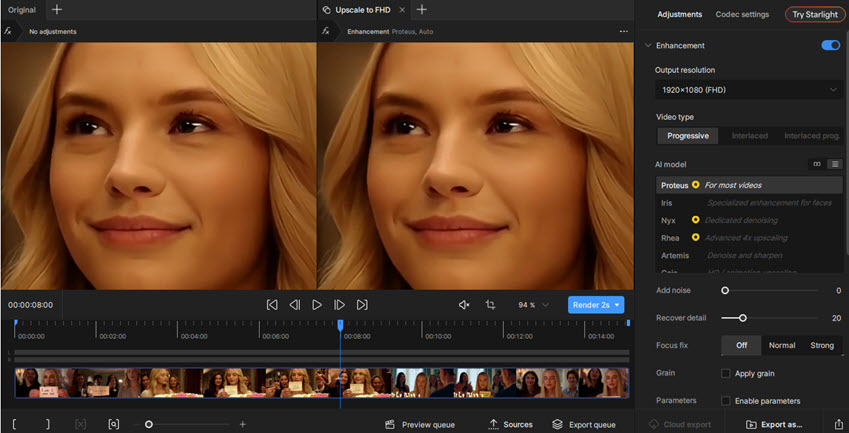
Topaz Video currently has one of the broadest specialist AI model libraries in dedicated video enhancement software. The Personal plan lists models and workflows including Starlight Precise, Starlight Mini, Proteus, Iris, Nyx, Rhea, Rhea XL, Artemis, Gaia, Theia, Apollo, Chronos, Aion, Themis, SDR-to-HDR, and Stabilization. Selected Starlight variants are also available through cloud processing.
That depth matters because video degradation is rarely uniform. A compressed face does not need the same processing as clean footage that only needs enlargement. Similarly, an old interlaced recording, a noisy handheld night clip, and footage with motion blur may each respond better to different restoration approaches.
Proteus is useful as a flexible general enhancement option, while Iris is commonly used when faces and fine detail are important. Nyx is designed around noise reduction, while the Starlight family targets more difficult reconstruction jobs where the original source contains very little usable detail.
Why Topaz Video stands out
The main advantage is flexibility rather than simplicity. If one model creates overly smooth faces, unstable texture, or too much sharpening, another approach may work better on the same footage. For difficult restoration projects, the ability to preview several model combinations can be more valuable than a one-click workflow.
Topaz also reaches well beyond straightforward super-resolution. Its current workflow covers frame interpolation, slow motion, stabilization, SDR-to-HDR conversion, deinterlacing, and specialist reconstruction. The Personal subscription includes unlimited local rendering, plus monthly cloud video credits.
What to know before choosing Topaz
The same depth that makes Topaz powerful also makes it less approachable. Users may need to compare several models and preview different settings before finding the best result. Heavy reconstruction models can also demand significant GPU resources and long processing times on older systems.
Topaz therefore makes the most sense when restoration flexibility matters more than getting through a clip with the fewest possible decisions. If you only need occasional denoising or straightforward upscaling, a simpler application may be easier to justify.
- One of the largest specialist AI video model libraries available.
- Strong control over difficult and mixed degradation.
- Dedicated workflows for faces, denoise, motion, stabilization, interpolation, and HDR.
- Unlimited local rendering on the Personal plan.
- Cloud options are available for selected heavier workflows.
- Well suited to archival and professional restoration projects.
- More expensive than many consumer-oriented alternatives.
- Requires more previewing and model selection.
- Heavy models can be demanding on GPU resources and render time.
- May be excessive for users who only need basic upscaling or denoising.
Also Read: Video2X vs Topaz Compared , How to Use Topaz in Premiere Pro
Aiarty Video Enhancer - Best for Natural Detail and Low-Light Footage
Best for: natural-looking texture reconstruction, noisy or dark footage, portraits, AI-generated video, private local processing, and users who want a more streamlined desktop workflow.
Compatibility: Windows and macOS.
Current version: V3.8, released September 22, 2026.
Pricing: standard pricing is $79/year or $165 for a lifetime license. Current official promotional pricing may be lower, so check the purchase page before buying. Check current Aiarty offers >>
Our Verdict: Aiarty works best when the goal is to make soft, noisy, dark, or low-resolution footage look cleaner without automatically pushing every frame toward a heavily sharpened appearance. Its three-model structure is easier to navigate than Topaz's much larger library, while the Strength control gives users a practical way to balance clarity against naturalness.
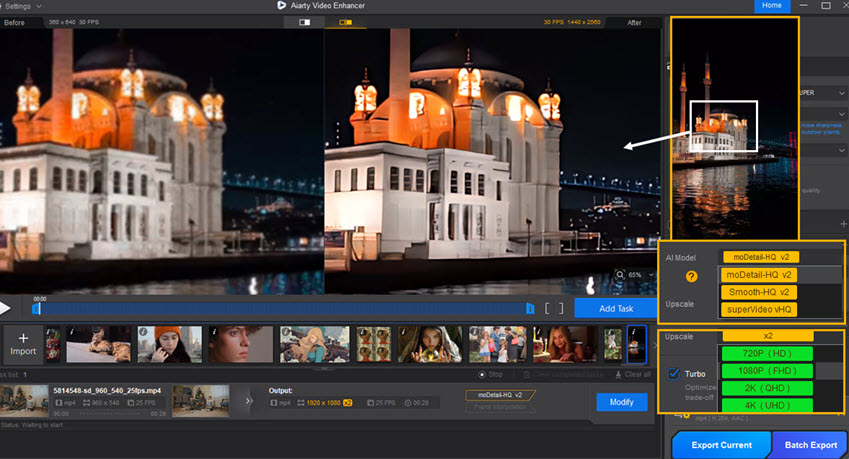
Aiarty Video Enhancer is built around three AI enhancement models with different restoration priorities instead of treating every source in the same way.
- moDetail-HQ v3: designed for stronger reconstruction of fine structures such as hair, skin, foliage, fur, clothing, and fabric.
- Smooth-HQ v3: uses a more restrained restoration approach for denoising, deblurring, texture consistency, and natural-looking everyday footage.
- superVideo vHQ: targets more difficult dark, grainy, blurry, and low-light footage where stronger noise cleanup and reconstruction are needed.
A useful difference from many preset-only enhancers is the Strength control. Instead of accepting the model's full processing intensity, users can reduce or increase the effect to find a better balance between clarity and natural texture.
That matters particularly on people. Portrait footage can quickly become artificial if enhancement produces waxy skin, exaggerated pores, hard facial edges, or reconstructed hair that changes from frame to frame. Being able to reduce the processing strength can produce a more believable result than simply choosing the sharpest available preview.
What's new in Aiarty Video Enhancer V3.8
The September 2026 V3.8 release focuses heavily on reliability during longer processing jobs. It adds export-task and progress recovery, allowing unfinished exports to continue after restarting the application, and adds support for MKV.
Aiarty also optimized CUDA encoding memory management to reduce VRAM usage during high-load exports and improve stability when processing long videos or multiple files in batches. Decoding and export logic for problematic video formats was also improved.
Beyond basic upscaling
Aiarty can upscale video to 4K, reduce noise and blur, generate additional frames for smoother playback and slow motion, clean background audio noise, apply color adjustments, handle SDR-to-HDR workflows, and process multiple videos in batches.
The application also offers Turbo-oriented processing for faster workflows and Step Mode for high-resolution jobs where lower VRAM usage is important. The main enhancement pipeline runs locally, so users do not need to upload full-resolution private footage or large client files to a cloud service.
Where Aiarty fits best
Aiarty is particularly well suited to footage where useful visual information is still present but has been softened by noise, compression, blur, low resolution, or difficult lighting. Hair, foliage, fabrics, fur, skin, and natural outdoor detail are good examples because the goal is to recover clarity without replacing the surface with obviously synthetic texture.
It is also a practical fit for AI-generated video enhancement. Text-to-video and image-to-video models can still produce soft fine detail, modest native resolution, or slightly unstable texture. Aiarty can clean and upscale those clips for HD or 4K delivery and combine enhancement with frame interpolation when smoother motion is required.
It cannot, however, repair fundamentally incorrect generated content. If hands, objects, geometry, or subject identity are wrong from frame to frame, regenerating or manually editing the sequence is usually more reliable than trying to enhance the error.
- Three clearly differentiated enhancement models rather than an overwhelming model list.
- Strong focus on hair, skin, foliage, fabric, fur, and other fine textures.
- superVideo vHQ is designed specifically for difficult low-light and grainy footage.
- Strength control helps reduce the risk of over-processing.
- Local processing is useful for private or large video files.
- V3.8 adds resumable exports and MKV support.
- CUDA memory optimization improves stability for long and batch exports.
- Includes frame interpolation, audio denoise, HDR, color, and batch-processing tools.
- Smaller specialist model library than Topaz Video.
- The enhancement workflow is centered around output up to 4K rather than 8K.
- Heavy AI processing still benefits from a modern GPU.
- Less granular restoration control than specialist professional software.
AVCLabs Video Enhancer AI - Best for Old Videos and Faces
Best for: old home movies, soft faces, black-and-white footage, denoising, stabilization, frame interpolation, and automated multi-stage restoration.
Compatibility: Windows and macOS.
Pricing: the official purchase page currently lists $39.95/month, with annual and perpetual plans also available. Promotional pricing can change frequently.
Our Verdict: AVCLabs is one of the more restoration-oriented products in this comparison. It is particularly useful when an old source has several age-related problems at once, such as low resolution, weak facial detail, monochrome footage, noise, blur, or unstable motion.
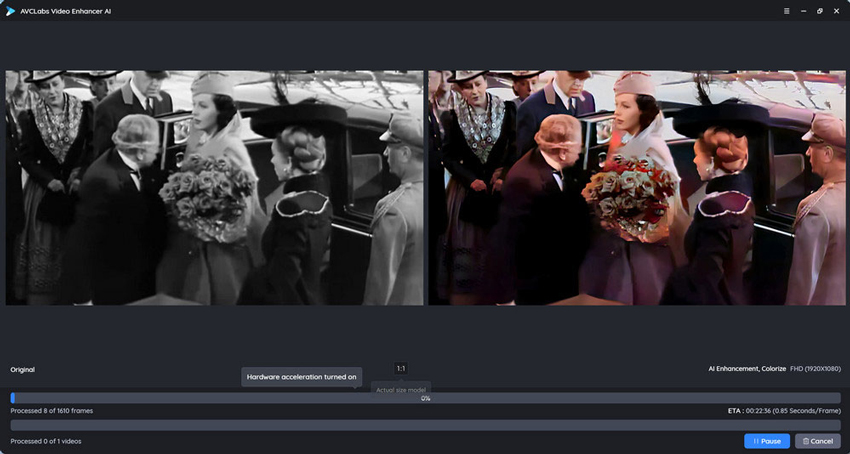
AVCLabs Video Enhancer AI has expanded well beyond straightforward video enlargement. The current application includes dedicated AI workflows for enhancement, face refinement, colorization, motion compensation, stabilization, and SDR-to-HDR.
Its AI Enhancement system currently includes model options such as Standard, Ultra, Anime, Standard Multi-Frame, Ultra Multi-Frame, and Denoise, plus a Detail Balance control.
The Multi-Frame modes use information from more than one frame rather than treating each frame entirely independently. This type of temporal processing can be useful when fine texture or edges become unstable in motion, although AVCLabs currently documents those Multi-Frame options specifically for Windows.
AVCLabs can upscale SD and HD footage to 1080p, 4K, and up to 8K. It also allows users to adjust output settings such as sharpening, frame rate, color, contrast, bitrate, and enhancement-related parameters.
Why AVCLabs works well for old footage
Old family footage often contains several defects that need to be treated together. The resolution may be low, faces may no longer be clearly recognizable, analog or compression noise may cover much of the frame, and black-and-white material may also need colorization.
AVCLabs lets users combine many of those jobs inside one application. Its Face Enhancement workflow is particularly useful when people are the main subject of the recording, while automatic colorization provides a faster option for users who want to give monochrome footage a more modern presentation.
Motion Compensation can also be used to increase frame rate or create smoother motion, while stabilization helps when the original capture contains camera shake. This makes AVCLabs more appropriate to archive restoration than a basic upscaler that only changes resolution.
What to know before choosing AVCLabs
Applying several AI functions to the same source can substantially increase processing time. Users who want very granular control over individual restoration parameters may still prefer Topaz, while users enhancing mostly clean modern footage may not need AVCLabs' broader archive-oriented features.
- Upscaling to 1080p, 4K, and up to 8K.
- Dedicated Face Enhancement workflow.
- AI colorization for black-and-white footage.
- Multi-Frame enhancement options on Windows.
- Denoising, stabilization, interpolation, and HDR workflows.
- Side-by-side preview before full export.
- Monthly, annual, and perpetual licensing options.
- Combining several AI processes can increase render time significantly.
- Some Multi-Frame options differ by platform.
- Less granular manual restoration control than Topaz Video.
- Many features may be unnecessary for relatively clean modern footage.
HitPaw VikPea - Best for Beginners and Preset-Driven Enhancement
Best for: beginners, vloggers, portrait footage, old videos, animation, AI creators, and users who want a guided model-based workflow.
Compatibility: Windows and macOS.
Pricing: the current Windows purchase page lists $43.19/month, $99.99/year, and $350.39 for a perpetual license under the displayed promotional pricing.
Our Verdict: HitPaw VikPea is easier to approach than most professional restoration software. It offers a broad collection of ready-made enhancement models and related tools, making it useful for users who know what kind of footage they have but do not want to tune multiple technical parameters manually.
HitPaw VikPea currently advertises 10+ AI video enhancement models and output up to 8K. Its current paid feature set covers edge-detail enhancement, noise and grain removal, old-video repair, black-and-white colorization, color correction, low-light enhancement, SDR-to-HDR conversion, stabilization, background removal, and batch enhancement.
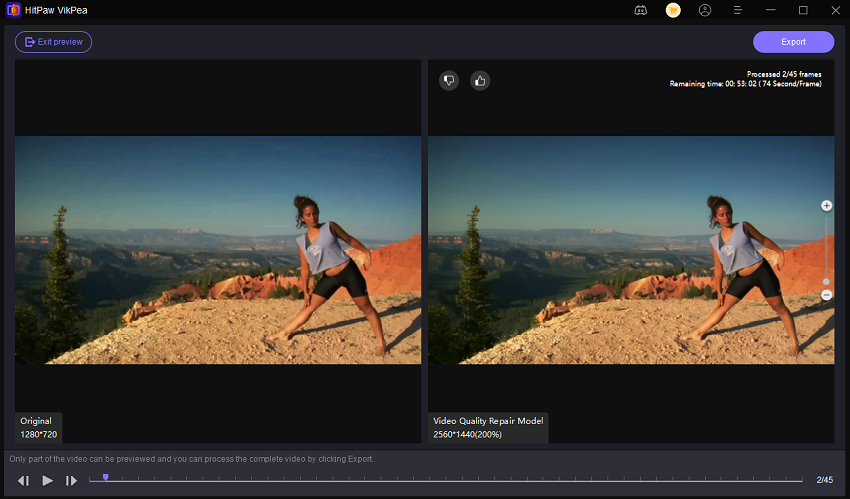
The software includes model categories for general restoration, UHD-oriented restoration, sharpening, animation, portrait restoration, decompression, denoising, and other specialized situations. This makes it easier for less technical users to begin with the type of footage instead of manually constructing a restoration chain.
VikPea has also expanded into a broader AI video creation and editing environment. The current purchase page includes AI-generation workflows using systems such as Seedance, Kling, and VEO, alongside enhancement and repair tools.
Why VikPea is easier for beginners
The main advantage is the model-and-preset approach. A beginner can start by identifying the content as a portrait, animation, old video, low-light clip, noisy source, or general quality problem, then choose a corresponding enhancement model instead of adjusting a long list of technical controls.
That makes VikPea practical for users who care more about getting a useful result quickly than understanding every step behind the restoration. Batch enhancement is also valuable for creators working through multiple short clips.
What to consider
The broader feature set makes VikPea less focused than a dedicated enhancement-only application. Some cloud or generative operations also use a separate credit system. If your only requirement is local denoising and upscaling, you may not use many of its additional creative tools.
The perpetual license also carries a relatively high upfront price, while users seeking deep manual restoration controls may still prefer specialist software such as Topaz.
- 10+ current AI enhancement models.
- Supports output up to 8K.
- Beginner-friendly model and preset selection.
- Old-video repair and black-and-white colorization.
- Noise reduction, low-light enhancement, stabilization, and HDR.
- Batch-processing support.
- Useful broader ecosystem for AI-video creators.
- Monthly subscription is relatively expensive for occasional users.
- Perpetual licensing has a comparatively high upfront cost.
- Less low-level restoration control than specialist tools such as Topaz.
- Some cloud and generative features require credits.
- The expanding creator toolkit may feel excessive if enhancement is your only goal.
VanceAI Video Upscaler - Best Online AI Video Enhancer
Best for: browser-based upscaling, users without a powerful local GPU, occasional video enhancement, and short cloud-processing jobs.
Compatibility: Browser-based.
Pricing: the current Starter plan is $15/month when billed annually and includes 260 credits per month. New users can currently try the service with 10 credits.
Our Verdict: VanceAI is no longer just a generic browser upscaler. Its current Video Upscaler separates different source types through Nexa, Cineva, and Aniva, while still avoiding the need for a powerful local graphics card.
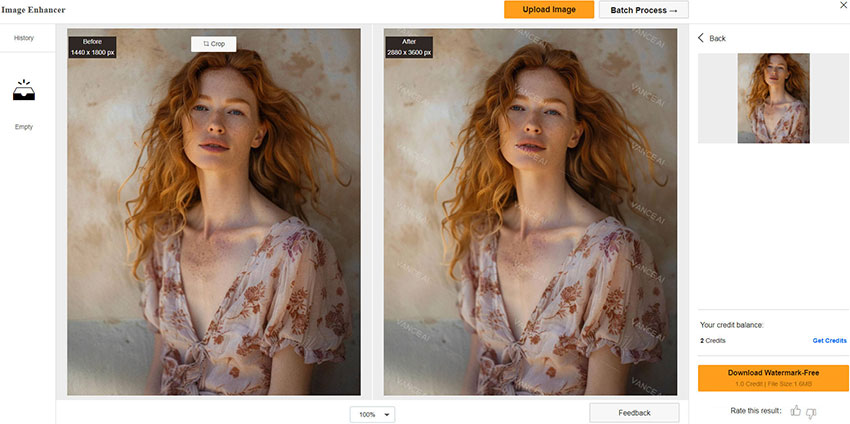
VanceAI Video Upscaler currently lets users choose between Nexa, Cineva, and Aniva depending on the type of source.
Nexa is the more general-purpose model for everyday video. It supports flexible target resolutions including 720p, 1080p, 1440p, and 4K, along with common scaling choices.
Cineva is oriented more toward cinema-style restoration and lower-resolution sources, while Aniva is intended for animation and footage where clean edges, line work, and stylized detail matter.
The service currently accepts MP4 and MOV footage and supports source files up to 10GB. Output is capped at 4K, which is lower than the 8K ceiling advertised by some desktop tools but remains a practical target for most current delivery workflows.
Preview before spending credits
One of the most useful parts of VanceAI's current workflow is the short preview. Users can process a small sample before committing credits to the entire video.
That matters for cloud enhancement because a poor model choice costs both time and credits. A preview containing faces, moving text, hair, dark gradients, foliage, or other difficult detail can reveal artifacts before a full render begins.
The cloud advantage
Because the main AI workload runs remotely, a modest laptop can process jobs that might otherwise need a much stronger local GPU. For someone enhancing only a few clips each month, this can be more practical than buying dedicated graphics hardware.
The cloud trade-off
Every source still needs to be uploaded, so internet speed becomes part of the workflow. Large or confidential footage may therefore be better suited to local processing.
The credit model is also more attractive for occasional use than for constant high-volume processing. Video Upscaler usage currently starts from one credit per minute, with final consumption depending on resolution, frame rate, and scale.
- Nexa, Cineva, and Aniva cover different source types.
- Supports video enhancement and upscaling up to 4K.
- No high-end local GPU required.
- Preview workflow helps users test settings before full processing.
- Credit-based plans work well for occasional enhancement.
- Runs through a browser instead of a large desktop installation.
- Requires uploading source footage.
- Internet speed affects the overall workflow.
- Heavy recurring use can consume credits quickly.
- Maximum video output is currently 4K rather than 8K.
- Less suitable for confidential or very large video libraries.
DaVinci Resolve Studio 21 - Best for Professional Post-Production
Best for: professional editors, colorists, filmmakers, low-light digital footage, and projects where enhancement is only one stage of a complete post-production pipeline.
Compatibility: Windows, macOS, and Linux.
Pricing: DaVinci Resolve 21 is free; DaVinci Resolve Studio 21 costs $295.
Our Verdict: DaVinci Resolve Studio should not be evaluated as a one-click AI upscaler. Its advantage is that denoising, enhancement, color correction, editing, VFX, audio, and final delivery can all remain inside one professional project.
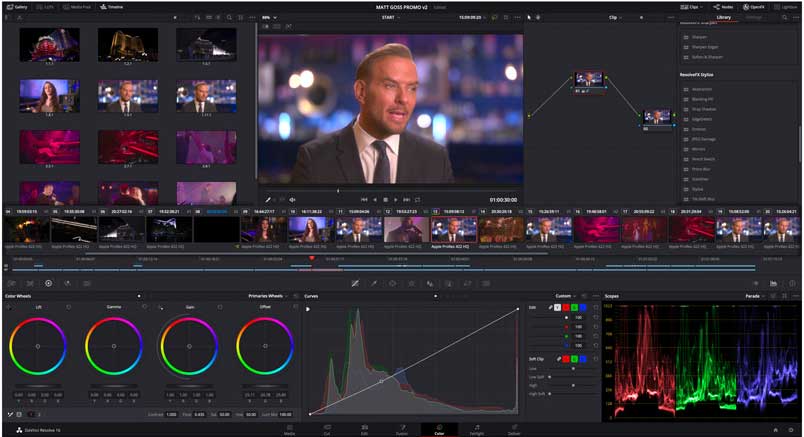
DaVinci Resolve Studio 21 is the paid version of Blackmagic Design's full post-production environment. It adds the DaVinci Neural Engine, additional Resolve FX, stereoscopic tools, more Fairlight FX, and advanced HDR grading capabilities.
For enhancement work, one of Resolve Studio's most important advantages is sophisticated temporal and spatial noise reduction. Temporal denoising uses information across neighboring frames to help distinguish persistent real detail from random image noise.
This approach is particularly useful for noisy digital footage and low-light camera material where simply sharpening each frame would amplify noise and compression artifacts.
Why Resolve is different from dedicated AI enhancers
A dedicated enhancer usually asks you to import a clip, select a model, and export a new processed file. Resolve instead allows noise reduction, sharpening, stabilization, color grading, masks, editing, motion graphics, audio repair, subtitles, and final delivery to remain on the same timeline.
That is far more useful for professional projects where enhancement is only one technical step. A colorist working with noisy log footage, for example, can reduce noise, grade the shot, apply localized corrections, and finish delivery without leaving the project.
Who should not choose it?
If your only goal is to make one soft family video look clearer, learning Resolve Studio may add unnecessary complexity. Its interface and workflow are built for full post-production, not for users looking for one Enhance button.
- Complete professional editing and finishing environment.
- Advanced temporal and spatial noise reduction.
- DaVinci Neural Engine in the Studio edition.
- Industry-leading color and HDR workflow.
- Integrated VFX, motion graphics, and Fairlight audio.
- $295 one-time Studio license.
- Available on Windows, macOS, and Linux.
- Much steeper learning curve than dedicated AI enhancers.
- Overkill for simple one-off enhancement jobs.
- Advanced noise-reduction features require Studio.
- Not primarily designed around generative texture reconstruction.
Video2X - Best Free and Open-Source AI Video Enhancer
Best for: free local upscaling, anime and animation, frame interpolation, open-source workflows, and technically comfortable users.
Compatibility: Windows and Linux; container-based workflows are also available for more technical setups.
Pricing: Free and open source.
Latest stable release: Video2X 6.4.0.
Our Verdict: Video2X is one of the strongest free options when you specifically need video super-resolution and frame interpolation rather than a complete commercial restoration suite. The current 6.x generation is substantially more mature than the older Video2X versions still described in many outdated tutorials.
Video2X is designed around native video processing rather than requiring users to manually extract, enhance, and recombine every frame.
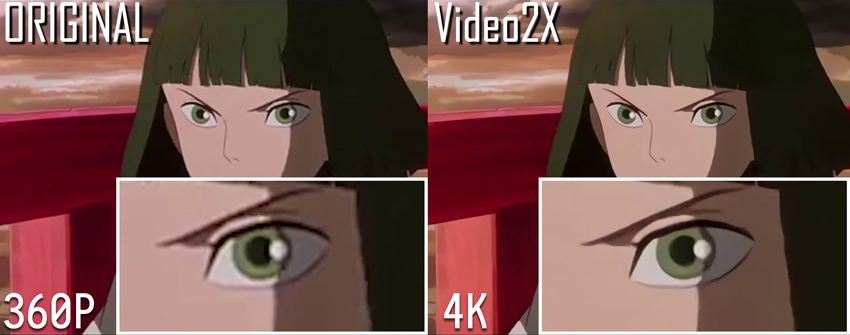
Version 6 introduced a rewritten C/C++ architecture and a newer processing pipeline. The project supports technologies including Real-ESRGAN, Real-CUGAN, Anime4K, and RIFE, covering both super-resolution and frame interpolation.
This model flexibility is particularly useful for animation and anime, where clean line work may respond differently from photographic video. RIFE-based interpolation can also be used when the goal is smoother motion rather than higher spatial resolution.
What's current in Video2X 6.4
Video2X 6.4.0 remains the latest stable release. The 6.4 branch added performance-oriented multi-versioning for important functions and continued refining the rewritten 6.x architecture.
The current development branch also continues to improve Real-ESRGAN, Real-CUGAN, RIFE, FFmpeg handling, and the Qt interface, which is worth noting if you compare current Video2X with much older 4.x or pre-6.0 guides.
Where Video2X fits best
Video2X makes the most sense when subscription cost matters more than setup convenience. It is particularly appealing to users who already understand codecs, GPU runtimes, open-source model ecosystems, and encoder settings.
The Windows GUI reduces friction, but users should still expect more troubleshooting than with commercial applications. Drivers, Vulkan configuration, and hardware compatibility can affect whether a particular engine runs correctly.
- Completely free and open source.
- Current 6.x architecture is substantially more mature than older releases.
- Supports Real-ESRGAN, Real-CUGAN, Anime4K, and RIFE.
- Super-resolution and frame interpolation in one video pipeline.
- Windows GUI reduces setup friction.
- No subscription or proprietary cloud upload requirement.
- Still more technical than commercial desktop applications.
- No polished official macOS workflow comparable to Windows.
- Driver and Vulkan issues may require troubleshooting.
- No integrated color, audio, or archive-restoration environment.
- Community support replaces dedicated commercial support.
CapCut - Best for Social Media Creators
Best for: TikTok, Reels, Shorts, YouTube, phone footage, and creators who want quick enhancement inside an editor.
Compatibility: Web, Windows, macOS, iOS, and Android.
Pricing: free tools are available; Pro pricing and feature availability vary by region and platform.
Our Verdict: CapCut is not the tool to choose for a badly damaged archival master. Its advantage is workflow speed: creators can improve a soft or compressed clip and continue directly into editing, subtitles, effects, reframing, music, and social publishing without moving the project into another application.
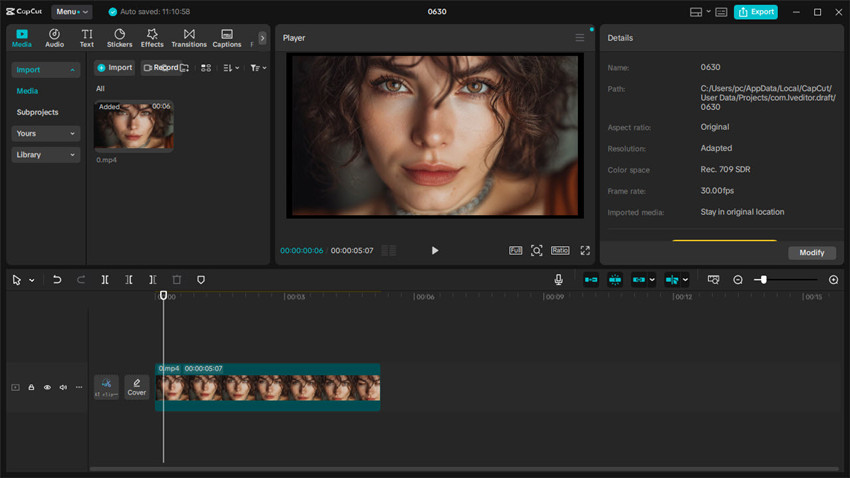
CapCut currently provides an Enhance Quality workflow inside CapCut Desktop. Users can import a source, open Video > Basic > Enhance quality, and choose from HD, UHD, or 4K enhancement levels.
The current AI video upscaling workflow is intended to sharpen soft footage, reduce visible blur, improve clarity, and increase output resolution. Users can preview the enhanced result before final export to compare whether HD, UHD, or 4K makes sense for the source.
CapCut's main advantage, however, is everything surrounding that enhancement step. Once the clip is improved, the same project can continue into trimming, captions, transitions, effects, color adjustments, vertical reframing, audio, and social-platform delivery.
Why CapCut belongs in this comparison
Not every low-quality video needs specialist restoration. A slightly soft smartphone clip, compressed downloaded video, or short social-media post may only need a moderate quality improvement before it is published.
In that situation, moving the source into a professional restoration application, exporting an intermediate file, then importing it back into a video editor can create more workflow overhead than the visible quality improvement justifies.
Where CapCut falls short
CapCut is not built for deep archival restoration. It gives users less control over specialist denoising, temporal reconstruction, deinterlacing, and restoration-model behavior than Topaz, and less dedicated texture-reconstruction control than Aiarty.
It is therefore better viewed as a creator-focused enhancement feature inside a complete editor rather than as a direct replacement for specialist restoration software.
- Current Enhance Quality workflow provides HD, UHD, and 4K options.
- Enhancement stays inside the editing project.
- Very low learning curve for social creators.
- Available across desktop, web, and mobile platforms.
- Easy transition from enhancement to captions, effects, reframing, and publishing.
- Useful free functionality is available.
- Far less restoration control than specialist applications.
- Not ideal for badly damaged archival footage.
- Feature availability can differ across desktop, web, and mobile.
- Some workflows depend on cloud services and account access.
Best AI Video Enhancer by Use Case
A product can look impressive on a feature checklist and still be the wrong choice for your footage. Start with the source problem first.
1. Best AI Video Enhancer for Old Videos
Old video often combines several problems: low resolution, analog or compression noise, interlacing, faded color, soft faces, unstable motion, and missing detail. That makes restoration different from simply enlarging a clean modern video.
Choose Topaz Video when difficult restoration and deeper model control matter most. Choose AVCLabs when facial enhancement, colorization, and archive-oriented repair are central to the project. Choose Aiarty when the main problems are grain, blur, low light, and lost texture and you prefer a more streamlined local workflow.
2. Best AI Video Enhancer for Low-Light and Noisy Video
Low-light footage is one of the easiest types of video to over-process. Strong denoising can remove skin texture, hair, stars, shadows, and subtle background detail along with the noise.
Aiarty superVideo vHQ is specifically designed around grainy, blurry, dark, and difficult low-light sources. Topaz Video provides deeper specialist restoration choices, while DaVinci Resolve Studio is particularly useful when temporal and spatial noise reduction need to stay inside a professional grading workflow.
3. Best AI Video Enhancer for 480p or 720p Video
A 480p or 720p source can be exported as 4K, but that does not make it equivalent to footage captured natively in 4K. AI reconstructs plausible visual information from what remains in the source, so compression, noise, and missing detail still limit the final result.
Aiarty is useful when hair, faces, fabric, fur, or foliage need additional texture reconstruction. Topaz offers more control for sources with several kinds of degradation, while Video2X is a free alternative for users willing to experiment.
4. Best AI Video Enhancer for AI-Generated Video
AI-generated clips can still contain soft surfaces, modest output resolution, noisy fine detail, or uneven motion even when the scene itself looks convincing.
Aiarty Video Enhancer can be used to clean and upscale generated material to HD or 4K and combine enhancement with frame interpolation. HitPaw VikPea is also relevant for creators who work across both AI-generation and enhancement workflows.
Enhancement cannot reliably repair major generation mistakes. Incorrect anatomy, inconsistent subjects, impossible geometry, or objects that change identity from frame to frame usually need regeneration or manual editing instead.
5. Best Online AI Video Enhancer Without a Powerful GPU
VanceAI is the clearest cloud-first option in this comparison. It moves the main AI workload away from the local computer, making it practical for users with weaker hardware or occasional short projects.
6. Best Free AI Video Enhancer
For a completely free and open-source workflow, Video2X is the strongest fit in this comparison.
DaVinci Resolve and CapCut also provide useful free functionality, although some advanced enhancement features require paid editions, subscriptions, or account-based services.
How to Choose the Right AI Video Enhancer
- Identify the real problem first: low resolution, sensor noise, compression artifacts, soft focus, motion blur, interlacing, faded color, and low frame rate require different treatments.
- Test a difficult 10–20 second clip: use a section containing motion, faces, hair, text, shadows, or detailed backgrounds before processing a complete video.
- Watch the result in motion: do not decide which output is best from a single 400% zoom screenshot.
- Check for over-processing: look for waxy skin, exaggerated pores, hard halos, repeated texture, flicker, and details that appear and disappear between frames.
- Consider privacy: local processing is usually more appropriate for sensitive, private, or unreleased footage.
- Compare workflow cost, not only software price: include hardware, rendering time, subscriptions, cloud credits, and how often you actually use the application.
 FAQs
FAQs
There is no single winner for every source. Topaz Video is best suited to advanced restoration control; Aiarty is a strong choice for natural-looking local enhancement and low-light footage; AVCLabs works well for old footage and faces; HitPaw VikPea is easier for beginners; VanceAI is convenient for cloud processing; Video2X is the free open-source option; DaVinci Resolve Studio suits professional post-production; and CapCut is designed around fast social workflows.
It depends on what is lowering the quality. Noise and low-light degradation need denoising or restoration models, while low resolution benefits from super-resolution. Motion blur, interlacing, compression, and unstable detail may need more specialized processing rather than simple sharpening.
Yes. Many AI video enhancers can export a 4K file from a lower-resolution source. The result is not equivalent to footage originally recorded in native 4K, because AI reconstructs plausible detail from limited source information.
Video2X is one of the clearest fully free and open-source options for video super-resolution and frame interpolation. DaVinci Resolve and CapCut also provide useful free tools, although some advanced features are paid.
VanceAI is a practical browser-based option when you want server-side enhancement without depending on your local GPU. Its Nexa, Cineva, and Aniva models target different kinds of source material, with output up to 4K. Online tools are convenient, but upload time, privacy, and credit costs should also be considered.
Topaz is a strong choice for complex restoration and deeper model control. AVCLabs is particularly useful for face enhancement and colorization. Aiarty is better suited to a simpler local workflow when grain, blur, low light, and lost texture are the main problems.
It can often improve soft or moderately blurred footage by combining deblurring, denoising, detail reconstruction, and upscaling. Severe motion blur or completely missing information cannot always be recovered convincingly.
Yes. AI-generated clips can be denoised, deblurred, upscaled, and frame-interpolated like conventional video. Enhancement works best on quality problems rather than generation errors. Incorrect anatomy, geometry, or subject identity is usually better fixed at the generation or editing stage.
Local processing is usually the better choice for private footage, large files, repeated enhancement, and users who already own a capable GPU. Online processing is more convenient when local hardware is weak or only a few short clips need to be enhanced. Neither approach is automatically better; the right choice depends on privacy, hardware, internet speed, file size, and workload.

This post was written by Brenda Peng , an editor at Digiarty Software covering AI-powered video enhancement, upscaling, restoration, and media-processing workflows. The article was reviewed for accuracy by Abby Poole .
