 Aiarty Image Enhancer
Stable Diffusion Model Failed to Load? 10 Proven Fixes for A1111, Forge & ComfyUI

Updated on
The "Stable Diffusion model failed to load" error can appear in Automatic1111, Stable Diffusion Forge, ComfyUI, and other local Stable Diffusion setups. In some cases, the checkpoint file is actually broken. In others, the issue comes from an incorrect model path, insufficient VRAM, incompatible model architecture, missing dependencies, or an outdated WebUI build.
This guide covers the most common causes and practical fixes for Stable Diffusion 1.5, SDXL, Pony, Flux, and other popular model types. Whether your model is not showing up, fails to load, throws a safetensors error, or crashes with a CUDA out of memory message, the steps below will help you narrow down the cause and get your image generation workflow running again.

Why Stable Diffusion Model Failed to Load
Stable Diffusion may fail to load a model for several reasons. The most common ones include:
- Corrupted or incomplete model files: Large .safetensors or .ckpt files may fail if the download was interrupted or the file was damaged.
- Wrong model folder: The checkpoint may be placed in the wrong directory, so the WebUI cannot detect or load it.
- Insufficient VRAM: SDXL, Pony, Flux, and large custom models can require significantly more GPU memory than older SD 1.5 models. >> Check Minimum/Recommended GPU Requirements for Stable Diffusion
- Model compatibility issues: Some models are built for SD 1.5, SDXL, Pony, Flux, or other architectures. Loading the wrong type in the wrong setup can trigger errors.
- Outdated WebUI or backend: Old versions of Automatic1111, Forge, ComfyUI, CUDA, Torch, or xFormers may not support newer models properly.
- Missing dependencies: Missing packages such as safetensors or broken Python dependencies may prevent model loading.
- Cache or permission issues: Corrupted cache files, antivirus blocking, or insufficient disk permissions can also stop Stable Diffusion from loading a model correctly.
Common Stable Diffusion Model Loading Errors
Before applying fixes randomly, check the exact error message in your terminal or console window. It can often point directly to the cause.
| Error Message | Likely Cause | Suggested Fix |
|---|---|---|
| Model failed to load | Generic loading failure | Check model path, file integrity, and compatibility |
| MetadataIncompleteBuffer | Corrupted .safetensors file | Re-download the model from the original source |
| HeaderTooLarge | Invalid or broken safetensors metadata | Verify the model file and download again |
| CUDA out of memory | Insufficient VRAM | Use a smaller model, lower resolution, or memory-saving arguments |
| Checkpoint not found | Wrong folder or missing file | Move the model to the correct checkpoint folder |
| No module named safetensors | Missing dependency | Reinstall dependencies or run requirements.txt |
How to Fix Stable Diffusion Model Failed to Load Error
1. Check Whether the Model File Is Corrupted
One of the most common reasons Stable Diffusion fails to load a model is a corrupted or incomplete checkpoint file. This often happens when downloading large .safetensors or .ckpt files from model-sharing sites.
To check whether the model file is broken:
- Compare the file size with the original source.
- Check whether the download was interrupted.
- Verify the checksum if the model creator provides one.
- Re-download the model from the official source.
- Avoid renaming the file extension manually.
If you see errors such as MetadataIncompleteBuffer, HeaderTooLarge, or failed to load checkpoint, downloading a fresh copy of the model is usually the fastest fix.
2. Put the Model in the Correct Folder
If the model is not showing up or cannot be loaded, check whether it is stored in the correct folder.
For Automatic1111, checkpoints should usually be placed here:
stable-diffusion-webui/models/Stable-diffusion/
For ComfyUI, checkpoints are usually placed here:
ComfyUI/models/checkpoints/
After moving the model file, refresh the model list or restart the WebUI. Avoid placing checkpoint files inside nested folders unless your WebUI supports custom model paths.
3. Check Model Compatibility
Not all Stable Diffusion models work in the same environment. A checkpoint trained for SD 1.5 may not behave like an SDXL model. Pony, Flux, and other model families may also require specific workflows, nodes, or supported frontends.
Before loading a model, check whether it is made for:
- Stable Diffusion 1.5
- Stable Diffusion 2.x
- Stable Diffusion XL
- Pony Diffusion
- Flux
- Other custom architectures
If the model type does not match your setup, Stable Diffusion may fail to load it or throw an unclear error message.
4. Update the Graphics Driver
Keeping your graphics driver up to date is essential for maintaining compatibility, stability, and performance when using Stable Diffusion. An outdated or unstable GPU driver can prevent large AI models from loading correctly.
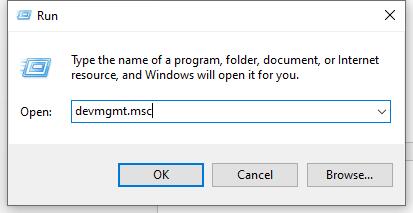
Step 1. Click Windows Logo + R, and enter devmgmt.msc in the Run box to enter the Device Manager panel.
Step 2. Find and expand the Display adapters section, right-click on your graphics card, select Update driver, and choose Search automatically for drivers.

Step 3. Wait for Windows to find and install the latest driver for your graphics card.
Once the driver update is complete, restart your computer and launch Stable Diffusion again to check if the model loads correctly.
5. Fix VRAM or CUDA Out of Memory Issues
If Stable Diffusion fails with a CUDA out of memory error, the model may be too large for your GPU. This is especially common when loading SDXL, Pony, Flux, or large merged checkpoints.
Try the following fixes:
- Close other GPU-heavy apps before launching Stable Diffusion.
- Use a smaller model or a lighter checkpoint.
- Lower image resolution and batch size.
- Enable low VRAM or med VRAM mode if your WebUI supports it.
- Use memory-saving options such as xFormers or similar optimizations.
If your system RAM is also limited, increasing virtual memory may help reduce crashes.
Step 1. Press Windows + S, type View advanced system settings, and open the Advanced system settings panel.
Step 2. Switch to the Advanced tab, click Settings under Performance, go to the Advanced tab again, and click Change under Virtual memory.
Step 3. Uncheck Automatically manage paging file size for all drives. Select the drive where Stable Diffusion is installed, choose Custom size, and set the Initial size to about 1.5 times your RAM and the Maximum size to about 3 times your RAM.
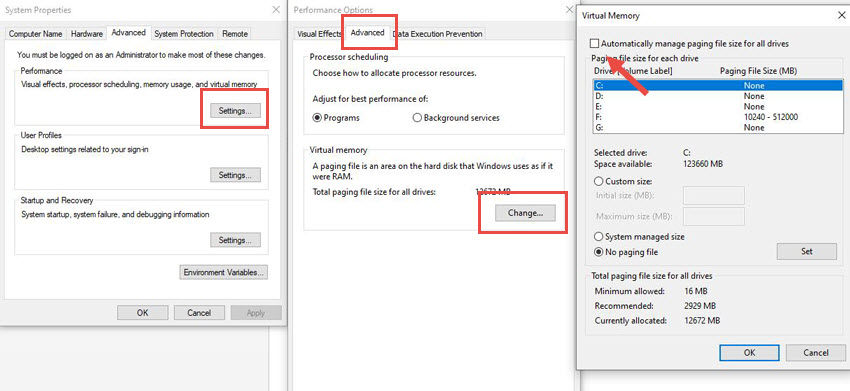
Restart your computer after applying the changes.
6. Reinstall Missing Dependencies
If the terminal shows dependency errors such as No module named safetensors, the issue may come from a broken Python environment or missing packages.
Instead of deleting Python or pip folders manually, try reinstalling the required dependencies first. In your Stable Diffusion WebUI folder, you can run:
pip install -r requirements.txt
If you are using a virtual environment, make sure it is activated before running the command. For Automatic1111, Forge, or ComfyUI, following the official reinstall or update instructions is usually safer than manually deleting system-level Python folders.
7. Clear Hugging Face Cache
If Stable Diffusion previously downloaded model files or dependencies from Hugging Face, a corrupted cache can sometimes cause repeated loading failures.
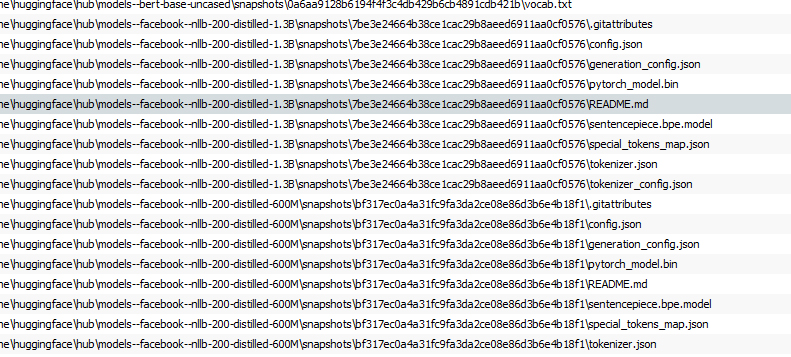
Step 1. Press Windows logo + E to open File Explorer. In the address bar, enter the following path and replace Username with your actual user name:
C:\Users\Username\.cache\huggingface
Step 2. Delete the cached files inside the Hugging Face folder.
Step 3. Restart Stable Diffusion and let it fetch fresh files if needed.
8. Check Antivirus or Firewall Interference
Your antivirus or firewall may mistakenly block Stable Diffusion, Python, model files, or downloaded dependencies. This can prevent checkpoints from loading correctly.
To test this, temporarily disable your security software and try loading the model again. If the model loads successfully, re-enable your antivirus or firewall immediately and add your Stable Diffusion installation folder and model folder to the exclusion list.
If disabling security software does not solve the issue, turn it back on and continue with the other troubleshooting methods.
Fix Model Failed to Load in Automatic1111
Automatic1111 users commonly run into model loading errors because of wrong checkpoint paths, outdated extensions, broken dependencies, or unsupported command-line arguments.
First, make sure your model is placed in:
stable-diffusion-webui/models/Stable-diffusion/
Then restart the WebUI or refresh the checkpoint list.
If the issue happens after installing a new extension, disable the extension and try loading the model again. If the issue started after a WebUI update, update your extensions as well.
Some older guides recommend adding --disable-safe-unpickle to webui-user.bat. This may help with certain older custom checkpoints, but use it carefully. Disabling safety checks can increase risk when loading unknown model files. Only use models from trusted sources.
If you still need to add a command-line argument, open webui-user.bat and edit the line below:
set COMMANDLINE_ARGS=
For low VRAM systems, safer options may include:
set COMMANDLINE_ARGS=--medvram
or:
set COMMANDLINE_ARGS=--lowvram
Fix Model Failed to Load in Stable Diffusion Forge
Stable Diffusion Forge can load many models efficiently, but model loading errors can still occur. Common causes include outdated Forge builds, CUDA mismatches, corrupted checkpoints, incompatible extensions, or unsupported model architecture.
Try these steps:
- Update Forge to the latest version.
- Check whether the model is SD 1.5, SDXL, Pony, Flux, or another architecture.
- Remove recently installed extensions and test again.
- Re-download the checkpoint if you suspect file corruption.
- Check the terminal output for CUDA, Torch, or dependency errors.
If the same model loads in another WebUI but fails in Forge, the issue may be related to Forge compatibility or a specific extension conflict.
Fix Model Failed to Load in ComfyUI
In ComfyUI, the model itself is not always the problem. Many loading errors happen because the workflow references files that are missing, renamed, or stored in the wrong folder.
Check the following:
- The checkpoint is inside ComfyUI/models/checkpoints/.
- The VAE file exists if the workflow requires one.
- All custom nodes required by the workflow are installed.
- The model name in the workflow matches the actual file name.
- The workflow was made for the same model architecture you are using.
If a shared ComfyUI workflow fails to load, check the red missing-node warnings first. Installing the missing custom nodes or changing the checkpoint node to an available model often fixes the issue.
Bonus: Improve Stable Diffusion Image Quality After Generation
After fixing the model loading issue and generating images successfully, you may still want to improve image quality for printing, wallpapers, product visuals, or high-resolution social media posts.
An AI image enhancer can help upscale Stable Diffusion images while reducing blur, noise, and artifacts. This is especially useful when the original AI-generated image is too small, slightly soft, or not detailed enough for larger displays.

Aiarty Image Enhancer - Best for Stable Diffusion/Midjourney/AI-Generated Images
- One-stop AI image enhancer, denoiser, deblurer, and upscaler.
- Use AI models to reconstruct image details and improve visual quality.
- Upscale AI artworks to 16K/32K resolution.
- Improve textures, edges, and clarity without making images look overly processed.
- Support both GPU and CPU processing.
Final Thoughts
The "Stable Diffusion model failed to load" error can be frustrating, but the cause is usually traceable. Start with the basics: check whether the model file is corrupted, confirm the model path, make sure the model type matches your setup, and look for VRAM or dependency errors in the terminal.
For Automatic1111, pay close attention to checkpoint folders, extensions, and command-line arguments. For Forge, update the build and check compatibility. For ComfyUI, inspect the workflow for missing checkpoints, VAEs, and custom nodes. Once the model loads correctly, you can continue generating and enhance the final outputs if you need higher-resolution results.
You May Also Like


Rico Rodriguez is an experienced content writer with a deep-rooted interest in AI. He has been at the forefront of exploring generative AI tools like Stable Diffusion. His articles offer valuable insights into the world of AI, providing readers with practical tips and informative explanations.
