


When it comes to digital art and image editing, two names often come up in the same conversation: Krita and Adobe Photoshop. One is a powerful open-source painting program favored by illustrators and concept artists, while the other is the industry-standard creative software relied on by photographers, designers, and creative professionals worldwide. In this in-depth Krita vs Photoshop comparison, we'll explore the key differences between Krita and Photoshop, covering features, performance, pricing, ease of use, and real-world applications. Whether you're a digital painter searching for the best brush engine, a photographer in need of advanced retouching tools, or a creator looking for a free alternative to Photoshop, this guide will help you determine which software best suits your workflow and creative goals.
What Are Krita and Photoshop
What Is Krita
Krita is a free, open-source digital painting and illustration software designed primarily for artists. It is widely used by illustrators, concept artists, comic creators, and matte painters who need a natural drawing experience with highly customizable brushes and a workflow that feels close to traditional art.
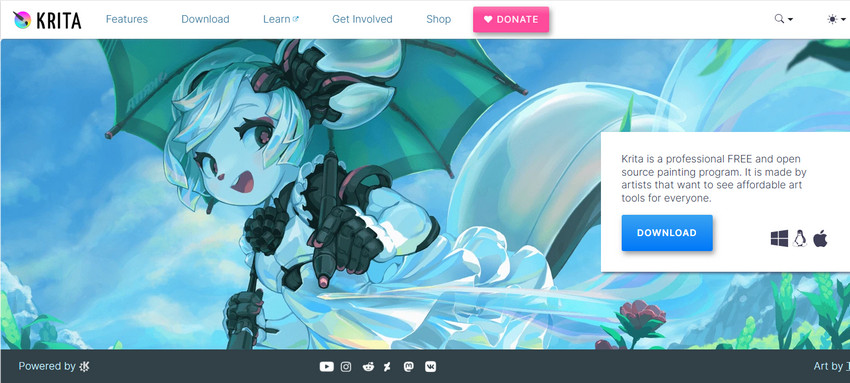
One of Krita's biggest strengths is its advanced brush engine, which offers a wide range of realistic brushes for sketching, inking, painting, and texturing. Features like brush stabilizers, pen pressure and tilt support, layer management, blending modes, and color management make it especially suitable for tablet users and digital painters.
Unlike general-purpose photo editors, Krita is built with art creation in mind rather than heavy photo manipulation. It also includes useful tools for frame-by-frame animation, making it a popular choice for 2D animators and storyboard artists. Being open source, Krita is completely free to use, with frequent updates and a strong community contributing brushes, plugins, and tutorials.
What Is Adobe Photoshop
Adobe Photoshop is a professional image editing and design software that has long been considered the industry standard for photo manipulation, graphic design, and digital content creation. It is widely used by photographers, designers, marketers, and creative professionals across industries for tasks ranging from basic retouching to complex compositing and visual effects.
Photoshop offers a comprehensive set of tools for color correction, masking, layer editing, typography, and advanced selections, along with powerful AI-powered features such as content-aware fill, generative tools, and smart object workflows. Its brush system is also highly capable, making it suitable for digital painting and illustration, although its core strength lies in photo editing and multi-purpose design rather than pure painting.
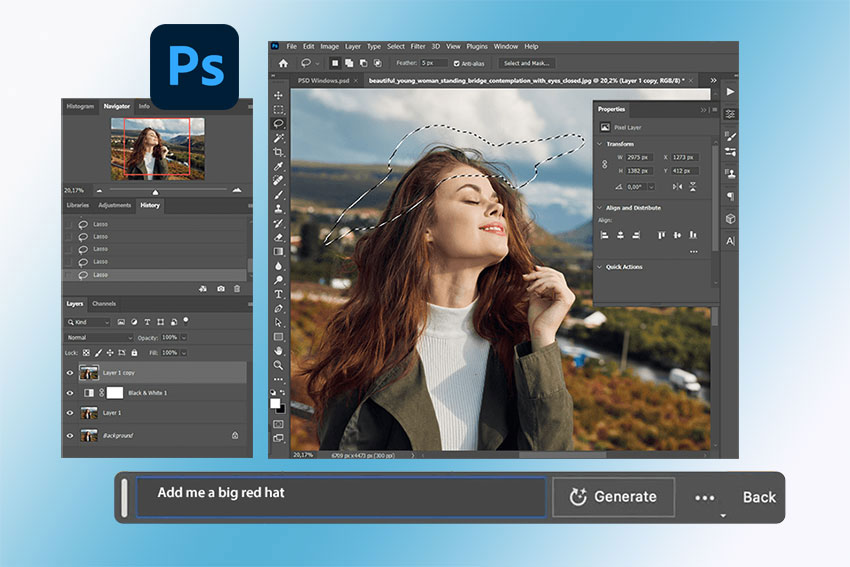
As part of Adobe Creative Cloud, Photoshop integrates seamlessly with other Adobe applications like Illustrator, Lightroom, and After Effects, enabling efficient professional workflows. Unlike Krita, Photoshop is subscription-based, but it provides a robust ecosystem, extensive plugin support, and a vast library of learning resources, making it a go-to choice for commercial and professional creative work.
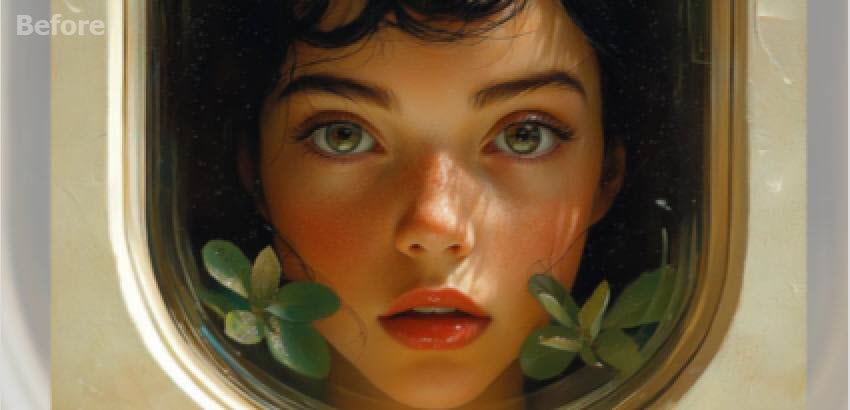
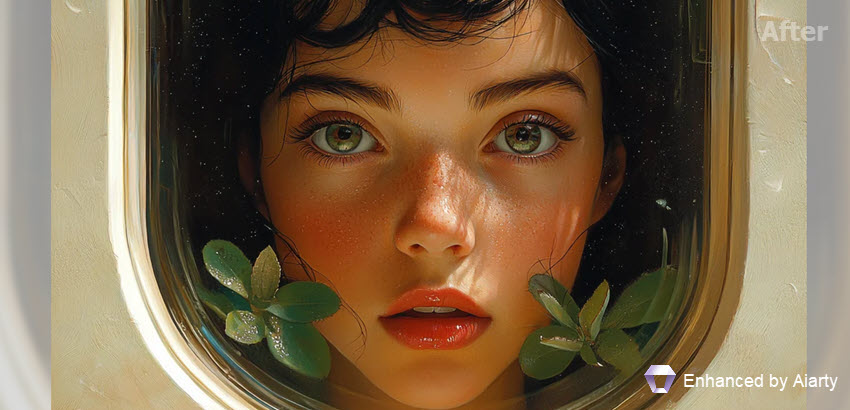
For creators using Krita or Photoshop, Aiarty Image Enhancer offers an easy way to elevate your artwork or photos. Its AI-powered engine can recover fine details, reduce noise, and improve textures, ensuring that even small or compressed images look crisp and professional. Whether you're upscaling artwork, refining illustrations, or preparing images for print and social media, Aiarty streamlines the enhancement process, saving time while maintaining high-quality results.

Krita vs Photoshop: Detailed Feature Overview
Digital Painting & Illustration Tools
Krita is built for artists, offering an advanced brush engine that simulates traditional media such as pencils, inks, watercolors, and oils. Artists can benefit from brush stabilizers, smoothing, and highly customizable brush presets that allow for precise control over texture, flow, and blending. Vector layers and text layers are available for mixed-media work, while perspective grids, rulers, and wrap-around mode enable precise compositions and seamless pattern creation.
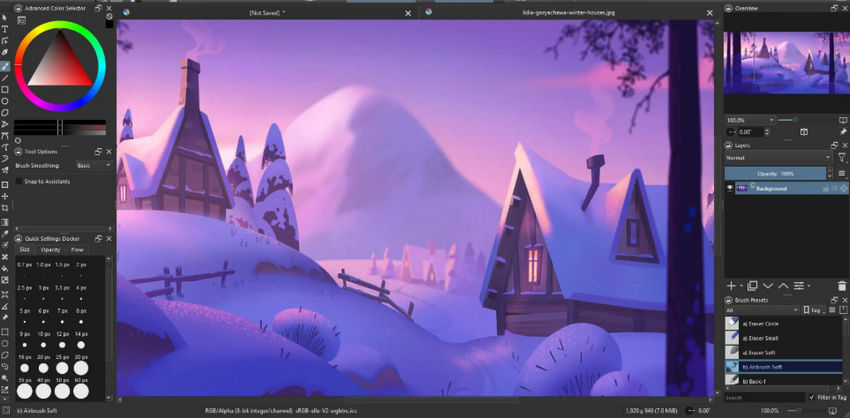
Photoshop also provides a versatile brush system, supporting a wide variety of default brushes as well as imported or custom brushes. Its brush dynamics include pressure, tilt, shape, texture, dual brushes, and scatter, and the mixer brush enables realistic color blending. While Photoshop is strong for digital painting, its tools are designed to combine painting with photo editing or design, offering AI-assisted brushes and content-aware capabilities to speed up the workflow.
Layer & Masking System
In Krita, layers support standard raster and group layers, transparency masks, and filter masks. Artists can apply layer blending modes such as multiply, overlay, and screen, and can lock alpha for precise editing. Reference layers are particularly useful for coloring line art, though smart object support is limited and layers are mostly static.
Photoshop, on the other hand, offers a far more sophisticated system with adjustment layers, smart objects, clipping masks, and group layers. Blending modes and layer styles, including drop shadows and bevel effects, allow for intricate designs. Its non-destructive editing tools, such as smart objects and vector masks, provide complete flexibility, and linked smart objects make complex compositions easier to manage with live updates.
Selection & Editing Tools
Krita provides basic selection tools such as rectangular, elliptical, polygonal, and freehand selection, along with similarity color selection. Artists can perform transforms like scaling, rotation, and perspective adjustments, but advanced selection features such as content-aware fill are absent.
Photoshop excels with a wide range of selection options, including lasso, polygonal lasso, magnetic lasso, magic wand, and quick selection. AI-powered Object Selection and Select Subject tools make isolating subjects fast and accurate. Photoshop also offers content-aware fill, patch tools, healing brushes, and clone stamping for precise image editing, while its transform tools include warp, perspective, puppet warp, and content-aware scaling.
Color & Gradient Tools
Krita provides a full color wheel and supports multiple color spaces including CMYK and HSV. It offers smudge and blending tools for painterly effects, a gradient editor with presets, and a palette docker for managing custom colors. HDR and high-bit-depth painting are also supported, allowing for detailed, high-dynamic-range artwork.
Photoshop supports RGB, CMYK, Lab, and 32-bit HDR color modes and offers extensive gradient editing with unlimited presets. Advanced color adjustment options such as curves, levels, hue/saturation, selective color, and color balance provide professional-grade color control. Additionally, AI-enhanced color matching and harmonization tools streamline complex color workflows.

Filters & Effects
Krita includes a range of artistic and image filters such as blur, sharpen, edge detection, color adjustments, and halftone effects. Filters can be applied non-destructively via filter layers, though the selection and sophistication are limited compared to Photoshop.
Photoshop offers an extensive filter library including blur, sharpen, distort, render, stylize, and noise filters. Smart filters allow non-destructive editing, and AI-powered neural filters can handle style transfer, super-resolution, skin smoothing, colorization, and more. Layer effects enable advanced lighting, texture, and depth adjustments for professional compositing.
Animation & Motion Tools
Krita supports frame-by-frame animation with onion-skinning and a timeline for managing multiple frames. Animators can export GIFs, image sequences, or video formats, making Krita a strong choice for 2D animation and storyboarding.
Photoshop provides video timeline support and basic frame animation, allowing layer-based video editing and simple motion graphics. However, it is limited for more complex animations, often requiring integration with After Effects or other dedicated software.
File & Export Capabilities
Krita uses the proprietary KRA format to preserve layers, masks, vectors, and settings. It can also export PSD, PNG, JPEG, TIFF, and BMP files, although integration with external software pipelines is limited.
Photoshop supports almost every major image format, including PSD, JPEG, PNG, TIFF, GIF, SVG, PDF, HEIC, and RAW files. PSD files preserve layers, masks, adjustments, and smart objects, enabling seamless collaboration across Adobe applications like Illustrator, After Effects, InDesign, and Lightroom. Cloud-based assets also allow for version control and collaborative editing.
AI & Smart Tools
Krita provides minimal AI or automated tools, focusing instead on giving the artist full creative control over every stroke and effect.
Photoshop has advanced AI-powered features, including neural filters for automatic retouching, style transfer, sky replacement, and generative fill. Content-aware tools and smart objects further enhance workflow efficiency, and integration with Adobe Firefly allows creators to generate new visual content using AI.
Additional Features
Krita includes wrap-around mode for tileable textures, perspective assistants for accurate compositions, HDR painting support, and excellent pen tablet integration for Wacom, XP-Pen, and Huion devices.
Photoshop provides 3D editing, advanced typography, vector shapes, design tools, scripting and automation through actions, Creative Cloud libraries, and advanced compositing capabilities, making it ideal for professional studios and commercial projects.
Hot search: Topaz vs Photoshop differences and tests
Krita vs Photoshop: Feature Comparison Table
Krita vs Photoshop: Pros and Cons
- Free and open-source, no subscription required.
- Advanced brush engine with highly customizable brushes and realistic media simulation.
- Designed specifically for digital painting, illustration, comics, and concept art.
- Frame-by-frame animation tools with onion-skinning and timeline support.
- Perspective grids, wrap-around mode, and other tools for precise composition and seamless textures.
- Lightweight and runs on Windows, macOS, and Linux.
- Limited photo editing and retouching capabilities.
- Minimal AI or automation tools.
- Fewer vector and text handling features compared to Photoshop.
- Limited integration with other software, making collaborative workflows harder.
- Less suitable for professional commercial pipelines or complex multi-software projects.
- Industry-standard tool for photo editing, retouching, and compositing.
- Extensive painting tools with AI-enhanced brushes and neural filters.
- Comprehensive layer and mask management with non-destructive editing.
- Integrates seamlessly with Adobe Creative Cloud and other Adobe apps.
- Supports advanced typography, vector tools, 3D editing, and professional workflows.
- Powerful AI features for automating repetitive tasks and generating creative content.
- Subscription-based, which can be costly for individuals or small teams.
- Steeper learning curve due to the large number of tools and features.
- Interface may feel overwhelming for beginners or artists focused solely on painting.
- More resource-intensive; requires higher-end hardware for large files and complex projects.
Krita vs Photoshop: Who Should Use Each Tool
Krita is ideal for:
- Digital painters, illustrators, and concept artists who focus on creative artwork
- 2D animators and storyboard artists who need frame-by-frame animation tools
- Students, hobbyists, and independent creators looking for a free, professional-grade tool
- Artists who want advanced brush customization, natural media simulation, and precise control over their strokes
- Creators who primarily work on illustrations, comics, or pattern design with wrap-around mode and perspective grids
Photoshop is best for:
- Professional photographers, graphic designers, and digital artists working on commercial projects
- Users who need advanced photo editing, retouching, and compositing capabilities
- Creators who rely on multi-software workflows with Adobe Creative Cloud integration
- Artists or studios requiring automation, smart objects, AI-powered tools, and non-destructive editing
- Professionals who need extensive typography, vector tools, 3D editing, and multi-layer project management
Overall:
Choose Krita if your focus is on painting, illustration, or animation and you prefer a free, artist-focused tool. Choose Photoshop if you need a professional, versatile software for photo editing, design, and commercial workflows.
Krita vs Photoshop: Pricing and Plans
 FAQs
FAQs
Yes. Krita is completely free and open-source. You get access to all its painting, illustration, and animation features without any subscription. Optional donation versions or purchases through platforms like Steam or Microsoft Store support development but do not unlock extra features.
Absolutely. Photoshop has a versatile brush system, supports pen tablets, and includes many features for digital painting and illustration. However, it is heavier and more expensive than Krita, which is specifically designed for painting and animation.
Krita is often easier for beginners focused on painting or illustration due to its clean interface and free access. Photoshop has a steeper learning curve but is ideal for users who want professional photo editing and design tools.
Yes, Krita supports PSD import and export, though some advanced Photoshop features (like adjustment layers or smart objects) may not translate perfectly.
Photoshop is the industry standard for professional photo editing, graphic design, and commercial projects due to its advanced tools, Adobe Creative Cloud integration, and professional support. Krita can be used commercially, but it's primarily focused on illustration and animation.
Krita is lightweight and runs well on most modern computers. Photoshop is more resource-intensive, especially when working with large files, multiple layers, or AI-powered tools, so a higher-end system is recommended.

This post was written by Brenda Peng who is a seasoned editor at Digiarty Software who loves turning ordinary photos into extraordinary works of art. With AI assistance for brainstorming and drafting, the post is reviewed for accuracy by our expert Abby Poole for her expertise in this field.
