


If you are comparing Canva vs Photoshop, the real question is not which tool is “better” overall. It is which one fits your workflow better. Canva is faster for social media graphics, presentations, thumbnails, simple brand assets, and team-based marketing content. Photoshop is stronger for advanced photo editing, retouching, compositing, print preparation, and professional image control.
After using both tools for real projects, I’d put it this way: Canva is the better choice when speed, templates, and collaboration matter most. Photoshop is the better choice when image quality, precision, layers, masks, and creative control matter more.
This hands-on comparison breaks down Canva vs Photoshop by ease of use, templates, AI tools, photo editing, pricing, pros and cons, and real-world use cases, so you can decide which one actually makes sense for your work.
Canva vs Photoshop: Quick Verdict
Here is the simplest way to choose between Canva and Photoshop.
Bottom line: Canva is best for fast design and everyday content creation. Photoshop is best for advanced image editing and professional-level creative work.
Canva vs Photoshop: Key Differences
Canva and Photoshop can both be used to create graphics, but they are built for different types of users. Canva is a browser-based design platform focused on speed, templates, and collaboration. Photoshop is a professional image editor built for precision, advanced editing, and full creative control.
1. Ease of Use and Learning Curve
Canva:
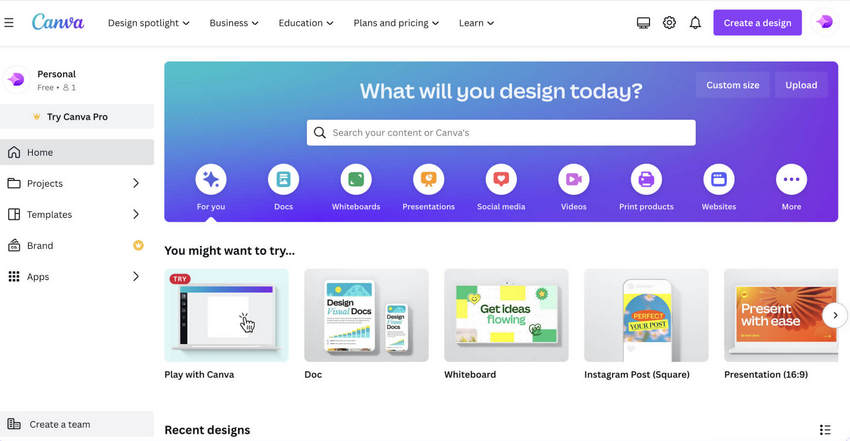
Canva is immediately accessible. You can open it, choose a template, drag elements around, change the text, and export a finished design within minutes. For users who are not professional designers, this is Canva’s biggest advantage. You do not need to understand layers, masks, blending modes, or complex export settings to create something polished.
Photoshop:
Photoshop takes more time to learn. The interface can feel overwhelming at first because it gives you access to many professional tools at once. Layers, masks, adjustment panels, brushes, selections, blending modes, and export settings all take time to understand. But once you learn the basics, Photoshop becomes much more powerful than Canva for detailed image work.
2. Templates, Assets, and Starting a Design
Canva:
Templates are Canva’s strongest feature. For social media posts, posters, presentations, resumes, flyers, invitations, ads, and blog graphics, Canva gives you ready-made layouts that can be customized quickly. Built-in fonts, icons, stock images, videos, stickers, and brand kits make it easy to keep content consistent without building everything from scratch.
Photoshop:
Photoshop gives you a blank canvas and expects you to build the design yourself. That can feel slower, but it also gives you more freedom. You can create original compositions, manipulate photos, design custom layouts, and control every detail. Photoshop is better when the goal is not just to finish quickly, but to create something highly customized.
3. Design Flexibility
Canva:
Canva is flexible enough for most everyday design tasks, but it becomes restrictive when you need very precise control. Exact positioning, custom shadows, complex masking, advanced typography, and detailed image manipulation often require workarounds.
Photoshop:
Photoshop is built for control. You can edit at the pixel level, create complex layer structures, use masks, adjust blending modes, paint manually, retouch details, and prepare images for web or print. For advanced creative work, Photoshop gives you much more room to fine-tune the final result.
4. Collaboration and Team Workflow
Canva:
Collaboration is where Canva clearly wins. You can share a design link, let teammates comment or edit, use brand kits, and keep templates in one place. For social media teams, small businesses, content creators, and marketing departments, Canva is much easier to manage.
Photoshop:
Photoshop is still more of a solo professional tool. You can share PSD files and use Creative Cloud, but collaboration is not as frictionless as Canva. If your teammates do not understand Photoshop, sending layered files can quickly become messy.
5. Speed vs Depth
Canva is faster for simple and repeatable designs. Photoshop is deeper for advanced and original image work. A social post might take five minutes in Canva but much longer in Photoshop. A detailed retouching job might be almost impossible in Canva but smooth and precise in Photoshop.
Canva AI vs Photoshop AI
AI tools are now one of the biggest reasons people compare Canva and Photoshop. Canva’s AI features are designed for fast content creation, while Photoshop’s AI tools are designed for more controlled image editing and professional visual work.
Canva AI
Canva’s Magic Studio is useful for quick creative production. You can generate design ideas, remove backgrounds, resize content, create quick copy, turn designs into multiple formats, and speed up repetitive marketing tasks. For creators, small businesses, and social media teams, Canva AI is helpful because it works directly inside a template-based workflow.
Photoshop AI
Photoshop’s AI features are more useful when you need control over an image. Generative Fill, Generative Expand, object selection, and AI-assisted masking can help remove objects, extend backgrounds, repair image areas, or build more complex composites. It takes more skill than Canva, but the result is usually more editable and professional.
AI verdict: Canva AI is better for speed and simple content creation. Photoshop AI is better for serious image editing, generative retouching, and professional creative control.
Canva vs Photoshop for Photo Editing
This is where the difference between Canva and Photoshop becomes the most obvious. Canva can edit photos, but Photoshop is still much stronger for professional photo work.
What Canva Can Do for Photo Editing
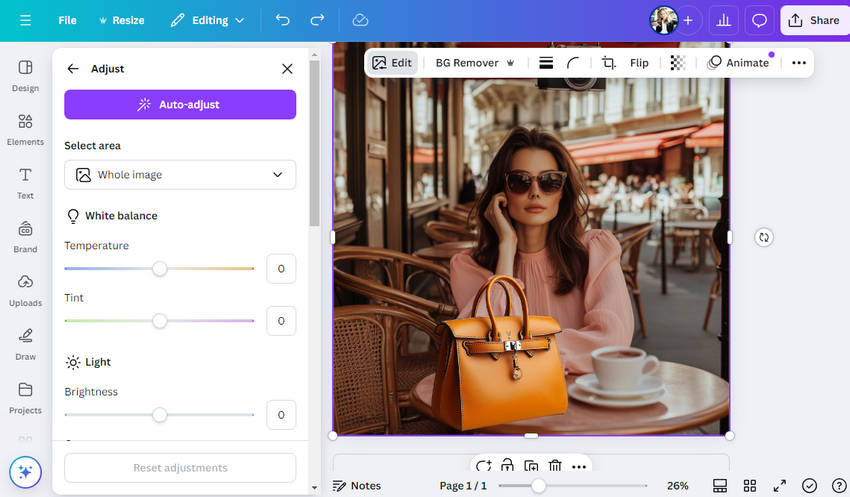
Canva works well for basic photo edits. You can crop images, adjust brightness and contrast, apply filters, remove backgrounds, add text, resize images, and quickly prepare graphics for social media or marketing. If your goal is to make a photo look cleaner inside a design, Canva is usually enough.
Where Canva Feels Limited
Canva starts to feel limited when you need detailed control. Selective color correction, realistic shadows, skin retouching, object cleanup, perspective correction, complex masking, and print-level image preparation are not Canva’s strengths. You can sometimes create a similar-looking result, but it usually takes workarounds and the result may not be as clean.
What Photoshop Does Better
Photoshop is built for detailed photo editing. You can work with layers, masks, adjustment layers, smart objects, healing tools, clone tools, selections, brushes, gradients, blending modes, and advanced color controls. For product photos, portraits, composites, restoration, and print-ready images, Photoshop gives you a level of control Canva cannot match.

Photo editing verdict: Canva is fine for quick edits and simple visuals. Photoshop is the better choice for serious photo editing, retouching, restoration, compositing, and high-quality image output.
💡 How I Make Canva and Photoshop Images Look Even Better
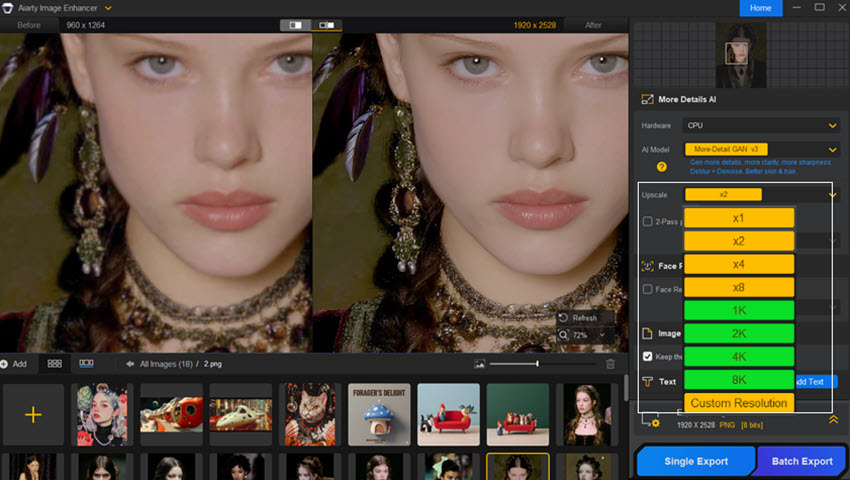
Even with all the strengths of Canva and Photoshop, I often run into moments where an image needs extra polish before publishing. That is where Aiarty Image Enhancer can help. It can upscale images, sharpen details, reduce blur, and improve image clarity without rebuilding the design from scratch.
For example, if a Canva export looks slightly soft or a Photoshop edit needs cleaner detail before posting online, Aiarty can be used as a final enhancement step. It is especially useful for social media graphics, product images, old photos, AI-generated images, and visuals that need to look sharper at larger sizes.
Canva vs Photoshop: Pros and Cons
Canva Pros and Cons
- Fast and beginner-friendly: Canva makes it easy to create social media posts, presentations, thumbnails, and marketing visuals in minutes.
- Templates and assets: The template library, fonts, icons, stock photos, and layouts save a lot of time.
- Great for collaboration: Team sharing, comments, brand kits, and browser-based editing are simple and practical.
- Affordable for everyday design: The free plan is useful, and Canva Pro makes sense if you create content regularly.
- Easy resizing: Canva is very convenient when adapting one design for different social platforms.
- Limited advanced editing: Detailed retouching, complex masking, realistic shadows, and precise adjustments are harder to control.
- Designs can look generic: If you rely too much on templates, the final result can look similar to other Canva designs.
- Less control over image quality: Canva is not ideal for professional photo editing or print-level image preparation.
- Internet dependent: Most features require an active connection, which can be inconvenient when working offline.
Photoshop Pros and Cons
- Ultimate control: Layers, masks, selections, blending modes, and adjustment tools allow precise editing.
- Best for professional photo editing: Photoshop is much stronger for retouching, compositing, background editing, and image correction.
- High-quality output: It works well for web, print, product images, digital art, and complex design projects.
- Advanced AI editing: Generative Fill, Generative Expand, and AI-assisted selection can save time on complex image edits.
- Plugin ecosystem: Photoshop supports many plugins and extensions for specialized workflows.
- Steep learning curve: Beginners may need weeks or months to feel comfortable with the interface.
- Slower for simple graphics: A quick social post or presentation slide is usually faster in Canva.
- Subscription cost: Photoshop can feel expensive if you only need occasional design work.
- Collaboration is less simple: PSD files are not as easy for non-designers to edit or review.
Takeaway: Canva wins on speed, simplicity, templates, and collaboration. Photoshop wins on precision, image quality, advanced editing, and creative control.
Canva vs Photoshop: Pricing and Value
Pricing is another important difference. Canva is usually more cost-effective for casual users, creators, students, small businesses, and social media teams. Photoshop costs more, but it offers professional-grade editing tools that Canva does not fully replace.
Value verdict: Canva gives better value if you mainly create social content, presentations, and marketing visuals. Photoshop gives better value if your work depends on advanced image editing, retouching, compositing, or professional output quality.
Which One Should You Choose?
Canva and Photoshop are not perfect replacements for each other. The better choice depends on what you create most often, how much control you need, and how much time you want to spend learning the tool.
Choose Canva If...
- You need to create social media posts, thumbnails, flyers, presentations, or marketing graphics quickly.
- You prefer templates and drag-and-drop editing over building designs from scratch.
- You work with teammates who need to edit or review designs easily.
- You are not a professional designer and want a tool that feels simple from day one.
- You care more about speed and consistency than advanced image control.
Choose Photoshop If...
- You need advanced photo editing, retouching, object removal, compositing, or image restoration.
- You want full control over layers, masks, colors, lighting, shadows, and export quality.
- You create professional work for clients, print, ecommerce, photography, or digital art.
- You do not mind a steeper learning curve.
- You need a tool that can handle complex creative projects without template limitations.
Can Canva Replace Photoshop?
Canva can replace Photoshop for many everyday design tasks, especially social media graphics, presentations, basic marketing visuals, and simple photo edits. But Canva cannot fully replace Photoshop if you need advanced retouching, detailed masking, professional compositing, print-level editing, or complete image control.
Can You Use Canva and Photoshop Together?
Yes. In many workflows, using both is the most practical choice. You can edit or enhance an image in Photoshop first, then bring it into Canva for layouts, social posts, presentations, or team collaboration. You can also create a quick design in Canva and polish the image quality later with Photoshop or an AI image enhancer.
Final verdict: Canva is the better choice for speed, templates, collaboration, and everyday content creation. Photoshop is the better choice for advanced image editing, creative control, and professional-quality results. If your work includes both quick marketing visuals and serious image editing, using both tools together makes the most sense.
 FAQs: Canva vs Photoshop
Canva is better for quick designs, social media posts, presentations, templates, and team collaboration. Photoshop is better for advanced photo editing, retouching, compositing, and professional image control. So the better tool depends on what you need to create.
Canva can replace Photoshop for simple design tasks, but not for advanced image editing. If you mainly create social posts, flyers, and presentations, Canva may be enough. If you need precise retouching, masking, object removal, or print-quality image work, Photoshop is still the stronger choice.
Canva is much easier to use. Its drag-and-drop editor, templates, and simple export tools make it beginner-friendly. Photoshop has a steeper learning curve because it includes more advanced tools for professional editing.
Canva can be useful for professional designers who need quick marketing assets, social templates, or team-friendly brand materials. However, for advanced visual design, photo manipulation, custom typography, and client-level image editing, Photoshop or other professional design tools are usually better.
Canva can handle basic photo edits such as cropping, filters, brightness adjustments, background removal, and resizing. But it cannot match Photoshop for advanced retouching, masking, compositing, color correction, or detailed image repair.
Canva is usually better for social media graphics because it is faster, easier, and includes many ready-made templates for platforms like Instagram, TikTok, Facebook, Pinterest, YouTube, and LinkedIn. Photoshop gives more control, but it is slower for everyday social content.
Photoshop is better for photo editing. Canva is fine for basic edits, but Photoshop offers much deeper control over layers, masks, selections, healing, cloning, color correction, and professional retouching.
Canva has better AI tools for quick content creation, resizing, background removal, and template-based workflows. Photoshop has better AI tools for professional image editing, generative fill, object removal, image expansion, and detailed visual control.
You may need both if your workflow includes quick design and advanced image editing. Canva is great for layouts, templates, and collaboration. Photoshop is better for preparing, editing, and perfecting images before or after the design stage.
Canva is usually more cost-effective for casual users, creators, students, and small teams. Photoshop costs more, but it can be worth it for photographers, designers, retouchers, ecommerce sellers, and professionals who need advanced image editing tools.
You May Also Like


This post was written by Brenda Peng who is a seasoned editor at Digiarty Software who loves turning ordinary photos into extraordinary works of art. With AI assistance for brainstorming and drafting, the post is reviewed for accuracy by our expert Abby Poole for her expertise in this field.
