


Black-and-white video colorization used to be a painstaking post-production job. A colorist might spend hours masking subjects, tracking moving objects, painting individual areas, and correcting colors from shot to shot. AI video colorizers have changed that workflow considerably.
A modern AI video colorizer analyzes people, objects, lighting, scenery, and motion before assigning plausible colors to grayscale footage. The process can work surprisingly well on old family films, historical recordings, archival material, and classic black-and-white video. The difficult part is no longer simply adding color to a frame. It is keeping that color believable and stable as the scene moves.
That distinction matters when choosing a tool. A colorizer can produce an attractive still frame and still fail badly in motion if a jacket shifts from blue to purple, skin tones fluctuate between shots, or color bleeds around moving objects. Temporal consistency remains one of the central technical problems in automatic video colorization. Research in the field continues to treat flicker and frame-to-frame inconsistency as major quality issues.
The seven tools below approach the job differently. Some are quick browser-based services, some are better suited to old-film restoration, and one remains valuable mainly to users who want an open-source workflow.
Best AI Video Colorizers in 2026
1. Magic Hour - Best Free Online AI Video Colorizer
Best for: short clips, first-time users, quick browser-based colorization, and anyone who wants to test the technology before installing desktop software.
Magic Hour is one of the more straightforward choices if the goal is simply to upload a short black-and-white clip and see what automatic colorization can do.
There is no desktop installation involved. The video colorizer runs in the browser and is built around a simple upload-and-process workflow. Magic Hour currently offers limited free colorization without requiring an account, while paid plans extend the available duration and usage. The service accepts common video formats such as MP4, MOV, and WebM.
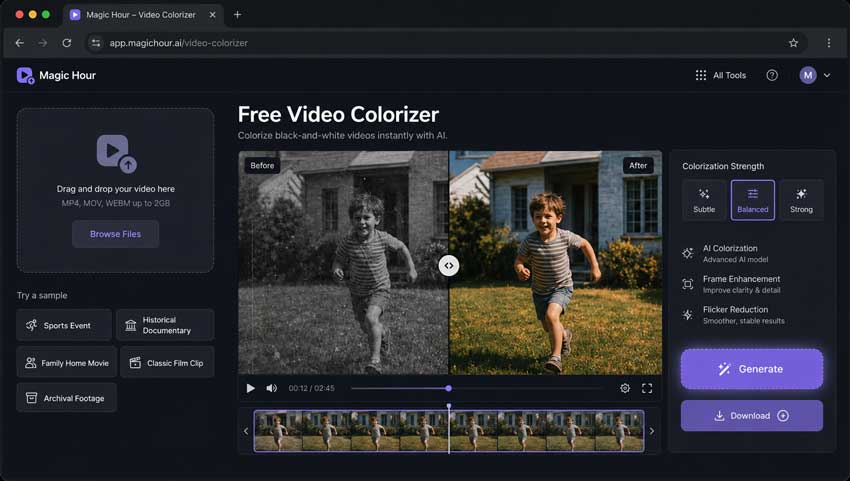
Its biggest advantage is accessibility. Someone working with a short home movie, historical clip, or social-media asset can test colorization without configuring models, downloading software, or understanding traditional color grading.
Magic Hour also places noticeable emphasis on consistency across scenes rather than treating every frame as an isolated image. That is important because video colorization can become distracting very quickly when recurring objects change color as they move.
The trade-off is control. A browser tool designed for speed is not the same thing as a full restoration environment. If the original footage has heavy film grain, compression damage, poor focus, scratches, or very low resolution, colorization alone will not solve those problems.
2. Kolorize - Best for Quick Browser-Based Video Colorization
Kolorize takes an equally focused approach. Instead of presenting a large editing suite, it centers the experience on uploading monochrome footage and converting it into color.
The service positions its video colorizer around archival material, cultural footage, classic films, newsreels, and family recordings. Its stated goal is to add color while leaving the original grain, framing, and motion intact.
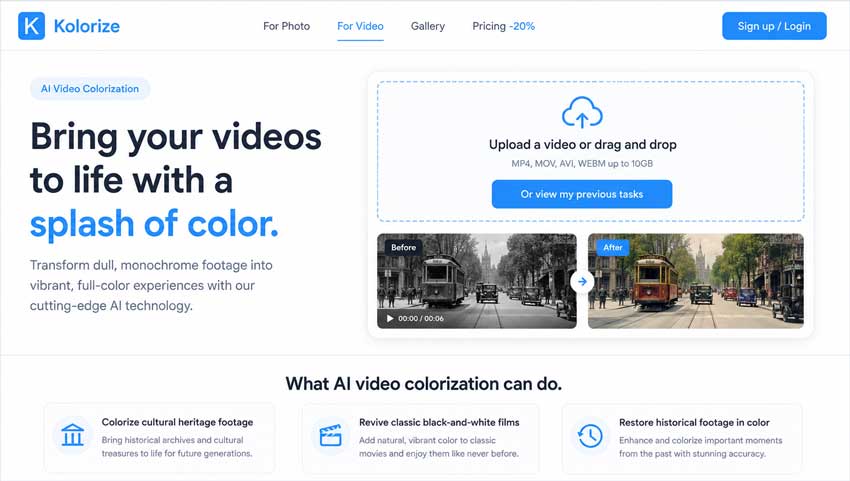
That narrower focus is useful. One problem with all-in-one AI video applications is that a simple colorization task can get buried under upscaling models, generation tools, filters, face enhancement, frame interpolation, and other controls. Kolorize is easier to understand: upload a black-and-white video, process it, and evaluate the result.
The limitation is that simplicity leaves less room for corrective work. Automatic color is still an interpretation. If a model assigns the wrong shade to clothing, architecture, vehicles, or historically specific objects, there may not be the same level of manual correction available in a conventional grading application.
It is therefore better suited to fast automatic colorization than historically rigorous restoration.
Best for: users who want a dedicated online colorizer without learning a larger video editing application.
3. DeOldify - Best Free and Open-Source AI Video Colorizer
DeOldify occupies an unusual place in the current market. It is no longer the newest option, but it remains one of the most recognizable open-source projects associated with automatic image and video colorization.
The original project was built around deep-learning models designed to colorize and restore old photographs and film footage. Its NoGAN training approach was developed partly to reduce the kinds of artifacts and instability that made early neural colorization unreliable in video. DeOldify also included a dedicated video model tuned for smoother, more consistent output rather than maximum color saturation.
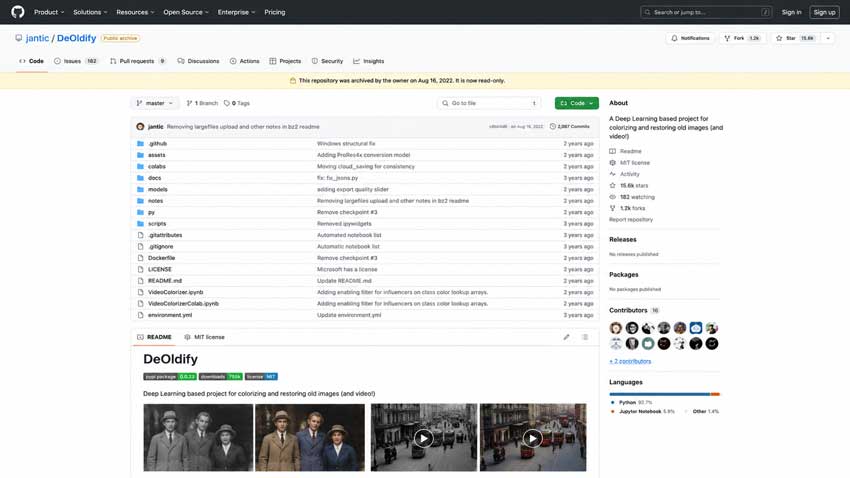
For technically inclined users, it still has value. You can inspect the workflow, work with pretrained models, modify the code, and build your own colorization pipeline rather than depending entirely on a commercial application.
There is, however, an important caveat in 2026: the original DeOldify repository was archived by its creator in October 2024 and is now read-only. The author explicitly describes the project as old by current deep-learning standards. Community forks and newer implementations remain available, but DeOldify is no longer the obvious recommendation for someone who simply wants to install a current application and colorize a video.
That does not make it irrelevant. It makes it a different kind of recommendation.
Use DeOldify if you want an open-source starting point, are comfortable with Python or notebook-based workflows, or want more visibility into how the underlying colorization process works. For a production workflow with active commercial support, newer desktop tools are easier to maintain.
Best for: developers, researchers, hobbyists, and users who specifically prefer an open-source video colorization workflow.
4. AVCLabs Video Enhancer AI - Best for Colorization and Video Restoration
AVCLabs is a stronger fit when the source footage needs more than color.
Its Video Enhancer AI combines black-and-white colorization with video upscaling, denoising, stabilization, frame interpolation, face enhancement, and restoration tools. That makes it particularly relevant to digitized home movies and archival footage, where missing color is rarely the only defect.
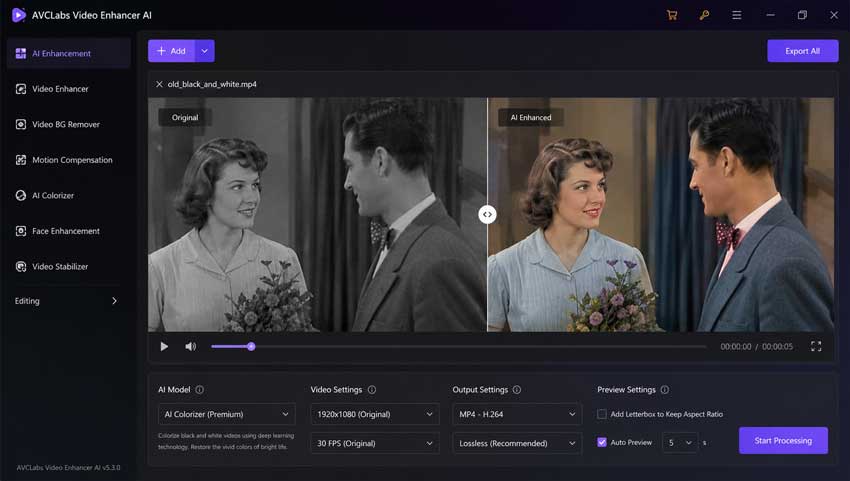
The most interesting part of its current colorization workflow is the Premium model introduced in version 5.3.0. Rather than handling every frame independently, the model analyzes groups of 16 frames in an effort to reduce flicker and color inconsistency in moving scenes. AVCLabs recommends at least 8GB of GPU memory to make full use of this model.
That multi-frame approach addresses a real issue. Good video colorization is not simply a sequence of good colorized images. If the model makes slightly different decisions on adjacent frames, the viewer sees those differences as pulsing, flashing, or unstable color. Processing temporal information together gives the system more context for keeping recurring objects visually coherent.
AVCLabs also provides different colorization modes rather than forcing every piece of footage into the same look. The Premium model is intended for more natural, balanced output, while its broader enhancement toolkit can handle noise and low resolution before or after colorization.
Its main drawback is hardware demand. More advanced desktop processing is less convenient than uploading a five-second clip to a website, and the stronger models benefit substantially from a capable GPU.
For restoration projects, though, that is often a reasonable trade.
Best for: old videos that need colorization together with denoising, upscaling, stabilization, or general restoration.
5. VidHex - Best Beginner-Friendly Desktop AI Video Colorizer
VidHex sits between the simplicity of an online service and the broader controls of a full restoration package.
Its desktop software includes a dedicated B&W Colorization model alongside Color Enhancement and SDR-to-HDR tools. The colorizer analyzes grayscale footage and automatically applies color based on subjects and scene information rather than requiring manual masks or keyframes.
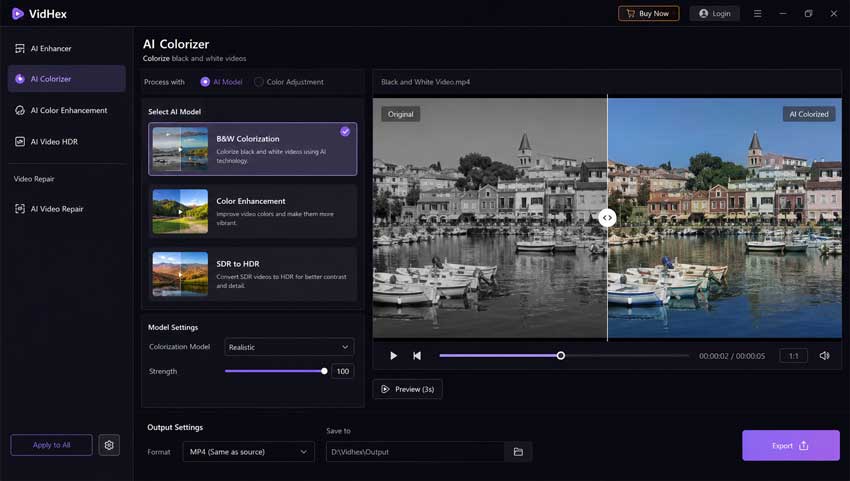
That makes the workflow fairly easy to follow. Import the footage, select the B&W colorization model, preview the result, and export it. For users who would rather avoid command-line tools or more technical restoration software, this is likely to feel more approachable.
VidHex is also useful when a video needs basic work after colorization. A faded source can be colorized first and then adjusted through the application's broader color and enhancement options rather than being moved immediately into another program.
As with any automatic colorizer, however, natural-looking output should not be confused with historically verified color. The software can infer that grass is likely green or that skin falls within a plausible range. It cannot determine with certainty whether a particular car was dark blue, black, or burgundy in the original scene.
That distinction becomes especially important when working with museum, documentary, or historical material.
Best for: users who want an uncomplicated desktop application with dedicated colorization and general video enhancement in the same interface.
6. HitPaw VikPea - Best for One-Click AI Video Colorization
HitPaw VikPea has become highly visible for searches around AI video colorization, and its current feature set explains why.
VikPea includes dedicated B&W colorization and AI Colorist tools for old films, archival video, VHS material, and home recordings. Its broader restoration workflow also covers denoising, low-light enhancement, color enhancement, HDR processing, and high-resolution export.
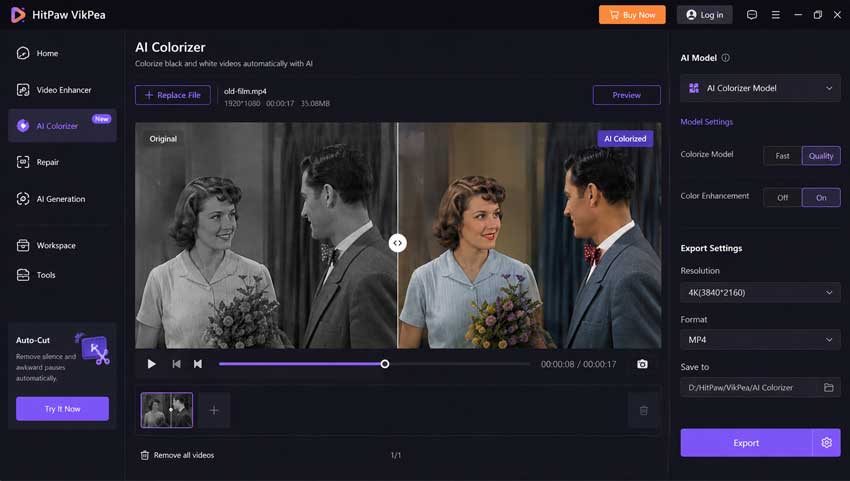
HitPaw updated VikPea to version 5.5.0 in August 2026, with the company specifically citing improvements to its AI Colorist model, restoration speed on supported GPUs, and preview workflow.
The appeal is convenience. Users do not need to build a frame-by-frame grading workflow. The software analyzes the footage, applies color automatically, allows a preview, and then exports the processed video.
It is also one of the more practical choices when the input has several problems at once. Old black-and-white footage often arrives with noise, poor contrast, low resolution, and soft detail. Having colorization and enhancement in the same application reduces the amount of round-tripping between programs.
Where a careful user still needs to intervene is evaluation. A polished colorized frame can look convincing while still being wrong. Pay particular attention to clothing, painted surfaces, military uniforms, vehicles, interiors, and skin under unusual lighting. Those are areas where plausible color and accurate color are not necessarily the same thing.
Best for: users who want a polished commercial desktop workflow for colorizing and enhancing black-and-white footage with minimal manual setup.
7. UniFab Video Colorizer AI - Best for Old Films and Archival Footage
UniFab is particularly interesting for old-film colorization because temporal stability is treated as a core feature rather than a secondary benefit.
Its Video Colorizer AI analyzes objects, faces, skin tones, and lighting before applying color and uses a temporal-consistency system to maintain colors between frames. It also offers four color styles and multi-scene processing, with use cases specifically covering 8mm family footage, 16mm films, and archival video.
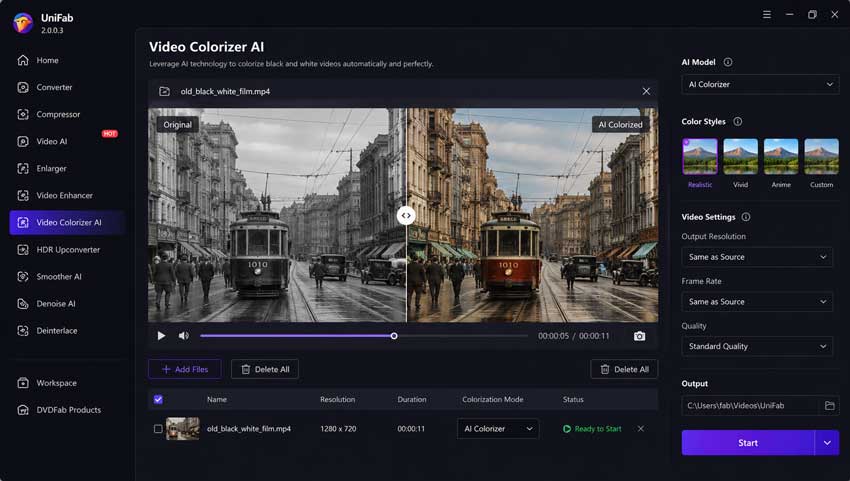
That focus makes sense. Film restoration presents a different challenge from colorizing a clean modern grayscale clip. Old footage may contain soft edges, prominent grain, exposure changes, scratches, faded contrast, motion blur, and abrupt cuts. These defects can all make object recognition and color propagation less reliable.
UniFab's emphasis on maintaining the original grain and texture is also worth noting. Aggressive restoration can make old footage technically cleaner while stripping away the character of the source. A good colorization workflow should avoid turning film texture into smooth, synthetic-looking surfaces.
For users working primarily with old home movies, documentary archives, or scanned film, UniFab is one of the more purpose-specific commercial options.
Best for: 8mm and 16mm scans, family archives, historical video, and users who place a high priority on frame-to-frame color stability.
Why AI Video Colorization Sometimes Looks Wrong
Automatic colorization has improved quickly, but the task itself contains uncertainty that software cannot simply eliminate.
AI Predicts Color; It Does Not Recover It
A grayscale frame records brightness information, not the original RGB values of every object.
If two shirts have similar luminance but one was red and the other blue, the black-and-white image may not contain enough information to determine which was which.
The colorizer therefore relies on learned visual context.
This is why an automatically colorized historical photograph can look completely convincing while still using the wrong color for a car, uniform, building, or piece of clothing.
Moving Objects Are Harder Than Static Objects
Objects change shape from frame to frame as they rotate, move behind other objects, leave the screen, or reappear.
A colorizer has to understand that the partially hidden object in one frame is the same object seen clearly several frames earlier. When that relationship is lost, color can shift abruptly.
Old Film Adds Another Layer of Difficulty
Dust, scratches, flicker, heavy grain, low dynamic range, and soft focus all interfere with object recognition.
An AI system that confidently recognizes a clean modern face may have much less information available when processing a damaged 8mm scan.
That is why restoration and colorization are often better treated as parts of the same workflow rather than completely separate jobs.
Should You Restore a Video Before or After Colorization?
There is no single sequence that works for every source.
The right order depends on what is damaged.
For Clean Black-and-White Footage
Colorize → make minor color corrections → export
If the source is already sharp and relatively clean, there is little reason to run heavy restoration first.
For Noisy or Degraded Old Footage
Light denoise/deblur → colorize → upscale or restore detail → final color adjustment
The key word is light. Removing extreme noise can make subjects easier for a colorization model to interpret, but aggressive preprocessing may erase texture and edge information.
For Very Low-Resolution Footage
Clean the source → colorize → upscale carefully
Colorizing before extreme enlargement often gives the colorization model access to the original tonal relationships without introducing synthetic upscaling detail too early in the pipeline.
The final enhancement stage can then improve display resolution, detail, and clarity.
Aiarty Video Enhancer can be useful at this stage of the workflow. It is not a dedicated black-and-white automatic colorizer, so it should not be treated as a replacement for the tools above. Its role is video restoration: denoising, deblurring, recovering detail, reducing compression artifacts, and upscaling old footage after or around the colorization stage. Aiarty's current restoration tools support old VHS, DV, camcorder, and other degraded video sources, with dedicated models for different combinations of blur, noise, and lost detail.
That distinction is useful in practice. Adding color to a blurry 480p transfer does not suddenly make it a good restoration. Sometimes the largest visible improvement comes from fixing the underlying image quality rather than changing the color alone.
Which AI Video Colorizer Should You Choose?
There is no universal best option because the source material matters more than most feature lists suggest.
- Choose Magic Hour if you want to colorize a short clip online with almost no setup.
- Choose Kolorize if you want a browser-based tool focused primarily on automatic video colorization rather than a larger editing suite.
- Choose DeOldify if open source matters more than convenience and you are comfortable working with an older, archived project or one of its community implementations.
- Choose AVCLabs Video Enhancer AI if your black-and-white footage also needs denoising, upscaling, stabilization, or broader restoration.
- Choose VidHex if you prefer a simple desktop interface with dedicated B&W colorization and additional color-enhancement options.
- Choose HitPaw VikPea if you want a commercial, largely one-click workflow combining colorization with general AI video enhancement.
- Choose UniFab Video Colorizer AI if your main material is old film or archival footage and frame-to-frame color consistency is a priority.
Whichever tool you use, judge the result in motion rather than from a before-and-after screenshot. Stable color, believable skin, controlled edges, and preserved texture matter more than how saturated the first preview frame looks.
Final Thoughts
AI has made video colorization practical for footage that would never justify the time or expense of traditional frame-by-frame work. Old family movies, historical recordings, documentary inserts, and archival clips can now be turned into convincing color video with relatively little manual intervention.
But colorization should still be treated as interpretation rather than recovery.
The best results come from tools that do more than produce attractive colors on a single frame. They keep those colors stable through motion, preserve the texture of the original footage, handle faces convincingly, and avoid obvious bleeding around moving subjects.
And when the source itself is noisy, blurred, compressed, or low-resolution, adding color is only part of the restoration process. Clean the image where necessary, colorize it carefully, inspect the result in motion, and finish with restoration or upscaling only where it genuinely improves the footage.
That workflow usually produces a more believable result than simply pushing an old black-and-white video through the most colorful model available.
You May Also Like


This post was written by Brenda Peng who is a seasoned editor at Digiarty Software who loves turning ordinary photos into extraordinary works of art. With AI assistance for brainstorming and drafting, the post is reviewed for accuracy by our expert Abby Poole for her expertise in this field.
