


FFmpeg Upscale Tutorial: Commands to Upscale Video to 1080p or 4K



Upscaling video means increasing its resolution, such as converting 480p or 720p to 1080p or 4K, so it looks better on modern displays. If you prefer a free and powerful command-line solution, FFmpeg upscale is one of the most flexible methods available.
In this guide, you’ll learn how to upscale video with FFmpeg, starting with the simplest commands and gradually moving to more advanced techniques. We’ll also explain the most useful filters, best settings, and practical examples.
What Is FFmpeg and Why Use It for Upscaling?
FFmpeg is a free, open-source multimedia framework capable of processing video, audio, and images through command-line operations. It supports almost every codec and format and provides powerful filters for video processing.
Key reasons people use FFmpeg for video upscaling:
- Completely free and open source
- Works on Windows, macOS, and Linux
- Supports many scaling algorithms
- Allows batch processing and automation
- Highly customizable with filters
However, FFmpeg does not add real detail during upscaling. Instead, it only enlarges frames using interpolation algorithms. For true AI-based enhancement, dedicated tools are usually required.
How to Upscale Videos with FFmpeg?
Although it’s a command-line tool and may look complex at first glance, upscaling a video in FFmpeg is actually quite straightforward once you know the basic commands. You don't need advanced programming knowledge, just copy and run the commands step by step. In the following sections, we'll walk through several FFmpeg upscale commands, from the simplest video scaling to more advanced options for better quality.
Install FFmpeg First
Before you can start using FFmpeg to upscale videos, you first need to install FFmpeg on your computer. After that, you can run any FFmpeg upscale command directly from your terminal or command prompt. Below are the installation steps for Windows, macOS, and Linux.
Install FFmpeg on Windows
- Go to the official FFmpeg website and download the latest Windows build.
- Extract the downloaded ZIP file to a folder on your computer (for example:
C:\ffmpeg). - Open the extracted folder and locate the bin directory, which contains the
ffmpeg.exe file. - Add this bin folder to your system PATH so you can run FFmpeg commands from anywhere.
- After adding it to PATH, open Command Prompt and run:
ffmpeg -version
Install FFmpeg on macOS
On macOS, the easiest way to install FFmpeg is through Homebrew, a popular package manager.
First install Homebrew (if you don’t have it), then run: brew install ffmpeg
Homebrew will automatically download and install FFmpeg along with the necessary libraries.
To confirm the installation, open Terminal and run: ffmpeg -version
If the version information appears, FFmpeg is ready to use for video upscaling.
Install FFmpeg on Linux
Most Linux distributions allow you to install FFmpeg directly from the package manager.
For Ubuntu or Debian, run: sudo apt install ffmpeg
After installation, verify it with: ffmpeg -version
Once installed, you can immediately start using FFmpeg upscale commands to resize videos, convert formats, or process multiple video files in batch.
Launch FFmpeg
On Windows: Press Win + R, type cmd, and press Enter to open Command Prompt, or search Command Prompt in the Windows Start menu. Once the terminal opens, you can start running FFmpeg commands.
On macOS: Open Terminal from Applications → Utilities → Terminal. You can also press Command + Space, type Terminal, and open it.
On Linux: Open your system Terminal. Then run FFmpeg commands directly in the terminal window.
Basic FFmpeg Upscale Command (Beginner)
The simplest way to upscale a video with FFmpeg is by using the scale filter, which resizes the video to a higher resolution such as 1080p or 4K.
Basic command:
ffmpeg -i input.mp4 -vf scale=1920:1080 output.mp4 Explanation:
-i input.mp4: Specifies the input file. Replace input.mp4 with the name of the video you want to upscale.-vf: Stands for video filter, which allows FFmpeg to apply filters to the video stream.scale=1920:1080: This is the scale filter used for FFmpeg video upscaling. In this example, the video will be upscaled to 1920×1080 (Full HD). You can use it to upscale video to 4K in FFmpeg, simply changing it to 3840:2160. But remember, quality won't magically improve, because interpolation only enlarges pixels.output.mp4: The output file name for the processed video.
Check detailed guide on how to resize videos in FFmpeg
Upscale While Preserving Aspect Ratio
When using FFmpeg to upscale a video, forcing a fixed resolution like 1920:1080 may sometimes cause image stretching. This happens if the original video has a different aspect ratio. To avoid distortion, you can let FFmpeg automatically calculate the correct height or width.
A common solution is to keep one dimension fixed and allow FFmpeg to calculate the other automatically.
Example:
ffmpeg -i input.mp4 -vf "scale=1920:-1" output.mp4 Explanation:
1920: Sets the output video width to 1920 pixels.-1: Tells FFmpeg to automatically calculate the height based on the original video's aspect ratio.
This ensures that the video proportions remain correct, preventing stretching or squashing during the FFmpeg upscale process.
Control Scaling Algorithms (Better Quality)
When you upscale video with FFmpeg, the quality of the result depends not only on the resolution you choose, but also on the scaling algorithm used during the resizing process. Different algorithms use different mathematical methods to interpolate pixels, which affects sharpness, smoothness, and processing speed.
By default, FFmpeg uses bilinear scaling, which is fast but not always the best option for quality. To get better results when performing FFmpeg video upscaling, you can manually specify a higher-quality scaling algorithm.
Example:
ffmpeg -i input.mp4 -vf scale=1920:1080:flags=lanczos output.mp4 Explanation:
flags=lanczos: Specifies the scaling algorithm used to resize the image. In this case, it uses the Lanczos algorithm, which is known for producing sharper results when enlarging videos.
Common FFmpeg Scaling Algorithms
FFmpeg supports several scaling algorithms that balance quality and speed differently.
Tips: For most FFmpeg upscale tasks, Lanczos is considered the best option because it produces sharper edges and better detail preservation when enlarging video. The trade-off is that it may take slightly longer to process, especially when FFmpeg upscaling large videos to 4K.
Upscale with Sharpening Filter
When you upscale video with FFmpeg, the enlarged image can sometimes look a little soft or slightly blurry. This happens because the scaling process spreads existing pixels over a larger area. One simple way to improve the visual result is to apply a sharpening filter after upscaling in FFmpeg.
In FFmpeg, the most commonly used sharpening filter is unsharp. It enhances edges and textures, making the video appear clearer after resizing.
Example command:
ffmpeg -i input.mp4 -vf "scale=1920:1080:flags=lanczos,unsharp=5:5:1.0" output.mp4 Explanation:
unsharp=5:5:1.0: Applies sharpening to enhance edges and fine textures.- 5:5:size of the sharpening matrix (horizontal and vertical radius, typical range: 3–7, larger values affect more surrounding pixels, producing a stronger but softer effect)
- 1.0: sharpening strength (Typical range: 0.1–3.0, Higher values make the video sharper but may introduce noise or halo effects)
Upscale and Improve Encoding Quality
Upscaling a video with FFmpeg increases its resolution, but if you keep the default encoding settings, the final result may still look soft or compressed, even with a higher resolution. To get the best visual quality, it’s important to combine FFmpeg upscaling with optimized encoding parameters.
Example command:
ffmpeg -i input.mp4 -vf "scale=1920:1080:flags=lanczos" -c:v libx264 -crf 18 -preset slow output.mp4 Explanation:
-c:v libx264: Specifies the video codec. libx264 is widely used for high-quality H.264 encoding with good compatibility and sharp video output.-crf 18: CRF stands for Constant Rate Factor, which controls the compression level and quality. Lower CRF for higher quality and larger file, and higher CRF for lower quality and smaller file.-preset slow: The -preset option determines encoding speed versus compression efficiency, with options like ultrafast, fast, slow, and veryslow—slower presets provide better compression but take more time.
Upscale Video with High Bitrate Output
To maintain high visual quality when upscaling a video to high resolutions like 4K in FFmpeg, it’s important to increase the video bitrate along with upscaling, or it may cause compression artifacts, such as blockiness or loss of fine detail.
Example command:
ffmpeg -i input.mp4 -vf scale=3840:2160 -c:v libx264 -b:v 20M output_4k.mp4 Recommended bitrates:
-
-b:v 20M: Sets the video bitrate to 20 Mbps. Higher bitrate preserves more detail and reduces artifacts. Lower bitrate may result in visible compression issues on large screens - Recommended resolution bitrate: 8-12 Mbps for 1080P, and 20-40 Mbps for 4K.
Upscale Multiple Videos (Batch Processing)
If you have many videos to upscale, running the same command individually is time-consuming. FFmpeg supports batch processing, allowing you to upscale all videos in a folder automatically.
Example Windows command:
for %i in (*.mp4) do ffmpeg -i "%i" -vf scale=1920:1080 "upscaled_%i" Linux/macOS:
for  f in *.mp4; do

				  ffmpeg -i "$f" -vf scale=1920:1080 "upscaled_$f"

done - Make sure all the videos you want to upscale are in one folder to avoid missing files. Then FFmpeg will upscale all videos in a folder automatically.
- If your folder contains different formats (e.g., .mov, .mkv), you need separate loops for each format or adjust the wildcard pattern (*.*) carefully.
Upscale Video Using GPU Acceleration
CPU-intensive and slow. If you have an NVIDIA GPU, FFmpeg can use hardware acceleration to speed up processing significantly.
Example:
ffmpeg -hwaccel cuda -i input.mp4 -vf scale_cuda=1920:1080 output.mp4 Explanation:
-
-hwaccel cuda: Tells FFmpeg to use CUDA-based GPU acceleration for decoding and filtering. This offloads processing from the CPU to the GPU, which is faster for large videos or high resolutions. - Depending on your system, FFmpeg supports different hardware acceleration backends: cuda, nvdec, qsv, vaapi, and videotoolbox.
Limitations of FFmpeg Upscaling
Although FFmpeg is a powerful and flexible tool for video processing, its upscaling capabilities rely on traditional interpolation methods. FFmpeg upscaling is not AI powered. This means there are several limitations when trying to improve the quality of low-resolution videos.
1. No AI Detail Restoration
FFmpeg scaling algorithms (such as bilinear, bicubic, or Lanczos) mainly resize existing pixels. While they can enlarge the image and make edges slightly smoother, they cannot generate new visual details that were never present in the original footage.
For example, if a video was originally recorded at 480p or heavily compressed, upscaling it to 1080p or 4K using FFmpeg will increase the resolution, but it won’t reconstruct missing textures like hair, fabric patterns, or fine background details.
2. Blurry Sources Stay Blurry
If the source video is already soft or out of focus, simple scaling will only enlarge the blur. On larger displays, this can sometimes make the problem even more noticeable.
3. Noise and Compression Artifacts Remain
Older or low-quality videos often contain digital noise, compression blocks, or grain. Standard FFmpeg scaling filters do not automatically remove these issues, so artifacts may remain visible after upscaling.
4. Command Line Can Be Difficult for Beginners
FFmpeg is mainly a command-line tool, which offers great flexibility but can be challenging for beginners. Users need to understand parameters such as filters, codecs, CRF values, and bitrate settings to achieve the best results.
AI Video Upscaling Alternative to FFmpeg: Upscale with Aiarty Video Enhancer
Because of these limitations, many users now combine FFmpeg workflows with AI-based enhancement tools. Instead of only enlarging pixels, AI upscaling technologies analyze the video and reconstruct missing textures, sharpen edges, and reduce noise.
One practical option is Aiarty Video Enhancer, which provides an AI-powered approach to improve video frames and images without requiring complex commands. Compared with traditional FFmpeg upscaling, the AI enhancer can help:
- Upscale images or video frames up to HD and 4K resolutions
- Restore lost details in low-resolution footage
- Reduce noise, blurriness, and compression artifacts automatically
- Sharpen faces, textures, and edges using trained AI models
- Adjust color settings and upgrade SDR to HDR
Another advantage is usability. Instead of writing multiple command-line parameters in FFmpeg, users can simply load a video or frame sequence, choose an enhancement model, and export the improved result.
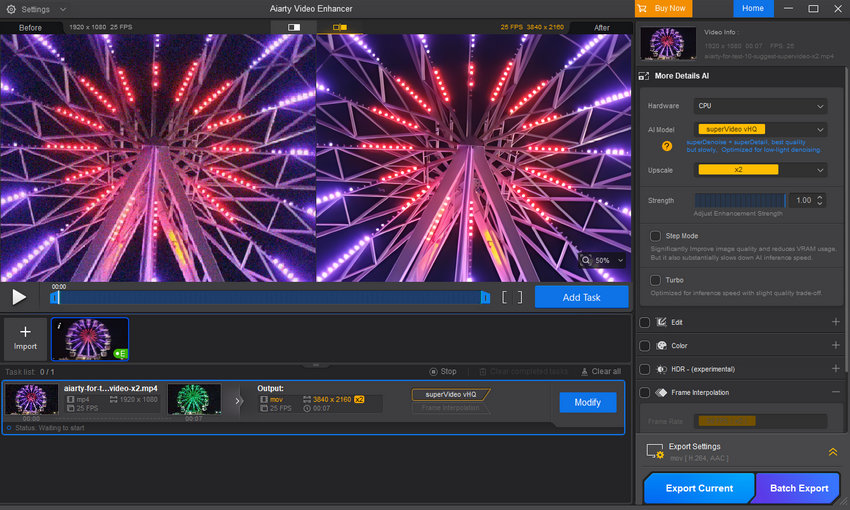
If you want to see it in action, check out this video for some sample results.
Final Words
FFmpeg is one of the most powerful tools available for video processing and resolution scaling. With the right commands and filters, you can easily upscale videos to 1080p or 4K, control scaling algorithms, adjust encoding quality, and even process multiple files in batches. By understanding these commands and workflows, you can choose the best approach for your needs—whether it’s fast batch upscaling with FFmpeg or deeper quality restoration with AI-based tools.
However, traditional FFmpeg scaling mainly enlarges existing pixels. For videos with heavy blur, noise, or compression artifacts, combining FFmpeg with AI video enhancement tools can produce significantly better results by reconstructing missing details.
 FAQs
FAQs
Yes. FFmpeg can upscale videos to 4K resolution (3840×2160) using the scale filter. For example:
ffmpeg -i input.mp4 -vf scale=3840:2160 output_4k.mp4
This command enlarges the video to 4K resolution. However, FFmpeg mainly resizes existing pixels, so it increases resolution but does not recreate missing details.
For most upscaling tasks, Lanczos is considered the best scaling algorithm because it preserves more detail and produces sharper results than the default methods. Other algorithms like bicubic or spline can also work well, but Lanczos is commonly recommended for high-quality video upscaling in FFmpeg.
Not necessarily. FFmpeg can increase the resolution of a video, but it does not automatically improve the original quality. If the source video is blurry or compressed, those issues may still remain after upscaling. To improve perceived quality, users often combine upscaling with filters such as sharpening, denoising, or AI-based enhancement tools..
Upscaling in FFmpeg only enlarges existing pixels. If the original video has low resolution, noise, or compression artifacts, the upscaled version may still appear blurry. Using better scaling algorithms (such as Lanczos) and higher encoding quality settings can help slightly, but traditional scaling cannot fully restore missing detail.
You May Also Like


This post was written by Brenda Peng who is a seasoned editor at Digiarty Software who loves turning ordinary photos into extraordinary works of art. With AI assistance for brainstorming and drafting, the post is reviewed for accuracy by our expert Abby Poole for her expertise in this field.
