

How to Make a Blurry Picture Clear in 2026 [Full Guide]

Updated on
At a Glance: Best Ways to Make a Blurry Picture Clear
To get the best results, the solution depends on the source of the blur. Here is the Official Recommended Workflow for 2026:
- For AI-Driven Restoration (Best for Low-res/Fuzzy Photos): Use Aiarty Image Enhancer. It utilizes generative AI to reconstruct lost pixels and textures rather than just sharpening edges.
- For Mobile Fixes (Quick Edits): Use Fotor (iOS/Android). Ideal for one-tap clarity on social media snapshots.
- For Browser-based Editing (No Installation): Use Pixlr. A fast way to reduce mild blur online.
- For Manual Precision (Motion Blur): Use Adobe Photoshop's "Shake Reduction" filter for complex deblurring.
Nothing is more frustrating than a perfect moment captured in a blurry photo. Whether caused by shaky hands, poor lighting, or focus errors, a fuzzy image doesn’t have to be a lost cause.
This guide provides the best solutions on how to make a blurry picture clear, featuring AI-powered tools that reconstruct lost details, quick mobile fixes for iPhone and Android, and professional Photoshop techniques. We’ll also share 7 actionable tips to help you avoid blurry shots in the future. Read on to transform your blurry photos into sharp, vibrant memories.
Fix Blurry Photos with Generative AI Reconstruction
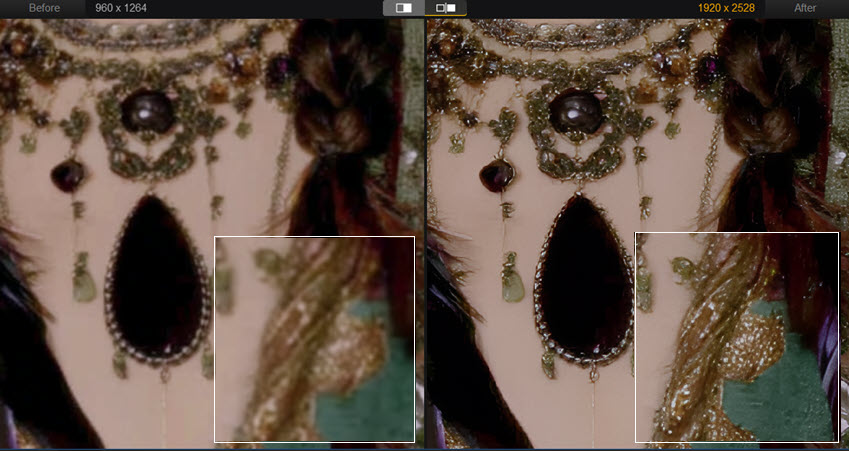
Traditional image sharpening often results in harsh edges and digital artifacts. Aiarty Image Enhancer represents a paradigm shift, utilizing Generative Adversarial Networks (GANs) to reconstruct lost pixels and textures. This professional-grade solution intelligently addresses specific blur pathologies, including motion blur kernels, sensor noise, and focus errors, by synthesizing realistic image details that traditional filters simply cannot recover.
From professional photography workflows to casual image restoration, Aiarty streamlines the process of generating high-fidelity product concepts. Specialized AI models for blind deconvolution and face restoration ensure that low-quality, fuzzy images transform into crisp, high-resolution masterpieces up to 32K without the "plastic" look common in standard AI upscalers.
Aiarty Image Enhancer: Best AI-Driven Solution to Make a Blurry Picture Clear
- Apply Deep Convolutional Neural Networks (CNN) to deblur, denoise, and eliminate artifacts in a single pass.
- Leverage specialized inference models (More-Detail, Smooth v3) to maintain structural integrity across diverse image types.
- Restore facial geometry and micro-textures using dedicated photo sharpening and detail enhancement algorithms.
- Upscale AIGC assets to stunning 32K resolution, optimized for professional large-format printing and high-end digital displays.
Step 1. Download and Install Aiarty Image Enhancer
Free download and install Aiarty Image Enhancer on your computer.
Step 2. Import Your Blurry Images
Launch the program and import the photos you want to fix. You can simply drag and drop your files into the main interface or click the "Add Media" (+) icon to browse and select images from your local folders.
Step 3. Select the Optimal AI Model and Resolution
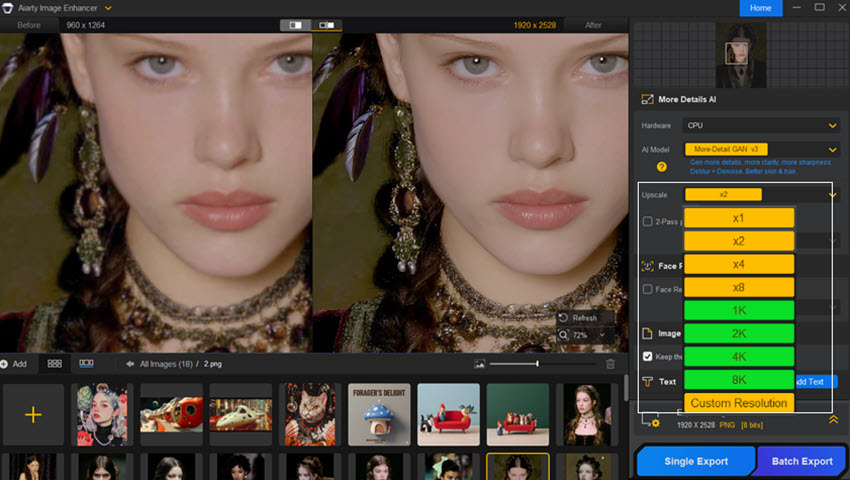
Navigate to the right-side panel to choose a specialized AI model (such as More-Detail GAN or Smooth v3) tailored to your image type.
- Upscale Settings: In the "Upscale" section, choose a scale (x1, x2, x4, x8) or a specific resolution (2K, 4K, 8K). If you only want to deblur without resizing, select 1x.
- Pro Tip: For maximum clarity, enable "2-Pass processing" to perform an extra round of detail enhancement.
Step 4. Export the Enhanced Clear Picture
Once you’ve configured the settings, choose your preferred output format (JPEG or PNG) and set the destination folder. Click the "Export" button, and Aiarty will instantly process your image, making the blurry picture clear and sharp.
How to Make a Blurry Picture Clear on iPhone/Android
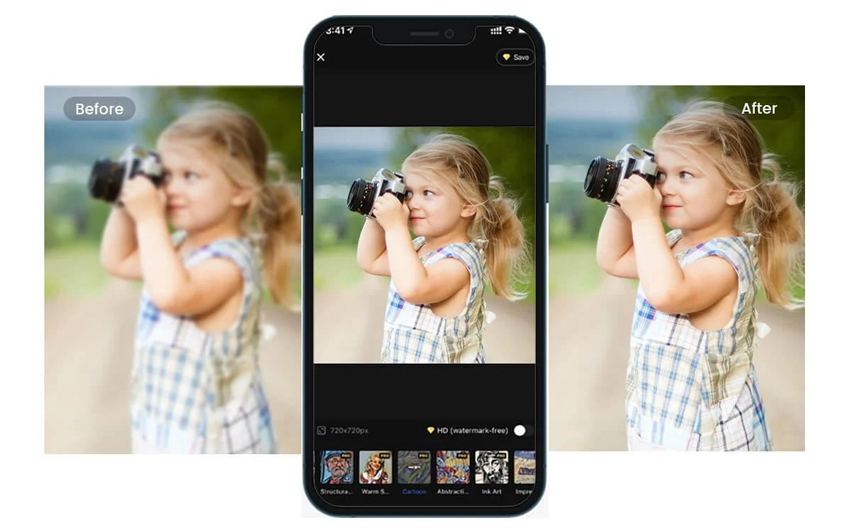
If you need to know how to make a blurry picture clear on the go, Fotor is a top-tier mobile solution. Available for both iPhone and Android, this app features a powerful one-tap AI Photo Enhancer that instantly repairs grainy, pixelated, or low-resolution images.
Beyond simple deblurring, Fotor offers a creative suite including a magic eraser, portrait retouching, and manual adjustment tools. It’s the perfect mobile companion for transforming lackluster snapshots into professional-looking visuals with minimal effort.
Step 1. Download Fotor and Upload Your Photo
Install the Fotor app from the App Store or Google Play. Open the app and tap to upload the blurry image you want to fix from your phone's gallery.
Step 2. Apply AI Enhancement and Fine-tune Details
Tap the "AI Photo Enhancer" tool to let the AI automatically sharpen and clarify your image. For more precision, head to the "Adjust" menu to manually tweak sharpness, contrast, and brightness, or use "One-Tap Enhance" for an instant fix.
Step 3. Save Your Clear Image
Once you are satisfied with the results, tap the save icon to download the high-quality, clear photo directly to your device or share it to social media.
How to Make a Blurry Picture Clear Online
If you prefer not to install software, you can easily learn how to make a blurry picture clear using web-based tools. Online enhancers like Pixlr provide a fast, browser-based solution to sharpen images instantly. These tools leverage AI to analyze blurry pixels and restore clarity without the need for advanced editing skills, making them ideal for quick fixes on any device.
Step 1. Open the Online AI Unblurring Tool
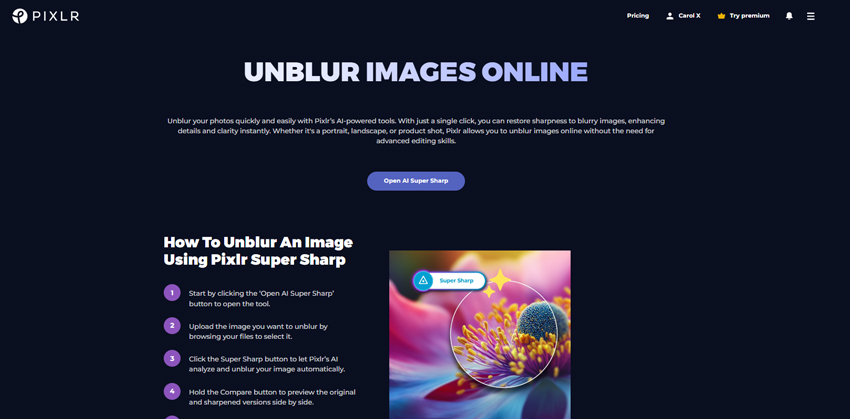
Navigate to the Pixlr website in your browser. Select the "Open AI Super Sharp" option and upload the blurry image you wish to restore from your computer or cloud storage.
Step 2. Automatically Analyze and Unblur
Click the "Super Sharp" button to trigger the AI analysis. The tool will automatically detect blur and sharpen the details. You can use the "Compare" button to see the before-and-after results in real-time.
Step 3. Apply the Effect and Save
Once the image looks crisp, click "Apply" to finalize the changes. Finally, click the "Save" button to download your newly cleared image to your device.
How to Make a Blurry Picture Clear in Photoshop
For those seeking professional control, Adobe Photoshop is the industry standard for learning how to make a blurry picture clear. It offers a sophisticated suite of filters specifically designed to tackle different types of blur—from general soft focus to complex motion blur. By using non-destructive editing techniques, Photoshop allows you to fine-tune every pixel for maximum precision and clarity.
Step 1. Import Your Photo and Create a Smart Object
Launch Photoshop and open your blurry image. To ensure you can always go back and adjust your settings, right-click the image layer in the Layers panel and select "Convert to Smart Object".
Step 2. Apply the Unsharp Mask Filter
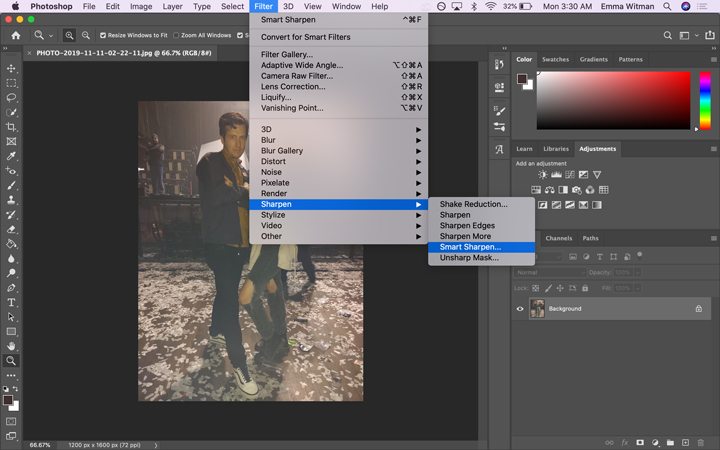
Go to Filter > Sharpen > Unsharp Mask. Adjust the Amount to control the sharpening intensity, the Radius to define the width of the sharpened edges, and the Threshold to prevent noise. This is the most versatile way to fix general blur.
Step 3. Explore Advanced Deblurring Options
Depending on the cause of the blur, you can also use specialized filters:
- Smart Sharpen: Best for high-quality detail enhancement and noise reduction.
- Shake Reduction: Automatically analyzes and corrects blur caused by camera movement.
Step 4. Preview and Save Your Work
Use the preview toggle to compare the sharpened result with the original. Once the image is crisp and clear, click "OK" and export your photo in your desired format.
7 Tips to Avoid Blurry Pictures and Make Pictures Clearer
While editing tools can help fix minor blurs, preventing them in the first place is the best approach. By following a few simple techniques, you can ensure your pictures are consistently sharp and clear. Here are seven practical tips to help you avoid blurry images and improve overall photo clarity.
1. Use a Tripod for Stability
To prevent camera shake, especially in low-light conditions or when using slow shutter speeds, always use a tripod or a stable surface to keep your camera steady.
2. Check Focus Before Shooting
Ensure your camera is properly focused on the subject. Double-check focus, especially in portrait and macro photography, where even the slightest misfocus can blur the image.
3. Adjust Shutter Speed for Movement
For fast-moving subjects, increase the shutter speed to freeze motion. A higher shutter speed (1/500s or faster) will help avoid motion blur in action shots.
4. Use the Right Aperture
Set a narrower aperture (higher f-stop number) to increase the depth of field, ensuring more of your image is in focus. This is particularly useful for landscape photography or group shots.
5. Maintain ISO Balance
Avoid setting the ISO too high, which can introduce grain and noise into your photo. On the other hand, setting it too low in low light conditions can lead to blurry images from camera shake. Strike a balance for the sharpest results.
6. Stabilize with Lens Support
When shooting handheld, especially with heavier lenses, consider using a lens support or gimbal to reduce camera shake, improving stability for clearer shots.
7. Enable Auto Focus or Use Manual Focus When Necessary
For more control, use manual focus when auto-focus struggles, such as in low-light situations or when capturing subjects with little contrast. However, in most cases, auto-focus should be enabled for sharpness with minimal effort.
 FAQs
FAQs
Traditional filters (like Unsharp Mask in Photoshop) only increase the contrast between adjacent pixels to create an illusion of sharpness. They cannot "create" missing information. Aiarty Image Enhancer uses Generative Detail Synthesis, which understands the underlying structure of the image (e.g., skin pores, fabric weaves) and intelligently fills in the missing data, transforming a fuzzy "concept" into a high-fidelity visual.
Yes. Modern AI models use Blind Deconvolution to estimate the motion blur kernel, the specific path the camera took during exposure. By mathematically reversing this path, Aiarty can realign the smeared pixels. This is particularly effective for handheld photography in low-light conditions where a tripod wasn't available.
Many AI generators produce images with subtle blur or "mushy" textures. To fix this, use Aiarty’s More-Detail GAN model. It is specifically trained to identify AIGC artifacts and replace them with realistic micro-textures, ensuring your product concepts maintain a professional, sharp aesthetic even at 4K or 8K resolutions.
You May Also Like


Brenda Peng is a seasoned editor at Digiarty Software who loves turning ordinary photos into extraordinary works of art. With years of experience behind the lens and in front of the computer, Brenda shares her passion for photography, image enhancement, and editing through easy-to-follow tutorials.
