


An Adobe Bridge alternative should fit the way you already work: browse a shoot in its original folder, carry ratings into an editor, or find a design asset without remembering its filename. Those jobs overlap, but the software built for them can behave quite differently. Some applications open folders directly, some index existing files in a database, and others copy everything into a separate library.
For familiar folder browsing and batch processing, start with XnView MP. For a free, open-source photo catalog, consider digiKam. Photo Mechanic suits photographers whose main task is selecting and captioning a shoot, while Eagle is a more relevant choice for collecting visual references and design assets. The remaining options below address Windows photo organization, straightforward viewing, and Mac archives spread across multiple drives.
Bridge itself is free. Adobe Camera Raw editing inside Bridge has a separate requirement: Adobe currently specifies an active Photoshop subscription. That distinction matters if leaving Adobe means replacing both your organizer and your RAW editor.
Research note: Features and license models were checked against official product pages and documentation on October 27, 2026. Recommendations reflect workflow fit; this guide does not claim timed performance testing.
Adobe Bridge alternatives at a glance
License terms differ between applications. A perpetual license may cover continued use without including every future major upgrade. Free-use restrictions and update policies are explained in the individual reviews.
The 7 best Adobe Bridge alternatives
1. XnView MP: familiar folder browsing and batch processing
XnView MP is a sensible first application to evaluate if you mainly use Bridge to inspect folders, assign ratings, and prepare files in batches. Its browser, thumbnail views, preview pane, and category tools support that kind of production work without requiring you to copy a shoot into a managed library. Batch renaming, conversion, resizing, and contact sheets cover many of the routine tasks that bring photographers back to Bridge.
It also supports EXIF, IPTC, and XMP metadata. The official FAQ documents hierarchical keywords, ratings, labels, and XMP sidecars, alongside an optional catalog for indexing selected folders. Direct browsing and a database are therefore not mutually exclusive: you can retain your directory structure while adding an index for searching across it. Check the metadata preferences with a small folder before assuming that a category assigned inside the application has been written back to your files.
RAW viewing is another useful capability, but XnView MP is not a substitute for a dedicated RAW development workflow. Adobe-specific exposure, crop, and mask settings are not applied to its preview simply because an XMP sidecar is present. Choose it when organizing and converting files is the requirement, with a separate editor handling the photograph’s final rendering. Windows, Mac, and Linux downloads are available; company use requires a paid license, while qualifying private, educational, public-service, and nonprofit use is free.
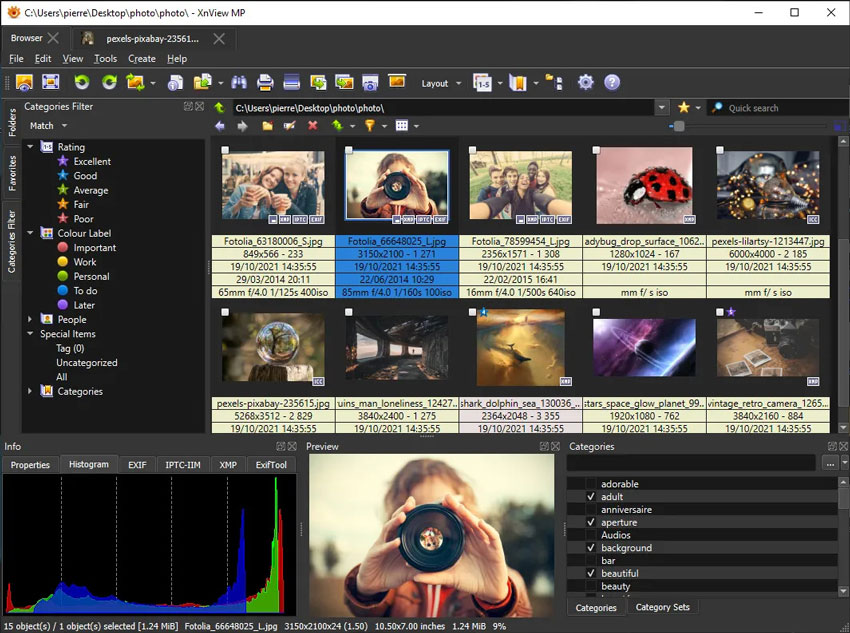
XnView MP combines a folder browser with ratings, previews, and category controls. Official screenshot: XnSoft.
2. digiKam: a free, open-source photo catalog
digiKam is the strongest starting point here for readers who specifically want an open-source Adobe Bridge alternative. Available on Windows, macOS, and Linux, it organizes photo collections using albums, tags, ratings, and search, with additional tools for faces, geolocation, comparison, RAW processing, and batch operations. It makes more sense as the foundation of an ongoing photo archive than as an occasional viewer for a handful of files.
Its database does not mean that your photographs must be copied into a proprietary container. You add collections from existing storage, and digiKam scans them to build its index. The application maintains separate data for items, thumbnails, similarity searches, and faces; those databases need a place in your backup plan alongside the photographs. The documentation recommends fast local storage for SQLite databases, which is worth considering if your originals live on slower external media.
Metadata behavior is unusually configurable. You can control which information is written to files, whether XMP sidecars are read or written, and how their filenames are formed. That flexibility is valuable when exchanging files with Bridge, but it requires deliberate setup. Choose digiKam if long-term organization and metadata control justify configuring a catalog; choose a simpler browser if opening the next folder is usually the whole job.
3. Photo Mechanic: manual culling and professional captioning
Photo Mechanic is particularly relevant to event, sports, and editorial photographers who need to move from a memory card to a well-captioned selection. Its contact sheets support manual photo culling, ratings, tagging, and file operations. Ingest tools can add metadata while copying photographs from cards, and structured keywords, batch renaming, and Code Replacements address the repetitive work of preparing a shoot for delivery.
Its RAW previews deserve a closer look before comparing it with a RAW editor. Photo Mechanic normally displays a JPEG embedded in the RAW file; the resolution and appearance of that preview depend on the camera’s file. A render cache provides options for files with missing or small embedded previews, with rendering controls varying by platform. Check preview availability with your own cameras: the image used for selection is not necessarily your editor’s final rendering.
Standard Photo Mechanic should also be distinguished from Photo Mechanic Plus. Camera Bits has withdrawn Plus from sale because of problems with its catalog technology, while continuing to develop and support the standard application. The recommendation here is for folder-based culling and metadata work, not a replacement archive catalog.
Photo Mechanic runs on Windows and macOS and offers subscription and perpetual licenses. The perpetual option includes a defined update and support period, rather than unrestricted future upgrades. It is worth paying for when ingest, selection, and captioning are substantial parts of your working day; occasional browsing alone is a weaker reason.
4. ACDSee Photo Studio Home: Windows photo organization
ACDSee Photo Studio Home combines direct access to your existing folders with more extensive organizational tools than a basic viewer. Ratings, categories, keywords, color labels, face recognition, and search can help bring a growing Windows collection under control. Batch resizing, renaming, and conversion support the practical work around that collection, while its editing tools cover common adjustments without immediately sending every file to another application.
The useful distinction is that folder access does not remove the database from the workflow. ACDSee also uses database-backed features, including a Media mode covering previously browsed or cataloged folders. Its documentation distinguishes application metadata from EXIF and IPTC information, and describes ways to import or embed category and keyword information. Before switching, check that the fields you rely on are portable outside ACDSee, rather than visible only in its database.
This recommendation is specifically for Photo Studio Home on Windows. ACDSee sells a separate Mac product and other Windows editions, so their features should not be treated as interchangeable. In particular, confirm the edition’s editing capabilities if replacing Camera Raw is part of your plan. Home is available with a perpetual license, while ACDSee also offers subscription bundles. Choose it for a combined Windows organization and editing environment; assess its database backup and metadata behavior as carefully as its browsing interface.
5. FastStone Image Viewer: straightforward Windows viewing
FastStone Image Viewer is a practical option when Bridge feels excessive for the work at hand. It provides a Windows Explorer-style browser, a full-screen viewer, magnification, ratings, and side-by-side comparison of up to four images. Batch conversion and renaming, contact sheets, basic adjustments, and external-editor launching make it useful for sorting a folder and preparing a small delivery.
The full-screen approach is its most relevant distinction. Frequently used controls appear around the edges of the screen, allowing the photograph to occupy more of the display during review. That can suit someone choosing between similar frames or inspecting scans without wanting a broader cataloging system. The developer also provides a portable download, useful when you prefer a self-contained viewing utility.
Its suitability becomes narrower when the archive depends on detailed metadata exchange. The published feature list emphasizes EXIF display and JPEG comment editing; do not assume that its rating or tagging tools reproduce your full Bridge IPTC/XMP workflow. Test that requirement separately. FastStone is free for personal and educational use, with a paid license for other uses. It is a reasonable choice for straightforward Windows browsing, but the advanced metadata requirements described elsewhere in this guide point toward other candidates.
6. Eagle: design assets and visual references
Eagle is a better fit for a designer’s reference collection than for a photographer seeking another RAW editor. It brings together images, screenshots, fonts, video, audio, and other creative material, with folders, tags, ratings, filters, and a browser extension for collecting references. Color-based search and visual browsing are especially relevant when the question is what an asset looks like, rather than which camera or lens produced it.
The main workflow change is file storage. Eagle’s official support describes importing by copying files into its library instead of indexing originals in their existing locations. A collection of references can benefit from being gathered into one place, but that approach changes storage use and backup planning for an established archive. Treat the library as something to maintain, and test how exported files carry the information you added.
Eagle’s internal organization should not be assumed to match Bridge’s metadata behavior field for field. A designer grouping references by project may find that trade-off acceptable, while someone delivering captioned photographs to an agency needs a more exact interchange test. Eagle is sold as a one-time purchase for Windows and macOS. Choose it when collecting, browsing, and reusing visual material is the main requirement, and retain a photography-oriented application for tasks that depend on that kind of metadata.
7. NeoFinder: Mac archives across multiple drives
NeoFinder addresses a different problem: knowing where an asset is when your work has outgrown one connected drive. It catalogs files and volumes, including external disks and other storage, and stores information such as filenames, thumbnails, and metadata. Its Mac interface includes tools for ratings, descriptions, keywords, and XMP editing, making it relevant to photo, video, and mixed-media archives.
The distinction from Bridge is the catalog’s role as an inventory. NeoFinder can help you find recorded information about material on disconnected media; it does not make the absent original available for editing. Reconnect the relevant storage when you need the file itself. This is useful for older client projects and backup collections that would otherwise require mounting drives one at a time, but offers less benefit when you only work in one active shoot folder.
NeoFinder uses a perpetual license tied to the purchased major release, with optional paid major upgrades. Private and business licensing differ. Its Windows counterpart, abeMeda, is a separate application, so NeoFinder should be evaluated here as a macOS recommendation. Choose it when locating and maintaining a media archive is the bottleneck, rather than when you need RAW development or a general replacement for Adobe application integration.
How to choose the right Bridge replacement
Separate folder access from library storage
A folder browser opens files where they already live. A catalog records information about those files for searching and organization. A managed library may also copy the assets into its own storage structure. These are separate decisions: a program can browse folders directly and still maintain a database, as XnView MP and ACDSee illustrate. Lightroom Classic can likewise add photographs to a catalog without moving them.
Choose according to how you maintain the archive. If other applications, scripts, or colleagues depend on existing paths, preserving those paths has practical value. If you want one searchable record across years of photographs, an index may justify its setup and backup requirements. If most material arrives as downloaded references, gathering copies into a managed library may be appropriate.
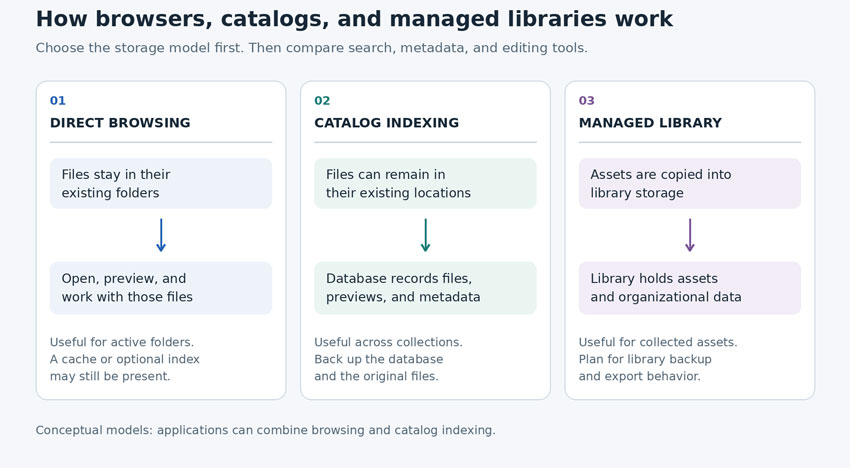
Folder access, catalog indexing, and library storage describe different parts of a workflow. An application may combine more than one approach.
Check preview quality and the files you actually use
Support for a filename extension is only the beginning. A RAW browser might show an embedded JPEG, render a new preview, or use a cache. Those routes affect what you see when judging color and sharpness. Similarly, importing a PSD or Illustrator file does not establish that a program can reproduce every preview or handoff available in Bridge.
Evaluate a representative folder: RAW files from each camera, edited JPEGs, layered documents, and any videos or PDFs you routinely handle. Compare the first opening with a later visit after previews have been cached, using the same storage. Camera Bits identifies disk I/O as a key Photo Mechanic bottleneck; that is a useful reminder to consider the drive as well as the application before drawing a speed conclusion.
Keep editing and asset management requirements separate
A photograph can be correctly rated and keyworded while looking different in two applications. The organizational fields may travel through XMP, while the instructions for rendering the image remain specific to an editing engine. Decide whether you need an organizer, a RAW developer, or both. If Bridge already provides essential previews and Adobe handoffs, keeping it alongside a specialized tool may be the more practical arrangement.
Switching from Bridge: files, keywords, and ratings
Establish where the information is stored
Bridge uses XMP metadata, which may be embedded in a supported file or stored in a separate sidecar. Camera Raw adjustments can also reside in its own database, depending on your settings. Adobe documents exporting those settings to XMP when they need to accompany RAW files. Keep the photograph and its associated sidecar together when copying, moving, or renaming a working set.
Back up the sample folder before allowing another application to write metadata. Also record application-specific arrangements, such as collections or saved searches, separately: a successful keyword transfer is not evidence that every organizational structure has been reproduced. For catalog-based tools, maintain a database backup as well as a file backup.
Run a two-way metadata check
Use a small sample with known ratings, color labels, flat and hierarchical keywords, captions, and copyright information. Open it in the replacement application, then modify one field and reopen it in Bridge. Reading existing metadata and writing it back are different capabilities; both matter if you will continue using more than one application.
digiKam provides a concrete example of why configuration matters. Its documentation describes both filename.ext.xmp and a commercial-program-compatible filename.xmp naming option, plus separate controls for reading and writing sidecars. Check the settings against the files you already have, rather than changing names across the archive as an initial troubleshooting step.
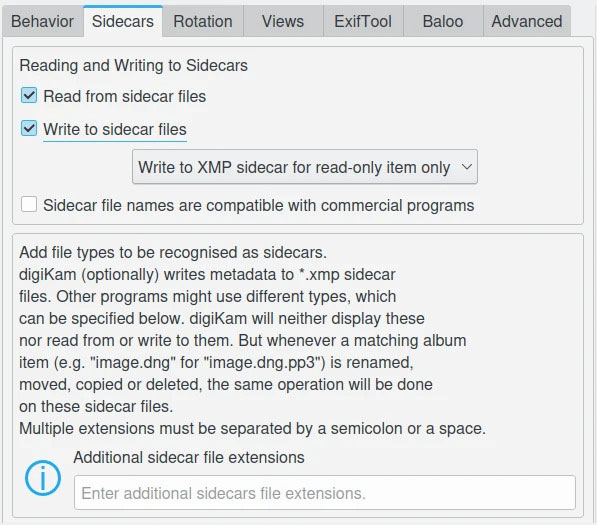
digiKam exposes sidecar read/write behavior and filename compatibility as separate settings. Screenshot: digiKam documentation team, CC BY-SA 4.0, unmodified.
After selection: where Aiarty Image Enhancer fits
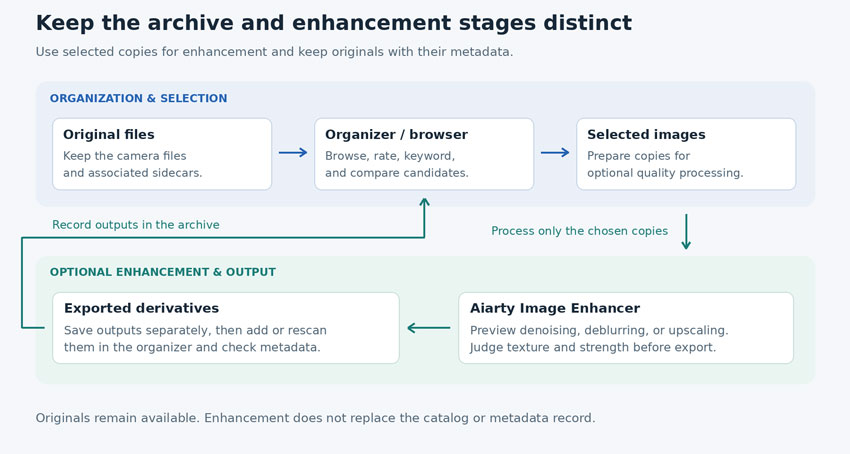
Finding a photograph and improving its output quality are separate stages. A photo organizer can identify the wildlife frame worth keeping, but that frame may still have high-ISO noise or insufficient resolution after a tight crop. For those selected images, Aiarty Image Enhancer provides a complementary Windows or Mac processing step, rather than replacing Bridge’s browsing, keywording, or catalog functions.
Aiarty documents AI denoising, deblurring, compression cleanup, and upscaling, with models and strength controls for different image characteristics. Enhancement at the original dimensions is available when more pixels are unnecessary; enlargement is useful when the intended output needs additional resolution. Results should be judged on the photograph itself: inspect skin, feather patterns, fine lettering, and repeated textures, and reduce processing strength if the result becomes too smooth or too sharply defined. AI-generated texture should not be treated as evidence of detail captured by the camera.
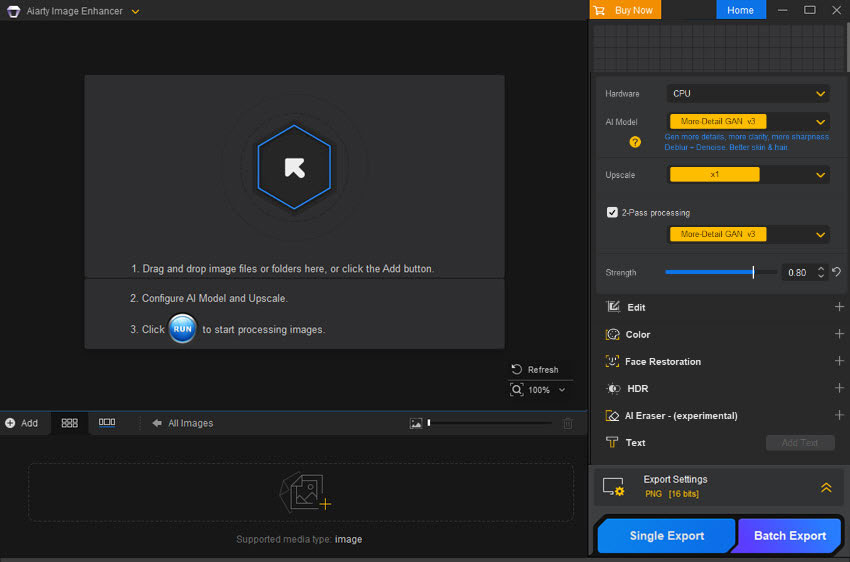
For a selected group, the documented workflow is to add images or a folder, choose the model and scale, preview the result, and use Batch Export. Processing runs locally, while initial model downloads and activation require connectivity. The trial has export restrictions, including disabled batch export and watermarked single-image output. Supported inputs include common raster formats and listed camera RAW formats; TIFF and PNG are among the export options. Confirm your camera and output requirements in the technical specifications.
A practical arrangement is to retain originals in the archive and save processed derivatives in a clearly named output folder, then bring those derivatives back into the organizer. Aiarty’s documentation says it preserves EXIF camera information; it does not establish identical round-trip behavior for every keyword hierarchy, rating, label, or application-specific setting. Include the exported derivative in your metadata check.
 FAQs
For a free, open-source photo archive, digiKam is the most relevant starting point in this list. XnView MP is another strong candidate for folder browsing and batch work, but its free license is limited to qualifying uses. FastStone is a simpler Windows option for personal or educational use. Check commercial licensing before adopting either in a business.
Start with XnView MP for folder browsing, digiKam for an open-source catalog, or Photo Mechanic for culling and captioning. Eagle suits visual references, while NeoFinder addresses drive archives. The useful comparison depends on whether you need active-folder access, searchable records across a collection, or a managed reference library.
XnView MP and digiKam both offer Linux downloads. XnView MP is relevant to browsing and conversion, while digiKam provides a broader photo catalog with configurable metadata handling. Verify the current package requirements for your distribution and check samples from your camera before indexing the full archive.
Often, provided they are stored in metadata the replacement reads and writes. There is no universal guarantee covering every field, file format, or application setting. Test ratings, keywords, hierarchy, and labels in both directions, and keep RAW sidecars paired with their photographs. The metadata check above is more useful than a general XMP-support checkbox.
Lightroom Classic can organize and develop a photo library, but it uses a catalog rather than serving as the same general creative-file browser. Importing with Add can register photographs without relocating them. Consider it if RAW editing and photo organization should share one environment; see our Adobe Bridge vs Lightroom comparison for the broader workflow question.
Yes. Adobe offers Bridge as a free download. That does not make every connected Adobe workflow free: its current support instructions require an active Photoshop subscription for Camera Raw editing in Bridge. Separate the cost of the asset browser from the editing applications you use alongside it.
Brenda Peng is a seasoned editor at Digiarty Software who loves turning ordinary photos into extraordinary works of art. With years of experience behind the lens and in front of the computer, Brenda shares her passion for photography, image enhancement, and editing through easy-to-follow tutorials.
