


At some point, every serious photographer hits the same wall.
It usually starts quietly. A few external drives. A folder called "2022 Backup". Another one named "Final Finals". Then one day you realize you're sitting on 3000, 7000, maybe 10000 photos, and you have no clean way to find anything unless you already know where it lives.
That moment is why Excire Foto exists. Not for beginners with a few hundred JPEGs. Not for people who already have a perfectly labeled, color-coded archive.
It's built for photographers who crossed the invisible line at some point. And it just answers one question: how do you actually find your photos once your library grows past what folders can handle?
Before we diving into the detail review of Excire Foto, here is one quick reflection on digital assets management (DAM) software.
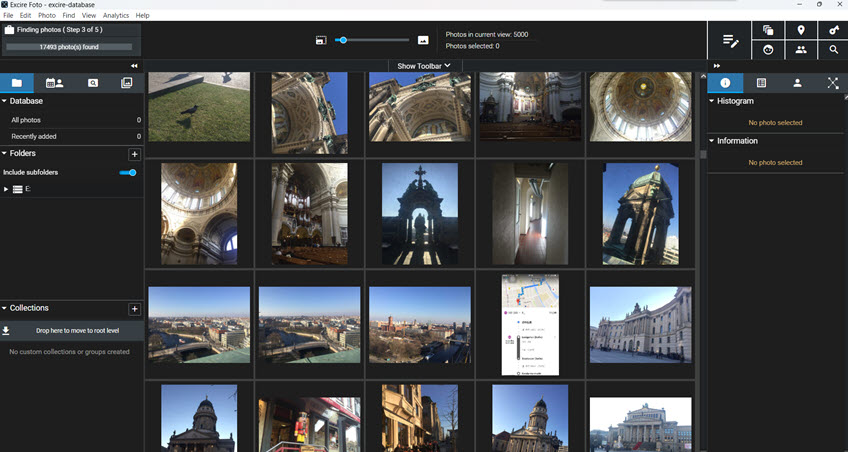
Photo editors, DAMs, and cloud libraries aren't the same thing
Photo editors like Lightroom, Capture One, or Luminar are built for editing first. Organization exists, but it's tied to the editing workflow.
Cloud libraries like Google Photos or Apple Photos focus on convenience. They work well for personal images but fall short with large RAW archives, external drives, and professional workflows.
DAM software like Excire Foto positions itself right in that gap. It's a standalone, local photo manager built around AI search. Your photos stay where they are. There's no subscription and no cloud dependency.
The software analyzes your library once, builds its own database, and lets you search using things humans actually remember: People, objects, scenes, faces, visual similarity, even rough text descriptions.
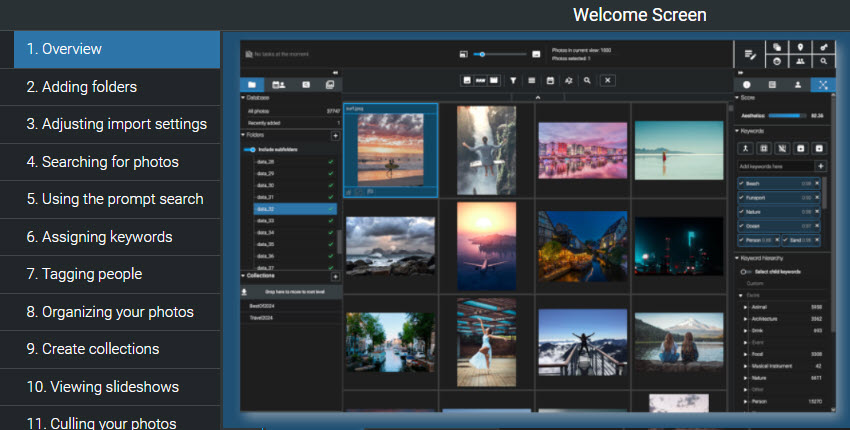
Core Features of Excire Foto
Excire Foto focuses on one problem: finding images inside large, messy archives. Instead of forcing you to maintain perfect folders or keywords, it uses local AI analysis to make your existing library searchable in human terms.
Photo Search
Excire helps you find photos you forgot existed, and the AI-powered search is where it distinguishes from other tools.
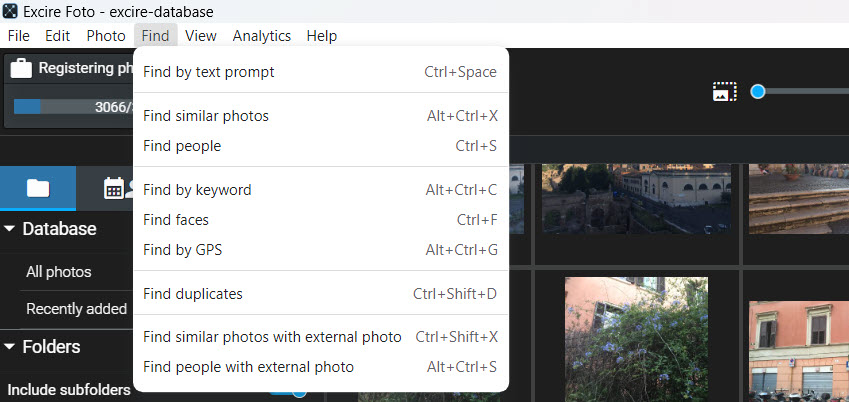
Excire does not rely on keywords. Even when the automatic tags are vague, the free-text (prompt) search still works because it's driven by Excire's image analysis, not metadata.
One feature I ended up using more than expected is similar image search. You select one photo and Excire finds visually related images. This works well for burst sequences, repeat compositions, or when you remember the photo but not the shoot.
Face and people search is solid, especially after a bit of confirmation training. Once you tag a few identities, accuracy improves quickly. It's not cloud-level facial recognition, but it's fast, local, and predictable, which matters if privacy or offline work is part of your workflow.
Culling and Selection Tools
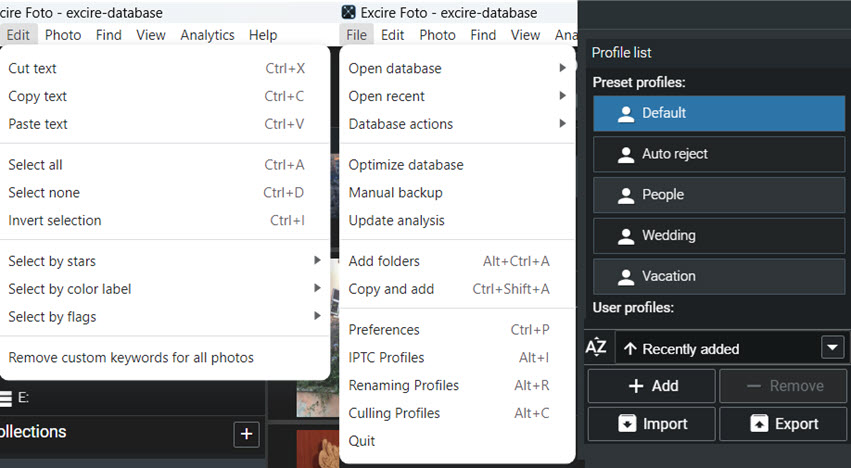
The culling tools are genuinely useful, especially for high-volume work. You can filter by sharpness, eyes open or closed, and smiling faces. These sound basic, but when you're staring at thousands of near-identical frames, they make a real difference.
There is a cap of 10,000 images per culling project. For most real shoots, that's fine. For massive imports or long-term archives, you'll want to break things into chunks.
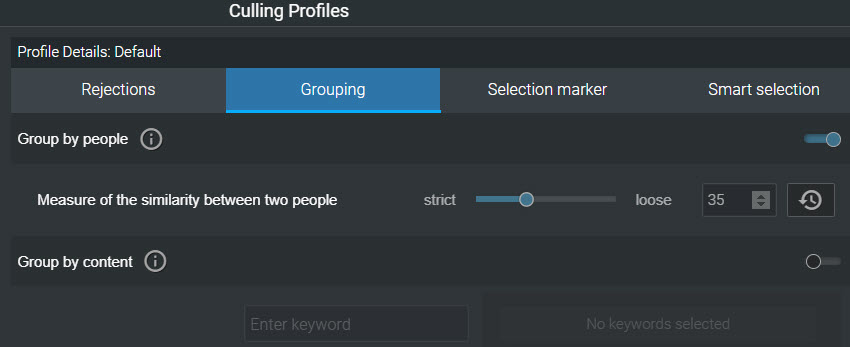
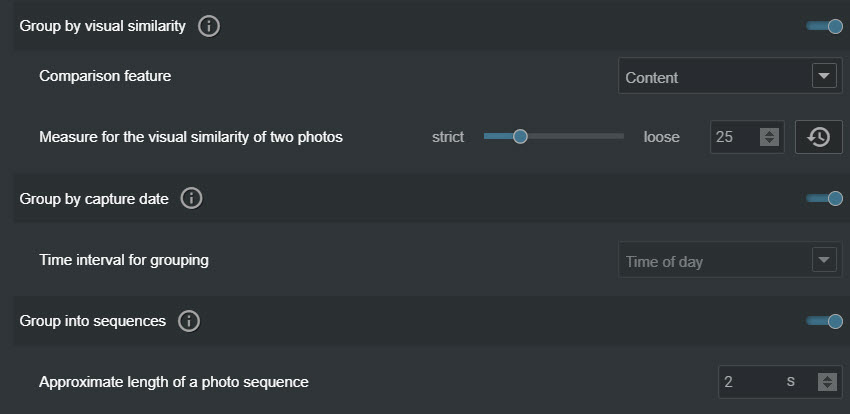
Duplicate and near-duplicate detection
This DAM helps identify true duplicates and almost-identical frames, allowing you to clean up old imports and reduce archive clutter.
Offline drive support with previews
With Excire Foto, you can search and browse photos even when external drives are disconnected. Once analyzed, Excire works from previews until the originals are reconnected.
Performance and Speed with Large Libraries
Around 10,000 photos feels comfortable and responsive. Libraries in the six-figure range take real time to analyze and are best left running overnight.
Excire Foto works with offline drives. Because it works from previews, you can still search and browse images even when the original drive isn't connected.
It doesn't constantly rescan folders. Once a folder is analyzed, it stays that way unless you explicitly synchronize it.
Metadata, Files, and the Database
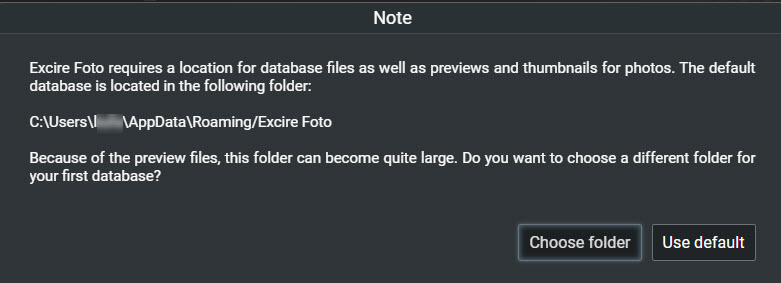
To better understand how Excire Foto handles your photos, the following questions cover real world scenarios.
Will Excire Move or Duplicate My Photos?
No. Excire works with your files exactly where they already are. When you add folders, Excire creates references and previews. Your original files remain untouched on your drives.
You can point Excire at external drives, archive disks, or network storage. If a drive is disconnected later, the previews and database entries remain visible. When the drive is reconnected, everything links back up automatically.
Can I Edit Metadata in Excire Foto?
Yes, and this part is more capable than many people expect. You can edit keywords, star ratings, color labels, IPTC fields, and GPS data. Still, all of these changes live only inside the Excire database.
When you explicitly choose Store Metadata, Excire writes changes either into XMP sidecar files or directly into supported image formats. RAW files use sidecars. JPEG and TIFF files can store embedded metadata.
Can I Make Metadata Visible to Other Programs?
You can go with the Store Metadata command. Once stored, those changes become visible to other software.
XMP sidecar files behave exactly as expected and are fully compatible with Lightroom, Capture One, Luminar, ON1, and most other photo tools. If you open the same folder in Lightroom after storing metadata, your keywords and ratings appear normally
What Excire Foto Does Not Try to Be
If you are looking for Lightroom alternatives, Excire Foto doesn't offer editing tools. You cannot adjust exposure, color, or crop images. It focuses only on organization, search, and selection.
There is also no cloud sync and no shared database. Each database lives locally on one computer. If you are used to opening Apple Photos or Google Photos on every device, this will feel limiting.
And it is not Apple Photos or Google Photos. There is no timeline-driven browsing, no social layer, and no casual "Photo slideshow" experience.
After Photos Curation: Enhancing Selected Images with AI
Excire Foto deliberately avoids image editing. Once you’ve identified the right photos, it expects you to move on to another tool.
For many workflows, that next step isn’t heavy retouching, it's cleaning up low-resolution, old images, improving clarity, or preparing photos for reuse. That's where tools like Aiarty Image Enhancer fit naturally.
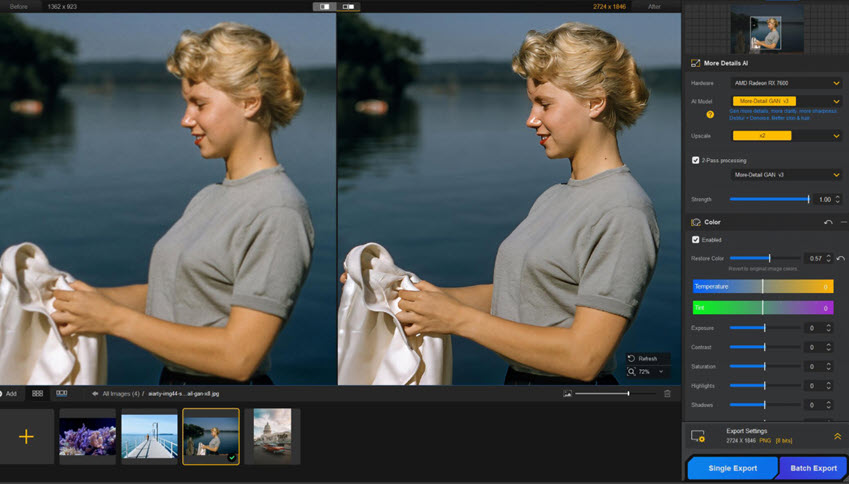
Aiarty is an AI-powered image enhancement application designed to improve photo quality, with AI-powered automation and manually control for natural, realistic results. It focuses on tasks Excire intentionally does not cover:
- Fix high ISO noise, remove blemishes and color speckles from photos
- Fix soft, grainy, blurry images, improve clarity without over-sharpening
- Option to upscale images to 2K, 4K, 8K, and higher resolutions
- Adjust enhancement strength, correct colors, option to convert SDR to HDR
- Restore portrait faces, enhance old, low-light photos, improve natural details
Aiarty offers multiple AI models optimized for different image types. You can preview results in real time and choose whether you want subtle cleanup or more aggressive restoration. If you're working with older photos, scanned images, or compressed files, the difference can be noticeable when zoomed in or view on 4K displays.
Final Verdict: Is Excire Foto Worth It?
Excire Foto is worth it once you've crossed the point where folders stop being enough. What it gives you is retrieval, the ability to type what you remember and actually find the image you're thinking of. Not just by filename or keyword, but by subject, scene, or visual similarity.
It's not for everyone. But for photographers and archivists with large, aging libraries, Excire solves the assets curating problems.
 FAQs
FAQs
If I uninstall Excire Foto, will I lose my pictures?
No. Excire does not move, copy, or contain your original photos. Uninstalling the software removes only the Excire database and preview files. Your images remain exactly where they were on your drives.
Can I delete photos from Excire without deleting them from my computer?
Yes. You can remove images from the Excire database without touching the original files. Deleting files from disk is always a separate, deliberate action and requires explicit confirmation.
Can Excire Foto access Apple Photos?
Not directly. Excire works with folders and standard image files, not Apple Photos libraries. To use images from Apple Photos, you must export them to folders first and then add those folders to Excire.
Can multiple computers share the same Excire database?
No. Excire databases are local to each machine. You can point multiple computers at the same photo folders, but each system maintains its own database, previews, and analysis. This is a deliberate design choice and part of how Excire stays fast and fully local.
You May Also Like


Rico Rodriguez is an experienced content writer with a deep-rooted interest in AI. He has been at the forefront of exploring generative AI tools like Stable Diffusion. His articles offer valuable insights into the world of AI, providing readers with practical tips and informative explanations.
