


Creating engaging videos for Facebook is no longer just a nice option—it's a necessity for connecting with your audience. As the platform shifts towards immersive, video-first experiences (especially with the rise of Reels), knowing how to produce compelling content is essential for both individuals and businesses.
Whether you're looking to share a fun update with friends or run a professional marketing campaign, the process can feel overwhelming. This guide breaks down the complex journey into four simple, manageable steps: Planning, Creation & Editing, Uploading & Sharing, and Optimization & Engagement.
Follow this step-by-step approach to master the art of Facebook video and grab the attention of users as they scroll through their feeds. Let's dive into how to go from a simple idea to a highly engaging Facebook video.
💡 Bonus: Enhance Your FB Videos with Aiarty Video Enhancer
If you want your Facebook videos to stand out in a crowded feed, nothing helps more than crystal-clear visuals and smooth, professional-looking motion. Aiarty Video Enhancer is an AI-powered tool designed to take your footage to the next level. It sharpens details, reduces noise, balances color, and ensures every frame looks polished and vibrant.
Reels, Stories, and Feed posts all benefit from enhanced videos, making them look more professional and helping boost engagement, watch time, and overall reach. Even clips shot on a smartphone can be transformed into eye-catching content that holds viewers' attention from the very first second.



For creators looking to make their Facebook content pop, Aiarty Video Enhancer delivers professional-quality results without the steep learning curve of traditional video software. It's a quick, easy way to give your videos the polish they need to compete on Facebook and capture more eyes.
Step 1: Plan Your Video
To make a video for Facebook, the crucial first step is meticulous planning (pre-production). This ensures your video is strategic, relevant to your audience, and tailored to the platform's best practices.
1. Define Your Goals and Objectives
Before touching a camera, know what you want the video to achieve. Clarity in your goals will guide every subsequent decision. Ask yourself: What is the primary purpose? Increase brand awareness? Educate your audience (e.g., with a tutorial or explainer)? Drive traffic to your website or a landing page? Generate leads or sales? Boost audience engagement (likes, comments, shares)?
2. Identify Your Target Audience
A successful video speaks directly to the people most likely to be interested in your content.
- Research demographics: Use Facebook Insights to understand the age, location, and general interests of your current followers.
- Map their pain points: What challenges do they face that your video can solve? Videos that address real problems or provide value often perform best.
- Tailor your content: The language, tone, and style should resonate with your specific audience. Content for a general consumer audience will be different from professional content for an industry audience.
3. Develop Your Core Message and Story
Focus on one clear, concise message per video. Don't try to cram too much information in, as users scroll quickly.
- Craft a narrative: People connect with stories that evoke emotion. Structure your video with a clear beginning, middle, and end.
- Determine the type of video: Based on your audience and message, choose a format that fits (e.g., a quick Reel, a longer explainer, a Live Q&A, or a product demo).
4. Write a Script or Create a Storyboard
- Planning the flow of your video saves time and ensures all key points are covered during filming.
- Write a script: For most videos, a detailed script is helpful for narration, dialogue, and timing.
- Create a storyboard: A visual plan (sketches or a shot list) is useful for outlining different shots and scenes, especially if filming in multiple locations.
- Plan the "Hook": The first 3 seconds are critical for grabbing attention and preventing the user from scrolling past. Plan an immediate, captivating visual or statement that makes viewers want to watch more.
- Plan for sound-off: Since 85% of Facebook videos are watched without sound, plan to use captions or text overlays to make your message understandable when muted.
5. Consider Facebook's Technical Specifications
Knowing the right format and size will ensure your video looks professional on the platform.
- Recommended aspect ratios. Reels & Stories: Vertical (9:16) for a full-screen, mobile-optimized experience. News Feed: Square (1:1) or vertical (4:5) works best as it takes up more screen real estate on mobile devices.
- File format: Use MP4 or MOV formats for best results.
- Resolution: Upload the highest resolution available (at least 1080p).
- Length: While videos can be long, shorter videos (under 15-30 seconds, especially for ads or Reels) generally perform better in the feed.
6. Create a Content Calendar
Plan your content in advance to maintain consistency and align your videos with relevant events or campaigns. A calendar helps you manage production deadlines and ensures a steady flow of content to your audience.

Step 2: Create and Edit Your Video
Creating and editing your video is where your planning comes to life. You have two main options: use the Facebook app's built-in tools for quick, on-the-go edits, or use third-party software for more professional, polished results. Personally, the Facebook app's built-in tools is capable of doing almost all jobs. And here is how to use it:
The Facebook app offers a streamlined experience for creating short-form vertical video (Reels) directly within the platform.
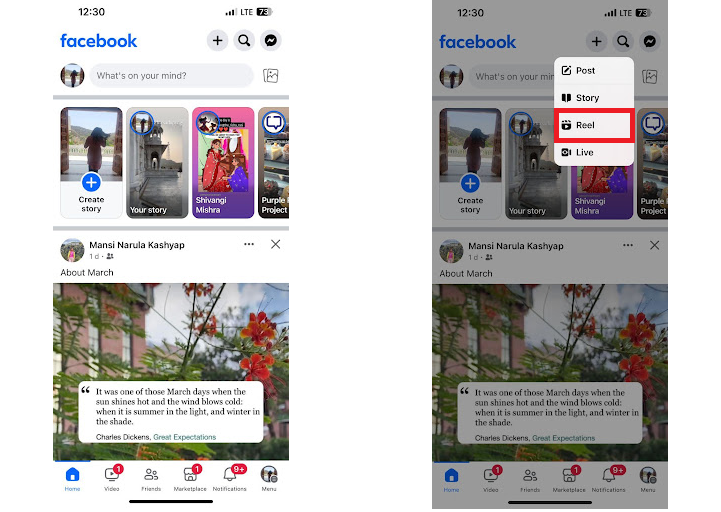
1. Open the app and start a Reel. Tap the + (Create) icon, then select Reel.
2. Record or Upload Footage. Tap the red Record button to capture new video in real time. You can tap to stop and start, creating multiple clips. Alternatively, tap the photo icon in the bottom left to select pre-recorded video clips and photos from your device's gallery.
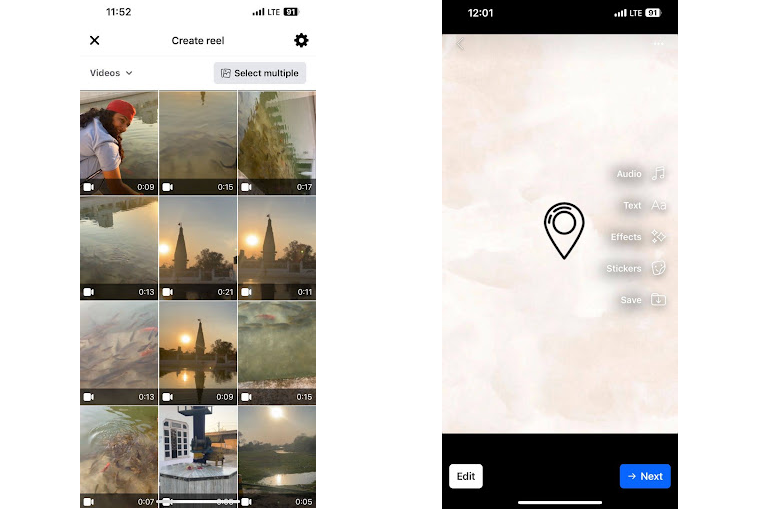
3. Utilize In-App Editing Tools.
- Audio: Tap the Audio or music icon to add background music from Facebook's extensive music library or use your own original audio.
- Speed: Adjust the playback speed of your clips (slower or faster) using the speed icon.
- Effects/Filters: Browse and apply various visual filters and effects, including a "green screen" option.
- Text & Captions: Add text overlays with customizable fonts, colors, and positioning. You can also use the auto-captioning feature to automatically transcribe speech, making your video accessible even when muted.
- Stickers: Add GIFs, emojis, and interactive stickers to increase engagement.
- Trim/Reorder Clips: Access the timeline (often via an "Edit clips" button) to trim the length of specific segments or reorder them as needed.
4. Save as Draft (If needed): If you need to pause editing, you can save your progress as a draft and return to it later.
Note: For more control over the final product, advanced color grading, custom branding, and a polished look, consider using dedicated video editing software.
- Beginner-friendly options: CapCut (great for mobile/social media), iMovie (Mac/iOS users), Adobe Premiere Rush, or Canva's video editor are excellent starting points.
- Professional options: Adobe Premiere Pro or DaVinci Resolve offer industry-standard features for advanced editors.

Step 3: Upload and Share
After creating and editing your video, the final step is uploading and sharing it effectively on the Facebook platform.
The process is slightly different depending on whether you are using the mobile app or a desktop browser, and whether you are posting to a personal profile or a business page.
For Personal Profiles (Mobile or Desktop)
Step 1. Start a new post: From your News Feed or profile page, tap or click the "What's on your mind?" box.
Step 2. Select the video: Tap the Photo/video option (a green icon on mobile). This opens your device's gallery or file explorer.
Step 3. Choose your file: Select the video file (MP4 or MOV recommended) you want to upload and click Done or Open.
Step 4. Add a description: Write a compelling caption in the main text field. This provides context and can include relevant hashtags.
Step 5. Set the audience: Click the audience menu (e.g., "Public," "Friends," "Only me") to control who sees your post.
Step 6. Post: Click the Post button to start the upload and processing.
For Business Pages (Using Meta Business Suite on Desktop)
For business pages, the Meta Business Suite offers more robust management options, including scheduling and advanced settings.
Step 1. Navigate to Meta Business Suite: From your Facebook Page, click on Meta Business Suite in the left menu.
Step 2. Create a post or reel: Click on Create post or Create reel.
Step 3. Upload the video: Select the option to add media and upload your video file from your computer.
Step 4. Fill in details:
- Write your caption: This is your primary text for the post.
- Add a custom thumbnail: This is vital for attracting clicks. In the post settings, go to the Thumbnail section and click Upload image to use a custom-designed image, or select a frame from the video.
- Add a title/description: These fields help with search visibility within Facebook.
Step 5. Choose your publishing options:
- Publish Now: Your video will go live immediately after processing.
- Schedule: Set a specific future date and time for the video to automatically publish. You can use Meta's suggested "Active times" for optimal reach.
- Save as Draft: Save the post to finish later.
Step 6. Click Publish or Schedule: Finalize the process by clicking the appropriate button. The video will process, which might take some time for longer files.

 FAQs
FAQs
It depends on the placement. While Facebook allows videos up to 240 minutes long, shorter videos generally perform better. Reels should be up to 90 seconds. And for Feed Videos, videos between 1 to 2 minutes tend to have optimal engagement, but short, punchy videos around 15 seconds are best for initial attention.
Facebook supports most file types, but recommends using MP4 or MOV format with H.264 compression and AAC audio.
- Resolution: Upload the highest resolution possible, at least 1080p (1280 x 720 pixels).
- Aspect Ratio: Vertical videos (9:16 for Reels and Stories) or square videos (1:1) take up the most screen real estate on mobile devices and are recommended.
Yes, it is highly recommended. A significant majority (around 85%) of Facebook users watch videos without sound as they autoplay in the feed. Including captions or on-screen text is crucial for conveying your message to a broad audience and increasing watch time.
The first 3 seconds are critical for stopping the scroll. Use a strong "hook," captivating visuals, engaging text overlays, or an intriguing question right at the beginning. Get straight to the point of the video.
You can do both. Desktop: Log in to Facebook, go to the "What's on your mind?" box, click the Photo/Video icon, and upload your file. Mobile: Open the app, tap the "What's on your mind?" field (or tap the Create Reel option), and select a video from your camera roll.
Conclusion
Creating effective Facebook videos requires a blend of creativity, technical know-how, and strategic optimization. By following these four key steps—from meticulous planning and execution to strategic uploading and engaging with your audience—you can significantly improve your content's performance.
Remember that Facebook's landscape is constantly evolving, with a strong emphasis on mobile-first, sound-off viewing, and vertical formats like Reels. Stay adaptable, use analytics to refine your approach, and prioritize providing genuine value to your viewers. With practice and persistence, your videos will stand out in a crowded news feed and help you connect with your audience in powerful new ways. Now go ahead, hit record, and start sharing your story!
You May Also Like


This post was written by Ashley Brown, a videographer turned AI explorer. As an associate writer at Digiarty Software, she dives into the latest AI-powered tools for video enhancement and content creation, offering practical insights and unbiased commentary. Accuracy confirmed by Abby Poole.
