


AI reel makers now cover very different workflows. Some turn a prompt or script into a finished vertical video, some find short clips inside long podcasts or webinars, and others work more like traditional editors with AI captions, reframing, templates, and generative media. That makes choosing the right tool less about finding one "best" app and more about matching the tool to the kind of Reel you actually need to make. Below, we compare eight strong options for Instagram Reels, TikTok, and YouTube Shorts in 2026, including tools for text-to-reel creation, long-video repurposing, faceless videos, AI avatars, brand content, and hands-on editing.
Quick Picks: Best AI Reel Makers by Use Case
- Best overall for hands-on short-form editing: CapCut
- Best for prompt-to-Reel automation: Invideo AI
- Best for turning long videos into short clips: OpusClip
- Best for branded Reels and templates: Canva
- Best for AI avatar and talking-head Reels: HeyGen
- Best for repurposing scripts and long-form content: Pictory
- Best for faceless, voice-led Reels: Fliki
- Best for creators already using Adobe tools: Adobe Express
8 Best AI Reel Makers in 2026
1. CapCut - Best Overall for Hands-On Short-Form Editing
CapCut remains one of the most practical choices for creators who want AI assistance without giving up control of the edit. It is built around a familiar timeline workflow, but adds short-form tools such as auto captions, 9:16 formatting, templates, effects, and AI-powered Auto Reframe. That makes it especially useful when you already have footage and want to turn it into an Instagram Reel, TikTok, or YouTube Short rather than generate the entire video from scratch.
The biggest advantage is flexibility. You can trim clips manually, adjust pacing, add music and transitions, style captions, and use AI features where they save time. Auto Reframe can convert horizontal footage into a vertical composition while attempting to keep the main subject visible, although important shots should still be checked manually. CapCut also supports high-resolution export, but some AI and premium features are tied to CapCut Pro. CapCut's official pricing varies by region, device, and available promotions, so it is more accurate to check the price shown in your own account than rely on a single global figure.
Pricing: Free version available; CapCut Pro pricing varies by region, device, and promotions.
Key Features:
- 9:16 Reel editing with a full timeline.
- Auto captions with editable text and subtitle placement.
- AI Auto Reframe for adapting horizontal footage to vertical formats.
- Templates, transitions, filters, effects, music, and speed controls.
- Suitable for creators who want both automation and manual editing control.
- Strong balance between AI tools and traditional editing control.
- Well suited to native-looking TikTok, Reels, and Shorts edits.
- Good choice when you already have your own footage.
- Some useful AI tools, including Auto Reframe in many regions, require Pro.
- Pricing and feature availability can vary by platform and region.
2. Invideo AI - Best for Prompt-to-Reel Automation
Invideo AI is better suited to creators who want the AI to build most of the Reel for them. You can start with a topic, prompt, script, or uploaded media and ask for an Instagram Reel or other vertical social video. The platform can generate a script, voiceover, visuals, music, captions, and overall edit, then let you refine the result with text-based instructions and a timeline editor.
For Reel creation, the key advantage is the end-to-end workflow. Instead of separately writing a script, searching for B-roll, recording narration, and formatting a vertical canvas, you can describe the video you want and generate a first draft in one place. Invideo also provides access to a large range of generative models and uses a credit-based system, so cost depends heavily on which models, resolution, and generation settings you use. It is powerful for fast concept-to-video creation, but frequent use of higher-end generative models can consume credits quickly.
Pricing: Free plan with limited credits; paid plans use monthly AI credits and vary by plan and billing cycle.
Key Features:
- Prompt- and script-based video generation.
- Instagram Reel and vertical 9:16 workflows.
- AI-generated scripts, visuals, voiceovers, captions, and music.
- Text-based refinement plus timeline editing.
- Access to multiple generative video, image, and audio models.
- Very fast way to go from an idea to a complete Reel draft.
- Useful for faceless content, explainers, promos, and social storytelling.
- Combines generation and editing in one workflow.
- Credit usage can vary substantially depending on the AI models selected.
- AI-generated scenes still need review for brand accuracy and visual consistency.
3. OpusClip - Best for Turning Long Videos into Reels
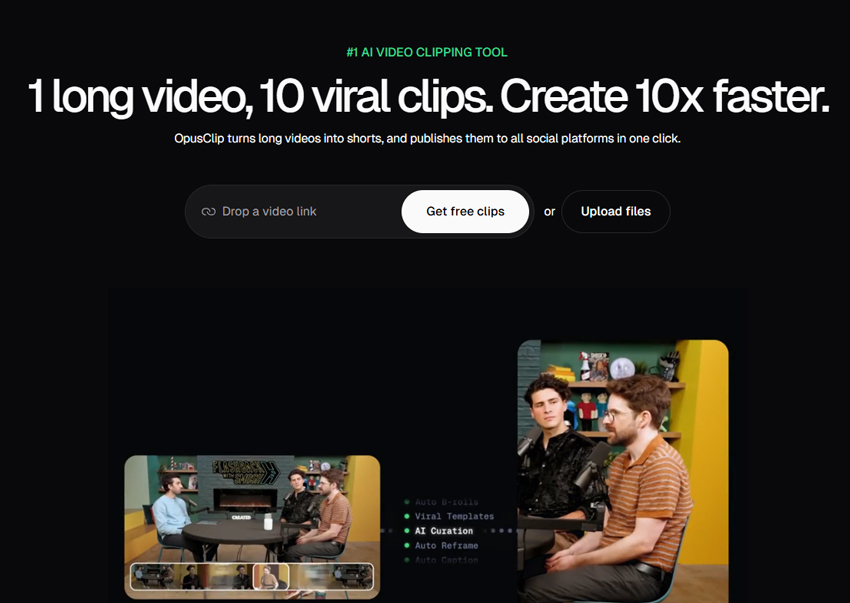
OpusClip is one of the strongest choices when the source material already exists as a podcast, interview, webinar, livestream, or long YouTube video. Instead of generating a Reel from scratch, it analyzes long-form footage, identifies short segments with clipping potential, adds captions, and reframes the composition for social platforms. Its Virality Score is designed to help prioritize clips that may be more suitable for short-form distribution.
This makes OpusClip particularly valuable for creators who publish a lot of spoken-word content. It can remove some of the repetitive work involved in searching through a long recording, cutting clips, adding subtitles, and adapting the frame for vertical viewing. The trade-off is that AI-selected moments are not always the moments you would choose editorially, so the best workflow is to treat the generated clips as strong starting points rather than automatic final cuts.
Pricing: Free Plan; Starter Plan: $15/month; Pro Plan: $29/month; Business Plan: Custom.
Key Features:
- AI clipping for long-form spoken and visual content.
- Virality Score for ranking generated clips.
- Animated captions in multiple languages.
- Auto reframe for vertical social formats.
- Direct posting options for YouTube Shorts, TikTok, and Instagram Reels on supported plans.
- Excellent for repurposing podcasts, interviews, and webinars.
- Reduces time spent finding clip-worthy moments manually.
- Strong captioning and reframing workflow for short-form publishing.
- AI-selected clips still need editorial review.
- It is less useful when you need to create a Reel from only a text idea.
4. Canva - Best for Branded Reels and Templates
Canva is a strong fit for marketers, small businesses, and creators who care as much about brand consistency as editing speed. Its Reel maker combines drag-and-drop video editing with social templates, stock media, brand tools, and AI features inside Magic Studio. For creators with existing footage, Magic Design can suggest layouts around uploaded content, while Highlights can identify short moments in longer footage for social sharing.
Canva also offers AI video generation through its current AI tools, but it is better thought of as a broad visual content platform than a fully automated "one prompt, finished Reel" generator. That distinction is useful: Canva is strongest when you want to design, rearrange, brand, and polish the result yourself. Free users can create and export Reels, although Pro content and higher AI allowances are tied to paid plans. Canva pricing varies by market, so the current local pricing page is the safest reference.
Pricing: Free plan available; Canva Pro and Business are paid plans, with pricing varying by market and billing cycle.
Key Features:
- Customizable Reel and social video templates.
- Magic Design for Video and AI-powered Highlights.
- Canva AI and Magic Media for generated visual assets.
- Brand kits, stock media, animations, and music.
- High-resolution MP4 export and social publishing tools.
- Easy to keep fonts, colors, logos, and layouts on-brand.
- Very approachable for non-editors and marketing teams.
- Good mix of templates, manual control, and AI assistance.
- Less automated than dedicated prompt-to-video platforms.
- Some premium assets and higher AI allowances require a paid plan.
5. HeyGen - Best for AI Avatar and Talking-Head Reels
HeyGen is a strong option for creators who want presenter-led short videos without filming themselves. Its AI Reel Generator can turn an idea, script, link, or audio track into a vertical video, while HeyGen's broader platform adds AI avatars, synthetic voices, captions, translation, and portrait formats designed for Instagram Reels, TikTok, and YouTube Shorts.
Compared with template-first editors, HeyGen is most useful when the presenter is part of the content strategy. Product explainers, educational tips, localized marketing, and talking-head social videos can be generated without repeatedly recording a person on camera. The limitation is stylistic: if your Reel depends on fast manual cuts, complex motion graphics, or native social editing, you may still want to finish the video in a dedicated editor.
Pricing: Free Plan; Creator Plan: $29/month; Pro Plan: $49/month; Business Plan: $149/month plus additional-seat fees.
Key Features:
- AI Reel generation from prompts, scripts, links, or audio.
- AI avatars and talking-head video creation.
- Portrait 9:16 formats for Reels and TikTok.
- Automatic captions, voices, and multilingual localization.
- 1080p export on Creator and 4K export on higher individual plans.
- Excellent for presenter-style videos without repeated filming.
- Strong multilingual and localization capabilities.
- Useful for explainers, product videos, training, and marketing content.
- Avatar-led output may not fit creators who want a more organic, handheld social style.
- Advanced generation and higher export quality use paid plans and credits.
6. Pictory - Best for Repurposing Scripts and Long-Form Content
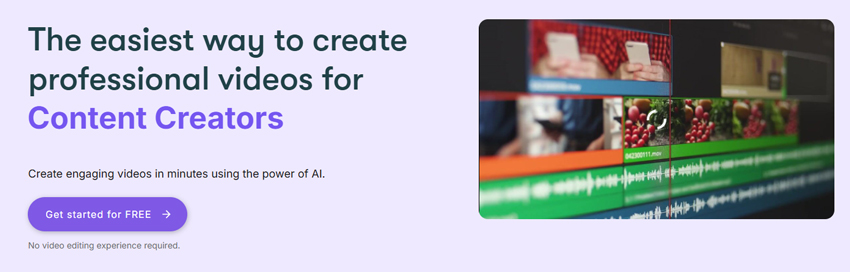
Pictory remains useful for content marketers, educators, coaches, and teams that need to turn existing material into shorter videos. It can generate video from scripts or URLs, edit recorded video with AI, create video highlights, add subtitles, and combine narration with stock assets. Pictory also supports portrait 9:16 export, making it suitable for Reels, TikTok, and Shorts.
Its strength is structured content repurposing rather than highly stylized social editing. For example, a webinar can become several short highlights, or a written article can become a narrated vertical video with stock footage and captions. The current Pictory 2.0 plans also include generative AI credits and, on higher plans, features such as custom avatars and voice cloning. As with other automated tools, stock or generated visuals may need manual replacement when context or brand accuracy matters.
Pricing: Free Trial; Starter Plan: $29/month; Professional Plan: $59/month; Team Plan: $199/month. Annual billing offers lower effective monthly rates.
Key Features:
- Generate video from a script or URL.
- Edit recorded videos and automatically create highlights.
- Automatic subtitles and subtitle export.
- Portrait 9:16, landscape 16:9, and square 1:1 output.
- Stock media, AI voices, brand kits, and generative AI credits.
- Good for turning webinars, articles, and recorded videos into new social assets.
- Beginner-friendly workflow with captions and stock media built in.
- Useful balance of script-to-video and long-video repurposing.
- Output can feel template-driven unless you replace or refine the selected visuals.
- Less suitable for detailed timeline editing than CapCut or a full video editor.
7. Fliki - Best for Faceless and Voice-Led Reels
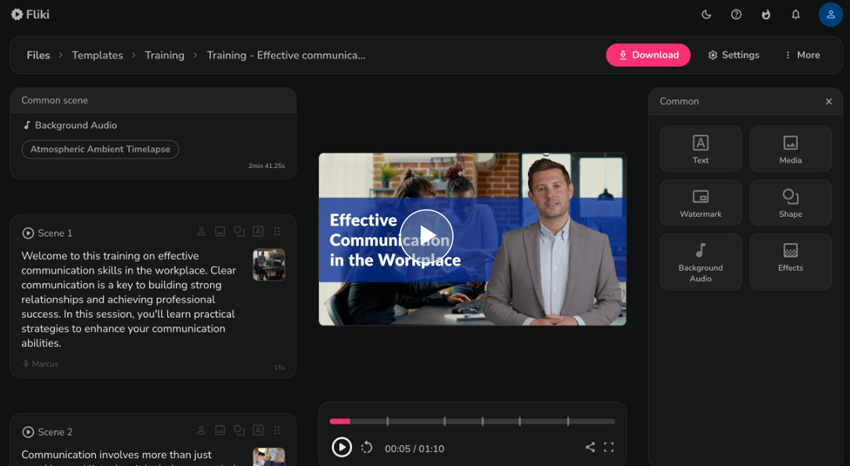
Fliki is a practical choice for faceless Reels where narration carries the story. It can create videos from ideas, scripts, blog posts, or presentations, pair the text with AI voices and stock media, and produce captioned videos without requiring the creator to appear on camera. Its current Free plan includes a smaller monthly credit allowance, 720p output, and a Fliki watermark, while paid plans expand credits, voices, video length, and export quality.
Fliki's biggest strength is voice-led automation. It offers a large voice library across many languages, which makes it useful for educational snippets, list-style videos, explainers, and other faceless formats. The trade-off is that it gives you less granular editing freedom than a timeline-first editor. It is best when speed, narration, and repeatable production matter more than precise shot-by-shot control.
Pricing: Free Plan; paid Standard and Premium plans are available, with credit limits and billing options varying by plan.
Key Features:
- Create videos from ideas, scripts, blog posts, or presentations.
- Large AI voice library across 80+ languages.
- Stock images, video clips, and music assets.
- Auto-edit and caption-friendly workflows for faceless videos.
- 720p on the Free plan and 1080p on paid plans.
- Strong option for faceless videos with AI narration.
- Wide language and voice selection.
- Fast workflow for repeatable social content.
- Free exports include a watermark.
- Less hands-on control than a dedicated timeline editor.
8. Adobe Express - Best for Adobe Users and Branded Social Editing
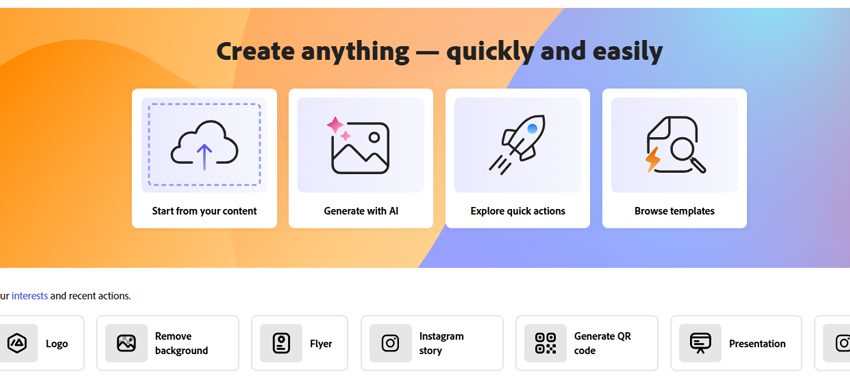
Adobe Express is a good fit for creators and small teams that want a simple Reel maker with strong brand, template, stock, and publishing tools. It supports trimming, splitting, cropping, animation, one-click resizing, voiceover recording, and social scheduling. Adobe has also expanded its AI video capabilities: Adobe Express can generate video from text prompts, and its Clip Maker can identify highlights from longer footage and create short clips with AI-generated captions.
Unlike dedicated AI reel generators, Adobe Express still feels primarily like a visual editor with AI assistance, which can be an advantage if you want to decide how the Reel looks instead of accepting a largely automated cut. The Free plan covers basic creation and editing, while Premium adds more templates, Adobe Stock assets, brand tools, 250 generative credits per month, advanced video features, and one-click Resize.
Pricing: Free Plan; Adobe Express Premium: $9.99/month; Adobe Firefly Pro: $19.99/month.
Key Features:
- Free Instagram Reel templates and drag-and-drop editing.
- Trim, split, crop, transitions, animations, and voiceover recording.
- One-click Resize on Premium for adapting content across channels.
- Clip Maker for creating short highlights from longer videos.
- Firefly-powered text-to-video generation inside Adobe Express.
- Content Scheduler for planning and publishing social posts.
- Strong choice for creators already using Adobe products.
- Good brand, template, stock, and publishing ecosystem.
- Free plan is useful for basic Reel creation.
- Less automated than tools built specifically around one-prompt Reel generation.
- Many premium assets and advanced features require a paid plan.
How We Evaluated These AI Reel Makers
For this 2026 update, we compared current product capabilities and reel-specific workflows rather than ranking tools only by the number of AI features they advertise. Because these platforms serve different types of creators, the most useful question is whether each tool solves a specific short-form production problem well.
- Input flexibility: Can the tool start from raw footage, a long video, a prompt, a script, a URL, images, or a combination of these?
- Short-form workflow: Does it support vertical 9:16 video and make it easy to prepare content for Reels, TikTok, or Shorts?
- Automation quality: Can it handle useful tasks such as clipping, scene generation, reframing, captions, voiceovers, or highlight detection?
- Editing control: Can you correct weak AI choices, adjust timing, replace visuals, and keep the final Reel consistent with your intended message?
- Brand and publishing tools: We considered brand kits, templates, social resizing, collaboration, and direct publishing where available.
- Free and paid limitations: We checked current official plan information and avoided treating region-dependent pricing as a universal fixed price.
How to Choose the Best AI Reel Maker
The best AI reel maker depends on what you are starting with and how much control you want over the final edit. Instead of comparing every feature line by line, start by identifying your workflow:
- If you already have footage and want full editing control: CapCut is the strongest all-round option here, while Adobe Express and Canva are easier choices for template- and brand-led editing.
- If you want to turn a prompt or script into a complete Reel: Invideo AI offers one of the most automated workflows. HeyGen is a better fit when the Reel needs an AI presenter or avatar.
- If you have podcasts, interviews, webinars, or long YouTube videos: OpusClip is designed specifically for finding and formatting short clips. Pictory is also useful when you want broader repurposing from scripts, URLs, and recorded video.
- If you want faceless videos with narration: Fliki is especially strong for voice-led content and multilingual production.
- If branding matters more than maximum automation: Canva and Adobe Express provide stronger template, stock, brand, and design workflows than many dedicated AI generators.
- Before paying, check export limits and AI credits: Free plans often add watermarks, lower resolution, shorter generation limits, or smaller credit allowances. Generative video can also consume credits much faster than captions or basic editing.
Whichever tool you choose, review the generated Reel before posting. Check the opening hook, caption accuracy, subject framing, pacing, brand details, and whether AI-generated visuals actually match the script. Automation can shorten production time, but final quality still depends on human review.
Improve AI-Generated Reels Before Posting
AI reel makers can speed up editing and generation, but the exported video is not always the final version you want to publish. Generated or heavily processed clips can still show soft faces, low-detail textures, compression artifacts, noise, or a drop in clarity after resizing and export. In those cases, a separate enhancement step can be useful after the Reel is finished.
Polish Your Reel with Aiarty Video Enhancer
Aiarty Video Enhancer is designed for the post-production side of this workflow rather than Reel generation itself. It can denoise, deblur, restore natural-looking detail, and upscale low-quality video to 4K. It also includes frame interpolation, audio denoise, and color controls, so it can help when a generated or exported Reel looks soft, noisy, compressed, or less clear than expected.



 FAQs
FAQs
There is no single best AI reel maker for every workflow. CapCut is a strong all-round choice for editing your own footage, Invideo AI is better for generating a Reel from a prompt, OpusClip is designed for turning long videos into short clips, HeyGen is strong for avatar-led videos, and Canva is especially useful for branded template-based content.
CapCut, Canva, Adobe Express, HeyGen, Fliki, Invideo AI, and OpusClip all provide some form of free access, but the limits are different. Free plans may restrict AI credits, export resolution, premium assets, video length, or watermark removal. For hands-on editing with your own footage, CapCut and Canva are among the easiest places to start without paying.
Yes. Tools such as Invideo AI, HeyGen, Pictory, and Fliki can turn prompts or scripts into video by combining generated or stock visuals with narration, captions, music, and editing. The amount of manual correction needed depends on the tool and how specific your prompt is.
Yes. OpusClip is built specifically for this workflow, using AI to identify short segments, add captions, and reframe them for social platforms. Pictory and Adobe Express also offer tools for extracting highlights or short clips from longer footage. You should still review the selected moments and captions before publishing.
Fliki is a strong choice when you want faceless videos driven by AI narration, stock media, and captions. Invideo AI is better when you want the system to generate more of the entire video from a prompt, while HeyGen is a better fit if you want a digital presenter or AI avatar instead of remaining completely faceless.
Softness can come from low-resolution generated footage, compression, repeated resizing, aggressive denoising, or exporting at a low bitrate. Start with the highest-quality source available and avoid unnecessary re-encoding. If the final clip is still soft, noisy, or compressed, a video enhancer can be used after editing to clean up artifacts and improve clarity before upload.
You May Also Like


This post was written by Brenda Peng who is a seasoned editor at Digiarty Software who loves turning ordinary photos into extraordinary works of art. With AI assistance for brainstorming and drafting, the post is reviewed for accuracy by our expert Abby Poole for her expertise in this field.
