 Aiarty Image Enhancer
Aiarty Image Enhancer
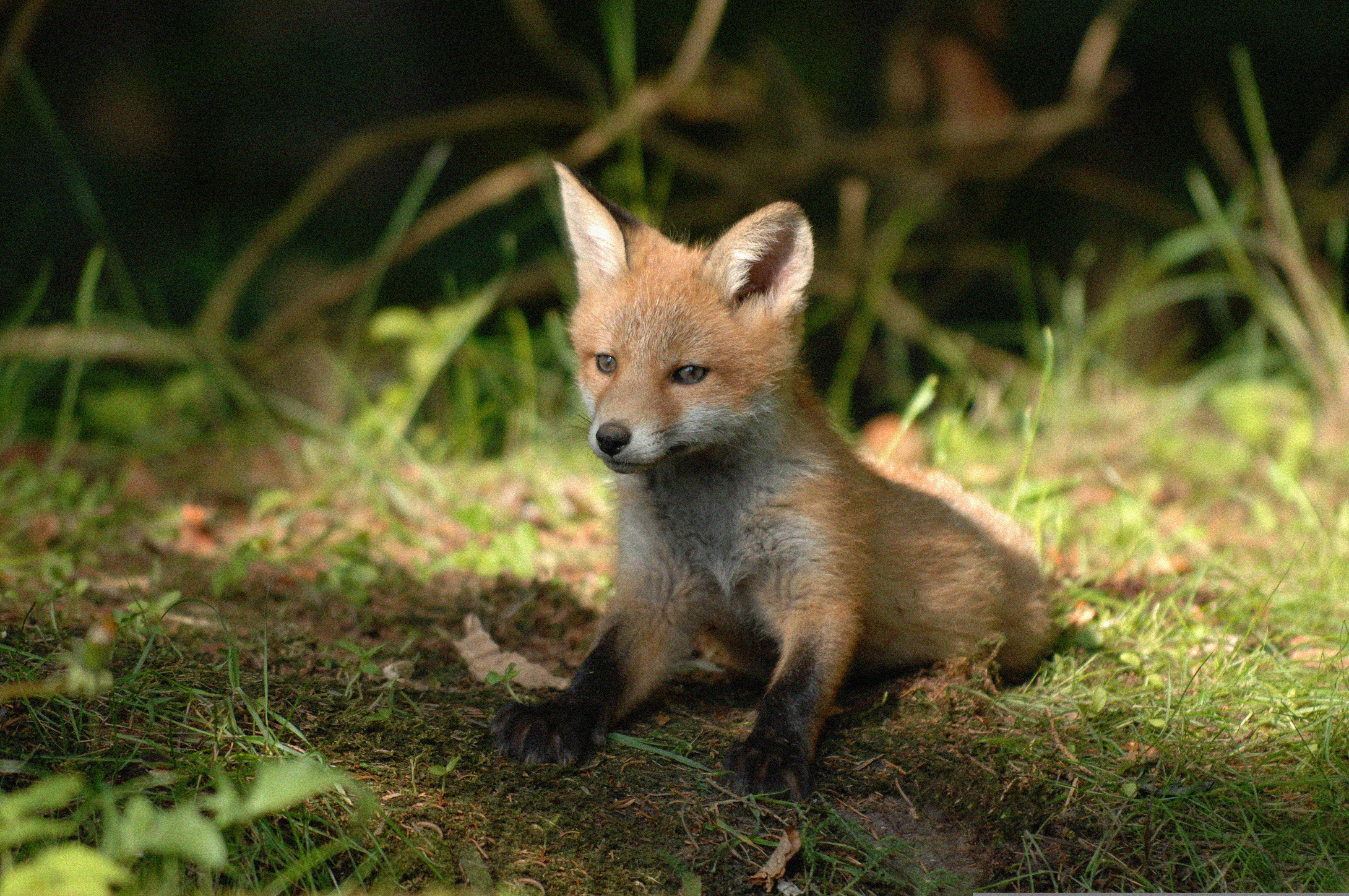
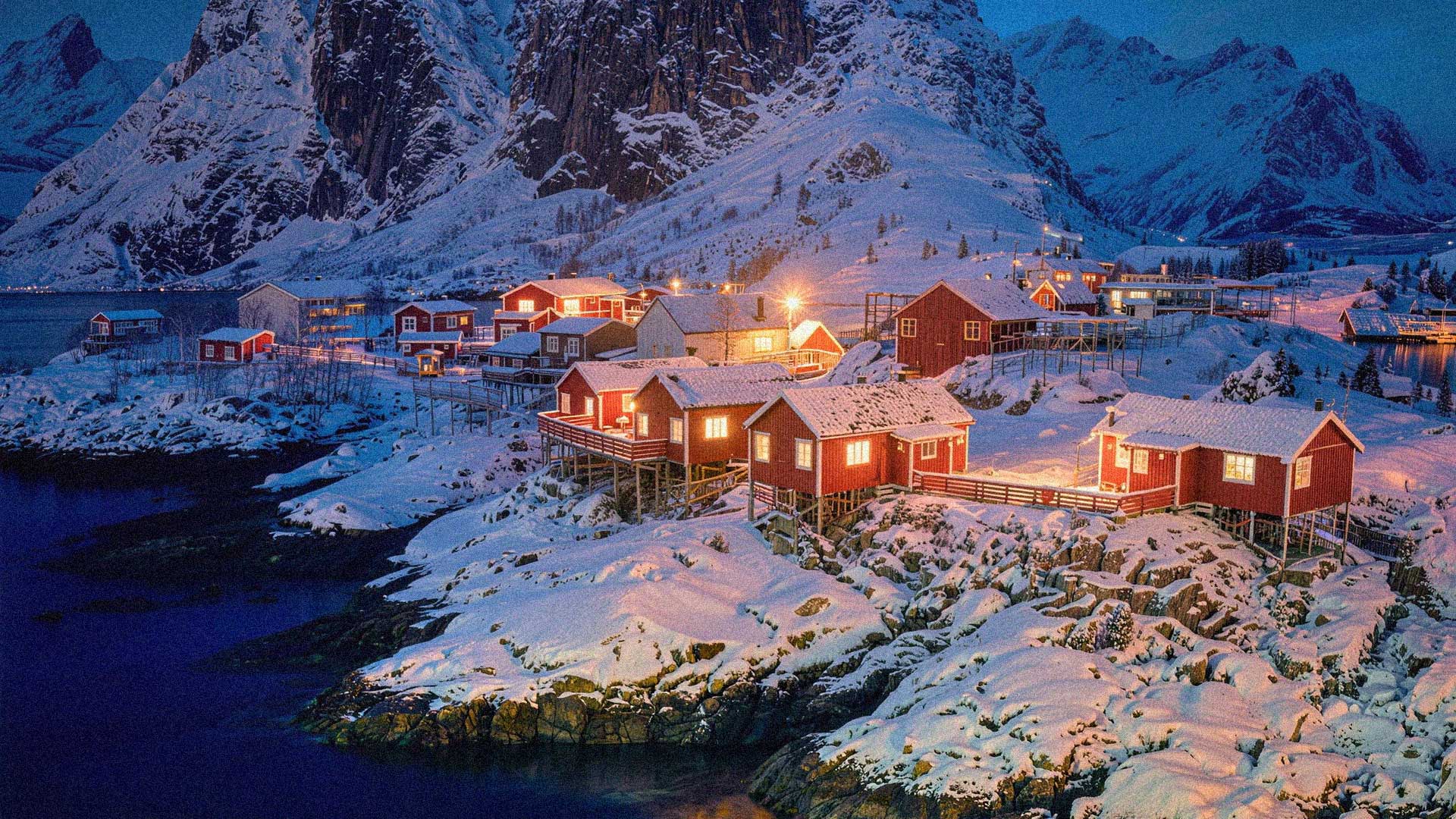
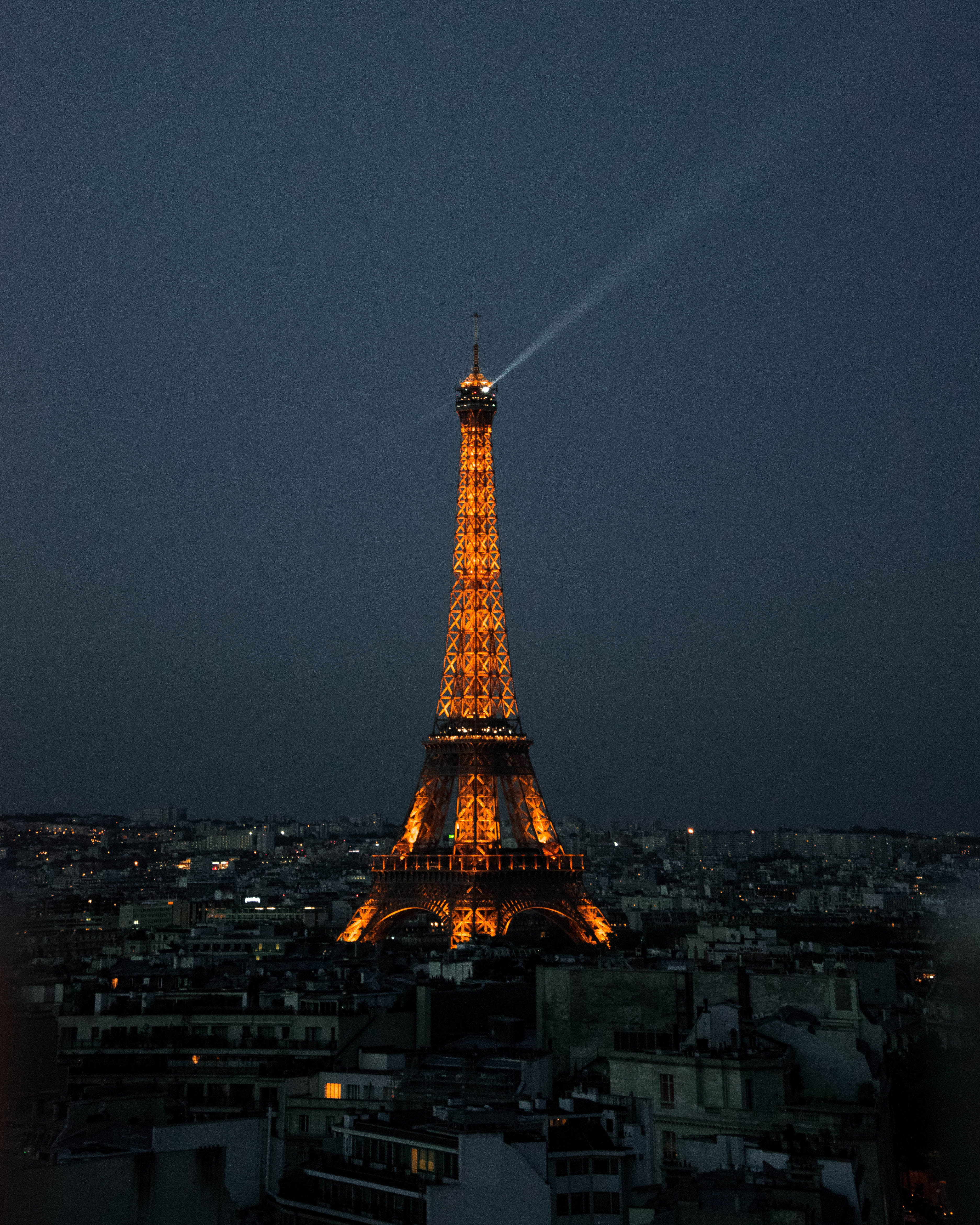
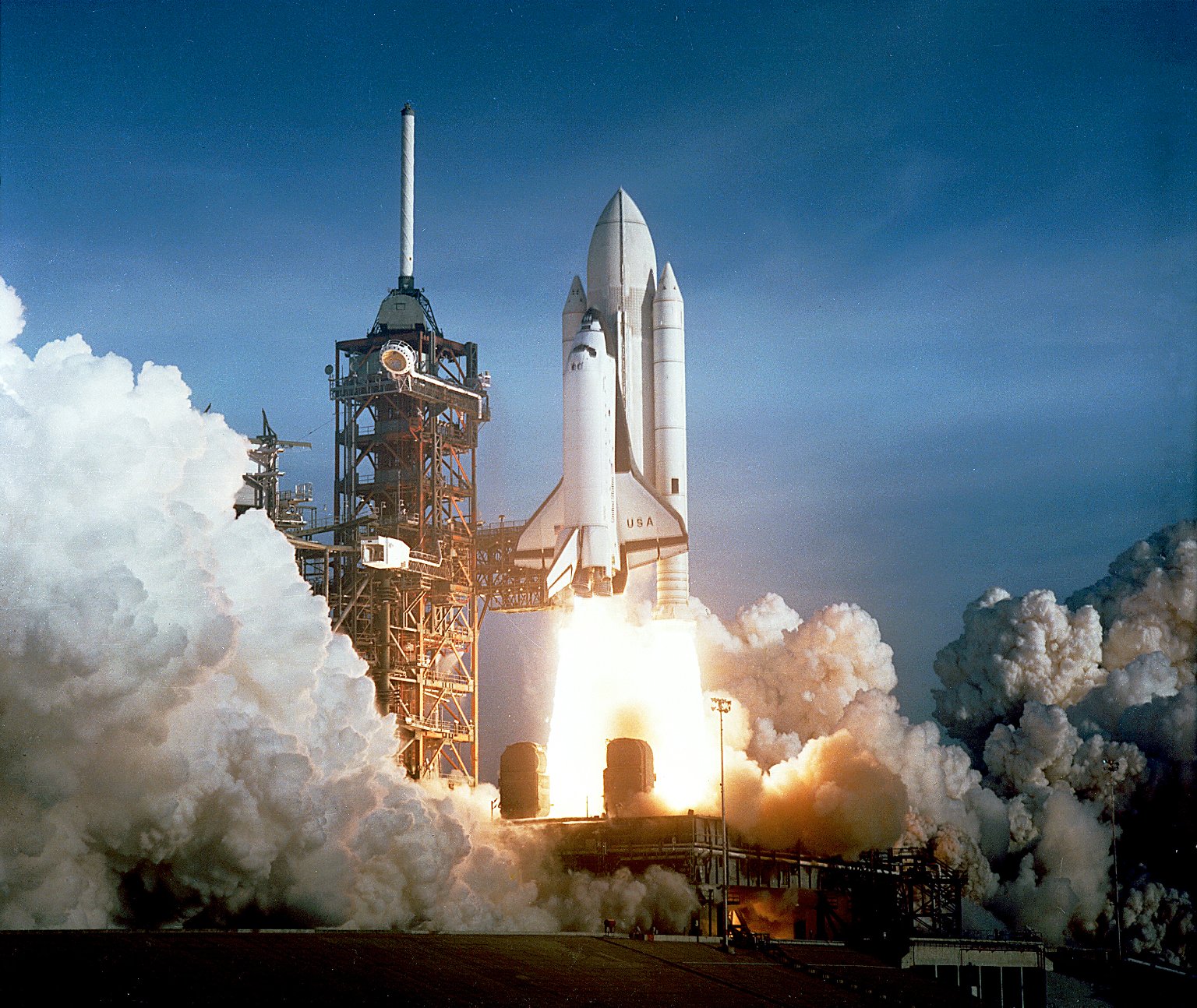
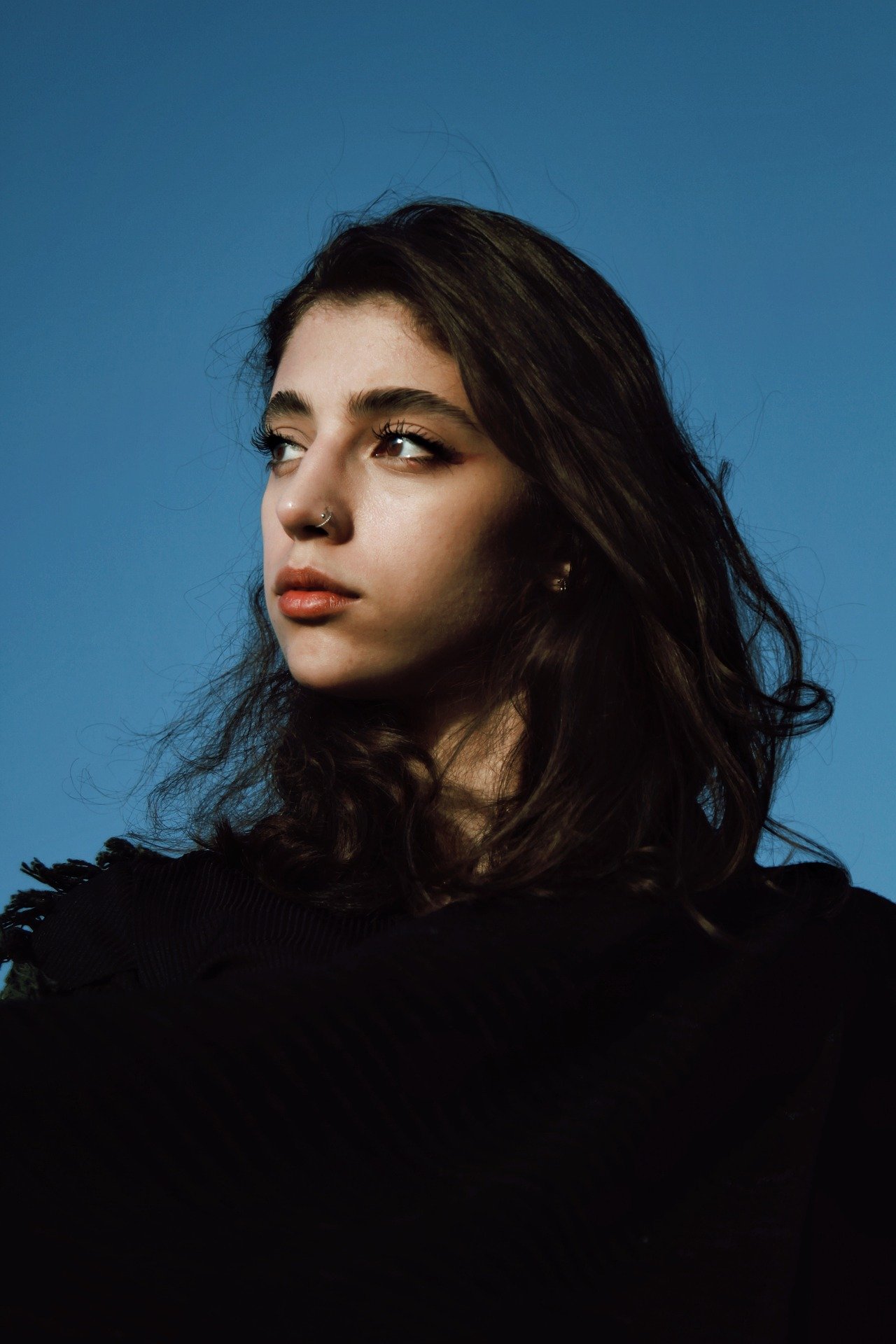
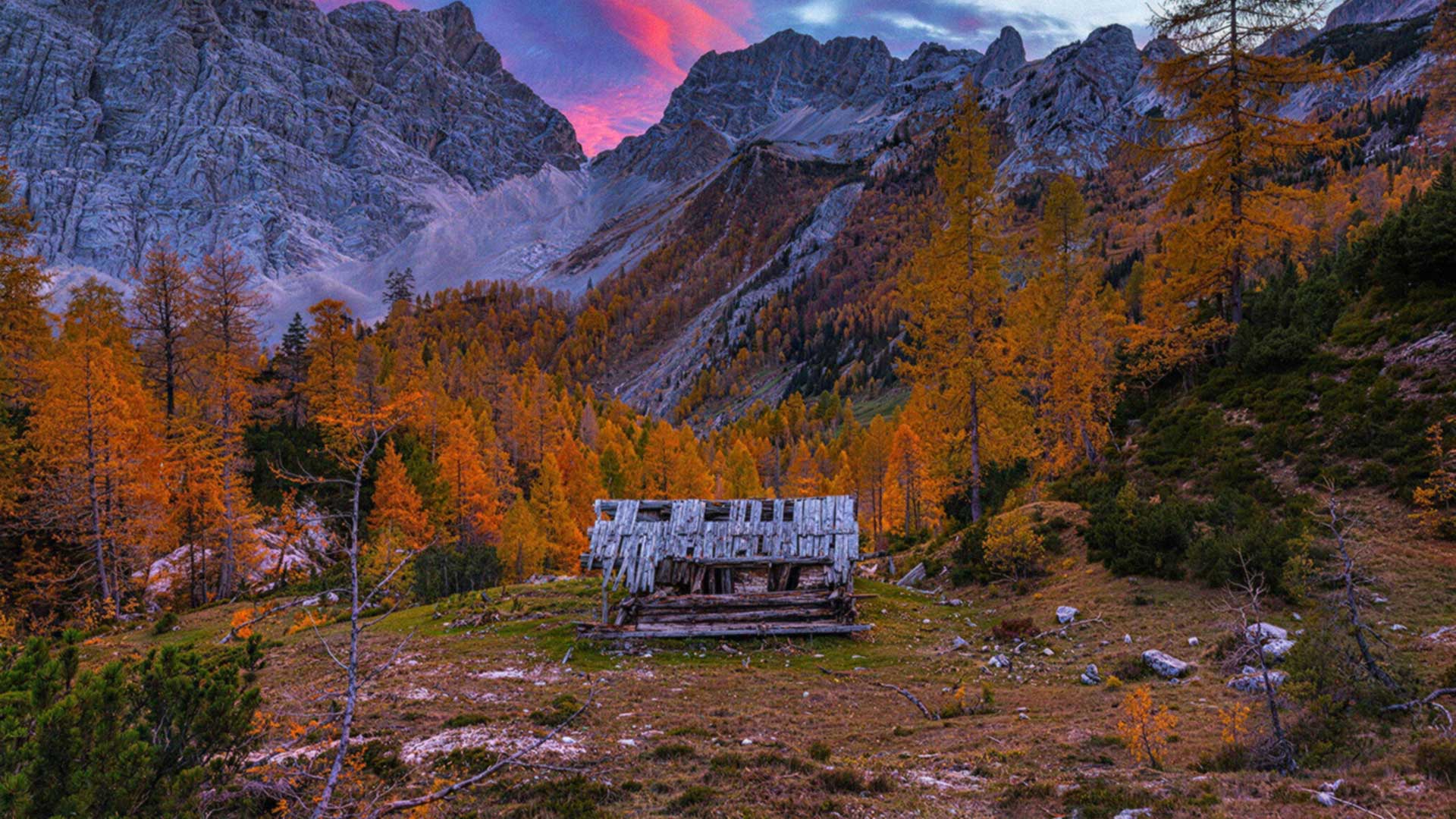
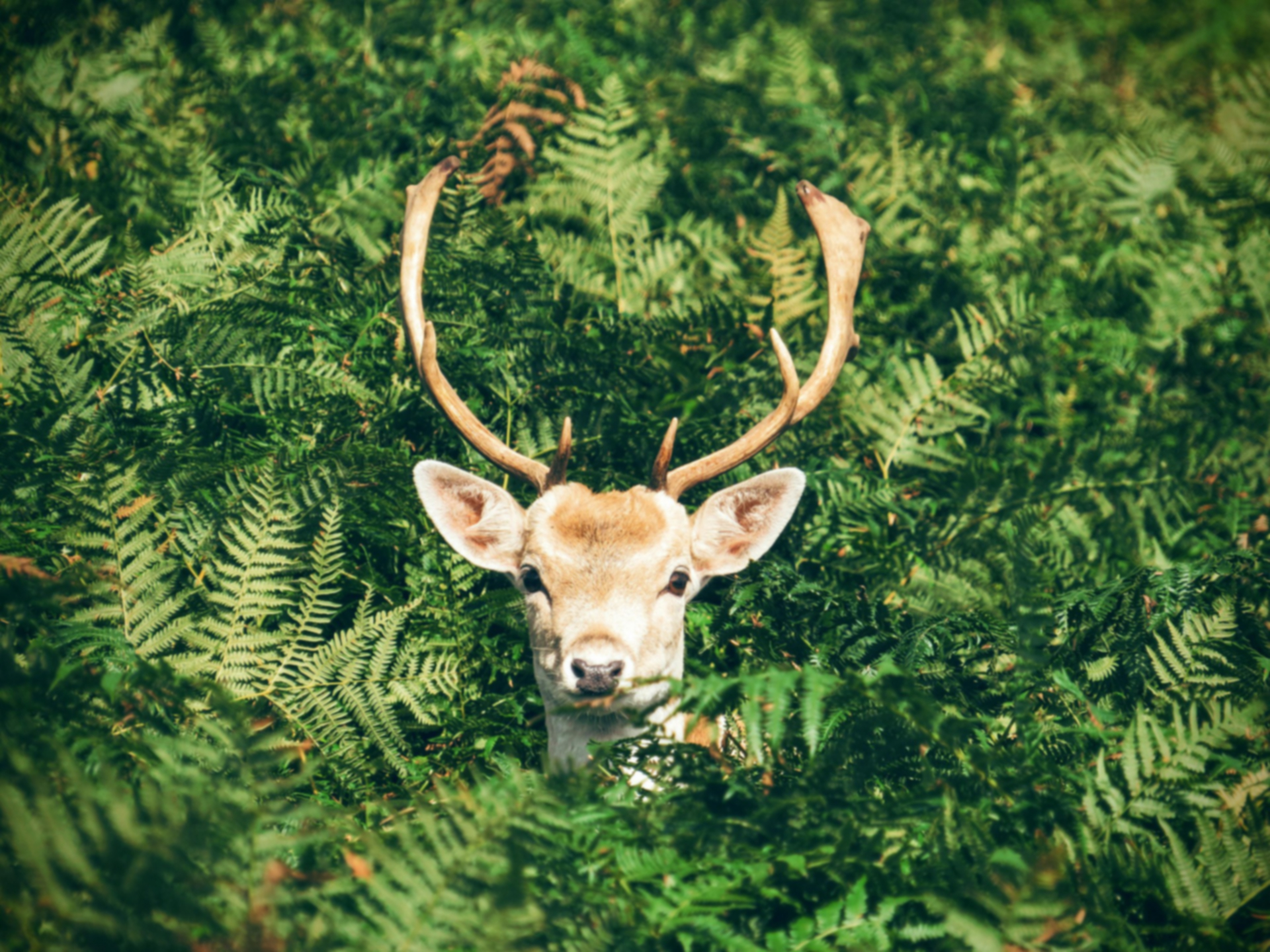
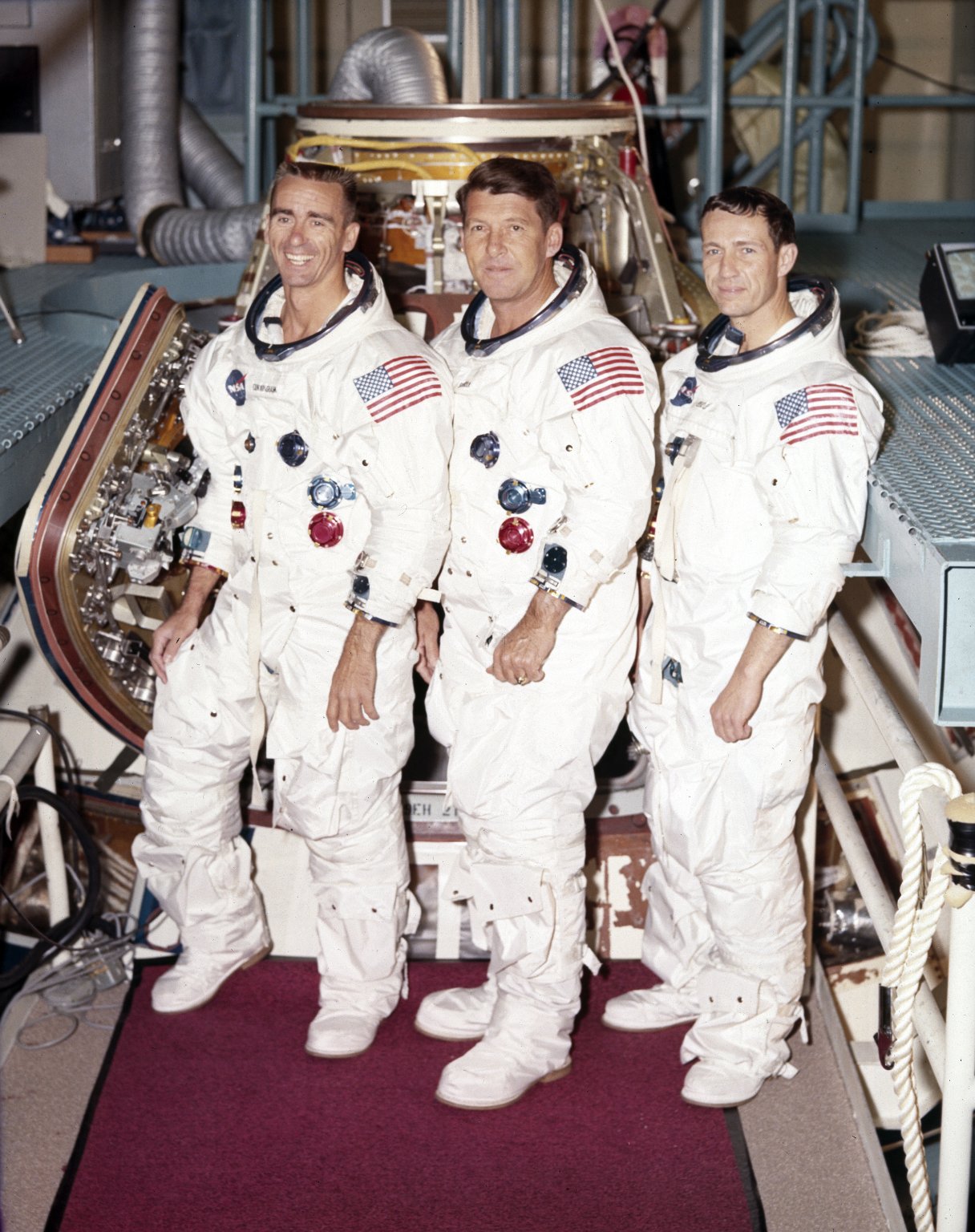
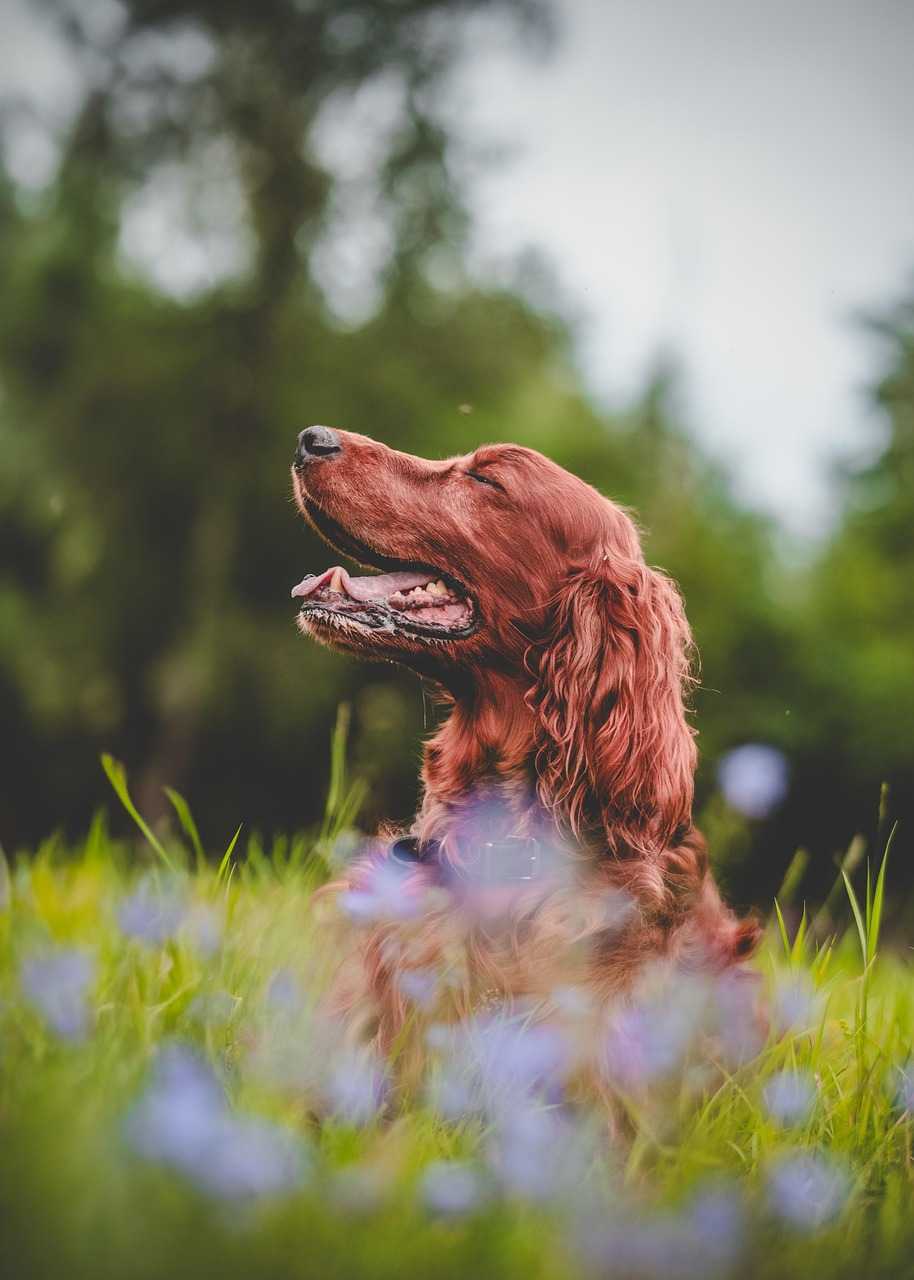
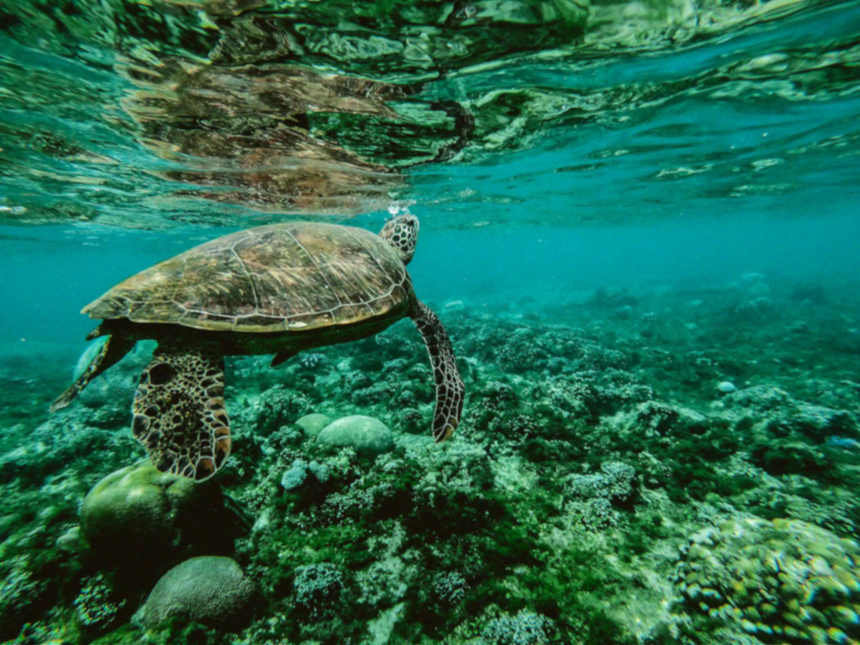
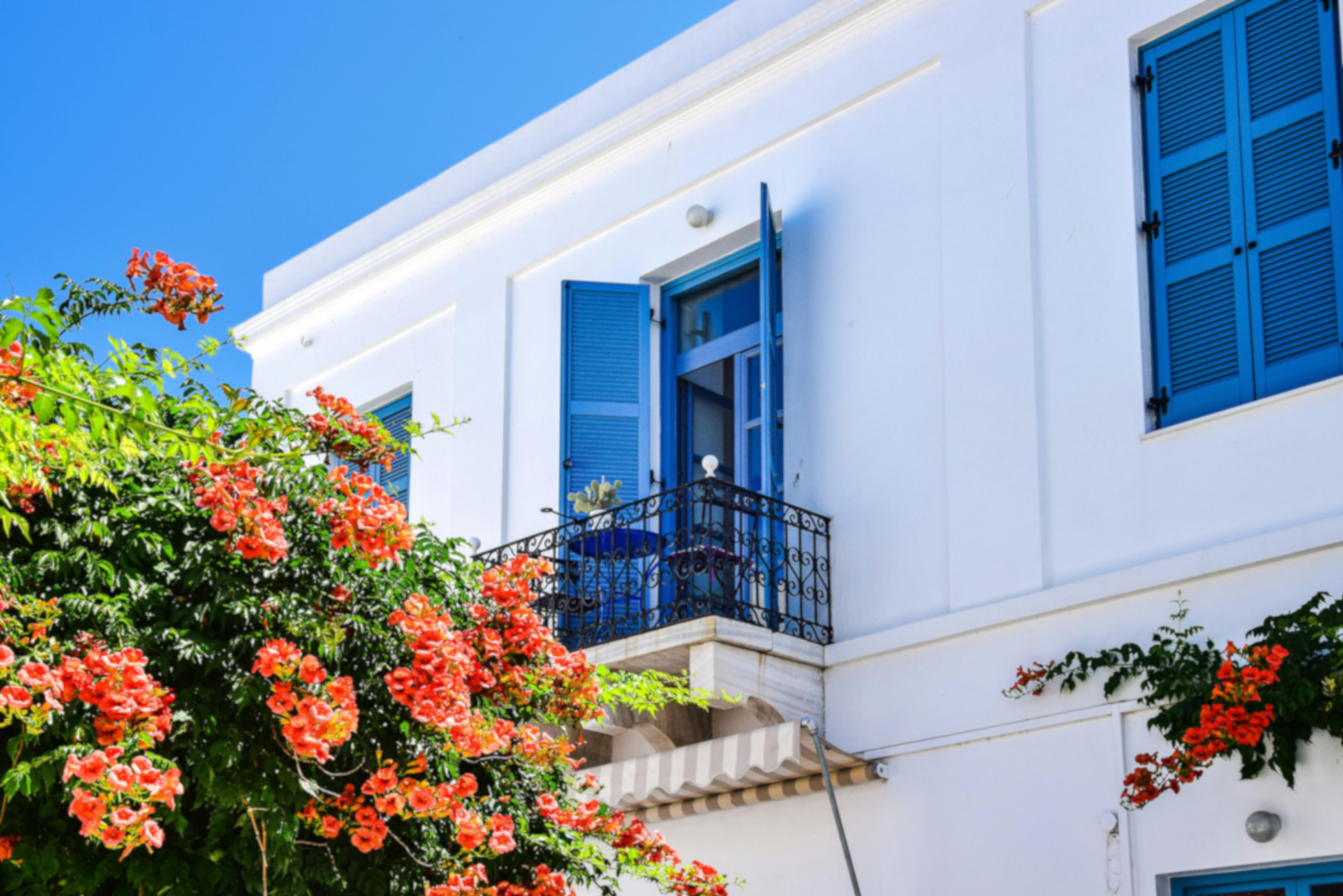
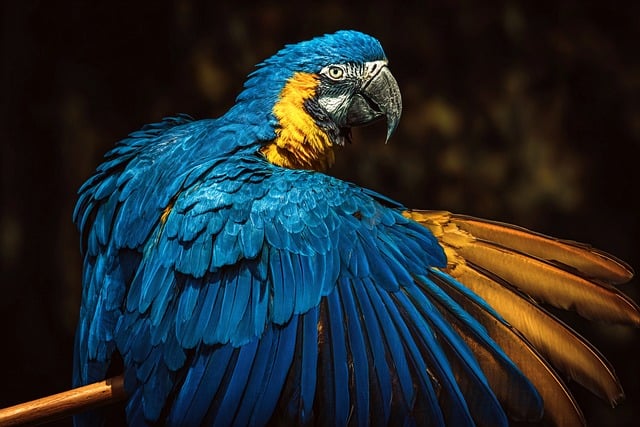
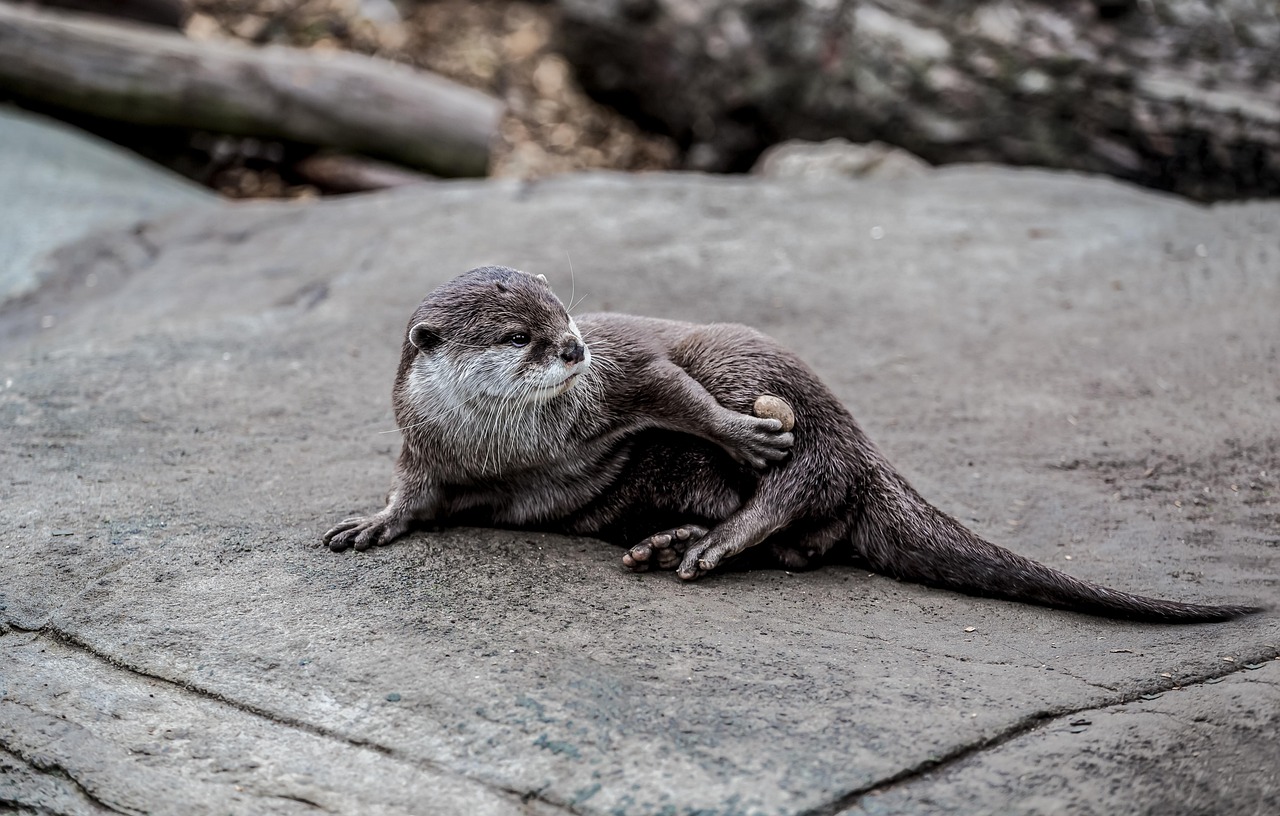
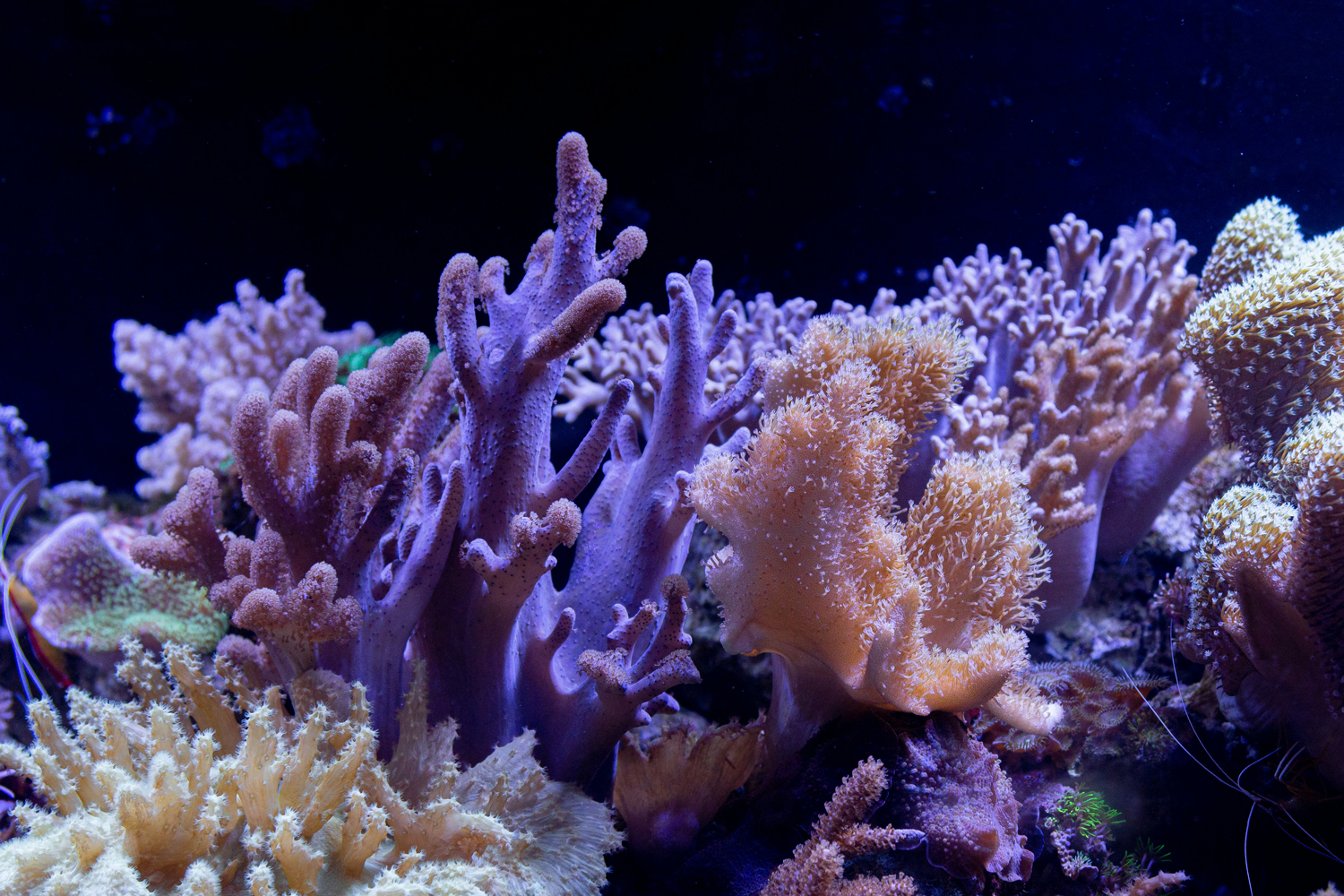
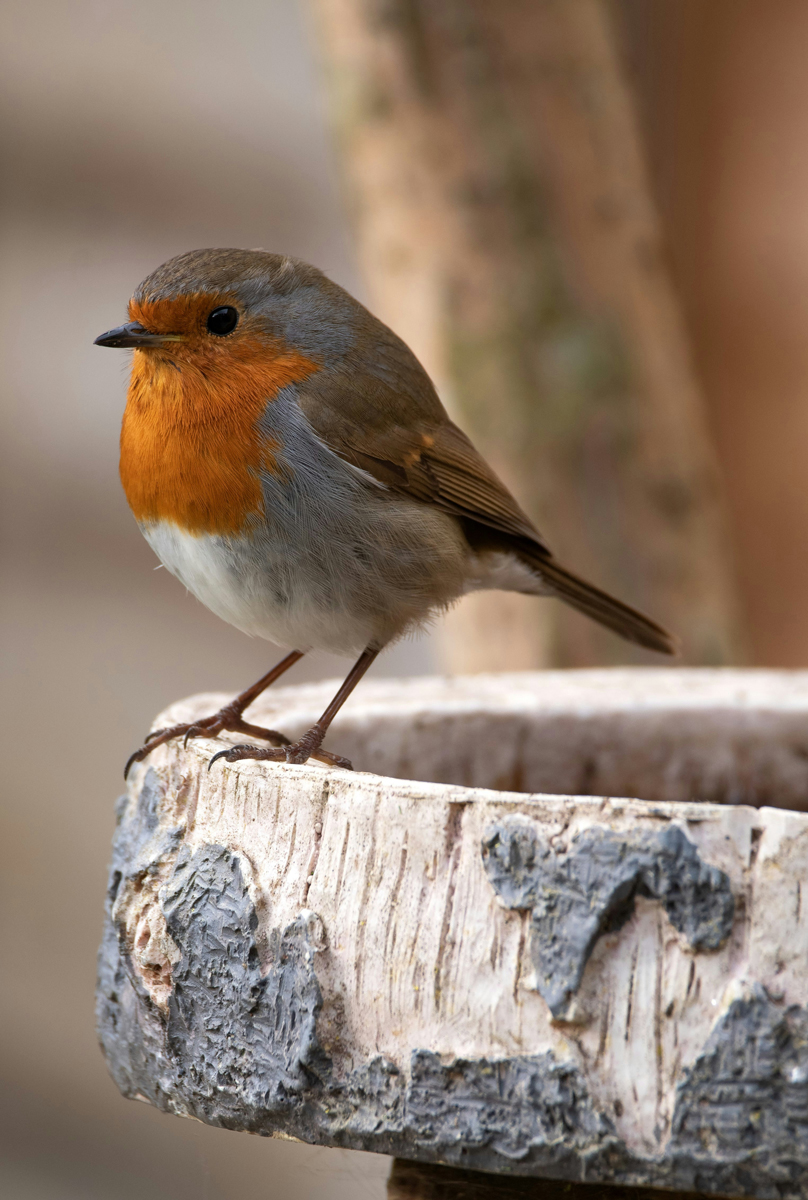
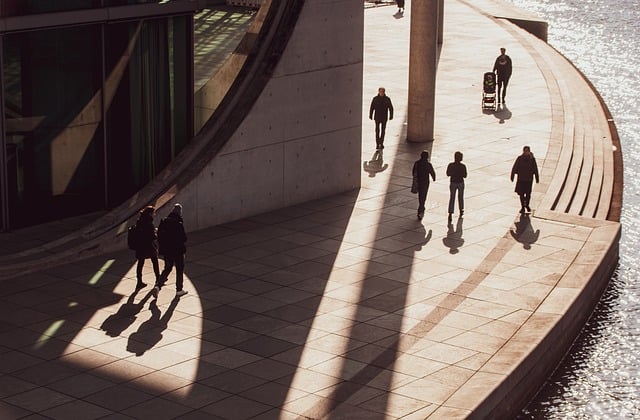
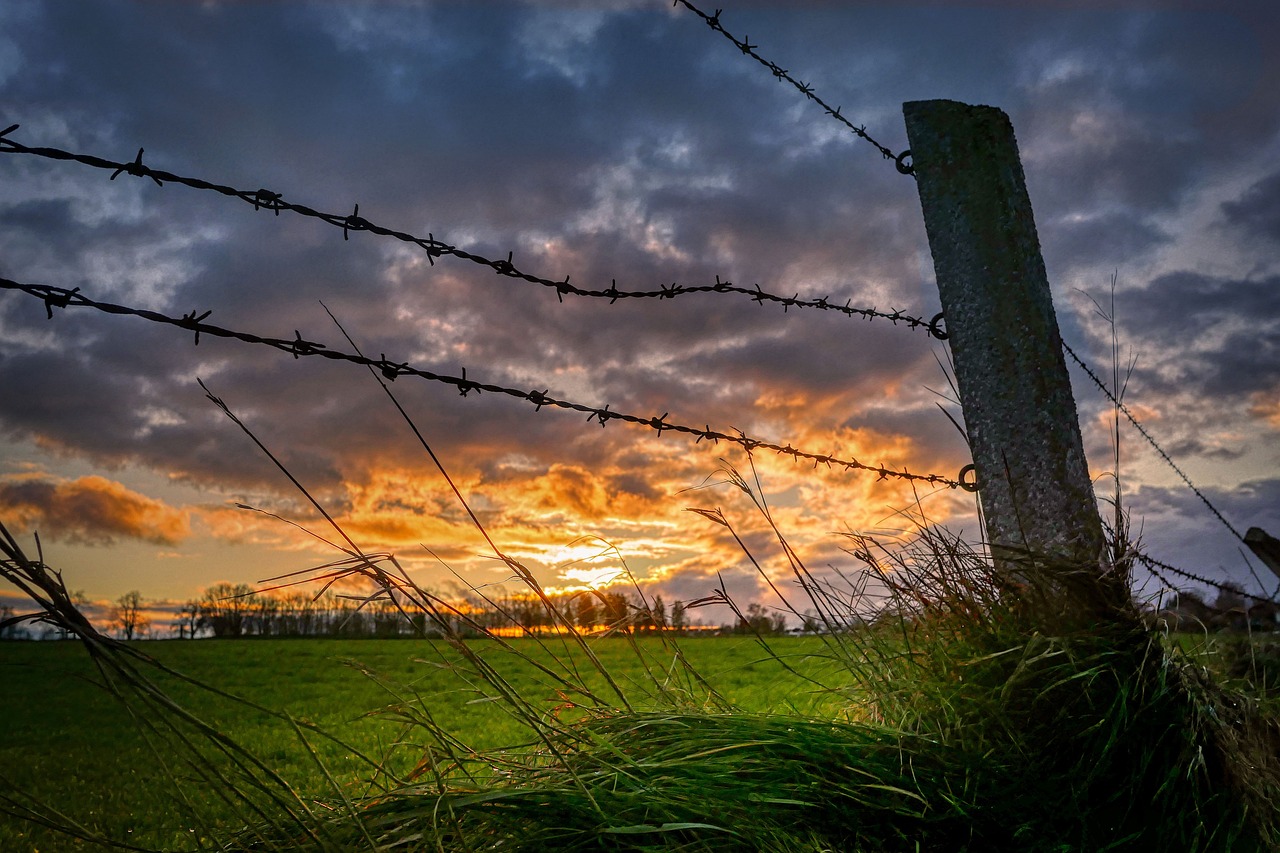
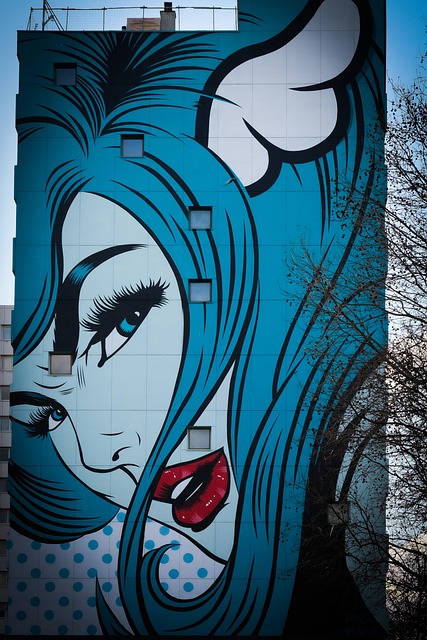
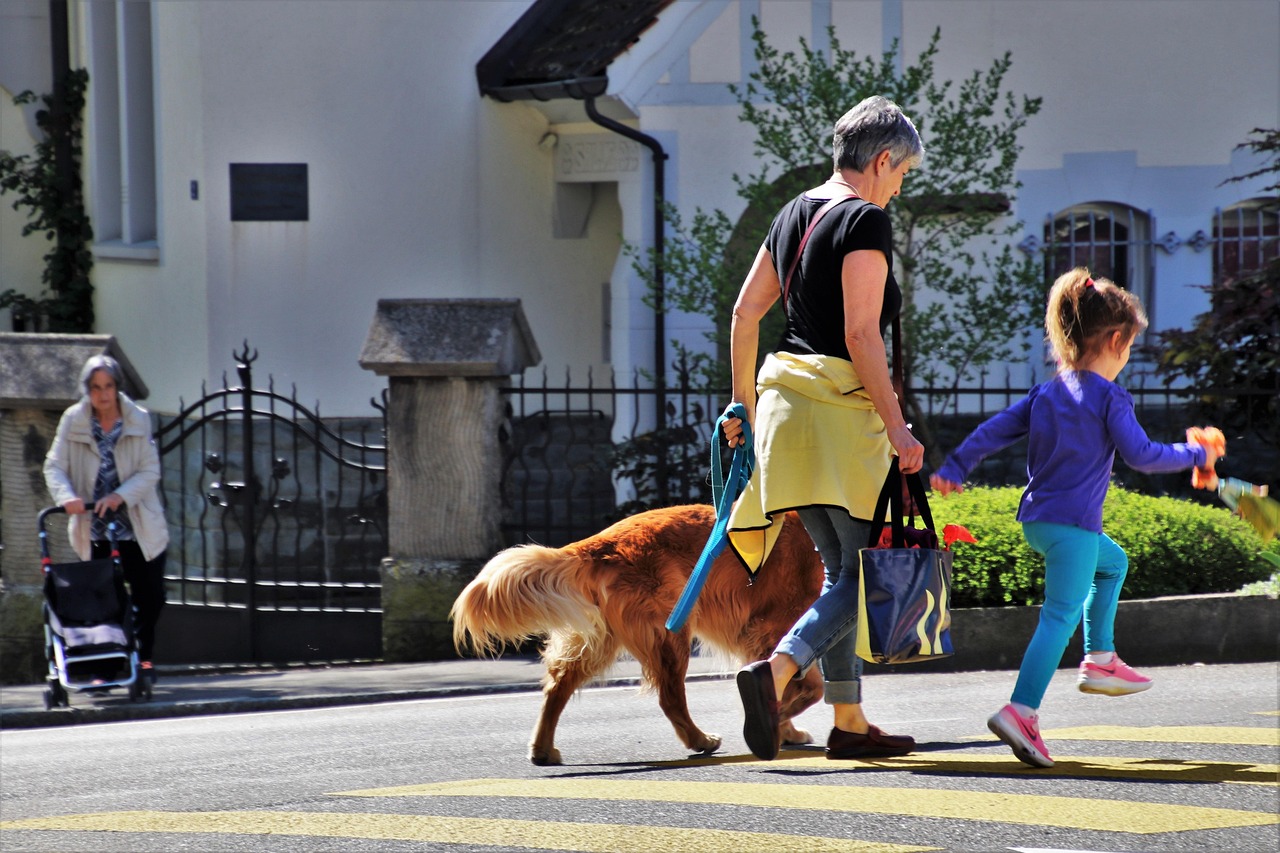
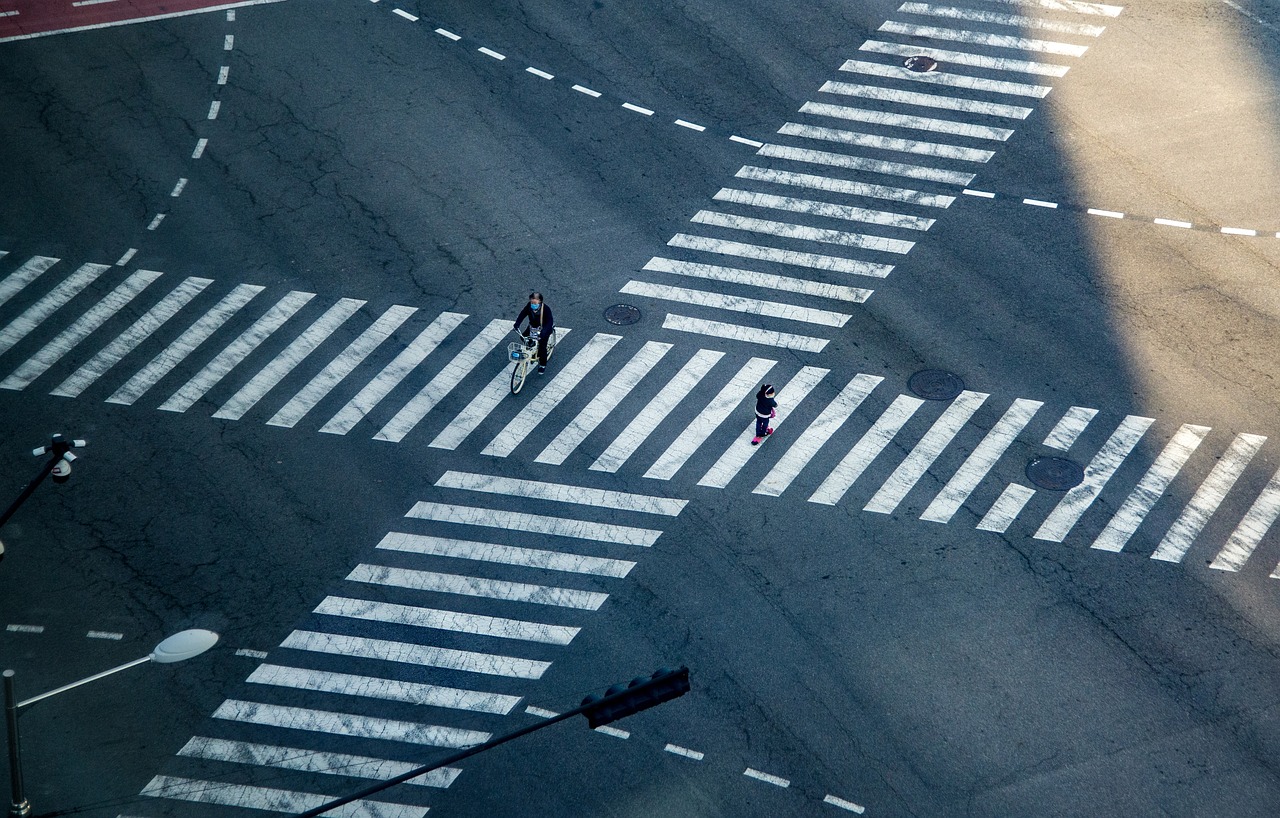
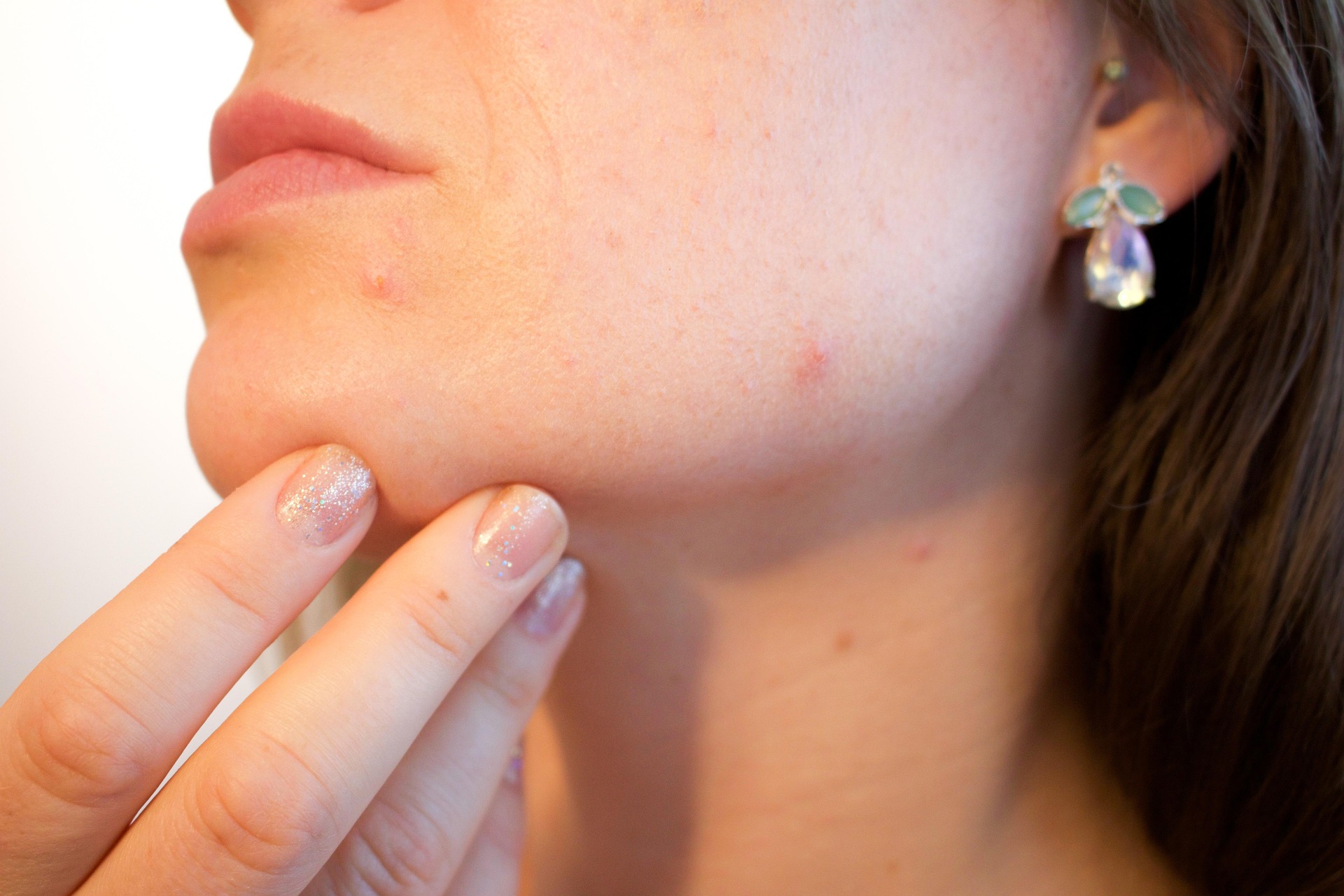

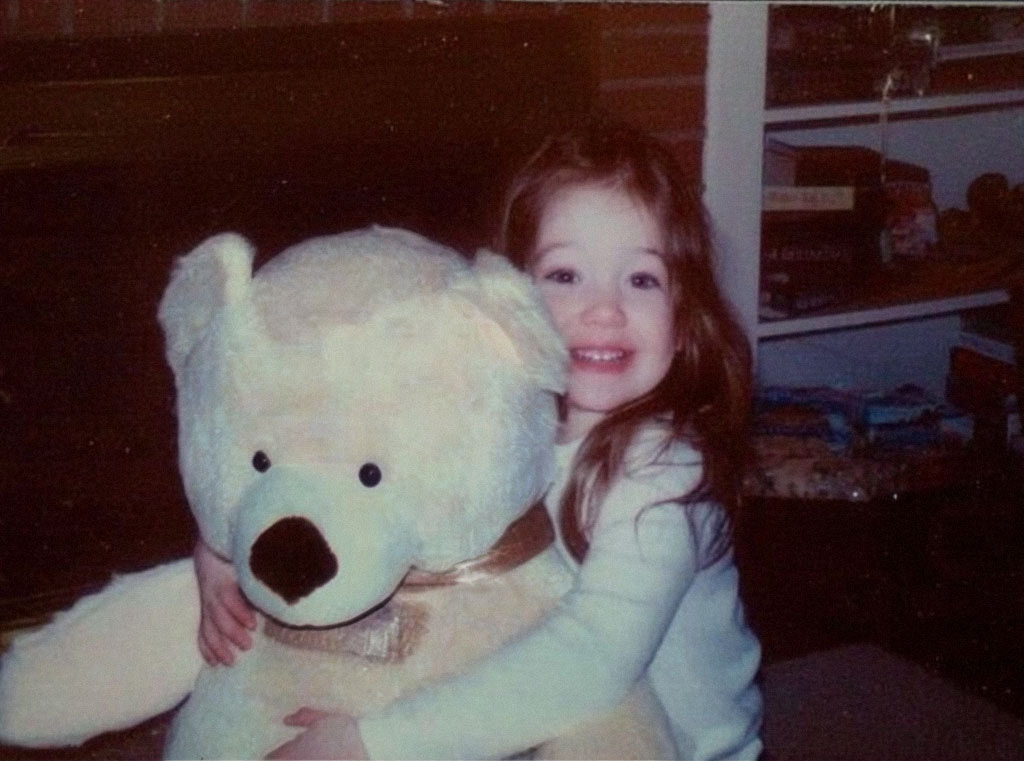
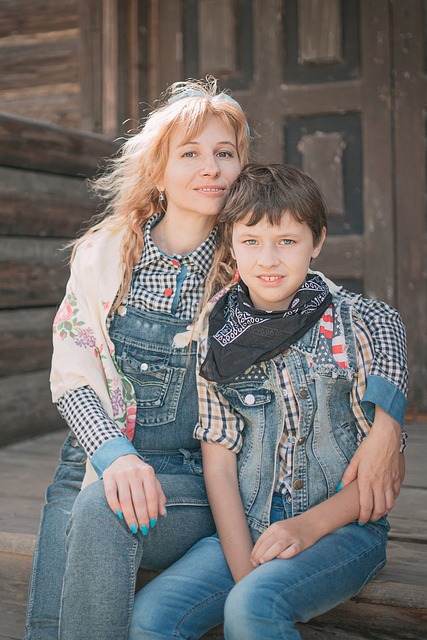
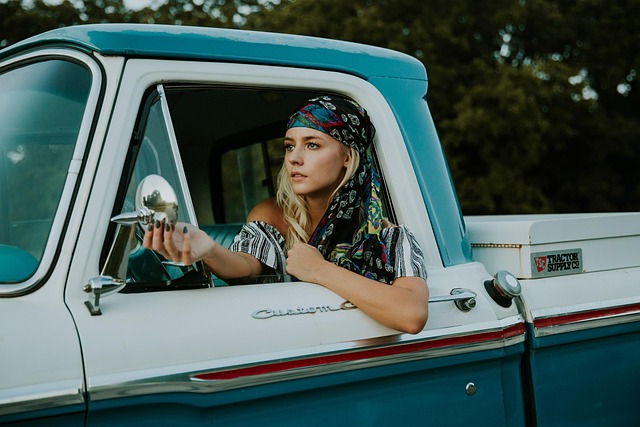
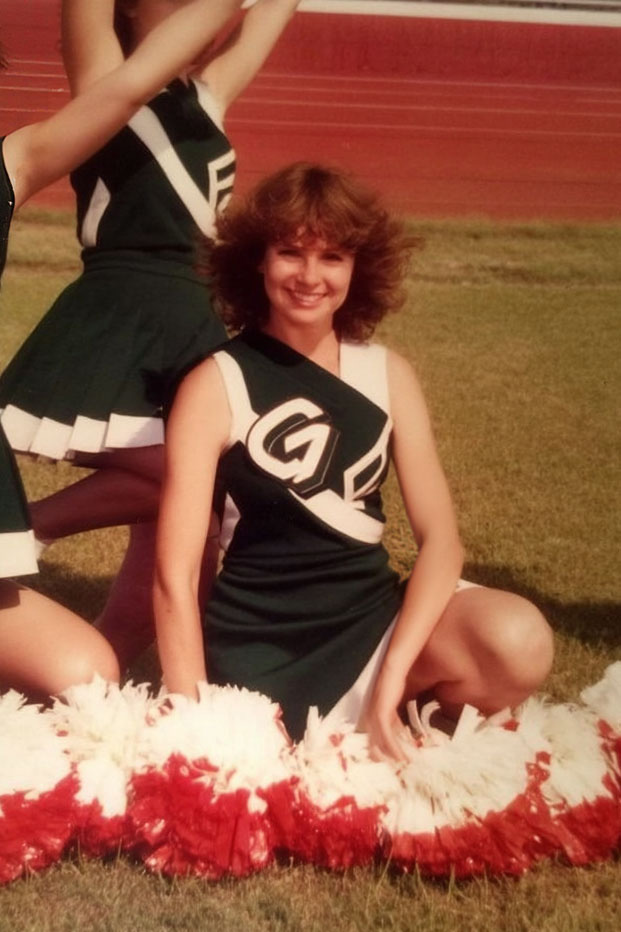
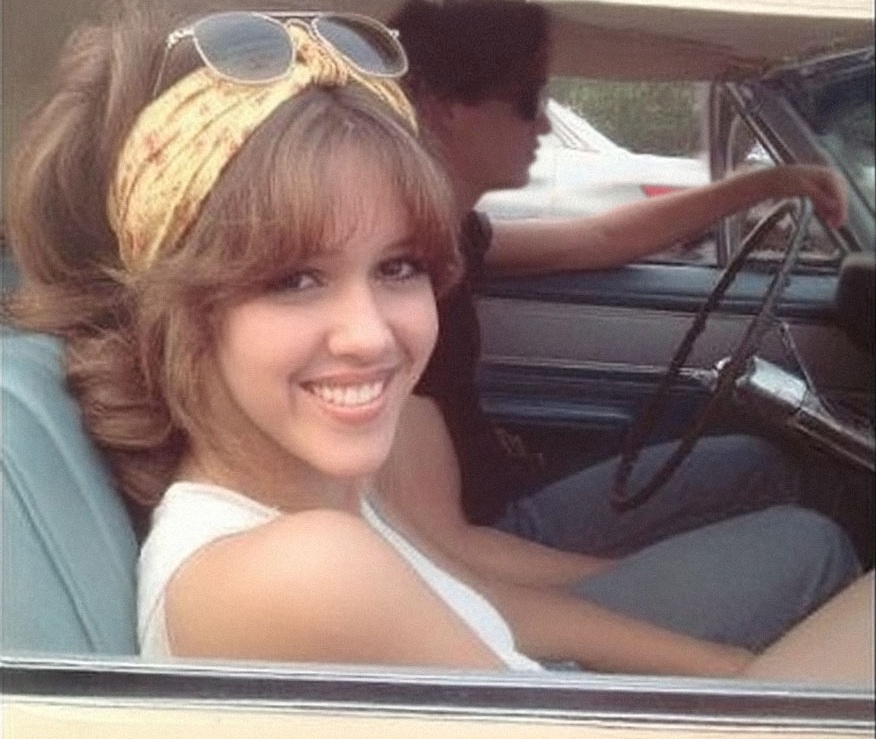
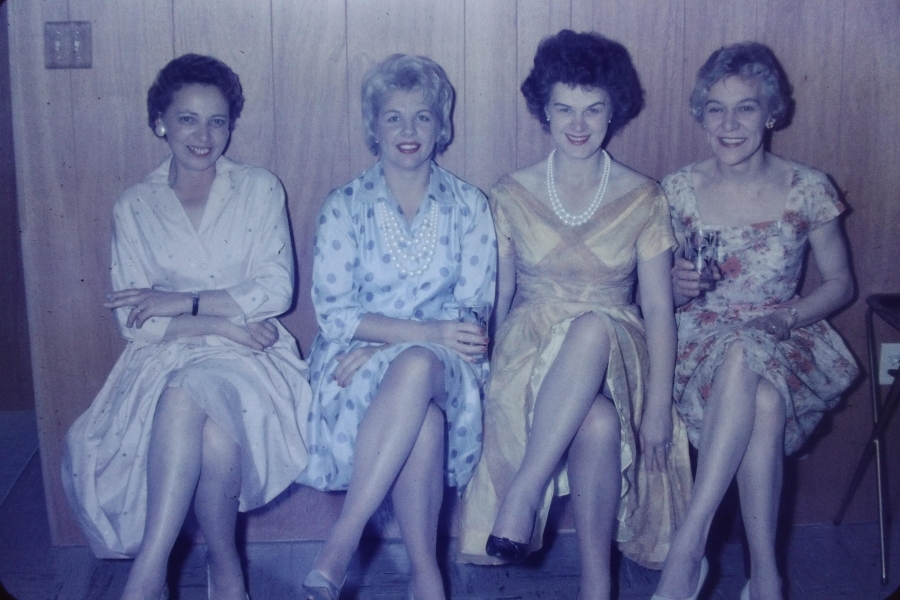
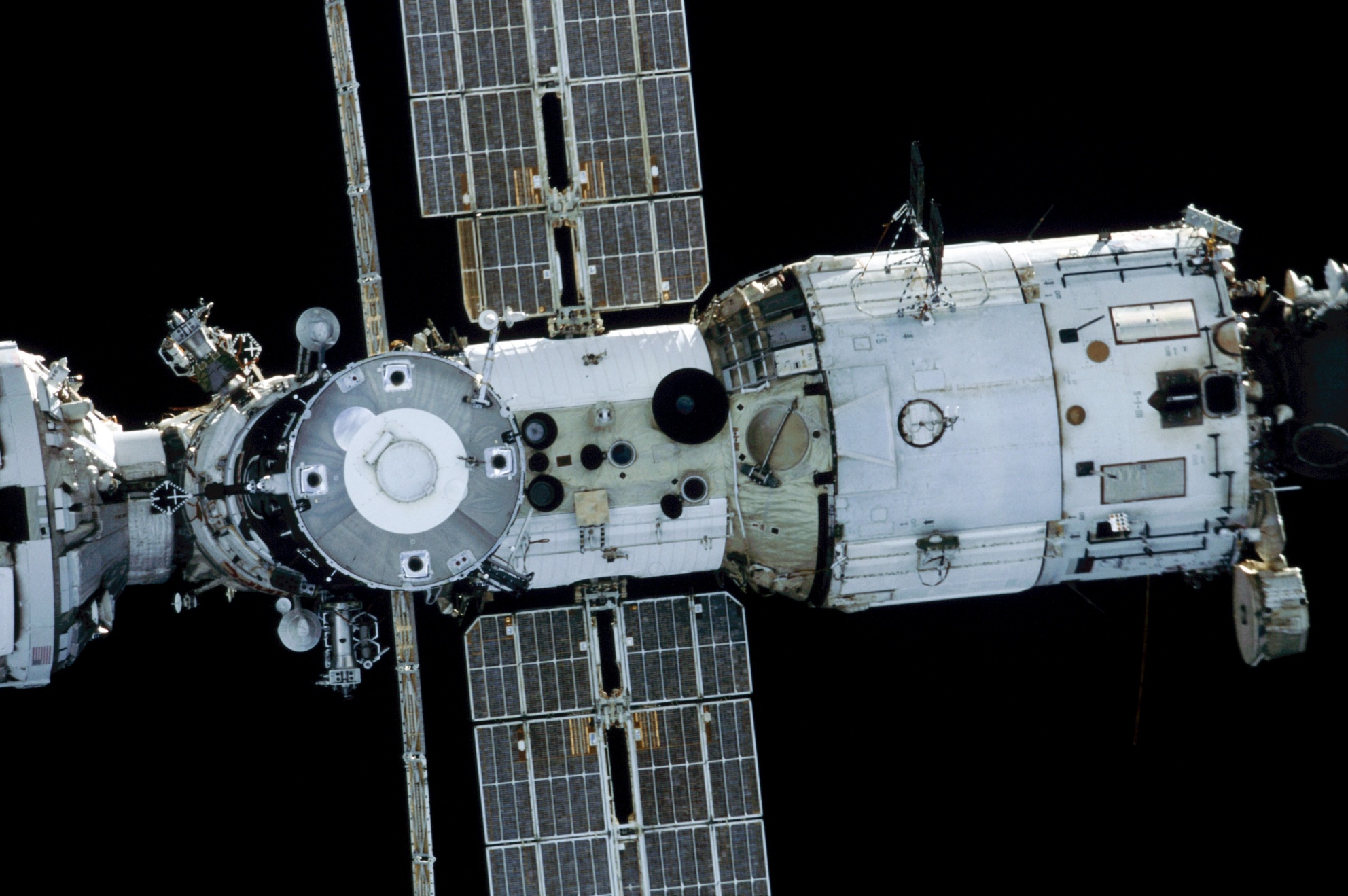
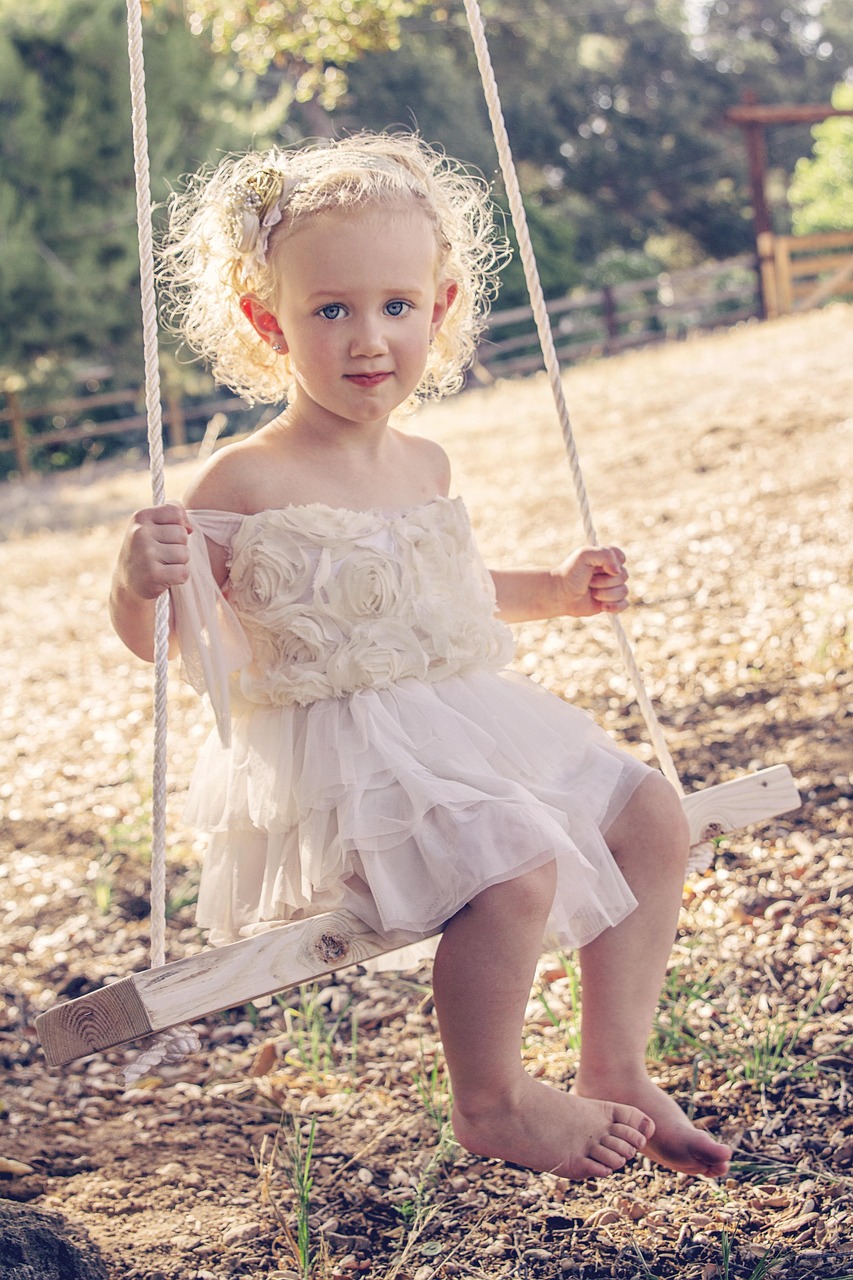
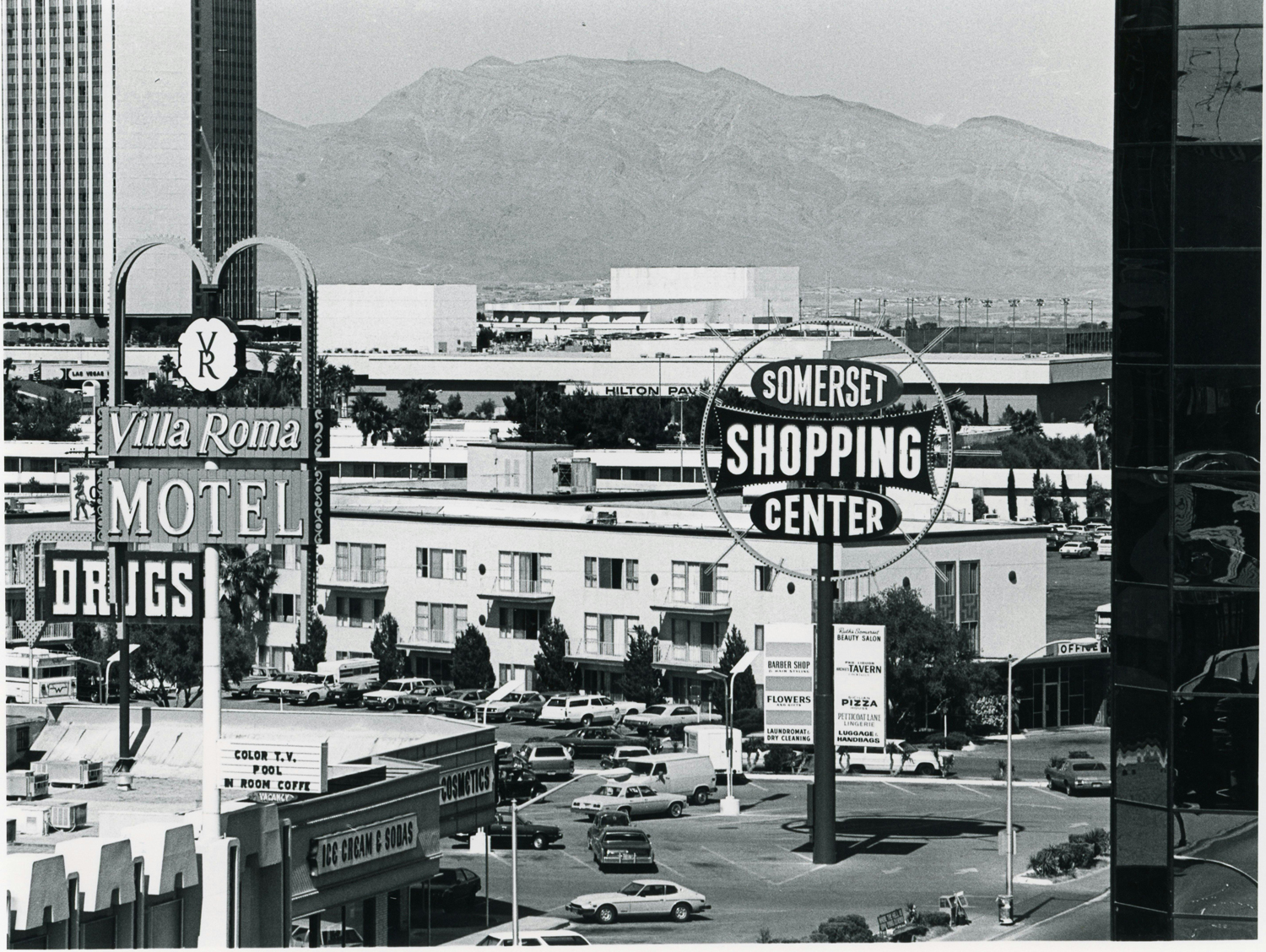
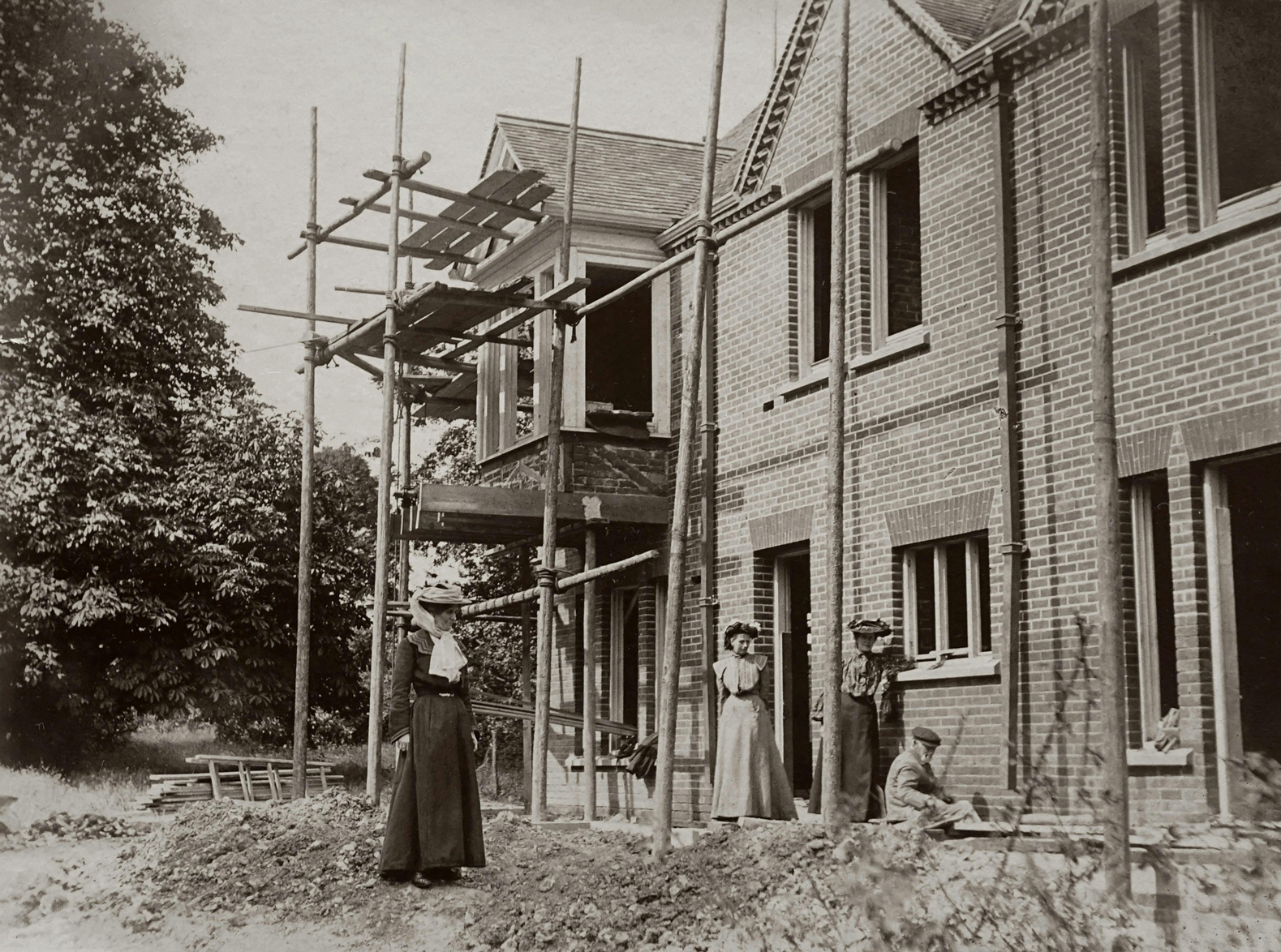
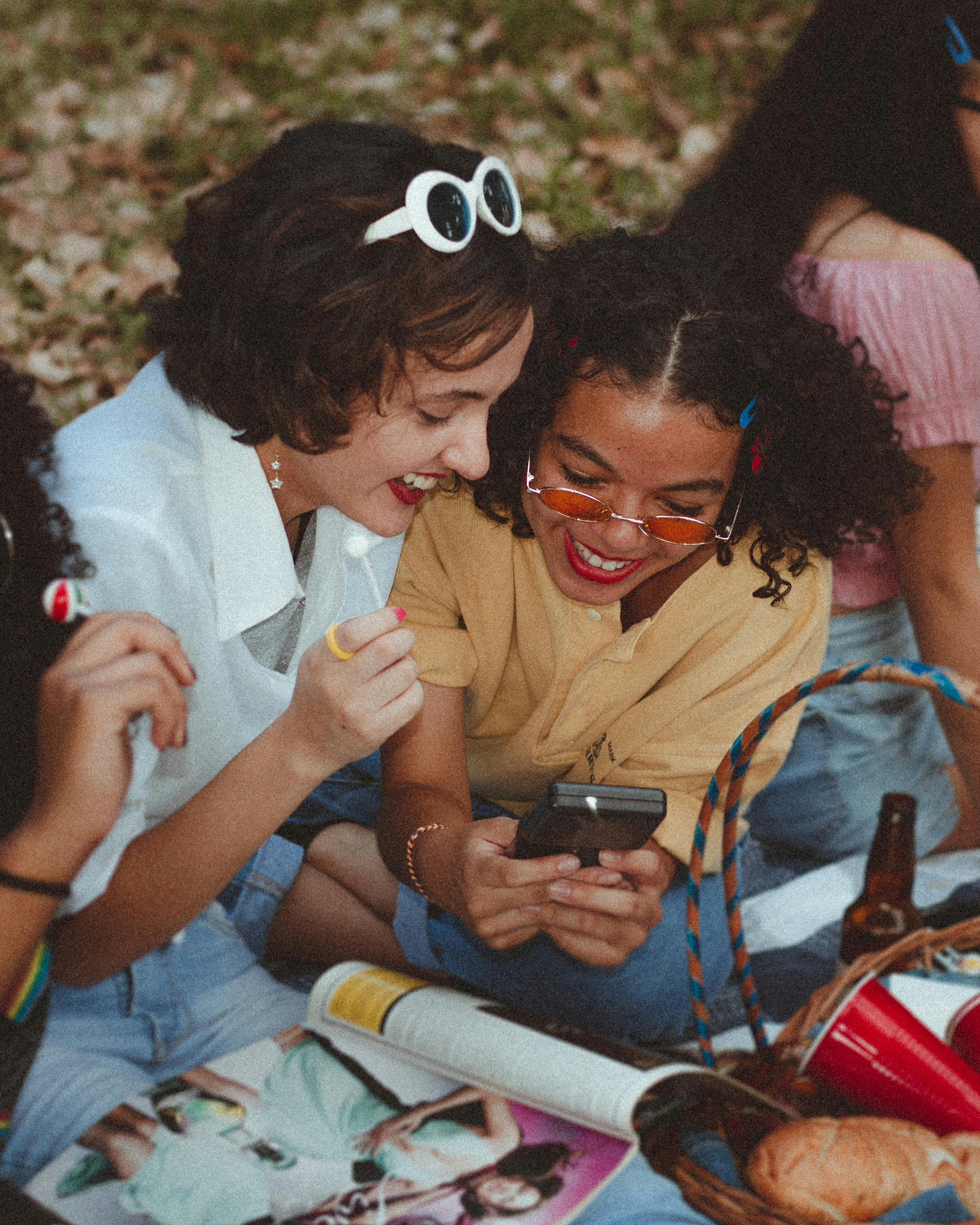
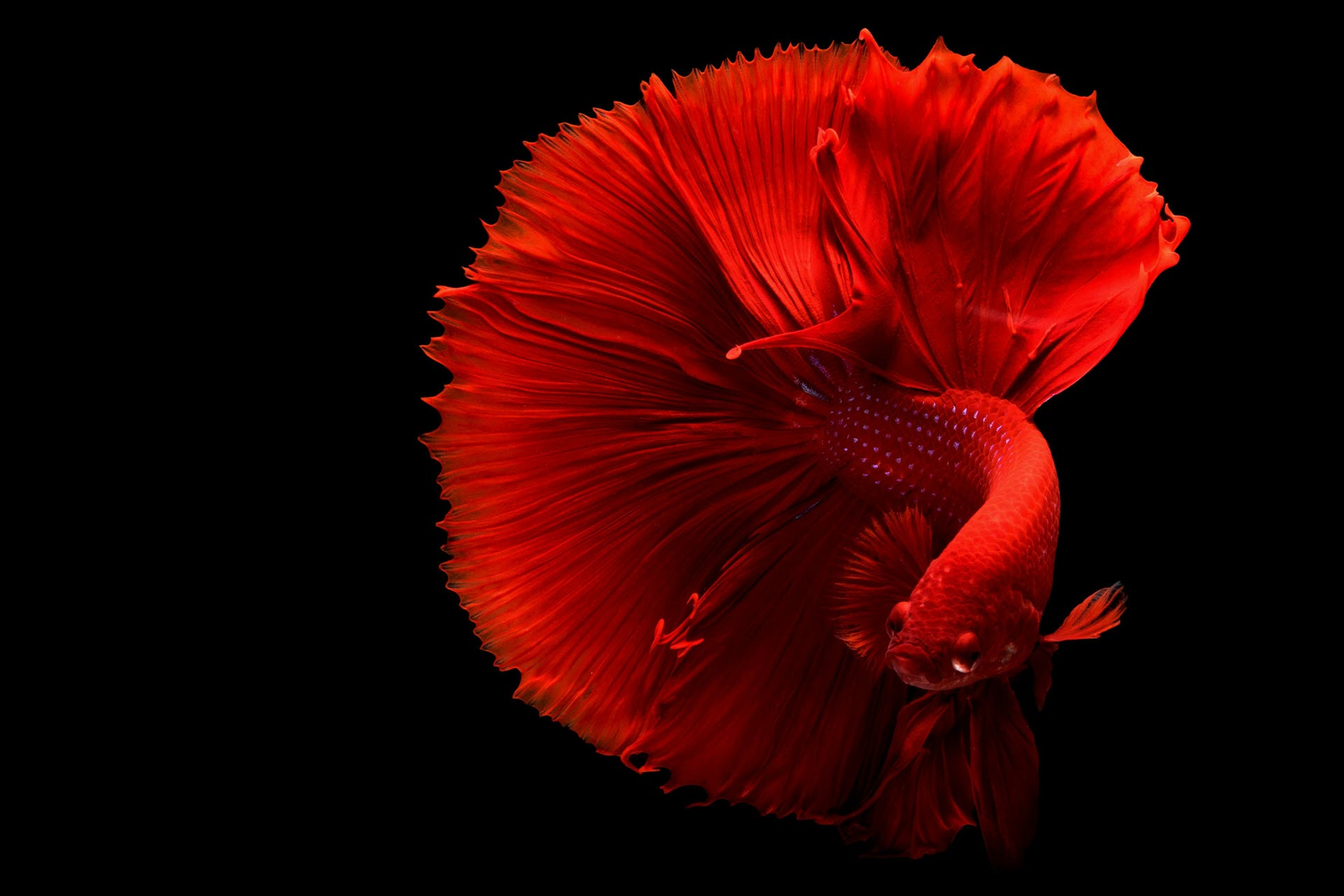

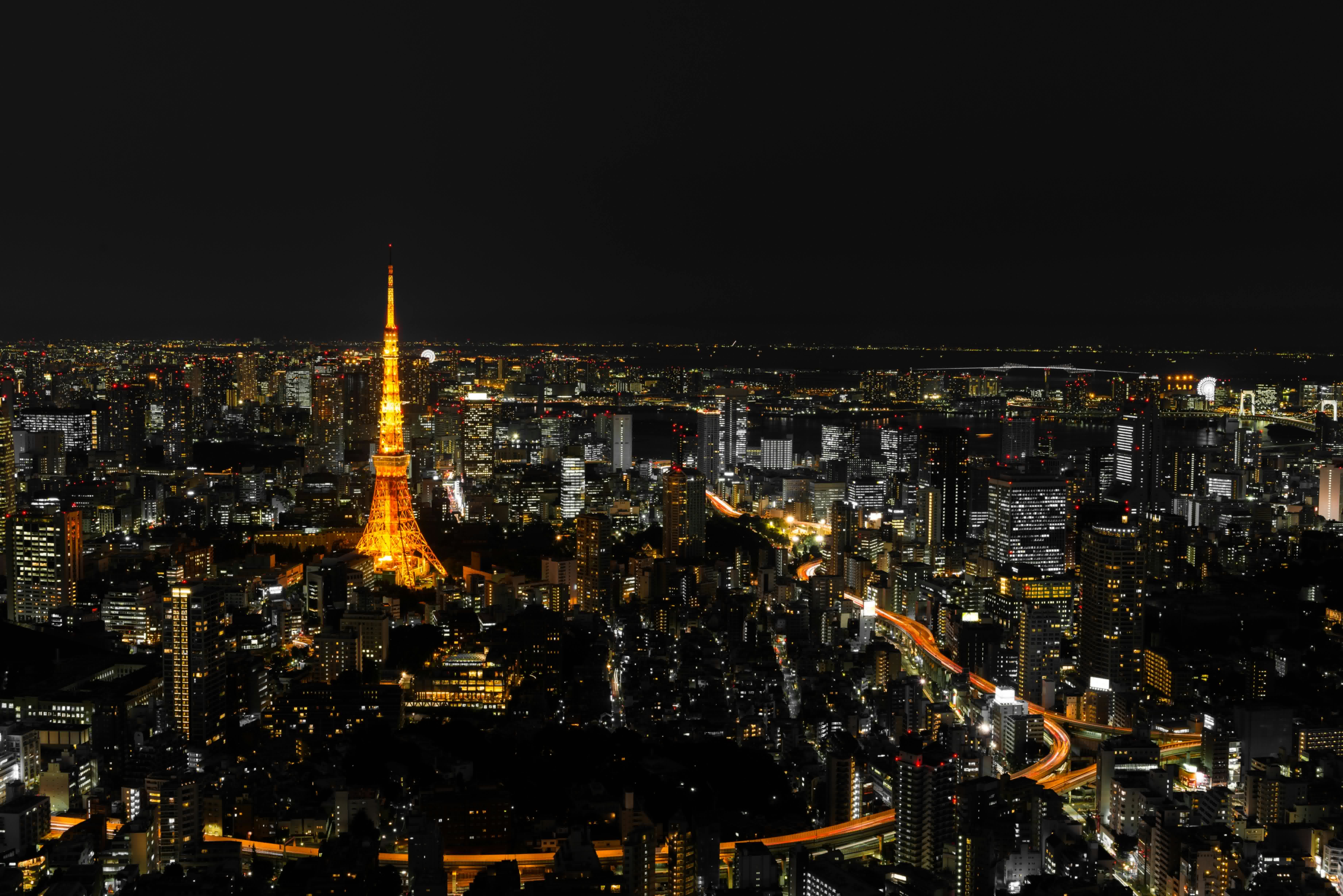
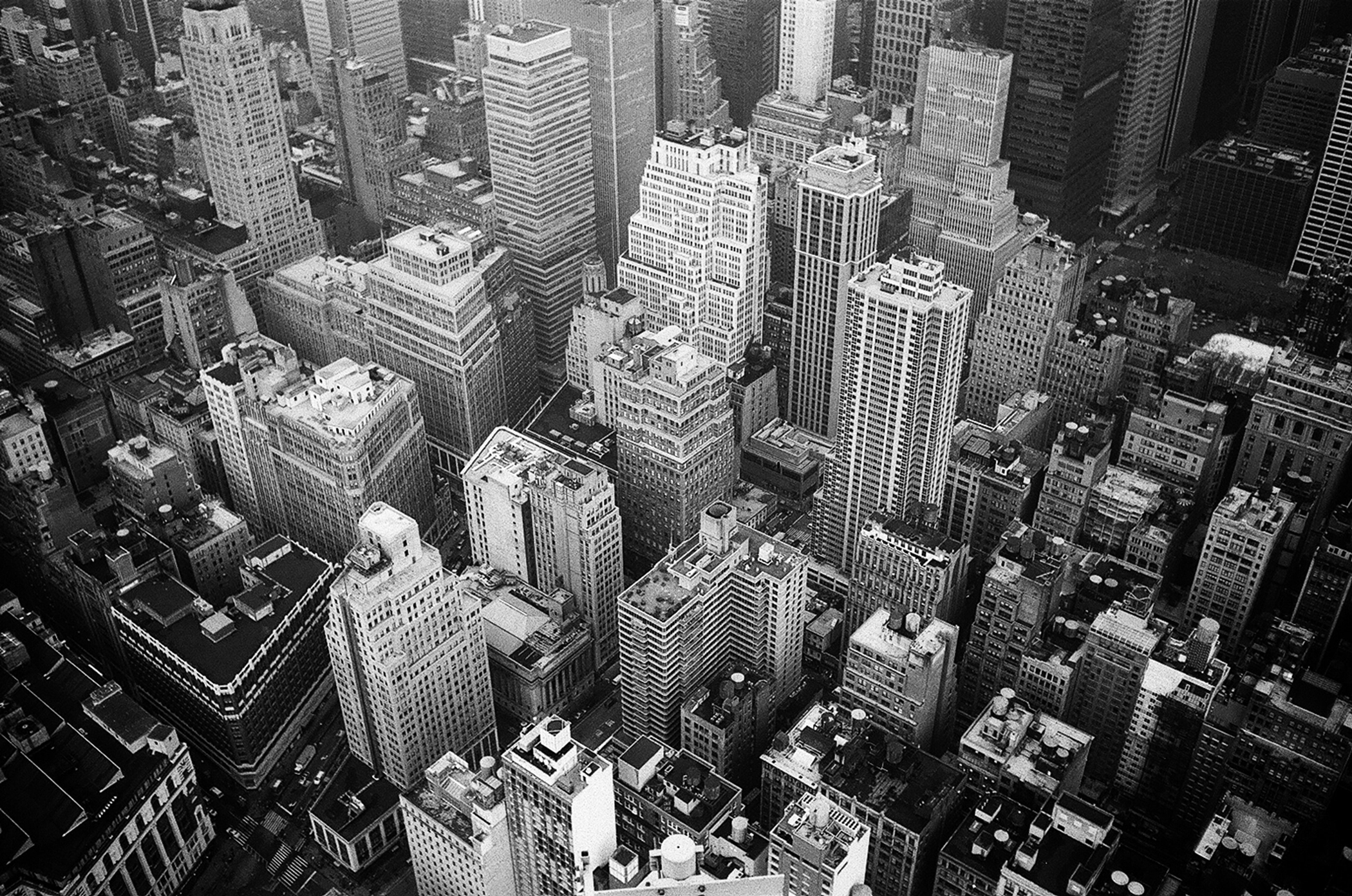
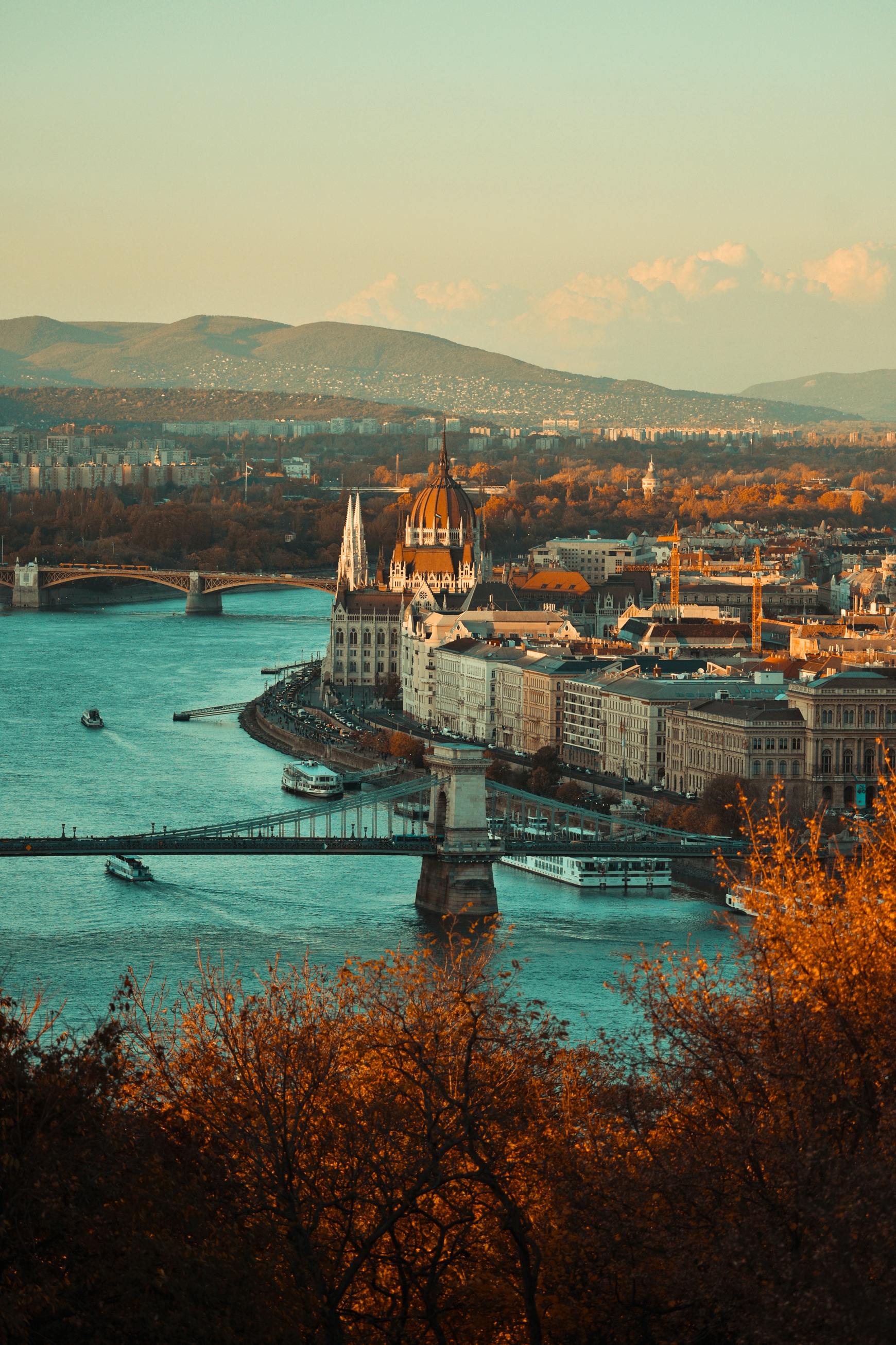
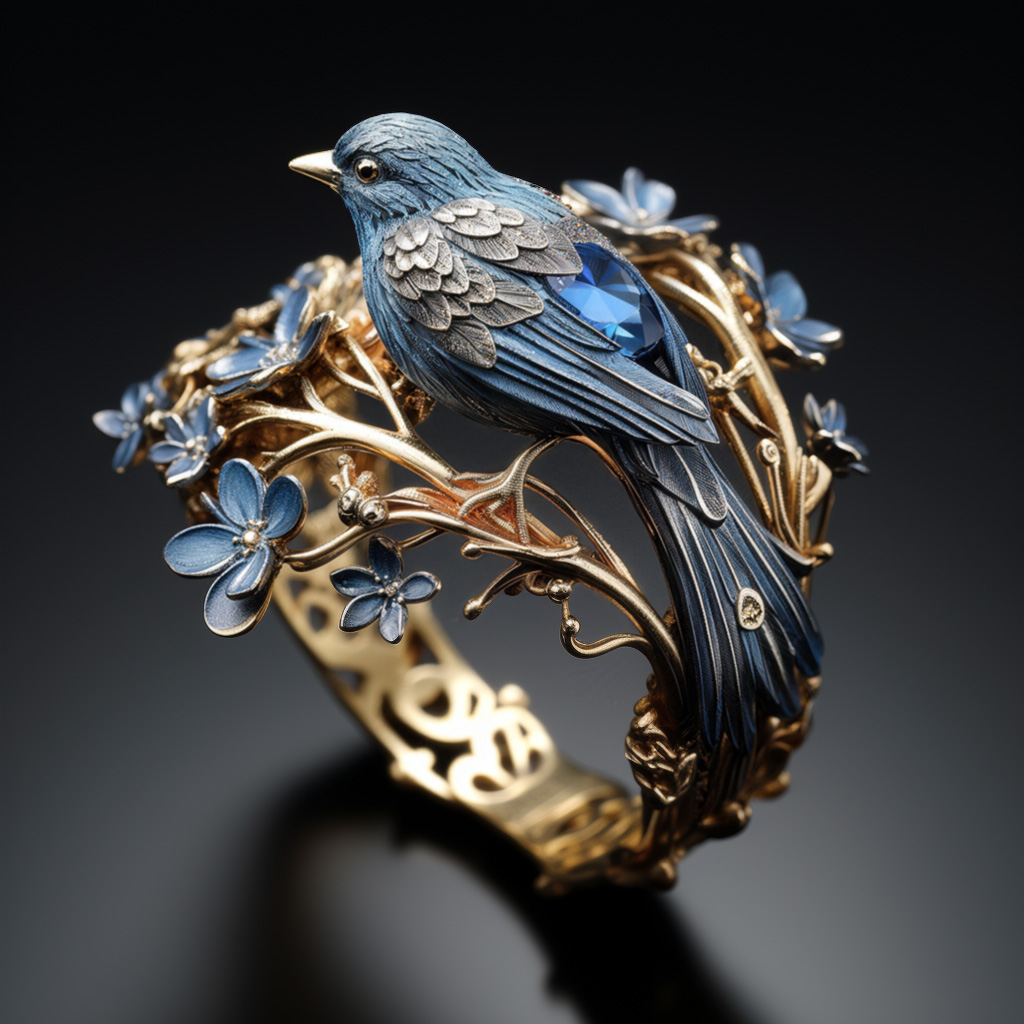
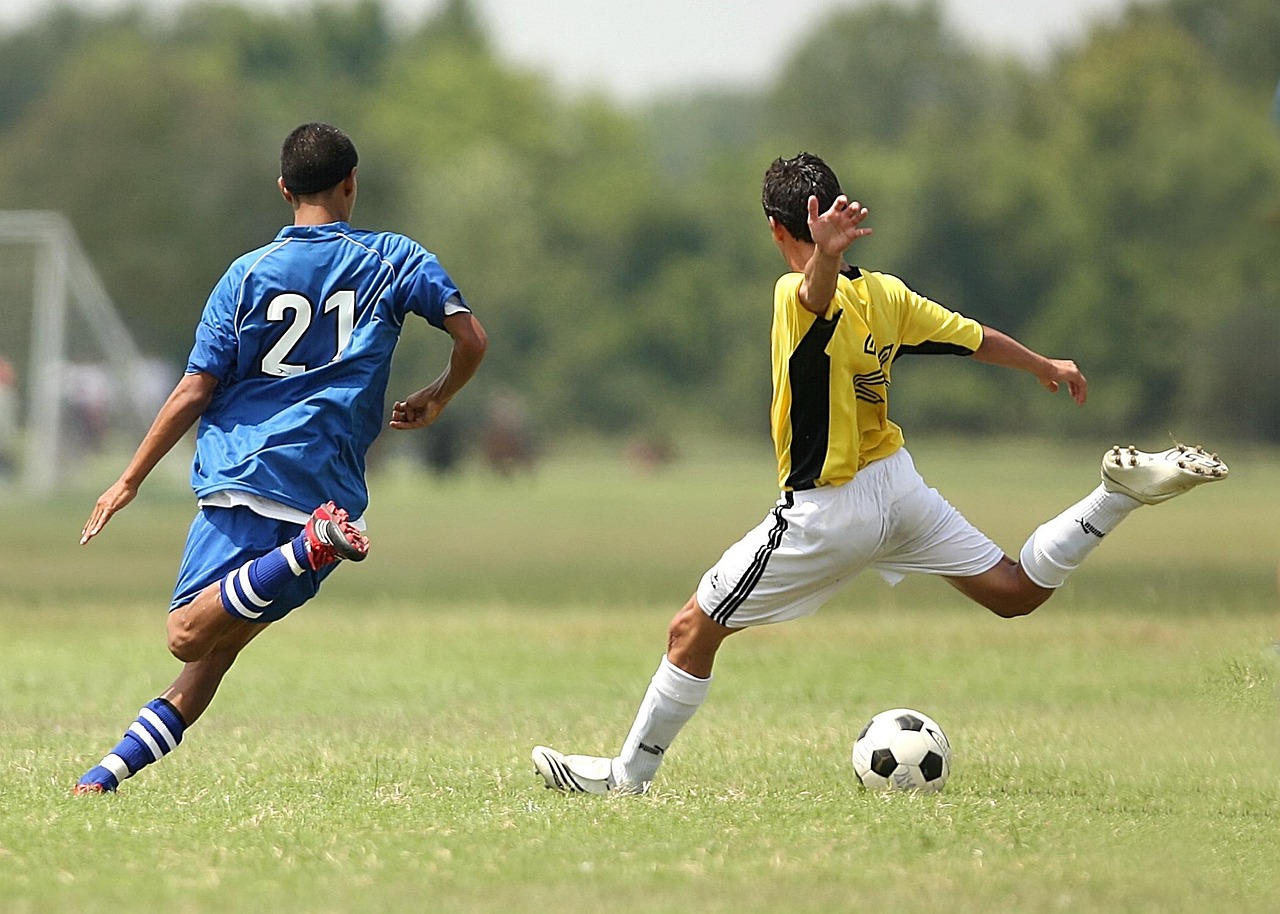
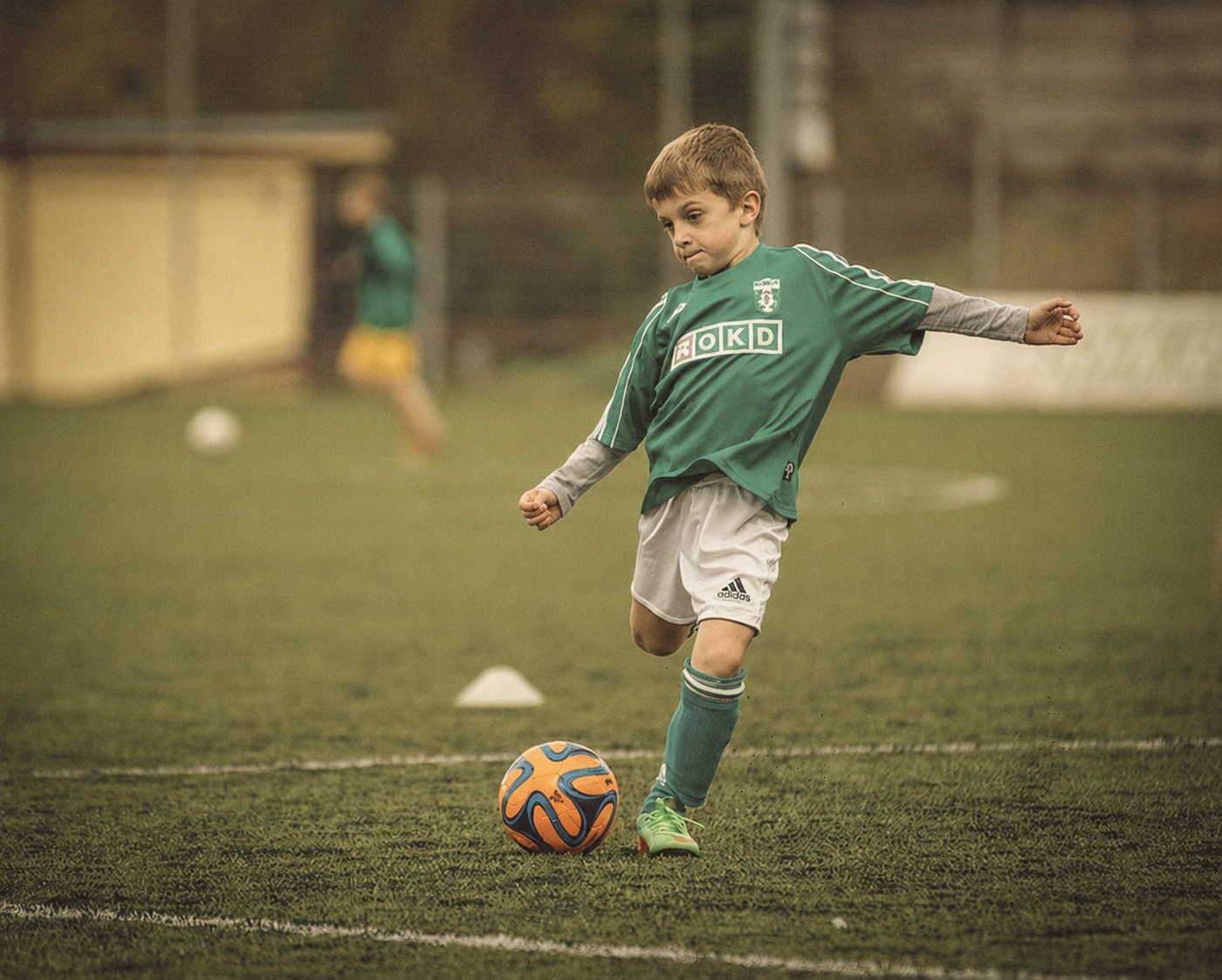
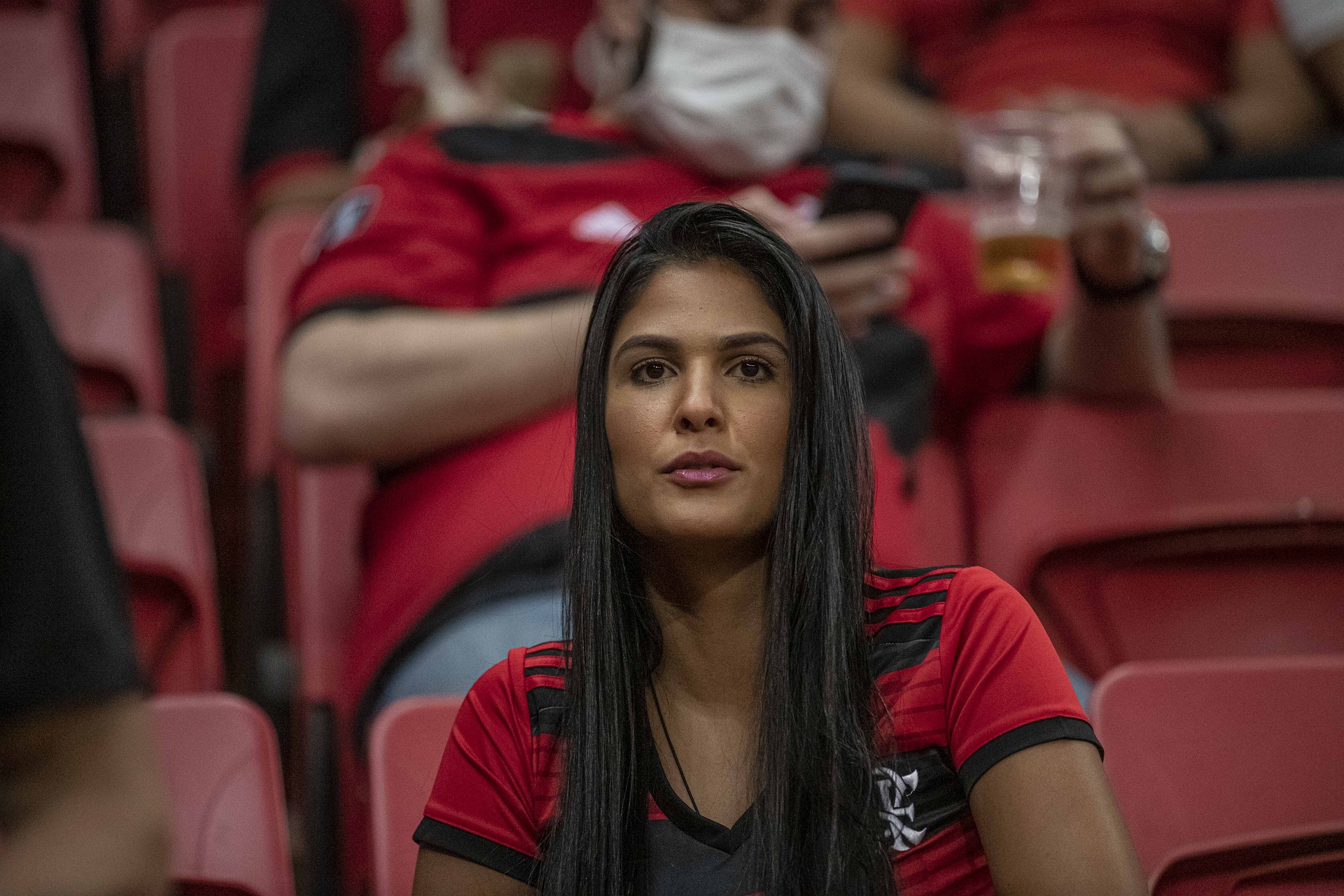
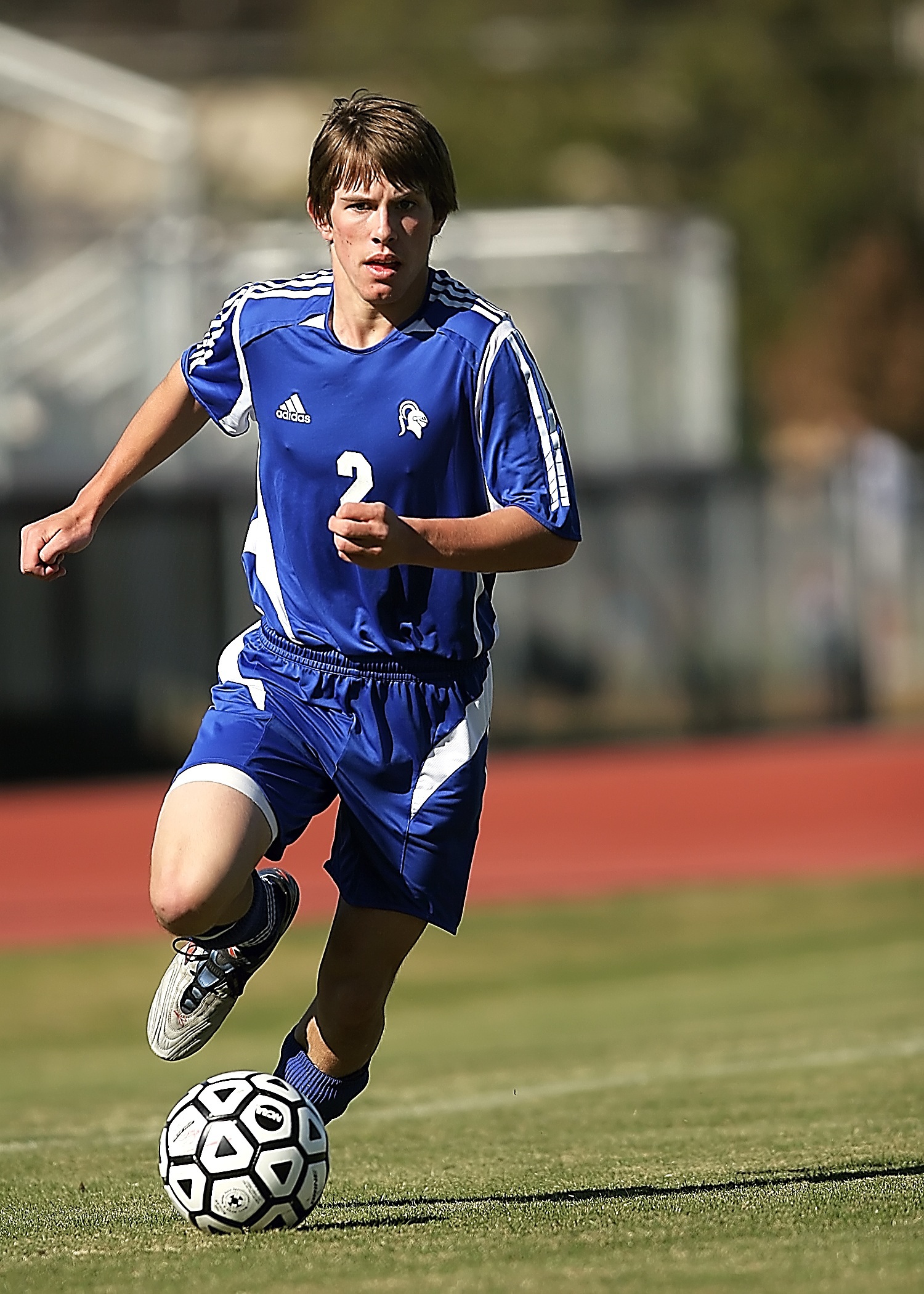
Follow the guidelines below according to your priorities - whether it's resolution, noise reduction, or color. You don't need to enable every feature in the UI; for example, Face Restoration isn't required if your image looks better without it, and Keep Prompts can be skipped if your original image doesn't contain any.
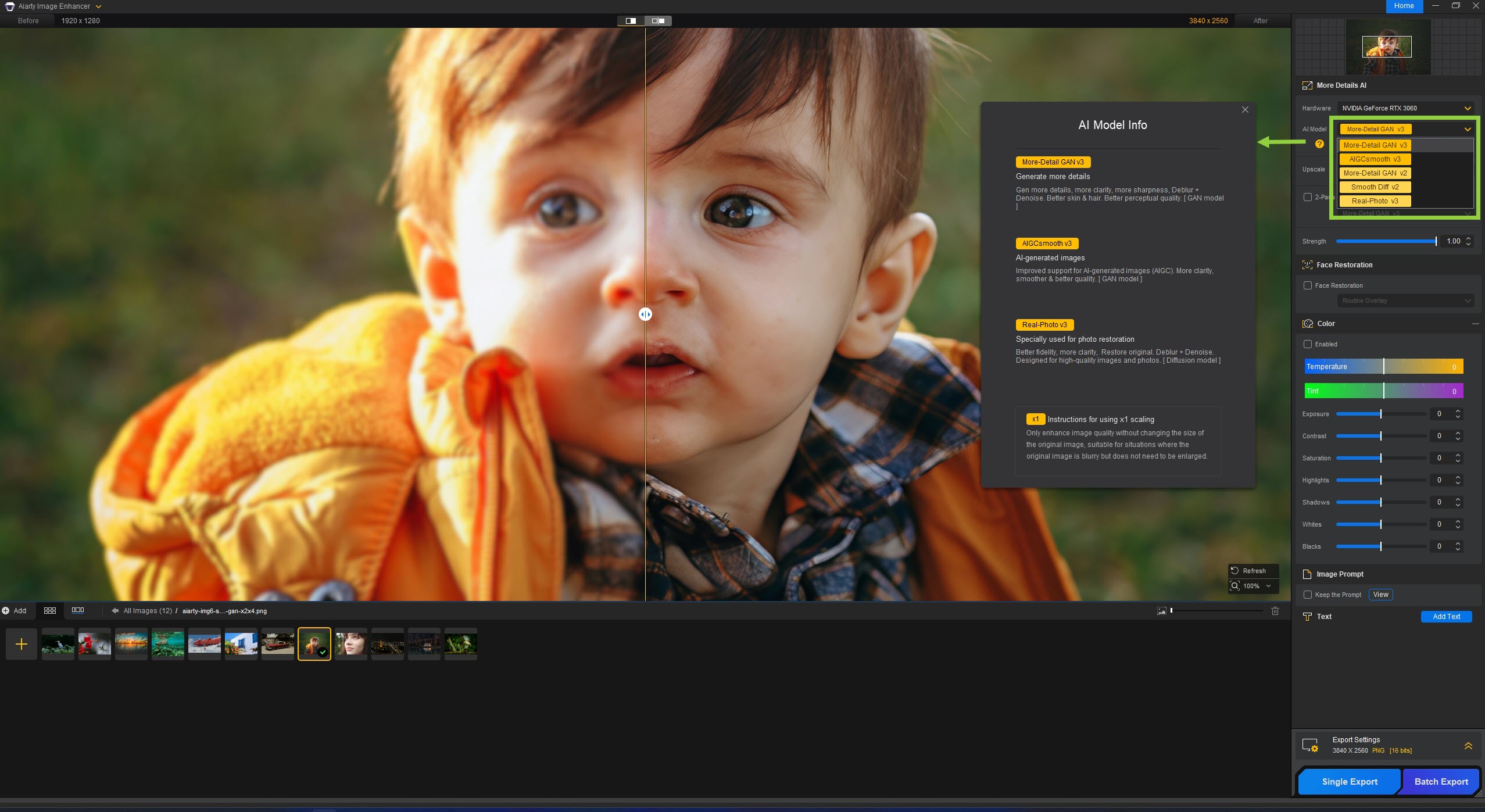
Many new users begin with the default AI model in Aiarty Image Enhancer and soon ask, "Which AI model is the best - and how do I choose?" The answer is that there's no one-size-fits-all model. Each AI model is designed for specific image types and enhancement scenarios.
Ultimately, the best choice depends on your image. Experiment with different AI models to find the one that delivers the most natural, highest-quality result for your specific photo.
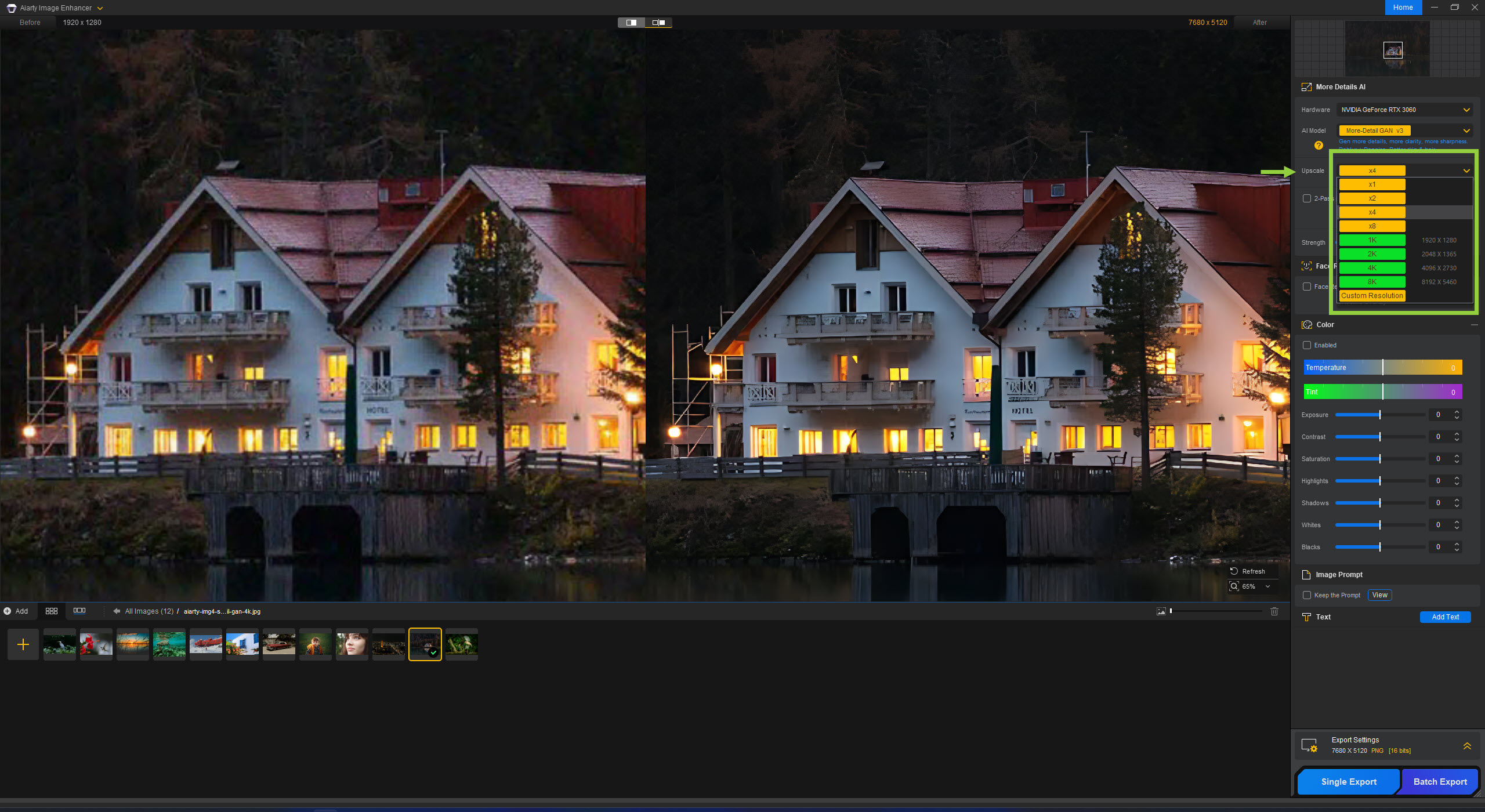
Once you've selected an AI model, the next step is choosing the right upscaling option.
Ultimately, choose the option that best matches your image's condition and final quality goals. Note: On Windows, the maximum supported image resolution (width or height) is 32K (32,000 pixels). On macOS, the maximum supported resolution is 16K (16,000 pixels).
Since every image is unique, experiment to find the optimal settings for your content.
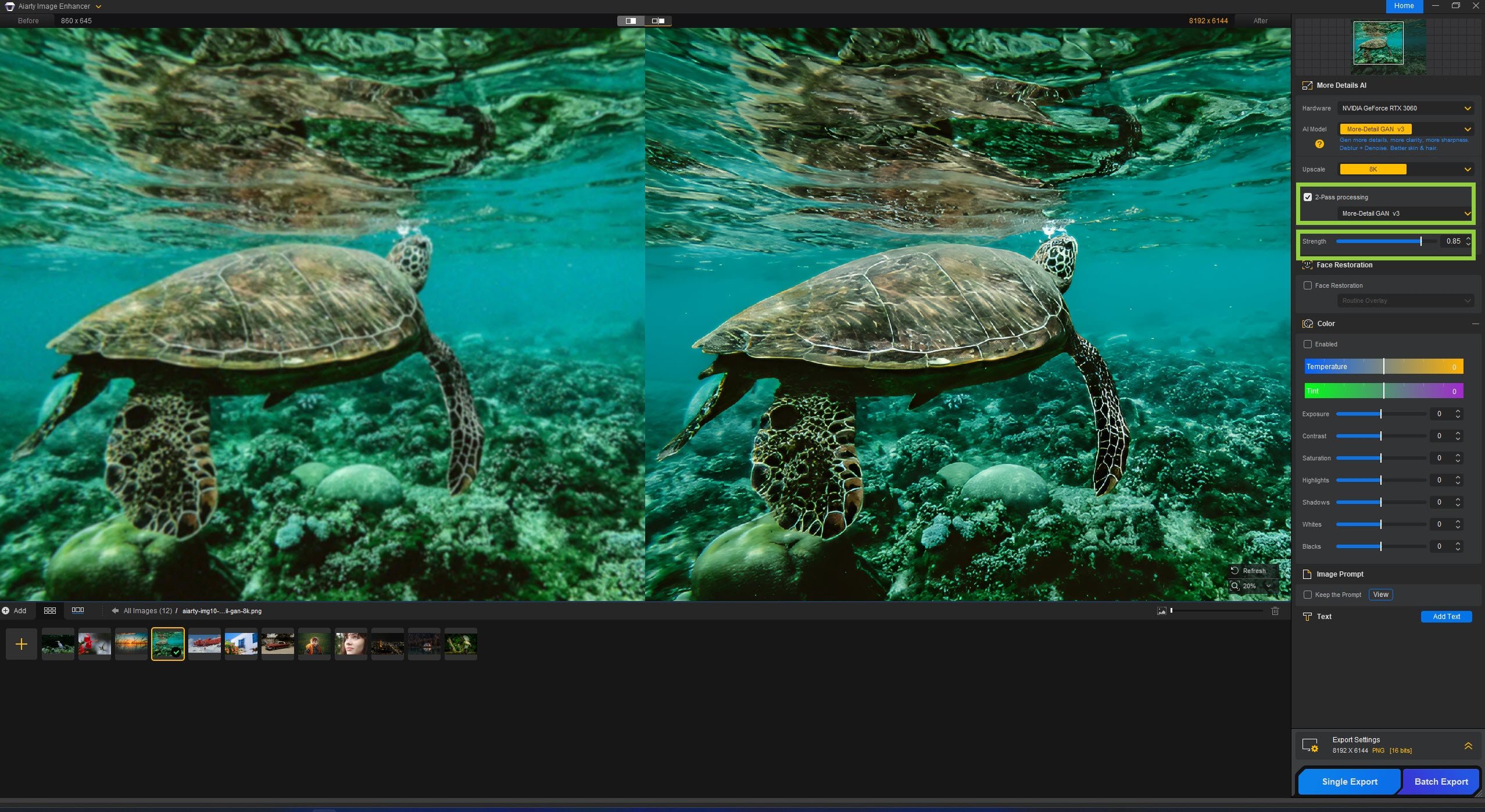
For old JPEGs or low-res scans that typically contain noise, blur, or artifacts, try "native restoration" before you upscale. In Aiarty Image Enhancer, you can automate this by checking the 2-Pass Processing box (available for More-Detail V3 and AIGCsmooth V3).
If you prefer using other models or want full manual control, you can achieve the same goal with this 2-Step Workflow:
Action: Import your image and set Upscale to x1 (native resolution). Why: This focuses the AI entirely on denoising and deblocking without enlarging errors. Export: Save as a high-quality format (PNG or TIFF).
Action: Re-import the cleaned image and select your desired upscale (e.g., x2, x4, etc.). Fine-tuning: If needed, further adjust the "Strength" and color parameters. Finally, export the image again.
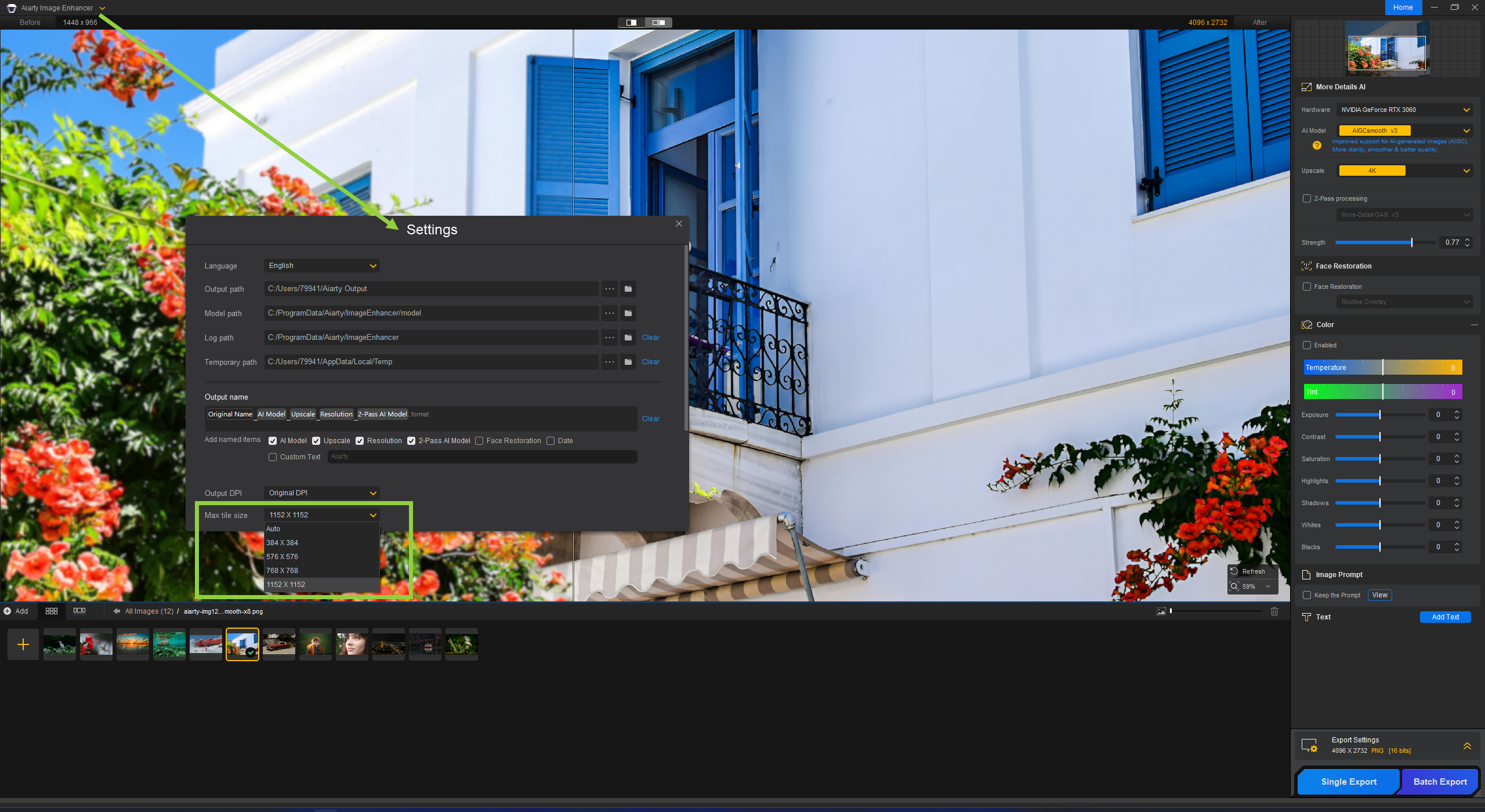
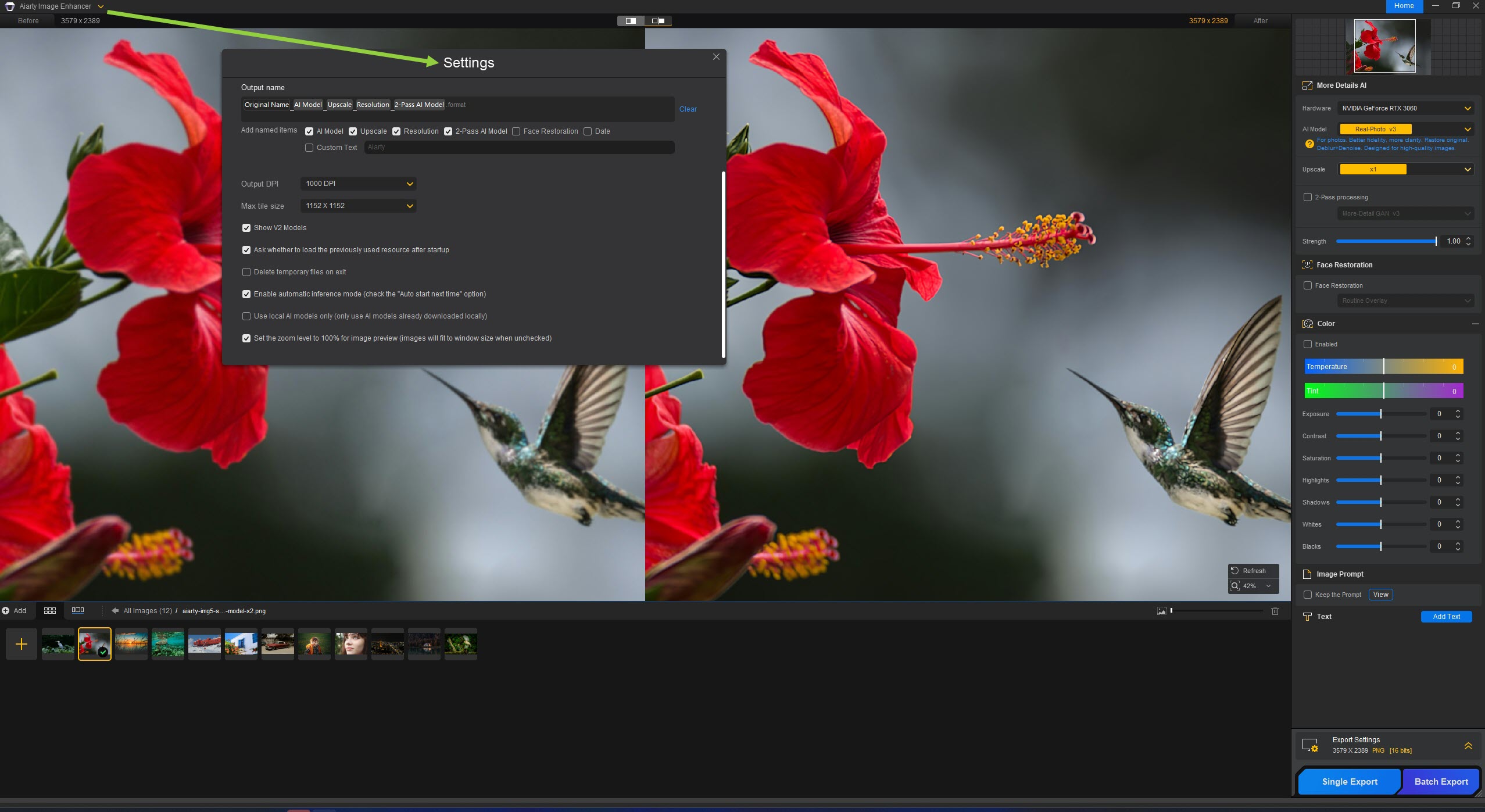
You can adjust the Max Tile Size in Settings to balance speed, memory usage, and output quality based on your hardware and image size.
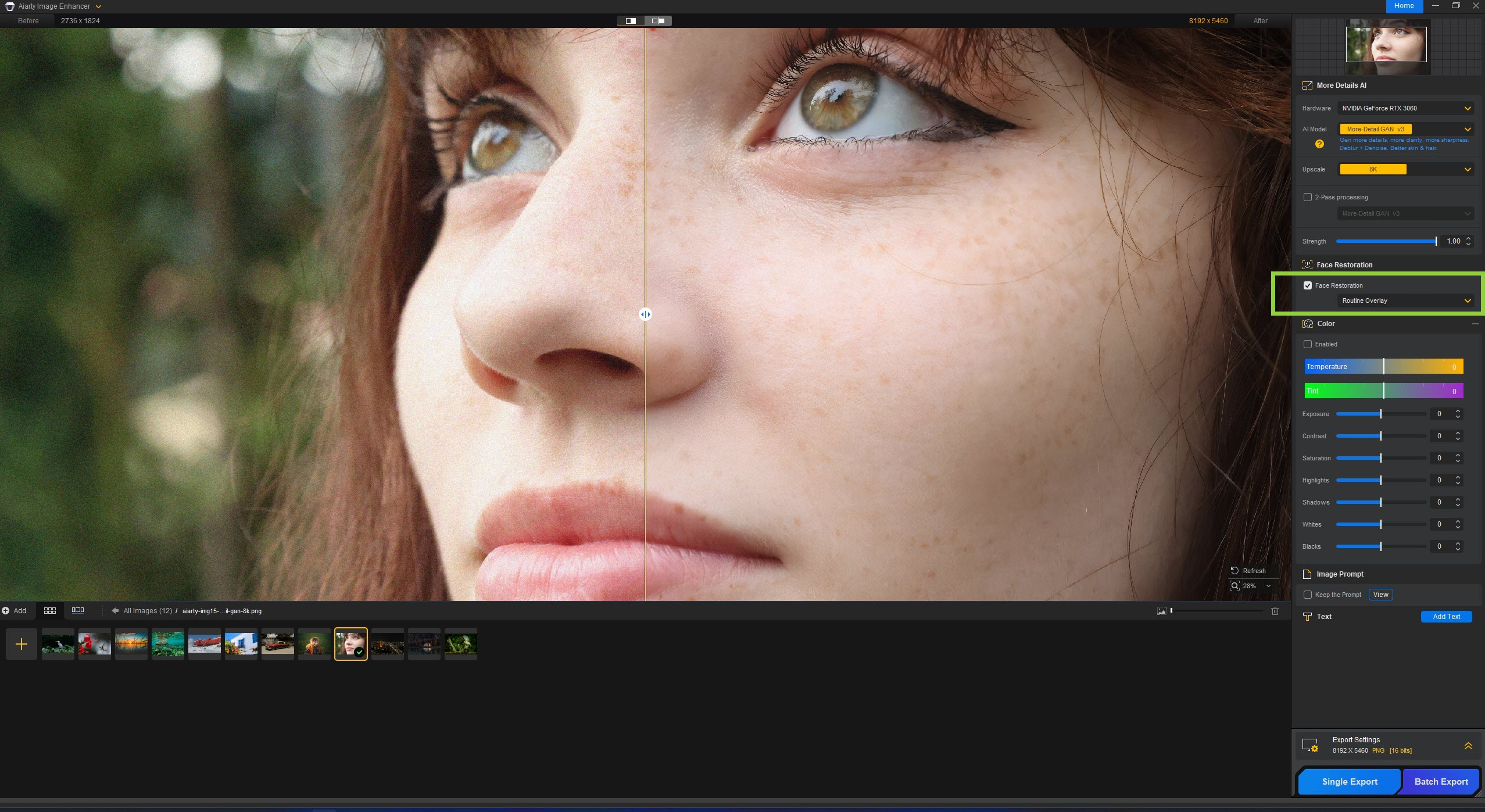
The face enhancement tool in Aiarty is ideal for images where key facial details are present but of degraded quality. It can restore clarity, sharpen features, and bring faces back to a more natural appearance.
Pro Tips for Better Results:
High-res images: If your source is already high-resolution, the default AI model often provides enough enhancement without needing Face Restoration.
Preserving identity: Keep in mind that the AI may not fully restore heavily blurred or distant faces when important details are missing. Since it doesn't recognize individuals the way you do, it makes educated guesses that can sometimes produce unwanted or inaccurate results. If maintaining the true likeness is important, it's best to leave Face Restoration off.
Fidelity vs. Rebuild: Fidelity keeps the results as close to the original reality as possible. Rebuild uses intelligent reconstruction to rebuild facial features while strictly following natural facial physics.
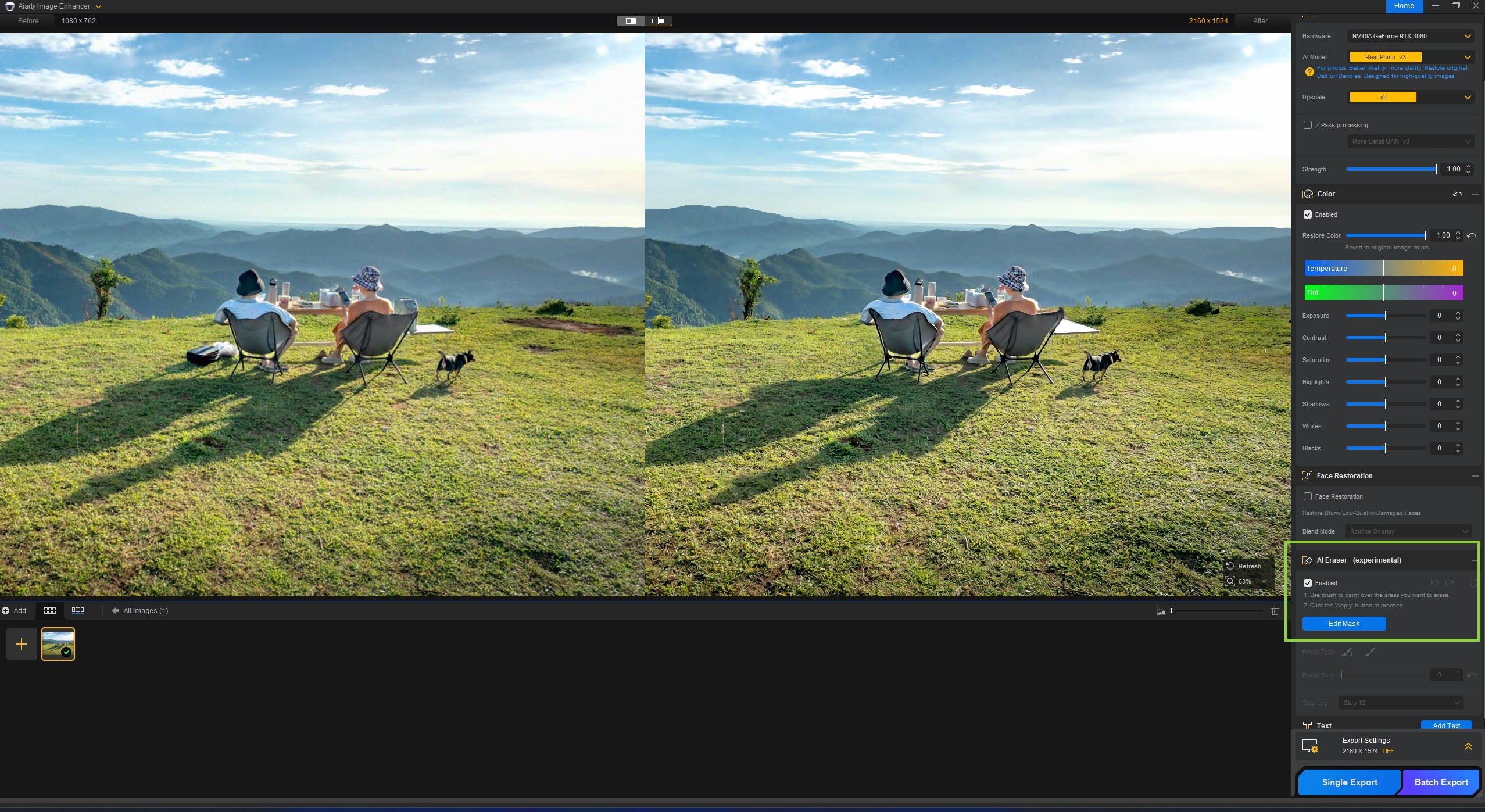
The AI Eraser in Aiarty Image Enhancer is ideal for object removal and background reconstruction. It is optimized to fill the gaps left by erased elements, blending them naturally with surrounding textures. Note that it is not intended for foreground separation.
To get the best results, keep these tips in mind:
The required AI model may take a few moments to download to your local device during the first use; once installed, the erasing process is fast. This is currently a Beta feature. We are committed to this feature and will continue improving the model to master even more complex editing tasks in future updates.
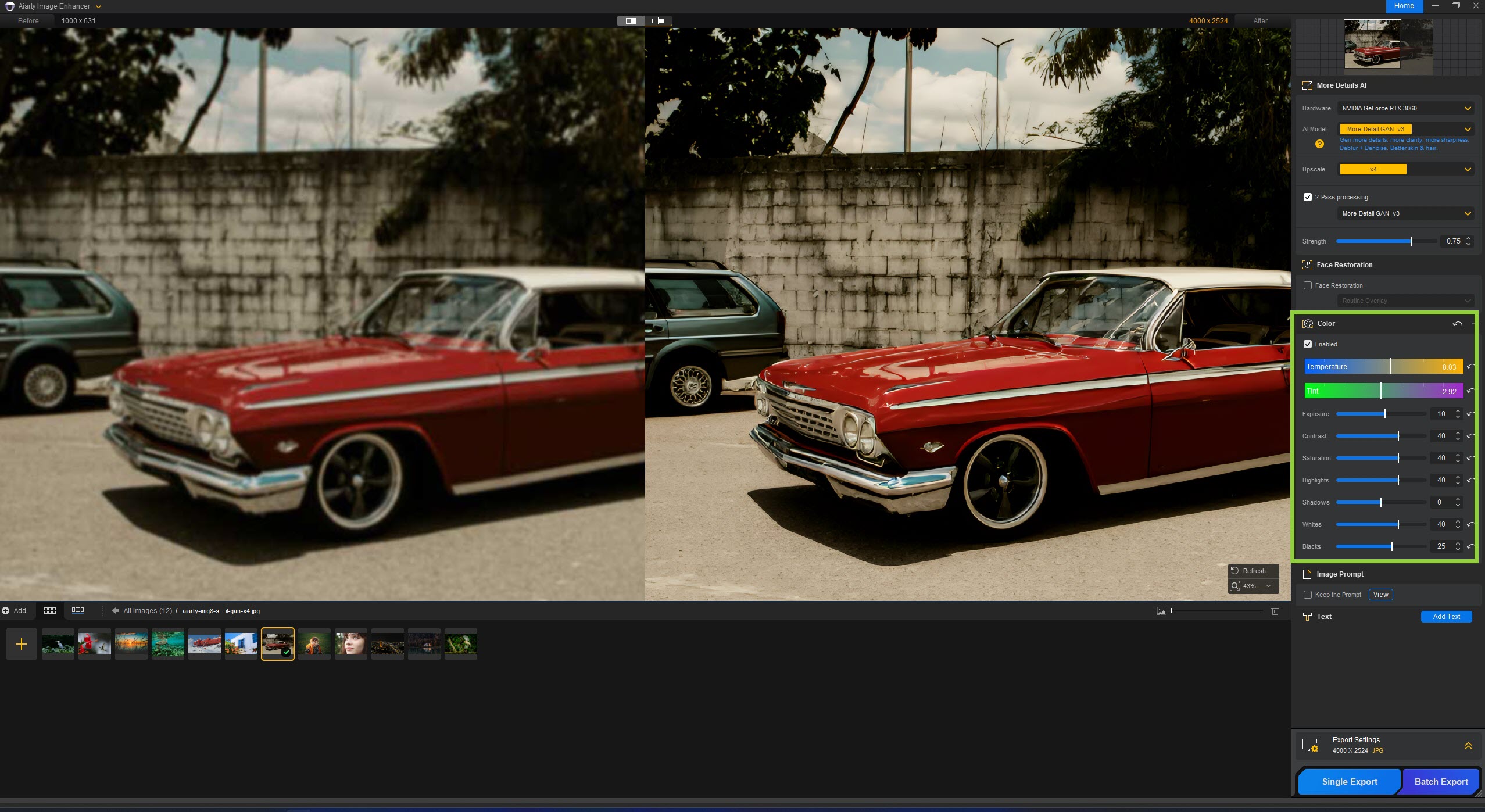
Aiarty Image Enhancer's color tools let you correct and fine-tune colors, brightness, contrast, and white balance for natural, accurate, and true-to-life results. Simply enable the feature, then adjust each slider to fix color imbalances or distortions caused by lighting conditions or camera settings during the shooting process.
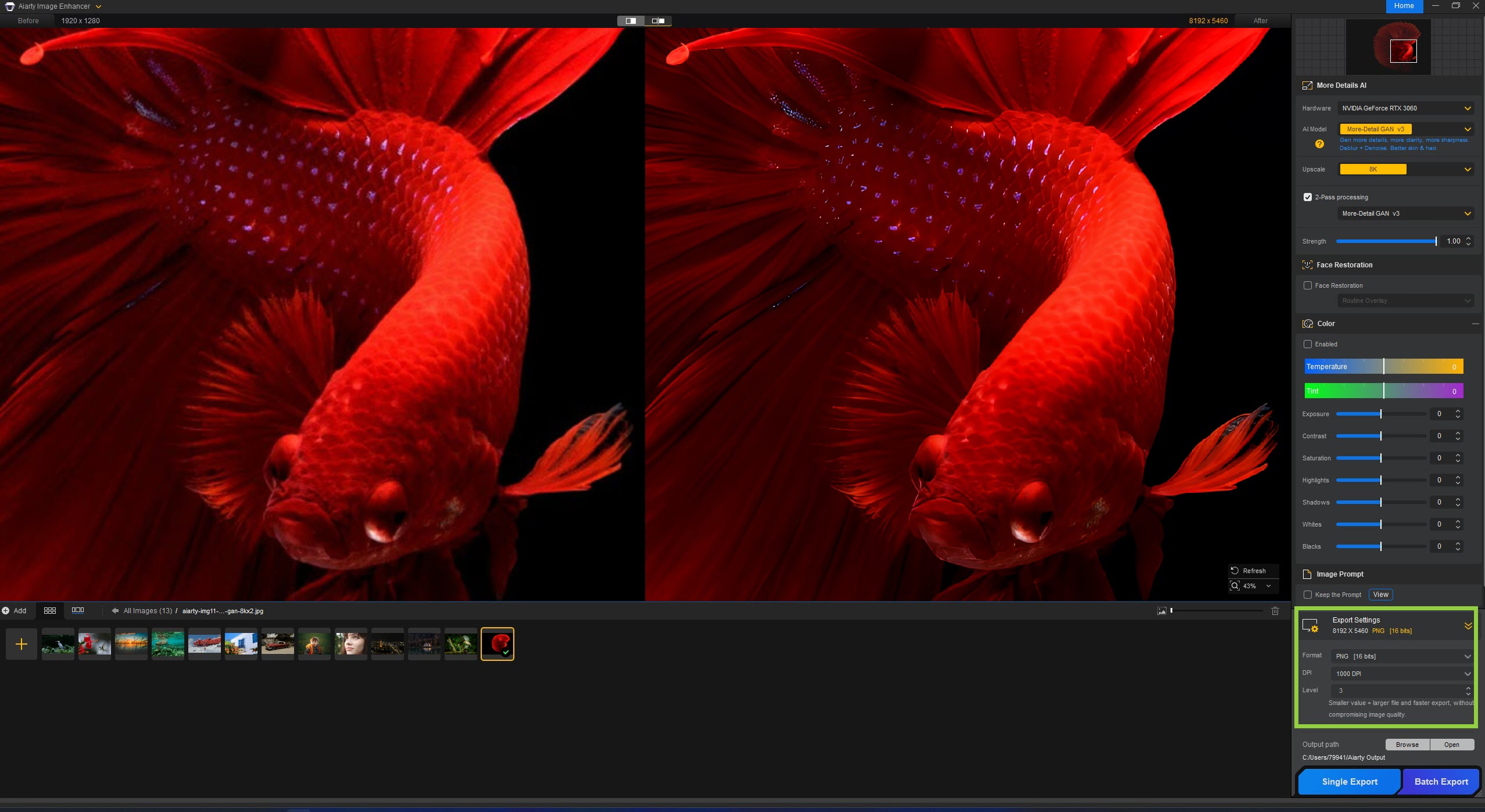
For printing purposes, you can choose the output format and adjust the DPI - either keep the original or select a value from the provided list:
Another important export setting is Quality/Level. The default value is already optimized for high-quality output. For custom results, you can adjust these settings to balance output quality and file size:
Aiarty runs smoothly on most systems, but upgrading your GPU can significantly improve performance for large images or large batch processing. Check the relevant pages for minimum system requirements and guidance on updating GPU drivers to ensure optimal results.
Click "Settings" in the upper-left corner of the UI to adjust options such as output/model path, output name, output DPI, Max Tile Size, and more. You can save these configurations as profiles for easy reuse in future projects.
Keep in mind that some images may require different settings. You can re-adjust options in Settings or directly on the working panel before exporting your images to achieve the best results.
Aiarty Image Enhancer is a next-generation AI tool that restores, upscales, and refines images with exceptional precision. Powered by advanced diffusion and generative models, it enhances detail, removes noise and blur, and reconstructs textures for lifelike clarity and natural tones. Whether for AI-generated art, portraits, or real photos, Aiarty delivers print-ready, high-fidelity results that look true to the original - or even better.
Yes, Aiarty Image Enhancer is completely safe to use. It's a trusted desktop application that runs entirely on your computer, ensuring your images and data remain private. Regular updates keep the software secure and optimized, giving you peace of mind while enhancing and upscaling your images.
We provide easy-access Sales FAQs and Technical FAQs for your convenience. For personalized support, feel free to email us at support@aiarty.com. To help us assist you more efficiently, please include your system information and description of the issue. If you don't receive a response - your message may have been missed or caught in spam - please try reaching out again via media@aiarty.com, which receives fewer emails.
The test images provided on our website are sourced primarily from free stock platforms and public domain libraries that permit free download and usage. Some images have been legally licensed and purchased for demonstration purposes by aiarty.com.
Please note that Aiarty is not the original owner of any of the images. These clips are made available for testing, demonstration, and fair use only. Redistribution, commercial use, or modification beyond personal evaluation or educational purposes may require proper licensing from the original content owners.
If you are a rightful owner of any image featured on our site and believe it has been used improperly or wish to have it removed, please contact us at media@aiarty.com. We respect all copyright concerns and will promptly address any valid takedown requests.