
HitPaw FotorPea Review 2026: Is It Really Worth Paying For?



HitPaw Photo Enhancer, now called HitPaw FotorPea, promises to turn blurry, noisy, pixelated, or damaged photos into clearer images with only a few clicks. The workflow is undeniably convenient. The harder question is whether the software actually restores reliable detail or simply produces a sharper-looking reconstruction.
That distinction matters. Increasing pixel dimensions, strengthening edges, and generating plausible textures can make an image look impressive in a before-and-after slider. They do not necessarily make the result more faithful to the original photo. In this HitPaw FotorPea review, we examine its face enhancement, upscaling, denoising, old photo restoration, colorization, text enhancement, pricing, and limitations with a more critical standard: Does the output preserve the original information, or does it replace uncertainty with AI-generated detail?
HitPaw FotorPea Quick Verdict
Our verdict: HitPaw FotorPea is an easy-to-use, feature-rich AI photo toolkit that works best on moderately blurry, noisy, compressed, or undersized images. It can produce fast and visually striking improvements, especially for casual portraits and social media content. However, the software becomes less trustworthy when the source contains tiny faces, severe motion blur, heavy compression, missing areas, unreadable text, or delicate natural textures.
Its biggest weakness is not that it fails to make images look clearer. It is that the clearest-looking result may also be the least faithful. Face features can be reconstructed, noise reduction can erase real texture, and high-resolution export can create a larger file without a proportional increase in authentic detail.
- Best for: quick photo cleanup, casual portraits, social media graphics, moderately low-resolution images, and beginners who want multiple AI tools in one app.
- Not ideal for: identity-sensitive portraits, archival restoration, forensic use, professional product images, fine-art printing, and projects where invented detail is unacceptable.
What Is HitPaw FotorPea?
HitPaw FotorPea is the renamed and expanded version of HitPaw Photo Enhancer. It is available for Windows and macOS and combines AI image enhancement with restoration, editing, background tools, image generation, ID photo creation, and other creative features.
The AI Enhancer section includes task-specific models for portraits, general photos, denoising, old photo repair, colorization, text, animation, and generative enhancement. The basic workflow remains simple:
- Import one or more images.
- Select an AI model.
- Choose the output scale or resolution.
- Preview the result.
- Export the processed image.

This model-based design lowers the learning curve compared with Photoshop or a manual restoration workflow. But it also gives users less control over exactly what the AI changes. If the model improves the eyes but over-smooths the skin, or removes noise while damaging fabric texture, the available solution is often to switch models rather than precisely mask or tune the affected area.
HitPaw is also available through an online photo enhancer, mobile apps, and a Photoshop plugin. These products should not be treated as one interchangeable license. Feature access, processing limits, credits, subscriptions, output options, and privacy conditions can differ by platform.
How We Evaluate HitPaw FotorPea
A dramatic before-and-after result is not enough to prove that an AI enhancer works well. For this review, the output should be judged against the following questions:
- Identity preservation: Do the enhanced eyes, mouth, nose, face shape, and expression still match the person in the source photo?
- Detail fidelity: Is the model strengthening visible information, or inventing plausible texture where the source is unclear?
- Texture retention: Does denoising preserve skin, hair, fur, feathers, fabric, foliage, grain, and surface detail?
- Edge quality: Does sharpening create halos, ringing, crunchy outlines, or unnatural local contrast?
- Consistency: Does one model work reliably across a batch, or does the user need to test several models for every image?
- Practical value: Does the quality justify the subscription when some features rely on separate plans or credits?
The central rule is simple: a sharper image is not automatically a more accurate image.
HitPaw FotorPea Tests: What Works and What Does Not
1. Portrait and Face Enhancement
The Face Model is one of HitPaw FotorPea's most immediately impressive tools. On a moderately soft portrait, it can make the eyes, eyebrows, hairline, and facial contours look better defined. For a selfie that only needs a cleaner social media version, the result can be useful with almost no manual work.
The problem appears when the face is too small, blurred, compressed, or damaged to contain reliable facial information. At that point, the model is no longer simply revealing hidden detail. It is predicting what the face might look like.
Users should inspect whether the software has:
- Changed the eye shape or made both eyes unnaturally symmetrical.
- Added eyelashes, teeth, pores, or hair strands not supported by the source.
- Smoothed away age lines, freckles, scars, or distinctive skin texture.
- Modified the lips, face contour, expression, or apparent age.
- Enhanced one face in a group more aggressively than the others.
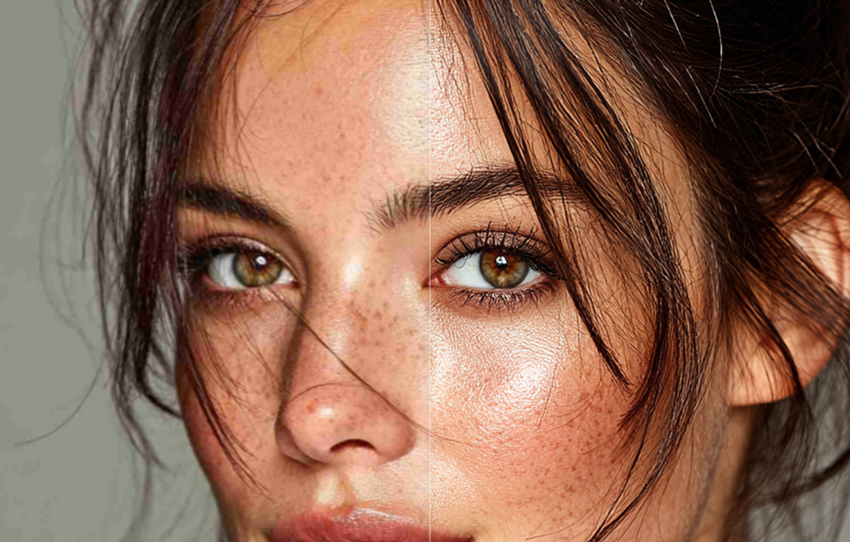
Judgment: Good for making moderately blurry portraits look more polished, but not consistently reliable for identity-sensitive restoration. On tiny or severely degraded faces, the result can become a believable re-creation rather than a faithful recovery.
2. Low-Resolution Image Upscaling
HitPaw FotorPea can increase pixel dimensions and improve the apparent clarity of low-resolution images. Clean source photos with recognizable edges generally benefit the most. They can look better on larger screens, in presentations, or in social posts.
However, output resolution should not be confused with real recovered information. HitPaw's official pages currently use different maximum-resolution claims. The main product page emphasizes 8K output, its FAQ and Mac materials mention 16K, while some promotional pages refer to 32K. The practical limit may depend on the model, platform, source dimensions, and output mode, but the inconsistent messaging makes the headline specification difficult to evaluate.
Regardless of the output label, severely pixelated images may still contain:
- Enlarged JPEG blocks hidden beneath stronger sharpening.
- Repeated or synthetic hair, grass, fabric, and foliage texture.
- Halos around high-contrast edges.
- Over-smoothed surfaces with little true micro-detail.
- Incorrect reconstruction of jewelry, architecture, hands, or distant objects.
Judgment: Effective for making moderately undersized photos more presentable. It cannot turn a severely pixelated source into a factually detailed high-resolution photograph merely by exporting a larger file.
3. Denoising and Low-Light Photos
The Denoise Model can reduce visible grain, chroma noise, and compression artifacts in high-ISO or dark photos. Flat backgrounds and shadow areas often look cleaner after processing, and the one-click workflow is much faster than manually balancing luminance and color noise reduction.
But noise and fine detail can occupy similar frequencies. When the model becomes aggressive, it can remove both. Skin may become waxy, hair may merge into larger strands, and fabric, fur, feathers, grass, or wall texture may lose their natural variation.
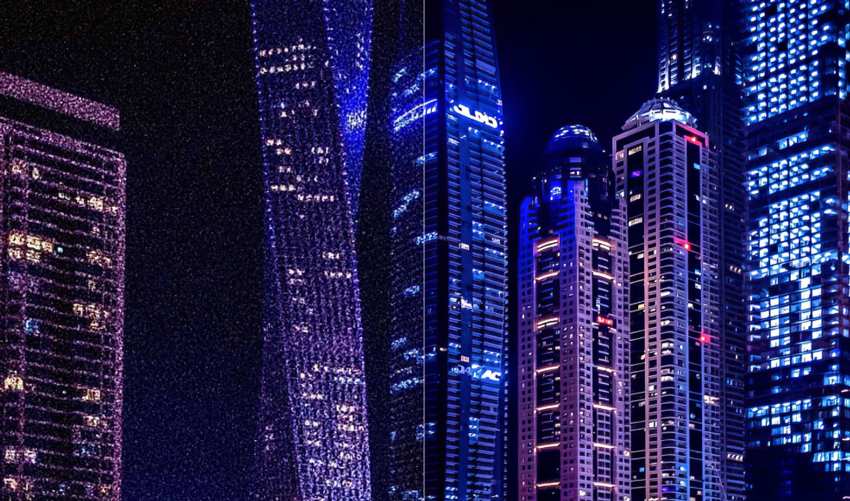
Film grain deserves special attention. Grain is not always an error; it can be part of the original photographic character. Automatically removing it may create a cleaner image while also making an older photo look digitally painted.
Judgment: Convenient for distracting digital noise, but the result should be evaluated at 100% zoom. HitPaw sometimes exchanges real texture for smoothness, and the cleaner version is not always the more natural one.
4. Old Photo Restoration and Colorization
HitPaw combines scratch repair, face enhancement, sharpening, denoising, and colorization for old photographs. Light fading, dust, grain, and small defects can often be made less distracting, which is useful for family sharing and digital albums.
Heavily damaged images are more problematic. Large scratches, torn areas, missing facial regions, and severe fading cannot be restored without reconstruction. The software may fill those areas convincingly, but there is no guarantee that the generated replacement matches the original person, clothing, or environment.
The same limitation applies to colorization. HitPaw can assign plausible colors to skin, clothing, vegetation, and common objects, but it cannot know the actual color of a dress, wall, car, uniform, or piece of furniture from a grayscale image alone.
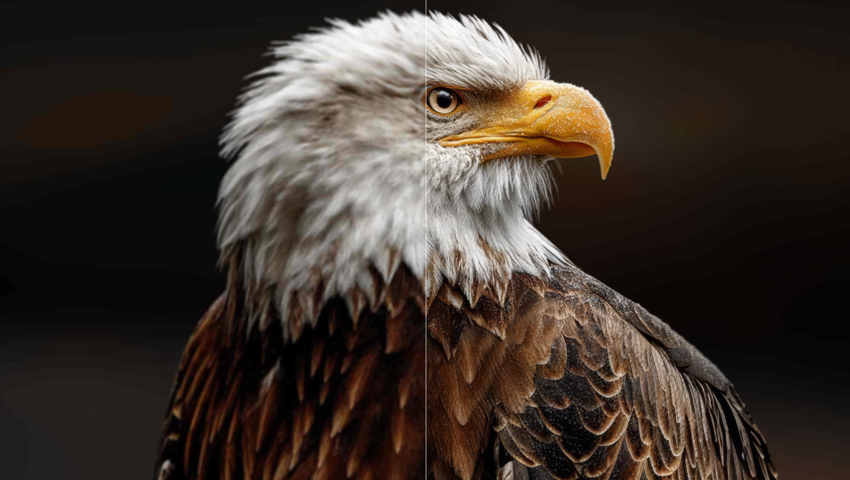
Judgment: Useful as an automated first pass for lightly damaged photos. For archival, historical, memorial, or personally important images, the output should be treated as an AI interpretation and reviewed manually.
5. Text, Anime, and Graphics Enhancement
HitPaw includes models for text, animation, illustrations, and other non-photographic images. These tools can clean up compression, strengthen line art, and make already recognizable lettering or anime edges look more defined.
Unreadable text is a different case. When characters are extremely small or blurred, the model may redraw them incorrectly. A result can look like clean text while containing changed letters, numbers, punctuation, or symbols.
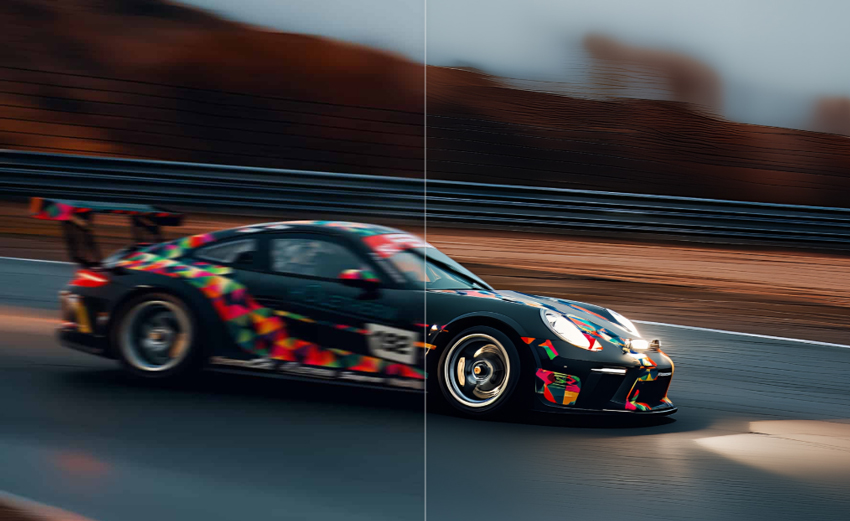
This makes AI text enhancement unsuitable as the sole method for recovering critical information from certificates, receipts, labels, legal documents, license plates, medical images, or technical diagrams.
Judgment: Helpful for polishing readable graphics and illustrations, but not dependable for reconstructing information that is genuinely illegible.
6. Batch Processing, Preview, and Workflow
Ease of use remains one of HitPaw FotorPea's strongest advantages. Importing images, selecting a model, previewing, and exporting requires little technical knowledge. Batch processing is also useful for product catalogs, scanned albums, event photos, and social media assets.
However, batch processing only saves time when the files have similar problems. Applying one model to a mixed folder of portraits, screenshots, landscapes, illustrations, and low-light photos can produce inconsistent results. The software may over-process some files and under-process others.
The side-by-side preview is therefore not optional. Users should zoom in and inspect faces, text, hands, hair, fabric, foliage, repeated patterns, and high-contrast edges before exporting a full batch.
The desktop version is generally the more practical choice for large files and repeated processing, while the online version is better suited to occasional images. The online service, desktop app, mobile products, and Photoshop plugin can have different subscriptions, credits, and feature limits. HitPaw also states that its Photoshop plugin uses a separate subscription and credit system from the desktop FotorPea license.
Judgment: The workflow is beginner-friendly and efficient, but model simplicity should not be mistaken for dependable one-click accuracy.
Where HitPaw FotorPea Falls Short
HitPaw FotorPea's main limitation is not a lack of features. It is the gap between a visually impressive result and a verifiably faithful result.
Generated Detail Can Look More Convincing Than It Is
Generative enhancement is useful when the goal is to create a pleasing image. It is less suitable when the goal is to preserve the exact person, product, object, or historical record. Fine detail created from an unclear source should be treated as a model prediction, not recovered evidence.
The Controls Are Limited for Precision Work
HitPaw simplifies enhancement through task-specific models, but it provides less granular control than a manual editor or a dedicated enhancer with adjustable processing intensity. Users cannot always reduce reconstruction in one area while retaining stronger cleanup elsewhere.
The Product Ecosystem Is Harder to Price Than It First Appears
HitPaw FotorPea is no longer only a photo enhancer. It is an all-in-one AI creative suite. That breadth can be valuable, but it also means users may be paying for generation, editing, background, and creative features they do not need. Separate online plans, platform licenses, plugin subscriptions, and AI credits can make the real cost less transparent than the headline monthly price.
Maximum Resolution Is Marketed Inconsistently
Official HitPaw pages currently mention several maximum outputs, including 8K, 16K, and 32K. These may refer to different models or workflows, but the product pages do not always make the distinction clear. Buyers should verify the exact model, platform, scale factor, and output limit they need rather than relying on the largest number shown in a promotional page.
A Strong Before-and-After Can Hide Small Failures
At fit-to-screen size, excessive smoothing, invented eyelashes, repeated texture, text changes, and edge halos can be difficult to notice. These defects become more visible in prints, product listings, professional portfolios, and close crops. Every important image should be checked at full resolution.
HitPaw FotorPea Pricing and Value
As checked in July 2026, HitPaw states that FotorPea desktop pricing starts at approximately $22.39 per month for Windows and $25.59 per month for Mac. Yearly and lifetime prices are frequently discounted, so the amount shown at checkout may differ from the standard or launch pricing.
The online enhancer, mobile apps, Photoshop plugin, and some generative features may use different plans or credits. Before purchasing, verify:
- Whether the license is for Windows, Mac, web, mobile, or the Photoshop plugin.
- Whether the plan automatically renews.
- Which enhancement and generative models are included.
- Whether any feature consumes separate credits.
- The maximum output size for the exact model you intend to use.
- Whether batch processing and watermark-free export are included.
- The number of supported devices and the refund conditions.
Value judgment: HitPaw FotorPea is easier to justify for users who will regularly use several parts of the suite, such as enhancement, background tools, colorization, restoration, generation, and object editing. It is less compelling for someone paying mainly for precise, natural-looking photo enhancement.
HitPaw FotorPea Pros and Cons
- Very easy to learn, with a clear import-model-preview-export workflow.
- Produces noticeable improvements on moderately blurry, noisy, or low-resolution images.
- Dedicated models for portraits, old photos, colorization, text, animation, and general images.
- Batch processing is useful for visually similar groups of photos.
- Side-by-side preview makes it easier to identify over-processing before export.
- Combines enhancement with a broad range of AI editing and generation tools.
- Available across desktop, web, mobile, and Photoshop workflows.
- Face enhancement may alter identity when the source face is tiny, blurred, compressed, or damaged.
- Strong denoising can remove authentic skin, hair, fabric, fur, feather, and background texture.
- Sharpening may introduce halos, crunchy contours, or artificial local contrast.
- High-resolution export does not guarantee a matching increase in genuine detail.
- Unreadable text can be reconstructed into incorrect characters.
- Colorization creates plausible colors, not verified historical colors.
- Results vary between models, requiring repeated preview and comparison.
- Limited granular control over enhancement and generative reconstruction intensity.
- Official maximum-resolution claims are inconsistent across product pages.
- Separate products, subscriptions, platforms, and credits can make pricing confusing.
Best HitPaw FotorPea Alternative for Detail-Focused Enhancement
For users who want a broad collection of creative AI tools, HitPaw FotorPea has the advantage of variety. For users whose priority is controlled image enhancement, Aiarty Image Enhancer is a more focused alternative.
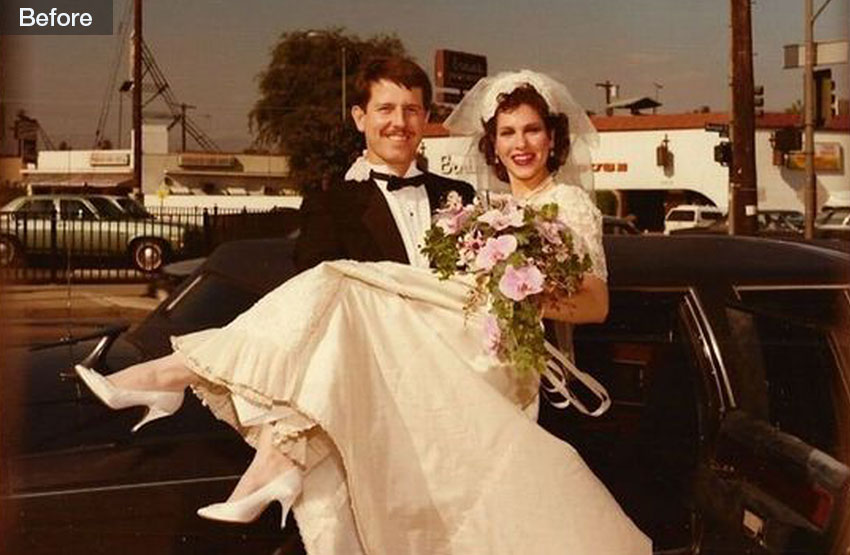
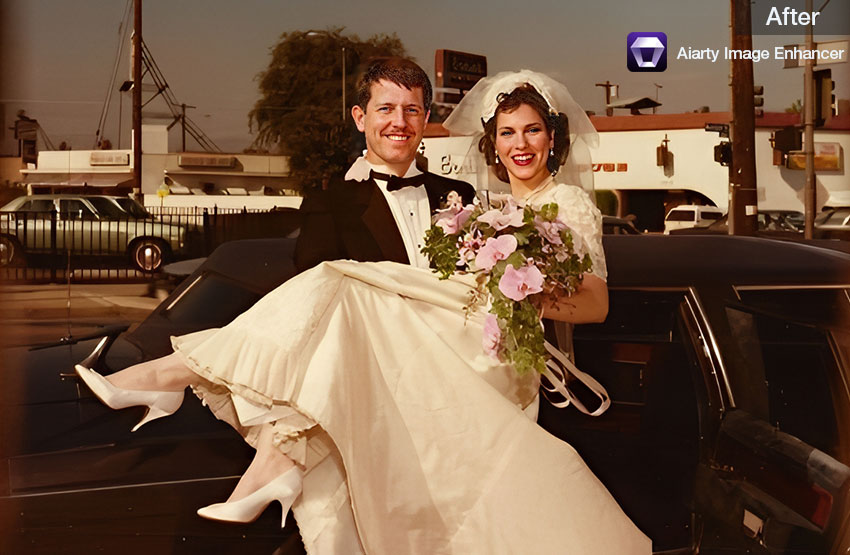

Aiarty's most relevant advantage in this comparison is not simply its 32K maximum output. It is the Strength slider, which lets users reduce enhancement when skin, hair, grain, product surfaces, or natural textures begin to look over-processed. A lower setting prioritizes a softer and more conservative result, while a higher setting produces stronger sharpness and generated detail.
Aiarty also separates its enhancement models by content type. More-Detail GAN v3 focuses on detail generation, deblurring, denoising, and texture recovery; AIGCsmooth v3 is designed for AI art, anime, line art, and smooth surfaces; Real-Photo targets photographic fidelity; and Face Restoration is intended for degraded portraits.
Aiarty supports local Windows and macOS processing, batch workflows, output up to 32K, color correction, and current hardware including NVIDIA RTX 50-series GPUs and Apple Silicon through M5. Its official purchase page currently lists a $59 annual plan and a discounted $109 lifetime license, each supporting up to three devices.
Which should you choose? Choose HitPaw FotorPea if you value creative breadth and want enhancement, generation, colorization, ID photos, background editing, and other AI functions in one package. Choose Aiarty Image Enhancer if your main goal is to control how strongly an image is reconstructed and to preserve a more natural balance between clarity and original texture.
Final Verdict: Is HitPaw FotorPea Worth It?
HitPaw FotorPea succeeds at making AI photo enhancement accessible. It is easy to operate, its model selection covers a wide range of common problems, and a moderately degraded image can often be made cleaner and more presentable in a few steps.
But it should not be treated as a precision restoration system. The software can make a face sharper while changing its features, remove noise while erasing texture, enlarge an image without recovering equivalent real information, and colorize a photo without knowing the original colors.
For casual social posts, quick cleanup, and users who want an all-in-one AI creative suite, those trade-offs may be acceptable. For old family portraits, professional product photos, archival materials, large prints, or any image where factual and identity accuracy matter, the result requires careful inspection.
The final judgment: HitPaw FotorPea is convenient and capable, but its results should be trusted selectively rather than automatically. Do not judge the output only by whether it looks sharper. Judge whether it still looks like the original.
 FAQs
FAQs
Yes. HitPaw Photo Enhancer was renamed HitPaw FotorPea. The current product retains photo enhancement while adding more AI generation, restoration, and editing features.
HitPaw offers free or limited access through some versions, but advanced models, larger exports, faster processing, batch features, or generative tools may require a subscription or credits. The desktop, online, mobile, and Photoshop products can use different payment systems.
It can strengthen visible structure and generate plausible detail, but it cannot retrieve information that was never captured. When the source is extremely small, blurred, compressed, or damaged, part of the final result is an AI reconstruction rather than recovered evidence.
It can. Clearer portraits are less likely to change significantly, while tiny or heavily degraded faces require more reconstruction. Users should compare the eyes, mouth, nose, face shape, expression, skin texture, and apparent age before accepting the result.
It is useful for a first-pass cleanup of light scratches, noise, fading, and blur. Large missing areas, heavily damaged faces, and AI colorization should be reviewed carefully because the software must predict information that is absent from the source.
It may sharpen text that is already recognizable, but extremely blurred characters can be reconstructed incorrectly. Do not rely on AI text enhancement alone for legal, financial, medical, identification, or technical information.
The desktop application is installed and used on Windows or macOS, while the online enhancer and Photoshop plugin use separate services. Processing methods can vary by feature, particularly for cloud or credit-based generative tools. Review the current privacy and data-retention terms before submitting confidential images.
Aiarty Image Enhancer is a stronger alternative for users who prioritize dedicated enhancement models, adjustable enhancement strength, local batch processing, fine-texture reconstruction, and output up to 32K. HitPaw is more suitable for users who prefer a broader all-in-one collection of AI editing and generation features.

This post was written by Brenda Peng, a seasoned editor at Digiarty Software who evaluates AI image tools with a focus on detail fidelity, natural texture, workflow usability, and practical value. With AI assistance for brainstorming and drafting, the post is reviewed for accuracy by our expert Abby Poole.
