[Solved] Aiarty Video Enhancer: Fix Export Errors Easily
If Aiarty Video Enhancer fails during export with messages like model load failed, export failed, write failed, don't worry, as most issues can be fixed easily.
This guide explains what causes these errors, how to fix them easily, or contact us for further help.
※ Find your specific issue or error message in the list below to see the corresponding solution. For example, for errors related to "model" "load", use Solution 1.
Quick Checklist:
Before troubleshooting errors step by step, try these quick fixes first.
- Restart Aiarty Video Enhancer and re-export your project.
- Update to the latest version of Aiarty Video Enhancer.
- Free up disk space on your export drive (leave a few GB free).
- Export to a different local folder (avoid network or external drives).
- Temporarily disable antivirus or firewall, or whitelist Aiarty Video Enhancer.
- Run Aiarty as Administrator on Windows or with full permissions on macOS.
- Keep your network stable if a model download is required.
Solution to Export Errors
1. Model Download or Load Failures
Aiarty relies on local AI models for image and video enhancement. If the app can't download or load these models, it's usually due to network instability, storage limits, or system permission issues.
Error messages you might see:
Model download failed, failed to load local model, failed to load model during video generation, requested model list is empty.
How to fix it:
- Check your network: Make sure your internet connection is stable. Use a wired network if possible, or switching to a different network to complete the download.
- Turn off VPN or proxy: Disable any VPN, proxy, or firewall temporarily, as they may block model downloads.
- Check disk space: Ensure there's enough free space on the drive where Aiarty stores its models.
- Verify permissions: Confirm the model storage folder isn't set to read-only and that your antivirus isn't blocking the process.
- Re-download the model: If a model file is corrupted, delete it in Settings > General > Model path and allow AI inference to auto download again.
2. Code or Internal Startup Errors
Follow steps below when you meet these errors:
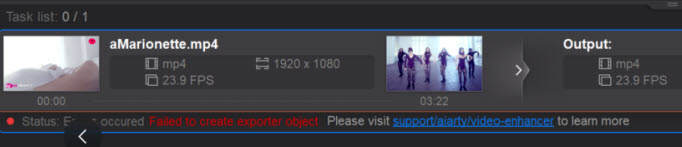
Failed to create exporter, EncoderConfig initialization failed, Enhancer Effect initialization failed, Requested model list is empty, Export filename callback is null, AIMemory callback is null.
Here's what's happening: the app failed to initialize a core module like the exporter, encoder, or AI effect. This may be due to a bug, corrupted installation, or damaged cache files.
How to fix it:
- Quit Aiarty, clear the cache folder (Settings > General > Logs path/Temporary path), and restart.
- Re-download Aiarty Video Enhancer from the official site and reinstall cleanly.
- Try another export preset or encoder. Lowering the settings can also help.
3. Encoding or Inference Failures
Error messages you might see:
video inference failed, video encoding failed, audio inference failed, failed to write audio file, that's when the app failed while processing video or audio. Common reasons include corrupted source files, outdated GPU drivers, or insufficient memory.
Here are fixes:
- Try exporting with lower quality or disable GPU acceleration.
- Update GPU drivers (NVIDIA, AMD, or Intel).
- Re-import or re-encode damaged clips before exporting.
- Close other heavy programs or restart your system before export.
4. Disk, Write, or File-System Issues
When the software can't create or write export files due to low disk space, permission limits, or unstable drives, you might see one of these errors below.
Error messages:
Insufficient disk space, failed to write file, failed to write video file, failed to create final export file path, failed to move intermediate file to output path, failed to create temporary filename, file is corrupted, please re-download.
Troubleshoot with following methods:
- Check your export drive's free space.
- Export to a simple local path.
- Avoid USB or network drives for testing.
- Run Aiarty as Administrator (Windows) or grant Full Disk Access (macOS).
5. Security Software or Permission Blocking
Sometimes, antivirus or firewall programs on your device may block model downloads or export writes, or even delete needed files.
Here are fixes:
- Temporarily disable antivirus, firewall or whitelist Aiarty.
- On Windows: Run Aiarty as Administrator.
- On macOS: Go to System Preferences > Security & Privacy > Full Disk Access and enable Aiarty.
We Are Here to Help
Most export errors can be solved by updating the software, freeing up space, adjusting export paths, or following quick fixes above.
If the issue persists, please contact Aiarty Support, and we'll help you deal with it quickly so you can get back to enhancing and enjoying your media project.
Resources:
How to update GPU driver for Aiarty Video Enhancer
Check Tech specs for Aiarty Video Enhancer