 Aiarty Video Enhancer
Aiarty Video Enhancer
























Follow the guidelines below based on your priorities - whether it's quality, speed, or color. You don't need to enable every feature in the UI; for example, Frame Interpolation or Audio Denoise may not be necessary when simply upscaling a video.
Many new users start with the default AI model in Aiarty Video Enhancer, then quickly wonder: “Which AI model is the best - and how do I choose?” The truth is, there’s no universal “best” model. Each one is engineered for different scenarios:
Ultimately, the right choice depends on your video. Try different AI models and see which gives you the most natural, highest-quality result for your specific footage.
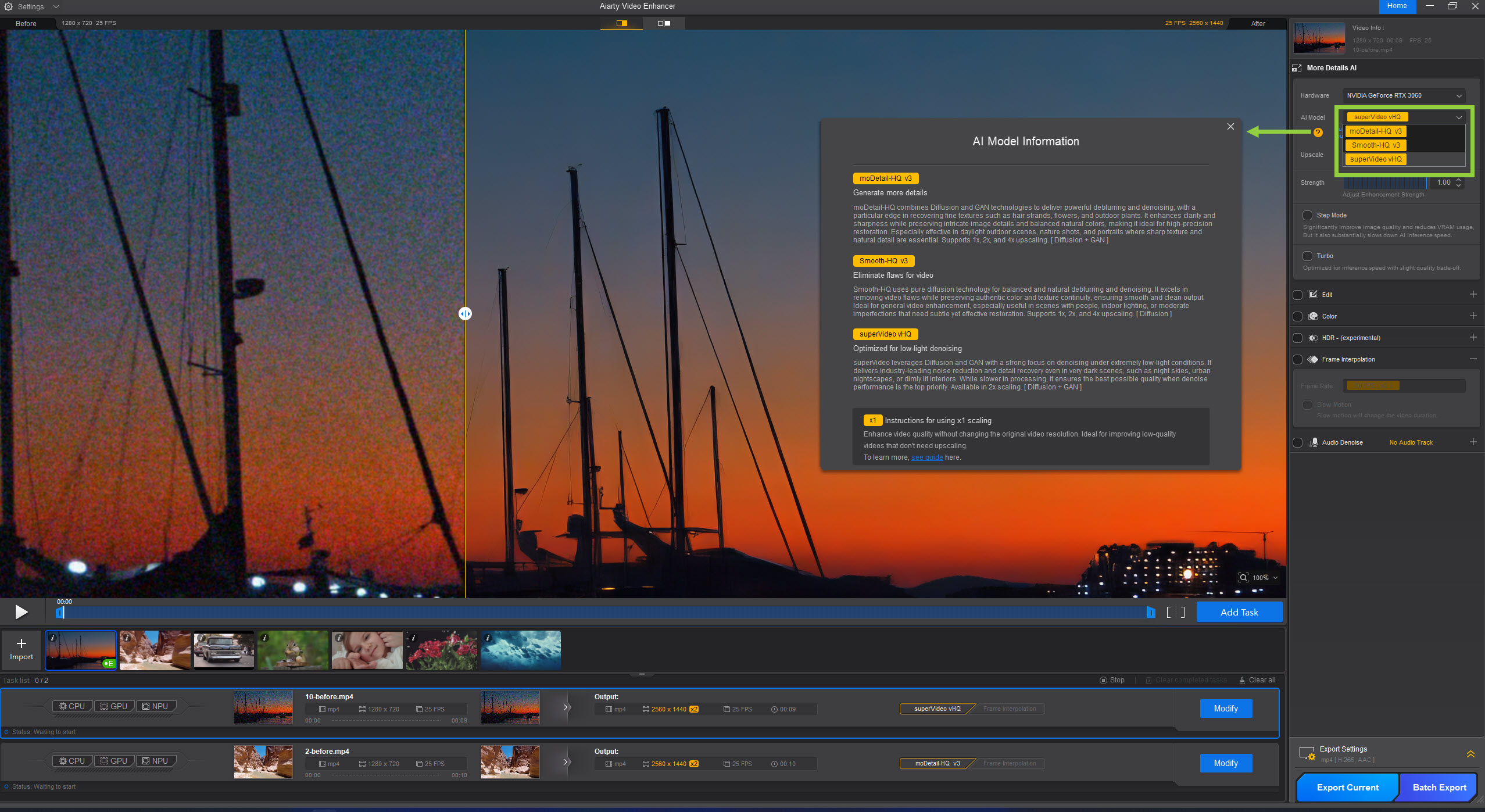
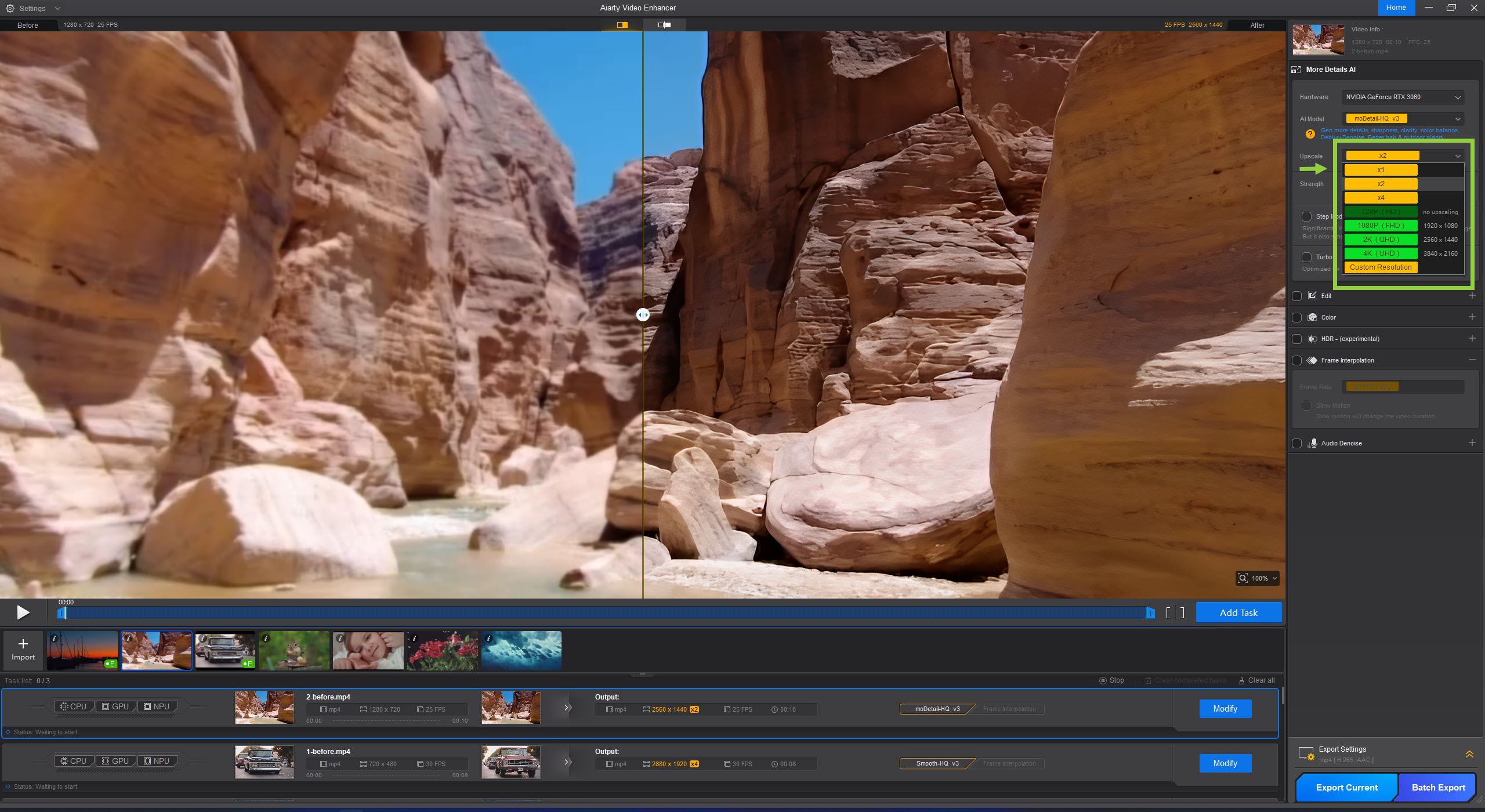
Once you’ve picked an AI model, the next step is choosing the right upscaling option. Here’s how to get the best results:
Choose the option that best matches your video’s condition and your final quality goals.
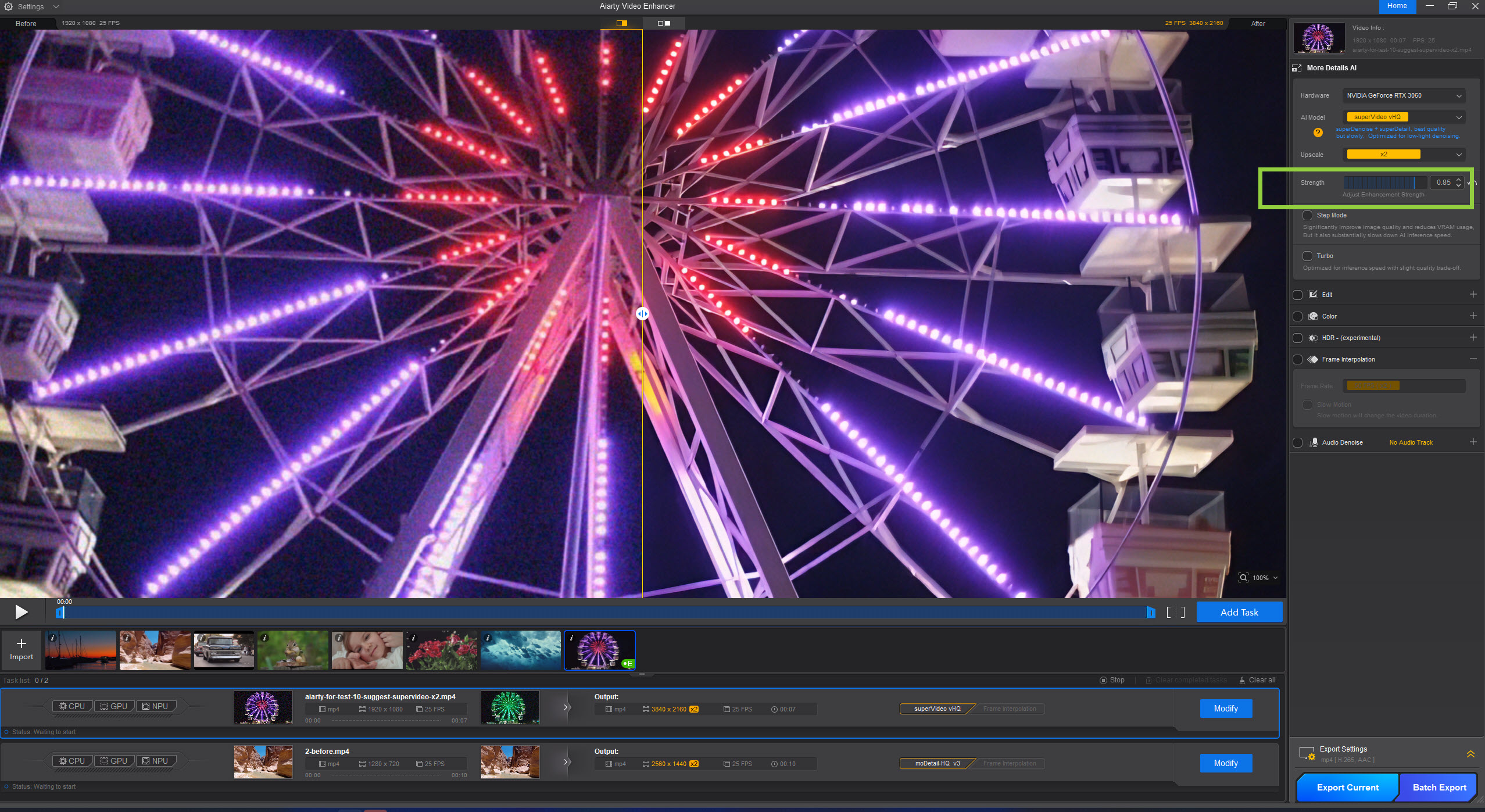
The Strength slider lets you decide how strongly the AI enhances your video. Ranging from 0 to 1, it allows precise adjustment - from subtle cleanup to more pronounced sharpness and detail. Use it to balance improved clarity with a natural, realistic look. Every video is different, so experiment with the slider to find the ideal setting for your specific footage.
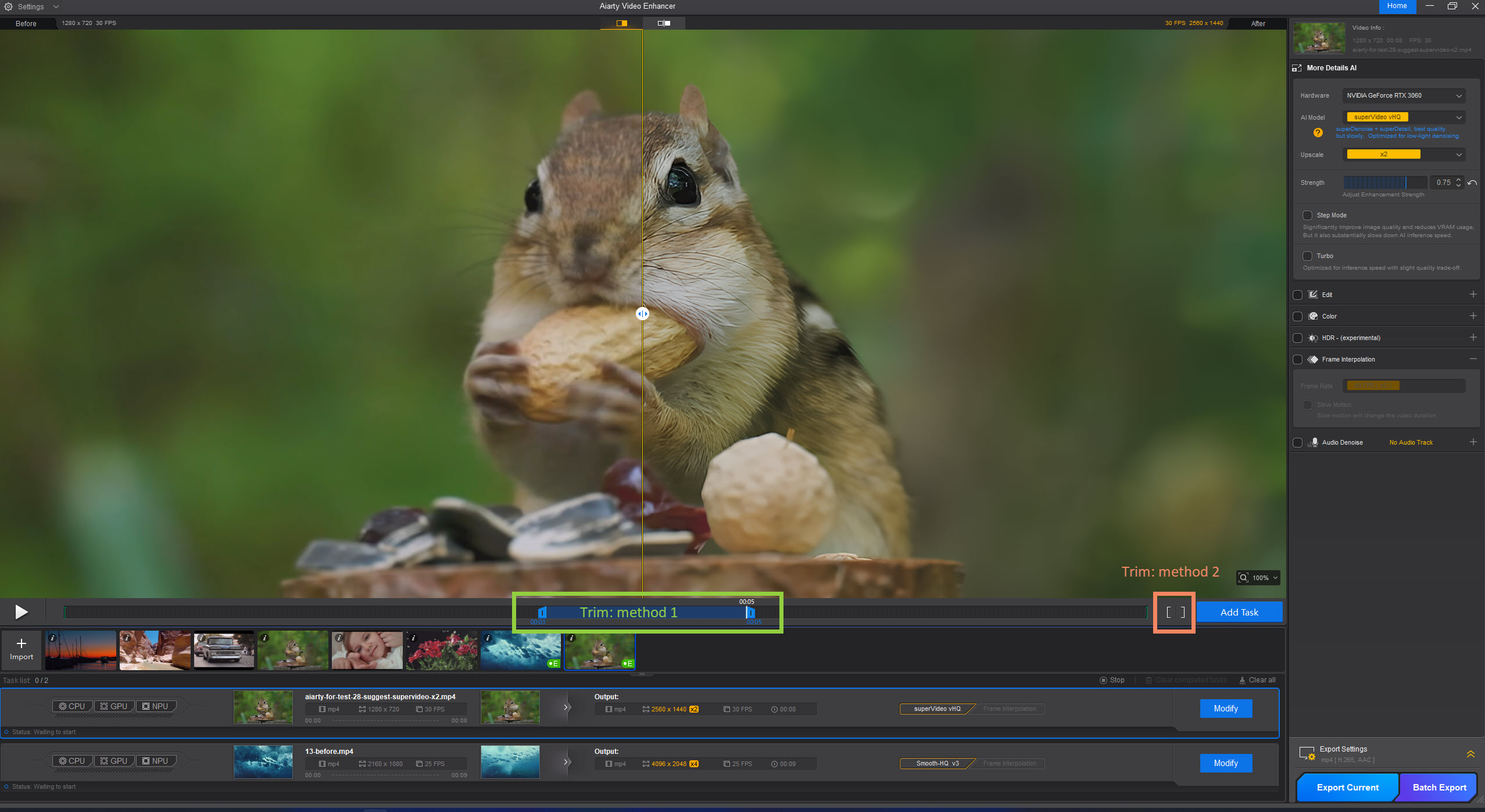
Select a short 5-10 second segment from a tricky part of your video to test settings before rendering the full project. Two methods are available.
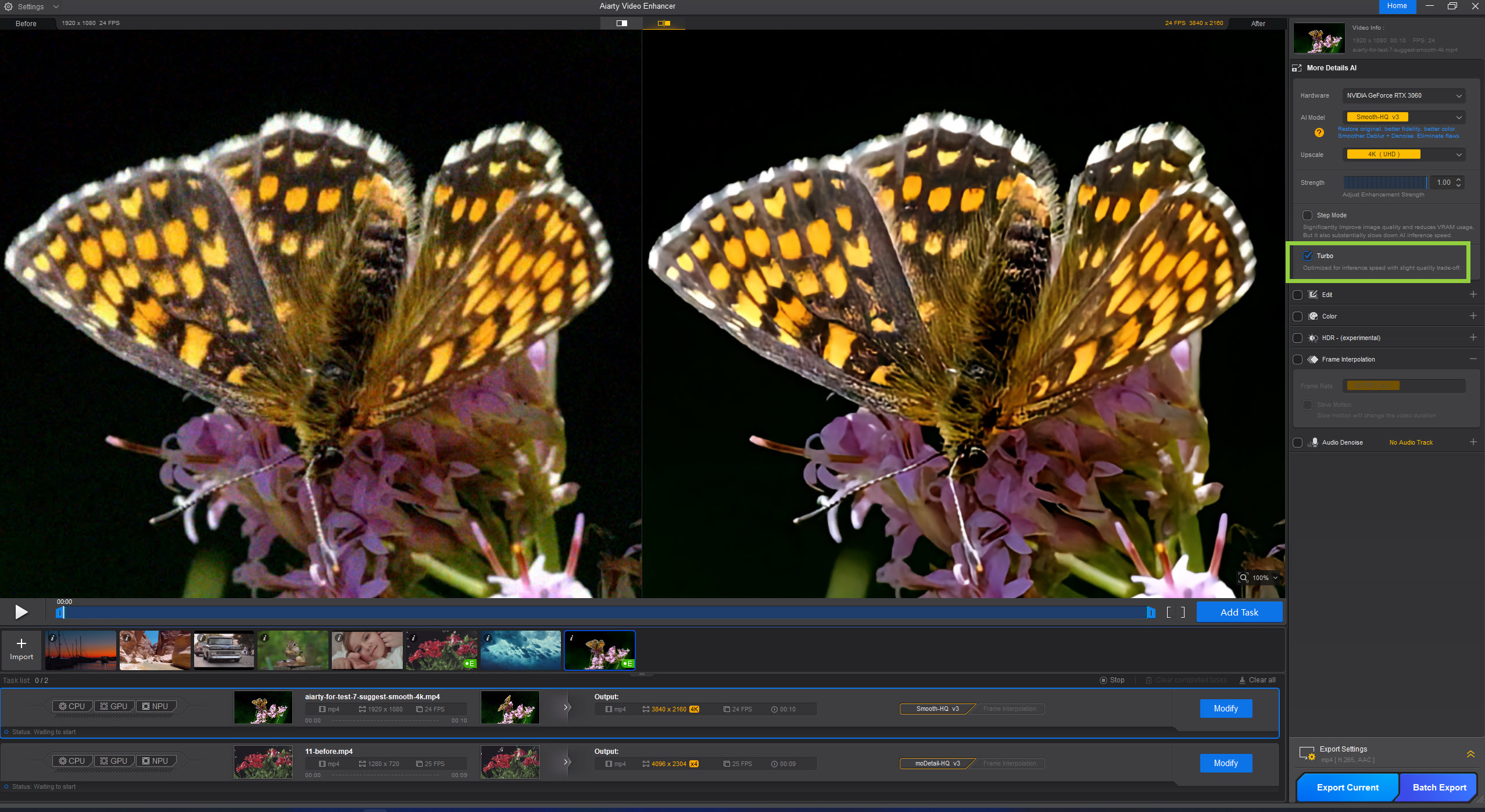
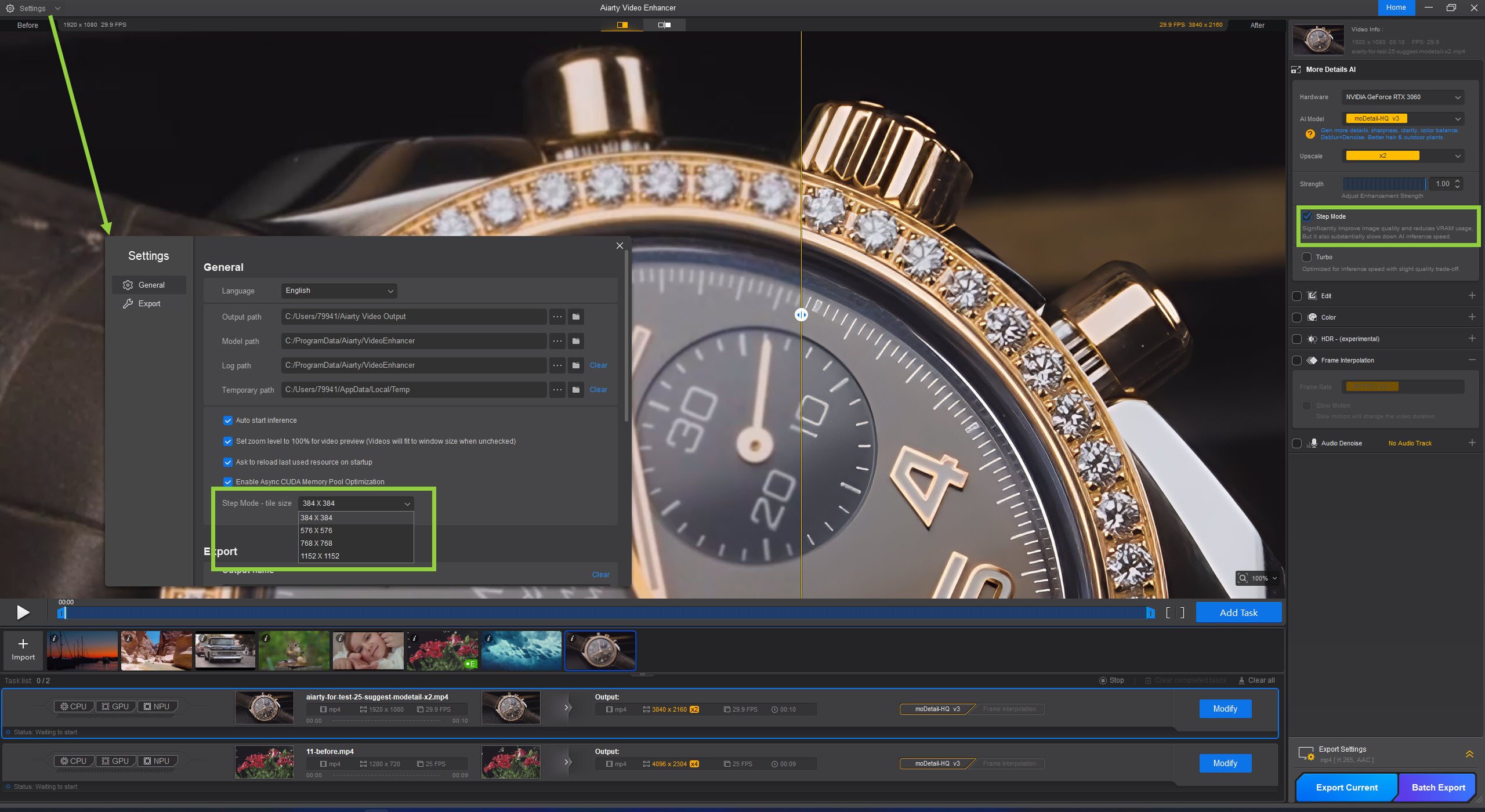
For high-resolution videos, Step Mode enables even greater clarity and detail by using tiled AI inference. This approach significantly reduces VRAM usage while maintaining visual consistency. Although Step Mode is slower than Turbo Mode, it delivers cleaner results for challenging footage.
You can adjust the Tile Size in Settings:
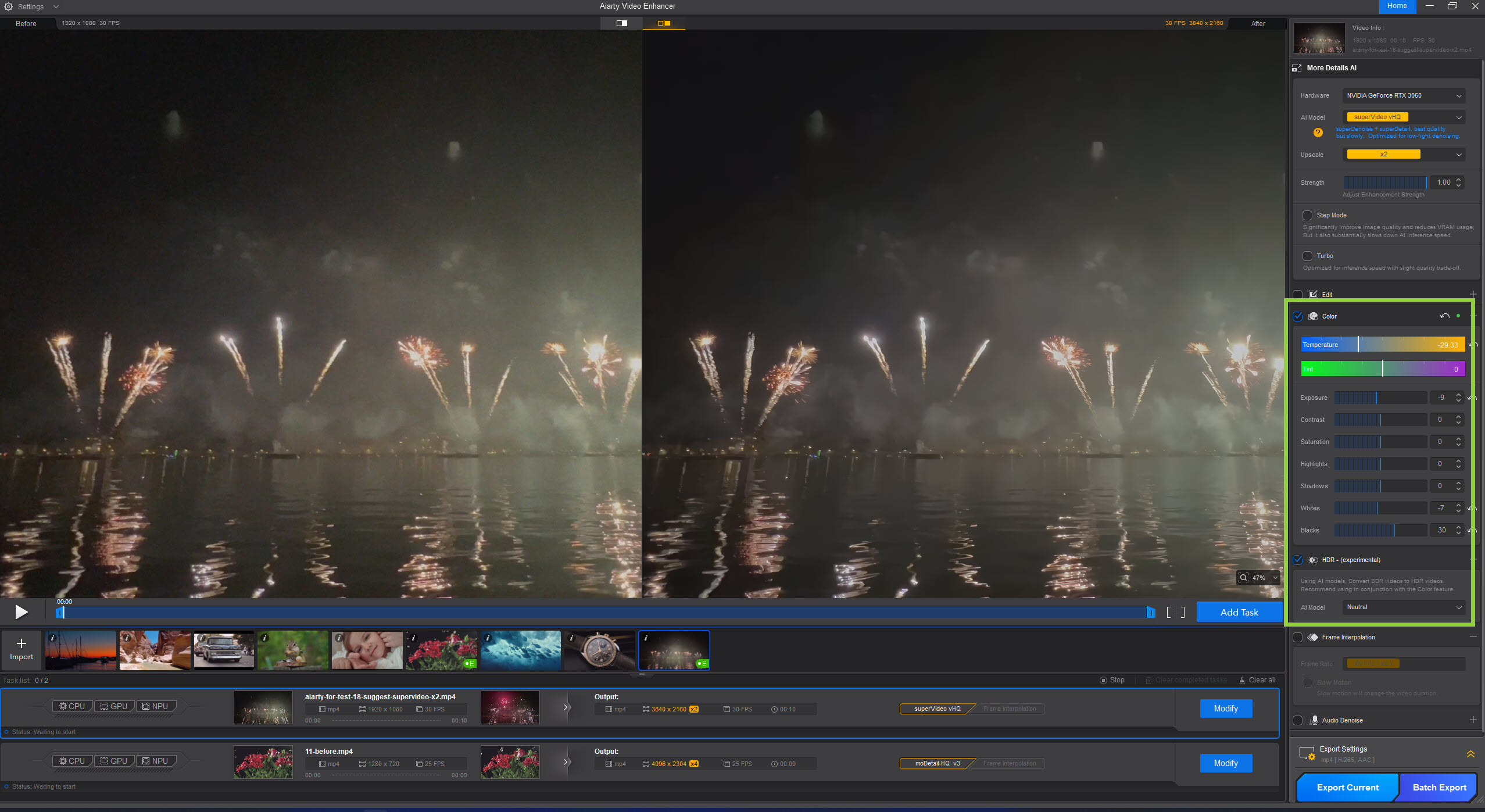
To convert SDR 8-bit to HDR10, make sure your screen supports HDR and it is enabled, and use it in conjunction with the Color feature. To enable HDR:
Navigate to Settings > System > Display. Select your HDR-capable display. Toggle the "Use HDR" switch to On. Adjust the SDR content brightness slider if standard content appears too dark or bright. For optimal calibration, use the Windows HDR Calibration app from the Microsoft Store.
Open Apple menu > System Settings (or System Preferences). Select Displays. For an external display, ensure the "High Dynamic Range" checkbox is selected.
Verify that your monitor's physical on-screen menu also has its HDR setting enabled.
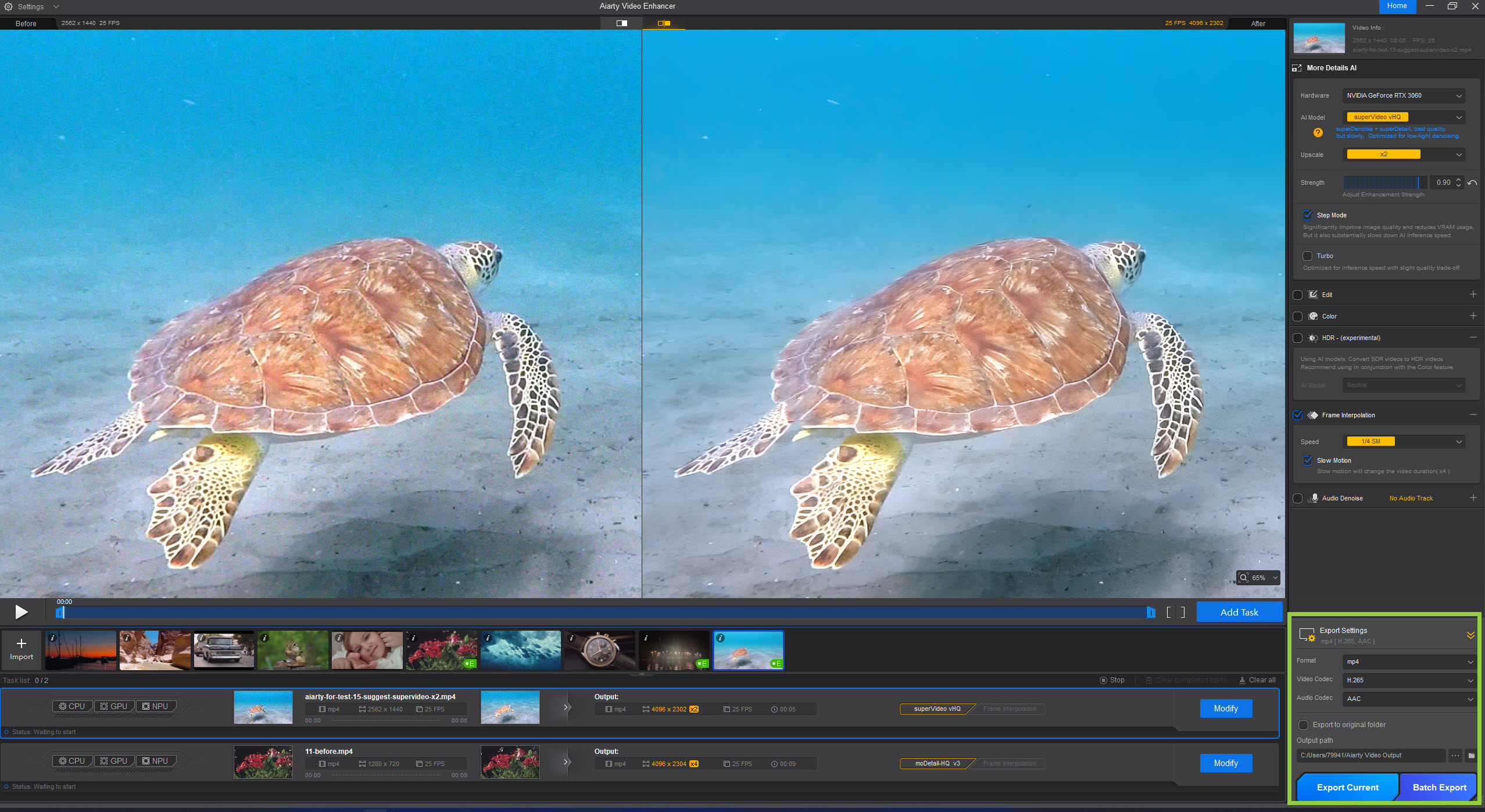
When processing multiple videos, you can either apply the same settings to all videos or assign different settings to each clip before exporting them in batch.
To use the same settings for all videos: Simply adjust the parameters for one video, and hit Batch Export. Aiarty applies the current settings, such as AI Model, upscale factor, strength, and more, to every video in the batch.
To apply custom settings for each clip:

For maximum quality, use a lossless codec like ProRes or high-bitrate H.264. For smaller files, opt for H.265 (HEVC) or AV1. Make sure your video player or upload platform supports the chosen codec, otherwise the video may not play correctly.
Aiarty runs smoothly on most systems, but a GPU upgrade can boost performance for long videos or large batch processing. Visit the relevant pages for minimum system requirements and tips on updating GPU drivers for optimal results.
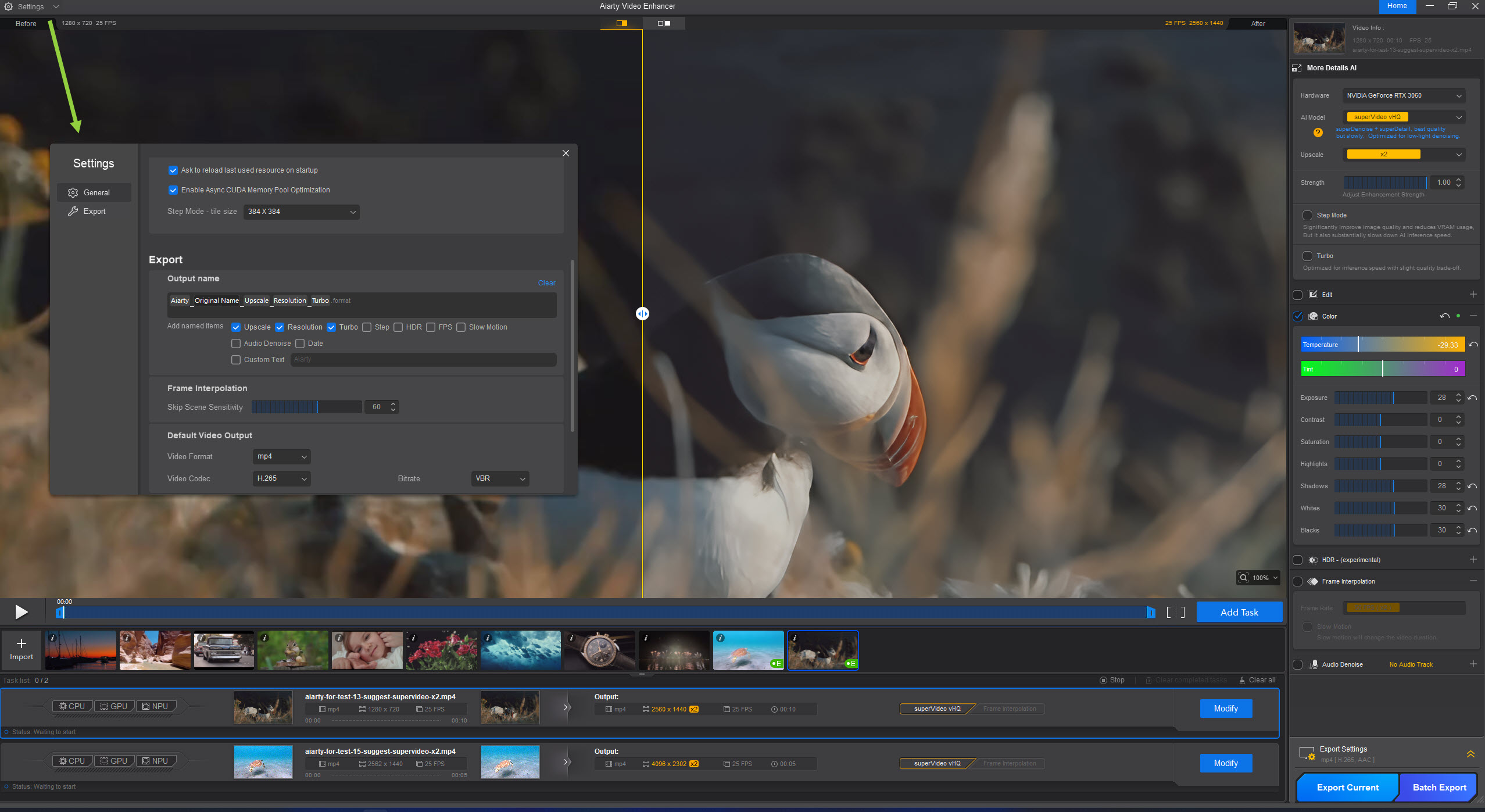
Click “Settings” in the upper-left corner of the UI to adjust options like output/model path, Step Mode tile size, output name, Frame Interpolation scene sensitivity, default video/audio output, and GPU for video encoding. You can save these configurations as profiles for future use.
Keep in mind that some footage may require different settings. Re-adjust options in Settings or directly on the working panel before exporting your video.
Aiarty Video Enhancer is a next‑generation AI tool to generate details, upscale, denoise, and fix choppy, low-light videos, fusing diffusion and GAN technology to deliver camera‑like details, color realism, and consistency.
Yes, Aiarty Video Enhancer is very safe to use. It is a trusted desktop application that runs securely on your computer without requiring an internet connection during processing, ensuring your videos and data stay private. The software is regularly updated to maintain security and performance, giving you peace of mind while enhancing your videos. Check out reviews and feedback to see what real users and influencers are saying about Aiarty.
To use Aiarty Video Enhancer, your computer should meet the following basic requirements:
Windows: Windows 10 (64-bit), version 1809 or later for CPU support, and version 1903 or later for GPU support. Requires at least 8GB of RAM. For smoother performance with high-resolution footage, 16GB or more is recommended.
macOS: macOS 13.0 or later, with an Apple Silicon (M1, M2, M3, M4, M5, etc.) or Intel processor. A minimum of 8GB of RAM is required.For optimal performance - especially when working with 4K or high-resolution videos - Apple Silicon Macs with 16GB RAM or more are ideal.
Please visit this page for details.
We provide easy-access Sales FAQs and Technical FAQs for your convenience. For personalized support, feel free to email us at support@aiarty.com. To help us assist you more efficiently, please include your system information and description of the issue. If you don't receive a response - your message may have been missed or caught in spam - please try reaching out again via media@aiarty.com, which receives fewer emails.
The test videos provided on our website are sourced primarily from free stock platforms and public domain libraries that permit free download and usage. Some videos have been legally licensed and purchased for demonstration purposes by aiarty.com.
Please note that Aiarty is not the original owner of any of the videos. These clips are made available for testing, demonstration, and fair use only. Redistribution, commercial use, or modification beyond personal evaluation or educational purposes may require proper licensing from the original content owners.
If you are a rightful owner of any video featured on our site and believe it has been used improperly or wish to have it removed, please contact us at media@aiarty.com. We respect all copyright concerns and will promptly address any valid takedown requests.