Pixels to Print Size Calculator: Resolution, DPI, PPI

Drag & drop an image here
*100% private and secure. Analyze only in your browser, no uploading to online servers.
Summary
How to Use the Pixel Print Size Calculator
Input digital resolution(px), select dpi/ppi. It will calculate print size at that density. You can switch among inches, cm, or mm.
Input print size, units (in/cm/mm), dpi. It will calculated the corresponding resolution. Prize size x DPI = Resolution.
Input resolution (px), it will auto calculate the integer aspect ratio. You can also select a template for calculation.
Input the multiple factor to scale the resolution. e.g. (400, 500) x0.5=(200,250) px. Hit Reset to clear everything.
Load an image to analyze its resolution, aspect ratio, total pixels, and the target print size at the designated dpi.
Select DPI for print size calculation. Go 300dpi for high quality print or 150dpi for billboard viewing from a distance.
Use Aiarty Image Enhancer to Upscale Images
Upscale your images to 4K/8K/16K/32K for 300DPI high quality print at larger size. Enhance low-res old photos, AI art, web downloads, and more with Aiarty Image Enhancer.




 Watch Tutorial
Explore More AI-Powered Image Tools
-

 Learn More
AI Upscale Image
Batch upscale images to 4K/32K/custom size, restore natural details and textures.
-
 Learn More
AI Denoise Image
Reduce low light noise, remove color speckles. Option to keep good grains for better fidelity.
-
 Learn More
AI Background Removal
Remove image backgrounds with AI in batch. Keep transparency variations along tricky edges.
-

 Learn More
Enhance Photography
Revitalized blurry, pixelated, old photos. Enhance portraits, landscape shots, wildlife, etc.
Pixel to Print Size Chart and Typical Format
This Pixel to Print Size Chart provides a quick, practical reference for matching digital image resolution to common print formats. By aligning pixel dimensions with recommended DPI and typical use cases, it helps ensure your images print sharp, proportionate, and fit for their intended purpose.
| Format (W × H) | Common Name | Recommended DPI | Typical Use | Resolution |
|---|---|---|---|---|
| 3.5 × 5 in | Small Standard | 300 | Photo wallets, Greeting card inserts | 1050 × 1500 |
| 4 × 6 in | Standard Photo (4R) | 300 | Everyday prints, Photo albums | 1200 × 1800 |
| 5 × 7 in | Medium Print (5R) | 300 | Framed photos, Desktop display | 1500 × 2100 |
| 8 × 10 in | Portrait/Enlargement | 300 | Framed portraits, professional portfolios | 2400 × 3000 |
| 8.5 × 11 in | US Letter Size | 300 | Documents, presentation, artwork | 2550 × 3300 |
| 11 × 17 in | Ledger/Tabloid | 250 | Small posters, spreadsheets prints, architectural drawings | 2750 × 4250 |
| 16 × 20 in | Poster/Wall Art | 200 | Wall displays, art reproductions | 3200 × 4000 |
| 24 × 36 in | Large Format Poster | 150 | Event promotion, large retail graphics | 3600 × 5400 |
| 48 × 72 in | Banner/Exhibition | 100 or less | Billboards, trade show displays (viewed from a distance) | 4800 × 7200+ |
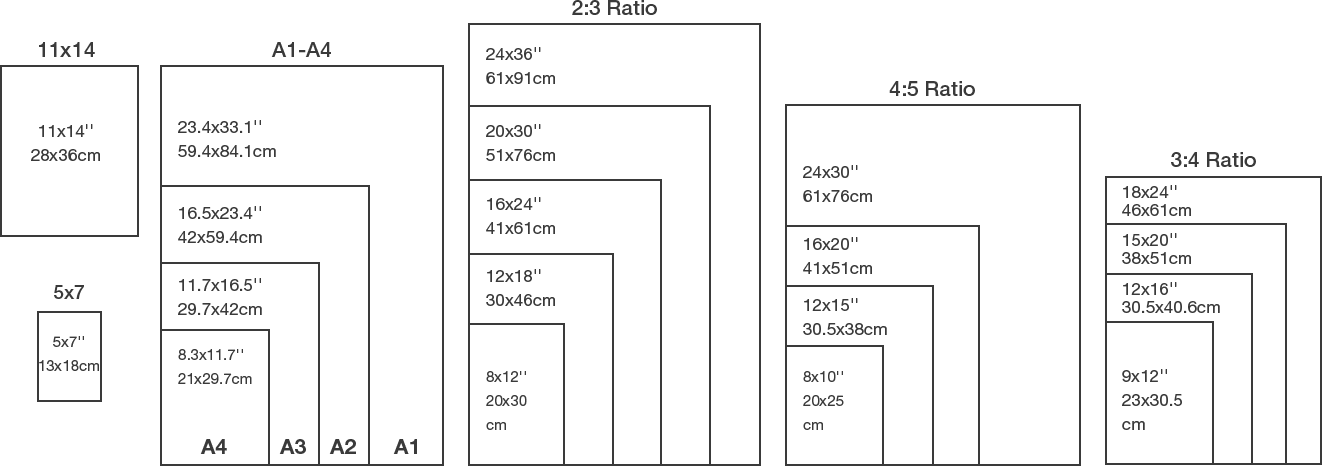
Printable Wall Art Size Guide
Not sure which print size will look best on your wall? This handy wall art size guide shows the most common sizes compared against a standard 80 inch sofa for scale. You can also download this image for quick reference when planning your prints.
 Digital Download
Pixel Resolution Knowledge Base

Units of Measurement
Inches and centimeters: 1 inch equals 2.54 cm.
Pixels: the smallest unit in a digital image.
DPI (dots per inch): how many ink dots a printer puts down in an inch.
PPI (pixels per inch): how many pixels fit into an inch of a digital or printed image.
Common DPIs
600 DPI: When fine details are critical for restoration, exhibition-quality prints
300 DPI: the gold standard for sharp photo prints, postcards, and albums.
200–250 DPI: fine for medium prints such as posters up to about 20 × 30 inches.
150 DPI: acceptable for large posters or wall art.
72–100 DPI: used for very large prints or banners that are viewed from a distance.
File Formats
JPEG: small files, good for everyday prints, but lossy compression can show artifacts.
TIFF: large files, keeps all details, often required by professional printers.
PNG: ideal for graphics, logos, or anything needing transparency.
Frequently Asked Questions
1. What a pixel to print size calculator does?
A Pixel to Print Size calculator converts a digital image's resolution (pixels) into a physical print size (inches, cm, or mm) based on a selected DPI.
Formula: Print size (inches) = Pixels ÷ DPI
With this calculator, you can check how large a photo can be printed without quality loss. Generally, 300 DPI is recommended for high-quality prints. For instance, if your digital image is 2400 x 3000 resolution, you can expect the maximum print size to be 8 x 10 inches (2400 ÷ 300 and 3000 ÷ 300).
If you want to print at a larger physical size, such as 16 × 20 inches, while keeping the same digital resolution at 2400 x 3000, then the density is only 150 DPI. To maintain 300 DPI high-quality printing, you need to upscale the digital image to 4800 x 6000.
2. What a print size to pixel calculator does?
A Print Size to Pixel calculator works in reverse: it tells users how many pixels are required to achieve a desired physical print size at a specific DPI.
Formula: Pixels = Print size (inches) x DPI
Here are some primary use cases: Preparing files before designing or exporting, checking if an image must be upscaled, setting correct canvas size in Photoshop, Illustrator, Procreate, etc.
3. Why does my image look blurry when printed?
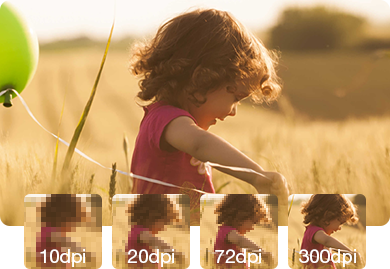
This usually happens when the image does not have enough pixels for the chosen print size. If you increase print size without increasing resolution, the printer stretches existing pixels, causing blur.
Use the Print Size to Pixels calculator to confirm whether your image meets the required DPI. If the resolution is not enough, you can use Aiarty Image Enhancer to upscale photos and images to the desire resolution, with option to adjust AI enhancement strength for natural, high-fidelity results.
4. How large can I print my photo?
Depends on viewing distance and the print quality you prefer (measured by DPI), you can calculate the recommended print size according to the digital image resolution (pixels). In most cases, you can select 300DPI, enter the digital resolution, the tool above will calculate the recommended print size.
When viewing from distance, 200DPI is acceptable, then the print size will be larger for the same digital resolution.
5. How to use the pixels to inches converter?
Go to the calculator above, input digital resolution (width x height), and select the desired DPI/PPI. The pixel to print size calculator will output the print size in inches. You can also switch unit to centimeters or millimeters.
6. How to use the image size finder?
Drag and drop image to the Analyze Image box above. It will display image resolution, aspect ratio, and total pixels (Megapixel - Mpx). With the designated DPI/PPI, it will also calculate the recommended print size.