Quick Fixes for Slow Performance in Aiarty
Slow inference or sluggish performance usually comes down to driver issues, system resources, or how Aiarty is set up. But part of the wait is also the AI doing its work to deliver natural, realistic results. Unlike some tools that over-sharpen, smooth excessively, or remove fine details, Aiarty carefully analyzes video frames to preserve textures, grain, and subtle features.
This guide explains why inference can be slow, what causes delays, and how to improve speed while still getting excellent video quality.
Try these quick fixes first:
• Restart Aiarty Video Enhancer and re-import your video.
• Update to the latest version of Aiarty Video Enhancer.
• Update your GPU driver (see how).
• Make sure your PC/Mac meets system requirements (check specs).
• Close other apps using your GPU, such as browsers, games, and apps.
• Keep a stable network when using a model for the first time.
And as always, the Aiarty Support Team is ready to respond quickly and guide you. While you wait for a reply, you can try the steps below, as many simple tweaks solve the issue right away.
Part 1. Adjust Settings in Aiarty for Faster Performance
Beyond drivers and hardware, Aiarty includes several settings that can affect speed, VRAM usage, and workflow efficiency.
1. Handle the Wait for First-Time Model Loading
When using a model for the first time, Aiarty downloads and caches it locally. A weak or unstable connection can make this step take longer.
How to fix:
- Stay online until the model finishes downloading.
- If your network does not require a proxy, disable unnecessary VPN or proxy connections that may interfere with the download.
- Once a model is cached, it loads instantly in later runs.
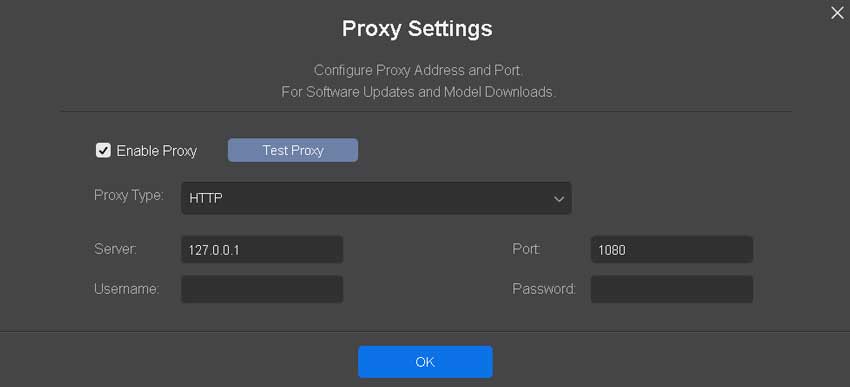
Proxy Settings:
If your network requires a proxy, configure it in Aiarty for internet connections, including AI model downloads and update checks.
- 1. Go to Menu > Proxy Settings and enable Proxy.
- 2. Select the appropriate proxy type from the drop-down menu, then enter the required information or leave the default settings if applicable.
- 3. Click Test Proxy to verify the connection.
- 4. If your network does not require a proxy, or you no longer need one, uncheck Enable Proxy to disable it.
2. Disable Auto Start Inference
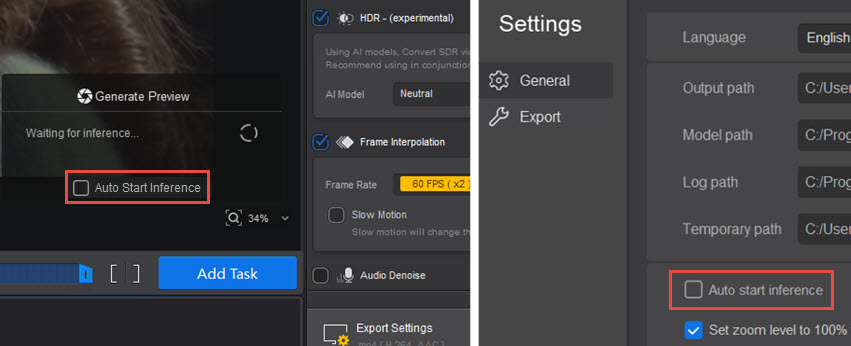
When Auto Start Inference is enabled, Aiarty immediately begins generating a preview using the current default model and settings. This is convenient, but it can start a heavy inference pass before you pick the right model or scale.
What to do:
- Uncheck "Auto Start Inference" in the previewer or settings.
- Choose a suitable AI model, upscaling factor, then hit Preview.
3. Choose the Most Suitable AI Model
Each model has its own strengths and ideal use cases. Picking the right one for your footage can improve both performance and quality.
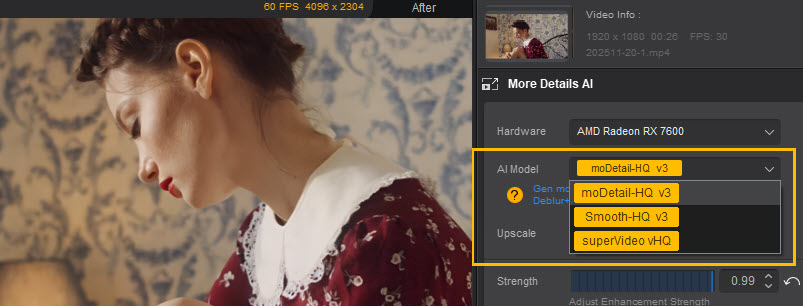
- moDetail-HQ v2: Recovers fine textures such as hair strands, foliage, and detailed outdoor scenes. It is ideal for detail restoration in portraits, nature shots, and outdoor scenes.
- Smooth-HQ v2: Focuses on natural deblurring and denoising with smooth, clean output. It is nice for general enhancement: people, indoor scenes, and moderate imperfections.
- superVideo vHQ: Excels in dark scenes: night skies, city lights, dim interiors. This model is the most demanding and will be relatively slower, but it delivers better noise reduction and quality in tricky footage.
Tip: If your source video does not have heavy noise or severe issues, use Smooth-HQ v2 for general work or moDetail-HQ v2 when you really need more texture and detail.
4. Enable Turbo Mode When Speed Matters Most
Turbo Mode is designed to prioritize speed. It significantly reduces system resource consumption and increases processing speed. As a result, it trades a bit of image refinement for much faster output.
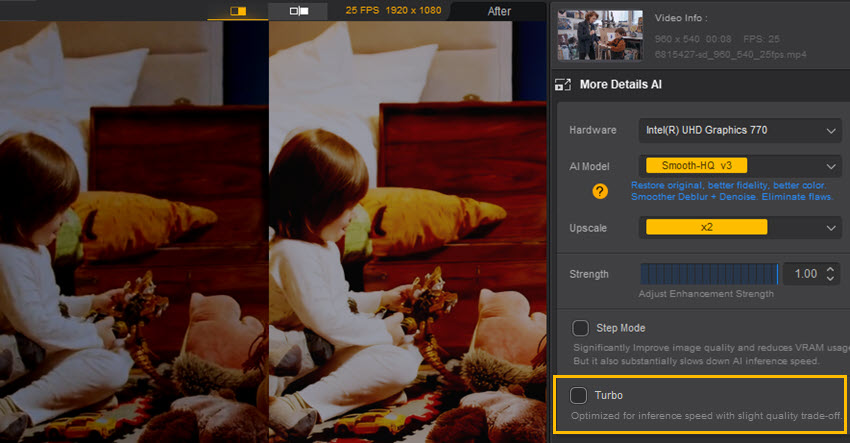
Use Turbo Mode when:
- You are creating quick previews to check framing or general look.
- You're working on clips where minor quality differences are acceptable.
- You need to finish a long project on a mid-range GPU in a reasonable time.
If maximum detail matters more than speed, switch Turbo Mode off and let the model work more thoroughly.
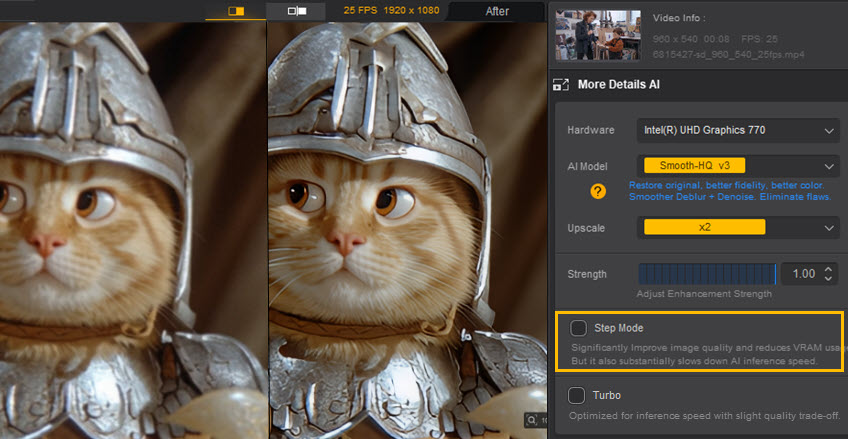
5. Use Step Mode on GPUs with Limited VRAM
Step Mode processes your video in smaller chunks. It helps reduce VRAM usage and makes large or high-resolution projects possible on GPUs with less memory.
Still, as Step Mode is for stability and quality on limited hardware, it is usually slower than Turbo Mode.
6. Match Resolution and Upscaling Factor to Your Needs
Inference time grows quickly as resolution and upscaling factor increase. Higher resolutions such as 4K require more computing resources.
- x1 scaling keeps the original resolution. Use it when you want to enhance quality without changing video resolution.
- x2 scaling is a good balance between extra detail and workload.
- x4 can be heavy on both time and VRAM, especially for longer clips.
You can also select x2 and run it twice to enhance video quality, which can deliver better results than direct x4 upscaling.
Why it takes time (and why it's worth the effort):
Aiarty's models analyze the video to apply denoising, deblurring, and detail restoration intelligently. Learning from large video and image training datasets, its AI can figure out what is noise and what is real detail, ensuring that textures, hair strands, grains, and other subtle details are preserved rather than mistakenly removed.
7. Trim Only the Parts You Need to Enhance
You don't always need to run AI on the entire clip. If you plan to share part of the video to social media, you can trim the clip to enhance and export. This is helpful when:
- You want to test different models or settings on a short segment.
- You need a quick result from a long clip without waiting for full-length enhancement.

Part 2. Improve Performance with System-Side Tweaks
1. GPU or Driver Issues
Aiarty relies on your GPU for AI acceleration. If your driver is too old or the GPU isn't used properly, inference will slow down or fall back to CPU mode. Some common causes are:
-Outdated or incompatible GPU drivers.
-The system defaults to integrated graphics instead of your dedicated GPU.
-VRAM less than 4 GB can limit model performance.
How to fix:
- Update your GPU driver to the latest version. Follow this GPU driver update guide.
- Ensure Aiarty is set to use the dedicated GPU.
- Close other GPU-heavy apps and free up VRAM.
- If you're using an older GPU, check if it meets the hardware acceleration requirements.
2. Limited System Resources
If your system runs short on RAM, VRAM, or storage speed, inference can slow down. Common causes are: RAM less than 8 GB, input or output stored on a slow HDD or external drive, or background programs eating up memory.
How to fix:
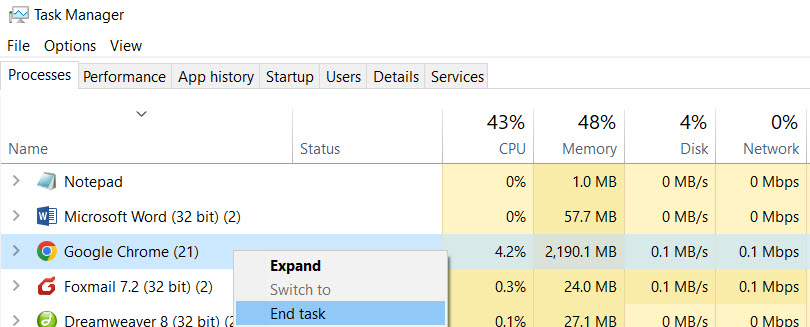
- Close unused apps before enhancing.
- Use SSD storage for faster read/write speeds.
- Ensure 4 GB VRAM or more, and 8 GB and higher for RAM.
- Leave at least 10 GB of free disk space for caching and temporary files.
- For full system requirements, see the Aiarty Video Enhancer Tech Specs.
3. Thermal or Power Throttling
If your computer overheats or runs on battery, it may throttle CPU and GPU speeds to save power, slowing inference dramatically.
How to fix:
- For laptops, keep your AC adapter plugged in during long tasks.
- Make sure your cooling fans work and vents aren't blocked.
We Are Here to Help
We're always here to guide you through any issues. If quick fixes don't help, contact Aiarty Support for a timely response, and we will walk you through advanced checks.