


We've all been there. You open the latest version of Photoshop, eager to try out the newest Generative Fill updates or the latest Neural Filters that promise to save you hours of retouching. But instead of the "creative flow" Adobe promises in its marketing videos, you're met with a stuttering brush, a frozen progress bar, and the dreaded spinning wheel of death.
The reality of photo editing in 2026 is that we are living through a "Performance Tax." For decades, Photoshop was primarily a raster graphics editor. It lived and died by your RAM and CPU clock speed. Today, Photoshop has evolved into a heavy-duty AI engine. Features like Generative Expand, AI Culling integrations, and real-time denoising don't just "run" on your computer; they demand a massive handshake between your local hardware and the cloud.
When you click "Generate," your computer isn't just moving pixels; it's managing complex neural network modules, verifying cloud credits, and writing massive amounts of temporary data to your hard drive. If your system isn't tuned specifically for this new "AI-first" workflow, even a high-end machine from two years ago can feel like a relic.
If you've found yourself shouting at your monitor because a simple healing brush stroke took three seconds to register, you aren't alone—and your computer might not even be "bad." It's likely just misconfigured for the modern AI era.
In this guide, we're going to look past the basic "restart your computer" advice. We're diving into the deep-tissue tweaks, OS-specific bugs, and hidden preference panels you need to master to make Photoshop feel "snappy" again.
Part 1. The Usual Suspects: Hardware & System Bottlenecks
Before we start tweaking software settings, we have to address the physical reality of your workstation. In 2026, the baseline for "smooth" performance has shifted. If your hardware is choking, no amount of software optimization will save your workflow.
1. The RAM vs. Scratch Disk "Tug-of-War"
Think of RAM as your desk space and your Hard Drive (SSD) as a filing cabinet in the basement.
The problem is when you open a 45MP RAW file and add five Generative Fill layers, your "desk" (RAM) fills up instantly.
And when Photoshop runs out of RAM, it begins using your hard drive as temporary memory. This is called the Scratch Disk. Even with the fastest NVMe SSDs available today, a hard drive is significantly slower than RAM. If you feel a "hiccup" every time you switch layers, you're likely witnessing Photoshop frantically moving data between your RAM and your Scratch Disk.
For professional photography today, 32GB of RAM is the new "minimum." If you are working on 8K compositions or heavy retouching, 64GB is where the lag finally disappears.
2. The GPU Crisis: It's Not Just for Gamers Anymore
A few years ago, you could get away with a mediocre graphics card in Photoshop. Those days are gone. Modern features like Select Subject, Sky Replacement, and the Remove Tool are almost entirely GPU-dependent.
It's not just about the power of the card; it's about the Video RAM (VRAM). If you are using a 4K or 5K monitor, your GPU is already using a huge chunk of VRAM just to display the interface. When you ask it to run a Neural Filter on top of that, it hits a wall.
The fix is aiming for a GPU with at least 8GB of dedicated VRAM. Anything less will result in "ghosting" when you move the canvas or zoom in and out.
3. The SSD 20% Rule
This is the most common "invisible" bottleneck. Because the Scratch Disk is constantly writing and deleting massive temporary files (sometimes 50GB+ for a single session), it needs "breathing room."
If your SSD is 90% full, the drive's controller struggles to find "clean" blocks to write to, causing your system to crawl.
The gold rule is always keeping at least 20% of your primary drive free. If you're down to your last 20GB, Photoshop will lag regardless of how fast your processor is.
Pro Tip: If you can only afford one upgrade this year, buy a dedicated, lightning-fast external SSD (like a Samsung T9 or SanDisk Pro-G40) and set it as your Primary Scratch Disk in Photoshop Preferences. It unloads the stress from your OS drive and can instantly "speed up" an older machine.
Part 2. The "Pro" Fixes (Technical Deep Dive)
If you have plenty of RAM and a fast SSD but your brush still feels like it's "trailing" behind your pen, or the interface stutters when you click a menu, you are likely dealing with a software communication error. In the 2026 version of Photoshop, the integration of OpenCL and AI modules has introduced some very specific "pro-level" bugs.
1. The PSUserConfig.txt "Stylus Hack"
For Windows users especially, the battle between Windows Ink and WinTab (the two ways your tablet talks to your PC) is a primary cause of brush lag.
You get a tiny "ripple" animation when you click, or your brush strokes start with a straight line before following your hand.
If you are there, you can force Photoshop to bypass Windows Ink and use the professional-grade WinTab driver.
- Create a plain text file named PSUserConfig.txt.
- Type the following lines inside: UseSystemStylus 0
- Save it to your Photoshop Settings folder: C:\Users\[User Name]\AppData\Roaming\Adobe\Adobe Photoshop 2026\Adobe Photoshop 2026 Settings
This often instantly deletes that "micro-stutter" at the start of every brush stroke.
2. The OpenCL UI Stutter Bug
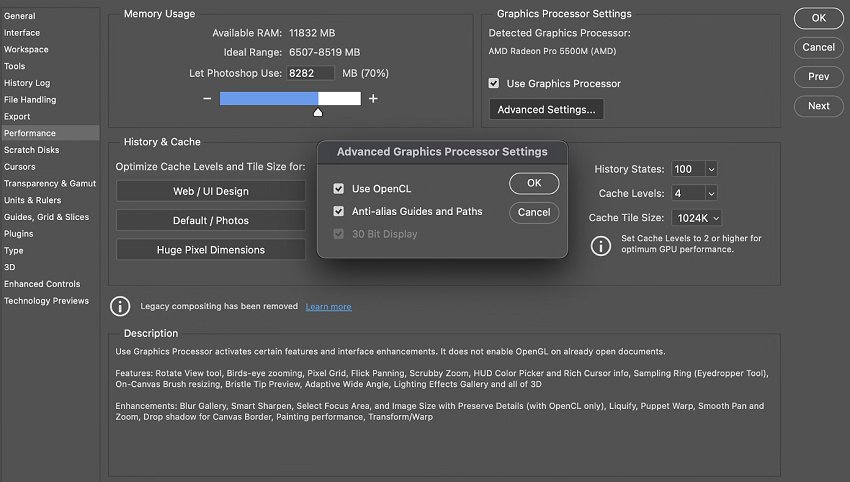
In the 2026 release, a known conflict with certain GPU drivers causes the entire Photoshop interface to "blink" or hesitate when OpenCL is enabled.
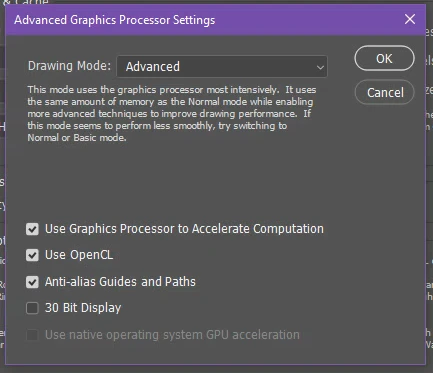
Go to Preferences > Performance > Advanced Settings. Try unchecking "Use OpenCL." While this might slightly slow down some blur filters, it often restores the "snappiness" to the layers panel and tool selection that many users find missing in this version.
3. The AI "Handshake" Delay
Because Photoshop 2026 is constantly checking your Adobe ID for Generative Credit balance and cloud asset syncing, a slow internet connection can actually make your software feel laggy—even if you aren't using an AI tool! Photoshop "freezes" for 2 seconds every time you open a new file or save.
If you don't need Generative Fill for a session, try putting your Creative Cloud app in "Offline Mode." Go to Preferences > General and uncheck "Auto show the Home Screen." This stops Photoshop from trying to load a web-based dashboard every time you close an image.
4. Forcing "High Priority" (Windows Only)
Windows often treats Photoshop like any other background app (like Chrome or Spotify). To ensure your CPU gives its full attention to your edits:
Open Task Manager, go to the Details tab, right-click Photoshop.exe, and set Priority to "High." Note: This isn't permanent, so many pros use a small "Registry Hack" to make this change stick (which we can link to in the troubleshooting section).
The "Magic" Fix: If your brush is laggy, turn Smoothing (in the top toolbar) to 0%. In the 2026 version, the smoothing algorithm is much heavier than it used to be. Most users find that 10-15% smoothing "feels" like 50% used to, causing the brush to lag behind the cursor.
Part 3. Hidden "Gold" Settings in Preferences
If Photoshop is the engine, the Performance Preference panel is your dashboard. Most people leave these at "Default," but the default is designed to be a "jack of all trades." If you are a photographer, you need to specialize.
1. The RAM Sweet Spot
By default, Photoshop takes about 70% of your available RAM.
The Pro Move: Increase this to 80% or 85% if you are running a dedicated editing machine.
Please never go to 100%. Your operating system (Windows/macOS) needs a few gigabytes to breathe. If you starve the OS, the whole computer will freeze, not just Photoshop.
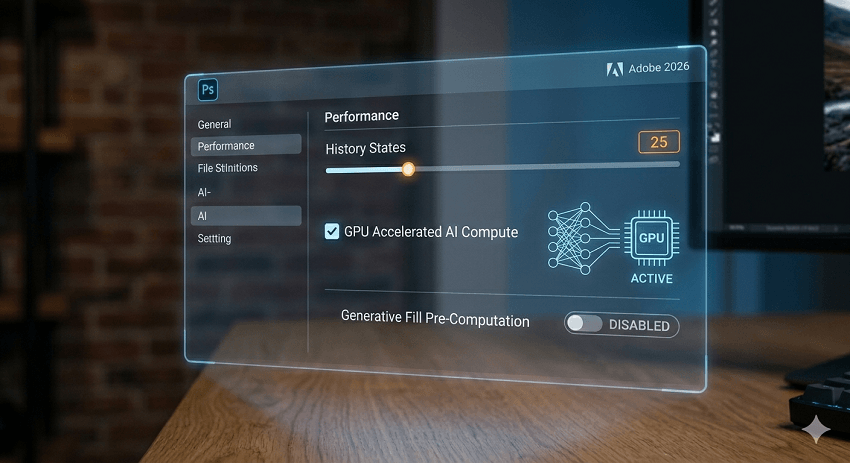
2. History States: The Memory Killer
Every time you make a brush stroke or move a layer, Photoshop remembers it so you can press "Undo."
With modern high-res files, remembering 50 full-canvas changes eats up your Scratch Disk space at an alarming rate. So drop your History States to 25. You rarely need to undo more than 25 steps, and if you do, you should probably be using Non-Destructive Smart Objects anyway.
3. Cache Levels & Tile Size: "Big and Flat" vs. "Tall and Thin"
This is the most misunderstood setting in Photoshop. It tells the software how to "redraw" your screen.
For Photographers ("Big and Flat"): If you work with large files (45MP+) but relatively few layers (under 20), set your Cache Levels to 6 and Tile Size to 1024K. This makes zooming and panning much smoother.
For Designers ("Tall and Thin"): If you are creating web graphics with hundreds of small layers, set Cache Levels to 2 and Tile Size to 128K. This helps Photoshop keep track of the sheer volume of different elements.
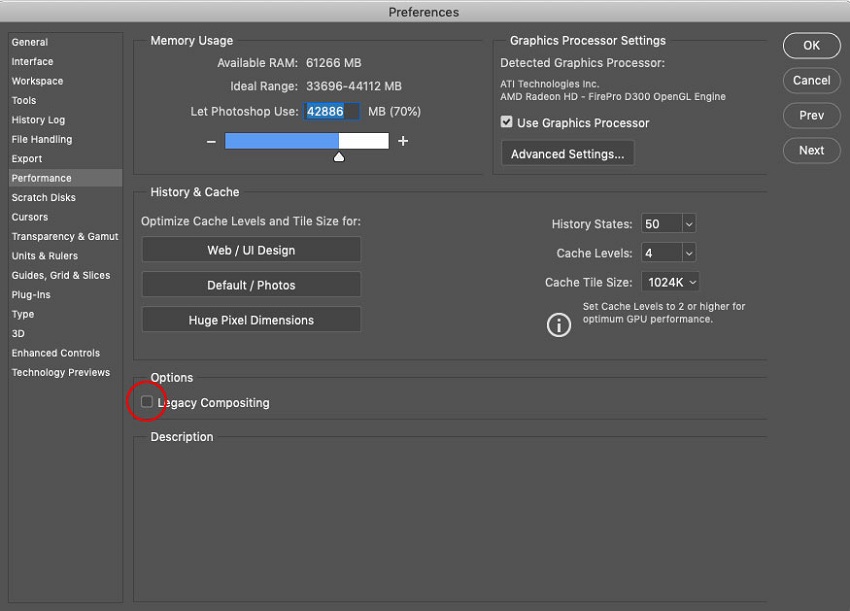
4. Legacy Compositing (The "Secret" Fix)
In the 2026 version, Adobe uses a new "Multi-threaded Compositing" engine. While it's faster for some, it causes "flickering" or artifacts for others.
If you see weird squares or "ghost" pixels on your screen, go to Preferences > Performance and look for "Legacy Compositing." Toggling this on can often stabilize the display on older GPUs or specific Windows 11 builds.
5. Optimize the "Remove Tool" with GPU
The Remove Tool is one of the heaviest AI features in the current version. Under Preferences > Performance, ensure "Use Graphics Processor" is checked. Then, click Advanced Settings and make sure "Use GPU to Accelerate Computation" is active. Without this, your CPU is doing all the heavy AI lifting, which is like trying to tow a boat with a bicycle.
Pro Tip: After changing any of these settings, you must restart Photoshop for them to take effect. Don't make the changes and keep editing—you won't see the speed boost until the software re-allocates its memory on a fresh launch.
Part 4. Windows vs. Mac: Platform-Specific Performance Glitches
While Photoshop looks the same on a MacBook Pro as it does on a custom-built PC, the way it talks to the operating system is fundamentally different. In 2026, with the arrival of macOS "Tahoe" and the latest Windows 11 updates, new platform-specific bottlenecks have emerged.
1. The Apple Silicon (M-Series) Strategy
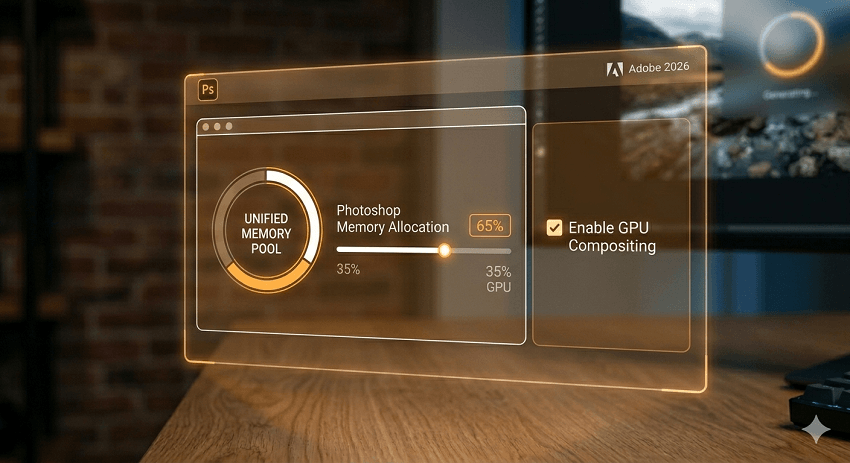
If you're running an M3, M4, or the new M5 chip, you have Unified Memory. This means your RAM is shared between the CPU and the GPU.
On a Windows PC, if you have 32GB of RAM and an 8GB Graphics Card, you have 40GB of total memory. On a Mac, that 32GB has to do everything. If you assign 80% of your RAM to Photoshop, you might be starving the GPU of the memory it needs to render the 2026 AI features.
For Macs with 16GB or 24GB of RAM, set Photoshop's memory limit to 60–70%. This leaves enough "Unified" space for the GPU to handle tasks like the Remove Tool and Neural Filters without stuttering.
A common issue in macOS Tahoe (v16) is a massive slowdown during cropping or resizing. To quick fix it, go to Settings > Performance and ensure "GPU Compositing" is checked. If it's already on, toggling it off and back on again often resets the driver handshake.
2. The Windows 11 Optimization Playbook
Windows users have more control, but that also means more ways for things to go wrong.
First, most Windows users use "Game Ready" drivers. In 2026, these are optimized for frame rates in games, not stability in heavy AI apps. Switch to NVIDIA or AMD Studio Drivers. They are tested specifically for Adobe workflows and significantly reduce the "White Screen" or "Black Box" flickering issues.
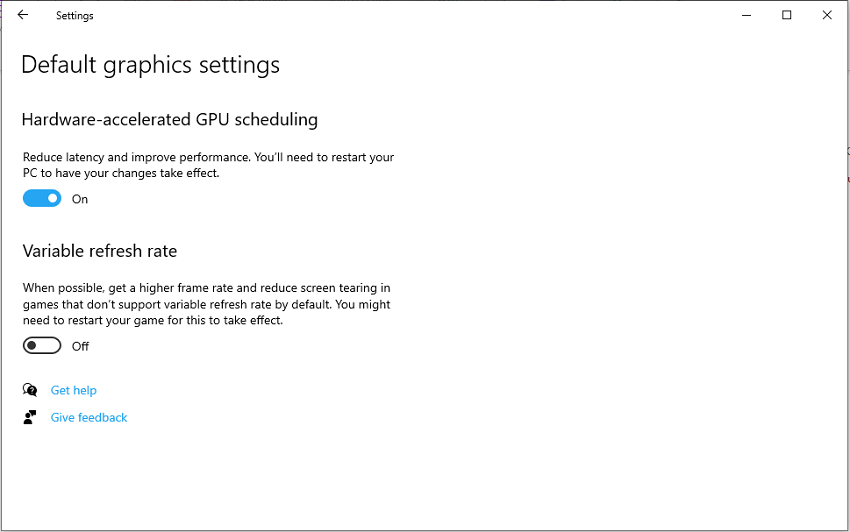
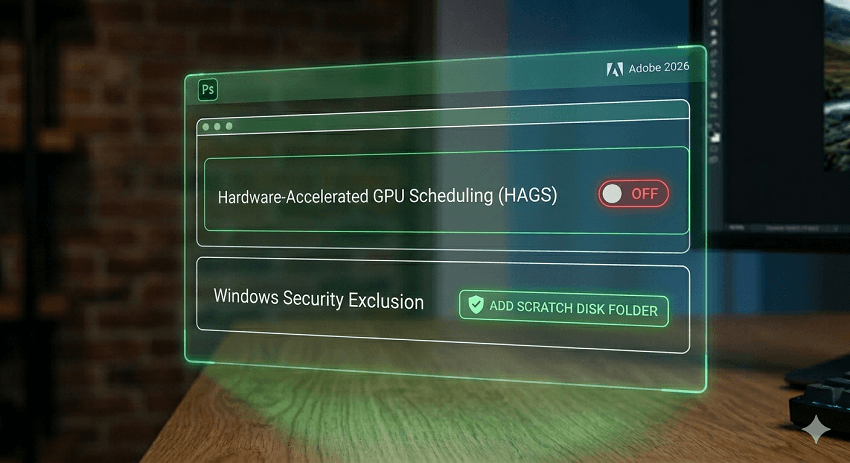
Then it is the HAGS (Hardware-Accelerated GPU Scheduling) feature. This Windows 11 feature is designed to reduce latency, but it often conflicts with Photoshop's internal GPU management.
To fix it, go to Windows Settings > Display > Graphics > Change default graphics settings and toggle Hardware-accelerated GPU scheduling to OFF. Restart your PC. Many users report this instantly fixes "micro-stutters" when using the Move tool.
Lastly, Windows Defender sometimes scans Photoshop's Scratch Disk files in real-time. Since Photoshop writes to this file constantly, Defender can eat up 20% of your CPU just by "watching" Photoshop work. So add your Scratch Disk folder as an Exclusion in Windows Security > Virus & threat protection.
The Takeaway: Mac users need to focus on Memory Balance, while Windows users need to focus on Driver Stability. Neither system is "better," but both require a 5-minute tune-up to handle the 2026 version of Photoshop.
Part 5. Workflow Optimization (The "Smart" Way to Edit)
You can have the most optimized settings in the world, but if your editing habits are "heavy," Photoshop will eventually crawl to a halt. In 2026, the key to speed isn't just hardware—it's efficiency. Here is how to work with Photoshop's engine instead of against it.
1. Use Smart Objects Strategically (Not Universally)
Smart Objects are incredible for non-destructive editing, but they come with a "memory tax."
Every time you create a Smart Object, Photoshop essentially embeds a second file inside your main file. If you have 20 Smart Objects, Photoshop is juggling 21 files at once.
Use Smart Objects for your primary "base" layers, but once you've finalized a complex transformation or filter, consider Rasterizing the layer or "locking it in."
Tip: If you're working on a massive composite, use Linked Smart Objects (File > Place Linked). This keeps the "heavy" data in a separate file on your drive, rather than bloating your active PSD.
2. The "Stamp Visible" Technique (Shift+Ctrl/Cmd+Alt/Opt+E)
If you find yourself with 50+ adjustment layers, Photoshop has to recalculate every single one of them every time you move a pixel.
When you reach a milestone in your edit, use the Stamp Visible shortcut. This creates a single "merged" layer of everything visible while keeping your original layers underneath.
You can then hide the 50 original layers. Since Photoshop doesn't have to "render" hidden layers, your panning and zooming will instantly become silk-smooth.
3. Offloading to Specialized AI Tools
In 2026, the biggest workflow "hack" is knowing when not to use Photoshop. Photoshop is a generalist; it tries to do everything. Specialized tools are often 10x faster because they use dedicated AI engines.
Instead of dragging 500 RAW files into Photoshop to cull them, use Aftershoot. It handles the AI-sorting and basic skin retouching locally without the "Adobe bloat."
If you need to fix a low-res image, don't just use Photoshop's "Image Size" tool. Offload that to Aiarty Image Enhancer. It uses a specialized "Deep Learning" engine that produces better results in half the time, saving your Photoshop resources for the creative color grading.
4. The "Layer Purge" Habit
Photoshop stores "Undo" data and "Clipboard" data in your RAM even if you aren't using it.
If Photoshop feels like it's getting "sticky" after two hours of work, go to Edit > Purge > All. This clears your history and clipboard, dumping all the "junk" memory back into your system. Note: You won't be able to "Undo" after this, so do it only when you're happy with your current state!
The Golden Rule: The smaller the file size, the faster the performance. Before you save and close, delete any "test" layers or hidden layers you didn't end up using. Your Scratch Disk (and your future self) will thank you.
When to Give Up on Photoshop (The "Performance Hack")
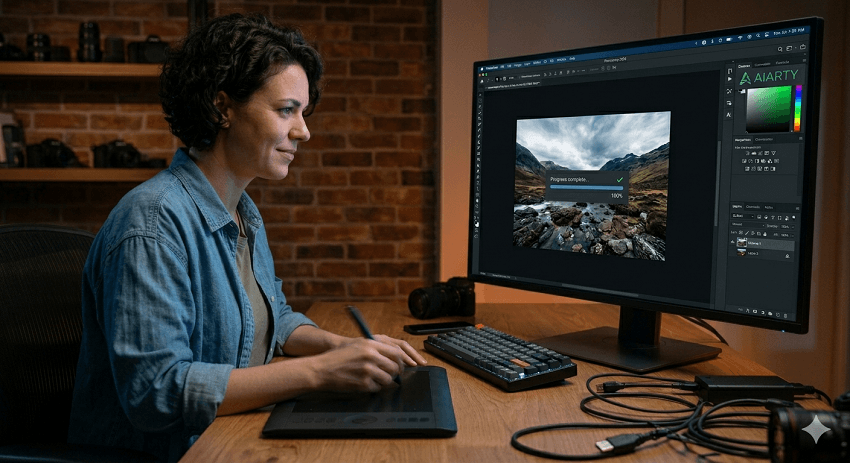
We've all been there: you have 500 RAW files from a shoot that need upscaling, denoising, or a clarity boost. You could import them into Photoshop, but between the AI "handshake" delays and the massive RAM usage, you're looking at a workflow that could take hours—or end in a system crash. In 2026, the real pros are offloading these heavy-duty tasks to dedicated AI engines like Aiarty Image Enhancer.
Why offload to Aiarty?
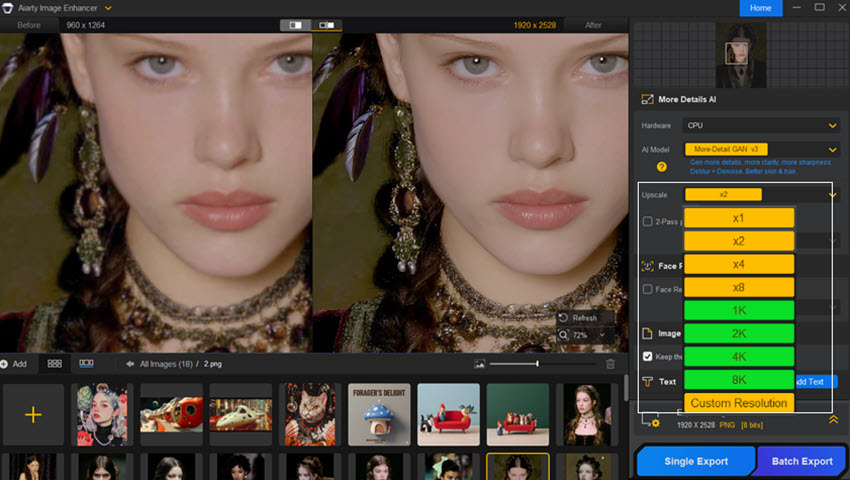
- Batch Processing Power: While Photoshop struggles with multiple high-res layers, Aiarty is built to handle up to 3,000 images in a single batch. You can upscale, denoise, and deblur your entire gallery while you grab a coffee, without Photoshop ever touching your RAM.
- Superior Upscaling (Up to 32K): Photoshop's "Super Resolution" is great for a 2x boost, but Aiarty's specialized models (like the More-Detail GAN and Real-Photo V3) can upscale images to 8K, 16K, or even 32K with lifelike textures. It doesn't just "stretch" pixels; it reconstructs details like skin, hair, and fabric that Photoshop often smudges.
- Zero "AI Lag": Because Aiarty processes 100% locally and is highly optimized for GPU acceleration, it bypasses the "cloud verification" delays that plague Photoshop 2026. You get faster results with zero internet-related stutter.
- The "Clean" Workflow: By using Aiarty to "prep" your images (denoising and upscaling first), you can bring a clean, high-resolution file into Photoshop for final creative touches. This keeps your PSD file sizes smaller and your editing session much snappier.
Don't force Photoshop to do the grunt work. Use Aiarty Image Enhancer for the heavy lifting of upscaling and restoration, and save Photoshop's resources for the creative artistry.
Conclusion: Reclaiming Your Creative Flow
In 2026, Photoshop is more powerful than it has ever been, but that power comes at a cost. We are no longer just pushing pixels; we are managing a complex ecosystem of local hardware, AI neural networks, and cloud connectivity.
The secret to a fast workflow isn't necessarily the most expensive computer—it's balance. By tuning your RAM allocation, managing your Scratch Disk, and knowing when to offload heavy lifting to dedicated tools like Aftershoot or Aiarty, you can stop fighting the software and get back to what actually matters: your photography.
Try implementing just two of the "Gold Settings" from Section IV today. You'll be surprised at how much "snappier" your next session feels.
You May Also Like


This post was written by Brenda Peng who is a seasoned editor at Digiarty Software who loves turning ordinary photos into extraordinary works of art. With AI assistance for brainstorming and drafting, the post is reviewed for accuracy by our expert Abby Poole for her expertise in this field.
